> ## Documentation Index
> Fetch the complete documentation index at: https://docs.dodopayments.com/llms.txt
> Use this file to discover all available pages before exploring further.
# Manual License Key Fulfillment Integration Guide
> Sell a product whose license keys you supply yourself: create a manual-mode License Key entitlement, detect pending grants, and deliver each key to the customer.
With **manual license key fulfillment**, each purchase creates a `Pending` grant that waits for *you* to supply the key value, instead of Dodo Payments generating a key on payment. The key can come from your own system, a third-party vendor, or a finite pool of codes.
When you finish this guide, you have:
* A product with a License Key entitlement set to `manual` fulfillment.
* A webhook listener that detects when a customer is waiting for a key.
* A fulfillment call that delivers the key and notifies the customer automatically.
The full license key lifecycle and the `fulfillment_mode` setting.
API reference for the endpoint you call to deliver a key.
## How It Works
The sequence below shows one purchase, from checkout to key delivery:
```mermaid theme={null}
sequenceDiagram
participant C as Customer
participant D as Dodo Payments
participant M as Your Backend
C->>D: Purchase (manual-mode License Key product)
D->>D: Create grant (status: Pending, no key)
D->>M: entitlement_grant.created (integration_type: license_key, status: Pending)
M->>M: Obtain key from own system / vendor
M->>D: POST /grants/{grant_id}/license-key { key }
D->>C: Deliver license key to customer
D->>M: entitlement_grant.delivered
```
Manual fulfillment changes only the **issuance** step. Once delivered, the key behaves like an auto-generated key for activation, validation, deactivation, expiry, and revocation. A purchase of several units creates one `Pending` grant per unit, and each grant needs its own key.
## Prerequisites
To follow this guide, you need:
* A Dodo Payments merchant account.
* An API key, created under **Developer → API Keys** and stored in `DODO_PAYMENTS_API_KEY`, and the webhook signing secret from **Developer → Webhooks**, stored in `DODO_PAYMENTS_WEBHOOK_KEY`. See the [API key generation guide](/api-reference/introduction#authentication).
* A backend endpoint that can receive webhooks.
Use `https://test.dodopayments.com` and test mode credentials while you build. When you go to production, switch to `https://live.dodopayments.com` and live mode keys.
## Step 1 — Create a License Key Entitlement in Manual Mode
An **entitlement** is a reusable definition of what you deliver. Create a License Key entitlement and set its `fulfillment_mode` to `manual`.
Go to **Entitlements** in the dashboard and click **+** to create an entitlement.
Select **License Keys** and enter a **Name**. The form has these fields:
* **Fulfillment Mode**: **Automatic** by default. This is the setting that enables manual fulfillment, and you change it in the next step.
* **License Length**: how long each issued key stays valid, or **No expiration**.
* **Activations Limit**: the maximum number of activations per key, or **Unlimited**.
* **Activation Message**: an optional customer-facing message shown when the customer activates the key, and included in the license key email.
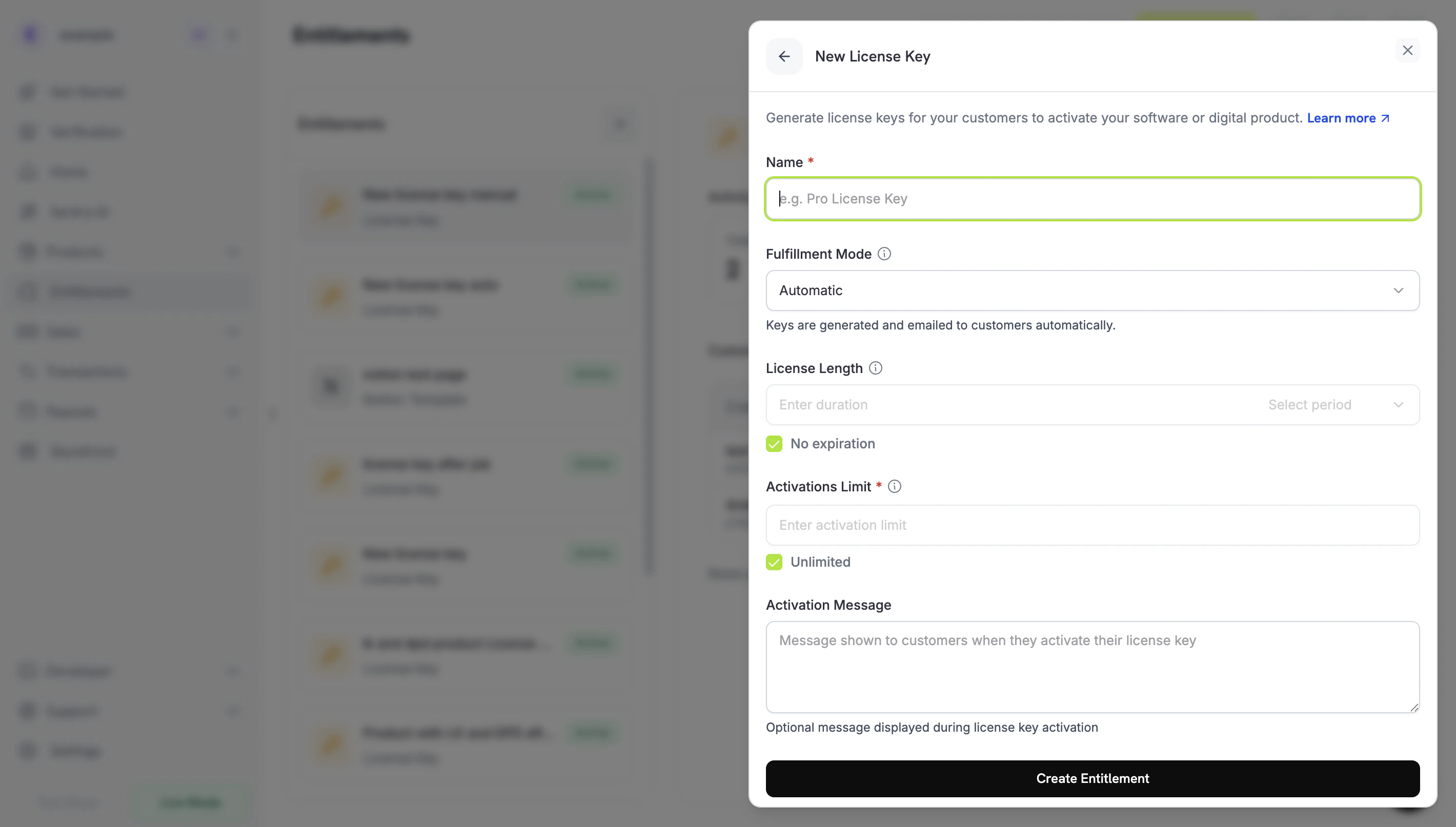 Open the **Fulfillment Mode** dropdown and change it from **Automatic** to **Manual**. The rest of this guide depends on this setting: without it, Dodo Payments generates and emails keys automatically and creates no pending grant. With **Manual** selected, each purchase creates a `Pending` grant for you to fulfill. Click **Create Entitlement** to save.
Create the entitlement with `integration_config.fulfillment_mode` set to `manual`.
```typescript Node.js expandable theme={null}
import DodoPayments from 'dodopayments';
const client = new DodoPayments({
bearerToken: process.env.DODO_PAYMENTS_API_KEY,
environment: 'test_mode', // defaults to 'live_mode'
});
const entitlement = await client.entitlements.create({
name: 'Pro License (Manual)',
integration_type: 'license_key',
integration_config: {
fulfillment_mode: 'manual',
activations_limit: 5,
duration_count: 1,
duration_interval: 'Year',
},
});
console.log(entitlement.id); // ent_...
```
```python Python expandable theme={null}
import os
from dodopayments import DodoPayments
client = DodoPayments(
bearer_token=os.environ.get("DODO_PAYMENTS_API_KEY"),
environment="test_mode", # defaults to "live_mode"
)
entitlement = client.entitlements.create(
name="Pro License (Manual)",
integration_type="license_key",
integration_config={
"fulfillment_mode": "manual",
"activations_limit": 5,
"duration_count": 1,
"duration_interval": "Year",
},
)
print(entitlement.id)
```
```bash cURL expandable theme={null}
curl -X POST https://test.dodopayments.com/entitlements \
-H "Authorization: Bearer $DODO_PAYMENTS_API_KEY" \
-H "Content-Type: application/json" \
-d '{
"name": "Pro License (Manual)",
"integration_type": "license_key",
"integration_config": {
"fulfillment_mode": "manual",
"activations_limit": 5,
"duration_count": 1,
"duration_interval": "Year"
}
}'
```
`fulfillment_mode` defaults to `auto`. If you omit it, or leave an existing entitlement unchanged, the entitlement keeps automatic fulfillment. Only entitlements explicitly set to `manual` create pending grants.
## Step 2 — Attach the Entitlement to a Product
Open the product you want to sell, go to its **Entitlements** section, and select the **License Key entitlement you set to Manual** in Step 1. One product can deliver this license key together with other entitlements on the same purchase.
If you don't have a product yet, create a one-time or subscription product first. To sell it through checkout, see the [Integration Guide](/developer-resources/integration-guide).
Open the **Fulfillment Mode** dropdown and change it from **Automatic** to **Manual**. The rest of this guide depends on this setting: without it, Dodo Payments generates and emails keys automatically and creates no pending grant. With **Manual** selected, each purchase creates a `Pending` grant for you to fulfill. Click **Create Entitlement** to save.
Create the entitlement with `integration_config.fulfillment_mode` set to `manual`.
```typescript Node.js expandable theme={null}
import DodoPayments from 'dodopayments';
const client = new DodoPayments({
bearerToken: process.env.DODO_PAYMENTS_API_KEY,
environment: 'test_mode', // defaults to 'live_mode'
});
const entitlement = await client.entitlements.create({
name: 'Pro License (Manual)',
integration_type: 'license_key',
integration_config: {
fulfillment_mode: 'manual',
activations_limit: 5,
duration_count: 1,
duration_interval: 'Year',
},
});
console.log(entitlement.id); // ent_...
```
```python Python expandable theme={null}
import os
from dodopayments import DodoPayments
client = DodoPayments(
bearer_token=os.environ.get("DODO_PAYMENTS_API_KEY"),
environment="test_mode", # defaults to "live_mode"
)
entitlement = client.entitlements.create(
name="Pro License (Manual)",
integration_type="license_key",
integration_config={
"fulfillment_mode": "manual",
"activations_limit": 5,
"duration_count": 1,
"duration_interval": "Year",
},
)
print(entitlement.id)
```
```bash cURL expandable theme={null}
curl -X POST https://test.dodopayments.com/entitlements \
-H "Authorization: Bearer $DODO_PAYMENTS_API_KEY" \
-H "Content-Type: application/json" \
-d '{
"name": "Pro License (Manual)",
"integration_type": "license_key",
"integration_config": {
"fulfillment_mode": "manual",
"activations_limit": 5,
"duration_count": 1,
"duration_interval": "Year"
}
}'
```
`fulfillment_mode` defaults to `auto`. If you omit it, or leave an existing entitlement unchanged, the entitlement keeps automatic fulfillment. Only entitlements explicitly set to `manual` create pending grants.
## Step 2 — Attach the Entitlement to a Product
Open the product you want to sell, go to its **Entitlements** section, and select the **License Key entitlement you set to Manual** in Step 1. One product can deliver this license key together with other entitlements on the same purchase.
If you don't have a product yet, create a one-time or subscription product first. To sell it through checkout, see the [Integration Guide](/developer-resources/integration-guide).
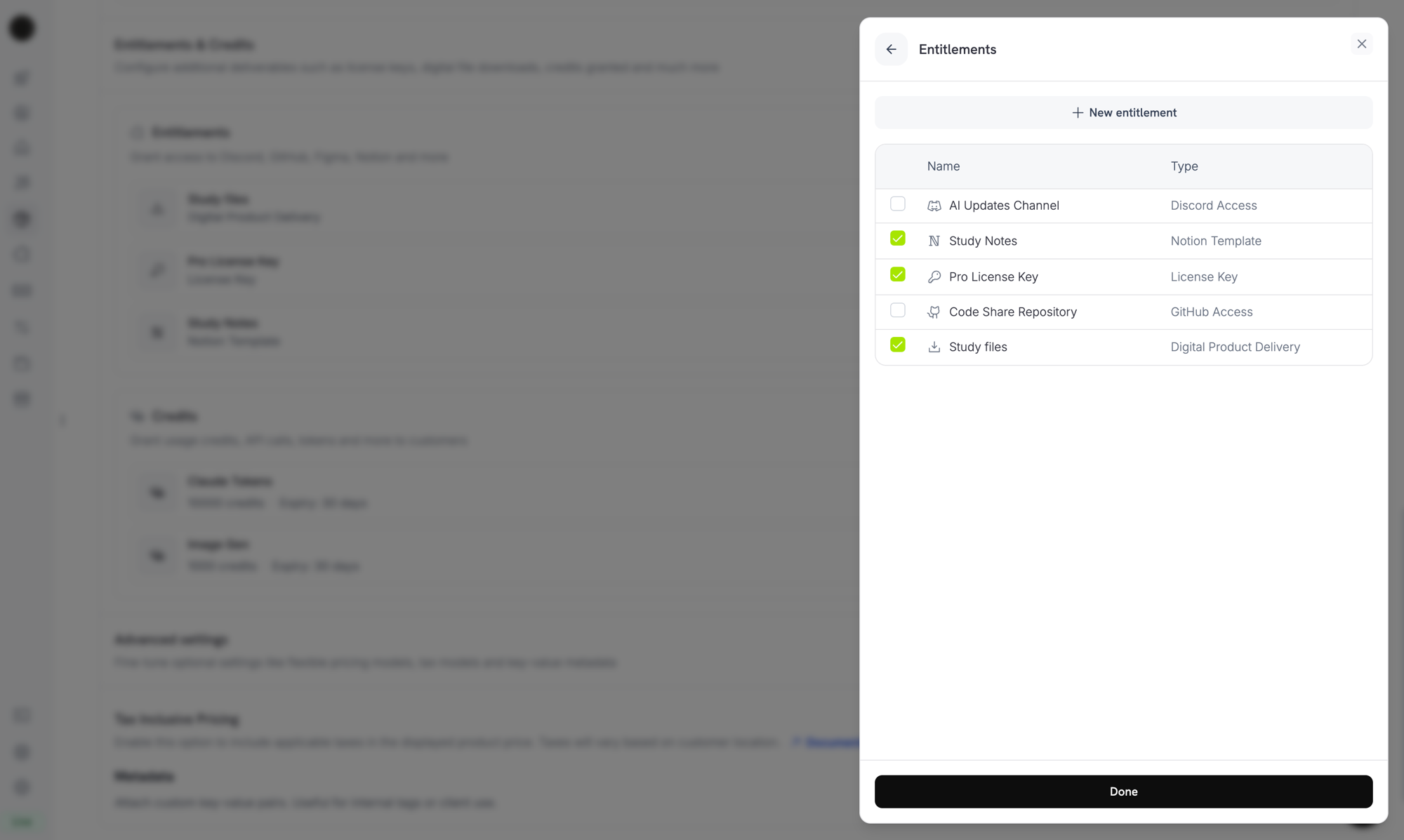 Fulfillment mode is a property of the **entitlement**, not the product. Because you set it to **Manual** in Step 1, every product with this entitlement attached creates `Pending` license-key grants on purchase. You don't configure anything else on the product.
## Step 3 — Detect Pending Grants
When a customer buys the product, Dodo Payments creates a grant in `Pending` status with **no key attached** and sends an `entitlement_grant.created` webhook. This event is your signal that a customer is waiting for a key.
### Listen for the Webhook
Add a webhook endpoint under **Developer → Webhooks** in the dashboard, then act on pending license-key grants. The webhooks follow the [Standard Webhooks](https://standardwebhooks.com/) specification, so you can verify them with the `standardwebhooks` library:
```typescript expandable theme={null}
import { Webhook } from 'standardwebhooks';
const webhook = new Webhook(process.env.DODO_PAYMENTS_WEBHOOK_KEY!);
export async function POST(request: Request) {
const rawBody = await request.text();
const headers = {
'webhook-id': request.headers.get('webhook-id') || '',
'webhook-signature': request.headers.get('webhook-signature') || '',
'webhook-timestamp': request.headers.get('webhook-timestamp') || '',
};
await webhook.verify(rawBody, headers);
const event = JSON.parse(rawBody);
// A customer bought a manual-mode license key and is waiting for it.
if (
event.type === 'entitlement_grant.created' &&
event.data.integration_type === 'license_key' &&
event.data.status === 'Pending'
) {
// queueLicenseKeyFulfillment is your own job queue, not part of the SDK.
await queueLicenseKeyFulfillment({
grantId: event.data.id,
customerId: event.data.customer_id,
});
}
return new Response('ok');
}
```
The grant payload carries `integration_type: "license_key"`, so you can recognize a license-key grant without an extra lookup. Webhook deliveries can repeat, so skip events whose `webhook-id` header you've already processed. See the [Entitlement Grant webhook reference](/developer-resources/webhooks/intents/entitlement-grant) for the full payload.
### Or Poll the List Grants API
If you'd rather not rely on webhooks, list the grants for your License Key entitlement and filter by `status`. Every grant on a License Key entitlement is a license-key grant, so you don't need an `integration_type` filter:
```typescript Node.js theme={null}
// Uses the client from Step 1.
const pending = await client.entitlements.grants.list('ent_license_key_id', {
status: 'Pending',
});
for (const grant of pending.items) {
console.log(`Grant ${grant.id} for customer ${grant.customer_id} needs a key`);
}
```
```bash cURL theme={null}
curl -G https://test.dodopayments.com/entitlements/ent_license_key_id/grants \
-H "Authorization: Bearer $DODO_PAYMENTS_API_KEY" \
--data-urlencode "status=Pending"
```
## Step 4 — Deliver the Key
Get the key value from your own system, then submit it to the [Fulfill License Key Grant](/api-reference/entitlements/fulfill-license-key) endpoint. The call requires your secret API key with Editor permission. It is **not** one of the public license endpoints. The SDKs also expose it, for example as `client.entitlements.grants.fulfillLicenseKey()` in TypeScript and `client.entitlements.grants.fulfill_license_key()` in Python.
```typescript Node.js expandable theme={null}
async function fulfill(grantId: string, key: string) {
const res = await fetch(
`https://test.dodopayments.com/grants/${grantId}/license-key`,
{
method: 'POST',
headers: {
'Content-Type': 'application/json',
Authorization: `Bearer ${process.env.DODO_PAYMENTS_API_KEY}`,
},
body: JSON.stringify({
key,
// Optional — fall back to the entitlement config when omitted
activations_limit: 5,
expires_at: '2027-05-01T00:00:00Z',
}),
},
);
if (!res.ok) {
// See the status code table below for handling
throw new Error(`Fulfillment failed: ${res.status}`);
}
return res.json(); // updated grant, now status: "Delivered"
}
```
```bash cURL expandable theme={null}
curl -X POST https://test.dodopayments.com/grants/entg_8VbC6JDZ/license-key \
-H "Authorization: Bearer $DODO_PAYMENTS_API_KEY" \
-H "Content-Type: application/json" \
-d '{
"key": "PRO-AAAA-BBBB-CCCC-DDDD",
"activations_limit": 5,
"expires_at": "2027-05-01T00:00:00Z"
}'
```
### Request Fields
The license key string to deliver to the customer, up to 255 characters. Surrounding whitespace is trimmed, and an empty or whitespace-only value is rejected.
Per-key activation limit, at least 1. When omitted, the entitlement's **Activations Limit** applies.
Per-key expiry (ISO 8601). When omitted, a one-time grant's key expires according to the entitlement's **License Length**, and a subscription grant's key has no expiry, so its validity follows the subscription.
On success, the grant moves to `Delivered`, Dodo Payments emails the key to the customer (the same email they receive under automatic fulfillment), and the `license_key.created` and `entitlement_grant.delivered` webhook events fire.
The email contains the license key, the product, the activation limit, the expiry, and your activation instructions:
Fulfillment mode is a property of the **entitlement**, not the product. Because you set it to **Manual** in Step 1, every product with this entitlement attached creates `Pending` license-key grants on purchase. You don't configure anything else on the product.
## Step 3 — Detect Pending Grants
When a customer buys the product, Dodo Payments creates a grant in `Pending` status with **no key attached** and sends an `entitlement_grant.created` webhook. This event is your signal that a customer is waiting for a key.
### Listen for the Webhook
Add a webhook endpoint under **Developer → Webhooks** in the dashboard, then act on pending license-key grants. The webhooks follow the [Standard Webhooks](https://standardwebhooks.com/) specification, so you can verify them with the `standardwebhooks` library:
```typescript expandable theme={null}
import { Webhook } from 'standardwebhooks';
const webhook = new Webhook(process.env.DODO_PAYMENTS_WEBHOOK_KEY!);
export async function POST(request: Request) {
const rawBody = await request.text();
const headers = {
'webhook-id': request.headers.get('webhook-id') || '',
'webhook-signature': request.headers.get('webhook-signature') || '',
'webhook-timestamp': request.headers.get('webhook-timestamp') || '',
};
await webhook.verify(rawBody, headers);
const event = JSON.parse(rawBody);
// A customer bought a manual-mode license key and is waiting for it.
if (
event.type === 'entitlement_grant.created' &&
event.data.integration_type === 'license_key' &&
event.data.status === 'Pending'
) {
// queueLicenseKeyFulfillment is your own job queue, not part of the SDK.
await queueLicenseKeyFulfillment({
grantId: event.data.id,
customerId: event.data.customer_id,
});
}
return new Response('ok');
}
```
The grant payload carries `integration_type: "license_key"`, so you can recognize a license-key grant without an extra lookup. Webhook deliveries can repeat, so skip events whose `webhook-id` header you've already processed. See the [Entitlement Grant webhook reference](/developer-resources/webhooks/intents/entitlement-grant) for the full payload.
### Or Poll the List Grants API
If you'd rather not rely on webhooks, list the grants for your License Key entitlement and filter by `status`. Every grant on a License Key entitlement is a license-key grant, so you don't need an `integration_type` filter:
```typescript Node.js theme={null}
// Uses the client from Step 1.
const pending = await client.entitlements.grants.list('ent_license_key_id', {
status: 'Pending',
});
for (const grant of pending.items) {
console.log(`Grant ${grant.id} for customer ${grant.customer_id} needs a key`);
}
```
```bash cURL theme={null}
curl -G https://test.dodopayments.com/entitlements/ent_license_key_id/grants \
-H "Authorization: Bearer $DODO_PAYMENTS_API_KEY" \
--data-urlencode "status=Pending"
```
## Step 4 — Deliver the Key
Get the key value from your own system, then submit it to the [Fulfill License Key Grant](/api-reference/entitlements/fulfill-license-key) endpoint. The call requires your secret API key with Editor permission. It is **not** one of the public license endpoints. The SDKs also expose it, for example as `client.entitlements.grants.fulfillLicenseKey()` in TypeScript and `client.entitlements.grants.fulfill_license_key()` in Python.
```typescript Node.js expandable theme={null}
async function fulfill(grantId: string, key: string) {
const res = await fetch(
`https://test.dodopayments.com/grants/${grantId}/license-key`,
{
method: 'POST',
headers: {
'Content-Type': 'application/json',
Authorization: `Bearer ${process.env.DODO_PAYMENTS_API_KEY}`,
},
body: JSON.stringify({
key,
// Optional — fall back to the entitlement config when omitted
activations_limit: 5,
expires_at: '2027-05-01T00:00:00Z',
}),
},
);
if (!res.ok) {
// See the status code table below for handling
throw new Error(`Fulfillment failed: ${res.status}`);
}
return res.json(); // updated grant, now status: "Delivered"
}
```
```bash cURL expandable theme={null}
curl -X POST https://test.dodopayments.com/grants/entg_8VbC6JDZ/license-key \
-H "Authorization: Bearer $DODO_PAYMENTS_API_KEY" \
-H "Content-Type: application/json" \
-d '{
"key": "PRO-AAAA-BBBB-CCCC-DDDD",
"activations_limit": 5,
"expires_at": "2027-05-01T00:00:00Z"
}'
```
### Request Fields
The license key string to deliver to the customer, up to 255 characters. Surrounding whitespace is trimmed, and an empty or whitespace-only value is rejected.
Per-key activation limit, at least 1. When omitted, the entitlement's **Activations Limit** applies.
Per-key expiry (ISO 8601). When omitted, a one-time grant's key expires according to the entitlement's **License Length**, and a subscription grant's key has no expiry, so its validity follows the subscription.
On success, the grant moves to `Delivered`, Dodo Payments emails the key to the customer (the same email they receive under automatic fulfillment), and the `license_key.created` and `entitlement_grant.delivered` webhook events fire.
The email contains the license key, the product, the activation limit, the expiry, and your activation instructions:
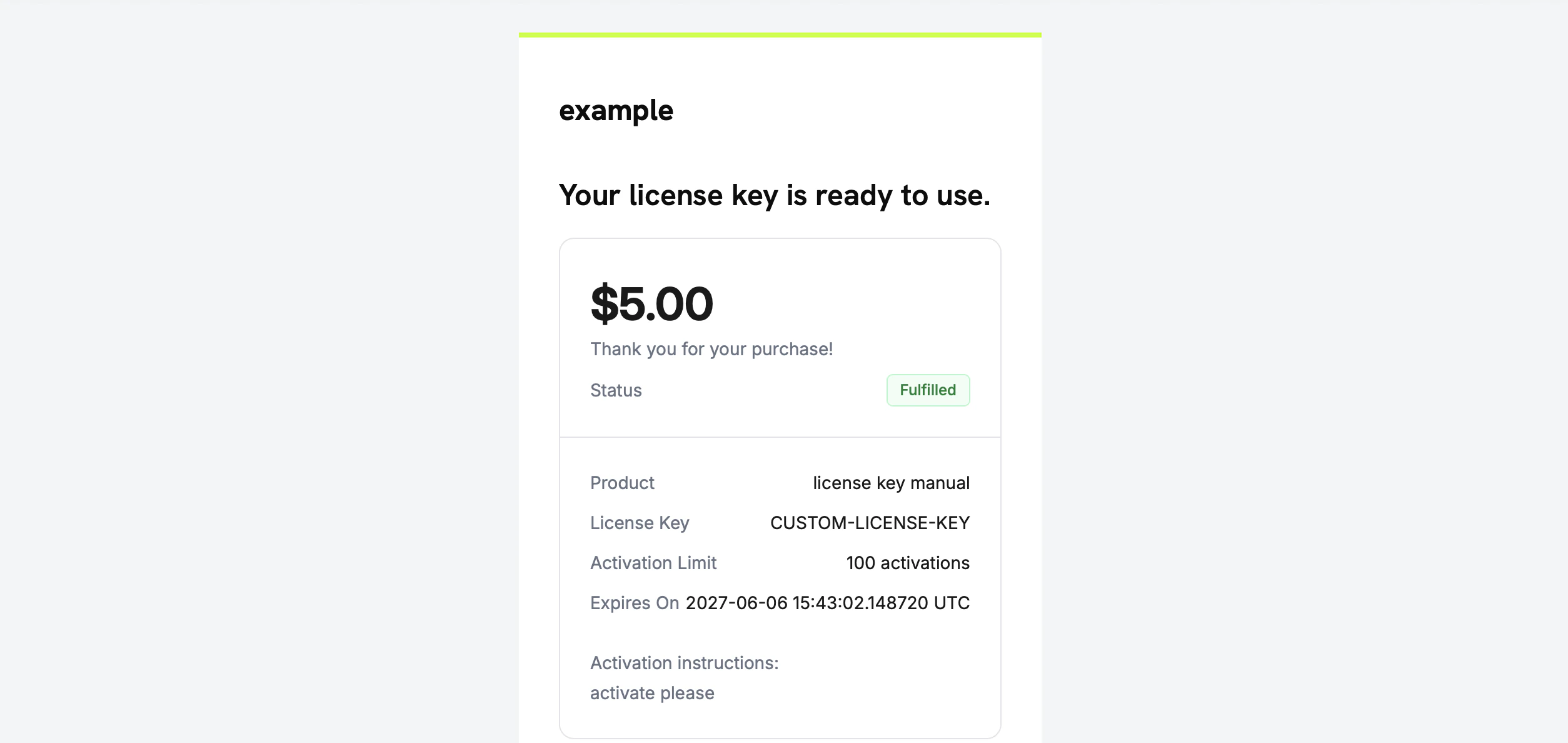 You don't need to email the key yourself. Delivery happens automatically when the grant is fulfilled.
## Step 5 — Handle Errors and Retries
The endpoint validates the grant before it delivers anything. Handle these responses:
| Status | Meaning | What to do |
| - | - | - |
| `200` | Key delivered. The grant is now `Delivered`. | Done. |
| `400` | Not a license-key grant, or the key is empty or only whitespace. | Fix the request. Don't retry it unchanged. |
| `404` | No grant with that ID exists for your business. | Check the `grant_id`. |
| `409` | The grant isn't awaiting fulfillment (it's already delivered, revoked, or already has a key), **or** the key value already exists. | If the grant is already delivered, treat the call as successful. If the key is a duplicate, supply a different key. |
| `422` | The request body failed validation, for example `activations_limit` below 1 or a key longer than 255 characters. | Correct the field and retry. |
Fulfillment is safe to retry on transient errors such as timeouts and `5xx` responses. Each grant can be fulfilled only once, so a retry after a successful but unacknowledged call returns `409` instead of issuing a second key or sending a duplicate email. Use the grant `id` as your idempotency key.
## Verify the Flow
To test the flow end to end:
1. Buy the product in test mode. See the [checkout guides](/developer-resources/integration-guide).
2. Confirm that your webhook received `entitlement_grant.created` with `status: "Pending"` and `integration_type: "license_key"`, or that the grant appears in the List Grants response filtered by `status=Pending`.
3. Call the fulfill endpoint with a test key.
4. Confirm that the response shows `status: "Delivered"` with a populated `license_key`, that the customer receives the key email, and that `entitlement_grant.delivered` fires.
Once the key is delivered, the customer can [activate and validate](/features/license-keys#activation-validation-deactivation) it against the public license endpoints, like an auto-generated key.
## Related API Reference
Create the License Key entitlement with `fulfillment_mode: manual`.
Filter by `status` and `customer_id` to find pending grants.
Deliver the key value and move the grant to `Delivered`.
The `entitlement_grant.*` events that signal pending and delivered grants.
This documentation is built and hosted on [Mintlify](https://mintlify.com), a developer documentation platform.
You don't need to email the key yourself. Delivery happens automatically when the grant is fulfilled.
## Step 5 — Handle Errors and Retries
The endpoint validates the grant before it delivers anything. Handle these responses:
| Status | Meaning | What to do |
| - | - | - |
| `200` | Key delivered. The grant is now `Delivered`. | Done. |
| `400` | Not a license-key grant, or the key is empty or only whitespace. | Fix the request. Don't retry it unchanged. |
| `404` | No grant with that ID exists for your business. | Check the `grant_id`. |
| `409` | The grant isn't awaiting fulfillment (it's already delivered, revoked, or already has a key), **or** the key value already exists. | If the grant is already delivered, treat the call as successful. If the key is a duplicate, supply a different key. |
| `422` | The request body failed validation, for example `activations_limit` below 1 or a key longer than 255 characters. | Correct the field and retry. |
Fulfillment is safe to retry on transient errors such as timeouts and `5xx` responses. Each grant can be fulfilled only once, so a retry after a successful but unacknowledged call returns `409` instead of issuing a second key or sending a duplicate email. Use the grant `id` as your idempotency key.
## Verify the Flow
To test the flow end to end:
1. Buy the product in test mode. See the [checkout guides](/developer-resources/integration-guide).
2. Confirm that your webhook received `entitlement_grant.created` with `status: "Pending"` and `integration_type: "license_key"`, or that the grant appears in the List Grants response filtered by `status=Pending`.
3. Call the fulfill endpoint with a test key.
4. Confirm that the response shows `status: "Delivered"` with a populated `license_key`, that the customer receives the key email, and that `entitlement_grant.delivered` fires.
Once the key is delivered, the customer can [activate and validate](/features/license-keys#activation-validation-deactivation) it against the public license endpoints, like an auto-generated key.
## Related API Reference
Create the License Key entitlement with `fulfillment_mode: manual`.
Filter by `status` and `customer_id` to find pending grants.
Deliver the key value and move the grant to `Delivered`.
The `entitlement_grant.*` events that signal pending and delivered grants.
This documentation is built and hosted on [Mintlify](https://mintlify.com), a developer documentation platform.