> ## Documentation Index
> Fetch the complete documentation index at: https://docs.dodopayments.com/llms.txt
> Use this file to discover all available pages before exploring further.
# Overlay Checkout
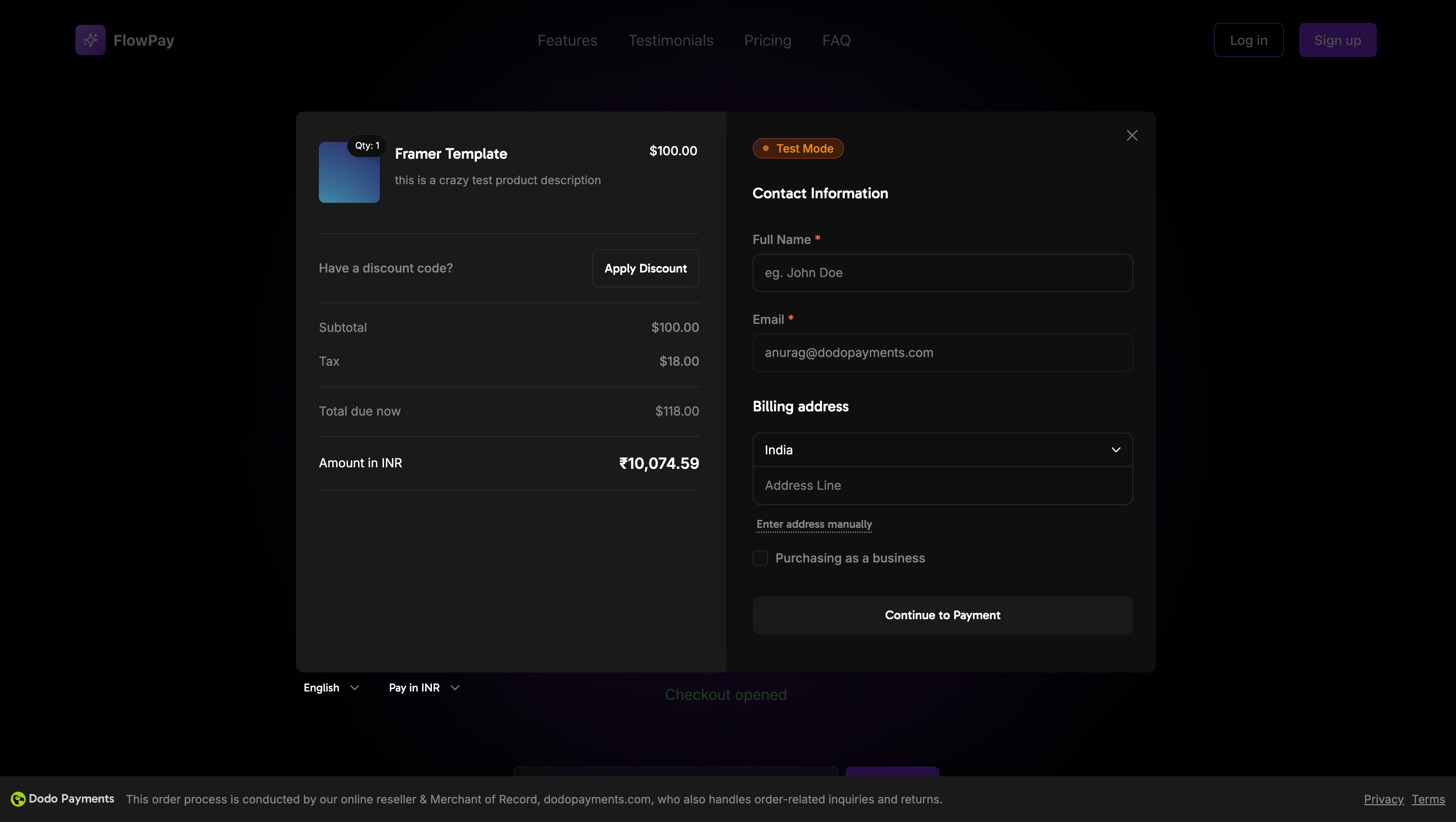
> Open Dodo Payments checkout as a modal on your page. The overlay checkout SDK handles payment collection while your page remains visible behind it.
Overlay checkout opens a modal window on top of your page. Customers enter their payment details in the modal while your page stays visible behind it. When they close the modal, control returns to your page. When they complete payment, they are redirected to your `return_url`.
See the overlay checkout in action with our live demo.
## Quick Start
Install the SDK, initialize it, and open checkout with a checkout URL from the [create checkout session API](/api-reference/checkout-sessions/create):
```typescript theme={null}
import { DodoPayments } from "dodopayments-checkout";
DodoPayments.Initialize({
mode: "test",
displayType: "overlay",
onEvent: (event) => {
console.log("Checkout event:", event);
},
});
DodoPayments.Checkout.open({
checkoutUrl: "https://test.checkout.dodopayments.com/session/cks_123"
});
```
## Step-by-Step Integration
Install via npm, yarn, or pnpm:
```bash npm theme={null}
npm install dodopayments-checkout
```
```bash yarn theme={null}
yarn add dodopayments-checkout
```
```bash pnpm theme={null}
pnpm add dodopayments-checkout
```
Call `Initialize` once when your app loads, typically in your main component or app entry point:
```typescript theme={null}
import { DodoPayments } from "dodopayments-checkout";
DodoPayments.Initialize({
mode: "test", // Change to 'live' for production
displayType: "overlay",
onEvent: (event) => {
console.log("Checkout event:", event);
switch (event.event_type) {
case "checkout.opened":
// Modal has opened
break;
case "checkout.closed":
// Modal has closed
break;
case "checkout.error":
console.error("Checkout error:", event.data?.message);
break;
}
},
});
```
Always initialize the SDK before opening the checkout. Initialize it once when your application loads, not before every checkout attempt.
Build a component that opens the checkout modal:
```typescript theme={null}
// components/CheckoutButton.tsx
"use client";
import { Button } from "@/components/ui/button";
import { DodoPayments } from "dodopayments-checkout";
import { useEffect, useState } from "react";
export function CheckoutButton() {
const [isLoading, setIsLoading] = useState(false);
useEffect(() => {
DodoPayments.Initialize({
mode: "test",
displayType: "overlay",
onEvent: (event) => {
if (event.event_type === "checkout.opened") {
setIsLoading(false);
}
if (event.event_type === "checkout.error") {
setIsLoading(false);
console.error("Checkout error:", event.data?.message);
}
},
});
}, []);
const handleCheckout = async () => {
setIsLoading(true);
try {
await DodoPayments.Checkout.open({
checkoutUrl: "https://test.checkout.dodopayments.com/session/cks_123"
});
} catch (error) {
console.error("Failed to open checkout:", error);
setIsLoading(false);
}
};
return (
);
}
```
Use the checkout button component in your application:
```typescript theme={null}
// app/page.tsx
import { CheckoutButton } from "@/components/CheckoutButton";
export default function Home() {
return (
Welcome to Our Store
);
}
```
Create pages to handle checkout redirects after payment:
```typescript theme={null}
// app/success/page.tsx
export default function SuccessPage() {
return (
);
}
```
1. Start your development server:
```bash theme={null}
npm run dev
```
2. Test the checkout flow:
* Click the checkout button
* Verify the modal appears
* Test the payment flow using test credentials
* Confirm redirects work correctly
You should see checkout events logged in your browser console.
When ready for production:
1. Change the mode to `'live'`:
```typescript theme={null}
DodoPayments.Initialize({
mode: "live",
displayType: "overlay",
onEvent: (event) => {
console.log("Checkout event:", event);
}
});
```
2. Update your checkout URLs to use live checkout sessions from your backend
3. Test the complete flow in production
4. Monitor events and errors
## API Reference
### Initialize
Call `Initialize` once to set up the SDK:
```typescript theme={null}
interface InitializeOptions {
mode: "test" | "live";
displayType?: "overlay" | "inline";
onEvent: (event: CheckoutEvent) => void;
}
DodoPayments.Initialize(options);
```
| Option | Type | Required | Description |
| - | - | - | - |
| `mode` | `"test" \| "live"` | Yes | Environment mode: `"test"` for development, `"live"` for production |
| `displayType` | `"overlay" \| "inline"` | No | Display type: `"overlay"` for modal checkout (default), `"inline"` for embedded checkout |
| `onEvent` | `function` | Yes | Callback function for handling checkout events |
### Open Checkout
Open the checkout modal:
```typescript theme={null}
interface CheckoutOptions {
checkoutUrl: string;
options?: {
showTimer?: boolean;
showSecurityBadge?: boolean;
manualRedirect?: boolean;
themeConfig?: ThemeConfig;
payButtonText?: string;
fontSize?: FontSize;
fontWeight?: FontWeight;
};
}
DodoPayments.Checkout.open(options);
```
| Option | Type | Required | Description |
| - | - | - | - |
| `checkoutUrl` | `string` | Yes | Checkout session URL from the [create checkout session API](/api-reference/checkout-sessions/create) |
| `options.showTimer` | `boolean` | No | Show or hide the session timer. Defaults to `true`. When disabled, you receive the `checkout.link_expired` event when the session expires. |
| `options.showSecurityBadge` | `boolean` | No | Show or hide the security badge. Defaults to `true` |
| `options.manualRedirect` | `boolean` | No | When `true`, prevent automatic redirects. Checkout emits `checkout.status` with the payment outcome and `checkout.redirect_requested` with the URL to open, and you handle navigation |
| `options.themeConfig` | `ThemeConfig` | No | **Deprecated.** Configure theme server-side when creating the checkout session instead |
| `options.payButtonText` | `string` | No | Custom text for the pay button |
| `options.fontSize` | `"xs" \| "sm" \| "md" \| "lg" \| "xl" \| "2xl"` | No | Global font size for the checkout |
| `options.fontWeight` | `"normal" \| "medium" \| "bold" \| "extraBold"` | No | Global font weight for the checkout |
### Close Checkout
Programmatically close the modal:
```typescript theme={null}
DodoPayments.Checkout.close();
```
### Check Status
Check if the modal is currently open:
```typescript theme={null}
const isOpen = DodoPayments.Checkout.isOpen();
// Returns: boolean
```
### Events
Listen for checkout events via the `onEvent` callback passed to `Initialize`:
```typescript theme={null}
DodoPayments.Initialize({
onEvent: (event: CheckoutEvent) => {
switch (event.event_type) {
case "checkout.opened":
// Modal has opened
break;
case "checkout.form_ready":
// Form is ready for user input
break;
case "checkout.payment_page_opened":
// Payment page is displayed
break;
case "checkout.customer_details_submitted":
// Customer details submitted
break;
case "checkout.closed":
// Modal has closed
break;
case "checkout.redirect":
// Checkout will redirect
break;
case "checkout.error":
console.error("Error:", event.data?.message);
break;
case "checkout.link_expired":
// Session expired (only when showTimer is false)
break;
}
}
});
```
| Event | Description |
| - | - |
| `checkout.opened` | Modal has opened |
| `checkout.form_ready` | Form is ready for user input. Use this to hide loading states |
| `checkout.payment_page_opened` | Payment page is displayed |
| `checkout.customer_details_submitted` | Customer and billing details submitted |
| `checkout.closed` | Modal has closed |
| `checkout.redirect` | Checkout will redirect (e.g., to a bank page) |
| `checkout.error` | An error occurred during checkout |
| `checkout.link_expired` | The checkout session expired. Only received when `showTimer` is set to `false`. |
## CDN Implementation
For quick integration without a build step, load the SDK from CDN:
```html theme={null}
Dodo Payments Checkout
```
## Theme Customization
The client-side `themeConfig` option is **deprecated** and will be removed in the next major version of the Checkout SDK (v2.0.0). Passing it logs a deprecation warning in the browser console. Configure your theme when creating the checkout session via the API instead, using the `customization.theme_config` parameter — see [Checkout Theme Customization](/features/checkout#theme-customization) — or visually on the [Design page](/features/design) in the dashboard. Session-configured themes apply to overlay, inline, and hosted checkout alike.
This section covers the deprecated **client-side** theme configuration using the Checkout SDK. The recommended approach is to configure themes **server-side** when creating a checkout session via the API using the `theme_config` parameter. See [Checkout Theme Customization](/features/checkout#theme-customization) for API-level configuration, or use the [Design page](/features/design) in the dashboard to configure themes visually with live preview.
If you must use client-side theme configuration, pass `themeConfig` in the `options` parameter:
```typescript theme={null}
DodoPayments.Checkout.open({
checkoutUrl: "https://test.checkout.dodopayments.com/session/cks_123",
options: {
themeConfig: {
light: {
bgPrimary: "#FFFFFF",
textPrimary: "#344054",
buttonPrimary: "#A6E500",
},
dark: {
bgPrimary: "#0D0D0D",
textPrimary: "#FFFFFF",
buttonPrimary: "#A6E500",
},
radius: "8px",
},
},
});
```
### Theme Properties
All available theme properties for light and dark modes:
```typescript theme={null}
interface ThemeConfig {
light?: {
bgPrimary?: string; // Primary background
bgSecondary?: string; // Secondary background (tabs, etc.)
borderPrimary?: string; // Primary border
borderSecondary?: string; // Secondary border
textPrimary?: string; // Primary text
textSecondary?: string; // Secondary text
textPlaceholder?: string; // Placeholder text
textError?: string; // Error text
textSuccess?: string; // Success text
buttonPrimary?: string; // Primary button background
buttonPrimaryHover?: string; // Primary button hover
buttonTextPrimary?: string; // Primary button text
buttonSecondary?: string; // Secondary button background
buttonSecondaryHover?: string; // Secondary button hover
buttonTextSecondary?: string; // Secondary button text
inputFocusBorder?: string; // Input focus border
};
dark?: {
// Same properties as light mode
};
radius?: string; // Border radius (e.g., "8px")
}
```
## Error Handling
Always implement error handling in your `onEvent` callback:
```typescript theme={null}
DodoPayments.Initialize({
mode: "test",
displayType: "overlay",
onEvent: (event: CheckoutEvent) => {
if (event.event_type === "checkout.error") {
console.error("Checkout error:", event.data?.message);
// Show user-friendly error message
// Optionally retry the checkout
}
if (event.event_type === "checkout.link_expired") {
console.warn("Checkout session has expired");
// Create a new checkout session and try again
}
}
});
```
Always handle the `checkout.error` event to provide a good user experience when errors occur.
## Best Practices
1. **Initialize once**: Call `Initialize` once when your app loads, not before every checkout
2. **Error handling**: Implement proper error handling in your event callback
3. **Test mode**: Use `"test"` mode during development and switch to `"live"` only when ready for production
4. **Event handling**: Handle all relevant events for a complete user experience
5. **Valid URLs**: Always use valid checkout URLs from the create checkout session API
6. **TypeScript**: Use TypeScript for better type safety and developer experience
7. **Loading states**: Show loading states while the checkout is opening to improve UX
8. **Timer management**: Disable the timer (`showTimer: false`) if you want to handle session expiration manually
## Troubleshooting
**Possible causes:**
* SDK not initialized before calling `open()`
* Invalid checkout URL
* JavaScript errors in console
* Network connectivity issues
**Solutions:**
* Verify SDK initialization happens before opening checkout
* Check browser console for errors
* Ensure checkout URL is valid and from the create checkout session API
* Verify network connectivity
**Possible causes:**
* Event handler not properly set up
* JavaScript errors preventing event propagation
* SDK not initialized correctly
**Solutions:**
* Confirm event handler is properly configured in `Initialize()`
* Check browser console for JavaScript errors
* Verify SDK initialization completed successfully
* Test with a simple event handler first
**Possible causes:**
* CSS conflicts with your application styles
* Theme settings not applied correctly
* Responsive design issues
**Solutions:**
* Check for CSS conflicts in browser DevTools
* Verify theme settings are correct
* Test on different screen sizes
* Ensure no z-index conflicts with modal
## Digital Wallets
For detailed information about setting up Google Pay and other digital wallets, see the [Digital Wallets](/features/payment-methods/digital-wallets) page.
Apple Pay is not yet supported in overlay checkout.
## Browser Support
The Dodo Payments Checkout SDK supports:
* Chrome (latest)
* Firefox (latest)
* Safari (latest)
* Edge (latest)
* IE11+
## Overlay vs Inline Checkout
Choose the right checkout type for your use case:
| Feature | Overlay | Inline |
| - | - | - |
| Integration depth | Modal on top of page | Fully embedded in page |
| Layout control | Limited | Full control |
| Branding | Separate from page | Matches your page |
| Implementation effort | Lower | Higher |
| Best for | Quick integration, existing pages | Custom checkout pages, high-conversion flows |
Use overlay checkout for faster integration with minimal changes to your existing pages. Use inline checkout when you want maximum control over the checkout experience and consistent branding.
## Related Resources
Embed checkout directly into your page for fully integrated experiences.
Create checkout sessions to power your checkout experiences.
Handle payment events server-side with webhooks.
Complete guide to integrating Dodo Payments.
For more help, visit our [Discord community](https://discord.gg/bYqAp4ayYh) or contact our developer support team.
This documentation is built and hosted on [Mintlify](https://mintlify.com), a developer documentation platform.