> ## Documentation Index
> Fetch the complete documentation index at: https://docs.dodopayments.com/llms.txt
> Use this file to discover all available pages before exploring further.
# Build an AI Image Generator with Usage-Based Billing
> Build PixelGen AI, a terminal-based AI image generator that sends a usage event for each image and bills customers per image with Dodo Payments.
To have your coding agent write the integration, install the [Dodo Agent Plugin](/developer-resources/build-with-ai-coding-agents). It adds the Dodo Payments skills and MCP servers to Claude Code, Codex CLI, Cursor, VS Code / GitHub Copilot, Kiro, and OpenCode.
You'll build **PixelGen AI**, a sample AI image generation service that bills customers per image with usage-based billing. You create the billing meter, the product, and sample application code that generates images and reports each one to Dodo Payments as it happens.
This tutorial provides sample code for a terminal application. You can adapt the code to your framework, such as React, Vue, or Angular, and to the way your application collects user input.
When you finish, you'll have a working sample service that:
* Generates images with OpenAI's `gpt-image-2.5-flare` model.
* Tracks every image generation for billing.
* Charges customers for the images they generate.
* Handles two quality tiers, `medium` and `high`.
## What We're Building
PixelGen AI works like this:
* **Service**: AI image generation with the OpenAI Image API
* **Pricing Model**: Pay per image (\$0.05 per image)
* **Free Tier**: 10 free images per customer per month
* **Quality Options**: `medium` and `high` quality images, at the same price
Before you start, you need:
* A Dodo Payments account.
* Access to the OpenAI API. OpenAI may require API Organization Verification before you use GPT Image models.
* Node.js 22 or later, and working knowledge of TypeScript and Node.js.
## Step 1: Create Your Usage Meter
Create a meter in the Dodo Payments dashboard that tracks every image the service generates. The meter counts the billable events.
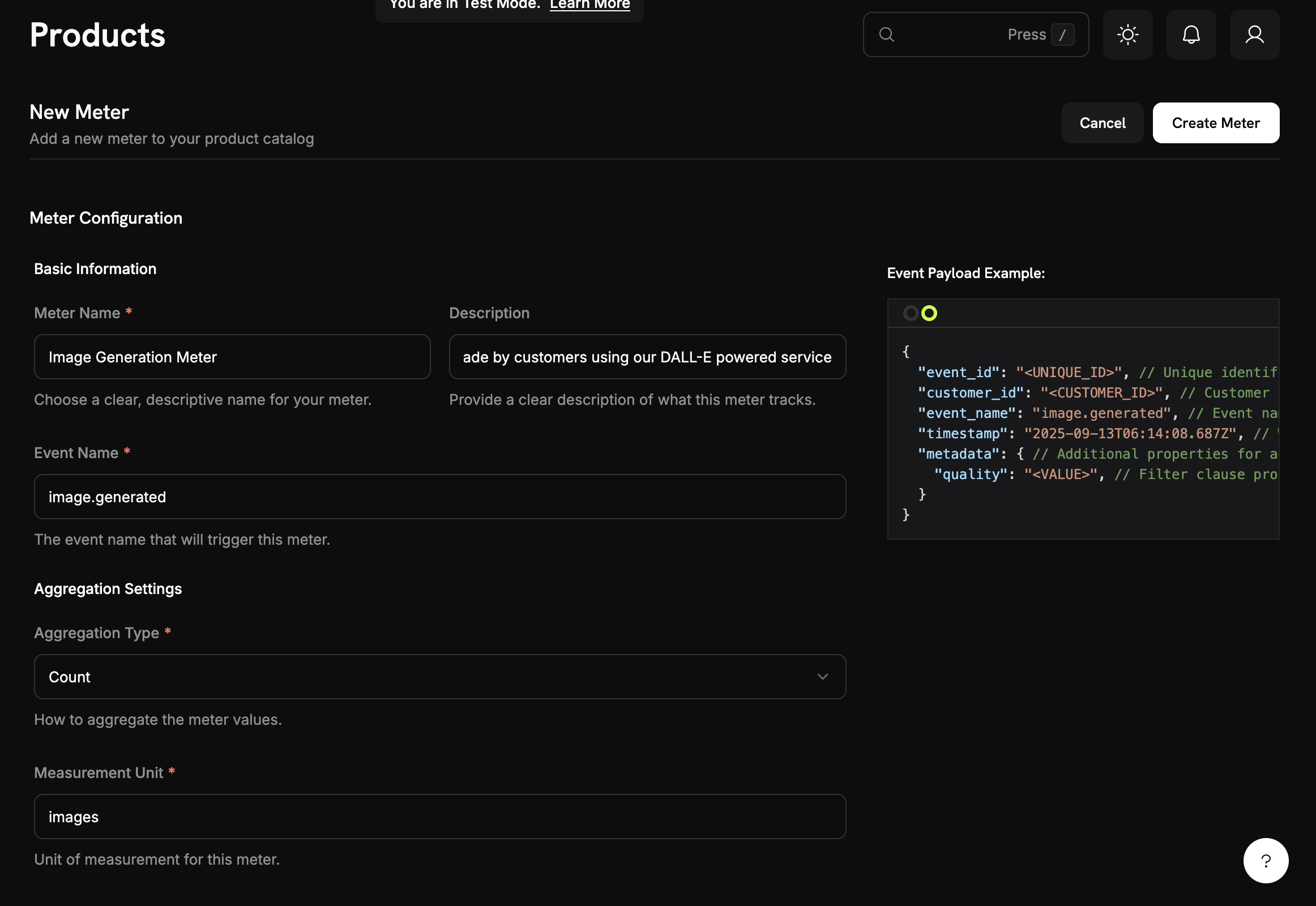 **What you're building**: A meter named "Image Generation Meter" that counts every image generation.
1. Log in to the Dodo Payments dashboard.
2. Go to **Products → Meters** in the sidebar.
3. Click **Create Meter**.
The meter form opens.
Enter the details for PixelGen AI:
**Meter Name**: `Image Generation Meter`
**Description**: `Tracks each AI image generation request made by customers using our OpenAI image service`
**Event Name**: `image.generated`
The event name `image.generated` must match the event name the application code sends. Event names are case-sensitive.
Set the aggregation, which controls how the meter combines events:
**Aggregation Type**: **Count**
**Measurement Unit**: `images`
**Count** bills per image generated, not by size or generation time. Each successful image is one billable unit.
**What you're building**: A meter named "Image Generation Meter" that counts every image generation.
1. Log in to the Dodo Payments dashboard.
2. Go to **Products → Meters** in the sidebar.
3. Click **Create Meter**.
The meter form opens.
Enter the details for PixelGen AI:
**Meter Name**: `Image Generation Meter`
**Description**: `Tracks each AI image generation request made by customers using our OpenAI image service`
**Event Name**: `image.generated`
The event name `image.generated` must match the event name the application code sends. Event names are case-sensitive.
Set the aggregation, which controls how the meter combines events:
**Aggregation Type**: **Count**
**Measurement Unit**: `images`
**Count** bills per image generated, not by size or generation time. Each successful image is one billable unit.
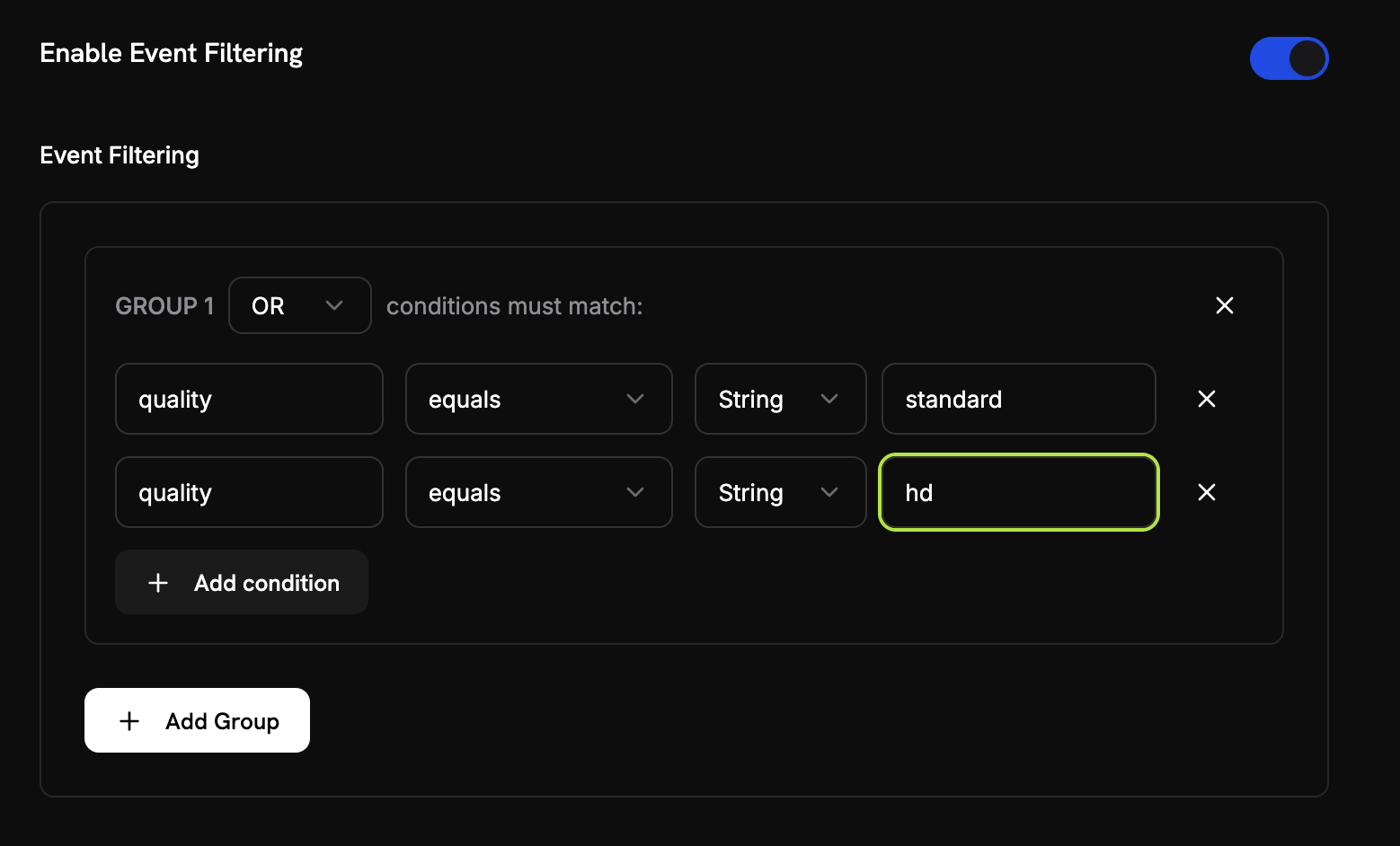 Count only real images, not test runs or malformed events:
1. Turn on **Enable Event Filtering**.
2. Set the match logic to **OR**, so an event counts when any condition matches.
3. Add the first condition:
* Key: `quality`
* Operator: `equals`
* Value: `medium`
4. Click **Add condition** and add the second one:
* Key: `quality`
* Operator: `equals`
* Value: `high`
With this filter, the meter counts only events whose quality is `medium` or `high`, and ignores test or malformed events.
1. Check that every setting matches the values above. You can't edit a meter after you create it.
2. Click **Create Meter**.
**Meter created.** The "Image Generation Meter" is ready to count image generations. Next, connect it to a billing product.
## Step 2: Create Your Billing Product
Create a product that defines the pricing: \$0.05 per image, with 10 free images. The product connects the meter to billing.
**What you're building**: A product called "PixelGen AI - Image Generation" that charges \$0.05 per image after the first 10 free images each month.
1. In the Dodo Payments dashboard, click **Products** in the sidebar.
2. Click **Add Product**.
3. Under **Pricing Type**, select **Usage Based Billing**.
With this pricing type, Dodo Payments bills from meter usage instead of a fixed subscription price.
Enter these values:
**Product Name**: `PixelGen AI - Image Generation`
**Description**: `AI-powered image generation service with pay-per-use billing`
**Product Image**: Upload a clear, relevant image.
The name and description appear on customer invoices.
Count only real images, not test runs or malformed events:
1. Turn on **Enable Event Filtering**.
2. Set the match logic to **OR**, so an event counts when any condition matches.
3. Add the first condition:
* Key: `quality`
* Operator: `equals`
* Value: `medium`
4. Click **Add condition** and add the second one:
* Key: `quality`
* Operator: `equals`
* Value: `high`
With this filter, the meter counts only events whose quality is `medium` or `high`, and ignores test or malformed events.
1. Check that every setting matches the values above. You can't edit a meter after you create it.
2. Click **Create Meter**.
**Meter created.** The "Image Generation Meter" is ready to count image generations. Next, connect it to a billing product.
## Step 2: Create Your Billing Product
Create a product that defines the pricing: \$0.05 per image, with 10 free images. The product connects the meter to billing.
**What you're building**: A product called "PixelGen AI - Image Generation" that charges \$0.05 per image after the first 10 free images each month.
1. In the Dodo Payments dashboard, click **Products** in the sidebar.
2. Click **Add Product**.
3. Under **Pricing Type**, select **Usage Based Billing**.
With this pricing type, Dodo Payments bills from meter usage instead of a fixed subscription price.
Enter these values:
**Product Name**: `PixelGen AI - Image Generation`
**Description**: `AI-powered image generation service with pay-per-use billing`
**Product Image**: Upload a clear, relevant image.
The name and description appear on customer invoices.
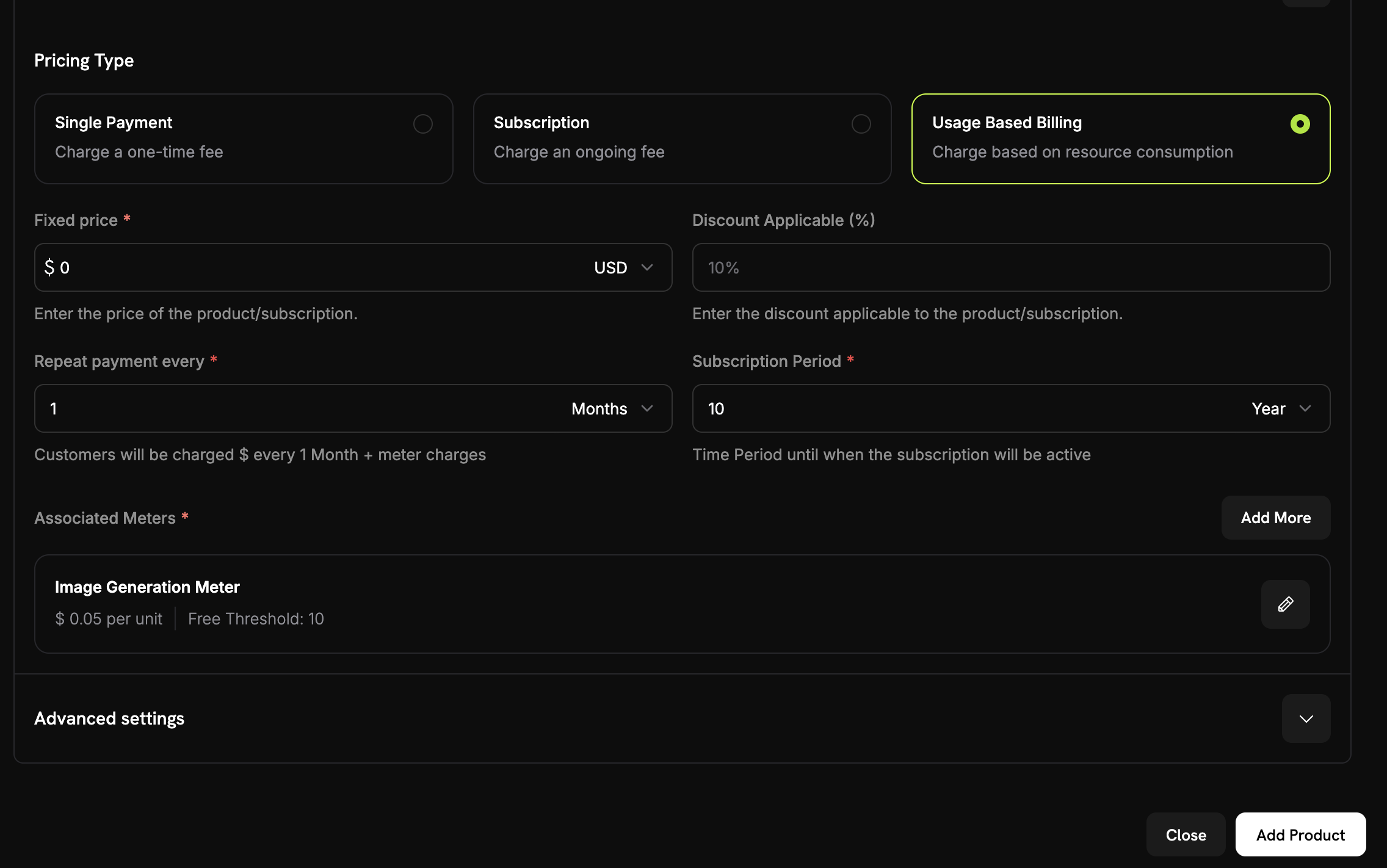 Check that the product's pricing type is **Usage Based Billing**.
Set the **Price** to `0`, so customers pay only for usage, with no base fee.
Then link the meter you created:
1. Scroll to the **Associated Meters** section.
2. Click **Add meters**.
3. Select **"Image Generation Meter"** from the dropdown.
4. Confirm that the meter appears in the product configuration.
The meter is connected to the product.
Define the per-image price and the free tier:
Check that the product's pricing type is **Usage Based Billing**.
Set the **Price** to `0`, so customers pay only for usage, with no base fee.
Then link the meter you created:
1. Scroll to the **Associated Meters** section.
2. Click **Add meters**.
3. Select **"Image Generation Meter"** from the dropdown.
4. Confirm that the meter appears in the product configuration.
The meter is connected to the product.
Define the per-image price and the free tier:
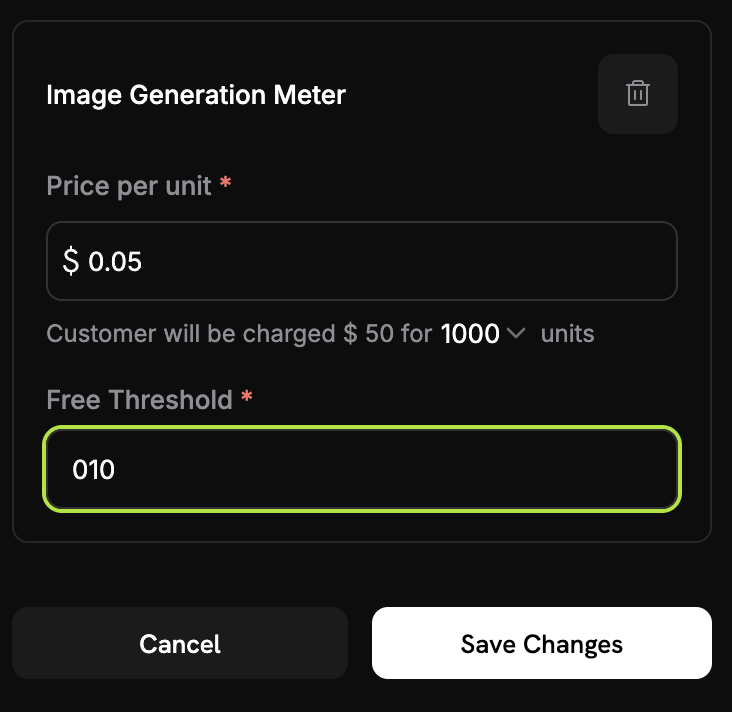 **Price per unit**: `0.05`, which is \$0.05 per image.
**Free Threshold**: `10`. Each customer gets 10 free images per month.
**How billing works**: A customer who generates 25 images in a month pays for 15 images (25 − 10 free). 15 × \$0.05 = \$0.75.
1. Review the settings:
* Name: PixelGen AI - Image Generation
* Meter: Image Generation Meter
* Price: \$0.05 per image
* Free tier: 10 images
2. Click **Save Changes**.
**Product created.** Billing is configured, and customers are charged for the images they generate.
## Step 3: Make a Test Purchase
Buy the product once in test mode. The purchase creates the customer that the app sends usage events for.
1. In the Dodo Payments dashboard, go to **Products**.
2. Find the "PixelGen AI - Image Generation" product.
3. Click **Share** next to the product.
4. Copy the payment link.
The payment link looks like `https://test.checkout.dodopayments.com/buy/pdt_IgPWlRsfpbPd5jQKezzW1?quantity=1`.
1. Open the payment link in a new browser tab.
2. Enter [test payment details](/miscellaneous/testing-process) and complete the purchase.
After the payment succeeds, the purchase creates a customer. The application code uses that customer's ID.
1. Go back to the Dodo Payments dashboard.
2. Go to **Sales → Customers** in the sidebar.
3. Find the customer you created, by its test email address.
4. Copy the customer ID. It looks like `cus_abc123def456`.
Save this customer ID. The sample application sets it in the code, so every event is recorded for this customer.
## Step 4: Build the Sample Application
With billing set up and a test customer created, build the sample PixelGen AI application. It generates an image and reports it to Dodo Payments for billing.
The sample calls OpenAI's `gpt-image-2.5-flare` model through the Image API. The Image API returns base64-encoded image data, so the sample saves each image as a PNG file. The Dodo Payments part (the meter, the product, and the `image.generated` usage event) doesn't depend on the model.
Create a directory and initialize the project:
```bash theme={null}
mkdir pixelgen-ai
cd pixelgen-ai
npm init -y
```
Install the packages:
```bash theme={null}
npm install openai dotenv
npm install -D typescript @types/node ts-node
```
Create a file called `index.ts` and paste in the application code below.
The complete PixelGen AI application with billing, plus the matching `.env` and `package.json`:
```typescript index.ts expandable theme={null}
import 'dotenv/config';
import OpenAI from 'openai';
import * as readline from 'readline';
import { randomUUID } from 'crypto';
import { writeFileSync } from 'fs';
// Initialize OpenAI client
const openai = new OpenAI({
apiKey: process.env.OPENAI_API_KEY,
});
// Dodo Payments configuration
const DODO_PAYMENTS_CONFIG = {
apiKey: process.env.DODO_PAYMENTS_API_KEY,
baseUrl: 'https://test.dodopayments.com',
customerId: 'cus_FX5FAB43aShGyiHJGIqjB', // Replace with your actual customer ID from Step 3
};
// OpenAI image model used by the sample
const IMAGE_MODEL = 'gpt-image-2.5-flare';
interface ImageGenerationOptions {
prompt: string;
quality?: 'medium' | 'high';
size?: '1024x1024' | '1536x1024' | '1024x1536';
}
interface UsageEvent {
event_id: string;
customer_id: string;
event_name: string;
timestamp: string;
metadata: {
quality: string;
};
}
/**
* Send usage event to Dodo Payments for billing tracking
*/
async function sendUsageEvent(event: UsageEvent): Promise {
try {
console.log('Sending usage event to Dodo Payments...');
console.log(`URL: ${DODO_PAYMENTS_CONFIG.baseUrl}/events/ingest`);
console.log(`API Key present: ${!!DODO_PAYMENTS_CONFIG.apiKey}`);
console.log(`API Key length: ${DODO_PAYMENTS_CONFIG.apiKey?.length || 0}`);
console.log(`Customer ID: ${DODO_PAYMENTS_CONFIG.customerId}`);
const requestBody = {
events: [event]
};
console.log('Request body:', JSON.stringify(requestBody, null, 2));
const headers = {
'Authorization': `Bearer ${DODO_PAYMENTS_CONFIG.apiKey}`,
'Content-Type': 'application/json',
}
const response = await fetch(`${DODO_PAYMENTS_CONFIG.baseUrl}/events/ingest`, {
method: 'POST',
headers: headers,
body: JSON.stringify(requestBody),
});
console.log(`Response status: ${response.status}`);
console.log(`Response headers:`, Object.fromEntries(response.headers.entries()));
if (!response.ok) {
const errorData = await response.text();
console.log(`Error response body: ${errorData}`);
throw new Error(`HTTP ${response.status}: ${errorData}`);
}
const result = await response.json();
console.log('Usage event sent successfully');
console.log(` • Event ID: ${event.event_id}`);
console.log(` • Customer: ${event.customer_id}`);
console.log(` • Quality: ${event.metadata.quality}`);
} catch (error) {
console.error('Failed to send usage event:', error);
// In production, you might want to queue failed events for retry
throw error;
}
}
async function generateImage(options: ImageGenerationOptions) {
const startTime = Date.now();
const eventId = randomUUID();
try {
console.log('Generating image...');
console.log(`Prompt: "${options.prompt}"`);
console.log(`Quality: ${options.quality || 'medium'}`);
console.log(`Size: ${options.size || '1024x1024'}`);
const response = await openai.images.generate({
model: IMAGE_MODEL,
prompt: options.prompt,
n: 1,
size: options.size || '1024x1024',
quality: options.quality || 'medium',
});
const endTime = Date.now();
const duration = (endTime - startTime) / 1000;
// The Image API returns base64-encoded image data, so save it as a PNG file
const imageBase64 = response.data?.[0]?.b64_json;
if (!imageBase64) {
throw new Error('OpenAI returned no image data');
}
const imagePath = `image-${eventId}.png`;
writeFileSync(imagePath, Buffer.from(imageBase64, 'base64'));
// Create usage event for Dodo Payments
const usageEvent: UsageEvent = {
event_id: eventId,
customer_id: DODO_PAYMENTS_CONFIG.customerId!,
event_name: 'image.generated',
timestamp: new Date().toISOString(),
metadata: {
quality: options.quality || 'medium',
}
};
// Send usage event to Dodo Payments for billing
await sendUsageEvent(usageEvent);
console.log('\nImage generated successfully!');
console.log(`Generation Stats:`);
console.log(` • Duration: ${duration.toFixed(2)} seconds`);
console.log(` • Quality: ${options.quality || 'medium'}`);
console.log(` • Image file: ${imagePath}`);
return {
imagePath: imagePath,
duration: duration,
eventId: eventId,
};
} catch (error) {
console.error('Error generating image:', error);
// Send failure event for monitoring (optional)
try {
const failureEvent: UsageEvent = {
event_id: eventId,
customer_id: DODO_PAYMENTS_CONFIG.customerId!,
event_name: 'image.generation.failed',
timestamp: new Date().toISOString(),
metadata: {
quality: options.quality || 'medium',
}
};
// Note: You might want to create a separate meter for failed attempts
// await sendUsageEvent(failureEvent);
} catch (eventError) {
console.error('Failed to send failure event:', eventError);
}
throw error;
}
}
async function getUserInput(): Promise {
const rl = readline.createInterface({
input: process.stdin,
output: process.stdout
});
return new Promise((resolve) => {
rl.question('Enter your image prompt: ', (answer) => {
rl.close();
resolve(answer);
});
});
}
async function main() {
console.log('PixelGen AI - Image Generator with Usage Billing\n');
// Validate environment variables
const requiredEnvVars = [
'OPENAI_API_KEY',
'DODO_PAYMENTS_API_KEY'
];
for (const envVar of requiredEnvVars) {
if (!process.env[envVar]) {
console.error(`Error: ${envVar} environment variable is not set.`);
console.log('Please set all required environment variables:');
console.log('export OPENAI_API_KEY="your-openai-key"');
console.log('export DODO_PAYMENTS_API_KEY="your-dodo-api-key"');
console.log('Note: Customer ID is hardcoded in the application');
process.exit(1);
}
}
try {
const prompt = await getUserInput();
if (!prompt.trim()) {
console.log('No prompt provided. Exiting...');
return;
}
const result = await generateImage({
prompt: prompt.trim(),
quality: 'medium', // Change to 'high' for higher quality
size: '1024x1024',
});
console.log('\nProcess completed successfully!');
console.log(`Billing Information:`);
console.log(` • Event ID: ${result.eventId}`);
console.log(` • Billing will be processed automatically via Dodo Payments`);
} catch (error) {
console.error('Application error:', error);
process.exit(1);
}
}
// Run the application
if (require.main === module) {
main().catch(console.error);
}
```
```bash .env theme={null}
# Create .env file with your API keys
OPENAI_API_KEY=your_openai_api_key_here
DODO_PAYMENTS_API_KEY=your_dodo_payments_api_key_here
# Note: Customer ID is hardcoded in the application code
```
```json package.json theme={null}
{
"name": "pixelgen-ai",
"version": "1.0.0",
"description": "AI Image Generation with Usage-Based Billing",
"main": "index.js",
"scripts": {
"start": "ts-node index.ts",
"build": "tsc",
"dev": "ts-node --watch index.ts"
},
"dependencies": {
"openai": "^4.0.0",
"dotenv": "^16.0.0"
},
"devDependencies": {
"@types/node": "^20.0.0",
"typescript": "^5.0.0",
"ts-node": "^10.0.0"
}
}
```
## Step 5: Test Your Sample Application
Test PixelGen AI end to end and watch the usage reach Dodo Payments.
**What you're testing**: You generate a few images, confirm that the events reach Dodo Payments, and check the billing calculation.
1. Create a `.env` file in the `pixelgen-ai` directory.
2. Add your API keys:
```bash theme={null}
OPENAI_API_KEY=sk-your-actual-openai-key
DODO_PAYMENTS_API_KEY=your-actual-dodo-api-key
# Customer ID is hardcoded in the application
```
3. Install the dependencies and run the app:
```bash theme={null}
npm install
npm start
```
Use real API keys, and replace the hardcoded customer ID in `index.ts` with the customer ID from Step 3.
When the app starts, it prints:
```text theme={null}
PixelGen AI - Image Generator with Usage Billing
Enter your image prompt:
```
Enter this prompt: **"A cute robot painting a landscape"**
The output looks like this. The request debug lines that `sendUsageEvent` prints are left out:
```text theme={null}
Generating image...
Prompt: "A cute robot painting a landscape"
Quality: medium
Size: 1024x1024
Sending usage event to Dodo Payments...
Usage event sent successfully
• Event ID: 550e8400-e29b-41d4-a716-446655440000
• Customer: cus_atXa1lklCRRzMicTqfiw2
• Quality: medium
Image generated successfully!
Generation Stats:
• Duration: 8.45 seconds
• Quality: medium
• Image file: image-550e8400-e29b-41d4-a716-446655440000.png
```
If the output includes "Usage event sent successfully", the billing integration works.
Generate two or three more images to test multiple events. Run `npm start` once per image, with these prompts:
1. **"A sunset over mountains with purple clouds"**
2. **"A steampunk coffee machine in a Victorian kitchen"**
3. **"A friendly dragon reading a book in a library"**
Each time, check for the "Usage event sent successfully" message.
Confirm that Dodo Payments receives the events:
1. Open the Dodo Payments dashboard.
2. Go to **Products → Meters** and open **Image Generation Meter**.
3. Select the **Events** tab.
4. Find your image generation events in the list.
**What to look for**:
* Event name: `image.generated`
* Customer ID: your test customer ID
The list has one event for each image you generated.
Check the usage count:
**Price per unit**: `0.05`, which is \$0.05 per image.
**Free Threshold**: `10`. Each customer gets 10 free images per month.
**How billing works**: A customer who generates 25 images in a month pays for 15 images (25 − 10 free). 15 × \$0.05 = \$0.75.
1. Review the settings:
* Name: PixelGen AI - Image Generation
* Meter: Image Generation Meter
* Price: \$0.05 per image
* Free tier: 10 images
2. Click **Save Changes**.
**Product created.** Billing is configured, and customers are charged for the images they generate.
## Step 3: Make a Test Purchase
Buy the product once in test mode. The purchase creates the customer that the app sends usage events for.
1. In the Dodo Payments dashboard, go to **Products**.
2. Find the "PixelGen AI - Image Generation" product.
3. Click **Share** next to the product.
4. Copy the payment link.
The payment link looks like `https://test.checkout.dodopayments.com/buy/pdt_IgPWlRsfpbPd5jQKezzW1?quantity=1`.
1. Open the payment link in a new browser tab.
2. Enter [test payment details](/miscellaneous/testing-process) and complete the purchase.
After the payment succeeds, the purchase creates a customer. The application code uses that customer's ID.
1. Go back to the Dodo Payments dashboard.
2. Go to **Sales → Customers** in the sidebar.
3. Find the customer you created, by its test email address.
4. Copy the customer ID. It looks like `cus_abc123def456`.
Save this customer ID. The sample application sets it in the code, so every event is recorded for this customer.
## Step 4: Build the Sample Application
With billing set up and a test customer created, build the sample PixelGen AI application. It generates an image and reports it to Dodo Payments for billing.
The sample calls OpenAI's `gpt-image-2.5-flare` model through the Image API. The Image API returns base64-encoded image data, so the sample saves each image as a PNG file. The Dodo Payments part (the meter, the product, and the `image.generated` usage event) doesn't depend on the model.
Create a directory and initialize the project:
```bash theme={null}
mkdir pixelgen-ai
cd pixelgen-ai
npm init -y
```
Install the packages:
```bash theme={null}
npm install openai dotenv
npm install -D typescript @types/node ts-node
```
Create a file called `index.ts` and paste in the application code below.
The complete PixelGen AI application with billing, plus the matching `.env` and `package.json`:
```typescript index.ts expandable theme={null}
import 'dotenv/config';
import OpenAI from 'openai';
import * as readline from 'readline';
import { randomUUID } from 'crypto';
import { writeFileSync } from 'fs';
// Initialize OpenAI client
const openai = new OpenAI({
apiKey: process.env.OPENAI_API_KEY,
});
// Dodo Payments configuration
const DODO_PAYMENTS_CONFIG = {
apiKey: process.env.DODO_PAYMENTS_API_KEY,
baseUrl: 'https://test.dodopayments.com',
customerId: 'cus_FX5FAB43aShGyiHJGIqjB', // Replace with your actual customer ID from Step 3
};
// OpenAI image model used by the sample
const IMAGE_MODEL = 'gpt-image-2.5-flare';
interface ImageGenerationOptions {
prompt: string;
quality?: 'medium' | 'high';
size?: '1024x1024' | '1536x1024' | '1024x1536';
}
interface UsageEvent {
event_id: string;
customer_id: string;
event_name: string;
timestamp: string;
metadata: {
quality: string;
};
}
/**
* Send usage event to Dodo Payments for billing tracking
*/
async function sendUsageEvent(event: UsageEvent): Promise {
try {
console.log('Sending usage event to Dodo Payments...');
console.log(`URL: ${DODO_PAYMENTS_CONFIG.baseUrl}/events/ingest`);
console.log(`API Key present: ${!!DODO_PAYMENTS_CONFIG.apiKey}`);
console.log(`API Key length: ${DODO_PAYMENTS_CONFIG.apiKey?.length || 0}`);
console.log(`Customer ID: ${DODO_PAYMENTS_CONFIG.customerId}`);
const requestBody = {
events: [event]
};
console.log('Request body:', JSON.stringify(requestBody, null, 2));
const headers = {
'Authorization': `Bearer ${DODO_PAYMENTS_CONFIG.apiKey}`,
'Content-Type': 'application/json',
}
const response = await fetch(`${DODO_PAYMENTS_CONFIG.baseUrl}/events/ingest`, {
method: 'POST',
headers: headers,
body: JSON.stringify(requestBody),
});
console.log(`Response status: ${response.status}`);
console.log(`Response headers:`, Object.fromEntries(response.headers.entries()));
if (!response.ok) {
const errorData = await response.text();
console.log(`Error response body: ${errorData}`);
throw new Error(`HTTP ${response.status}: ${errorData}`);
}
const result = await response.json();
console.log('Usage event sent successfully');
console.log(` • Event ID: ${event.event_id}`);
console.log(` • Customer: ${event.customer_id}`);
console.log(` • Quality: ${event.metadata.quality}`);
} catch (error) {
console.error('Failed to send usage event:', error);
// In production, you might want to queue failed events for retry
throw error;
}
}
async function generateImage(options: ImageGenerationOptions) {
const startTime = Date.now();
const eventId = randomUUID();
try {
console.log('Generating image...');
console.log(`Prompt: "${options.prompt}"`);
console.log(`Quality: ${options.quality || 'medium'}`);
console.log(`Size: ${options.size || '1024x1024'}`);
const response = await openai.images.generate({
model: IMAGE_MODEL,
prompt: options.prompt,
n: 1,
size: options.size || '1024x1024',
quality: options.quality || 'medium',
});
const endTime = Date.now();
const duration = (endTime - startTime) / 1000;
// The Image API returns base64-encoded image data, so save it as a PNG file
const imageBase64 = response.data?.[0]?.b64_json;
if (!imageBase64) {
throw new Error('OpenAI returned no image data');
}
const imagePath = `image-${eventId}.png`;
writeFileSync(imagePath, Buffer.from(imageBase64, 'base64'));
// Create usage event for Dodo Payments
const usageEvent: UsageEvent = {
event_id: eventId,
customer_id: DODO_PAYMENTS_CONFIG.customerId!,
event_name: 'image.generated',
timestamp: new Date().toISOString(),
metadata: {
quality: options.quality || 'medium',
}
};
// Send usage event to Dodo Payments for billing
await sendUsageEvent(usageEvent);
console.log('\nImage generated successfully!');
console.log(`Generation Stats:`);
console.log(` • Duration: ${duration.toFixed(2)} seconds`);
console.log(` • Quality: ${options.quality || 'medium'}`);
console.log(` • Image file: ${imagePath}`);
return {
imagePath: imagePath,
duration: duration,
eventId: eventId,
};
} catch (error) {
console.error('Error generating image:', error);
// Send failure event for monitoring (optional)
try {
const failureEvent: UsageEvent = {
event_id: eventId,
customer_id: DODO_PAYMENTS_CONFIG.customerId!,
event_name: 'image.generation.failed',
timestamp: new Date().toISOString(),
metadata: {
quality: options.quality || 'medium',
}
};
// Note: You might want to create a separate meter for failed attempts
// await sendUsageEvent(failureEvent);
} catch (eventError) {
console.error('Failed to send failure event:', eventError);
}
throw error;
}
}
async function getUserInput(): Promise {
const rl = readline.createInterface({
input: process.stdin,
output: process.stdout
});
return new Promise((resolve) => {
rl.question('Enter your image prompt: ', (answer) => {
rl.close();
resolve(answer);
});
});
}
async function main() {
console.log('PixelGen AI - Image Generator with Usage Billing\n');
// Validate environment variables
const requiredEnvVars = [
'OPENAI_API_KEY',
'DODO_PAYMENTS_API_KEY'
];
for (const envVar of requiredEnvVars) {
if (!process.env[envVar]) {
console.error(`Error: ${envVar} environment variable is not set.`);
console.log('Please set all required environment variables:');
console.log('export OPENAI_API_KEY="your-openai-key"');
console.log('export DODO_PAYMENTS_API_KEY="your-dodo-api-key"');
console.log('Note: Customer ID is hardcoded in the application');
process.exit(1);
}
}
try {
const prompt = await getUserInput();
if (!prompt.trim()) {
console.log('No prompt provided. Exiting...');
return;
}
const result = await generateImage({
prompt: prompt.trim(),
quality: 'medium', // Change to 'high' for higher quality
size: '1024x1024',
});
console.log('\nProcess completed successfully!');
console.log(`Billing Information:`);
console.log(` • Event ID: ${result.eventId}`);
console.log(` • Billing will be processed automatically via Dodo Payments`);
} catch (error) {
console.error('Application error:', error);
process.exit(1);
}
}
// Run the application
if (require.main === module) {
main().catch(console.error);
}
```
```bash .env theme={null}
# Create .env file with your API keys
OPENAI_API_KEY=your_openai_api_key_here
DODO_PAYMENTS_API_KEY=your_dodo_payments_api_key_here
# Note: Customer ID is hardcoded in the application code
```
```json package.json theme={null}
{
"name": "pixelgen-ai",
"version": "1.0.0",
"description": "AI Image Generation with Usage-Based Billing",
"main": "index.js",
"scripts": {
"start": "ts-node index.ts",
"build": "tsc",
"dev": "ts-node --watch index.ts"
},
"dependencies": {
"openai": "^4.0.0",
"dotenv": "^16.0.0"
},
"devDependencies": {
"@types/node": "^20.0.0",
"typescript": "^5.0.0",
"ts-node": "^10.0.0"
}
}
```
## Step 5: Test Your Sample Application
Test PixelGen AI end to end and watch the usage reach Dodo Payments.
**What you're testing**: You generate a few images, confirm that the events reach Dodo Payments, and check the billing calculation.
1. Create a `.env` file in the `pixelgen-ai` directory.
2. Add your API keys:
```bash theme={null}
OPENAI_API_KEY=sk-your-actual-openai-key
DODO_PAYMENTS_API_KEY=your-actual-dodo-api-key
# Customer ID is hardcoded in the application
```
3. Install the dependencies and run the app:
```bash theme={null}
npm install
npm start
```
Use real API keys, and replace the hardcoded customer ID in `index.ts` with the customer ID from Step 3.
When the app starts, it prints:
```text theme={null}
PixelGen AI - Image Generator with Usage Billing
Enter your image prompt:
```
Enter this prompt: **"A cute robot painting a landscape"**
The output looks like this. The request debug lines that `sendUsageEvent` prints are left out:
```text theme={null}
Generating image...
Prompt: "A cute robot painting a landscape"
Quality: medium
Size: 1024x1024
Sending usage event to Dodo Payments...
Usage event sent successfully
• Event ID: 550e8400-e29b-41d4-a716-446655440000
• Customer: cus_atXa1lklCRRzMicTqfiw2
• Quality: medium
Image generated successfully!
Generation Stats:
• Duration: 8.45 seconds
• Quality: medium
• Image file: image-550e8400-e29b-41d4-a716-446655440000.png
```
If the output includes "Usage event sent successfully", the billing integration works.
Generate two or three more images to test multiple events. Run `npm start` once per image, with these prompts:
1. **"A sunset over mountains with purple clouds"**
2. **"A steampunk coffee machine in a Victorian kitchen"**
3. **"A friendly dragon reading a book in a library"**
Each time, check for the "Usage event sent successfully" message.
Confirm that Dodo Payments receives the events:
1. Open the Dodo Payments dashboard.
2. Go to **Products → Meters** and open **Image Generation Meter**.
3. Select the **Events** tab.
4. Find your image generation events in the list.
**What to look for**:
* Event name: `image.generated`
* Customer ID: your test customer ID
The list has one event for each image you generated.
Check the usage count:
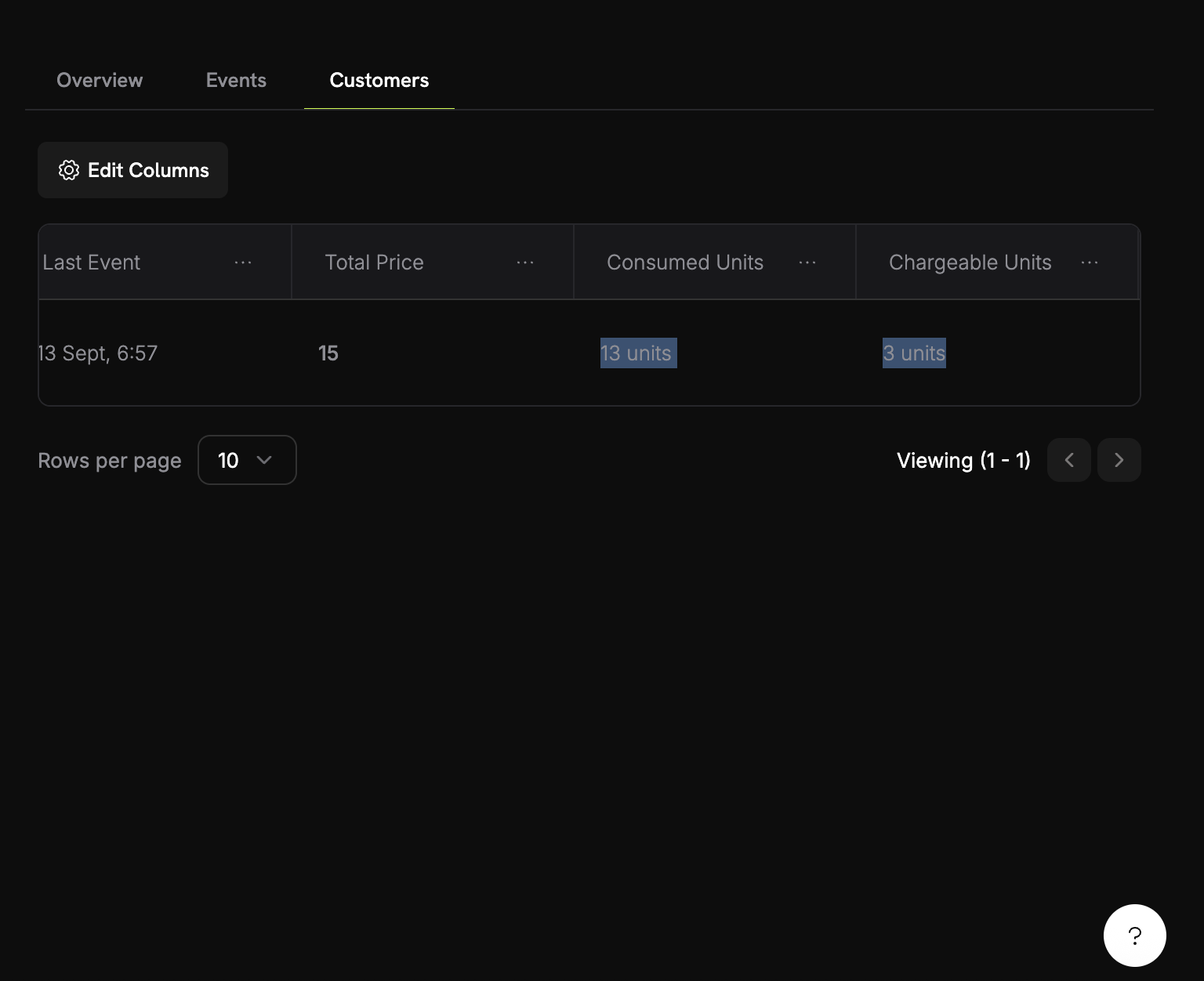 1. In the meter, select the **Customers** tab.
2. Find your test customer.
3. Check the **Consumed Units** column.
Go past the free tier to see billing:
1. Generate 8 more images, for 12 in total.
2. Open the meter's **Customers** tab again.
3. Check the values:
* **Consumed Units**: 12
* **Chargeable Units**: 2 (12 − 10 free)
* **Total Price**: \$0.10
**Usage-based billing works.** Customers are charged for the images they generate.
## Troubleshooting
Common problems and their fixes:
**Possible causes:**
* Event name doesn't match meter configuration exactly
* Customer ID doesn't exist in your account
* API key is invalid or expired
* Network connectivity issues
**Solutions:**
1. Check that the event name matches the meter exactly. It's case-sensitive.
2. Check that the customer ID exists in Dodo Payments.
3. Test the API key with a simple API call.
4. Check network connectivity and firewall settings.
## Congratulations! You Built PixelGen AI
You built a sample AI image generator with usage-based billing:
An "Image Generation Meter" that counts every image generation event.
Pricing at \$0.05 per image, with 10 free images per month.
A TypeScript app that generates images with the OpenAI image API.
Event tracking that reports each image as it's generated, so customers are billed for usage.
This documentation is built and hosted on [Mintlify](https://mintlify.com), a developer documentation platform.
1. In the meter, select the **Customers** tab.
2. Find your test customer.
3. Check the **Consumed Units** column.
Go past the free tier to see billing:
1. Generate 8 more images, for 12 in total.
2. Open the meter's **Customers** tab again.
3. Check the values:
* **Consumed Units**: 12
* **Chargeable Units**: 2 (12 − 10 free)
* **Total Price**: \$0.10
**Usage-based billing works.** Customers are charged for the images they generate.
## Troubleshooting
Common problems and their fixes:
**Possible causes:**
* Event name doesn't match meter configuration exactly
* Customer ID doesn't exist in your account
* API key is invalid or expired
* Network connectivity issues
**Solutions:**
1. Check that the event name matches the meter exactly. It's case-sensitive.
2. Check that the customer ID exists in Dodo Payments.
3. Test the API key with a simple API call.
4. Check network connectivity and firewall settings.
## Congratulations! You Built PixelGen AI
You built a sample AI image generator with usage-based billing:
An "Image Generation Meter" that counts every image generation event.
Pricing at \$0.05 per image, with 10 free images per month.
A TypeScript app that generates images with the OpenAI image API.
Event tracking that reports each image as it's generated, so customers are billed for usage.
This documentation is built and hosted on [Mintlify](https://mintlify.com), a developer documentation platform.