> ## Documentation Index
> Fetch the complete documentation index at: https://docs.dodopayments.com/llms.txt
> Use this file to discover all available pages before exploring further.
# Bring Your Own Processor (BYOP)
> Connect your own Stripe or Adyen account, route payments to it by customer country, and keep Dodo Payments for subscriptions, invoicing, and analytics.
**Bring Your Own Processor (BYOP)** connects your own **Stripe** or **Adyen** account to Dodo Payments. Payments from the countries you choose run on your processor account, while Dodo Payments runs everything around the transaction: products, subscriptions, license keys and the entitlement engine, invoicing, the Customer Portal, and analytics.
For each customer country, you choose who processes the payment: **your processor**, which makes you the legal seller for that route, or **Dodo Payments** as your full-service Merchant of Record. Payments from countries without a route go to Dodo Payments.
Send payments from specific countries to your own processor, and everything else to Dodo Payments.
Continue using your existing Stripe or Adyen accounts and relationships.
On your own routes, you remain the legal seller and control tax, disputes, and payouts.
Dodo Payments runs products, subscriptions, invoices, and analytics across both routes.
## BYOP vs. Dodo as Merchant of Record
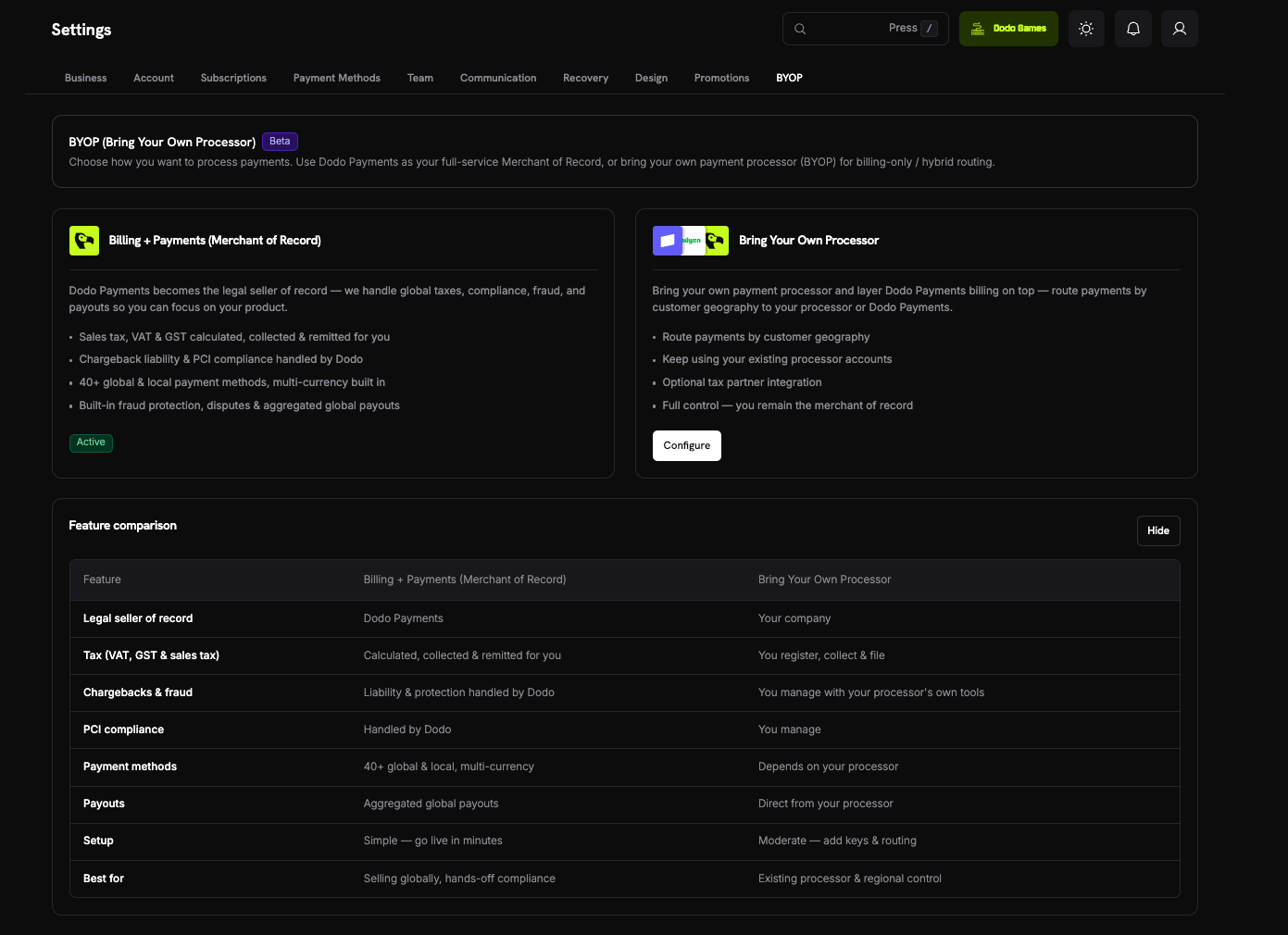
The two models run side by side. Each payment follows the route set for the customer's country. To see this comparison in the dashboard, select **Show Comparison** under **Settings → BYOP**.
| Feature | Dodo as Merchant of Record | Bring Your Own Processor |
| - | - | - |
| Legal seller of record | Dodo Payments | Your company |
| Tax (VAT, GST & sales tax) | Calculated, collected & remitted for you | You register, collect & file |
| Chargebacks & fraud | Dodo screens for fraud and provides dispute tools; you bear the chargeback cost | You manage with your processor's own tools |
| PCI compliance | Handled by Dodo | You manage |
| Payment methods | 40+ global & local, multi-currency | Cards only (credit/debit) |
| Payouts | Aggregated global payouts | Direct from your processor |
| Setup | Simple, go live in minutes | Moderate, add keys & routing |
| Best for | Selling globally, hands-off compliance | Existing processor & regional control |
A common setup is **hybrid**: route a country where you already have a registered entity and processor (for example, your home market) to your own processor, and let Dodo Payments handle the rest of the world as Merchant of Record.
## Supported Processors
You can connect **Stripe** and **Adyen**.
Payments routed through your own processor support **credit and debit cards only**.
**Stripe** and **Adyen** both require **raw card API access** on your account, so that Dodo Payments can run billing on top of your processor. Each processor enables it on request, so contact the processor's support before you connect. The connection step of the setup wizard shows the same requirement, with a **View documentation** link to the [Stripe](/features/byop/stripe) and [Adyen](/features/byop/adyen) guides.
## Set Up BYOP
To start the setup wizard, open **Settings → BYOP** in the dashboard and select **Configure** on the **Bring Your Own Processor** card.
Connections are configured **per environment**. A processor you connect in test mode (shown as **Sandbox**) is separate from one you connect in live mode (shown as **Production**). To test before you go live, set up both. The setup wizard uses the mode set by the **Live Mode** switch in the sidebar.
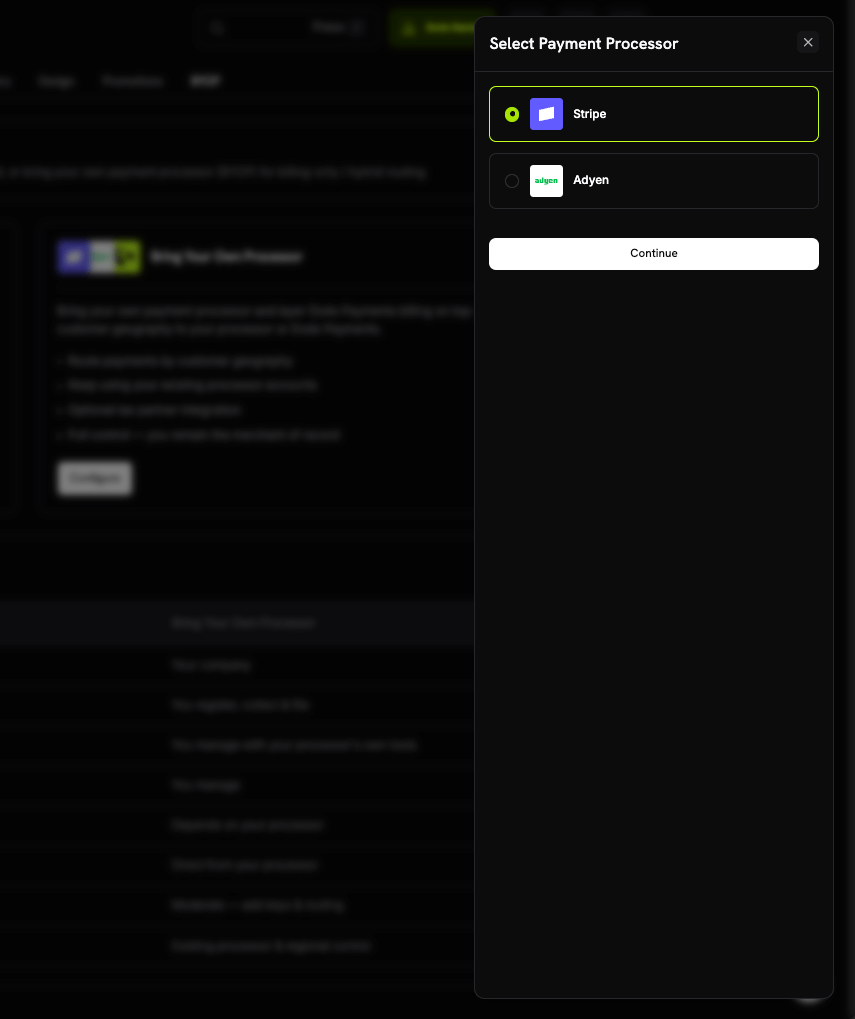
 In **Select Payment Processor**, select **Stripe** or **Adyen**, then select **Continue**.
 Enter the connection details, then select **Connect processor**:
* **Processor Name**: a name for this connection, 2–75 characters. A name helps when you connect several accounts from one processor, for example *Stripe US* and *Stripe UK*.
* **Secret Key**: your processor's API key for the current mode. For Stripe, this is your `sk_...` secret key.
* **Merchant Account** (Adyen only): your Adyen merchant account identifier.
Enter the connection details, then select **Connect processor**:
* **Processor Name**: a name for this connection, 2–75 characters. A name helps when you connect several accounts from one processor, for example *Stripe US* and *Stripe UK*.
* **Secret Key**: your processor's API key for the current mode. For Stripe, this is your `sk_...` secret key.
* **Merchant Account** (Adyen only): your Adyen merchant account identifier.
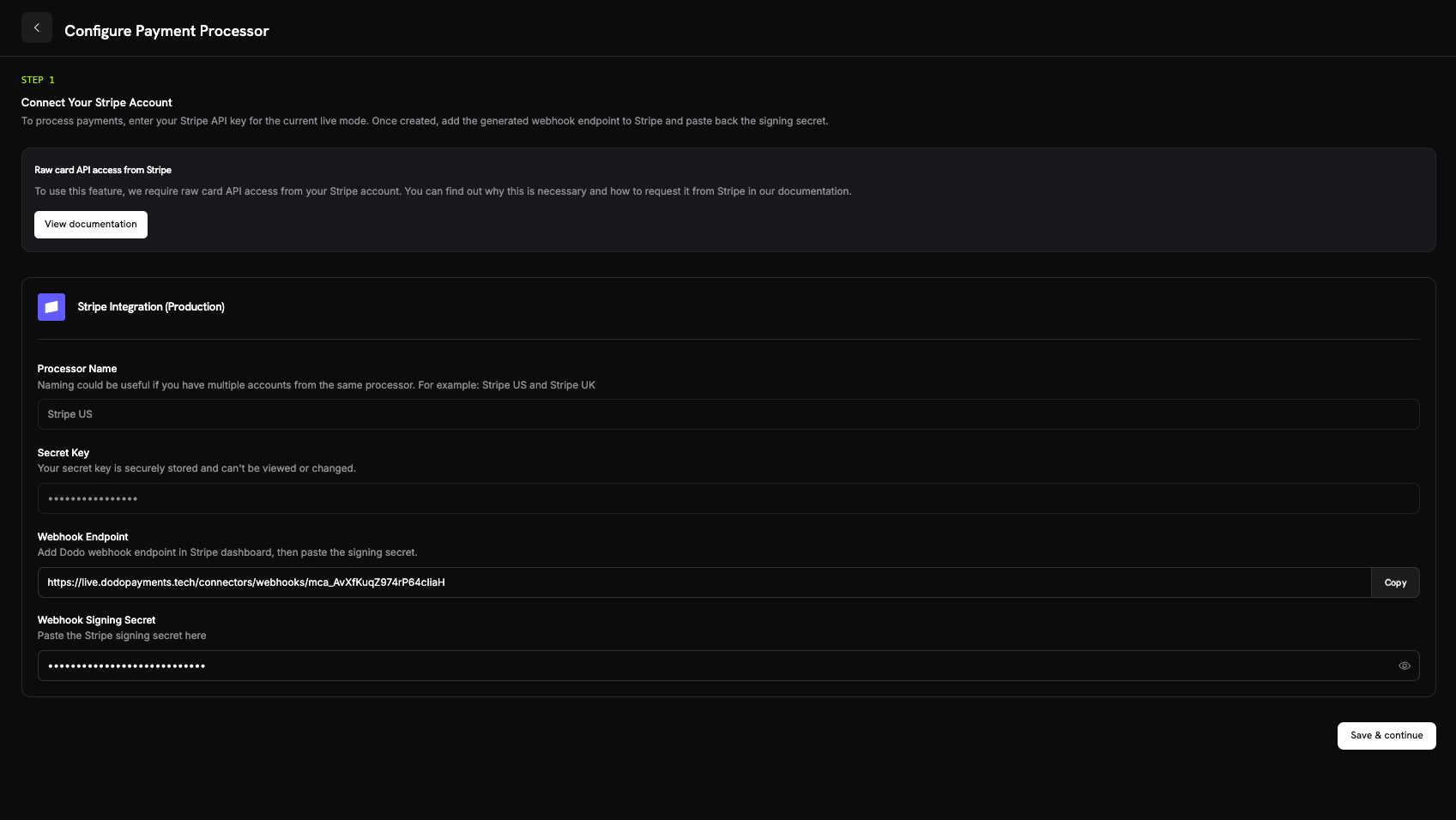 Dodo Payments creates the connection and shows a **Webhook Endpoint** URL unique to it. Add that URL as a webhook destination in your processor's dashboard. Then paste the **Webhook Signing Secret** into Dodo Payments and select **Save & continue**:
* **Stripe**: the signing secret of the webhook endpoint you added.
* **Adyen**: the **HMAC key** from **Customer Area → Webhooks**.
Until you save the signing secret, the connection shows as **Incomplete** under **Edit Configuration**. After you save it, the connection shows as **Connected**.
After you connect, your secret key is stored securely and can't be viewed or changed. The Adyen merchant account can't be changed after setup either. In your processor, you configure only the webhook URL that Dodo Payments generates; you never work with the underlying infrastructure directly.
Add **routing rules** that map customer countries to a processor. Each country routes to exactly one processor:
* **Your processor** handles payments from the countries you assign to it.
* **Dodo Payments** handles **Rest of the World**, every country you don't route, as Merchant of Record.
Dodo Payments creates the connection and shows a **Webhook Endpoint** URL unique to it. Add that URL as a webhook destination in your processor's dashboard. Then paste the **Webhook Signing Secret** into Dodo Payments and select **Save & continue**:
* **Stripe**: the signing secret of the webhook endpoint you added.
* **Adyen**: the **HMAC key** from **Customer Area → Webhooks**.
Until you save the signing secret, the connection shows as **Incomplete** under **Edit Configuration**. After you save it, the connection shows as **Connected**.
After you connect, your secret key is stored securely and can't be viewed or changed. The Adyen merchant account can't be changed after setup either. In your processor, you configure only the webhook URL that Dodo Payments generates; you never work with the underlying infrastructure directly.
Add **routing rules** that map customer countries to a processor. Each country routes to exactly one processor:
* **Your processor** handles payments from the countries you assign to it.
* **Dodo Payments** handles **Rest of the World**, every country you don't route, as Merchant of Record.
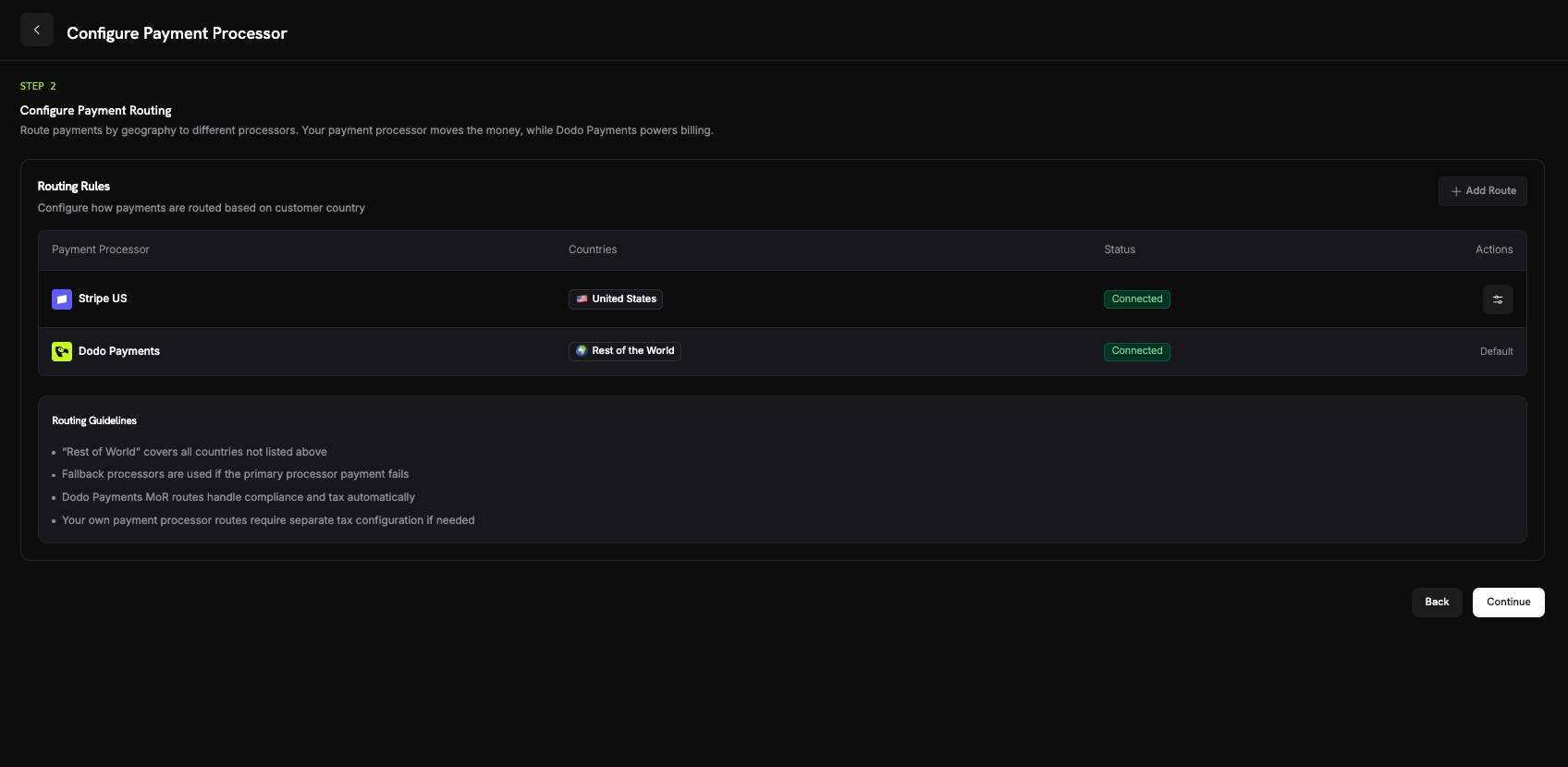 To assign one or more countries to a processor, select **Add Route**, choose the processor, and select the countries. A country that is already routed to another processor can't be added.
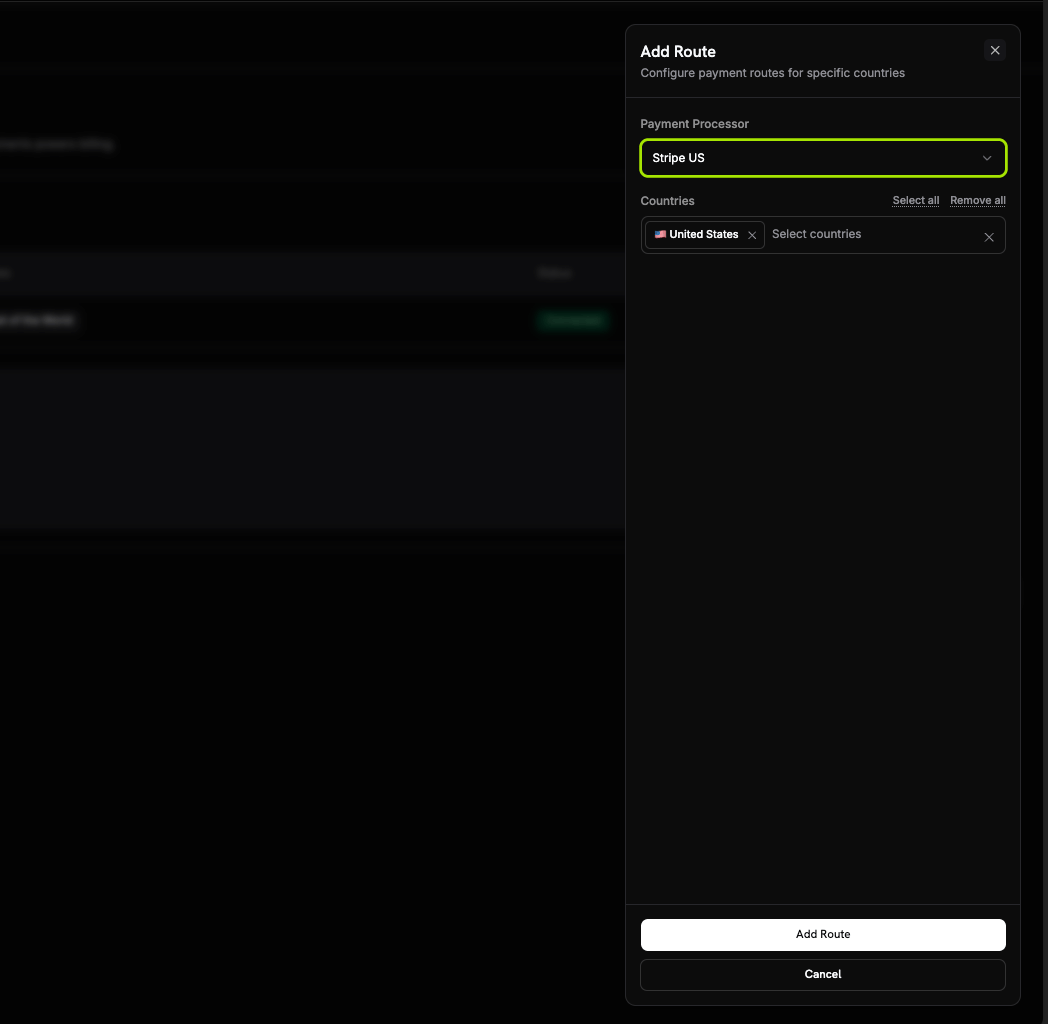 **Routing Guidelines**
* **Rest of the World** covers every country without a route.
* Dodo Payments Merchant of Record routes handle compliance and tax automatically.
* Routes on your own payment processor require separate tax configuration if needed.
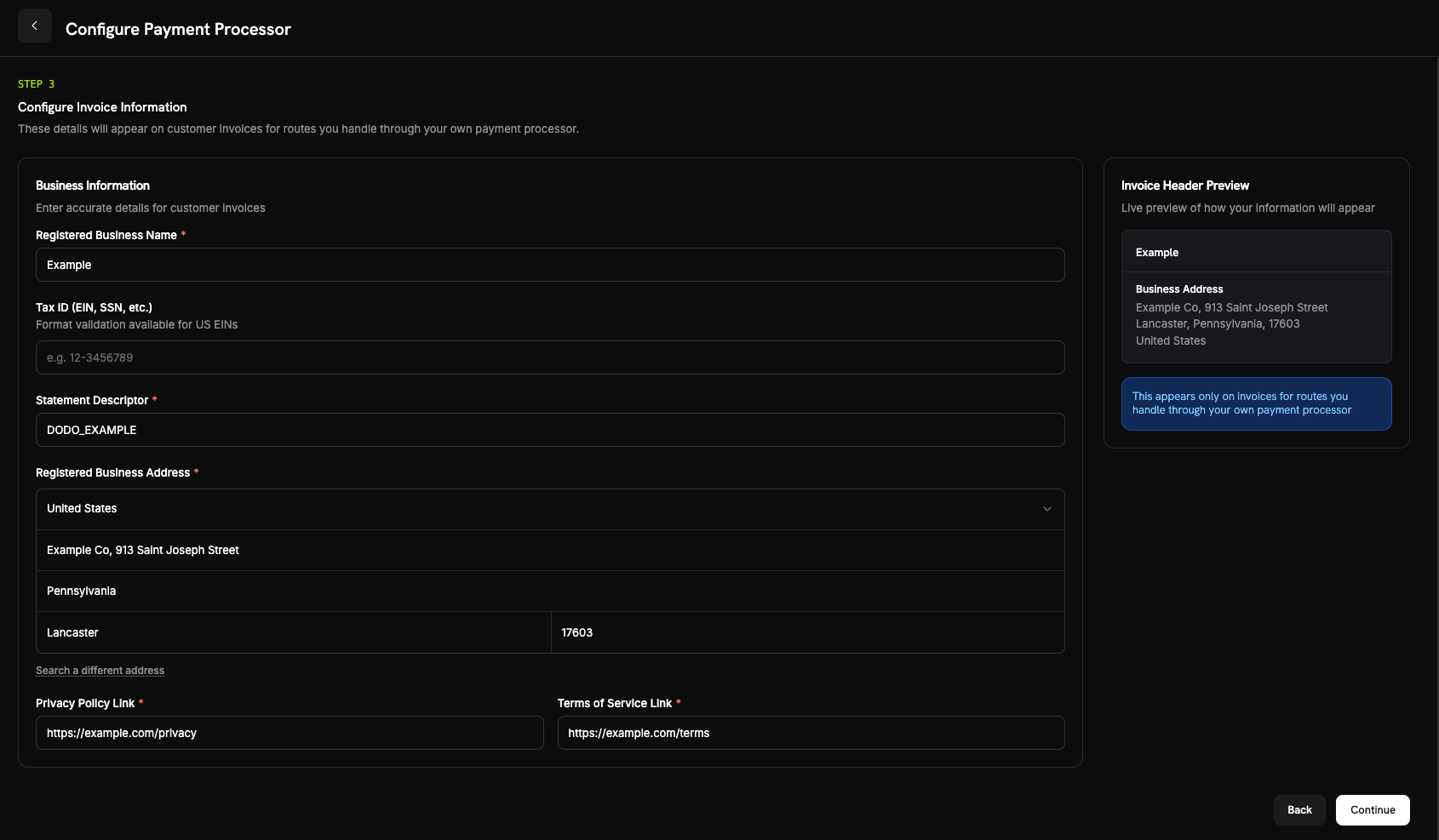
On payments routed through your own processor, **you** are the seller on the invoice. Enter the business details for those invoices:
* **Registered Business Name** (required).
* **Tax ID (EIN, SSN, etc.)** (optional): 3–32 letters, numbers, or dashes. Format validation is available for US EINs.
* **Statement Descriptor** (required): use 5–22 letters, numbers, spaces, `_`, or `-`. Payments on your processor send your [brand's](/features/multi-brands) statement descriptor to the processor, not this value.
* **Registered Business Address** (required): start typing to search for your address, or enter it manually.
* **Privacy Policy Link** and **Terms of Service Link** (required).
The **Invoice Header Preview** shows how the details appear. These details apply **only** to invoices for routes your own processor handles. Payments routed to Dodo Payments keep the Dodo Payments Merchant of Record details.
**Routing Guidelines**
* **Rest of the World** covers every country without a route.
* Dodo Payments Merchant of Record routes handle compliance and tax automatically.
* Routes on your own payment processor require separate tax configuration if needed.
On payments routed through your own processor, **you** are the seller on the invoice. Enter the business details for those invoices:
* **Registered Business Name** (required).
* **Tax ID (EIN, SSN, etc.)** (optional): 3–32 letters, numbers, or dashes. Format validation is available for US EINs.
* **Statement Descriptor** (required): use 5–22 letters, numbers, spaces, `_`, or `-`. Payments on your processor send your [brand's](/features/multi-brands) statement descriptor to the processor, not this value.
* **Registered Business Address** (required): start typing to search for your address, or enter it manually.
* **Privacy Policy Link** and **Terms of Service Link** (required).
The **Invoice Header Preview** shows how the details appear. These details apply **only** to invoices for routes your own processor handles. Payments routed to Dodo Payments keep the Dodo Payments Merchant of Record details.
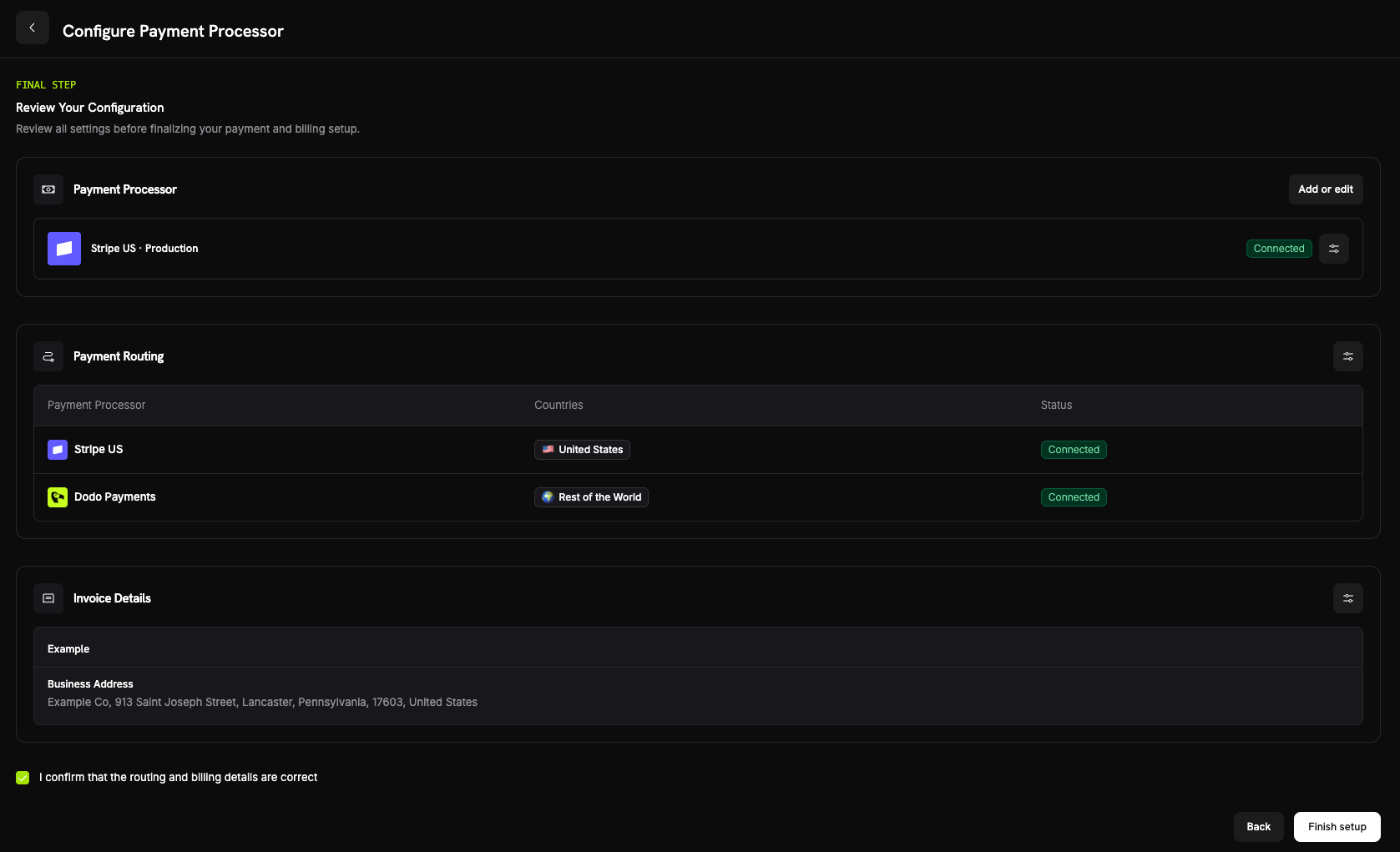
 Review your processor connection, routing rules, and invoice details. Select **I confirm that the routing and billing details are correct**, then select **Finish setup**.
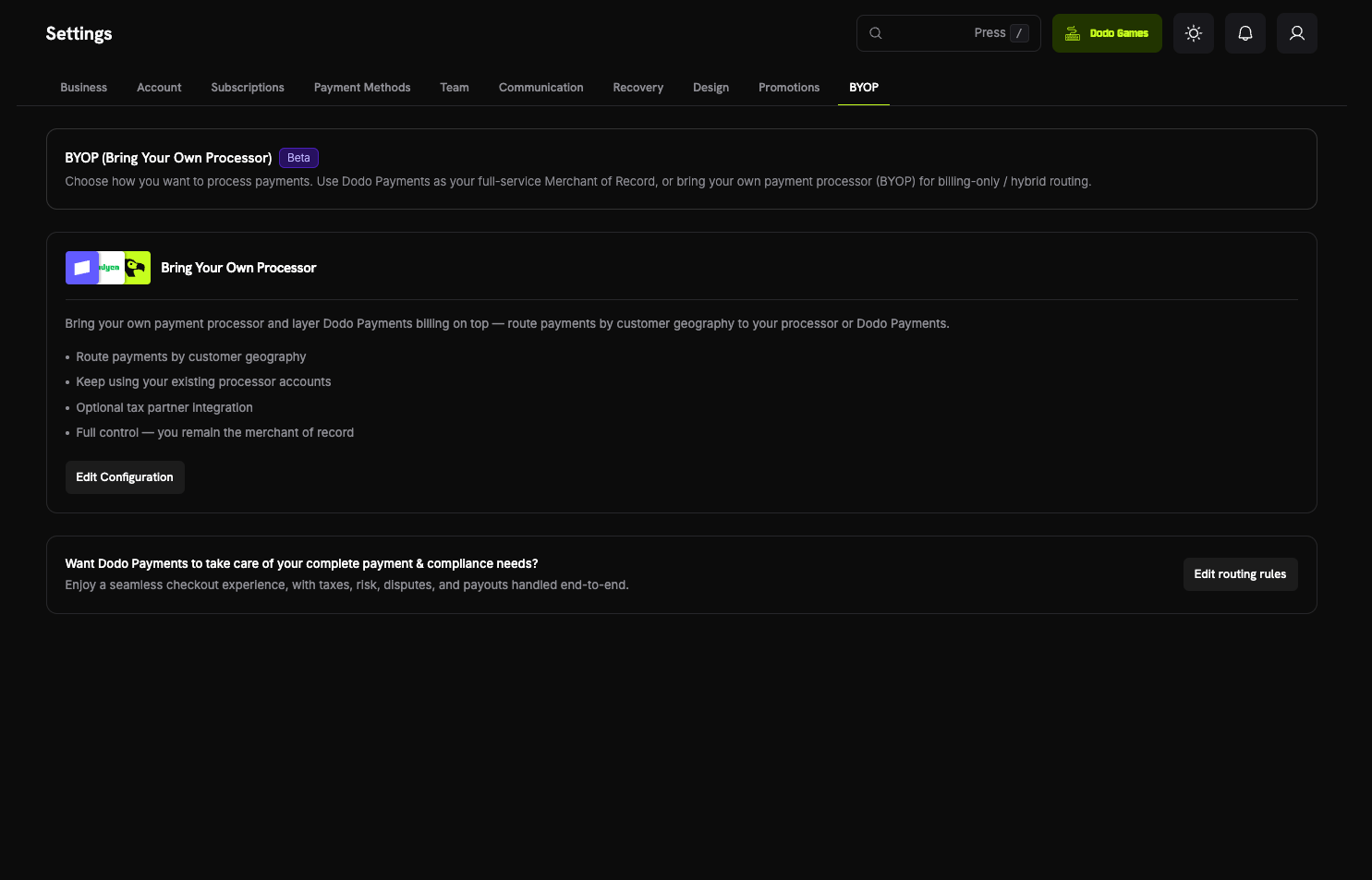
 After setup, the **Bring Your Own Processor** card shows **Edit Configuration**, where you add processors and edit routing and invoice details. To send all payments through Dodo Payments as Merchant of Record again, select **Edit routing rules**, open each route, and turn off **Enable processor**. Disabled processors are skipped during payment routing, and subscriptions on a disabled processor can't renew.
 ## How Routing Works
Dodo Payments picks the route from the customer's billing country when the payment is created. The same rule applies to one-time payments, checkout sessions, and new subscriptions. Renewals reuse the processor the subscription was created on (see [Subscriptions](#subscriptions)).
```mermaid theme={null}
flowchart TD
A[Customer pays] --> B{Customer country
## How Routing Works
Dodo Payments picks the route from the customer's billing country when the payment is created. The same rule applies to one-time payments, checkout sessions, and new subscriptions. Renewals reuse the processor the subscription was created on (see [Subscriptions](#subscriptions)).
```mermaid theme={null}
flowchart TD
A[Customer pays] --> B{Customer country
has a route?}
B -->|Yes| C[Your processor
You are the legal seller]
B -->|No, Rest of the World| D[Dodo Payments
Dodo is Merchant of Record]
C --> E[Dodo powers billing,
invoicing & subscriptions]
D --> E
```
On a route that **your processor** handles:
* The payment runs on **your** processor account, in the billing currency.
* Dodo Payments doesn't calculate or collect tax. You're responsible for tax on that route.
* Invoices show the **business details and statement descriptor** you configured, without Dodo Payments' Merchant of Record details.
* Your processor pays you **directly**. The payment amount never enters your Dodo Payments balance; only the BYOP billing fee is recorded there.
On a route that **Dodo Payments** handles (Rest of the World), Dodo Payments is your full-service [Merchant of Record](/features/mor-introduction). It handles tax, compliance, fraud screening, and aggregated payouts, and gives you tools to prevent and respond to disputes. You bear the cost of disputes on these payments.
## Subscriptions
A subscription stays on the processor it was created on. At renewal, Dodo Payments charges that same processor with the payment mandate stored when the customer subscribed, and doesn't re-evaluate routing rules. Payment method updates for the subscription go through the same processor. Whether Dodo Payments calculates tax on a subscription is also fixed when the subscription is created.
## Seeing Which Processor Handled a Payment
After you configure BYOP, the **Payments** and **Disputes** tables show a processor icon (Stripe, Adyen, or Dodo Payments) on each row. Payment and dispute detail pages add a **Payment Processor** field, so you can tell which route handled a transaction.
## Refunds, Disputes & Payouts
Start refunds from the Dodo dashboard as usual. For a payment routed through your own processor, Dodo Payments sends the refund to that processor, which returns the funds; the refund doesn't draw on your Dodo Payments balance. For a Dodo-routed payment, Dodo Payments processes the refund.
The **Disputes** table lists disputes from both routes. You can respond to a dispute in the Dodo dashboard only when Dodo Payments processed the payment: evidence upload, accept, and challenge are available only for those disputes. When a dispute opens on a Dodo-processed payment, the disputed amount and a dispute fee are deducted from your balance, as with any Merchant of Record payment.
For a dispute on a payment that your own processor handled, respond with your processor's own tools. The dispute doesn't debit your Dodo Payments balance, and its detail page shows this note:
You can take actions for this dispute in your connected payment processor (Stripe)
Your processor pays you **directly** for payments on your own routes, and those payouts don't appear in Dodo Payments. Only Dodo Payments payouts appear in the dashboard.
Dodo Payments payouts, for Rest of the World Merchant of Record volume, follow the standard [payout structure](/features/payouts/payout-structure).
## Analytics
Revenue, tax, and subscription analytics include **both** routes, so you see all of your billing in one place. Disputes and payouts widgets show **Dodo-processed** activity only. Activity on your own processor also appears in that processor's dashboard.
## Billing Fee
Dodo Payments charges a **BYOP billing fee** on each payment routed through your own processor, because Dodo Payments still runs your products, subscriptions, invoicing, and analytics on those payments. The default rate is **0.5%** of the payment's USD-equivalent amount, and the exact rate is confirmed when BYOP is enabled for your account. The fee appears as a `byop_fee` entry in your balance ledger. To discuss your rate, [contact the team](mailto:founders@dodopayments.com).
## Frequently Asked Questions
Stripe and Adyen. Both require **raw card API access** on your account, which you request from the processor's support. See the [Stripe](/features/byop/stripe) and [Adyen](/features/byop/adyen) guides.
Yes. Assign specific countries to your processor and leave the rest as **Rest of the World**, which Dodo Payments handles as Merchant of Record. Each country routes to exactly one processor.
You are. On routes that your own processor handles, you remain the legal seller and are responsible for tax, chargebacks, PCI compliance, and payouts on those transactions.
No. Dodo Payments doesn't calculate or collect tax on routes that your own processor handles; you manage tax for those transactions. Dodo Payments continues to handle tax on payments routed to Dodo Payments as Merchant of Record.
Renewals on that processor fail while it's disabled, because each subscription renews on the processor it was created on. These renewals appear as failed payments in the dashboard.
Dodo Payments also pauses payment recovery emails for those subscriptions. Re-enable the processor to restore renewals; paused recovery attempts then resume.
## Get Started
Understand how the Dodo Payments full-service Merchant of Record model works.
This documentation is built and hosted on [Mintlify](https://mintlify.com), a developer documentation platform.