> ## Documentation Index
> Fetch the complete documentation index at: https://docs.dodopayments.com/llms.txt
> Use this file to discover all available pages before exploring further.
# Charm Pricing
> Round converted prices to clean, psychologically-tuned endings like 49.99 automatically, in every currency, without setting a price per market by hand.
Charm Pricing rounds the converted price to a clean ending, such as **49.99**, on every checkout. You set the rule once. Dodo Payments applies it in each customer's currency.
## What Is Charm Pricing?
[Adaptive Currency](/features/adaptive-currency) converts your base price at live exchange rates. The result is an accurate number, but rarely an attractive one: a \$47.00 product can show as **€43.12** today and **€43.47** tomorrow.
Charm Pricing takes that converted amount and moves it to the nearest clean ending. The customer sees **€49.99**, not €43.12. The ending stays stable while exchange rates move.
You do not set a price per market. You choose one rounding rule, and it applies to every currency.
Charm Pricing requires [Adaptive Currency](/features/adaptive-currency). Turn on Adaptive Currency first.
## Key Benefits
* **Clean prices in every currency** — One rule covers all markets. You do not maintain a price list.
* **Stable endings** — The ending does not change when the exchange rate moves a few percent.
* **No conversion artifacts** — Customers never see 43.12 or 1043.87.
* **Automatic for new markets** — A currency you never priced still gets a clean number.
To set an exact price for one market by hand, use [Localized Pricing](/features/localized-pricing) instead. A localized price always wins over Charm Pricing on that product.
## Enable Charm Pricing
Go to **Settings → Business**. In **Business Settings**, turn on **Adaptive Currency**. Charm Pricing does nothing without it.
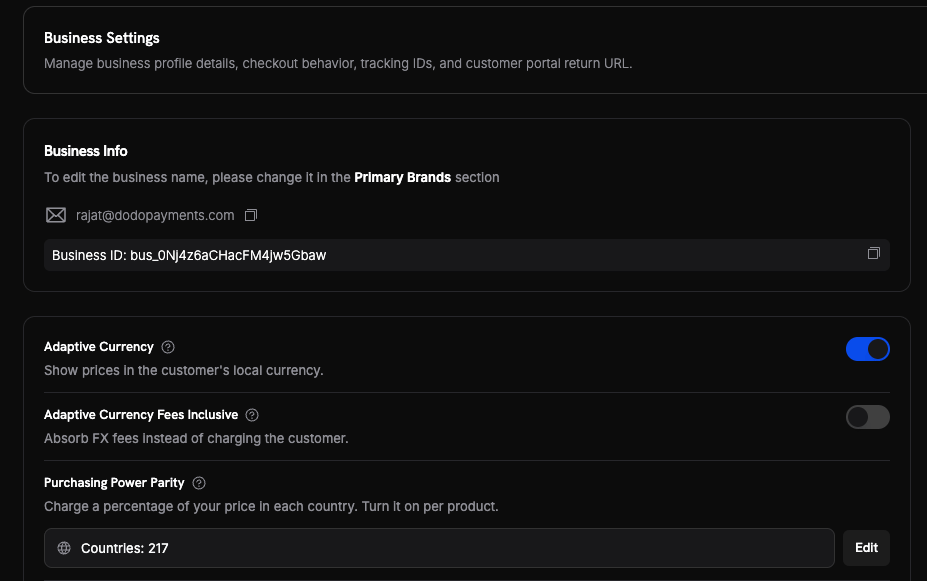 In the same **Business Settings** section, turn on **Charm Pricing** — "Round prices to cleaner, more appealing numbers". The current rounding type appears below the toggle.
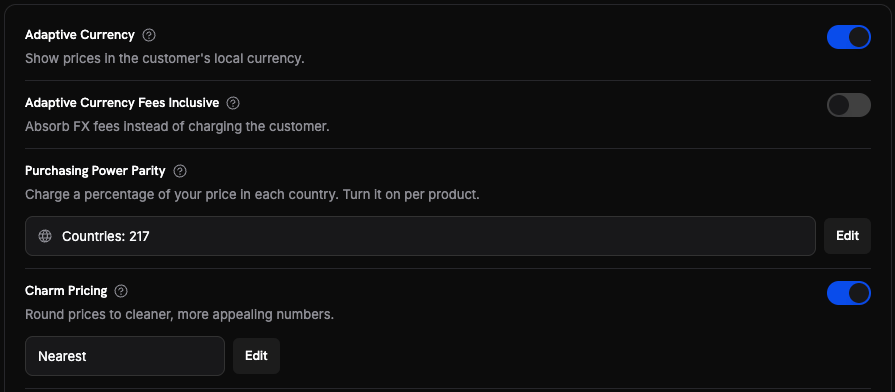 Changes apply only to future transactions. Existing subscriptions keep the rounding rule they started with. See [Subscriptions](#subscriptions).
Click **Edit** to open **Set up Charm Pricing**. Choose a **Rounding type**, then adjust the **Rounding step** for any price range. Click **Save Changes**.
Changes apply only to future transactions. Existing subscriptions keep the rounding rule they started with. See [Subscriptions](#subscriptions).
Click **Edit** to open **Set up Charm Pricing**. Choose a **Rounding type**, then adjust the **Rounding step** for any price range. Click **Save Changes**.
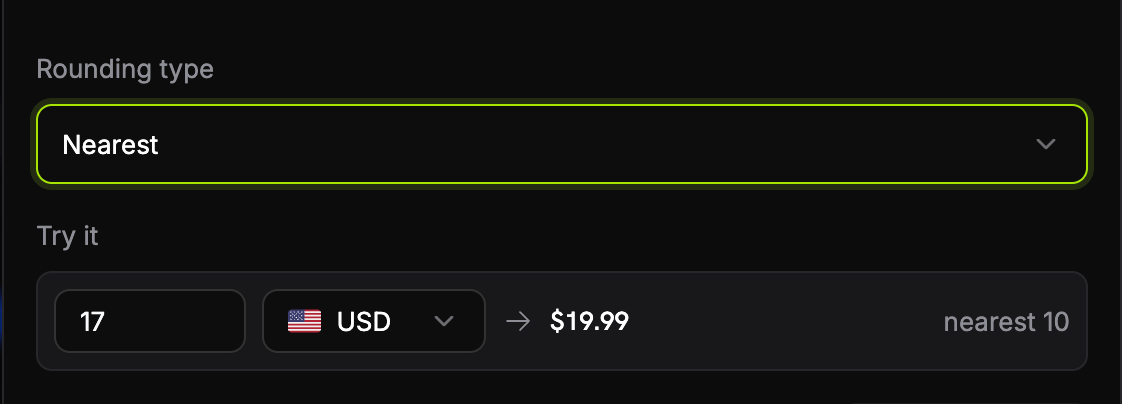 Use **Try it** to check a value before you save. Enter an amount and a currency, and the dialog shows the result and the step it used.
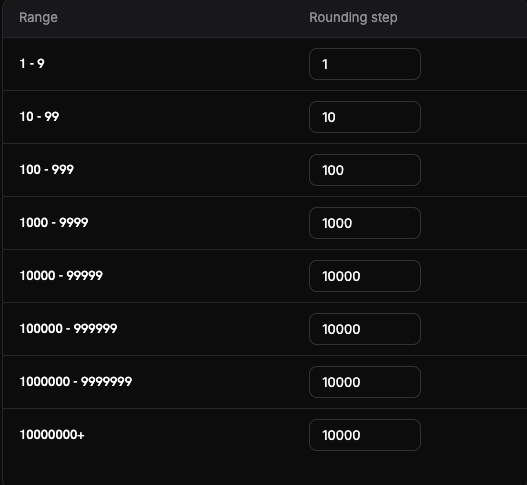
Dodo Payments ships a default step for each range. See [Rounding types](#rounding-types) and [Rounding steps](#rounding-steps).
Use **Try it** to check a value before you save. Enter an amount and a currency, and the dialog shows the result and the step it used.
Dodo Payments ships a default step for each range. See [Rounding types](#rounding-types) and [Rounding steps](#rounding-steps).
 Open a test checkout with a billing country in another currency. Confirm the price shows the ending you expect.
## How the Price Is Calculated
Dodo Payments charms the **per-unit list price**, after currency conversion and before any discount, and before tax. A discount is then deducted from the charmed list price — see [Discounts and Charm Pricing](#discounts-and-charm-pricing).
1. **Find the step.** The list price selects a step from the rounding-step table. A \$47 price falls in the 10–99 range, so the step is **10**. The step is chosen by the list price, so a product lands in the same band whatever discount code the customer holds.
2. **Pick the target.** The step gives two candidates, **40** and **50**. The rounding type picks one. With **Nearest**, 47 is closer to 50.
3. **Shave the ending.** Dodo Payments subtracts one thousandth of the step, so 50 becomes **49.99**. The shave is never less than one minor unit. **Whole** skips this step.
### Rounding Types
| Type | What it picks | \$47 becomes |
| :- | :- | :- |
| **Nearest** | The closer of the two candidates. A tie goes up. | \$49.99 |
| **Floor** | Always the candidate below the price. | \$39.99 |
| **Ceiling** | Always the candidate above the price. | \$49.99 |
| **Whole** | The nearest candidate, with no shave. | \$50.00 |
**Floor** can lower a price by almost a full step. A \$47 price becomes \$39.99, a cut of 15%. Check the effect on your price ranges before you choose it.
### Rounding Steps
The step depends on the size of the price, in the currency's main unit. These are the defaults. You can change the **Rounding step** for any range. You cannot change the ranges themselves.
| Price range | Step |
| :- | :- |
| 1–9 | 1 |
| 10–99 | 10 |
| 100–999 | 100 |
| 1,000–9,999 | 1,000 |
| 10,000–99,999 | 10,000 |
| 100,000–999,999 | 10,000 |
| 1,000,000–9,999,999 | 10,000 |
| 10,000,000 and above | 10,000 |
The step stops growing at 10,000. This keeps the change small for large amounts, and it matters for currencies with many units per dollar, such as IDR and VND.
A large step moves a price a long way. With the default step of 1,000, a converted price of **\$1,234** becomes **\$999.00**. Lower the step for that range if the change is too big for your catalogue.
### Worked Examples
| Converted price | Currency | Step | Rounding type | Customer pays |
| :- | :- | :- | :- | :- |
| \$47.00 | USD | 10 | Nearest | **\$49.99** |
| \$47.00 | USD | 10 | Whole | **\$50.00** |
| \$47.00 | USD | 10 | Floor | **\$39.99** |
| \$5.00 | USD | 1 | Nearest | **\$4.99** |
| ¥4,700 | JPY | 1,000 | Nearest | **¥4,999** |
| ¥5 | JPY | 1 | Nearest | **¥4** |
Currencies with no decimal places, such as JPY, have no fractional endings: the shave is the step divided by 1,000, rounded to whole units, with a minimum of one unit. The ending is ¥4,999, not ¥4,999.99.
### When Charm Does Not Apply
Dodo Payments keeps the converted price unchanged in these cases:
* The step is wider than the price. The price cannot move by less than one full step.
* The result would be zero or less.
* No step matches the amount.
## How It Applies at Checkout
Charm Pricing sets the price the customer sees before any discount is deducted. For a product with no localized price, the order is:
1. **Base price** — the price you set on the product.
2. **[Purchasing Power Parity](/features/purchasing-power-parity)** — if the product opted in, the country percentage applies.
3. **[Currency conversion](/features/adaptive-currency)** — the amount converts to the customer's currency at the live rate.
4. **Charm rounding** — the converted list price moves to the clean ending. This is the price the customer sees as the subtotal.
5. **Discounts** — any product discount and [discount code](/features/discount-codes) is deducted from the charmed list price.
6. **Tax** — calculated from the amount after the discount. See [Tax-Inclusive Pricing](/features/tax-inclusive-pricing).
Each cart line is calculated on its own. Charm rounding runs once, on the list price. Nothing rounds the discounted amount a second time.
### Discounts and Charm Pricing
Charm Pricing owns the price tag, and a discount is a deduction from that tag. On a \$199.00/month plan with a step of 100 and **Nearest** rounding:
```text theme={null}
list 199.00 → charm → 199.90 (Subtotal)
10% of the charmed list 19.99 (Discount)
paid 199.90 − 19.99 = 179.91 (Total)
```
How the discount carries onto the charmed list price depends on its type:
| Discount on the line | What carries | Why |
| :- | :- | :- |
| Percentage codes only, with no maximum | The **rate** | A rate is a proportion of the price, so it follows the price. |
| Any flat-amount code, or a percentage code with a maximum | The **amount** | A flat code names an amount, so the amount must not scale with the step. |
A discounted line does not land on a charm ending. The charmed list price carries the `.99` or `.90` ending; a percentage taken off it has no reason to. In the example above the customer is charged **\$179.91**, not a charmed number.
A product with a slashed (compare-at) price shows a real discount row, since the slash is carried as a deduction in the same way. A fully discounted line stays free, and a flat code larger than the charmed list price is clamped to free rather than going negative.
**Existing charmed subscriptions that carry a discount can change price at their next renewal.** The renewal prices on the charmed list price rather than on a re-charmed discounted price. Under **Nearest** or **Ceiling** the charmed list sits at or above the list price, so a percentage code usually charges slightly more than before. Under **Floor** it can sit well below, so the same code can charge less.
**A charmed line makes the whole transaction fees-inclusive.** The customer pays exactly the ending they saw, so the Adaptive Currency conversion fee cannot be added on top. You absorb that fee. See [Enable Fees Inclusive](/features/adaptive-currency#enable-fees-inclusive).
## Subscriptions
A subscription records its rounding step and rounding type when the customer subscribes. Dodo Payments repeats that same decision at every renewal.
**What is frozen:** the rounding step and the rounding type. If you edit a step, or change the rounding type, an existing subscription is not repriced. The customer keeps the rule they agreed to.
**What can move:** the amount. Each renewal converts the price at the current exchange rate, then applies the frozen rule. A large rate movement can change the renewal amount, even though the rule did not change.
**A plan change removes charm from that subscription.** When a subscriber [changes plan](/features/subscription#subscription-plan-changes), the new plan bills the amount the plan-change quote showed. Dodo Payments does not charm that amount, and it does not charm later renewals of that subscription.
## Important Behaviors
| Behavior | Detail |
| :- | :- |
| **Requires Adaptive Currency** | Charm Pricing does nothing while Adaptive Currency is off. |
| **Localized prices win** | A product with a matching [Localized Pricing](/features/localized-pricing) rule is never charmed. The exact amount you set applies. |
| **Applied per unit** | The unit price is charmed, then multiplied by the quantity. |
| **Before discounts** | Charm rounds the converted list price. A discount is then deducted from that charmed price. See [Discounts and Charm Pricing](#discounts-and-charm-pricing). |
| **Before tax** | Tax is calculated after charm rounding and after any discount, so the totals agree. |
| **Forces fees-inclusive** | You absorb the currency conversion fee on a charmed transaction. |
| **Not for Pay What You Want** | The customer chooses the amount, so it is never charmed. See [Pay What You Want](/features/pay-what-you-want). |
| **Fixed fees only for usage-based** | Metered usage charges are never charmed. |
| **No webhook of its own** | The charmed amount appears on the payment or subscription like any other price. |
## Best Practices
* **Start with Nearest.** It moves the price the least. Use Floor only when you accept the discount it creates.
* **Check your largest and smallest products.** The step changes with the price range, so a \$5 product and a \$1,200 product behave differently.
* **Review the step for high-unit currencies.** IDR, VND, and KRW prices land in the top ranges, where the step is fixed at 10,000.
* **Price your subscriptions before you launch.** Editing a step later does not reprice existing subscribers.
* **Account for the conversion fee.** A charmed line is fees-inclusive, so the fee comes out of your revenue.
## Related
The conversion Charm Pricing rounds. Required for Charm Pricing.
Charge less in price-sensitive countries. Runs before charm rounding.
Set an exact price per country or currency. Overrides Charm Pricing.
Control whether your prices include tax.
This documentation is built and hosted on [Mintlify](https://mintlify.com), a developer documentation platform.
Open a test checkout with a billing country in another currency. Confirm the price shows the ending you expect.
## How the Price Is Calculated
Dodo Payments charms the **per-unit list price**, after currency conversion and before any discount, and before tax. A discount is then deducted from the charmed list price — see [Discounts and Charm Pricing](#discounts-and-charm-pricing).
1. **Find the step.** The list price selects a step from the rounding-step table. A \$47 price falls in the 10–99 range, so the step is **10**. The step is chosen by the list price, so a product lands in the same band whatever discount code the customer holds.
2. **Pick the target.** The step gives two candidates, **40** and **50**. The rounding type picks one. With **Nearest**, 47 is closer to 50.
3. **Shave the ending.** Dodo Payments subtracts one thousandth of the step, so 50 becomes **49.99**. The shave is never less than one minor unit. **Whole** skips this step.
### Rounding Types
| Type | What it picks | \$47 becomes |
| :- | :- | :- |
| **Nearest** | The closer of the two candidates. A tie goes up. | \$49.99 |
| **Floor** | Always the candidate below the price. | \$39.99 |
| **Ceiling** | Always the candidate above the price. | \$49.99 |
| **Whole** | The nearest candidate, with no shave. | \$50.00 |
**Floor** can lower a price by almost a full step. A \$47 price becomes \$39.99, a cut of 15%. Check the effect on your price ranges before you choose it.
### Rounding Steps
The step depends on the size of the price, in the currency's main unit. These are the defaults. You can change the **Rounding step** for any range. You cannot change the ranges themselves.
| Price range | Step |
| :- | :- |
| 1–9 | 1 |
| 10–99 | 10 |
| 100–999 | 100 |
| 1,000–9,999 | 1,000 |
| 10,000–99,999 | 10,000 |
| 100,000–999,999 | 10,000 |
| 1,000,000–9,999,999 | 10,000 |
| 10,000,000 and above | 10,000 |
The step stops growing at 10,000. This keeps the change small for large amounts, and it matters for currencies with many units per dollar, such as IDR and VND.
A large step moves a price a long way. With the default step of 1,000, a converted price of **\$1,234** becomes **\$999.00**. Lower the step for that range if the change is too big for your catalogue.
### Worked Examples
| Converted price | Currency | Step | Rounding type | Customer pays |
| :- | :- | :- | :- | :- |
| \$47.00 | USD | 10 | Nearest | **\$49.99** |
| \$47.00 | USD | 10 | Whole | **\$50.00** |
| \$47.00 | USD | 10 | Floor | **\$39.99** |
| \$5.00 | USD | 1 | Nearest | **\$4.99** |
| ¥4,700 | JPY | 1,000 | Nearest | **¥4,999** |
| ¥5 | JPY | 1 | Nearest | **¥4** |
Currencies with no decimal places, such as JPY, have no fractional endings: the shave is the step divided by 1,000, rounded to whole units, with a minimum of one unit. The ending is ¥4,999, not ¥4,999.99.
### When Charm Does Not Apply
Dodo Payments keeps the converted price unchanged in these cases:
* The step is wider than the price. The price cannot move by less than one full step.
* The result would be zero or less.
* No step matches the amount.
## How It Applies at Checkout
Charm Pricing sets the price the customer sees before any discount is deducted. For a product with no localized price, the order is:
1. **Base price** — the price you set on the product.
2. **[Purchasing Power Parity](/features/purchasing-power-parity)** — if the product opted in, the country percentage applies.
3. **[Currency conversion](/features/adaptive-currency)** — the amount converts to the customer's currency at the live rate.
4. **Charm rounding** — the converted list price moves to the clean ending. This is the price the customer sees as the subtotal.
5. **Discounts** — any product discount and [discount code](/features/discount-codes) is deducted from the charmed list price.
6. **Tax** — calculated from the amount after the discount. See [Tax-Inclusive Pricing](/features/tax-inclusive-pricing).
Each cart line is calculated on its own. Charm rounding runs once, on the list price. Nothing rounds the discounted amount a second time.
### Discounts and Charm Pricing
Charm Pricing owns the price tag, and a discount is a deduction from that tag. On a \$199.00/month plan with a step of 100 and **Nearest** rounding:
```text theme={null}
list 199.00 → charm → 199.90 (Subtotal)
10% of the charmed list 19.99 (Discount)
paid 199.90 − 19.99 = 179.91 (Total)
```
How the discount carries onto the charmed list price depends on its type:
| Discount on the line | What carries | Why |
| :- | :- | :- |
| Percentage codes only, with no maximum | The **rate** | A rate is a proportion of the price, so it follows the price. |
| Any flat-amount code, or a percentage code with a maximum | The **amount** | A flat code names an amount, so the amount must not scale with the step. |
A discounted line does not land on a charm ending. The charmed list price carries the `.99` or `.90` ending; a percentage taken off it has no reason to. In the example above the customer is charged **\$179.91**, not a charmed number.
A product with a slashed (compare-at) price shows a real discount row, since the slash is carried as a deduction in the same way. A fully discounted line stays free, and a flat code larger than the charmed list price is clamped to free rather than going negative.
**Existing charmed subscriptions that carry a discount can change price at their next renewal.** The renewal prices on the charmed list price rather than on a re-charmed discounted price. Under **Nearest** or **Ceiling** the charmed list sits at or above the list price, so a percentage code usually charges slightly more than before. Under **Floor** it can sit well below, so the same code can charge less.
**A charmed line makes the whole transaction fees-inclusive.** The customer pays exactly the ending they saw, so the Adaptive Currency conversion fee cannot be added on top. You absorb that fee. See [Enable Fees Inclusive](/features/adaptive-currency#enable-fees-inclusive).
## Subscriptions
A subscription records its rounding step and rounding type when the customer subscribes. Dodo Payments repeats that same decision at every renewal.
**What is frozen:** the rounding step and the rounding type. If you edit a step, or change the rounding type, an existing subscription is not repriced. The customer keeps the rule they agreed to.
**What can move:** the amount. Each renewal converts the price at the current exchange rate, then applies the frozen rule. A large rate movement can change the renewal amount, even though the rule did not change.
**A plan change removes charm from that subscription.** When a subscriber [changes plan](/features/subscription#subscription-plan-changes), the new plan bills the amount the plan-change quote showed. Dodo Payments does not charm that amount, and it does not charm later renewals of that subscription.
## Important Behaviors
| Behavior | Detail |
| :- | :- |
| **Requires Adaptive Currency** | Charm Pricing does nothing while Adaptive Currency is off. |
| **Localized prices win** | A product with a matching [Localized Pricing](/features/localized-pricing) rule is never charmed. The exact amount you set applies. |
| **Applied per unit** | The unit price is charmed, then multiplied by the quantity. |
| **Before discounts** | Charm rounds the converted list price. A discount is then deducted from that charmed price. See [Discounts and Charm Pricing](#discounts-and-charm-pricing). |
| **Before tax** | Tax is calculated after charm rounding and after any discount, so the totals agree. |
| **Forces fees-inclusive** | You absorb the currency conversion fee on a charmed transaction. |
| **Not for Pay What You Want** | The customer chooses the amount, so it is never charmed. See [Pay What You Want](/features/pay-what-you-want). |
| **Fixed fees only for usage-based** | Metered usage charges are never charmed. |
| **No webhook of its own** | The charmed amount appears on the payment or subscription like any other price. |
## Best Practices
* **Start with Nearest.** It moves the price the least. Use Floor only when you accept the discount it creates.
* **Check your largest and smallest products.** The step changes with the price range, so a \$5 product and a \$1,200 product behave differently.
* **Review the step for high-unit currencies.** IDR, VND, and KRW prices land in the top ranges, where the step is fixed at 10,000.
* **Price your subscriptions before you launch.** Editing a step later does not reprice existing subscribers.
* **Account for the conversion fee.** A charmed line is fees-inclusive, so the fee comes out of your revenue.
## Related
The conversion Charm Pricing rounds. Required for Charm Pricing.
Charge less in price-sensitive countries. Runs before charm rounding.
Set an exact price per country or currency. Overrides Charm Pricing.
Control whether your prices include tax.
This documentation is built and hosted on [Mintlify](https://mintlify.com), a developer documentation platform.