> ## Documentation Index
> Fetch the complete documentation index at: https://docs.dodopayments.com/llms.txt
> Use this file to discover all available pages before exploring further.
# Communication Preferences
> Choose which payment, payout, refund, subscription, and dispute notifications your team receives by email, in-app, and push, and which emails your customers get.
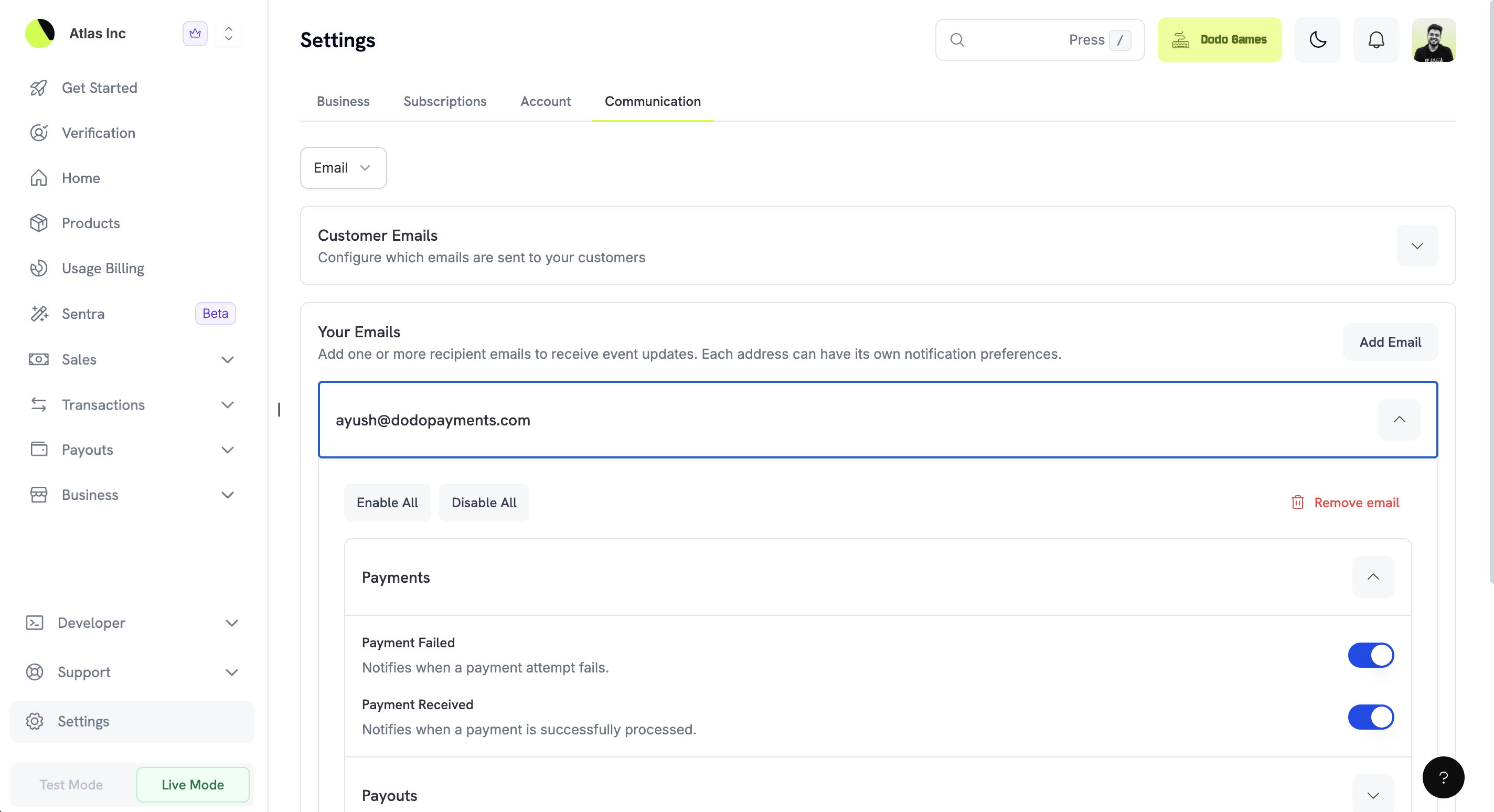 Communication Preferences controls how and when you're notified about events in your Dodo Payments account. You configure notifications for yourself, add team email recipients with their own preferences, and choose between the email, in-app, and push channels. The same page controls which transactional emails your customers receive.
## Accessing Communication Preferences
To configure your communication preferences:
1. Go to **Settings** in your Dodo Payments dashboard.
2. Click the **Communication** tab.
3. Use the tabs to switch between notification channels: **Email**, **In-App**, and **Push Notifications**.
## Notification Channels
Dodo Payments supports three notification channels, each suited to a different use case. You configure each channel independently.
Communication Preferences controls how and when you're notified about events in your Dodo Payments account. You configure notifications for yourself, add team email recipients with their own preferences, and choose between the email, in-app, and push channels. The same page controls which transactional emails your customers receive.
## Accessing Communication Preferences
To configure your communication preferences:
1. Go to **Settings** in your Dodo Payments dashboard.
2. Click the **Communication** tab.
3. Use the tabs to switch between notification channels: **Email**, **In-App**, and **Push Notifications**.
## Notification Channels
Dodo Payments supports three notification channels, each suited to a different use case. You configure each channel independently.
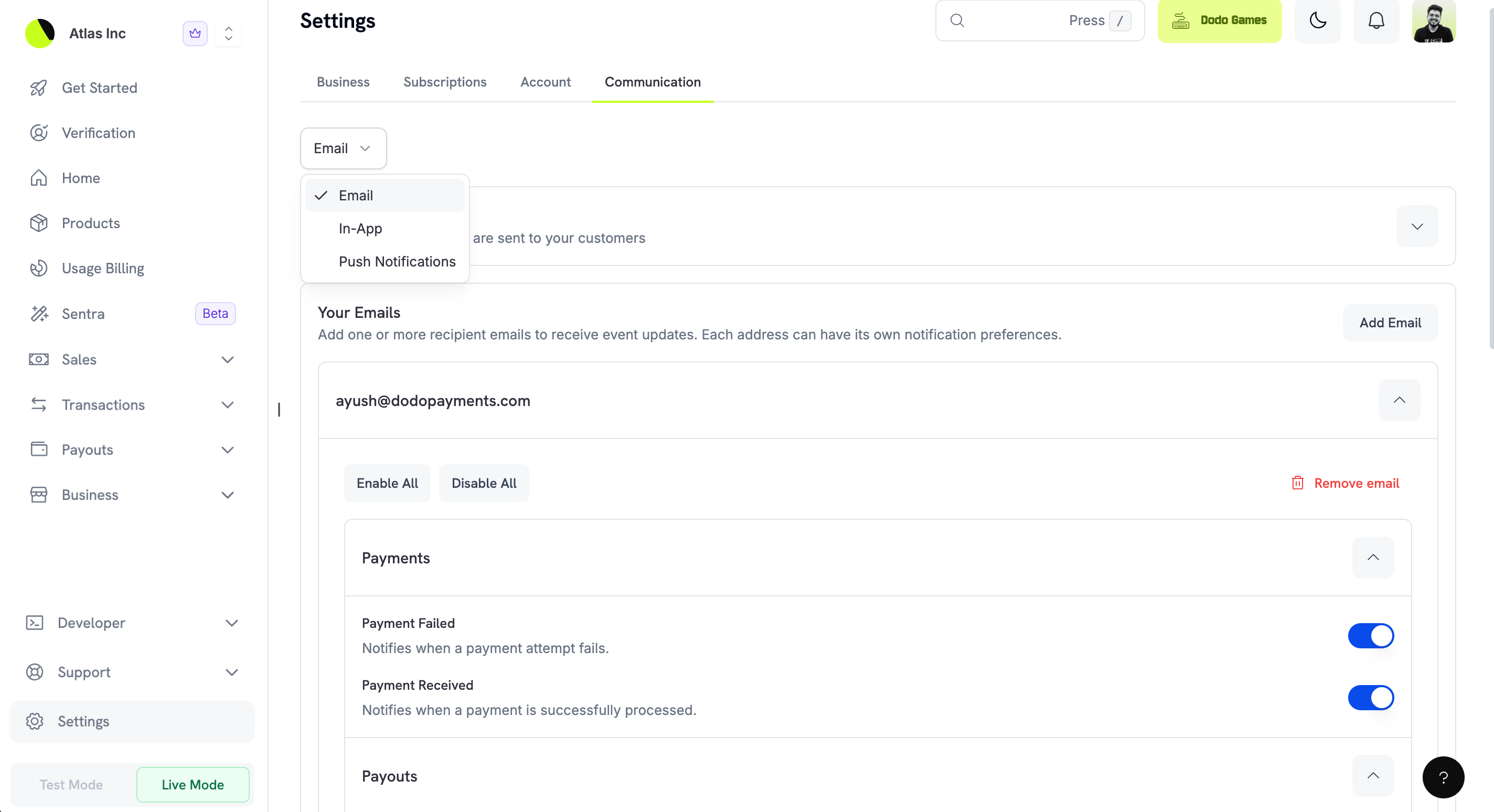 The channels compare as follows:
| Channel | Description | Best For |
| - | - | - |
| **Email** | Receive detailed notifications by email at one or more addresses | Record-keeping and team distribution |
| **In-App** | See notifications in the dashboard notification center | Quick updates while you work in the dashboard |
| **Push Notifications** | Get mobile alerts on your registered devices | Time-sensitive alerts when you're away from your desktop |
A business can have up to 10 notification channels in total across email, in-app, and push.
### Email Notifications
Email is the most flexible channel. You can add several recipient addresses, and each recipient has its own notification preferences. Use this to route specific notifications to different team members. For example, your finance team receives payout notifications and your support team receives dispute notifications.
The channels compare as follows:
| Channel | Description | Best For |
| - | - | - |
| **Email** | Receive detailed notifications by email at one or more addresses | Record-keeping and team distribution |
| **In-App** | See notifications in the dashboard notification center | Quick updates while you work in the dashboard |
| **Push Notifications** | Get mobile alerts on your registered devices | Time-sensitive alerts when you're away from your desktop |
A business can have up to 10 notification channels in total across email, in-app, and push.
### Email Notifications
Email is the most flexible channel. You can add several recipient addresses, and each recipient has its own notification preferences. Use this to route specific notifications to different team members. For example, your finance team receives payout notifications and your support team receives dispute notifications.
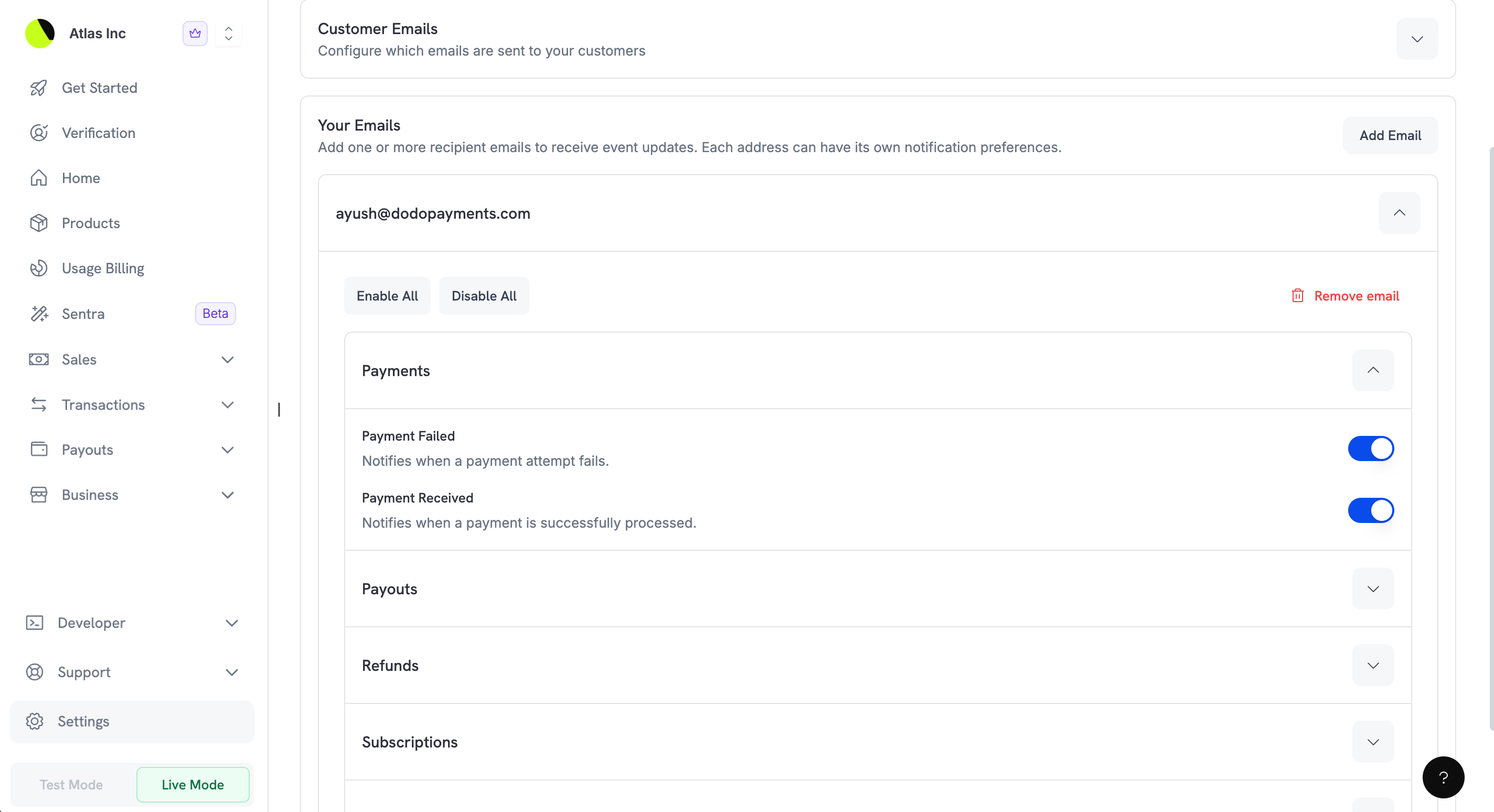 With email notifications, you can:
* Add email recipients, up to the 10-channel limit
* Configure notification preferences per recipient
* Turn every notification on or off at once with **Enable All** or **Disable All**
* Remove email addresses when team members change
### In-App Notifications
In-app notifications appear in the notification center of your Dodo Payments dashboard. Use them to stay informed while you work in the dashboard without adding to your email inbox.
With email notifications, you can:
* Add email recipients, up to the 10-channel limit
* Configure notification preferences per recipient
* Turn every notification on or off at once with **Enable All** or **Disable All**
* Remove email addresses when team members change
### In-App Notifications
In-app notifications appear in the notification center of your Dodo Payments dashboard. Use them to stay informed while you work in the dashboard without adding to your email inbox.
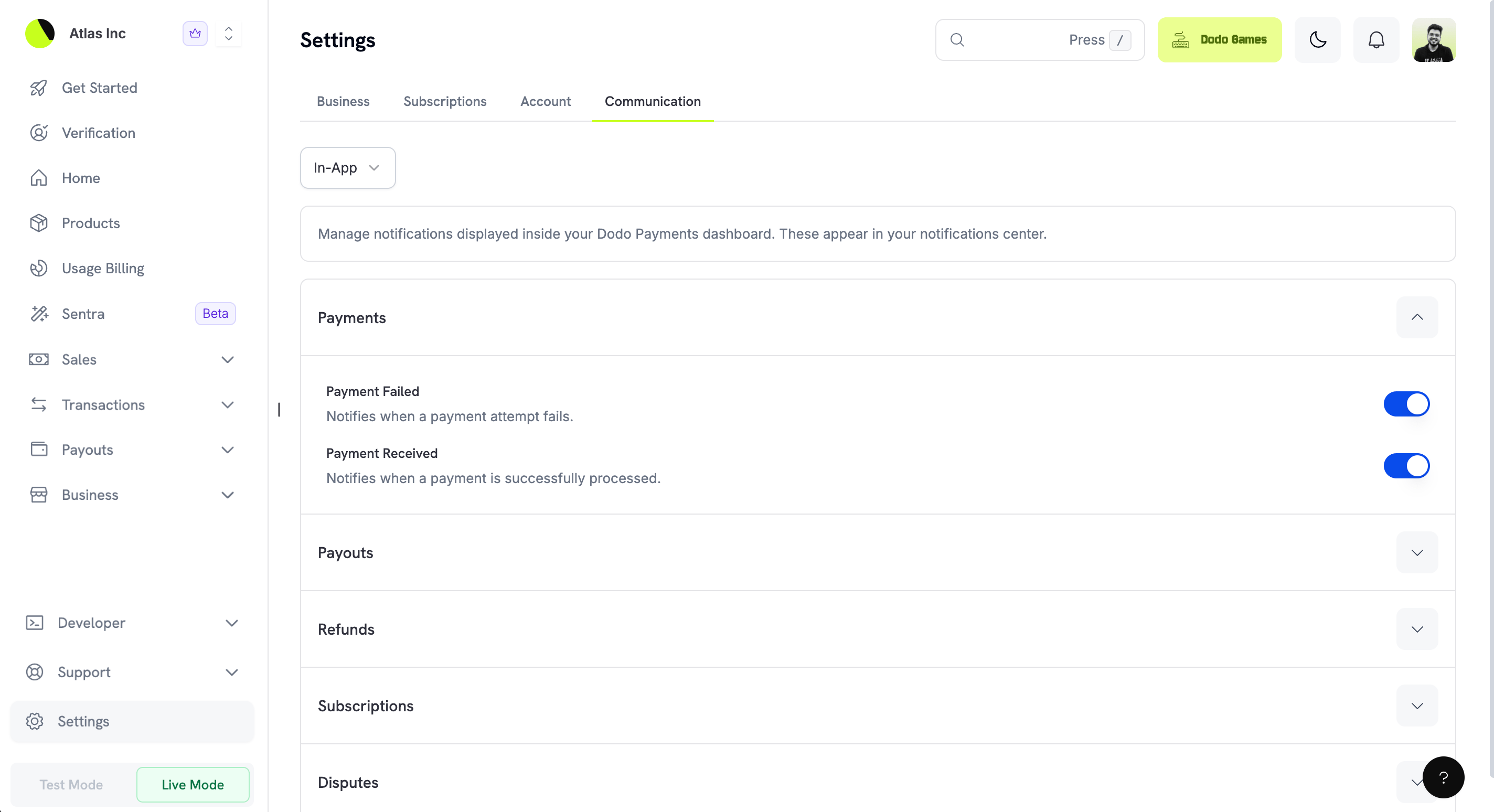 To open in-app notifications, click the bell icon in the dashboard header. Each notification gives a short summary of a recent event. Click a notification to mark it as read.
### Push Notifications
Push notifications send mobile alerts to your registered devices. Use this channel for events that need immediate attention, such as payment failures or new disputes.
To open in-app notifications, click the bell icon in the dashboard header. Each notification gives a short summary of a recent event. Click a notification to mark it as read.
### Push Notifications
Push notifications send mobile alerts to your registered devices. Use this channel for events that need immediate attention, such as payment failures or new disputes.
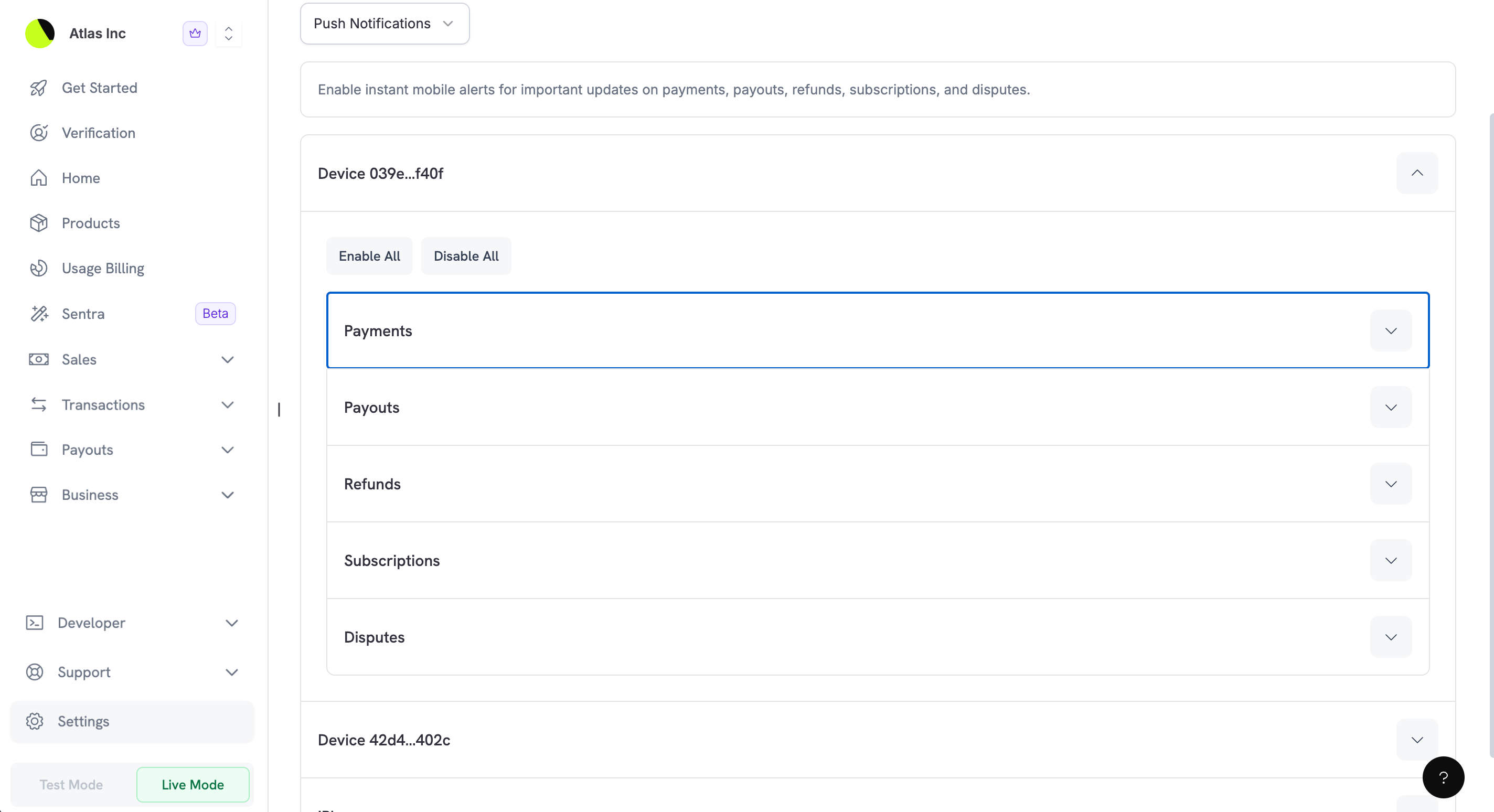 Push notifications are organized by device, so you can:
* Enable or disable notifications for a specific device
* Choose which events trigger push notifications on each device
* Manage several devices, for example a phone and a tablet
Download the [Dodo Payments mobile or desktop app](/features/mobile-app) to receive push notifications on your iOS, Android, macOS, Windows, or Linux device.
## Managing Email Recipients
The email channel accepts several recipient addresses, so you can keep your whole team informed about the events that concern them.
### Adding a New Email Recipient
1. In the **Your Emails** section, click **Add Email**.
2. Enter the address in the **Email Address** field of the dialog that opens.
3. Click **Add Email** to confirm.
Push notifications are organized by device, so you can:
* Enable or disable notifications for a specific device
* Choose which events trigger push notifications on each device
* Manage several devices, for example a phone and a tablet
Download the [Dodo Payments mobile or desktop app](/features/mobile-app) to receive push notifications on your iOS, Android, macOS, Windows, or Linux device.
## Managing Email Recipients
The email channel accepts several recipient addresses, so you can keep your whole team informed about the events that concern them.
### Adding a New Email Recipient
1. In the **Your Emails** section, click **Add Email**.
2. Enter the address in the **Email Address** field of the dialog that opens.
3. Click **Add Email** to confirm.
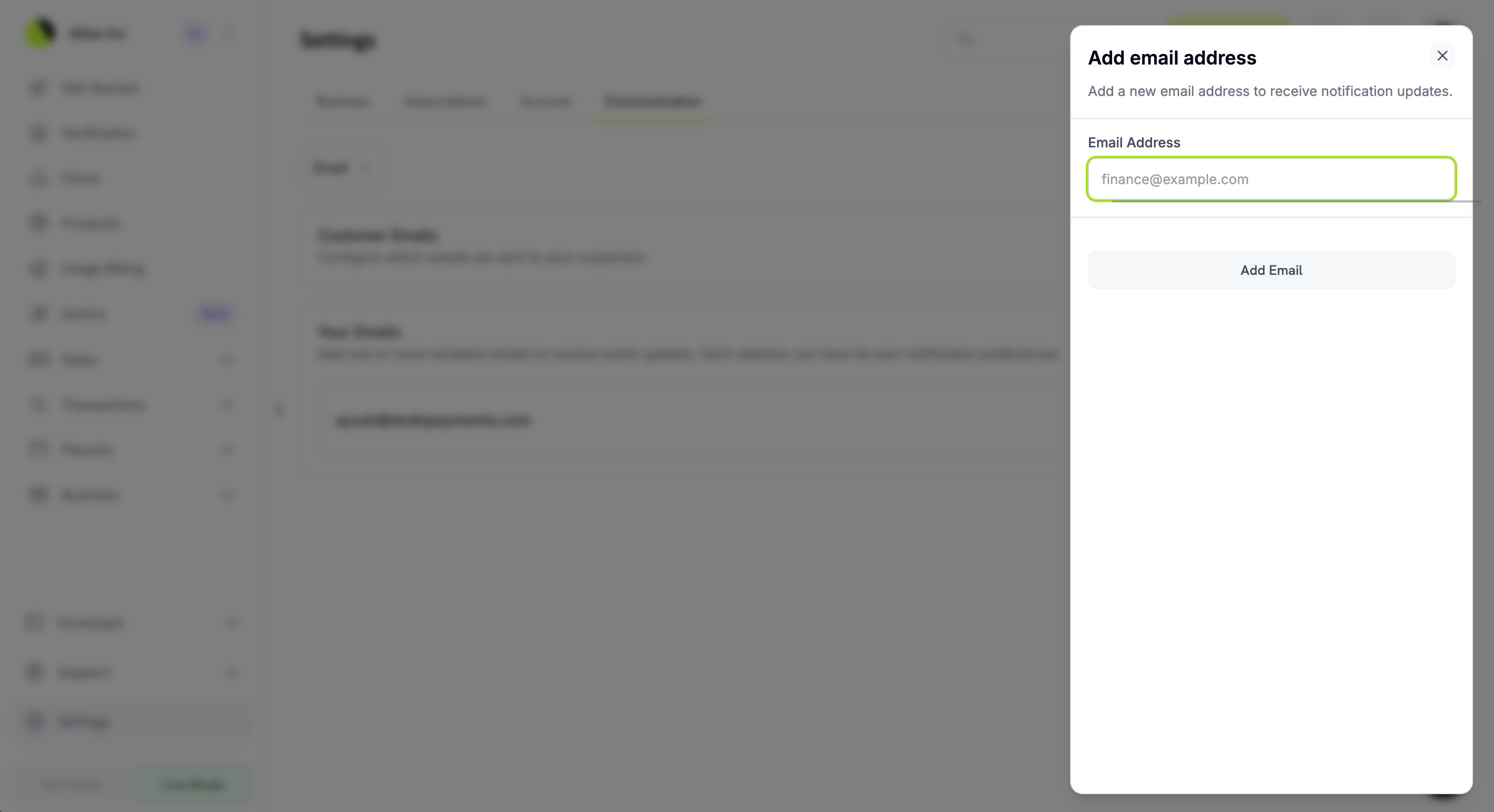 After you add an address, you can configure which notifications it receives.
### Configuring Email Preferences
1. Click an email address to expand its notification options.
2. Use the toggle next to each event to turn its notification on or off.
Dodo Payments saves each change as you make it.
For bulk changes, use the quick actions:
* **Enable All**: Turns on every notification for this email address.
* **Disable All**: Turns off every notification for this email address.
### Removing an Email Recipient
To remove an email address, expand the email entry and click **Remove email**. Notifications to that address stop immediately.
## Your Notification Events
These notifications keep you and your team informed about events that affect your business. You configure each event separately for each notification channel.
### Payments
Payment notifications cover the payment activity for your products.
| Event | Description |
| - | - |
| **Payment Failed** | Notifies when a payment attempt fails, for example because of insufficient funds or a card decline. Helps you spot customers who need help completing a purchase. |
| **Payment Received** | Notifies when a payment is processed successfully, which confirms that a customer completed a purchase. |
### Payouts
Payout notifications track the movement of funds from your Dodo Payments account to your bank account.
After you add an address, you can configure which notifications it receives.
### Configuring Email Preferences
1. Click an email address to expand its notification options.
2. Use the toggle next to each event to turn its notification on or off.
Dodo Payments saves each change as you make it.
For bulk changes, use the quick actions:
* **Enable All**: Turns on every notification for this email address.
* **Disable All**: Turns off every notification for this email address.
### Removing an Email Recipient
To remove an email address, expand the email entry and click **Remove email**. Notifications to that address stop immediately.
## Your Notification Events
These notifications keep you and your team informed about events that affect your business. You configure each event separately for each notification channel.
### Payments
Payment notifications cover the payment activity for your products.
| Event | Description |
| - | - |
| **Payment Failed** | Notifies when a payment attempt fails, for example because of insufficient funds or a card decline. Helps you spot customers who need help completing a purchase. |
| **Payment Received** | Notifies when a payment is processed successfully, which confirms that a customer completed a purchase. |
### Payouts
Payout notifications track the movement of funds from your Dodo Payments account to your bank account.
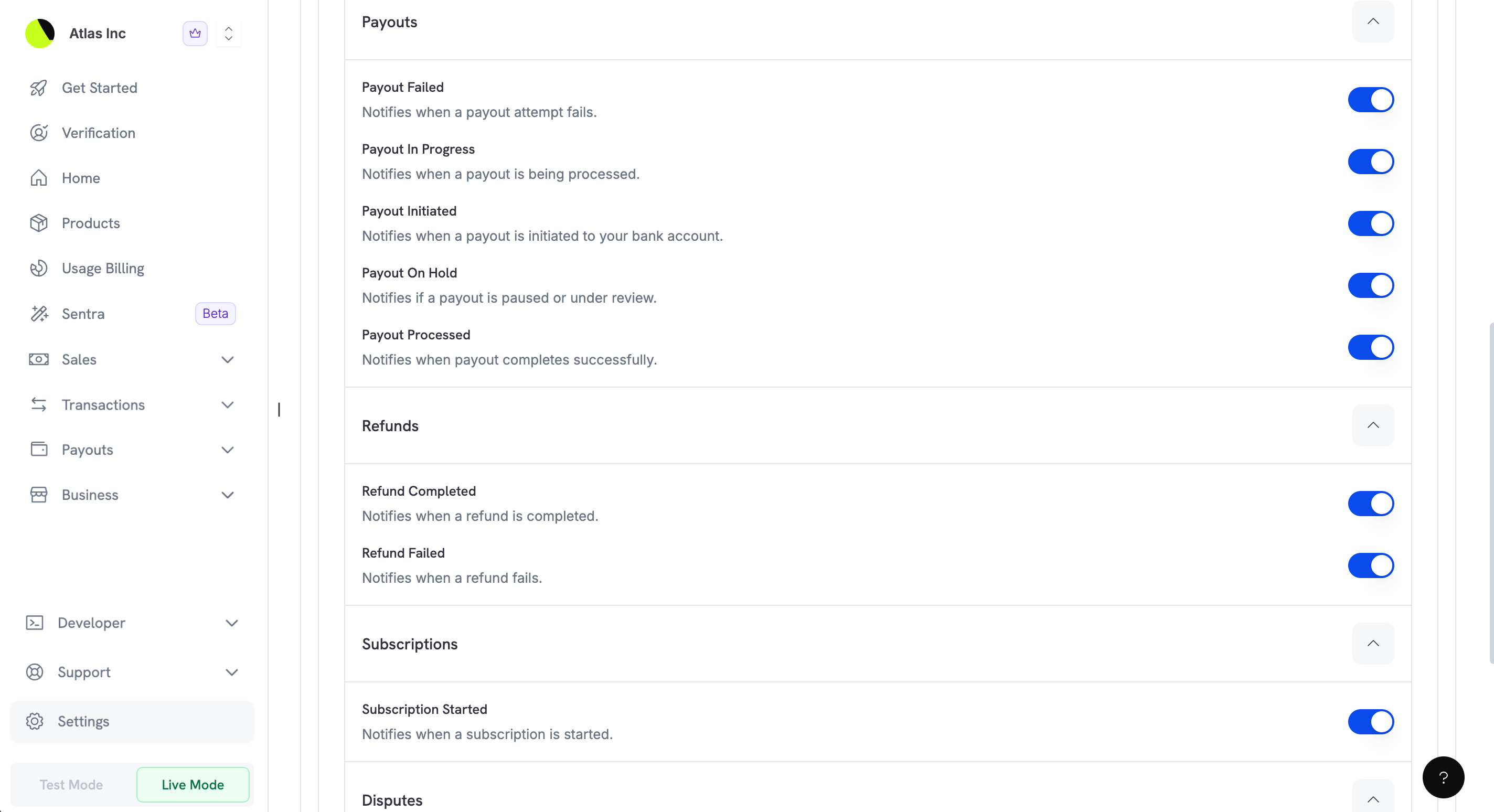 | Event | Description |
| - | - |
| **Payout Failed** | Notifies when a payout attempt fails. This can point to a problem with your bank account details that needs attention. |
| **Payout In Progress** | Notifies when a payout is being processed and the funds are on their way to your bank account. |
| **Payout Initiated** | Notifies when a payout to your bank account is initiated. This is the start of the payout process. |
| **Payout On Hold** | Notifies if a payout is paused or under review. You may need to provide additional information or documents. |
| **Payout Processed** | Notifies when a payout completes successfully and the funds are sent to your bank account. |
When a bank holiday moves your next payout date, every team member with in-app notifications also receives a **Payout date moved** notice that names the old and new dates. See [When Your Payout Date Moves](/features/payouts/payout-structure#when-your-payout-date-moves).
### Refunds
Refund notifications cover refund activity across your transactions.
| Event | Description |
| - | - |
| **Refund Completed** | Notifies when a refund is processed and the funds have been returned to the customer. |
| **Refund Failed** | Notifies when a refund fails. You may need to act to resolve it. |
### Subscriptions
Subscription notifications track the subscription lifecycle. The **Default** column shows whether each notification is on before you change it.
| Event | Default | Description |
| - | - | - |
| **Subscription Started** | Enabled | Notifies when a new subscription is created and activated, which confirms a new recurring customer. |
| **Subscription Paused** | Disabled | Notifies when a subscription is paused, whether you paused it or the customer did from the Customer Portal (when self-service pause is enabled). Billing stops and access is revoked until the subscription resumes. See [Pausing and Resuming Subscriptions](/features/subscription#pausing-and-resuming-subscriptions). |
| **Subscription Resumed** | Disabled | Notifies when a paused subscription is resumed. Billing restarts and access is restored. |
All other team notifications on this page are enabled by default.
### Disputes
Disputes need a prompt response to protect your business, and these notifications tell you about each change in a dispute.
| Event | Description |
| - | - |
| **Payout Failed** | Notifies when a payout attempt fails. This can point to a problem with your bank account details that needs attention. |
| **Payout In Progress** | Notifies when a payout is being processed and the funds are on their way to your bank account. |
| **Payout Initiated** | Notifies when a payout to your bank account is initiated. This is the start of the payout process. |
| **Payout On Hold** | Notifies if a payout is paused or under review. You may need to provide additional information or documents. |
| **Payout Processed** | Notifies when a payout completes successfully and the funds are sent to your bank account. |
When a bank holiday moves your next payout date, every team member with in-app notifications also receives a **Payout date moved** notice that names the old and new dates. See [When Your Payout Date Moves](/features/payouts/payout-structure#when-your-payout-date-moves).
### Refunds
Refund notifications cover refund activity across your transactions.
| Event | Description |
| - | - |
| **Refund Completed** | Notifies when a refund is processed and the funds have been returned to the customer. |
| **Refund Failed** | Notifies when a refund fails. You may need to act to resolve it. |
### Subscriptions
Subscription notifications track the subscription lifecycle. The **Default** column shows whether each notification is on before you change it.
| Event | Default | Description |
| - | - | - |
| **Subscription Started** | Enabled | Notifies when a new subscription is created and activated, which confirms a new recurring customer. |
| **Subscription Paused** | Disabled | Notifies when a subscription is paused, whether you paused it or the customer did from the Customer Portal (when self-service pause is enabled). Billing stops and access is revoked until the subscription resumes. See [Pausing and Resuming Subscriptions](/features/subscription#pausing-and-resuming-subscriptions). |
| **Subscription Resumed** | Disabled | Notifies when a paused subscription is resumed. Billing restarts and access is restored. |
All other team notifications on this page are enabled by default.
### Disputes
Disputes need a prompt response to protect your business, and these notifications tell you about each change in a dispute.
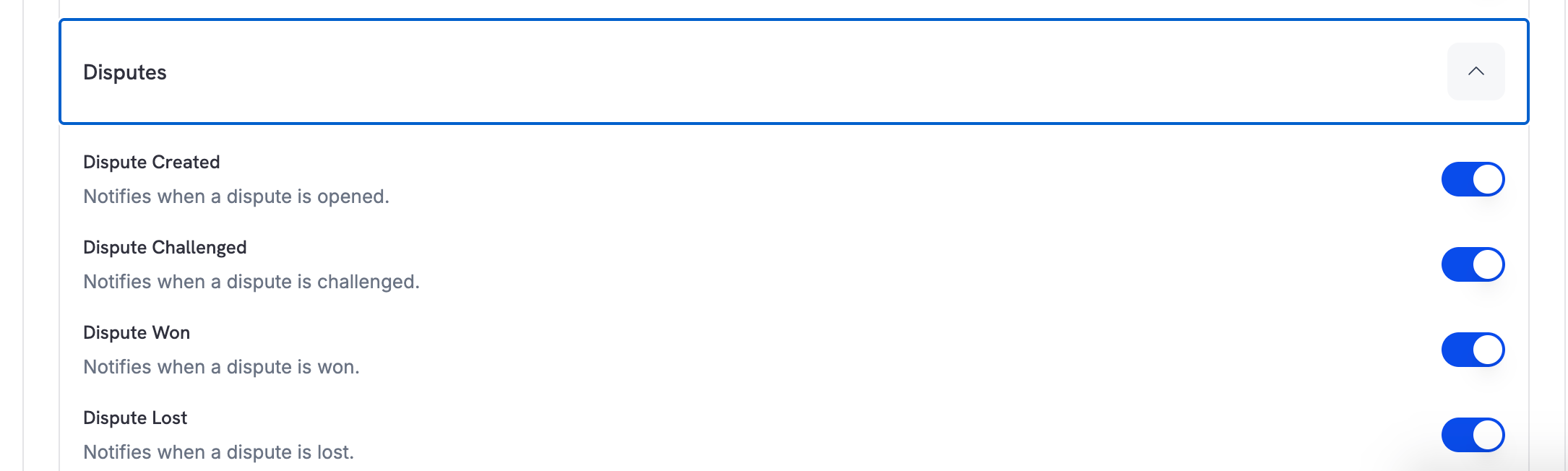 | Event | Description |
| - | - |
| **Dispute Created** | Notifies when a customer opens a dispute (chargeback) against a payment. Respond before the deadline. |
| **Dispute Challenged** | Notifies when a dispute you responded to is challenged or escalated. The dispute is still in progress. |
| **Dispute Won** | Notifies when a dispute is resolved in your favor. You keep the funds. |
| **Dispute Lost** | Notifies when a dispute is resolved in the customer's favor. The disputed amount is deducted from your account. |
Disputes have strict response deadlines. Keep dispute notifications enabled so you can respond in time.
## Customer Emails
Besides notifications for your team, you choose which transactional emails Dodo Payments sends to your customers automatically. Dodo Payments sends these emails on your behalf to keep customers informed about their purchases.
| Event | Description |
| - | - |
| **Dispute Created** | Notifies when a customer opens a dispute (chargeback) against a payment. Respond before the deadline. |
| **Dispute Challenged** | Notifies when a dispute you responded to is challenged or escalated. The dispute is still in progress. |
| **Dispute Won** | Notifies when a dispute is resolved in your favor. You keep the funds. |
| **Dispute Lost** | Notifies when a dispute is resolved in the customer's favor. The disputed amount is deducted from your account. |
Disputes have strict response deadlines. Keep dispute notifications enabled so you can respond in time.
## Customer Emails
Besides notifications for your team, you choose which transactional emails Dodo Payments sends to your customers automatically. Dodo Payments sends these emails on your behalf to keep customers informed about their purchases.
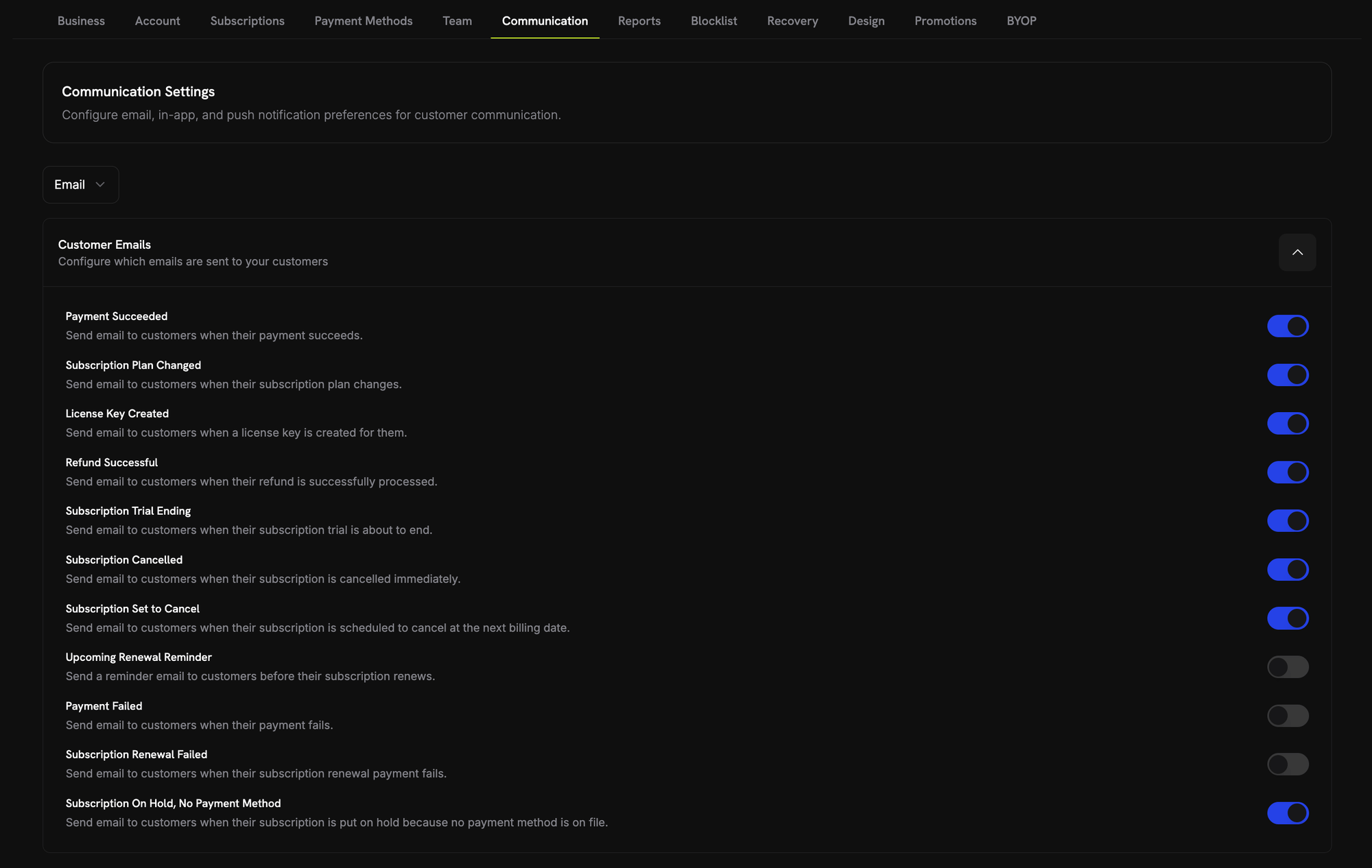 The customer emails and their defaults are:
| Email | Default | Description |
| - | - | - |
| **Payment Succeeded** | Enabled | Sends customers a confirmation email when their payment is processed successfully, with receipt details and order information. |
| **Subscription Plan Changed** | Enabled | Sends customers an email when their subscription plan changes through an upgrade, downgrade, or other modification, with the new plan details and pricing. |
| **License Key Created** | Enabled | Sends customers an email when a license key is generated for their purchase, with the license key and activation instructions. |
| **Refund Successful** | Enabled | Tells customers that their refund was processed and the funds are on their way back to them. |
| **Subscription Trial Ending** | Enabled | Reminds customers that their free trial is ending, about 2 days before the trial expires and the first charge occurs. |
| **Subscription Paused** | Enabled | Tells customers that their subscription is paused, whether they paused it from the Customer Portal (when self-service pause is enabled) or you paused it for them. |
| **Subscription Resumed** | Enabled | Tells customers that their paused subscription has resumed and billing restarts. |
| **Subscription Cancelled** | Enabled | Tells customers that their subscription was cancelled with immediate effect. |
| **Subscription Set to Cancel** | Enabled | Tells customers that their subscription is scheduled to cancel at the end of the current billing period instead of immediately. |
| **Payment Failed** | Disabled | Tells customers that a payment attempt on their account failed. Enable it to have Dodo Payments send these emails instead of handling them yourself. |
| **Subscription Renewal Failed** | Disabled | Tells customers that a subscription renewal payment failed. It is sent only for failed renewal payments and complements the general **Payment Failed** email. |
| **Upcoming Renewal Reminder** | Disabled | Reminds customers about 2 days before their subscription renews. Enable it to give customers advance notice of each renewal. |
| **Add Payment Method Reminder** | Enabled | Sent to the customer of a [Card-Optional at Zero Price](/features/subscription#card-optional-at-zero-price) subscription before real billing starts, asking them to add a card. It has no toggle in the Customer Emails list. **Payment Method Reminder** in **Settings → Subscriptions** sets the timing. |
| **Subscription On Hold, No Payment Method** | Enabled | Sent when a [Card-Optional at Zero Price](/features/subscription#card-optional-at-zero-price) subscription is put on hold because no payment method was added before real billing was due. |
Customer emails that are **enabled by default** are sent unless you turn them off. Emails that are **disabled by default** are sent only if you enable them. These are usually events where you may prefer to contact customers through your own systems.
Customer emails are separate from the notification emails sent to your team. Turning off a customer email doesn't affect your team's notifications about the same event.
### Test Mode Emails
The **Test Mode Emails** switch, below the **Customer Emails** list on the **Email** tab, controls whether customer emails are sent in test mode. It is on by default.
* **On**: Customer emails are sent in test mode to the real recipient, with `[TEST MODE]` at the start of each subject. A business can send up to 100 test mode emails per week.
* **Off**: No customer emails are sent in test mode. Emails that are not sent don't count toward the weekly allowance, and the dashboard refuses a resend from a customer's [Sent Emails](/features/email-logs) tab.
The switch has no effect on live mode emails.
## Best Practices
These recommendations help you configure communication preferences effectively:
1. **Route notifications by role**: Add team addresses for different notification types. For example:
* `finance@yourcompany.com` for payout notifications
* `support@yourcompany.com` for dispute notifications
* `sales@yourcompany.com` for payment notifications
2. **Enable critical notifications on several channels**: For time-sensitive events such as disputes, turn on both email and push notifications so you don't miss them.
3. **Review preferences regularly**: When your team grows or changes, check that the right people receive the right notifications.
4. **Keep customer emails enabled**: Unless you have a specific reason to turn them off, customer emails give customers a better experience and reduce support requests.
This documentation is built and hosted on [Mintlify](https://mintlify.com), a developer documentation platform.
The customer emails and their defaults are:
| Email | Default | Description |
| - | - | - |
| **Payment Succeeded** | Enabled | Sends customers a confirmation email when their payment is processed successfully, with receipt details and order information. |
| **Subscription Plan Changed** | Enabled | Sends customers an email when their subscription plan changes through an upgrade, downgrade, or other modification, with the new plan details and pricing. |
| **License Key Created** | Enabled | Sends customers an email when a license key is generated for their purchase, with the license key and activation instructions. |
| **Refund Successful** | Enabled | Tells customers that their refund was processed and the funds are on their way back to them. |
| **Subscription Trial Ending** | Enabled | Reminds customers that their free trial is ending, about 2 days before the trial expires and the first charge occurs. |
| **Subscription Paused** | Enabled | Tells customers that their subscription is paused, whether they paused it from the Customer Portal (when self-service pause is enabled) or you paused it for them. |
| **Subscription Resumed** | Enabled | Tells customers that their paused subscription has resumed and billing restarts. |
| **Subscription Cancelled** | Enabled | Tells customers that their subscription was cancelled with immediate effect. |
| **Subscription Set to Cancel** | Enabled | Tells customers that their subscription is scheduled to cancel at the end of the current billing period instead of immediately. |
| **Payment Failed** | Disabled | Tells customers that a payment attempt on their account failed. Enable it to have Dodo Payments send these emails instead of handling them yourself. |
| **Subscription Renewal Failed** | Disabled | Tells customers that a subscription renewal payment failed. It is sent only for failed renewal payments and complements the general **Payment Failed** email. |
| **Upcoming Renewal Reminder** | Disabled | Reminds customers about 2 days before their subscription renews. Enable it to give customers advance notice of each renewal. |
| **Add Payment Method Reminder** | Enabled | Sent to the customer of a [Card-Optional at Zero Price](/features/subscription#card-optional-at-zero-price) subscription before real billing starts, asking them to add a card. It has no toggle in the Customer Emails list. **Payment Method Reminder** in **Settings → Subscriptions** sets the timing. |
| **Subscription On Hold, No Payment Method** | Enabled | Sent when a [Card-Optional at Zero Price](/features/subscription#card-optional-at-zero-price) subscription is put on hold because no payment method was added before real billing was due. |
Customer emails that are **enabled by default** are sent unless you turn them off. Emails that are **disabled by default** are sent only if you enable them. These are usually events where you may prefer to contact customers through your own systems.
Customer emails are separate from the notification emails sent to your team. Turning off a customer email doesn't affect your team's notifications about the same event.
### Test Mode Emails
The **Test Mode Emails** switch, below the **Customer Emails** list on the **Email** tab, controls whether customer emails are sent in test mode. It is on by default.
* **On**: Customer emails are sent in test mode to the real recipient, with `[TEST MODE]` at the start of each subject. A business can send up to 100 test mode emails per week.
* **Off**: No customer emails are sent in test mode. Emails that are not sent don't count toward the weekly allowance, and the dashboard refuses a resend from a customer's [Sent Emails](/features/email-logs) tab.
The switch has no effect on live mode emails.
## Best Practices
These recommendations help you configure communication preferences effectively:
1. **Route notifications by role**: Add team addresses for different notification types. For example:
* `finance@yourcompany.com` for payout notifications
* `support@yourcompany.com` for dispute notifications
* `sales@yourcompany.com` for payment notifications
2. **Enable critical notifications on several channels**: For time-sensitive events such as disputes, turn on both email and push notifications so you don't miss them.
3. **Review preferences regularly**: When your team grows or changes, check that the right people receive the right notifications.
4. **Keep customer emails enabled**: Unless you have a specific reason to turn them off, customer emails give customers a better experience and reduce support requests.
This documentation is built and hosted on [Mintlify](https://mintlify.com), a developer documentation platform.