> ## Documentation Index
> Fetch the complete documentation index at: https://docs.dodopayments.com/llms.txt
> Use this file to discover all available pages before exploring further.
# Customer Portal
> Let customers manage their subscriptions, payment methods, invoices, and license keys in a hosted portal, without contacting your support team.
The Customer Portal is a hosted site where your customers manage their subscriptions, view and download invoices, and retrieve license keys without contacting support.
Create a portal link for one customer, valid for 24 hours.
Recurring plans, upgrades, downgrades, and add-ons.
 ## What Is the Customer Portal?
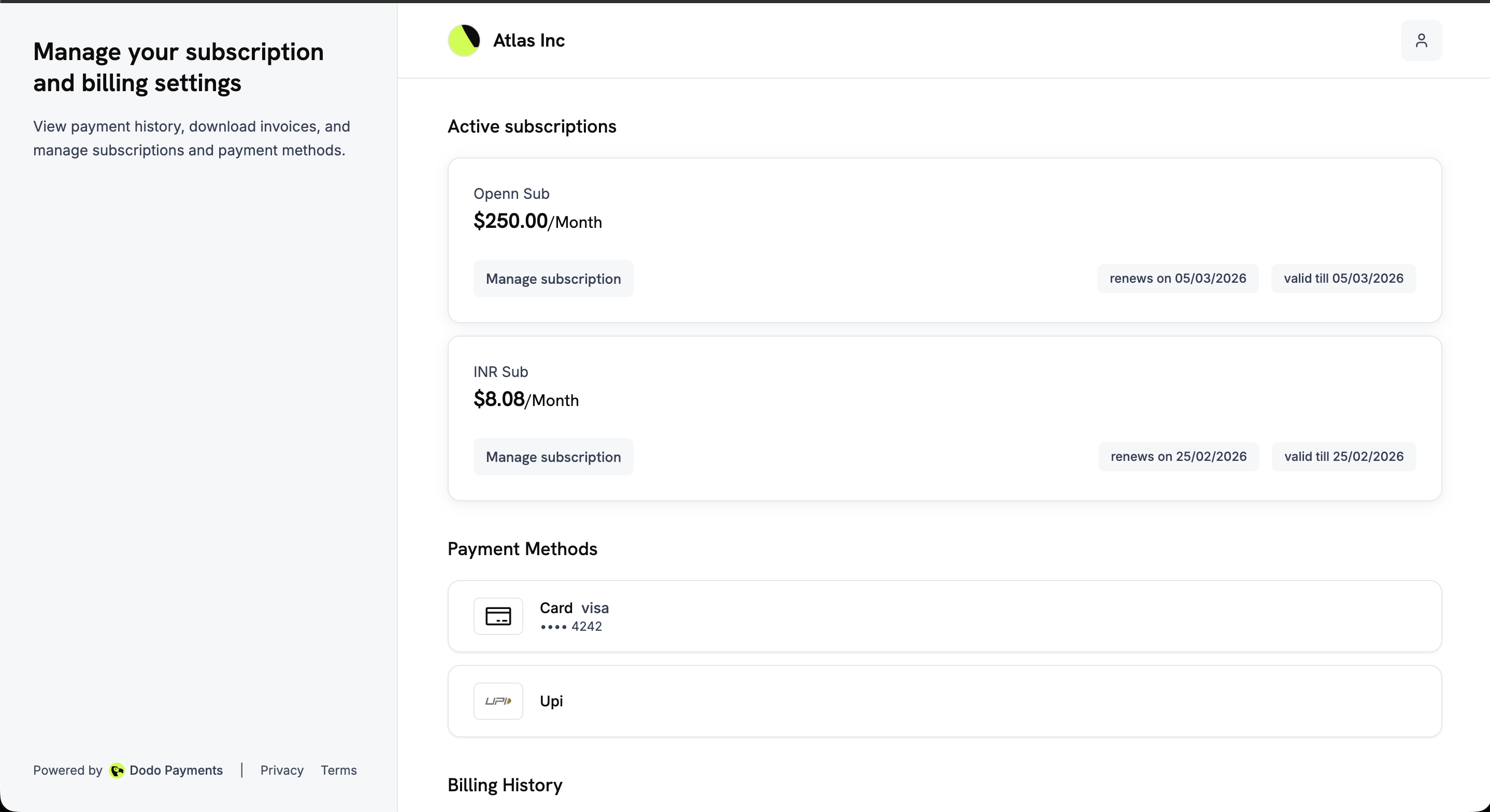
The portal is a self-service site, branded with your business name, where customers can:
* **Access billing history**: View past payments and download invoices.
* **Manage subscriptions**: View subscription details, pause and resume, and cancel immediately or at the next billing date, as your settings allow.
* **Update payment methods**: Change the payment method on a subscription, or reactivate a subscription that is on hold.
* **Retrieve license keys**: See the license keys tied to their purchases.
* **Return to your app**: When you pass a `return_url`, the portal shows a back link to your business. On mobile, a back arrow in the header returns to the portal overview.
If you [block a customer](/features/customer-blocklist), their portal becomes **read-only**. They can still sign in and view invoices, subscriptions, and license keys, but they can't cancel, pause, or resume a subscription, change plans, or update a payment method. The portal profile returns `read_only: true` so a custom integration can disable its own controls.
## Key Benefits
* **Lower support volume**: Customers handle common billing requests themselves.
* **Faster access**: Customers get invoices and license keys as soon as they sign in.
* **Lower churn risk**: Customers see renewal dates and plan details before they are charged.
* **Signed, expiring links**: Every sign-in link is signed and expires after 24 hours.
* **Localized experience**: The portal is available in 21 languages and picks one from the customer's browser settings.
## Access Methods
Customers reach the portal through a static link or a dynamic link.
### Static Link (Email-Based Access)
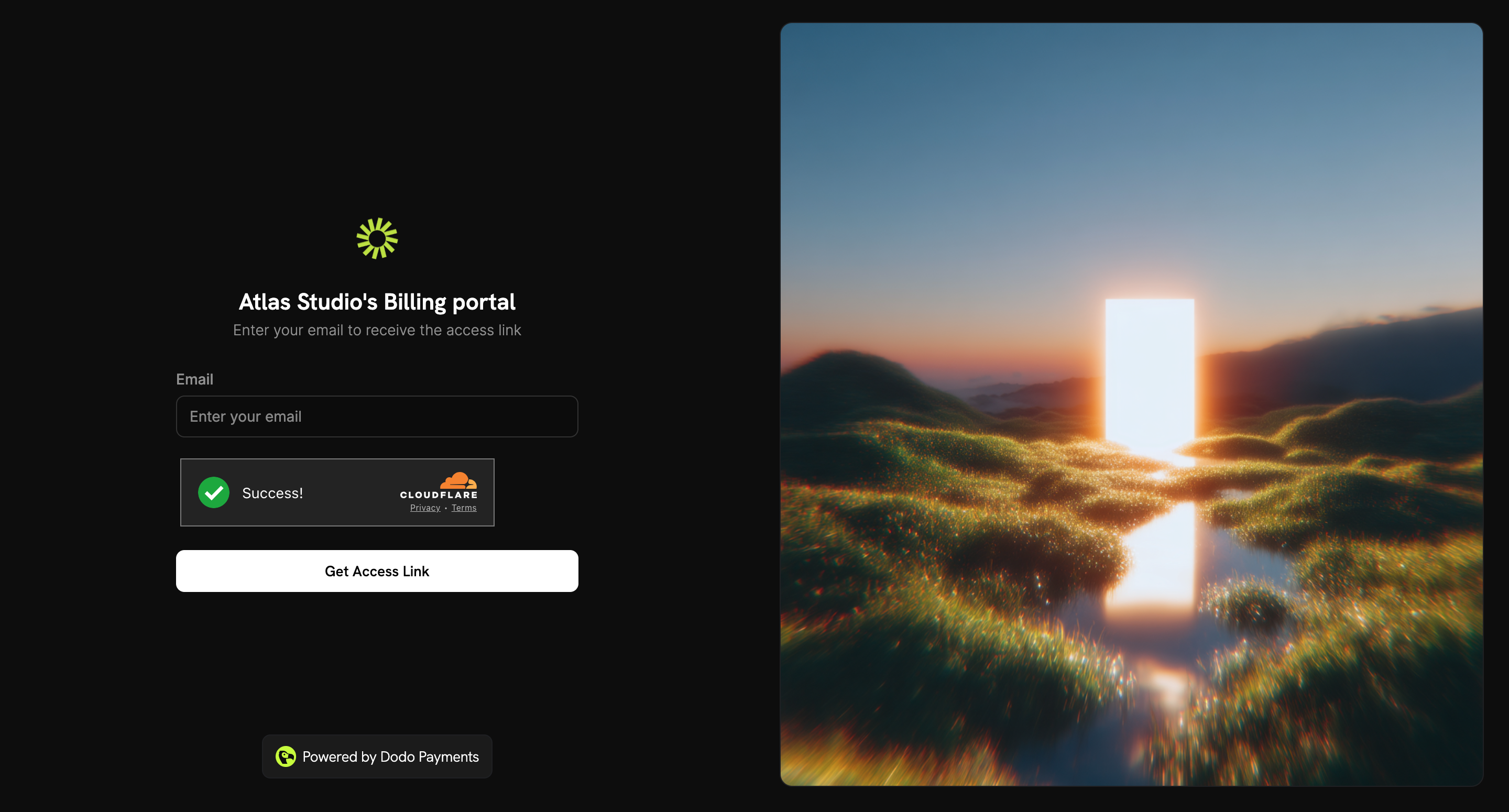
The static link never expires. A customer opens it, enters their email address, and receives a sign-in link by email.
The static link depends on the environment:
**Test Mode** (for testing and development):
```bash theme={null}
https://test.customer.dodopayments.com/login/{business_id}
```
**Live Mode** (for production with real transactions):
```bash theme={null}
https://customer.dodopayments.com/login/{business_id}
```
Replace `{business_id}` with your business ID, then share the link with your customers. The **Static Link** in the **Share Invite** dialog already contains it.
## What Is the Customer Portal?
The portal is a self-service site, branded with your business name, where customers can:
* **Access billing history**: View past payments and download invoices.
* **Manage subscriptions**: View subscription details, pause and resume, and cancel immediately or at the next billing date, as your settings allow.
* **Update payment methods**: Change the payment method on a subscription, or reactivate a subscription that is on hold.
* **Retrieve license keys**: See the license keys tied to their purchases.
* **Return to your app**: When you pass a `return_url`, the portal shows a back link to your business. On mobile, a back arrow in the header returns to the portal overview.
If you [block a customer](/features/customer-blocklist), their portal becomes **read-only**. They can still sign in and view invoices, subscriptions, and license keys, but they can't cancel, pause, or resume a subscription, change plans, or update a payment method. The portal profile returns `read_only: true` so a custom integration can disable its own controls.
## Key Benefits
* **Lower support volume**: Customers handle common billing requests themselves.
* **Faster access**: Customers get invoices and license keys as soon as they sign in.
* **Lower churn risk**: Customers see renewal dates and plan details before they are charged.
* **Signed, expiring links**: Every sign-in link is signed and expires after 24 hours.
* **Localized experience**: The portal is available in 21 languages and picks one from the customer's browser settings.
## Access Methods
Customers reach the portal through a static link or a dynamic link.
### Static Link (Email-Based Access)
The static link never expires. A customer opens it, enters their email address, and receives a sign-in link by email.
The static link depends on the environment:
**Test Mode** (for testing and development):
```bash theme={null}
https://test.customer.dodopayments.com/login/{business_id}
```
**Live Mode** (for production with real transactions):
```bash theme={null}
https://customer.dodopayments.com/login/{business_id}
```
Replace `{business_id}` with your business ID, then share the link with your customers. The **Static Link** in the **Share Invite** dialog already contains it.
 1. Go to **Sales → Customers** and open a customer, or use the **Invite** column in the list.
2. Click **Share Invite**.
3. Copy the **Static Link** and share it with your customer.
1. Open the static link.
2. Enter the email address used at purchase and click **Get Access Link**.
3. Open the emailed sign-in link. It is valid for 24 hours.
The page always shows the same confirmation. Dodo Payments emails a link only when the address belongs to a customer of your business, so the page doesn't reveal who your customers are.
Sign-in emails are not sent in test mode. To open a test mode portal, use the **Dynamic Link** or create a session through the API.
### Dynamic Link (Magic Link)
A dynamic link signs one customer straight into the portal, without an email step. It expires 24 hours after it is created.
A dynamic link stops working after 24 hours. When it expires, the customer sees an expiry page. Generate a new link and send it again.
1. Go to **Sales → Customers** and open a customer, or use the **Invite** column in the list.
2. Click **Share Invite**.
3. Copy the **Static Link** and share it with your customer.
1. Open the static link.
2. Enter the email address used at purchase and click **Get Access Link**.
3. Open the emailed sign-in link. It is valid for 24 hours.
The page always shows the same confirmation. Dodo Payments emails a link only when the address belongs to a customer of your business, so the page doesn't reveal who your customers are.
Sign-in emails are not sent in test mode. To open a test mode portal, use the **Dynamic Link** or create a session through the API.
### Dynamic Link (Magic Link)
A dynamic link signs one customer straight into the portal, without an email step. It expires 24 hours after it is created.
A dynamic link stops working after 24 hours. When it expires, the customer sees an expiry page. Generate a new link and send it again.
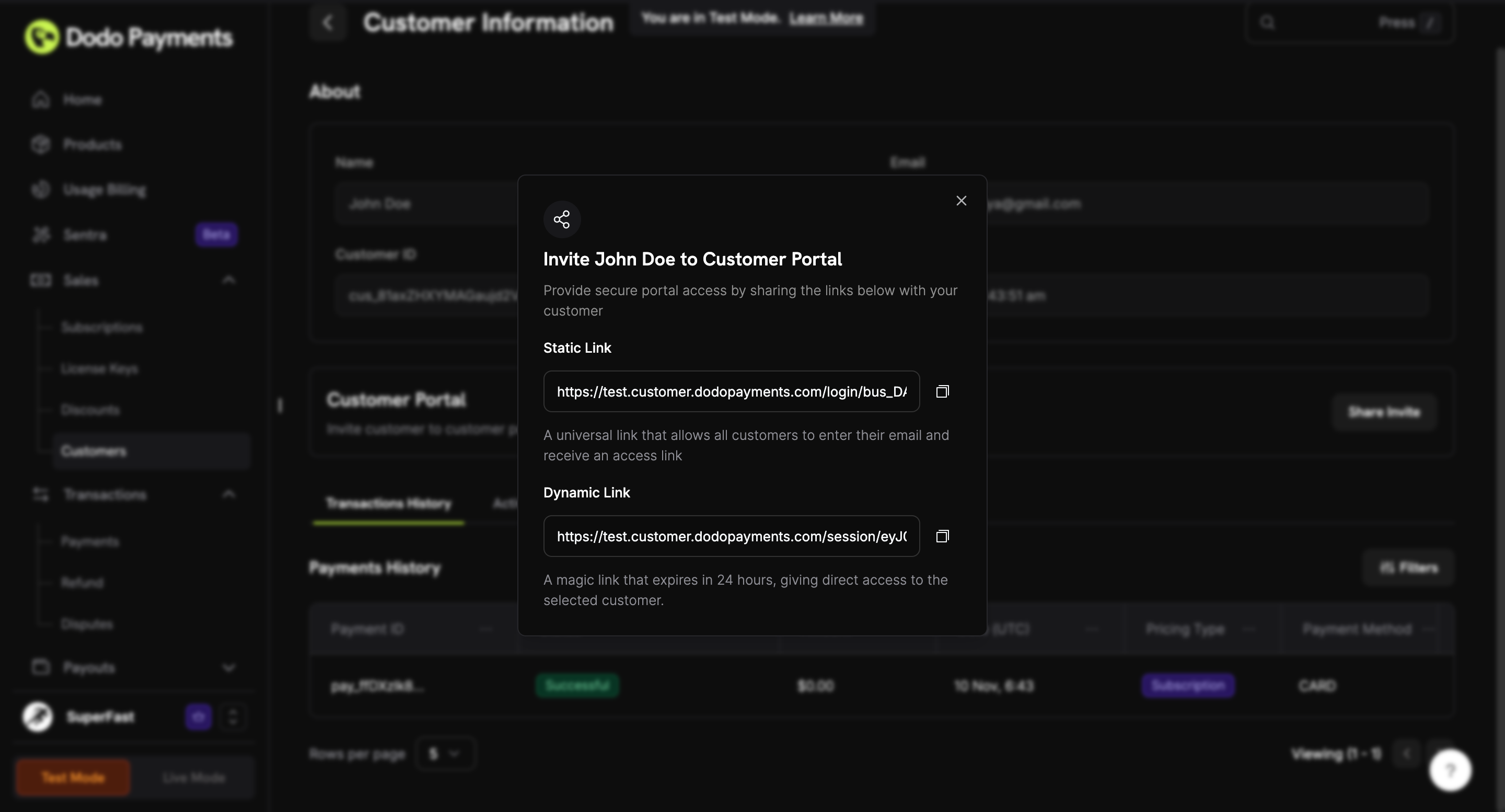 1. Go to **Sales → Customers** and open the customer.
2. Click **Share Invite**.
3. Copy the **Dynamic Link** and share it with your customer.
1. Open the dynamic link.
2. The Customer Portal opens directly, without an email address.
## Portal Features
The portal overview is a single page. On desktop, a panel on the left describes the portal. The main area lists the customer's subscriptions, payment methods, and billing history.
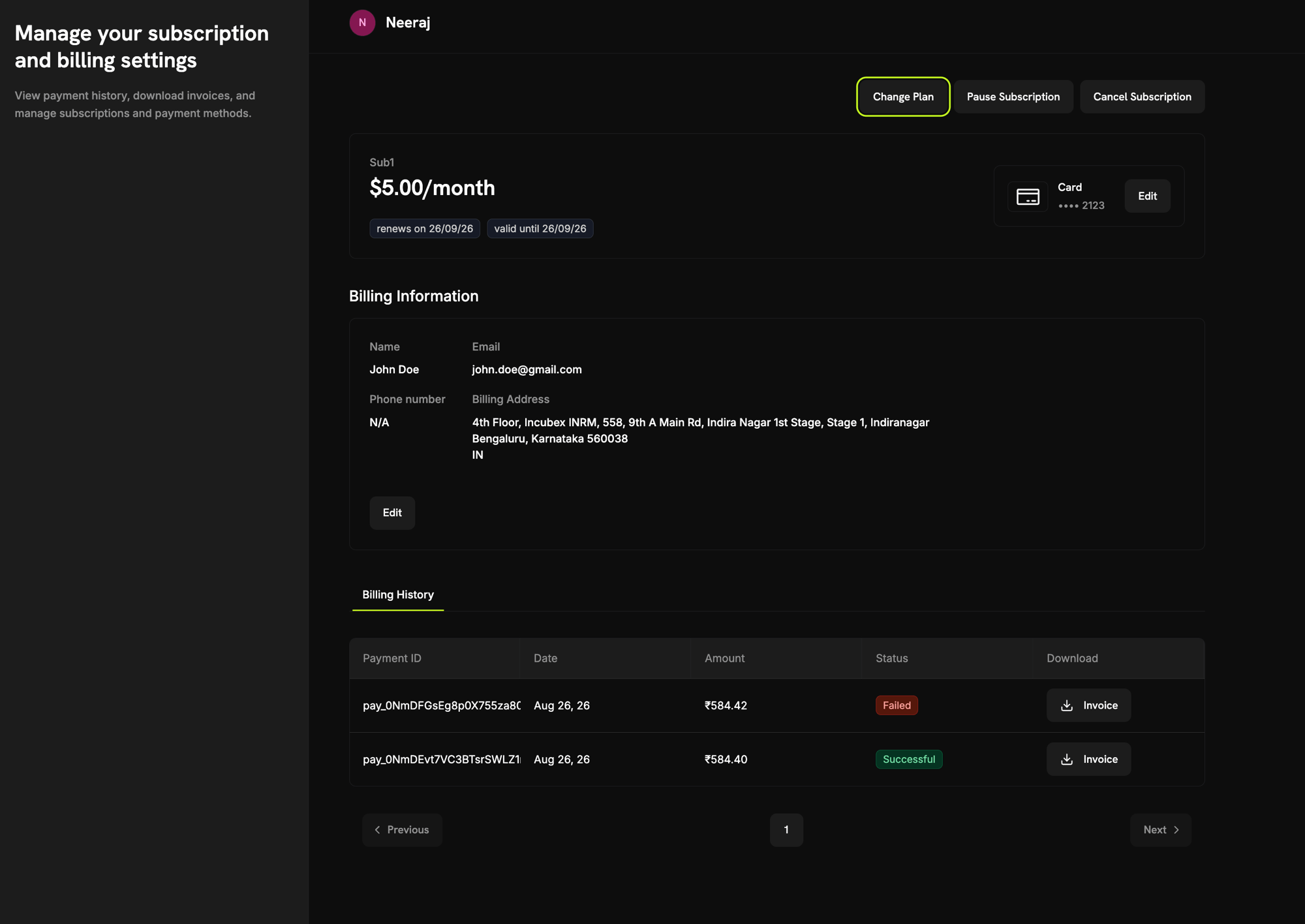
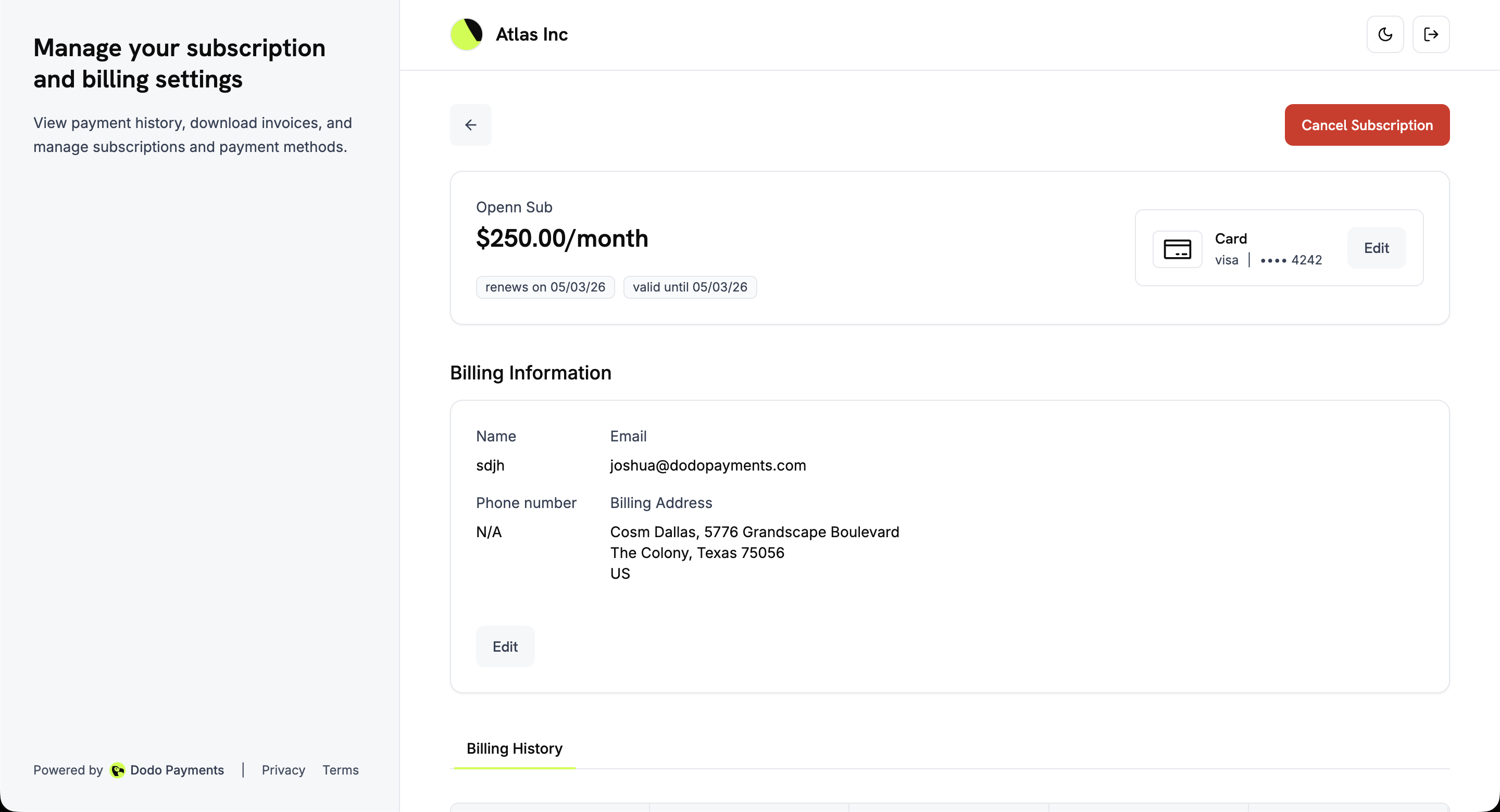
Each subscription shows its plan name, price, renewal date, and validity. **Manage subscription** opens its details, where the customer can edit billing details, change plan, pause, or cancel.
Saved payment methods, such as cards with their network and last four digits, UPI, wallets, and bank methods. Change a subscription's payment method from its details page.
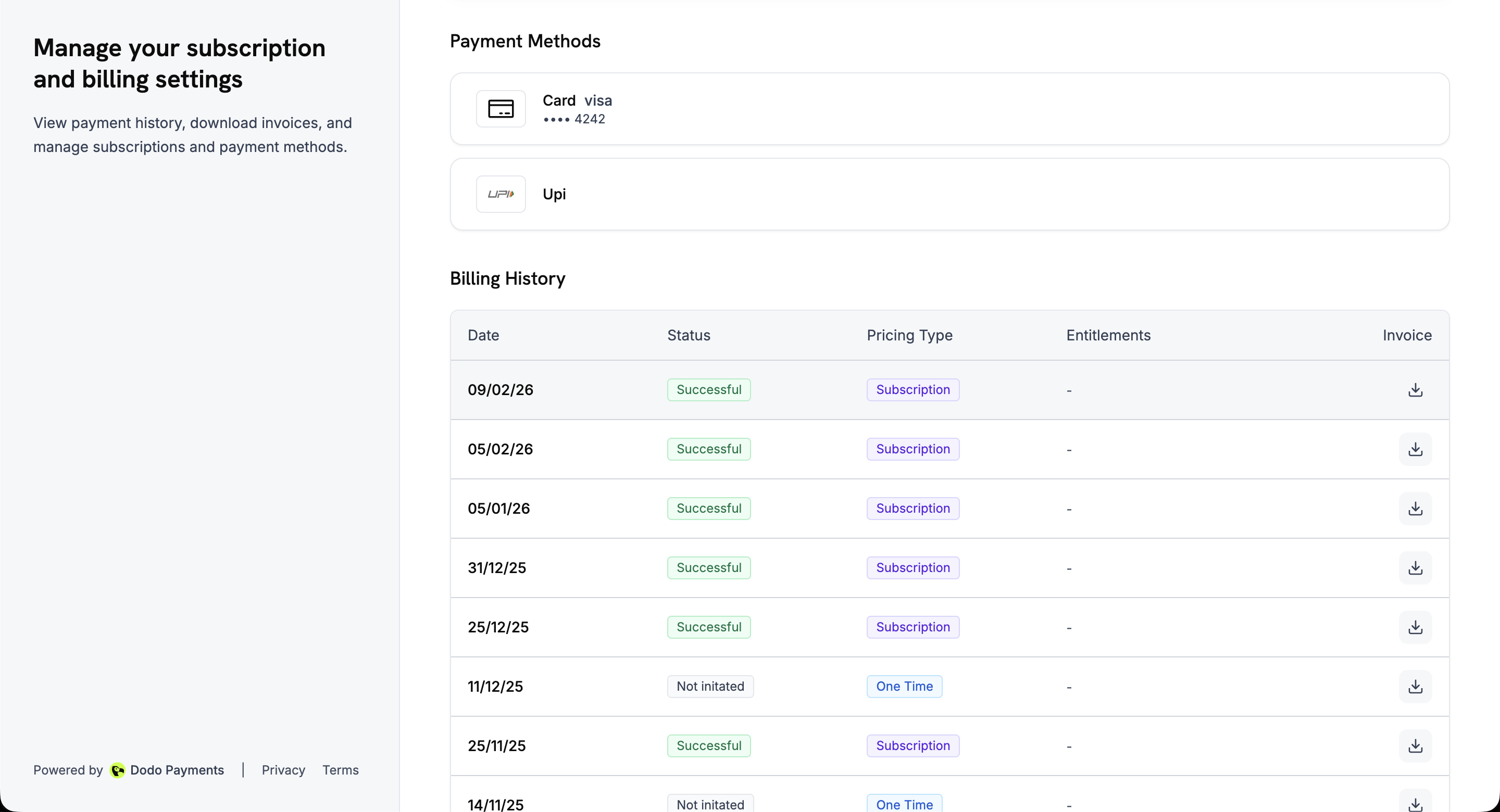
Every payment in a table with **Date**, **Status**, **Amount**, **Pricing Type**, **Entitlements**, and **Invoice** download.
Name, email, phone number, and billing address, shown on the subscription details page. Customers can edit the name and billing address.
### Portal Overview
The overview page shows active subscriptions, saved payment methods, and billing history in one scrollable view.
### Payment Methods & Billing History
Further down the page are the saved payment methods and the billing history, with a status for each payment and a download link for each invoice.
1. Go to **Sales → Customers** and open the customer.
2. Click **Share Invite**.
3. Copy the **Dynamic Link** and share it with your customer.
1. Open the dynamic link.
2. The Customer Portal opens directly, without an email address.
## Portal Features
The portal overview is a single page. On desktop, a panel on the left describes the portal. The main area lists the customer's subscriptions, payment methods, and billing history.
Each subscription shows its plan name, price, renewal date, and validity. **Manage subscription** opens its details, where the customer can edit billing details, change plan, pause, or cancel.
Saved payment methods, such as cards with their network and last four digits, UPI, wallets, and bank methods. Change a subscription's payment method from its details page.
Every payment in a table with **Date**, **Status**, **Amount**, **Pricing Type**, **Entitlements**, and **Invoice** download.
Name, email, phone number, and billing address, shown on the subscription details page. Customers can edit the name and billing address.
### Portal Overview
The overview page shows active subscriptions, saved payment methods, and billing history in one scrollable view.
### Payment Methods & Billing History
Further down the page are the saved payment methods and the billing history, with a status for each payment and a download link for each invoice.
 ## Language Support
The Customer Portal is available in **21 languages**, so customers can manage subscriptions, payment methods, and billing history in their own language.
### How Language Selection Works
* **Automatic detection**: On the first visit, the portal reads the preferred language from the browser and loads it if it is supported. Otherwise it uses English.
* **Manual override**: Customers can change the language at any time with the language selector in the bottom-right corner of the page, on desktop and mobile.
* **Persisted preference**: The portal stores the choice in the `NEXT_LOCALE` cookie for one year, so it remembers the language across visits.
### Supported Languages
| Language | Code | Language | Code |
| - | - | - | - |
| English (default) | `en` | Indonesian | `id` |
| Arabic | `ar` | Italian | `it` |
| Catalan | `ca` | Japanese | `ja` |
| Chinese | `zh` | Korean | `ko` |
| Dutch | `nl` | Malay | `ms` |
| French | `fr` | Polish | `pl` |
| German | `de` | Portuguese | `pt` |
| Hebrew | `he` | Romanian | `ro` |
| Russian | `ru` | Spanish | `es` |
| Swedish | `sv` | Thai | `th` |
| Turkish | `tr` | | |
## Plan Changes (Upgrade/Downgrade)
Customers can upgrade or downgrade from the portal between products in the same **Product Collection**.
To let customers on existing subscriptions switch plans, add your subscription products to a Product Collection and turn on **Allow Subscription Updates**. Customers can then switch between plans in that collection from the portal.
### Available Actions
| Action | Description | When Available |
| - | - | - |
| **Upgrade** | Move to a higher-tier plan in the same collection | **Allow Subscription Updates** is on |
| **Downgrade** | Move to a lower-tier plan in the same collection | **Allow Subscription Updates** is on |
### How Plan Changes Work
1. The customer clicks **Change Plan** on the subscription details page.
2. The portal lists the other plans in the product collection.
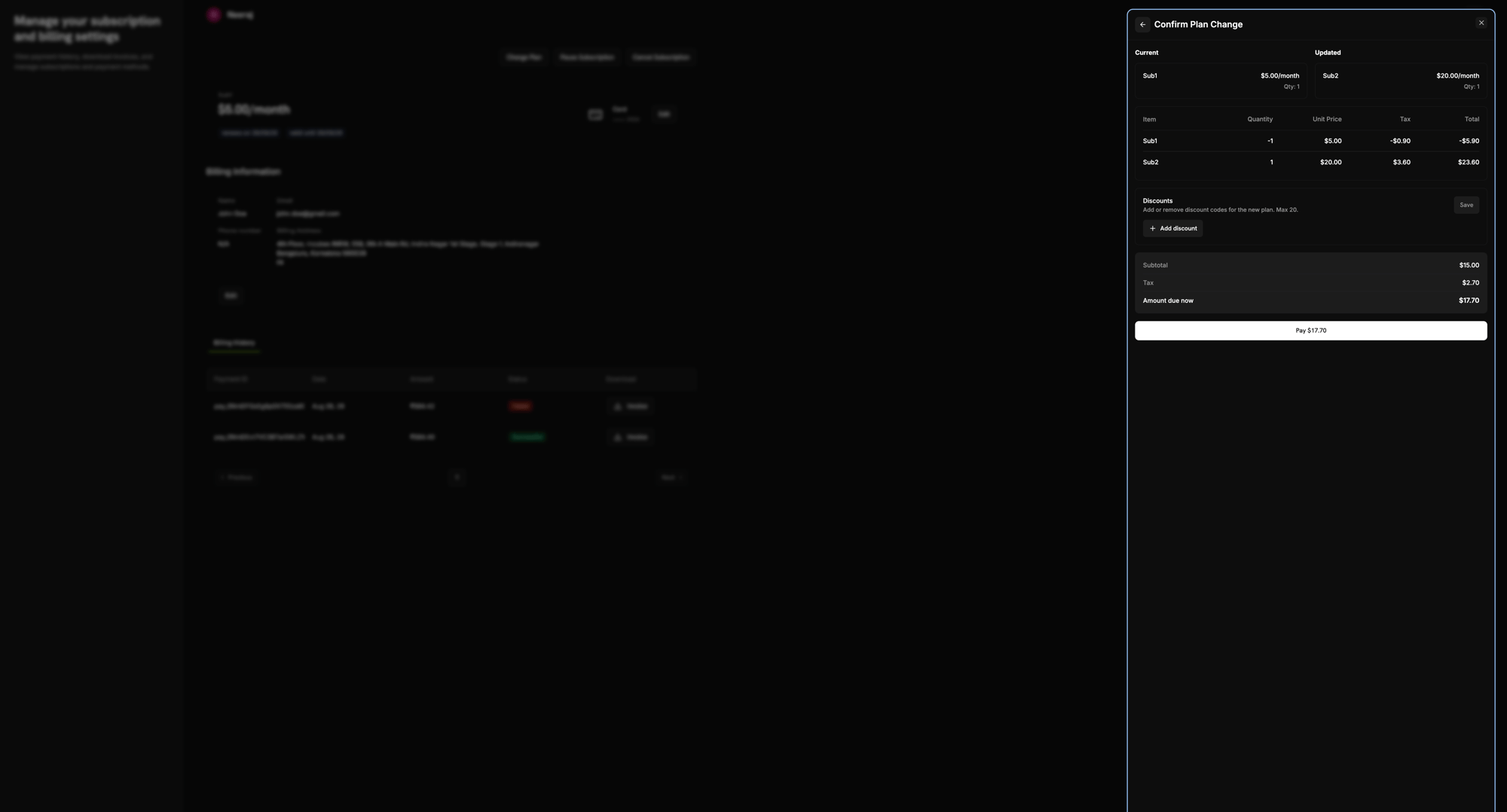
3. The customer selects a plan. A **Confirm Plan Change** panel shows the current and updated plan, a line-item breakdown (a credit for the old plan and a charge for the new one), tax, and the amount due now. The customer can also enter a discount code here.
4. The customer confirms with the **Pay** button, which shows the amount due.
5. Dodo Payments calculates proration and collects the charge, either from the saved payment method or on a hosted checkout page if you collect plan-change payments by payment link (see [Collecting Plan Change Payments by Payment Link](#collecting-plan-change-payments-by-payment-link)).
6. The subscription moves to the new plan. Whether this happens immediately or only after the charge succeeds depends on your [payment failure handling](/developer-resources/subscription-upgrade-downgrade#handling-payment-failures). A plan change paid by payment link always waits for the payment.
## Language Support
The Customer Portal is available in **21 languages**, so customers can manage subscriptions, payment methods, and billing history in their own language.
### How Language Selection Works
* **Automatic detection**: On the first visit, the portal reads the preferred language from the browser and loads it if it is supported. Otherwise it uses English.
* **Manual override**: Customers can change the language at any time with the language selector in the bottom-right corner of the page, on desktop and mobile.
* **Persisted preference**: The portal stores the choice in the `NEXT_LOCALE` cookie for one year, so it remembers the language across visits.
### Supported Languages
| Language | Code | Language | Code |
| - | - | - | - |
| English (default) | `en` | Indonesian | `id` |
| Arabic | `ar` | Italian | `it` |
| Catalan | `ca` | Japanese | `ja` |
| Chinese | `zh` | Korean | `ko` |
| Dutch | `nl` | Malay | `ms` |
| French | `fr` | Polish | `pl` |
| German | `de` | Portuguese | `pt` |
| Hebrew | `he` | Romanian | `ro` |
| Russian | `ru` | Spanish | `es` |
| Swedish | `sv` | Thai | `th` |
| Turkish | `tr` | | |
## Plan Changes (Upgrade/Downgrade)
Customers can upgrade or downgrade from the portal between products in the same **Product Collection**.
To let customers on existing subscriptions switch plans, add your subscription products to a Product Collection and turn on **Allow Subscription Updates**. Customers can then switch between plans in that collection from the portal.
### Available Actions
| Action | Description | When Available |
| - | - | - |
| **Upgrade** | Move to a higher-tier plan in the same collection | **Allow Subscription Updates** is on |
| **Downgrade** | Move to a lower-tier plan in the same collection | **Allow Subscription Updates** is on |
### How Plan Changes Work
1. The customer clicks **Change Plan** on the subscription details page.
2. The portal lists the other plans in the product collection.
3. The customer selects a plan. A **Confirm Plan Change** panel shows the current and updated plan, a line-item breakdown (a credit for the old plan and a charge for the new one), tax, and the amount due now. The customer can also enter a discount code here.
4. The customer confirms with the **Pay** button, which shows the amount due.
5. Dodo Payments calculates proration and collects the charge, either from the saved payment method or on a hosted checkout page if you collect plan-change payments by payment link (see [Collecting Plan Change Payments by Payment Link](#collecting-plan-change-payments-by-payment-link)).
6. The subscription moves to the new plan. Whether this happens immediately or only after the charge succeeds depends on your [payment failure handling](/developer-resources/subscription-upgrade-downgrade#handling-payment-failures). A plan change paid by payment link always waits for the payment.
 Plan changes work only between products in the same collection, and the target product must be a subscription or usage-based product. One-time products are rejected.
### Collecting Plan Change Payments by Payment Link
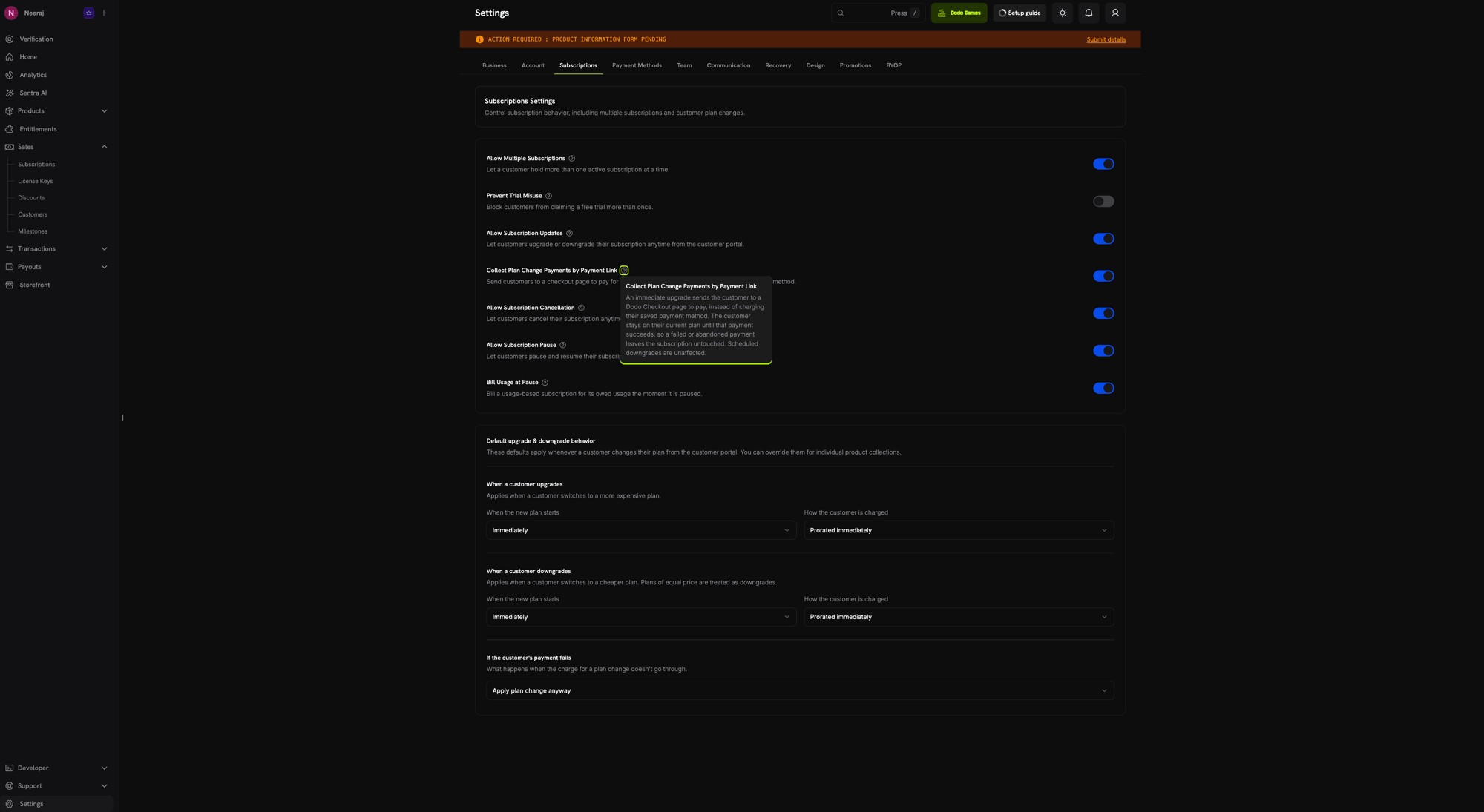
By default, an immediate plan change charges the customer's saved payment method. With **Collect Plan Change Payments by Payment Link** turned on, the portal opens a hosted Dodo Payments checkout page in a new tab instead, and the customer pays there. This applies to upgrades and downgrades that result in a charge.
Plan changes work only between products in the same collection, and the target product must be a subscription or usage-based product. One-time products are rejected.
### Collecting Plan Change Payments by Payment Link
By default, an immediate plan change charges the customer's saved payment method. With **Collect Plan Change Payments by Payment Link** turned on, the portal opens a hosted Dodo Payments checkout page in a new tab instead, and the customer pays there. This applies to upgrades and downgrades that result in a charge.
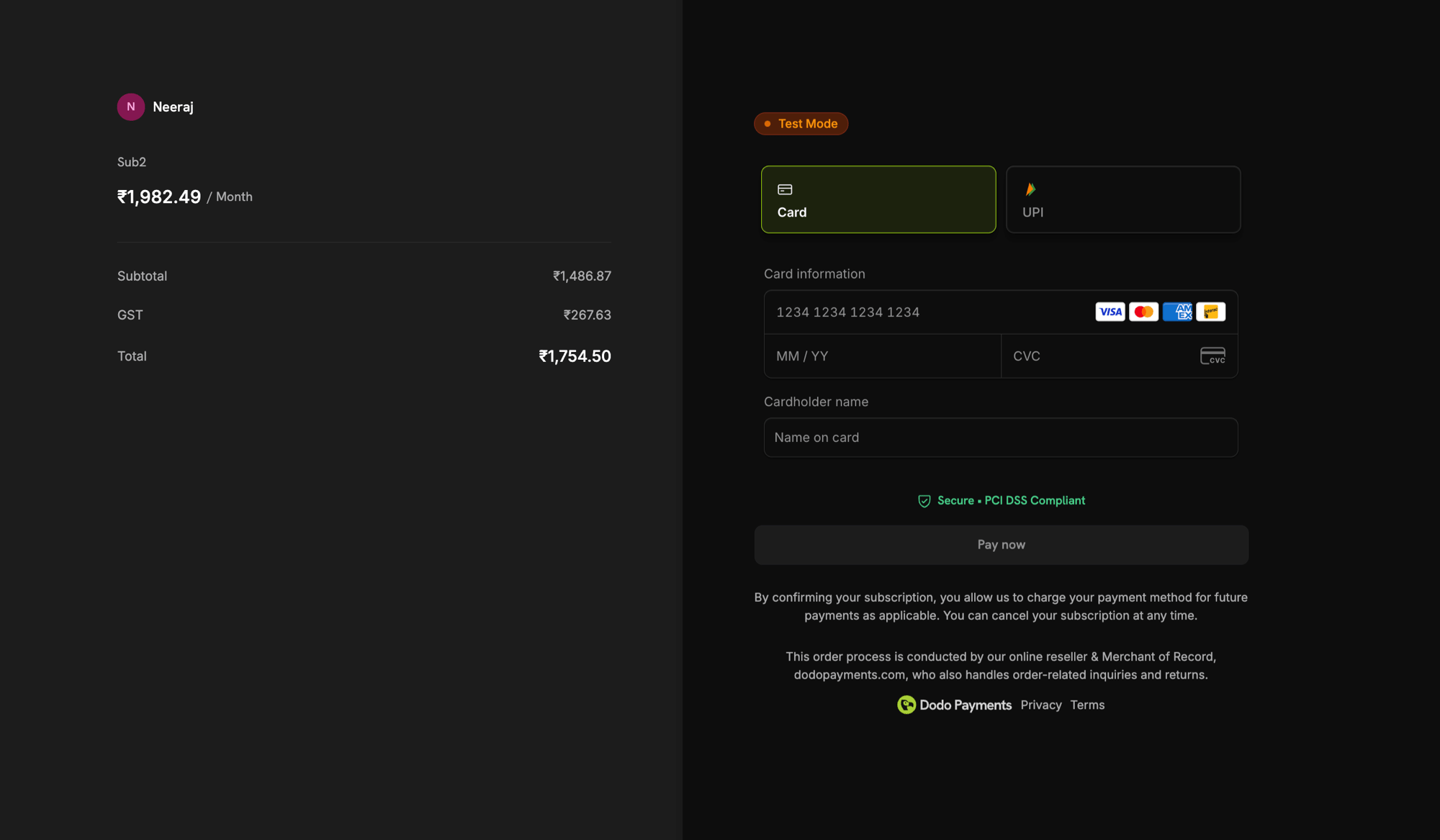 The subscription stays on its **current plan** until the checkout payment succeeds. A failed or abandoned payment leaves the subscription unchanged. After a declined payment, the customer starts the plan change again from the Customer Portal to get a new checkout link. Scheduled downgrades (`effective_at: next_billing_date`) don't go through checkout; they apply on the next billing date as usual.
This setting applies to **immediate** plan changes only. While a plan-change payment link is unpaid and unexpired, the portal rejects further plan-change requests on that subscription.
How to request a payment link with `collect_via_payment_link` and handle the response.
### Business Controls
Configure what customers can do with their subscriptions under **Settings → Subscriptions**:
* **Allow Subscription Updates**: Lets customers upgrade or downgrade. Off by default.
* **Allow Immediate Cancellation**: Lets customers end their subscription and lose access at once. On by default.
* **Allow Cancellation at Next Billing Date**: Lets customers cancel at the end of the period they have paid for. On by default.
* **Allow Subscription Pause**: Lets customers pause and resume their own subscriptions. Off by default.
* **Collect Plan Change Payments by Payment Link**: Sends customers to a checkout page to pay for an immediate plan change, instead of charging their saved payment method. Off by default.
Set up product collections and configure upgrade and downgrade paths.
## Subscription Details
**Manage subscription** on any active subscription opens its details page, which shows:
* **Plan details**: The subscription name, price, renewal date, and validity period.
* **Payment method**: The payment method on the subscription, with an **Edit** button.
* **Billing information**: The name, email, phone number, and billing address, with an **Edit** button for the name and billing address.
* **Billing history**: A table of all payments for this subscription.
* **Pause Subscription**: Shown when you allow self-service pause.
* **Cancel Subscription**: Opens the cancellation dialog.
The subscription stays on its **current plan** until the checkout payment succeeds. A failed or abandoned payment leaves the subscription unchanged. After a declined payment, the customer starts the plan change again from the Customer Portal to get a new checkout link. Scheduled downgrades (`effective_at: next_billing_date`) don't go through checkout; they apply on the next billing date as usual.
This setting applies to **immediate** plan changes only. While a plan-change payment link is unpaid and unexpired, the portal rejects further plan-change requests on that subscription.
How to request a payment link with `collect_via_payment_link` and handle the response.
### Business Controls
Configure what customers can do with their subscriptions under **Settings → Subscriptions**:
* **Allow Subscription Updates**: Lets customers upgrade or downgrade. Off by default.
* **Allow Immediate Cancellation**: Lets customers end their subscription and lose access at once. On by default.
* **Allow Cancellation at Next Billing Date**: Lets customers cancel at the end of the period they have paid for. On by default.
* **Allow Subscription Pause**: Lets customers pause and resume their own subscriptions. Off by default.
* **Collect Plan Change Payments by Payment Link**: Sends customers to a checkout page to pay for an immediate plan change, instead of charging their saved payment method. Off by default.
Set up product collections and configure upgrade and downgrade paths.
## Subscription Details
**Manage subscription** on any active subscription opens its details page, which shows:
* **Plan details**: The subscription name, price, renewal date, and validity period.
* **Payment method**: The payment method on the subscription, with an **Edit** button.
* **Billing information**: The name, email, phone number, and billing address, with an **Edit** button for the name and billing address.
* **Billing history**: A table of all payments for this subscription.
* **Pause Subscription**: Shown when you allow self-service pause.
* **Cancel Subscription**: Opens the cancellation dialog.
 ## Cancelling a Subscription
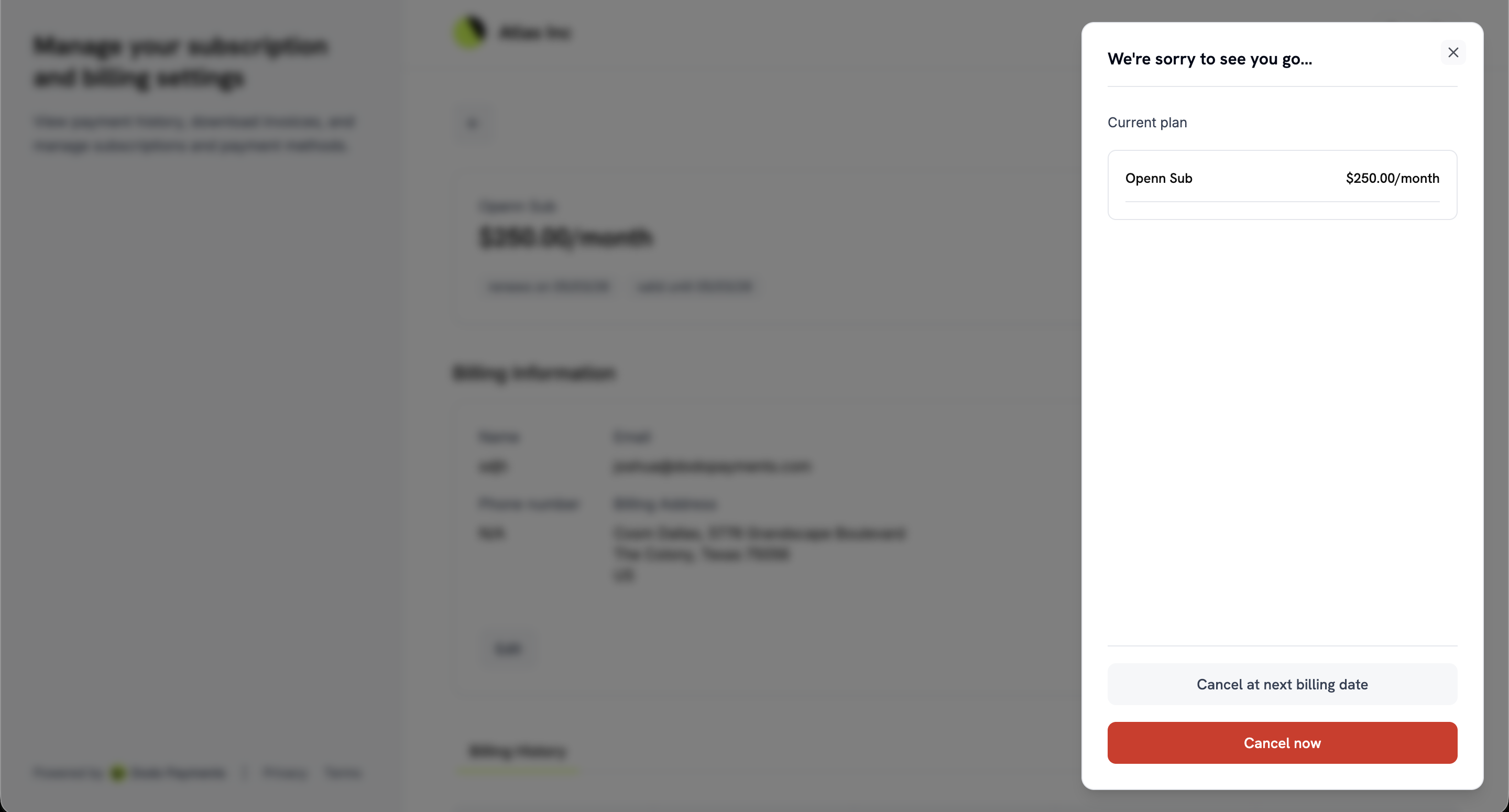
Customers cancel from the subscription details page. **Cancel Subscription** opens a dialog with two options:
* **Cancel at next billing date**: The subscription stays active until the current billing period ends, then cancels.
* **Cancel now**: The subscription is cancelled immediately.
Two settings under **Settings → Subscriptions** control these options separately: **Allow Immediate Cancellation** and **Allow Cancellation at Next Billing Date**. Both are on by default. Turning one off removes only that option, so you can offer one without the other. With both off, **Cancel Subscription** is disabled, and its tooltip asks the customer to contact you. A customer with a cancellation already scheduled sees **Revoke Cancellation**, so they can stay, and **Cancel immediately**, which is the same action as **Cancel now**. These settings don't affect cancellations you make yourself.
## Cancelling a Subscription
Customers cancel from the subscription details page. **Cancel Subscription** opens a dialog with two options:
* **Cancel at next billing date**: The subscription stays active until the current billing period ends, then cancels.
* **Cancel now**: The subscription is cancelled immediately.
Two settings under **Settings → Subscriptions** control these options separately: **Allow Immediate Cancellation** and **Allow Cancellation at Next Billing Date**. Both are on by default. Turning one off removes only that option, so you can offer one without the other. With both off, **Cancel Subscription** is disabled, and its tooltip asks the customer to contact you. A customer with a cancellation already scheduled sees **Revoke Cancellation**, so they can stay, and **Cancel immediately**, which is the same action as **Cancel now**. These settings don't affect cancellations you make yourself.
 ### Cancellation Reasons
Before confirming, the customer must answer **Why are you cancelling?** by choosing a reason from a fixed list. They can also add an optional comment of up to 500 characters under **Additional comments**. Dodo Payments stores both on the subscription and returns them in webhook payloads and the API, so you can analyze why customers leave and tailor win-back messages.
### Cancellation Reasons
Before confirming, the customer must answer **Why are you cancelling?** by choosing a reason from a fixed list. They can also add an optional comment of up to 500 characters under **Additional comments**. Dodo Payments stores both on the subscription and returns them in webhook payloads and the API, so you can analyze why customers leave and tailor win-back messages.
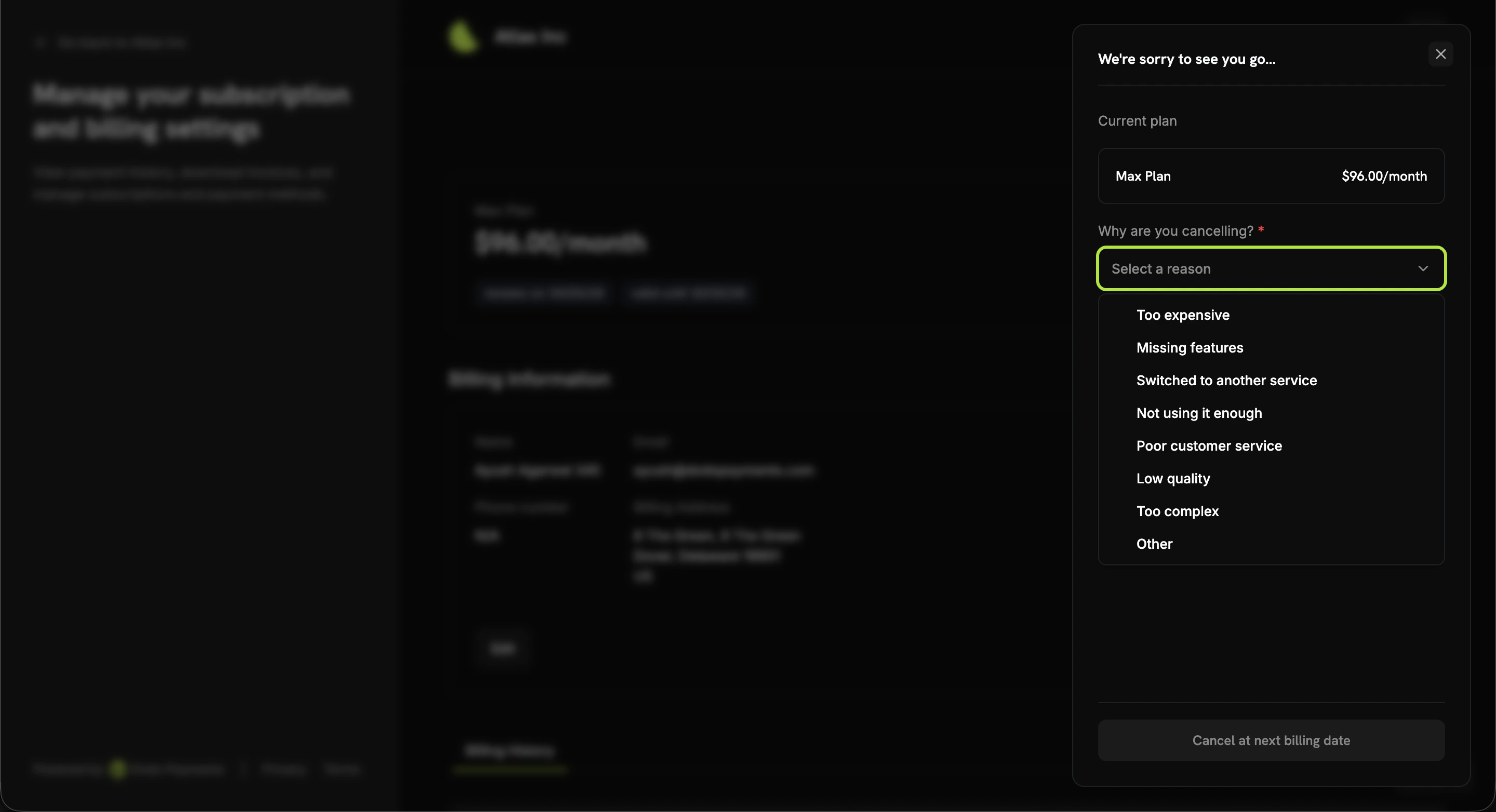 | Value | Customer-facing label |
| - | - |
| `too_expensive` | Too expensive |
| `missing_features` | Missing features |
| `switched_service` | Switched to another service |
| `unused` | Not using it enough |
| `customer_service` | Poor customer service |
| `low_quality` | Low quality |
| `too_complex` | Too complex |
| `other` | Other |
The reason is stored in the subscription's `cancellation_feedback` field, and the comment in `cancellation_comment`.
```typescript theme={null}
// `client` is a DodoPayments client, created as in the Integration Guide.
// Read the captured feedback after a customer cancels.
const subscription = await client.subscriptions.retrieve('sub_123');
console.log(subscription.cancellation_feedback); // e.g., "too_expensive"
console.log(subscription.cancellation_comment); // e.g., "Switching to a competitor"
```
Both fields are also in the `subscription.cancelled` webhook payload. To set them yourself, pass them to `PATCH /subscriptions/{subscription_id}` when you cancel or schedule a cancellation through the API.
Use `cancellation_feedback` alongside [Subscription Dunning](/features/recovery/subscription-dunning) to tailor win-back emails. For example, send a discount code to customers who chose `too_expensive` and a feedback survey to those who chose `missing_features`.
## Pausing a Subscription
Pausing gives customers an option between keeping a subscription and cancelling it. A paused subscription stops billing but keeps its plan and history, so the customer can resume it later instead of buying again.
Customers open the **Pause your subscription** dialog from the subscription details page. The dialog shows the current plan, warns that access ends immediately, and explains how billing dates move. The customer confirms with **Pause subscription**.
| Value | Customer-facing label |
| - | - |
| `too_expensive` | Too expensive |
| `missing_features` | Missing features |
| `switched_service` | Switched to another service |
| `unused` | Not using it enough |
| `customer_service` | Poor customer service |
| `low_quality` | Low quality |
| `too_complex` | Too complex |
| `other` | Other |
The reason is stored in the subscription's `cancellation_feedback` field, and the comment in `cancellation_comment`.
```typescript theme={null}
// `client` is a DodoPayments client, created as in the Integration Guide.
// Read the captured feedback after a customer cancels.
const subscription = await client.subscriptions.retrieve('sub_123');
console.log(subscription.cancellation_feedback); // e.g., "too_expensive"
console.log(subscription.cancellation_comment); // e.g., "Switching to a competitor"
```
Both fields are also in the `subscription.cancelled` webhook payload. To set them yourself, pass them to `PATCH /subscriptions/{subscription_id}` when you cancel or schedule a cancellation through the API.
Use `cancellation_feedback` alongside [Subscription Dunning](/features/recovery/subscription-dunning) to tailor win-back emails. For example, send a discount code to customers who chose `too_expensive` and a feedback survey to those who chose `missing_features`.
## Pausing a Subscription
Pausing gives customers an option between keeping a subscription and cancelling it. A paused subscription stops billing but keeps its plan and history, so the customer can resume it later instead of buying again.
Customers open the **Pause your subscription** dialog from the subscription details page. The dialog shows the current plan, warns that access ends immediately, and explains how billing dates move. The customer confirms with **Pause subscription**.
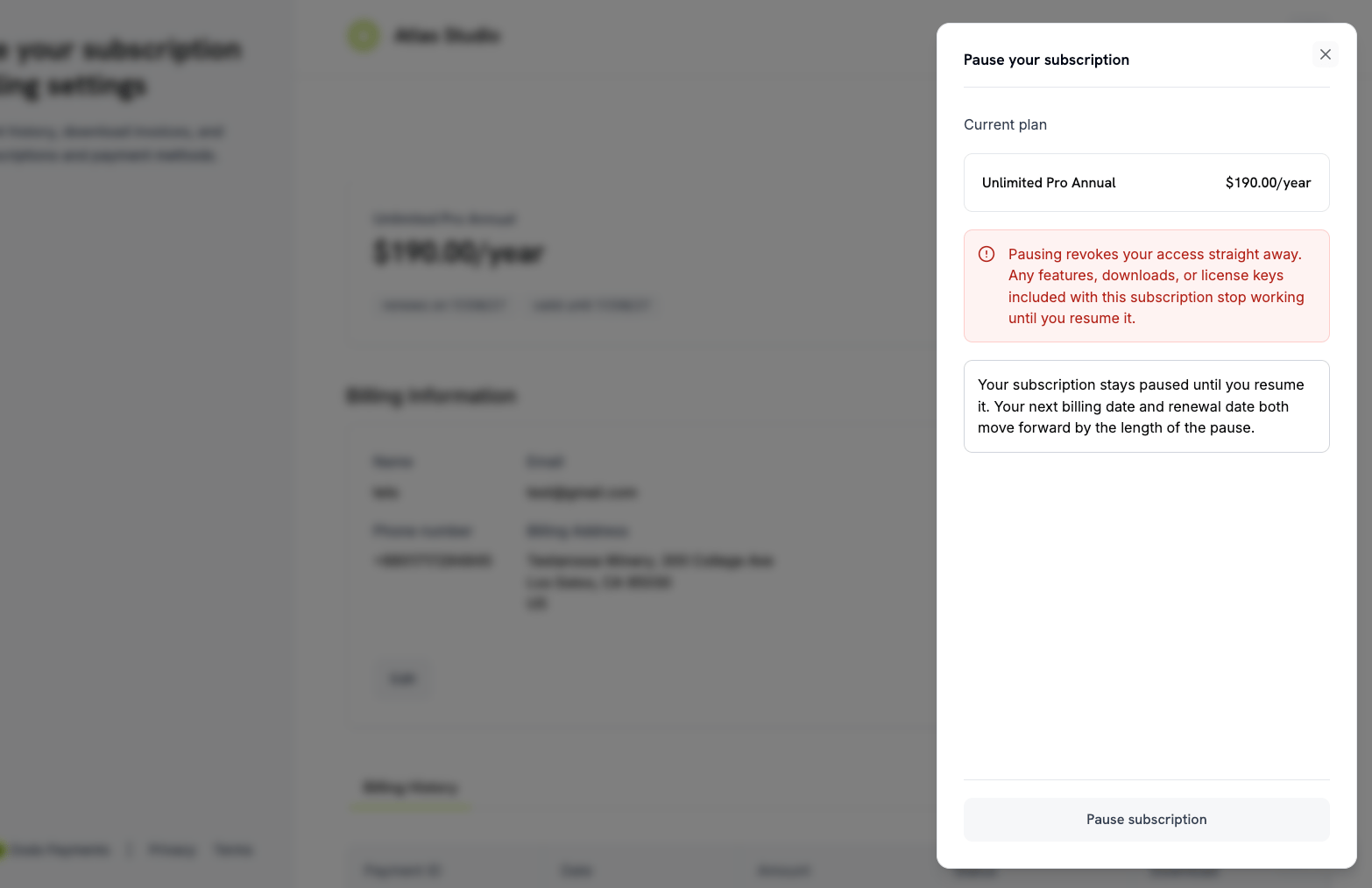 The dialog tells the customer what happens, and the system behaves as described:
* **Access stops immediately.** Features, downloads, and license keys included with the subscription stop working until the subscription is resumed.
* **The pause has no end date.** The subscription stays paused until the customer resumes it.
* **No paid time is lost.** The next billing date and the renewal date both move forward by the length of the pause.
Resuming uses the same flow, confirmed with **Resume subscription**. The subscription returns to `active` and access is restored.
The **Allow Subscription Pause** setting under **Settings → Subscriptions** controls self-service pause, and it is **off by default**. While it is off, customers can't start a new pause, but a customer can still resume a pause they started themselves. Pauses you start from the dashboard are not affected.
Full pause behavior, including billing effects, usage settlement, and webhooks.
## Updating Payment Methods
Customers change a subscription's payment method with **Edit** next to the payment method on the subscription details page. This is also how a customer reactivates a subscription that is on hold after a failed payment.
### Reactivating Subscriptions on Hold
A subscription moves to `on_hold` when a payment fails. The portal shows **Your subscription is currently on hold** and asks the customer to update their payment method. When they do, Dodo Payments:
1. **Creates a charge** for the remaining dues
2. **Generates an invoice** for the charge
3. **Collects the payment** with the new payment method
4. **Reactivates the subscription** to `active` when the payment succeeds
A subscription in `on_hold` doesn't renew. The customer must update their payment method to clear the dues and reactivate it.
When the dues for an `on_hold` subscription are paid, the subscription becomes `active` again.
### Reactivating Subscriptions in a Grace Period
If you set a [grace period](/features/subscription#grace-period), a failed renewal moves the subscription to `past_due` instead of `on_hold`. The customer keeps access until the deadline.
Recovery works the same way: the customer updates the payment method, and the subscription returns to `active`. If they do nothing, at the deadline the subscription moves to `on_hold` or `cancelled`, as you configured, and access ends.
### Payment Method Update Flow
Click **Manage subscription** on the subscription from the portal overview.
Click **Edit** next to the payment method.
Choose a saved payment method, or click **Add Payment Method** and enter the new details.
Confirm the update. For an `on_hold` subscription, this creates a charge for the remaining dues.
If the subscription is on hold, the customer is redirected to pay the remaining dues. When the payment succeeds, the subscription is reactivated.
The portal confirms that the payment method was updated and, for an on-hold subscription, that it is active again.
When no dues are owed, changing the card creates a zero-amount payment to verify the new card. The customer gets no payment receipt email for it, but the `payment.succeeded` webhook still fires. A card update that also pays outstanding dues sends the usual receipt.
## Integration Examples
To send a customer from your app to the portal, create a portal session on your server and redirect the customer to the returned `link`. The link is valid for 24 hours.
```typescript Node.js theme={null}
// Server: `client` is a DodoPayments client, created as in the Integration Guide.
const session = await client.customers.customerPortal.create('cus_123', {
return_url: 'https://yourapp.com/account', // optional: shown as a back link in the portal
});
// Send session.link to the browser, then redirect the customer:
// window.location.href = session.link;
```
To have Dodo Payments also email the link to the customer, pass `send_email: true`.
## Unified Customer Portal
Besides your business's portal, Dodo Payments runs a **Unified Customer Portal** at [customer.dodopayments.com](https://customer.dodopayments.com). There, customers see and manage their purchases and subscriptions from every business that sells through Dodo Payments.
The dialog tells the customer what happens, and the system behaves as described:
* **Access stops immediately.** Features, downloads, and license keys included with the subscription stop working until the subscription is resumed.
* **The pause has no end date.** The subscription stays paused until the customer resumes it.
* **No paid time is lost.** The next billing date and the renewal date both move forward by the length of the pause.
Resuming uses the same flow, confirmed with **Resume subscription**. The subscription returns to `active` and access is restored.
The **Allow Subscription Pause** setting under **Settings → Subscriptions** controls self-service pause, and it is **off by default**. While it is off, customers can't start a new pause, but a customer can still resume a pause they started themselves. Pauses you start from the dashboard are not affected.
Full pause behavior, including billing effects, usage settlement, and webhooks.
## Updating Payment Methods
Customers change a subscription's payment method with **Edit** next to the payment method on the subscription details page. This is also how a customer reactivates a subscription that is on hold after a failed payment.
### Reactivating Subscriptions on Hold
A subscription moves to `on_hold` when a payment fails. The portal shows **Your subscription is currently on hold** and asks the customer to update their payment method. When they do, Dodo Payments:
1. **Creates a charge** for the remaining dues
2. **Generates an invoice** for the charge
3. **Collects the payment** with the new payment method
4. **Reactivates the subscription** to `active` when the payment succeeds
A subscription in `on_hold` doesn't renew. The customer must update their payment method to clear the dues and reactivate it.
When the dues for an `on_hold` subscription are paid, the subscription becomes `active` again.
### Reactivating Subscriptions in a Grace Period
If you set a [grace period](/features/subscription#grace-period), a failed renewal moves the subscription to `past_due` instead of `on_hold`. The customer keeps access until the deadline.
Recovery works the same way: the customer updates the payment method, and the subscription returns to `active`. If they do nothing, at the deadline the subscription moves to `on_hold` or `cancelled`, as you configured, and access ends.
### Payment Method Update Flow
Click **Manage subscription** on the subscription from the portal overview.
Click **Edit** next to the payment method.
Choose a saved payment method, or click **Add Payment Method** and enter the new details.
Confirm the update. For an `on_hold` subscription, this creates a charge for the remaining dues.
If the subscription is on hold, the customer is redirected to pay the remaining dues. When the payment succeeds, the subscription is reactivated.
The portal confirms that the payment method was updated and, for an on-hold subscription, that it is active again.
When no dues are owed, changing the card creates a zero-amount payment to verify the new card. The customer gets no payment receipt email for it, but the `payment.succeeded` webhook still fires. A card update that also pays outstanding dues sends the usual receipt.
## Integration Examples
To send a customer from your app to the portal, create a portal session on your server and redirect the customer to the returned `link`. The link is valid for 24 hours.
```typescript Node.js theme={null}
// Server: `client` is a DodoPayments client, created as in the Integration Guide.
const session = await client.customers.customerPortal.create('cus_123', {
return_url: 'https://yourapp.com/account', // optional: shown as a back link in the portal
});
// Send session.link to the browser, then redirect the customer:
// window.location.href = session.link;
```
To have Dodo Payments also email the link to the customer, pass `send_email: true`.
## Unified Customer Portal
Besides your business's portal, Dodo Payments runs a **Unified Customer Portal** at [customer.dodopayments.com](https://customer.dodopayments.com). There, customers see and manage their purchases and subscriptions from every business that sells through Dodo Payments.
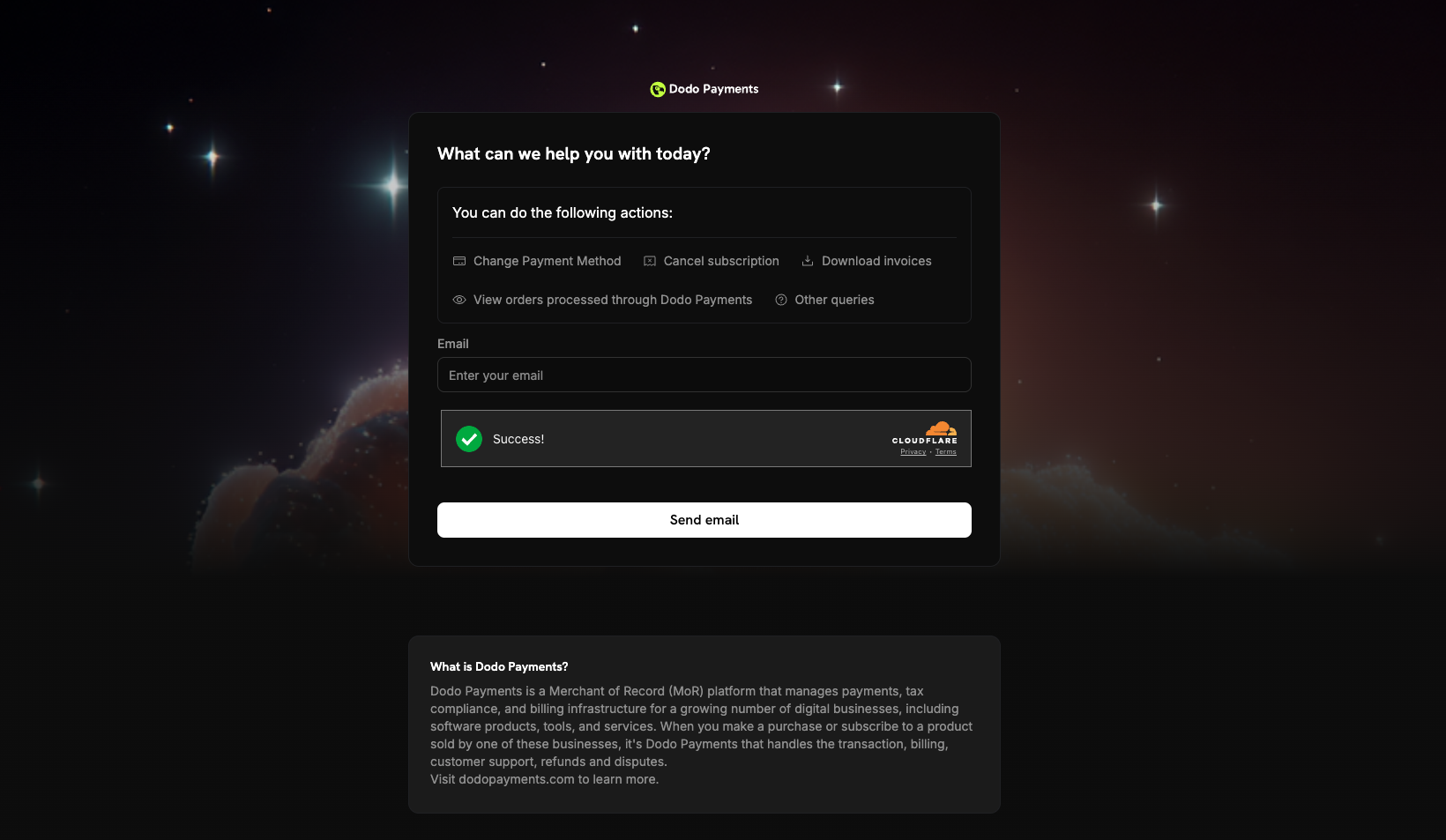 ### Unified Portal Features
* **Cross-business visibility**: See purchases and subscriptions from every Dodo Payments merchant in one place.
* **Centralized management**: Manage subscriptions with different businesses from one site.
* **Unified billing history**: Access invoices and payment history for all purchases.
* **Single sign-in**: Sign in once with an email address to reach purchases from all Dodo Payments merchants.
The Unified Customer Portal works alongside your business's portal. Customers can use either one.
## Troubleshooting
* **Link expired**: Generate a new dynamic link and send it to the customer.
* **Email not recognized**: Ask the customer to use the email address from their purchase. No sign-in email is sent for an address that isn't a customer of your business.
* **Subscription on hold**: The customer updates their payment method in the portal. Dodo Payments charges the remaining dues and reactivates the subscription when the payment succeeds.
* **Payment method update failed**: If the payment fails while updating an `on_hold` subscription, the subscription stays on hold. The customer can try again with a different payment method.
Customize the portal with pre-built themes, typography, and colors, with a live preview, from the Design page.
This documentation is built and hosted on [Mintlify](https://mintlify.com), a developer documentation platform.
### Unified Portal Features
* **Cross-business visibility**: See purchases and subscriptions from every Dodo Payments merchant in one place.
* **Centralized management**: Manage subscriptions with different businesses from one site.
* **Unified billing history**: Access invoices and payment history for all purchases.
* **Single sign-in**: Sign in once with an email address to reach purchases from all Dodo Payments merchants.
The Unified Customer Portal works alongside your business's portal. Customers can use either one.
## Troubleshooting
* **Link expired**: Generate a new dynamic link and send it to the customer.
* **Email not recognized**: Ask the customer to use the email address from their purchase. No sign-in email is sent for an address that isn't a customer of your business.
* **Subscription on hold**: The customer updates their payment method in the portal. Dodo Payments charges the remaining dues and reactivates the subscription when the payment succeeds.
* **Payment method update failed**: If the payment fails while updating an `on_hold` subscription, the subscription stays on hold. The customer can try again with a different payment method.
Customize the portal with pre-built themes, typography, and colors, with a live preview, from the Design page.
This documentation is built and hosted on [Mintlify](https://mintlify.com), a developer documentation platform.