> ## Documentation Index
> Fetch the complete documentation index at: https://docs.dodopayments.com/llms.txt
> Use this file to discover all available pages before exploring further.
# Digital Product Delivery
> Deliver downloadable files, an external link, and instructions automatically after purchase with the Digital Files entitlement and short-lived presigned URLs.
## Overview
Digital Product Delivery is the **Digital Files** entitlement type. You upload your files once to a Digital Files entitlement and attach the entitlement to a product. Dodo Payments then delivers presigned download links to every paying customer by email and in the Customer Portal.
A Digital Files entitlement supports:
* **Hosted file uploads**: Dodo Payments stores your files and serves them through short-lived presigned URLs.
* **External download link**: one URL per entitlement that points to files hosted elsewhere, such as Dropbox, Google Drive, or S3.
* **Download instructions**: free-form text shown to the customer on their order page and in the delivery email.
You can combine all three on one entitlement. In the dashboard, add at least one file or an external download link.
## Key Features
Upload files such as PDFs, ZIP archives, images, and videos, up to 500 MiB each. Dodo Payments streams each upload to storage.
Attach as many files as you need to one entitlement.
Add an external download link, such as a Dropbox, Google Drive, or signed S3 URL, instead of or in addition to hosted files.
Dodo Payments serves hosted files through presigned URLs. Each download URL expires 15 minutes after it's generated.
***
## Set Up Digital Product Delivery
Go to **Entitlements** in the dashboard and click **+** to create an entitlement.
Select **Digital Files** and enter a **Name** for the entitlement.
Configure any combination of these fields:
* **Upload files**: upload one or more files. Each upload returns a `file_id` and adds the file to the entitlement's `digital_file_ids`.
* **External Download Link**: a URL, starting with `http://` or `https://`, that customers can reach. Dodo Payments delivers it alongside the hosted files.
* **Instructions**: free-form text shown to the customer, for example "Unzip and run setup.sh."
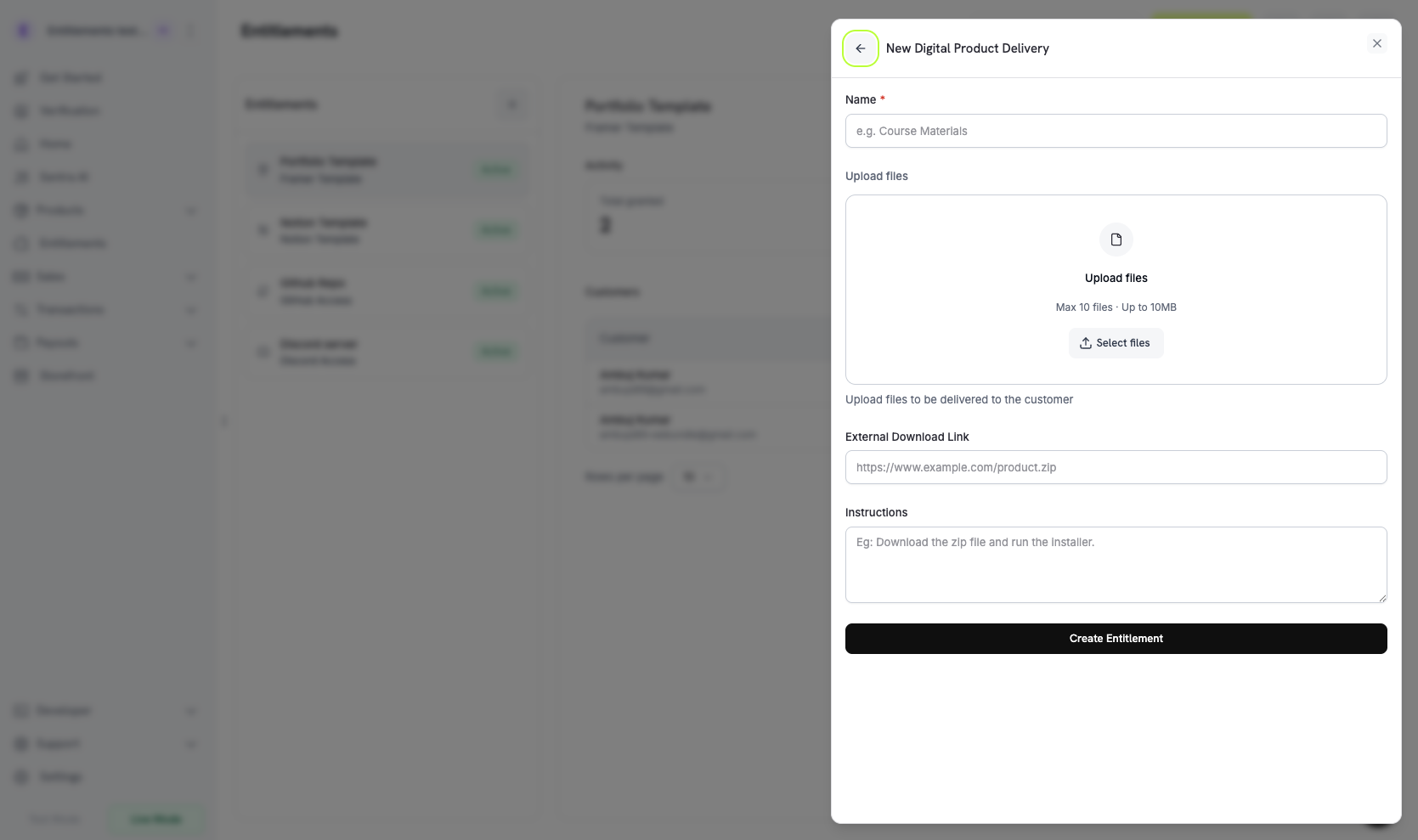 Click **Create Entitlement**. You can now attach the entitlement to any product.
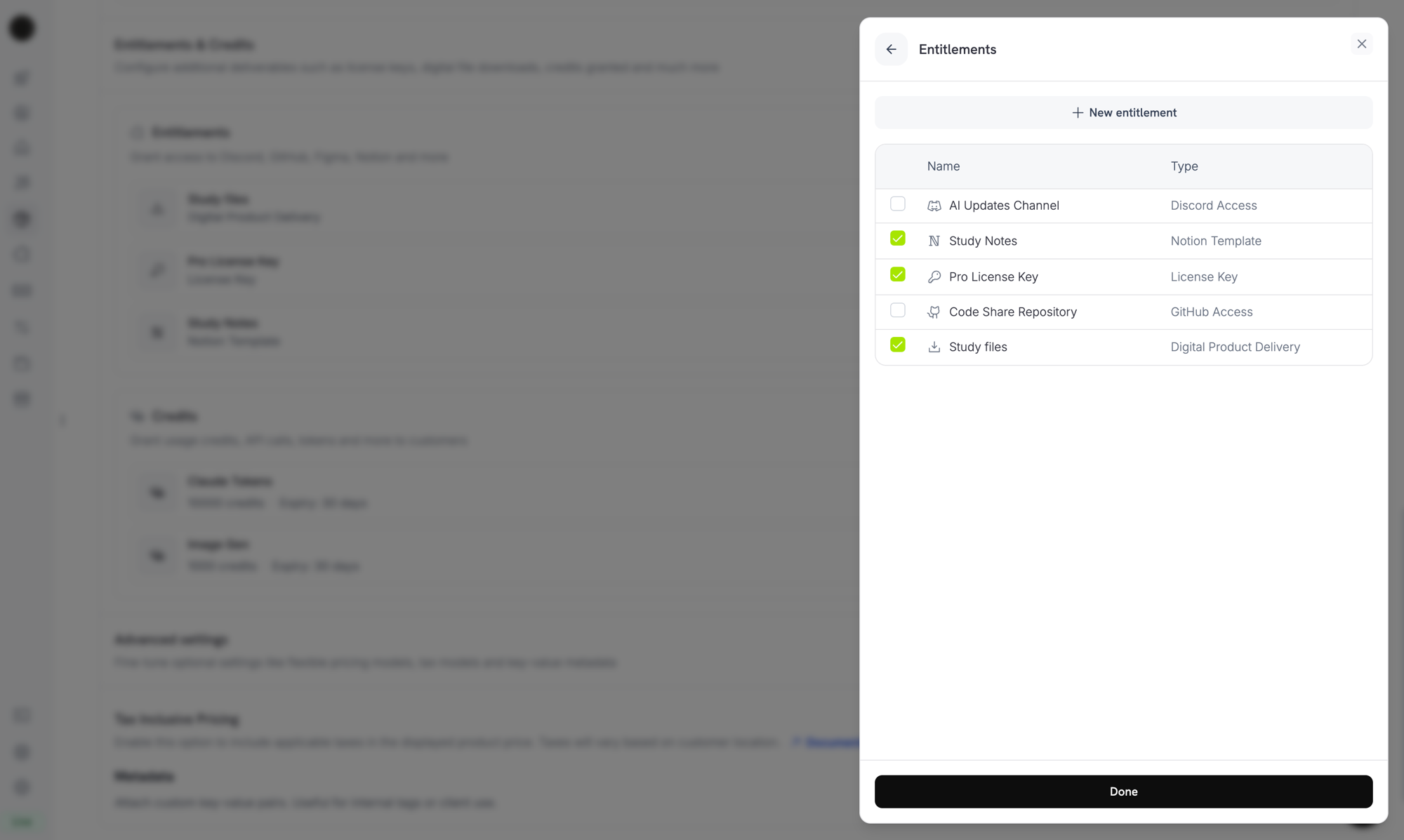
## Attach to Products
Open a product, go to its **Entitlements** section, and select your Digital Files entitlement. Dodo Payments delivers the entitlement on every successful purchase or active subscription for that product.
Click **Create Entitlement**. You can now attach the entitlement to any product.
## Attach to Products
Open a product, go to its **Entitlements** section, and select your Digital Files entitlement. Dodo Payments delivers the entitlement on every successful purchase or active subscription for that product.
 ***
## How Delivery Works
Digital Files delivery follows the standard [grant lifecycle](/features/entitlements/introduction#how-grants-work). Each event affects a Digital Files grant as follows:
| Event | Behavior |
| - | - |
| `payment.succeeded` (one-time) | Issues a grant. The grant carries presigned download URLs that expire after 15 minutes. Customers get fresh URLs by reopening the email link or the Customer Portal page. |
| `subscription.active` | Issues a grant. Files stay accessible while the subscription is active. |
| `subscription.renewed` | No change. The same grant continues, and every fetch generates new presigned URLs. |
| `subscription.past_due` | No change. Downloads stay available for the whole [grace period](/features/subscription#grace-period). |
| `subscription.on_hold` / `cancelled` / `expired` | Revokes the grant. Dodo Payments stops issuing new presigned URLs. |
| `subscription.paused` | Revokes the grant. Dodo Payments stops issuing new presigned URLs until the subscription is resumed. |
| `subscription.plan_changed` | Revokes the old grant and issues a new one for the new plan's entitlement. |
| `refund.succeeded` (one-time) | Revokes the grant. |
| Manual revoke | Revokes the grant with `revocation_reason: manual`. |
Revocation stops Dodo Payments from issuing new download URLs, but it does **not** invalidate copies a customer has already downloaded. Treat a hosted file as delivered once the customer downloads it.
***
## Customer Experience
### Purchase Confirmation
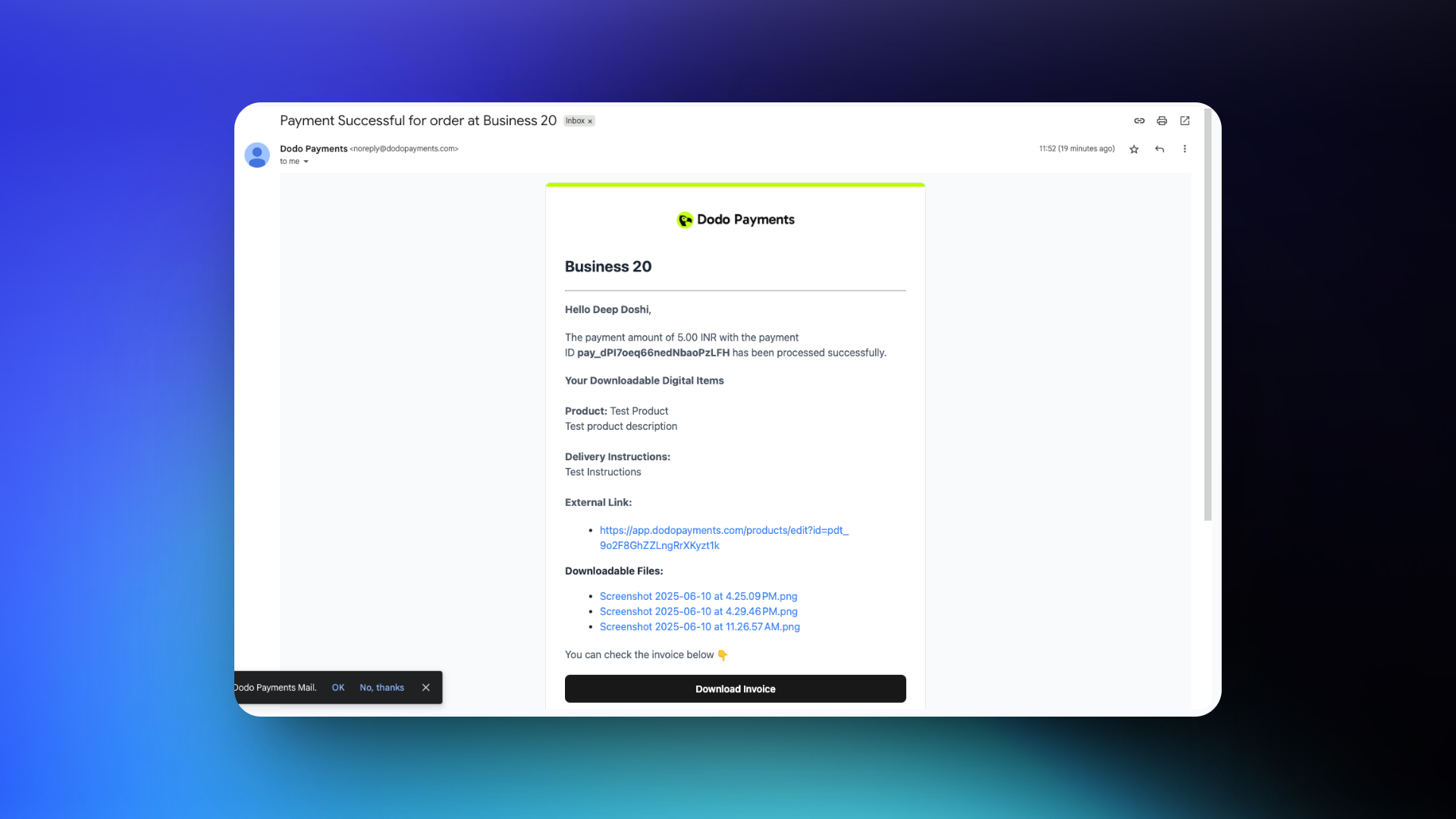
After a successful payment, the customer receives an email with download links and any instructions you configured.
***
## How Delivery Works
Digital Files delivery follows the standard [grant lifecycle](/features/entitlements/introduction#how-grants-work). Each event affects a Digital Files grant as follows:
| Event | Behavior |
| - | - |
| `payment.succeeded` (one-time) | Issues a grant. The grant carries presigned download URLs that expire after 15 minutes. Customers get fresh URLs by reopening the email link or the Customer Portal page. |
| `subscription.active` | Issues a grant. Files stay accessible while the subscription is active. |
| `subscription.renewed` | No change. The same grant continues, and every fetch generates new presigned URLs. |
| `subscription.past_due` | No change. Downloads stay available for the whole [grace period](/features/subscription#grace-period). |
| `subscription.on_hold` / `cancelled` / `expired` | Revokes the grant. Dodo Payments stops issuing new presigned URLs. |
| `subscription.paused` | Revokes the grant. Dodo Payments stops issuing new presigned URLs until the subscription is resumed. |
| `subscription.plan_changed` | Revokes the old grant and issues a new one for the new plan's entitlement. |
| `refund.succeeded` (one-time) | Revokes the grant. |
| Manual revoke | Revokes the grant with `revocation_reason: manual`. |
Revocation stops Dodo Payments from issuing new download URLs, but it does **not** invalidate copies a customer has already downloaded. Treat a hosted file as delivered once the customer downloads it.
***
## Customer Experience
### Purchase Confirmation
After a successful payment, the customer receives an email with download links and any instructions you configured.
 ### Customer Portal Access
Customers can get download links again from the [Customer Portal](/features/customer-portal) while their grant is active. The portal generates fresh presigned URLs on demand, so the purchase keeps working after the links in the email expire.
### Customer Portal Access
Customers can get download links again from the [Customer Portal](/features/customer-portal) while their grant is active. The portal generates fresh presigned URLs on demand, so the purchase keeps working after the links in the email expire.
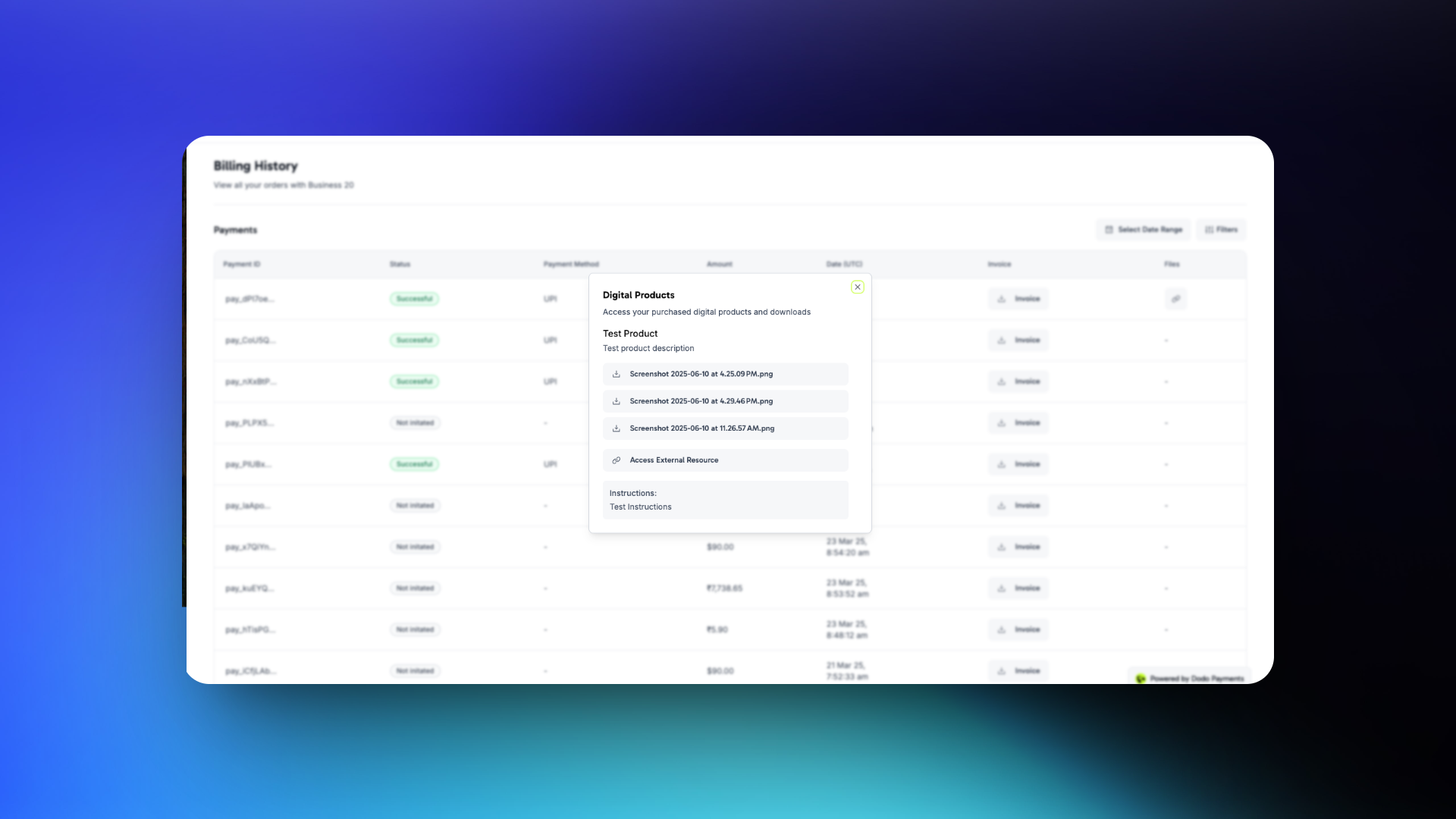 Customers can download files from the confirmation email or open them at any time from the Customer Portal.
***
## Manage Files Programmatically
### Upload a File to an Entitlement
To upload a file, send it as `multipart/form-data` in a `file` field. The optional `filename` field must come before the `file` part, because Dodo Payments ignores fields sent after it. Without `filename`, Dodo Payments uses the name of the uploaded file. The response returns the new `file_id`.
```typescript TypeScript expandable theme={null}
import DodoPayments from 'dodopayments';
import { openAsBlob } from 'node:fs'; // Node.js 20 or later
const client = new DodoPayments({
bearerToken: process.env['DODO_PAYMENTS_API_KEY'],
environment: 'test_mode',
});
// The SDK sends a FormData body as multipart/form-data. Append `filename` before `file`.
const form = new FormData();
form.append('filename', 'pro-bundle.zip');
form.append('file', await openAsBlob('./pro-bundle.zip'), 'pro-bundle.zip');
const { file_id } = await client.entitlements.files.upload('ent_files_abc', { body: form });
console.log(file_id);
```
```bash cURL theme={null}
curl -X POST "https://test.dodopayments.com/entitlements/ent_files_abc/files" \
-H "Authorization: Bearer $DODO_PAYMENTS_API_KEY" \
-F "filename=pro-bundle.zip" \
-F "file=@./pro-bundle.zip"
```
### List Grants and Resolve Download URLs
Each Digital Files grant has a `digital_product_delivery` object with a fresh presigned URL for every file. To read the URLs, list the entitlement's grants:
```typescript expandable theme={null}
const grants = await client.entitlements.grants.list('ent_files_abc', {
customer_id: 'cus_abc123',
});
for (const grant of grants.items) {
for (const file of grant.digital_product_delivery?.files ?? []) {
console.log(file.filename, file.download_url, `expires in ${file.expires_in}s`);
}
}
```
### Remove a File from an Entitlement
To detach a file, pass its `file_id` and the entitlement ID:
```typescript theme={null}
await client.entitlements.files.delete('YOUR_FILE_ID', { id: 'ent_files_abc' });
```
***
## Important Considerations
* **Presigned URLs expire quickly.** Download URLs in grant payloads and webhook events are valid for 15 minutes. Don't store them. Fetch new URLs when the customer needs to download again.
* **Updating files affects future purchases only.** Replacing or removing a file doesn't change downloads already issued. Each grant keeps the entitlement configuration from when it was created, so past customers can still get the version that was current then.
* **Refunds don't invalidate downloaded copies.** A customer who already downloaded a file keeps that copy. For revocable content, such as license-restricted media or time-limited access, pair Digital Files with [License Keys](/features/license-keys) and validate the key at runtime.
* **For sensitive content, prefer external URLs with their own authentication.** Presigned URLs from Dodo Payments are short-lived, but anyone with the URL can download the file until it expires. Externally hosted content behind an account login gives you more control.
***
## API Management
Create a Digital Files entitlement with an optional external URL and instructions.
Upload a file of up to 500 MiB and attach it to the entitlement.
Detach a file from the entitlement.
List grants and read the resolved download URLs.
Update the instructions or external URL, or replace the files.
Revoke a customer's access manually.
***
## Webhooks
Digital file delivery and revocation send the four [`entitlement_grant.*` webhook events](/developer-resources/webhooks/intents/entitlement-grant). For Digital Files grants, the payload includes a `digital_product_delivery` object with the resolved file list, the optional `instructions`, and the optional `external_url`. Each file carries a presigned `download_url`, the `filename`, the `content_type`, the `file_size` in bytes, and `expires_in`, the number of seconds until the URL expires:
```json expandable theme={null}
"digital_product_delivery": {
"files": [
{
"file_id": "YOUR_FILE_ID",
"download_url": "https://files.dodopayments.com/.../pro-bundle.zip?Signature=...",
"filename": "pro-bundle.zip",
"content_type": "application/zip",
"file_size": 18742390,
"expires_in": 900
}
],
"instructions": "Unzip and run setup.sh from the project root.",
"external_url": null
}
```
***
## Legacy Digital Product Delivery
Products configured with the older `digital_product_delivery` block on the product itself have been **automatically migrated** to a Digital Files entitlement. Files uploaded through the legacy product file API are preserved: they stay downloadable and appear in grant payloads alongside newly uploaded files. The entitlement's `digital_files` configuration tracks them in the `legacy_file_ids` list. To add files, change instructions, or replace the external URL, edit the migrated Digital Files entitlement under **Entitlements**.
Product responses still include the legacy product-level fields (`digital_product_delivery.external_url`, `digital_product_delivery.instructions`) for backward compatibility, but the entitlement is the source of truth.
***
## Best Practices
* **Treat downloads as one-time deliveries.** Customers can share or lose links, so design your product on the assumption that anything they download is theirs to keep.
* **Use instructions to set expectations.** For multi-file bundles, add an `instructions` line that explains what to install first or how to combine the files.
* **Watch the 500 MiB cap.** Host larger artifacts, such as multi-GB datasets or video courses, externally, and link them with `external_url` instead of uploading them.
* **Combine with License Keys for revocable access.** To revoke access to in-product features after a refund, pair the Digital Files entitlement with a License Key entitlement and validate the key at runtime.
* **Test the Customer Portal refresh flow.** Confirm that a customer can return to the portal a week later and still get a working download link. The portal is the main recovery path when email links expire.
This documentation is built and hosted on [Mintlify](https://mintlify.com), a developer documentation platform.
Customers can download files from the confirmation email or open them at any time from the Customer Portal.
***
## Manage Files Programmatically
### Upload a File to an Entitlement
To upload a file, send it as `multipart/form-data` in a `file` field. The optional `filename` field must come before the `file` part, because Dodo Payments ignores fields sent after it. Without `filename`, Dodo Payments uses the name of the uploaded file. The response returns the new `file_id`.
```typescript TypeScript expandable theme={null}
import DodoPayments from 'dodopayments';
import { openAsBlob } from 'node:fs'; // Node.js 20 or later
const client = new DodoPayments({
bearerToken: process.env['DODO_PAYMENTS_API_KEY'],
environment: 'test_mode',
});
// The SDK sends a FormData body as multipart/form-data. Append `filename` before `file`.
const form = new FormData();
form.append('filename', 'pro-bundle.zip');
form.append('file', await openAsBlob('./pro-bundle.zip'), 'pro-bundle.zip');
const { file_id } = await client.entitlements.files.upload('ent_files_abc', { body: form });
console.log(file_id);
```
```bash cURL theme={null}
curl -X POST "https://test.dodopayments.com/entitlements/ent_files_abc/files" \
-H "Authorization: Bearer $DODO_PAYMENTS_API_KEY" \
-F "filename=pro-bundle.zip" \
-F "file=@./pro-bundle.zip"
```
### List Grants and Resolve Download URLs
Each Digital Files grant has a `digital_product_delivery` object with a fresh presigned URL for every file. To read the URLs, list the entitlement's grants:
```typescript expandable theme={null}
const grants = await client.entitlements.grants.list('ent_files_abc', {
customer_id: 'cus_abc123',
});
for (const grant of grants.items) {
for (const file of grant.digital_product_delivery?.files ?? []) {
console.log(file.filename, file.download_url, `expires in ${file.expires_in}s`);
}
}
```
### Remove a File from an Entitlement
To detach a file, pass its `file_id` and the entitlement ID:
```typescript theme={null}
await client.entitlements.files.delete('YOUR_FILE_ID', { id: 'ent_files_abc' });
```
***
## Important Considerations
* **Presigned URLs expire quickly.** Download URLs in grant payloads and webhook events are valid for 15 minutes. Don't store them. Fetch new URLs when the customer needs to download again.
* **Updating files affects future purchases only.** Replacing or removing a file doesn't change downloads already issued. Each grant keeps the entitlement configuration from when it was created, so past customers can still get the version that was current then.
* **Refunds don't invalidate downloaded copies.** A customer who already downloaded a file keeps that copy. For revocable content, such as license-restricted media or time-limited access, pair Digital Files with [License Keys](/features/license-keys) and validate the key at runtime.
* **For sensitive content, prefer external URLs with their own authentication.** Presigned URLs from Dodo Payments are short-lived, but anyone with the URL can download the file until it expires. Externally hosted content behind an account login gives you more control.
***
## API Management
Create a Digital Files entitlement with an optional external URL and instructions.
Upload a file of up to 500 MiB and attach it to the entitlement.
Detach a file from the entitlement.
List grants and read the resolved download URLs.
Update the instructions or external URL, or replace the files.
Revoke a customer's access manually.
***
## Webhooks
Digital file delivery and revocation send the four [`entitlement_grant.*` webhook events](/developer-resources/webhooks/intents/entitlement-grant). For Digital Files grants, the payload includes a `digital_product_delivery` object with the resolved file list, the optional `instructions`, and the optional `external_url`. Each file carries a presigned `download_url`, the `filename`, the `content_type`, the `file_size` in bytes, and `expires_in`, the number of seconds until the URL expires:
```json expandable theme={null}
"digital_product_delivery": {
"files": [
{
"file_id": "YOUR_FILE_ID",
"download_url": "https://files.dodopayments.com/.../pro-bundle.zip?Signature=...",
"filename": "pro-bundle.zip",
"content_type": "application/zip",
"file_size": 18742390,
"expires_in": 900
}
],
"instructions": "Unzip and run setup.sh from the project root.",
"external_url": null
}
```
***
## Legacy Digital Product Delivery
Products configured with the older `digital_product_delivery` block on the product itself have been **automatically migrated** to a Digital Files entitlement. Files uploaded through the legacy product file API are preserved: they stay downloadable and appear in grant payloads alongside newly uploaded files. The entitlement's `digital_files` configuration tracks them in the `legacy_file_ids` list. To add files, change instructions, or replace the external URL, edit the migrated Digital Files entitlement under **Entitlements**.
Product responses still include the legacy product-level fields (`digital_product_delivery.external_url`, `digital_product_delivery.instructions`) for backward compatibility, but the entitlement is the source of truth.
***
## Best Practices
* **Treat downloads as one-time deliveries.** Customers can share or lose links, so design your product on the assumption that anything they download is theirs to keep.
* **Use instructions to set expectations.** For multi-file bundles, add an `instructions` line that explains what to install first or how to combine the files.
* **Watch the 500 MiB cap.** Host larger artifacts, such as multi-GB datasets or video courses, externally, and link them with `external_url` instead of uploading them.
* **Combine with License Keys for revocable access.** To revoke access to in-product features after a refund, pair the Digital Files entitlement with a License Key entitlement and validate the key at runtime.
* **Test the Customer Portal refresh flow.** Confirm that a customer can return to the portal a week later and still get a working download link. The portal is the main recovery path when email links expire.
This documentation is built and hosted on [Mintlify](https://mintlify.com), a developer documentation platform.