> ## Documentation Index
> Fetch the complete documentation index at: https://docs.dodopayments.com/llms.txt
> Use this file to discover all available pages before exploring further.
# Customer Email Logs
> See every transactional email Dodo Payments sent to a customer, check whether it arrived, read the email exactly as it was sent, and send it again.
Read a customer's sent emails and their delivery outcome.
Read one email exactly as it was sent.
## Overview
Dodo Payments sends transactional email to your customers on your behalf: receipts, refund notices, subscription notices, dunning and recovery emails, entitlement grants, and Customer Portal login links.
The **Sent Emails** tab on a customer records each one. For every email, you see what was sent, how far it got, and why it did not arrive when it failed. You can open the email your customer received, and you can send it again.
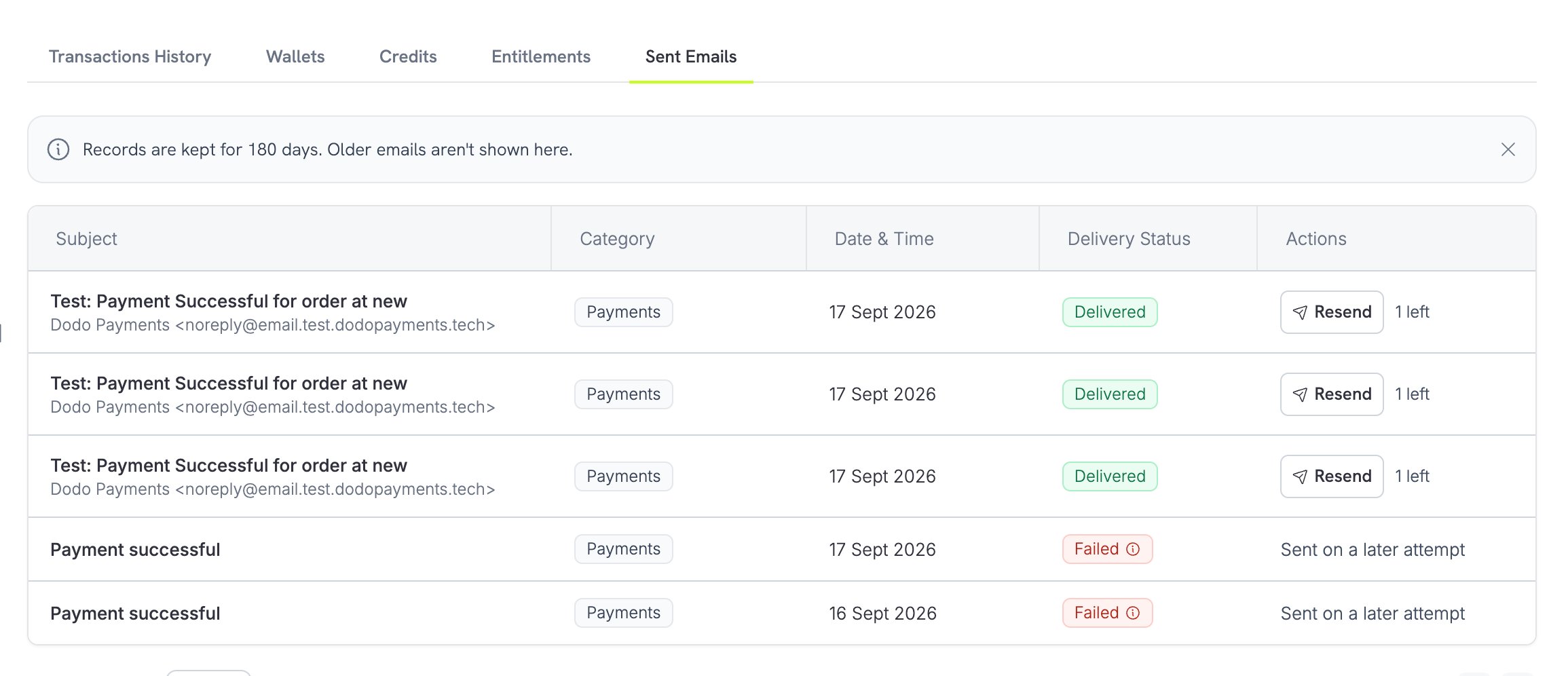 Emails are kept for **180 days**. Delivery status comes from the email provider and typically updates within seconds of each delivery event.
## Viewing a Customer's Emails
Go to **Sales → Customers** in the dashboard and select the customer.
The tab lists every email sent to this customer in the last 180 days, newest first.
Each row shows the subject, with the sender and the recipient address below it. The other columns show the **Category**, the **Date & Time**, the **Delivery Status**, and the **Actions** you can take.
The category is one of **Payments**, **Refunds**, **Subscriptions**, **Dunning & Recovery**, **Entitlements**, or **Auth**. Customer Portal login emails belong to **Auth**.
## Delivery Status
Each email has one of five statuses. The API returns the status value, and the dashboard shows its label:
| Status | Dashboard label | Meaning |
| - | - | - |
| `sent` | **Sent** | Dodo Payments handed the email to the provider. It is on its way, or the receiving server has not answered yet. |
| `delivered` | **Delivered** | The receiving mail server accepted the email. |
| `failed` | **Failed** | The email did not arrive. A failure reason is shown. |
| `complained` | **Marked as spam** | The recipient marked the email as spam. |
| `blocked` | **Not sent** | Nothing was sent, because the weekly test-mode allowance is spent. |
### Failure Reasons
When an email does not arrive, the row carries a reason so you know whether to act. Point at the status on the row to read it. The API returns the same reason in `failure_reason` and a stable code in `failure_code`:
| Reason | `failure_code` | What it means | What to do |
| - | - | - | - |
| Mailbox does not exist | `mailbox_not_found` | The address does not exist. | Correct the customer's email address. |
| Address rejected by the mail server | `address_rejected` | The receiving server refused the address. | Use a different address. |
| Address blocked after earlier failures | `address_suppressed` | The provider suppressed this address after an earlier hard bounce or complaint. | Use a different address. |
| Mailbox is full | `mailbox_full` | The recipient's mailbox is out of space. | Send again later. |
| Temporary delivery failure | `temporary_failure` | A transient problem at the receiving server. | Send again later. |
| Message rejected as too large | `message_too_large` | The receiving server refused the size. | Contact support. |
| Recipient marked the email as spam | `marked_as_spam` | The recipient reported the email. | Do not send it again. |
| Email could not be sent | `send_failed` | The provider refused the send, or the failure matches no other code. | Send again. |
| Not sent: the test-mode email allowance for this week is spent | `test_mode_quota_spent` | The weekly [test-mode allowance](#test-mode) is spent. | Wait for the allowance to reset. |
Five of these reasons need a different address on a resend, because the same address would fail again: mailbox does not exist, address rejected, address blocked after earlier failures, message rejected as too large, and recipient marked the email as spam.
## Reading an Email
To read an email, select **Resend** on its row, or **Retry** on a failed row. The panel that opens shows the stored copy under **Email Preview**, exactly as it was sent. Recovery and dunning emails that you wrote carry a **Written by you** label.
Emails are kept for **180 days**. Delivery status comes from the email provider and typically updates within seconds of each delivery event.
## Viewing a Customer's Emails
Go to **Sales → Customers** in the dashboard and select the customer.
The tab lists every email sent to this customer in the last 180 days, newest first.
Each row shows the subject, with the sender and the recipient address below it. The other columns show the **Category**, the **Date & Time**, the **Delivery Status**, and the **Actions** you can take.
The category is one of **Payments**, **Refunds**, **Subscriptions**, **Dunning & Recovery**, **Entitlements**, or **Auth**. Customer Portal login emails belong to **Auth**.
## Delivery Status
Each email has one of five statuses. The API returns the status value, and the dashboard shows its label:
| Status | Dashboard label | Meaning |
| - | - | - |
| `sent` | **Sent** | Dodo Payments handed the email to the provider. It is on its way, or the receiving server has not answered yet. |
| `delivered` | **Delivered** | The receiving mail server accepted the email. |
| `failed` | **Failed** | The email did not arrive. A failure reason is shown. |
| `complained` | **Marked as spam** | The recipient marked the email as spam. |
| `blocked` | **Not sent** | Nothing was sent, because the weekly test-mode allowance is spent. |
### Failure Reasons
When an email does not arrive, the row carries a reason so you know whether to act. Point at the status on the row to read it. The API returns the same reason in `failure_reason` and a stable code in `failure_code`:
| Reason | `failure_code` | What it means | What to do |
| - | - | - | - |
| Mailbox does not exist | `mailbox_not_found` | The address does not exist. | Correct the customer's email address. |
| Address rejected by the mail server | `address_rejected` | The receiving server refused the address. | Use a different address. |
| Address blocked after earlier failures | `address_suppressed` | The provider suppressed this address after an earlier hard bounce or complaint. | Use a different address. |
| Mailbox is full | `mailbox_full` | The recipient's mailbox is out of space. | Send again later. |
| Temporary delivery failure | `temporary_failure` | A transient problem at the receiving server. | Send again later. |
| Message rejected as too large | `message_too_large` | The receiving server refused the size. | Contact support. |
| Recipient marked the email as spam | `marked_as_spam` | The recipient reported the email. | Do not send it again. |
| Email could not be sent | `send_failed` | The provider refused the send, or the failure matches no other code. | Send again. |
| Not sent: the test-mode email allowance for this week is spent | `test_mode_quota_spent` | The weekly [test-mode allowance](#test-mode) is spent. | Wait for the allowance to reset. |
Five of these reasons need a different address on a resend, because the same address would fail again: mailbox does not exist, address rejected, address blocked after earlier failures, message rejected as too large, and recipient marked the email as spam.
## Reading an Email
To read an email, select **Resend** on its row, or **Retry** on a failed row. The panel that opens shows the stored copy under **Email Preview**, exactly as it was sent. Recovery and dunning emails that you wrote carry a **Written by you** label.
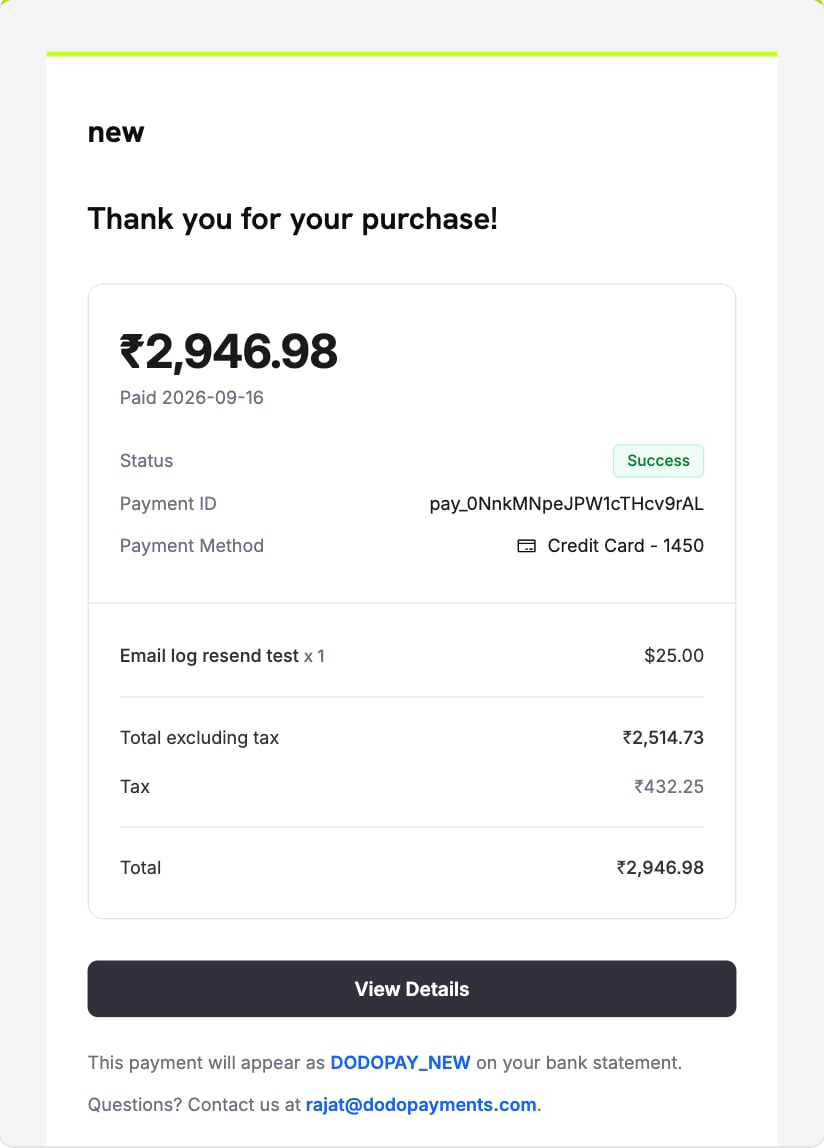 Some emails have no content to show:
* **Customer Portal login emails.** They carry a live login link, so the content is never displayed.
* **Blocked emails.** They never reached the provider, so no copy exists.
* **Emails that could not be handed to the provider.** No copy was stored.
* **Emails older than 180 days.** The provider clears the content at that point.
## Sending an Email Again
To send an email again, select **Resend** on its row, or **Retry** on a failed row, and confirm in the panel. The button shows how many resends the email has left. Dodo Payments rebuilds the email from the original event, not from the stored copy, so a receipt shows the current state of the payment. The email keeps the date of the original event.
Some emails have no content to show:
* **Customer Portal login emails.** They carry a live login link, so the content is never displayed.
* **Blocked emails.** They never reached the provider, so no copy exists.
* **Emails that could not be handed to the provider.** No copy was stored.
* **Emails older than 180 days.** The provider clears the content at that point.
## Sending an Email Again
To send an email again, select **Resend** on its row, or **Retry** on a failed row, and confirm in the panel. The button shows how many resends the email has left. Dodo Payments rebuilds the email from the original event, not from the stored copy, so a receipt shows the current state of the payment. The email keeps the date of the original event.
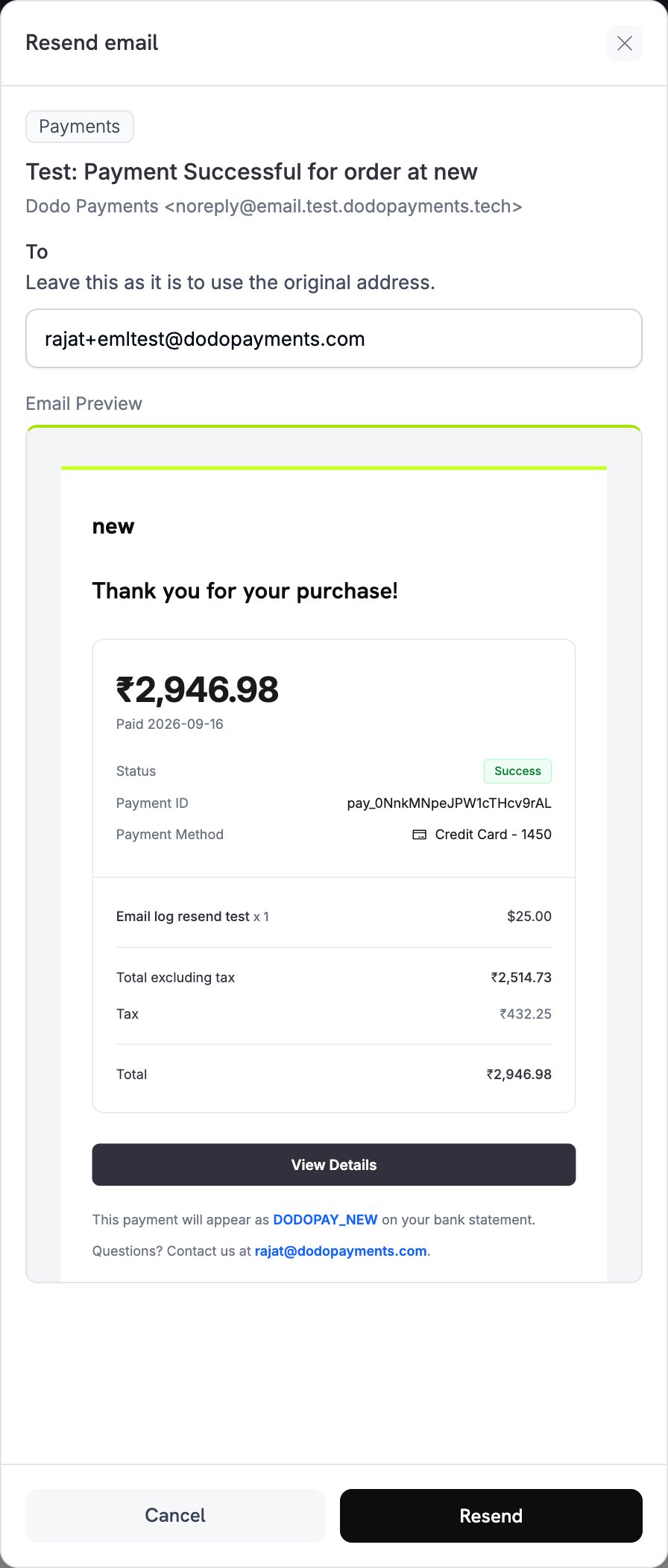 The **To** field in the panel holds the original address. To send the email elsewhere, change it. After a permanent failure, the **To** field starts empty and you must enter a different address, because the original one would fail again.
A resend is a new email. The customer receives another copy, and the resend appears as its own row in the tab.
### Limits
These limits apply to every resend:
* Each email may be sent again **three times**.
* Resends of one email to the same address wait between attempts: five minutes after the latest send before the first resend, ten before the second, and fifteen before the third.
* A resend to any address waits until five minutes have passed since that address last received an email from you.
* A send that never reached the provider does not count against the three. It still adds to the wait.
* Resend is available in the dashboard only. The API is read-only.
### When Resend Is Not Available
The dashboard does not offer a resend, or refuses it, in these cases:
| Case | Reason |
| - | - |
| The recipient marked the email as spam | The recipient asked for these emails to stop. |
| The address is suppressed | The provider accepts a send to that address and then drops it. Enter a different address. |
| A later send of the same email already went out | This row is history, marked **Sent on a later attempt**. Sending it again would deliver a second copy. |
| The customer is blocked | A [blocked customer](/features/customer-blocklist) receives no further email from you. |
| The three resends are used | The limit is per email. |
| The original data is gone | Dodo Payments cannot rebuild the email. |
| Your team role is **Viewer** | Viewers see no resend action on the row. |
| **Test Mode Emails** is off, in test mode | Test-mode customer emails are turned off for your business. See [Test Mode](#test-mode). |
A Customer Portal login email always goes to the address that asked for it, and each resend creates a fresh login link.
## Test Mode
Test mode sends real email, so it carries an allowance: **100 emails per business per week**. Resends draw from the same allowance. Each test-mode email goes to the real recipient, with `[TEST MODE]` at the start of the subject.
To stop test-mode customer emails, turn off **Test Mode Emails** in **Settings → Communication → Email** (see [Test Mode Emails](/features/communication-preferences#test-mode-emails)). While it is off, no customer email is sent in test mode, no row is added to the tab, no allowance is spent, and the dashboard refuses a resend. Live mode emails are not affected.
When the allowance is spent, nothing more is sent in test mode that week. The first email refused that week is recorded as one `blocked` row, which reads "Not sent: the test-mode email allowance for this week is spent". Later refusals in the same week add no rows. The allowance resets at the start of each week, on Monday. Live mode has no such limit.
Customer Portal login emails never send in test mode, and they do not spend the allowance.
## Reading Emails Through the API
The list and the content are also available with your API key, so you can show delivery state in your own support tools. The list returns 10 emails per page by default. Set `page_size` to return up to 100, and `page_number` to page through, starting at 0.
```bash cURL theme={null}
curl "https://live.dodopayments.com/customers/cus_123/emails?page_size=10" \
-H "Authorization: Bearer $DODO_PAYMENTS_API_KEY"
```
```typescript Node.js expandable theme={null}
const customerId = 'cus_123'; // the customer whose emails you want to read
const res = await fetch(
`https://live.dodopayments.com/customers/${customerId}/emails?page_size=10`,
{ headers: { Authorization: `Bearer ${process.env.DODO_PAYMENTS_API_KEY}` } },
);
const { items, total_count } = await res.json();
```
```python Python expandable theme={null}
import os, requests
customer_id = "cus_123" # the customer whose emails you want to read
res = requests.get(
f"https://live.dodopayments.com/customers/{customer_id}/emails",
params={"page_size": 10},
headers={"Authorization": f"Bearer {os.environ['DODO_PAYMENTS_API_KEY']}"},
)
items = res.json()["items"]
```
The TypeScript and Python SDKs wrap both endpoints as `client.customers.emails.list()` and `client.customers.emails.retrieveBody()` (`retrieve_body()` in Python).
Each item carries its `email_log_id`, which you pass to the content endpoint, and its `status`. It also carries the `failure_code` and `failure_reason` when the send failed, and `has_preview` to say whether stored content exists. The content endpoint returns `422` when an email has no content to show. Each item also carries a `policies` object that states what you may do with the row:
| Field | Meaning |
| - | - |
| `resend_allowed` | The email was delivered, and you may send it again. |
| `retry_allowed` | The send failed, and you may attempt it again. |
| `resends_remaining` | How many resends the email has left. |
| `requires_different_address` | The same address would fail again, so you must supply another one. |
| `superseded` | A later send of the same email replaced this row. |
Read `policies` rather than deriving eligibility yourself. The server applies the rules above.
Manage customers, purchase history, and self-service access.
Choose which emails Dodo Payments sends on your behalf.
This documentation is built and hosted on [Mintlify](https://mintlify.com), a developer documentation platform.
The **To** field in the panel holds the original address. To send the email elsewhere, change it. After a permanent failure, the **To** field starts empty and you must enter a different address, because the original one would fail again.
A resend is a new email. The customer receives another copy, and the resend appears as its own row in the tab.
### Limits
These limits apply to every resend:
* Each email may be sent again **three times**.
* Resends of one email to the same address wait between attempts: five minutes after the latest send before the first resend, ten before the second, and fifteen before the third.
* A resend to any address waits until five minutes have passed since that address last received an email from you.
* A send that never reached the provider does not count against the three. It still adds to the wait.
* Resend is available in the dashboard only. The API is read-only.
### When Resend Is Not Available
The dashboard does not offer a resend, or refuses it, in these cases:
| Case | Reason |
| - | - |
| The recipient marked the email as spam | The recipient asked for these emails to stop. |
| The address is suppressed | The provider accepts a send to that address and then drops it. Enter a different address. |
| A later send of the same email already went out | This row is history, marked **Sent on a later attempt**. Sending it again would deliver a second copy. |
| The customer is blocked | A [blocked customer](/features/customer-blocklist) receives no further email from you. |
| The three resends are used | The limit is per email. |
| The original data is gone | Dodo Payments cannot rebuild the email. |
| Your team role is **Viewer** | Viewers see no resend action on the row. |
| **Test Mode Emails** is off, in test mode | Test-mode customer emails are turned off for your business. See [Test Mode](#test-mode). |
A Customer Portal login email always goes to the address that asked for it, and each resend creates a fresh login link.
## Test Mode
Test mode sends real email, so it carries an allowance: **100 emails per business per week**. Resends draw from the same allowance. Each test-mode email goes to the real recipient, with `[TEST MODE]` at the start of the subject.
To stop test-mode customer emails, turn off **Test Mode Emails** in **Settings → Communication → Email** (see [Test Mode Emails](/features/communication-preferences#test-mode-emails)). While it is off, no customer email is sent in test mode, no row is added to the tab, no allowance is spent, and the dashboard refuses a resend. Live mode emails are not affected.
When the allowance is spent, nothing more is sent in test mode that week. The first email refused that week is recorded as one `blocked` row, which reads "Not sent: the test-mode email allowance for this week is spent". Later refusals in the same week add no rows. The allowance resets at the start of each week, on Monday. Live mode has no such limit.
Customer Portal login emails never send in test mode, and they do not spend the allowance.
## Reading Emails Through the API
The list and the content are also available with your API key, so you can show delivery state in your own support tools. The list returns 10 emails per page by default. Set `page_size` to return up to 100, and `page_number` to page through, starting at 0.
```bash cURL theme={null}
curl "https://live.dodopayments.com/customers/cus_123/emails?page_size=10" \
-H "Authorization: Bearer $DODO_PAYMENTS_API_KEY"
```
```typescript Node.js expandable theme={null}
const customerId = 'cus_123'; // the customer whose emails you want to read
const res = await fetch(
`https://live.dodopayments.com/customers/${customerId}/emails?page_size=10`,
{ headers: { Authorization: `Bearer ${process.env.DODO_PAYMENTS_API_KEY}` } },
);
const { items, total_count } = await res.json();
```
```python Python expandable theme={null}
import os, requests
customer_id = "cus_123" # the customer whose emails you want to read
res = requests.get(
f"https://live.dodopayments.com/customers/{customer_id}/emails",
params={"page_size": 10},
headers={"Authorization": f"Bearer {os.environ['DODO_PAYMENTS_API_KEY']}"},
)
items = res.json()["items"]
```
The TypeScript and Python SDKs wrap both endpoints as `client.customers.emails.list()` and `client.customers.emails.retrieveBody()` (`retrieve_body()` in Python).
Each item carries its `email_log_id`, which you pass to the content endpoint, and its `status`. It also carries the `failure_code` and `failure_reason` when the send failed, and `has_preview` to say whether stored content exists. The content endpoint returns `422` when an email has no content to show. Each item also carries a `policies` object that states what you may do with the row:
| Field | Meaning |
| - | - |
| `resend_allowed` | The email was delivered, and you may send it again. |
| `retry_allowed` | The send failed, and you may attempt it again. |
| `resends_remaining` | How many resends the email has left. |
| `requires_different_address` | The same address would fail again, so you must supply another one. |
| `superseded` | A later send of the same email replaced this row. |
Read `policies` rather than deriving eligibility yourself. The server applies the rules above.
Manage customers, purchase history, and self-service access.
Choose which emails Dodo Payments sends on your behalf.
This documentation is built and hosted on [Mintlify](https://mintlify.com), a developer documentation platform.