> ## Documentation Index
> Fetch the complete documentation index at: https://docs.dodopayments.com/llms.txt
> Use this file to discover all available pages before exploring further.
# Discord Entitlement
> Add paying customers to your Discord server with an optional role, and remove them automatically when their access ends.
The Discord entitlement adds a paying customer to your Discord server and can assign them a role. The customer connects their Discord account after their subscription becomes active or their one-time payment succeeds. When the grant is revoked, for example on cancellation or refund, Dodo Payments removes the role and removes the customer from the server.
## What Gets Delivered
* The customer connects their Discord account from the Customer Portal. The payment confirmation email marks the entitlement **Action Required** and links to the portal.
* After they authorize, the Dodo Payments bot adds them to your server, or finds their existing membership, and assigns the role you configured.
* If you don't pick a role, the customer gets server membership only.
Use it for paid communities, supporter perks, and tiered access channels.
## Connect Discord
In the Dodo Payments dashboard, go to **Entitlements** and click **+** to start a new entitlement.
Choose **Discord Access** as the integration. If Discord isn't connected for your business yet, click **Connect Discord**.
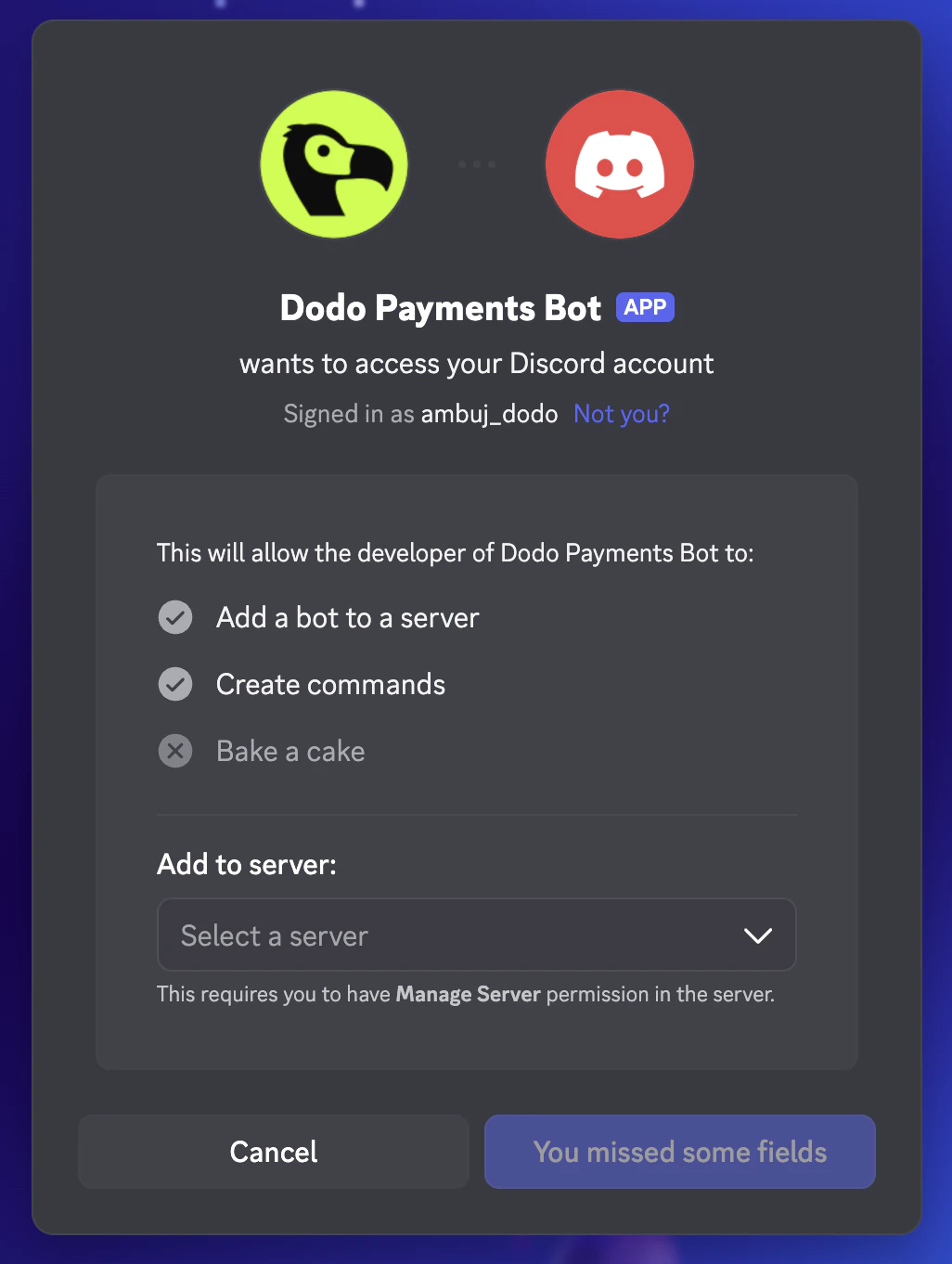
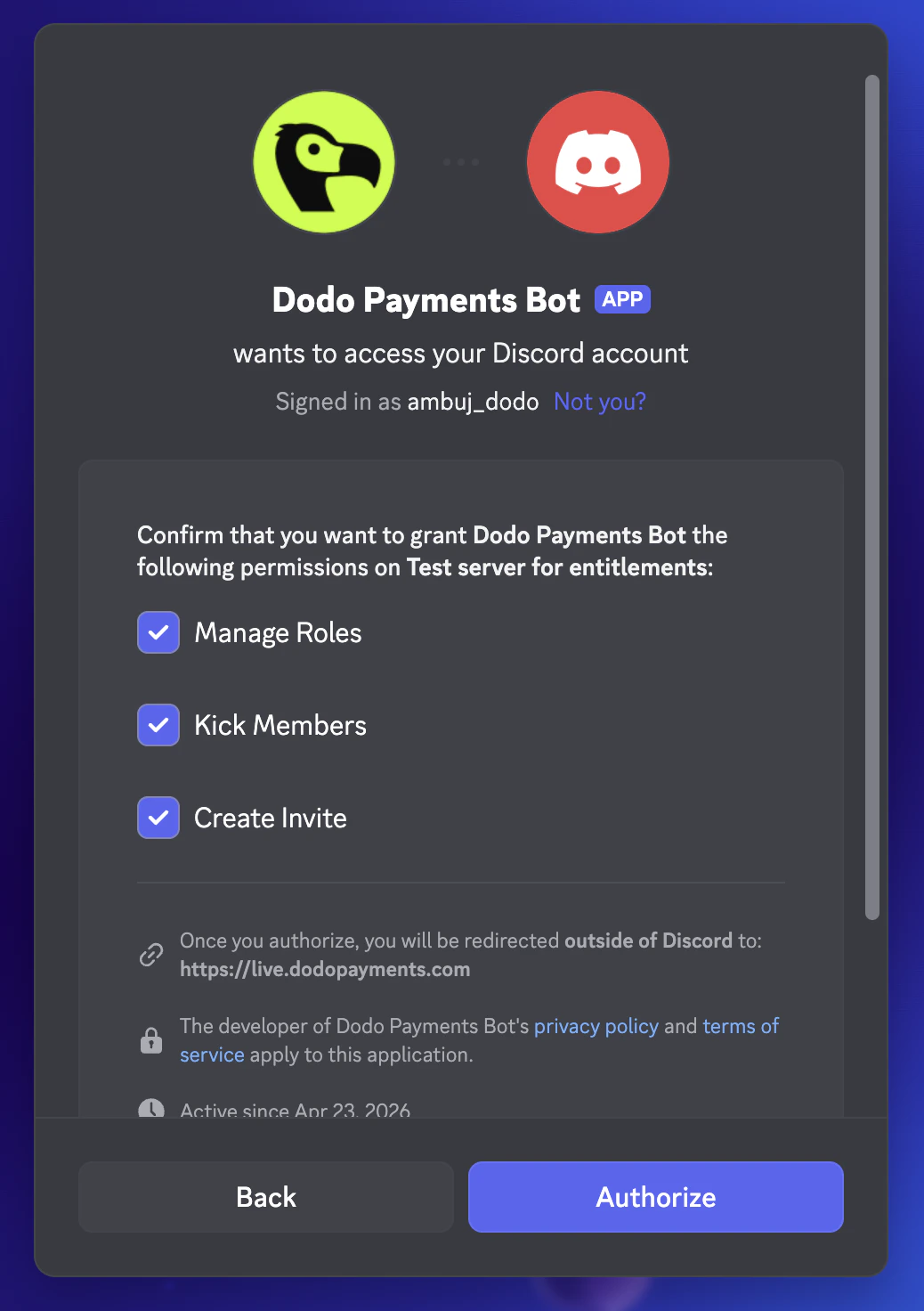
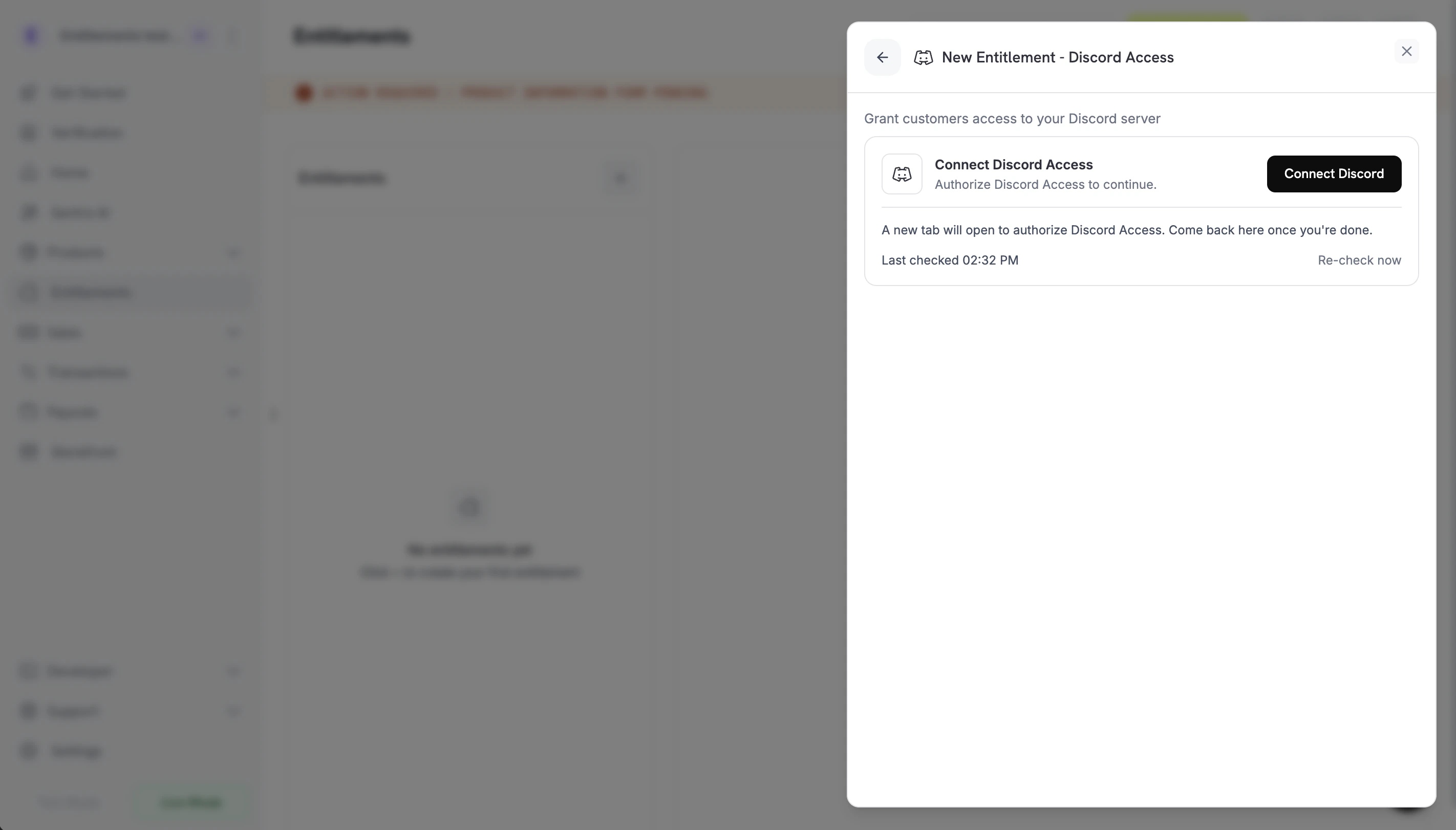 Discord opens in a new tab. Sign in, pick the server you want to gate, and approve the bot's permissions on that server: **Manage Roles**, **Kick Members**, and **Create Invite**.
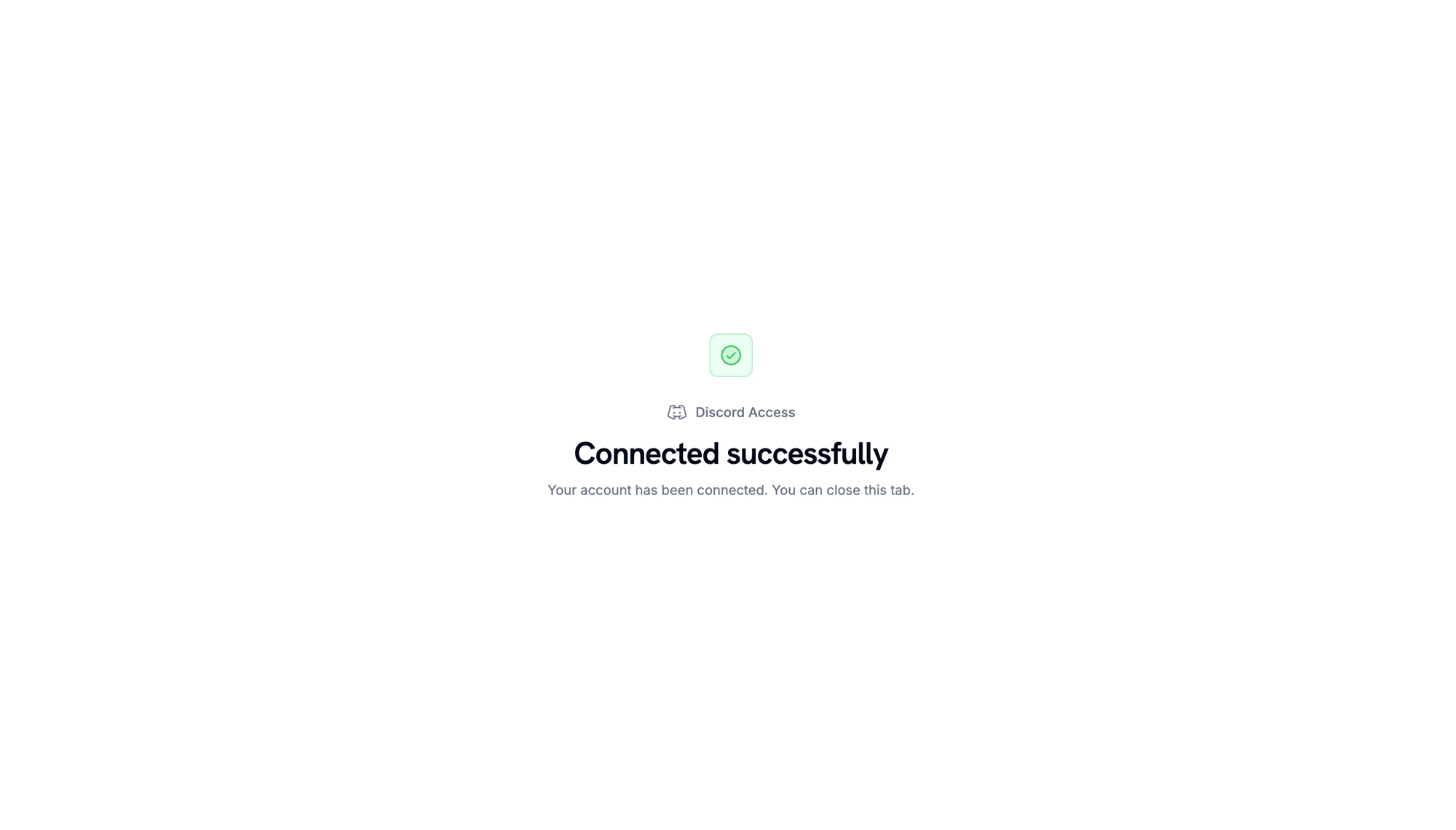
 When Discord redirects back, a confirmation page shows that the server is connected.
 Back in the dashboard, select the **Server** you connected. To assign a role on delivery, select it under **Role**. To grant server membership only, leave **Role** set to **No specific role**. Enter a **Name** for the entitlement and click **Create Entitlement**.
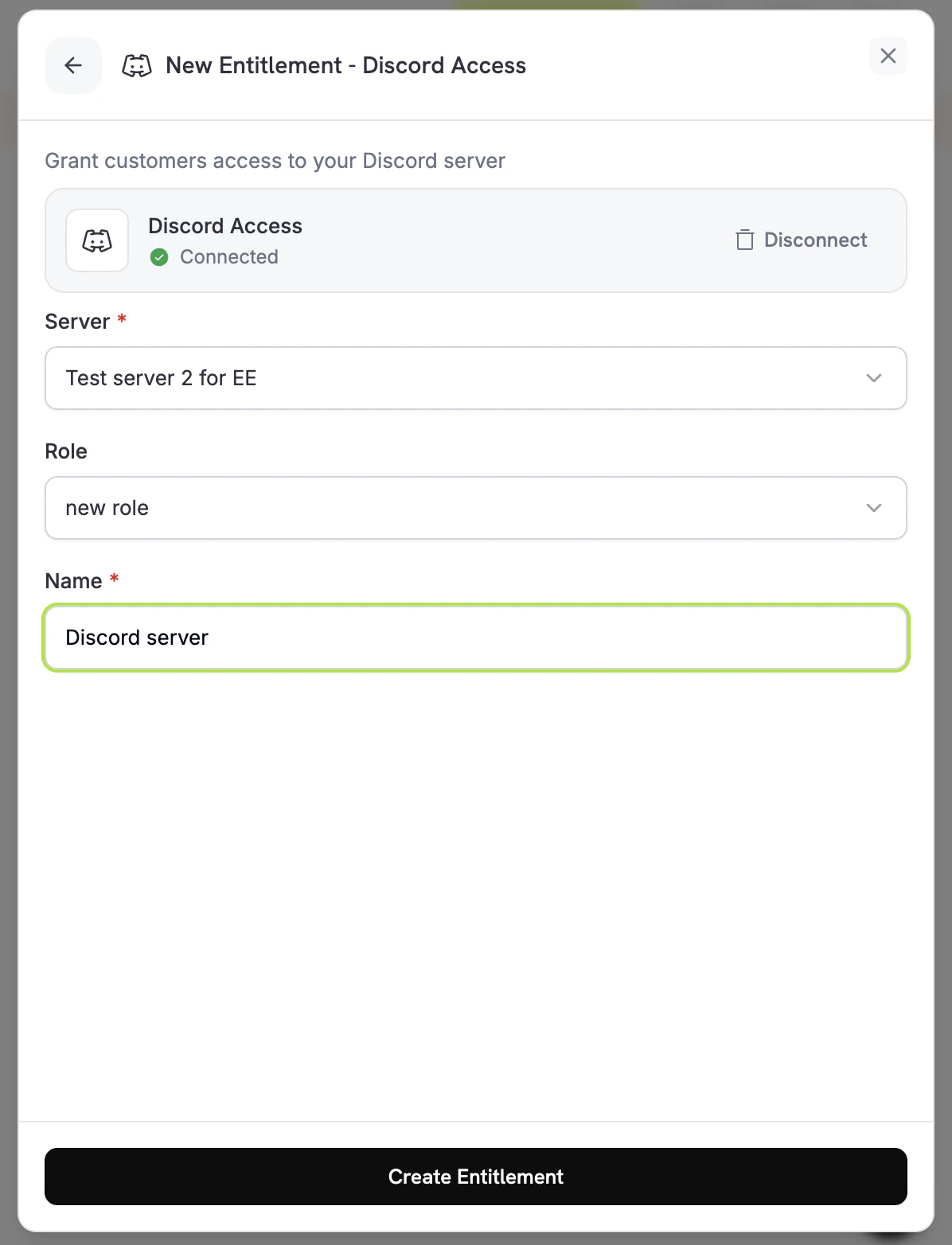 The entitlement is saved and available to attach to any product. See [Attach Entitlements to Products](/features/entitlements/introduction#attach-entitlements-to-products).
## Customer Flow
1. The customer completes checkout.
2. Dodo Payments creates a grant in `Pending` status. Dodo Payments tries to create a Discord authorization URL right away and stores it in `oauth_url`. If that fails, `oauth_url` stays `null` until the customer starts the accept flow.
3. The payment confirmation email lists the entitlement as **Action Required** and links to the Customer Portal. In the portal, the customer clicks **Connect** on the entitlement.
4. The customer authorizes Dodo Payments on Discord. The bot adds them to the server and assigns the configured role, and the grant moves to `Delivered`.
5. When the grant is revoked (the subscription is cancelled, paused, put on hold, or expires, the one-time payment is refunded, or you revoke the grant), the bot removes the role and removes the customer from the server. The grant moves to `Revoked`.
An authorization link expires 30 minutes after it's generated. If the customer returns to the Customer Portal after that, Dodo Payments generates a new link. If a customer leaves your server on their own, Dodo Payments revokes their grant with `revocation_reason: platform_external`.
Place the Dodo Payments bot's role **above** the role you grant. Discord doesn't let a bot assign a role at or above its own highest role. Managed roles, such as bot and integration roles, can't be assigned.
## Required Configuration
| Field | Required | Description |
| - | - | - |
| `guild_id` | Yes | The Discord server (guild) ID. The dashboard's server picker fills this in for you. |
| `role_id` | No | The role to assign on delivery. Omit it, or pass `null`, for server-membership-only access. |
## Create via API
```typescript TypeScript expandable theme={null}
import DodoPayments from 'dodopayments';
const client = new DodoPayments({
bearerToken: process.env['DODO_PAYMENTS_API_KEY'],
environment: 'test_mode',
});
const entitlement = await client.entitlements.create({
name: 'Patrons Discord Role',
integration_type: 'discord',
integration_config: {
guild_id: '123456789012345678',
role_id: '987654321098765432',
},
});
```
```python Python expandable theme={null}
import os
from dodopayments import DodoPayments
client = DodoPayments(
bearer_token=os.environ.get("DODO_PAYMENTS_API_KEY"),
environment="test_mode",
)
entitlement = client.entitlements.create(
name="Patrons Discord Role",
integration_type="discord",
integration_config={
"guild_id": "123456789012345678",
"role_id": "987654321098765432",
},
)
```
```go Go expandable theme={null}
// client is a *dodopayments.Client, for example from
// dodopayments.NewClient(option.WithEnvironmentTestMode()); ctx is a context.Context.
client.Entitlements.New(ctx, dodopayments.EntitlementNewParams{
Name: dodopayments.F("Patrons Discord Role"),
IntegrationType: dodopayments.F(dodopayments.EntitlementIntegrationTypeDiscord),
IntegrationConfig: dodopayments.F[dodopayments.IntegrationConfigUnionParam](
dodopayments.IntegrationConfigDiscordConfigParam{
GuildID: dodopayments.F("123456789012345678"),
RoleID: dodopayments.F("987654321098765432"),
},
),
})
```
## Webhooks
Subscribe to the [`entitlement_grant.*` webhook events](/developer-resources/webhooks/intents/entitlement-grant) to track Discord grants:
* `entitlement_grant.created` fires with `status: "Pending"`. `oauth_url` may already hold the authorization URL. If it is `null`, it is populated once the customer starts the accept flow from the Customer Portal.
* `entitlement_grant.delivered` fires once the customer joins the server and the role is assigned.
* `entitlement_grant.revoked` fires when the role is removed and the customer is removed from the server.
## Troubleshooting
The grant stays `Pending` until the customer completes the Discord authorization. Open the entitlement in the dashboard and check the customer's grant. If it's still `Pending`, ask the customer to open the Customer Portal and click **Connect** on the Discord entitlement.
Make sure the Dodo Payments bot is still in the server, has the **Manage Roles** permission, and sits above the role being assigned. If the bot is removed from the server, Dodo Payments revokes the server's pending and delivered grants. Re-saving the entitlement checks only its settings, not the bot's permissions. After you fix the permissions, ask the customer to open the Customer Portal and click **Connect** on the Discord entitlement to retry the grant.
Revocation removes the role and removes the customer from the server. If the grant shows `Revoked` but the customer is still in the server, confirm the bot still has the **Manage Roles** and **Kick Members** permissions and sits above the role. If the customer's Discord app still shows the role, ask them to refresh it. The server-side state is the source of truth.
This documentation is built and hosted on [Mintlify](https://mintlify.com), a developer documentation platform.
The entitlement is saved and available to attach to any product. See [Attach Entitlements to Products](/features/entitlements/introduction#attach-entitlements-to-products).
## Customer Flow
1. The customer completes checkout.
2. Dodo Payments creates a grant in `Pending` status. Dodo Payments tries to create a Discord authorization URL right away and stores it in `oauth_url`. If that fails, `oauth_url` stays `null` until the customer starts the accept flow.
3. The payment confirmation email lists the entitlement as **Action Required** and links to the Customer Portal. In the portal, the customer clicks **Connect** on the entitlement.
4. The customer authorizes Dodo Payments on Discord. The bot adds them to the server and assigns the configured role, and the grant moves to `Delivered`.
5. When the grant is revoked (the subscription is cancelled, paused, put on hold, or expires, the one-time payment is refunded, or you revoke the grant), the bot removes the role and removes the customer from the server. The grant moves to `Revoked`.
An authorization link expires 30 minutes after it's generated. If the customer returns to the Customer Portal after that, Dodo Payments generates a new link. If a customer leaves your server on their own, Dodo Payments revokes their grant with `revocation_reason: platform_external`.
Place the Dodo Payments bot's role **above** the role you grant. Discord doesn't let a bot assign a role at or above its own highest role. Managed roles, such as bot and integration roles, can't be assigned.
## Required Configuration
| Field | Required | Description |
| - | - | - |
| `guild_id` | Yes | The Discord server (guild) ID. The dashboard's server picker fills this in for you. |
| `role_id` | No | The role to assign on delivery. Omit it, or pass `null`, for server-membership-only access. |
## Create via API
```typescript TypeScript expandable theme={null}
import DodoPayments from 'dodopayments';
const client = new DodoPayments({
bearerToken: process.env['DODO_PAYMENTS_API_KEY'],
environment: 'test_mode',
});
const entitlement = await client.entitlements.create({
name: 'Patrons Discord Role',
integration_type: 'discord',
integration_config: {
guild_id: '123456789012345678',
role_id: '987654321098765432',
},
});
```
```python Python expandable theme={null}
import os
from dodopayments import DodoPayments
client = DodoPayments(
bearer_token=os.environ.get("DODO_PAYMENTS_API_KEY"),
environment="test_mode",
)
entitlement = client.entitlements.create(
name="Patrons Discord Role",
integration_type="discord",
integration_config={
"guild_id": "123456789012345678",
"role_id": "987654321098765432",
},
)
```
```go Go expandable theme={null}
// client is a *dodopayments.Client, for example from
// dodopayments.NewClient(option.WithEnvironmentTestMode()); ctx is a context.Context.
client.Entitlements.New(ctx, dodopayments.EntitlementNewParams{
Name: dodopayments.F("Patrons Discord Role"),
IntegrationType: dodopayments.F(dodopayments.EntitlementIntegrationTypeDiscord),
IntegrationConfig: dodopayments.F[dodopayments.IntegrationConfigUnionParam](
dodopayments.IntegrationConfigDiscordConfigParam{
GuildID: dodopayments.F("123456789012345678"),
RoleID: dodopayments.F("987654321098765432"),
},
),
})
```
## Webhooks
Subscribe to the [`entitlement_grant.*` webhook events](/developer-resources/webhooks/intents/entitlement-grant) to track Discord grants:
* `entitlement_grant.created` fires with `status: "Pending"`. `oauth_url` may already hold the authorization URL. If it is `null`, it is populated once the customer starts the accept flow from the Customer Portal.
* `entitlement_grant.delivered` fires once the customer joins the server and the role is assigned.
* `entitlement_grant.revoked` fires when the role is removed and the customer is removed from the server.
## Troubleshooting
The grant stays `Pending` until the customer completes the Discord authorization. Open the entitlement in the dashboard and check the customer's grant. If it's still `Pending`, ask the customer to open the Customer Portal and click **Connect** on the Discord entitlement.
Make sure the Dodo Payments bot is still in the server, has the **Manage Roles** permission, and sits above the role being assigned. If the bot is removed from the server, Dodo Payments revokes the server's pending and delivered grants. Re-saving the entitlement checks only its settings, not the bot's permissions. After you fix the permissions, ask the customer to open the Customer Portal and click **Connect** on the Discord entitlement to retry the grant.
Revocation removes the role and removes the customer from the server. If the grant shows `Revoked` but the customer is still in the server, confirm the bot still has the **Manage Roles** and **Kick Members** permissions and sits above the role. If the customer's Discord app still shows the role, ask them to refresh it. The server-side state is the source of truth.
This documentation is built and hosted on [Mintlify](https://mintlify.com), a developer documentation platform.