> ## Documentation Index
> Fetch the complete documentation index at: https://docs.dodopayments.com/llms.txt
> Use this file to discover all available pages before exploring further.
# License Keys
> Issue license keys with activation limits and expiry through the License Key entitlement, then activate, validate, and deactivate them from your software.
License keys are the License Key entitlement type. Create a License Key entitlement once with the activation limit, expiry, and activation message you want, then attach it to any product. By default, Dodo Payments generates and emails one key for each unit purchased or each subscription seat.
## What Are License Keys?
A license key is a unique token that authorizes access to your product. Use license keys for:
* **Software licensing**: desktop apps, plugins, and CLIs.
* **Per-seat controls**: limit activations per user or device.
* **Digital goods**: gate downloads, updates, or premium features.
Dodo Payments manages license keys through [Entitlements](/features/entitlements/introduction). The same payment and subscription events that drive your other entitlements drive each key's lifecycle: creation, expiry, revocation, and re-grant.
## Create a License Key Entitlement
Go to **Entitlements** in the dashboard and click **+** to create an entitlement.
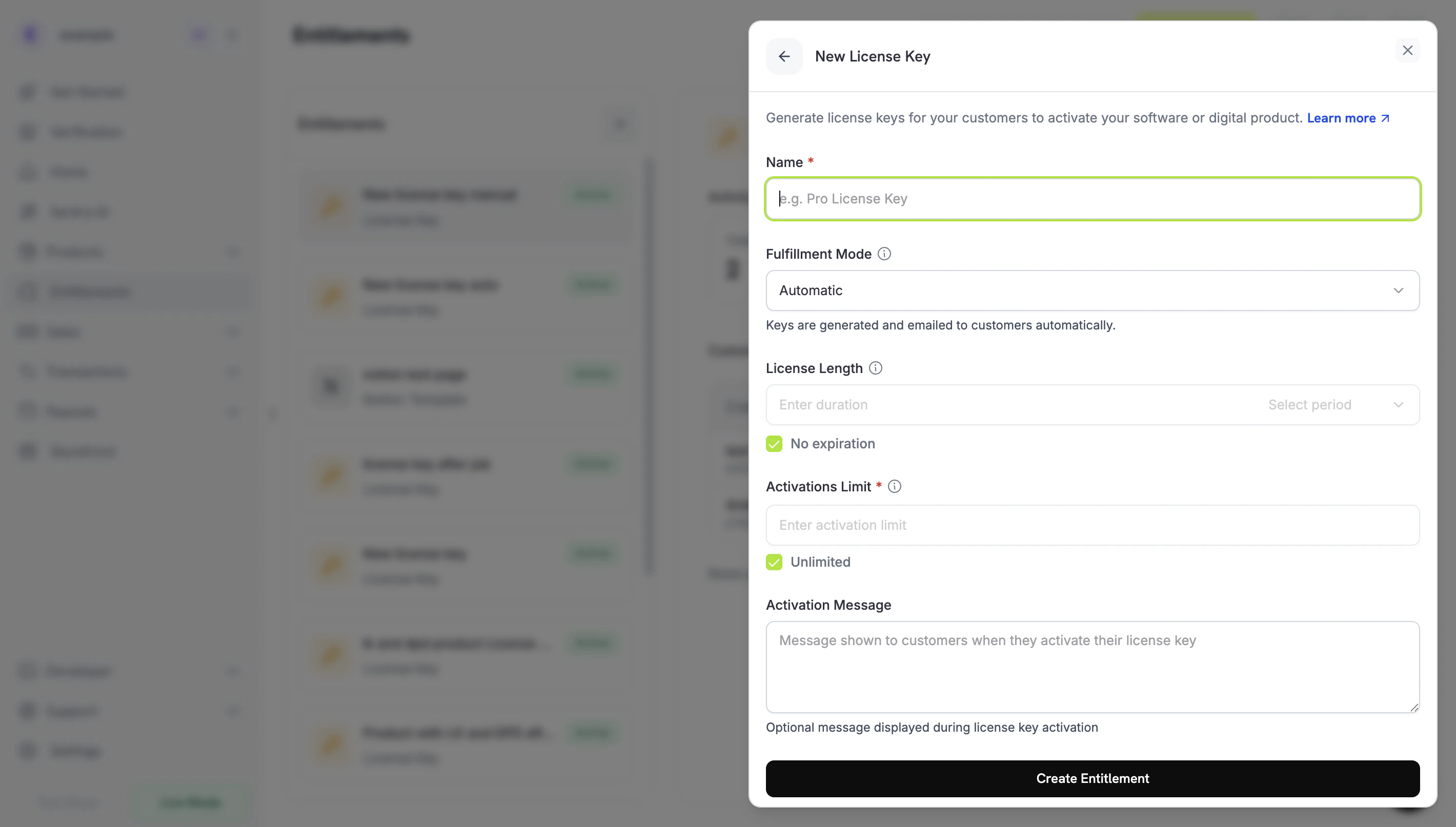
Select **License Keys**, enter a **Name**, and configure how each issued key behaves:
* **Fulfillment Mode**: **Automatic** (the default) generates and emails each key. **Manual** lets you supply each key yourself. See [Manual Fulfillment](#manual-fulfillment).
* **Activations Limit**: the maximum number of active activations per key, for example `1` for a single user or `5` for a team license. Select **Unlimited** for no limit.
* **License Length**: how long a key stays valid after it's issued, for example 30 days or 1 year, or **No expiration**. For subscription products, choose **No expiration**: keys issued for a subscription have no expiry, and their validity follows the subscription status.
* **Activation Message**: optional customer-facing instructions, up to 2,500 characters, included in the email that delivers the key. For example: `Paste the key in Settings → License` or `Run: mycli activate `.
Click **Create Entitlement**. You can now attach the entitlement to any product.
## Attach to Products
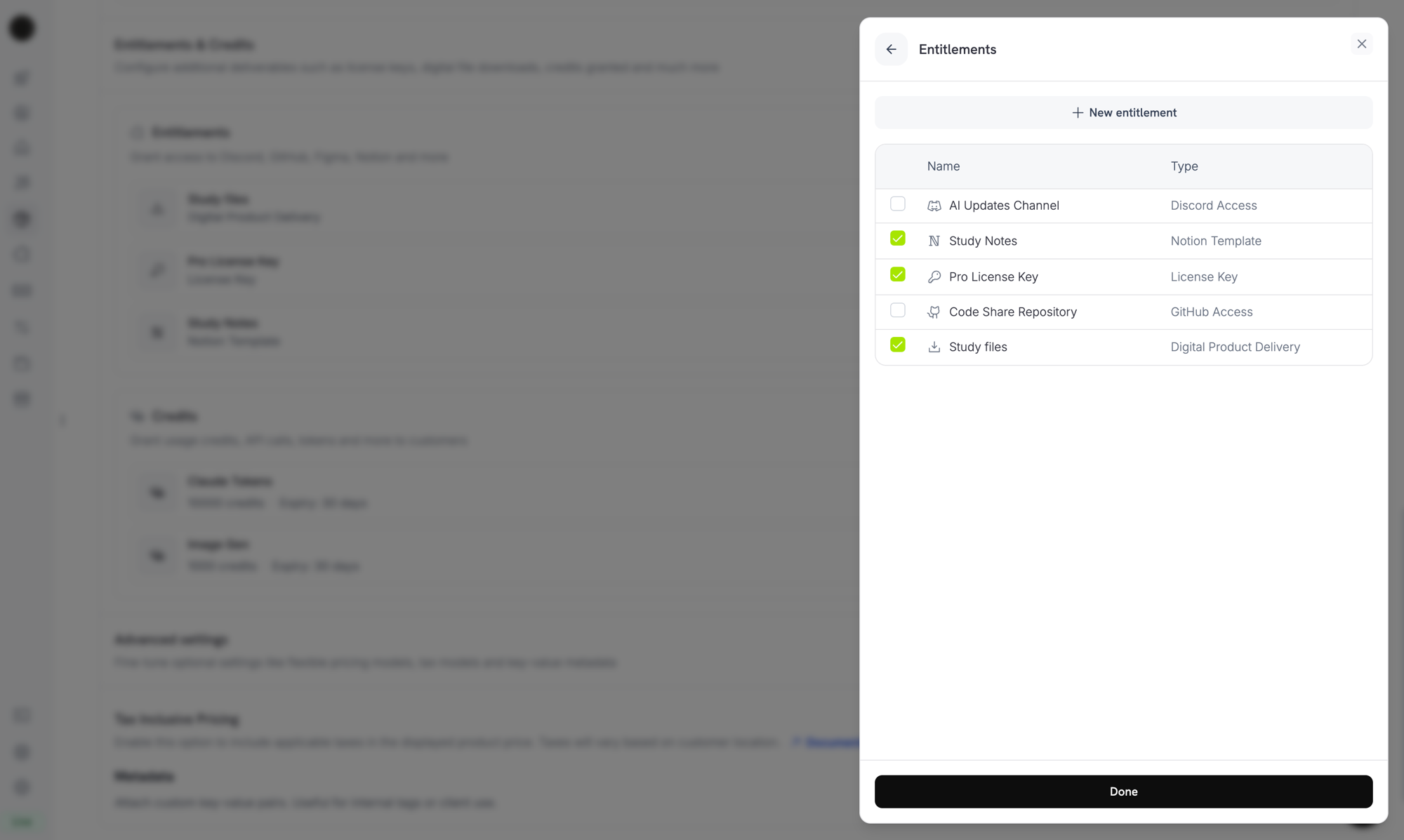
Open a product, go to its **Entitlements** section, and select your License Key entitlement. One product can deliver a license key together with other entitlements on the same purchase, such as Discord access, file downloads, or GitHub repository access.
***
## How Keys Are Issued
Key issuance follows the standard [grant lifecycle](/features/entitlements/introduction#how-grants-work). Each event affects license keys as follows:
| Event | Behavior |
| - | - |
| `payment.succeeded` (one-time) | Generates one key per unit of `quantity` purchased. Each key's expiry follows the entitlement's **License Length**. |
| `subscription.active` | Generates one key per subscription seat (`quantity`). The keys have no expiry. Their validity follows the subscription status. |
| `subscription.renewed` | No change. Existing keys stay active. |
| `subscription.past_due` | No change. The keys stay active for the whole [grace period](/features/subscription#grace-period). |
| `subscription.on_hold` | Disables the keys. They're re-enabled when the subscription comes off hold. |
| `subscription.paused` | Disables the keys. They're re-enabled when the subscription is resumed. |
| `subscription.cancelled` / `expired` | Disables the keys permanently. |
| `subscription.plan_changed` | Disables the old keys and issues new ones for the new plan. |
| `refund.succeeded` (one-time) | Disables the keys. |
| Manual revoke through the API or dashboard | Disables the keys with `revocation_reason: manual`. These keys aren't re-granted automatically on subscription renewal. |
| License key disabled directly | Revokes the grant with `revocation_reason: license_key_disabled`. Re-enabling the key restores the grant automatically. |
### Quantity Behavior
The number of keys depends on where the grant comes from. Each key gets its own grant.
* **Subscription products** issue one key per seat (`subscriptions.quantity`).
* **One-time products** issue one key per unit of the cart line item (`product_cart.quantity`).
* **Manual API grants** issue exactly one key.
### Fulfillment Mode
Every License Key entitlement has a `fulfillment_mode` that controls who supplies the key:
* **`auto`** (default, **Automatic** in the dashboard): Dodo Payments generates and emails the key on payment or subscription. This is the behavior in the table above, and it applies when `fulfillment_mode` is omitted.
* **`manual`** (**Manual** in the dashboard): each unit purchased creates a `Pending` grant with no key, and you supply each key value. See [Manual Fulfillment](#manual-fulfillment).
***
## Manual Fulfillment
With manual fulfillment, you supply each license key instead of Dodo Payments generating it. The purchase creates a `Pending` grant with no key, notifies you with a webhook, and waits for you to submit the key value. Use it when keys come from your own system, a third-party vendor, or a finite pool of pre-printed codes.
For a step-by-step build, from product creation to key delivery, see the [Manual License Key Fulfillment Integration Guide](/developer-resources/manual-license-key-fulfillment).
### When to Use It
Automatic fulfillment suits most software licensing. Choose manual fulfillment when Dodo Payments can't generate the key itself:
* **Bring your own keys**: your application, a desktop product, or your own license server generates the key.
* **Third-party vendors**: you resell keys that an upstream provider issues, such as a game key, an API credential, or a partner platform license.
* **Finite inventory**: you hand out codes from a pre-allocated pool and assign them one at a time.
* **Human review**: you want to check a purchase before you release access.
### Enable Manual Fulfillment
To enable manual fulfillment through the API, set `fulfillment_mode: "manual"` in the License Key entitlement's `integration_config`. In the dashboard, set **Fulfillment Mode** to **Manual**.
```typescript Node.js expandable theme={null}
// `client` is a DodoPayments instance created with your API key.
const entitlement = await client.entitlements.create({
name: 'Pro License (Manual)',
integration_type: 'license_key',
integration_config: {
fulfillment_mode: 'manual',
activations_limit: 5,
duration_count: 1,
duration_interval: 'Year',
},
});
```
```bash cURL expandable theme={null}
curl -X POST https://test.dodopayments.com/entitlements \
-H "Authorization: Bearer $DODO_PAYMENTS_API_KEY" \
-H "Content-Type: application/json" \
-d '{
"name": "Pro License (Manual)",
"integration_type": "license_key",
"integration_config": {
"fulfillment_mode": "manual",
"activations_limit": 5,
"duration_count": 1,
"duration_interval": "Year"
}
}'
```
`fulfillment_mode` is backward compatible. Entitlements created before this setting existed have no `fulfillment_mode` and behave as `auto`. Switching to `manual` affects only grants created **after** the change. Keys already delivered don't change.
### Find Grants Awaiting Fulfillment
When a customer buys a product with a manual-mode entitlement, Dodo Payments creates the grant in `Pending` status with no key and sends an [`entitlement_grant.created`](/developer-resources/webhooks/intents/entitlement-grant) webhook with `integration_type: "license_key"` and `status: "Pending"`. React to that webhook, or poll the [List Customer Grants](/api-reference/entitlements/list-customer-grants) endpoint with the `integration_type` and `status` filters:
```typescript theme={null}
const pending = await client.customers.listEntitlementGrants('cus_abc123', {
integration_type: 'license_key',
status: 'Pending',
});
```
### Deliver the Key
To deliver a key, send it to the [Fulfill License Key Grant](/api-reference/entitlements/fulfill-license-key) endpoint. The grant moves to `Delivered`, and Dodo Payments emails the key to the customer. It's the same email the customer receives under automatic fulfillment.
```bash cURL expandable theme={null}
curl -X POST https://test.dodopayments.com/grants/entg_8VbC6JDZ/license-key \
-H "Authorization: Bearer $DODO_PAYMENTS_API_KEY" \
-H "Content-Type: application/json" \
-d '{
"key": "PRO-AAAA-BBBB-CCCC-DDDD",
"activations_limit": 5,
"expires_at": "2027-05-01T00:00:00Z"
}'
```
`activations_limit` and `expires_at` are optional. When you omit them, Dodo Payments uses the entitlement's configuration. Each grant can be fulfilled once: retrying an already-fulfilled grant returns `409` instead of issuing a second key.
You don't need to email the key yourself. Dodo Payments delivers it when the grant is fulfilled. [Importing keys](#import-existing-license-keys-via-api) with `POST /license_keys` works differently: it does **not** notify the customer.
***
## Activation, Validation, Deactivation
Your software manages a key at runtime through three endpoints. Activation records a device or installation against the key, validation checks that the key is usable, and deactivation frees an activation.
**Public Endpoints**: The activate, deactivate, and validate license endpoints are public and don't require an API key. Call them directly from desktop software, CLIs, or browser-based clients without exposing your API credentials. The SDK constructors still require a bearer token value, so the SDK examples pass a placeholder.
### Activate a License
Activation creates an activation instance for the key and returns it with an `lki_` ID. Store that ID, because you need it to deactivate the instance. The request returns `403` if the key isn't active, `404` if the key doesn't exist, and `422` if the key has reached its activation limit.
```typescript TypeScript expandable theme={null}
import DodoPayments from 'dodopayments';
// The license endpoints don't check the token, but the SDK requires a value.
// Never ship your secret API key in client software.
const client = new DodoPayments({ bearerToken: 'public', environment: 'test_mode' });
const response = await client.licenses.activate({
license_key: 'PRO-AAAA-BBBB-CCCC-DDDD',
name: 'Device Name',
});
console.log(response.id);
```
```python Python expandable theme={null}
from dodopayments import DodoPayments
# The license endpoints don't check the token, but the SDK requires a value.
client = DodoPayments(bearer_token="public", environment="test_mode")
response = client.licenses.activate(
license_key="PRO-AAAA-BBBB-CCCC-DDDD",
name="Device Name",
)
print(response.id)
```
```bash cURL expandable theme={null}
curl -X POST https://test.dodopayments.com/licenses/activate \
-H "Content-Type: application/json" \
-d '{
"license_key": "PRO-AAAA-BBBB-CCCC-DDDD",
"name": "Device Name"
}'
```
### Validate a License
Validation returns `valid: true` when the key's status is `active` and the key hasn't expired. To also check that a specific activation instance still exists, pass its `license_key_instance_id`.
```typescript TypeScript theme={null}
// Uses the client from the activation example.
const response = await client.licenses.validate({
license_key: 'PRO-AAAA-BBBB-CCCC-DDDD',
});
console.log(response.valid);
```
```bash cURL theme={null}
curl -X POST https://test.dodopayments.com/licenses/validate \
-H "Content-Type: application/json" \
-d '{ "license_key": "PRO-AAAA-BBBB-CCCC-DDDD" }'
```
### Deactivate an Activation Instance
Deactivation removes an activation instance and frees one activation on the key. Pass the key and the instance ID that activation returned. The request returns `403` if the instance doesn't belong to the key, and `404` if the key doesn't exist.
```typescript theme={null}
await client.licenses.deactivate({
license_key: 'PRO-AAAA-BBBB-CCCC-DDDD',
license_key_instance_id: 'lki_abc123',
});
```
***
## Manage Keys
To see issued keys, open the License Key entitlement under **Entitlements**. The grants list shows one row per customer key, with the customer, the date accessed, the status, and a **Revoke** action. To see a key's expiry, activation count, and activation limit, open it under **Sales → License Keys**.
To list grants programmatically, call List Grants. On each license-key grant, the `license_key` object carries the key, status, expiry, activations used, and activations limit. The object is `null` on a manual-mode grant that's still `Pending`.
```typescript theme={null}
const grants = await client.entitlements.grants.list('ent_license_key_id', {
status: 'Delivered',
});
for (const grant of grants.items) {
console.log(grant.license_key?.key, grant.license_key?.activations_used);
}
```
## Import Existing License Keys via API
To migrate license keys from another system, import them with the [Create License Key](/api-reference/licenses/create-license-key) API. Your customers keep activating, validating, and deactivating the same key strings, so you don't need to reissue keys.
License keys created or updated through the API do not trigger email notifications to customers. To tell customers about an imported key, notify them from your own application.
The request requires `key`, `customer_id`, and `product_id`. Omit `activations_limit` for unlimited activations, and omit `expires_at` for a key that never expires. Importing a key string that already exists returns `409`.
```typescript theme={null}
const licenseKey = await client.licenseKeys.create({
customer_id: 'cus_abc123',
product_id: 'pdt_456',
key: 'YOUR-EXISTING-LICENSE-KEY',
activations_limit: 5,
expires_at: '2026-12-31T23:59:59Z',
});
```
### How Keys Differ by Source
The `source` field records how each license key was created:
| Field | Auto-generated key | Manually fulfilled key | Imported key |
| - | - | - | - |
| `source` | `"auto"` | `"manual"` | `"import"` |
| Origin | Generated by Dodo Payments on payment | [Supplied by you](#manual-fulfillment) for a pending grant | Created or migrated with `POST /license_keys` |
| `payment_id` | The originating payment | Resolved from the grant or its subscription | `null` (no Dodo Payments transaction) |
| `subscription_id` | Set if issued through a subscription | Set if the grant came from a subscription | `null` (the import request has no subscription field) |
| Customer email notification | Sent on issuance | Sent on fulfillment | Not sent. Notify the customer yourself |
Use `source` to tell migrated and manually fulfilled keys apart from keys that Dodo Payments generated, for example when you reconcile or audit keys. The field is on license key records, such as the `POST /license_keys` response. The `license_key` object on grants from [List Grants](/api-reference/entitlements/list-grants) doesn't include it. The legacy `GET /license_keys` endpoint, which returns `source` and accepts a `source` filter, is deprecated.
Migrating from **Polar.sh** or **Lemon Squeezy**? The [`dodo-migrate` CLI](/migrate-to-dodo) imports products, customers, discounts, and license keys in bulk with a single command, and maps external IDs to Dodo Payments IDs.
***
## License Keys in Return URL
When a customer buys a product with a License Key entitlement, Dodo Payments appends the generated key to your `return_url` as the `license_key` query parameter. Your success page can show the key without an extra API call:
```text theme={null}
https://yoursite.com/return?payment_id=pay_xxx&status=succeeded&license_key=LK-001&email=customer%40example.com
```
If the purchase generates more than one key (quantity above 1), the parameter holds a comma-separated list. The comma is URL-encoded as `%2C`, so read the parameter with a URL parser, which decodes it, before you split it:
```text theme={null}
https://yoursite.com/return?payment_id=pay_xxx&status=succeeded&license_key=LK-001%2CLK-002&email=customer%40example.com
```
For subscriptions, the URL carries `subscription_id` and the subscription status instead of `payment_id`:
```text theme={null}
https://yoursite.com/return?subscription_id=sub_xxx&status=active&license_key=LK-001&email=customer%40example.com
```
Read the `license_key` parameter on your return page to show the key right after purchase.
***
## API Management
Activation, deactivation, and validation are public and require no API key.
Create an activation instance for a license key.
Remove an activation instance to free up capacity.
Check that a key is active and unexpired before you grant access.
Create, list, retrieve, and update individual license key records. Use these endpoints to import existing keys or read usage details.
`GET /license_keys`, `GET /license_keys/{id}`, and `PATCH /license_keys/{id}` are deprecated. For reads, use the entitlement grant endpoints ([List Grants](/api-reference/entitlements/list-grants), [List Customer Grants](/api-reference/entitlements/list-customer-grants)). `POST /license_keys` remains supported for importing existing keys.
Create a license key or import an existing one.
Browse all keys with status and usage details.
Retrieve a specific key and its metadata.
Change the expiry or activation limit, or enable or disable a key.
Manage the License Key entitlement itself: its activation limit, license length, and activation message.
Create a License Key entitlement.
Update the entitlement's configuration.
List the keys issued for an entitlement.
Revoke a customer's key manually.
***
## Webhooks
License key delivery and revocation send the four [`entitlement_grant.*` webhook events](/developer-resources/webhooks/intents/entitlement-grant). For license-key grants, the payload includes a `license_key` object with the key, status, expiry, activations used, and activations limit.
The legacy `license_key.created` event still fires when a license key record is created. See the [License Key webhook payload page](/developer-resources/webhooks/intents/license-key).
For new integrations, handle entitlement grant events instead of `license_key.created`. An auto-fulfilled key arrives as `entitlement_grant.created` with `status: "Delivered"`, and no separate `entitlement_grant.delivered` event follows. A manually fulfilled key fires `entitlement_grant.delivered` when you supply it. The same events cover every entitlement on the product, not only the license key.
***
## Legacy License Keys
Products created with the older `license_key_enabled` flag have been **automatically migrated** to a License Key entitlement. The migration is transparent: existing customers' keys keep working, the public `/licenses/activate`, `/licenses/validate`, and `/licenses/deactivate` endpoints keep working, and the `/license_keys/*` API endpoints read and write the same key store.
The standalone **Sales → License Keys** dashboard section remains available as a flat list of every key issued, for audit and search. To change activation limits, license length, or the activation message, edit the migrated License Key entitlement under **Entitlements**.
***
## Best Practices
* **Choose clear activation limits**: pick defaults such as 1 for single-user apps or 3–5 for team licenses, and document them for your customers.
* **Write precise activation messages**: customers copy them from the license key email, so exact paths and commands prevent support tickets.
* **Validate keys against the API**: for network-connected products, call `/licenses/validate` instead of relying on a locally cached activation.
* **Use webhooks for revocation**: handle `entitlement_grant.revoked` to disable in-app features when a customer cancels or receives a refund.
* **Test subscriptions and one-time purchases**: license key behavior differs between the two, for example subscription keys don't expire, so test both before you go live.
This documentation is built and hosted on [Mintlify](https://mintlify.com), a developer documentation platform.
 ***
## How Keys Are Issued
Key issuance follows the standard [grant lifecycle](/features/entitlements/introduction#how-grants-work). Each event affects license keys as follows:
| Event | Behavior |
| - | - |
| `payment.succeeded` (one-time) | Generates one key per unit of `quantity` purchased. Each key's expiry follows the entitlement's **License Length**. |
| `subscription.active` | Generates one key per subscription seat (`quantity`). The keys have no expiry. Their validity follows the subscription status. |
| `subscription.renewed` | No change. Existing keys stay active. |
| `subscription.past_due` | No change. The keys stay active for the whole [grace period](/features/subscription#grace-period). |
| `subscription.on_hold` | Disables the keys. They're re-enabled when the subscription comes off hold. |
| `subscription.paused` | Disables the keys. They're re-enabled when the subscription is resumed. |
| `subscription.cancelled` / `expired` | Disables the keys permanently. |
| `subscription.plan_changed` | Disables the old keys and issues new ones for the new plan. |
| `refund.succeeded` (one-time) | Disables the keys. |
| Manual revoke through the API or dashboard | Disables the keys with `revocation_reason: manual`. These keys aren't re-granted automatically on subscription renewal. |
| License key disabled directly | Revokes the grant with `revocation_reason: license_key_disabled`. Re-enabling the key restores the grant automatically. |
### Quantity Behavior
The number of keys depends on where the grant comes from. Each key gets its own grant.
* **Subscription products** issue one key per seat (`subscriptions.quantity`).
* **One-time products** issue one key per unit of the cart line item (`product_cart.quantity`).
* **Manual API grants** issue exactly one key.
### Fulfillment Mode
Every License Key entitlement has a `fulfillment_mode` that controls who supplies the key:
* **`auto`** (default, **Automatic** in the dashboard): Dodo Payments generates and emails the key on payment or subscription. This is the behavior in the table above, and it applies when `fulfillment_mode` is omitted.
* **`manual`** (**Manual** in the dashboard): each unit purchased creates a `Pending` grant with no key, and you supply each key value. See [Manual Fulfillment](#manual-fulfillment).
***
## Manual Fulfillment
With manual fulfillment, you supply each license key instead of Dodo Payments generating it. The purchase creates a `Pending` grant with no key, notifies you with a webhook, and waits for you to submit the key value. Use it when keys come from your own system, a third-party vendor, or a finite pool of pre-printed codes.
***
## How Keys Are Issued
Key issuance follows the standard [grant lifecycle](/features/entitlements/introduction#how-grants-work). Each event affects license keys as follows:
| Event | Behavior |
| - | - |
| `payment.succeeded` (one-time) | Generates one key per unit of `quantity` purchased. Each key's expiry follows the entitlement's **License Length**. |
| `subscription.active` | Generates one key per subscription seat (`quantity`). The keys have no expiry. Their validity follows the subscription status. |
| `subscription.renewed` | No change. Existing keys stay active. |
| `subscription.past_due` | No change. The keys stay active for the whole [grace period](/features/subscription#grace-period). |
| `subscription.on_hold` | Disables the keys. They're re-enabled when the subscription comes off hold. |
| `subscription.paused` | Disables the keys. They're re-enabled when the subscription is resumed. |
| `subscription.cancelled` / `expired` | Disables the keys permanently. |
| `subscription.plan_changed` | Disables the old keys and issues new ones for the new plan. |
| `refund.succeeded` (one-time) | Disables the keys. |
| Manual revoke through the API or dashboard | Disables the keys with `revocation_reason: manual`. These keys aren't re-granted automatically on subscription renewal. |
| License key disabled directly | Revokes the grant with `revocation_reason: license_key_disabled`. Re-enabling the key restores the grant automatically. |
### Quantity Behavior
The number of keys depends on where the grant comes from. Each key gets its own grant.
* **Subscription products** issue one key per seat (`subscriptions.quantity`).
* **One-time products** issue one key per unit of the cart line item (`product_cart.quantity`).
* **Manual API grants** issue exactly one key.
### Fulfillment Mode
Every License Key entitlement has a `fulfillment_mode` that controls who supplies the key:
* **`auto`** (default, **Automatic** in the dashboard): Dodo Payments generates and emails the key on payment or subscription. This is the behavior in the table above, and it applies when `fulfillment_mode` is omitted.
* **`manual`** (**Manual** in the dashboard): each unit purchased creates a `Pending` grant with no key, and you supply each key value. See [Manual Fulfillment](#manual-fulfillment).
***
## Manual Fulfillment
With manual fulfillment, you supply each license key instead of Dodo Payments generating it. The purchase creates a `Pending` grant with no key, notifies you with a webhook, and waits for you to submit the key value. Use it when keys come from your own system, a third-party vendor, or a finite pool of pre-printed codes.