> ## Documentation Index
> Fetch the complete documentation index at: https://docs.dodopayments.com/llms.txt
> Use this file to discover all available pages before exploring further.
# Multi-Brand Setup
> Run several brands under one verified business, each with its own name, logo, statement descriptor, and URL, and archive the brands you retire.
## Introduction
Multi-Brand lets you run several brands under **one verified business**. Each brand has its own name, logo, statement descriptor, and URL. Your payout account, fees, and KYC stay shared at the business level, while each product, payment link, subscription, invoice, and transaction is filed under a specific brand. Use brands to test a new niche, run a localized site, or separate B2B and B2C product lines without opening another business account.
A brand that needs its own legal entity, KYC, or payout account needs a separate business instead. See [Managing Multiple Businesses](/miscellaneous/accounts#managing-multiple-businesses).
## Merchant Dashboard Flow
Go to **Settings → Business**. The **Brands Under \[Your Business]** panel lists your **Primary Brand** and any **Secondary Brands**.
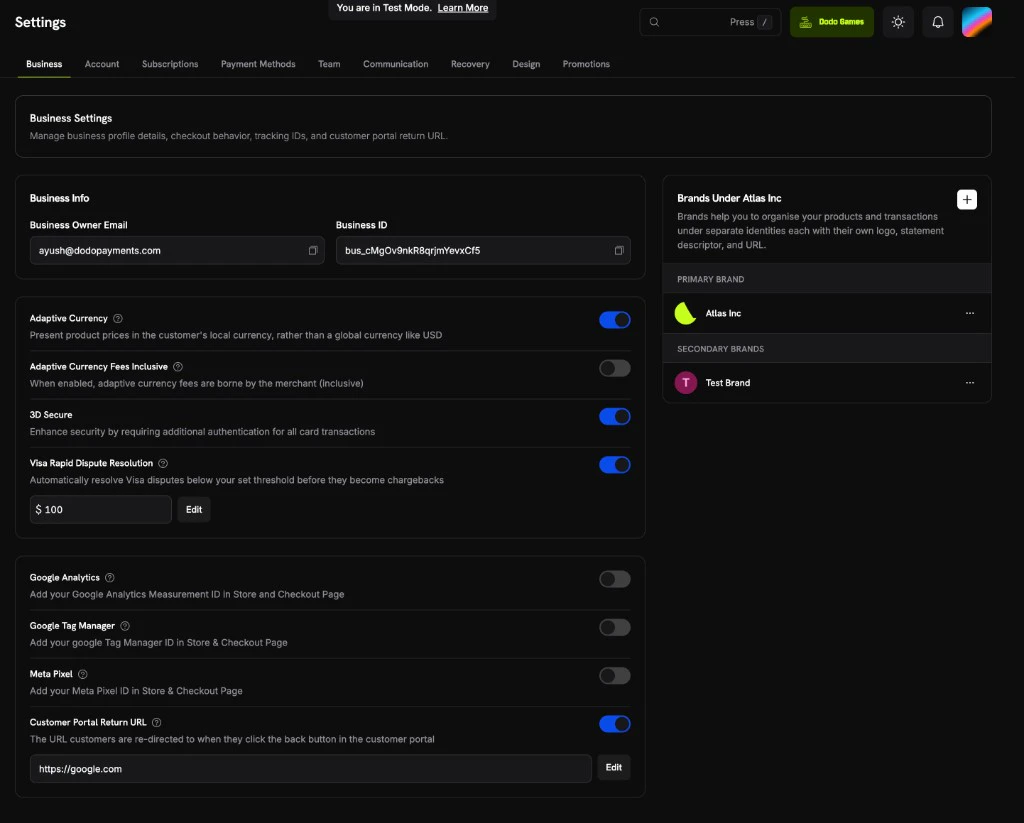 In the Brands panel, click the **+** button in the top-right corner to open the new brand form.
Complete the following fields:
* **Brand Name** (required): At least 2 characters, and different from the names of your other brands.
* **Support Email**: The address customers use to contact support for this brand.
* **Brand Description** (required): At least 10 characters. Describe the brand, its products, and what makes it distinct.
* **Brand Logo**: Represents the brand on checkout, invoices, and payment links. Accepted formats are PNG, JPEG, GIF, WebP, ICO, and SVG. Any other format is rejected with a `422` error.
Click **Add brand** to create the brand. You can then assign products to it, and its payment links show its branding. To set the statement descriptor or change other details later, open the brand's `...` menu and select **Edit**.
When you create a product, choose its brand in the **Brand** field.
Transactions and subscriptions show a **Brand ID**, so you can tell which brand each one belongs to.
## Additional Points
* **No payout changes:** Funds, payout cycles, and fees stay at the business level and flow to the business wallet and your bank account.
* **Brand ID on webhooks:** Payment, subscription, refund, license key, credit ledger entry, credit balance low, entitlement grant, dunning attempt, and abandoned checkout payloads include a `brand_id`, so you can attribute each event to a brand. When an entity has no brand of its own, `brand_id` is the business's primary brand. Dispute payloads carry no `brand_id`, so use their `payment_id` to find the brand on the payment. Payout payloads are business-level and carry no `brand_id`.
* **Suspensions:** If a brand is suspended, it can't take new payments, checkout sessions, or subscriptions. Other brands under the same business keep transacting.
* **Invoices:** Each invoice shows the name and logo of the brand the payment belongs to.
* Storefront, license keys, discount codes, payout settings, and other business-level features work the same as with a single brand.
## Archiving a Brand
Archive a brand you no longer sell under. Archiving retires the brand and moves its products, live subscriptions, and product collections to another brand of the same business in one step.
Archiving a brand is permanent. An archived brand can't be restored.
### Archive a Brand from the Dashboard
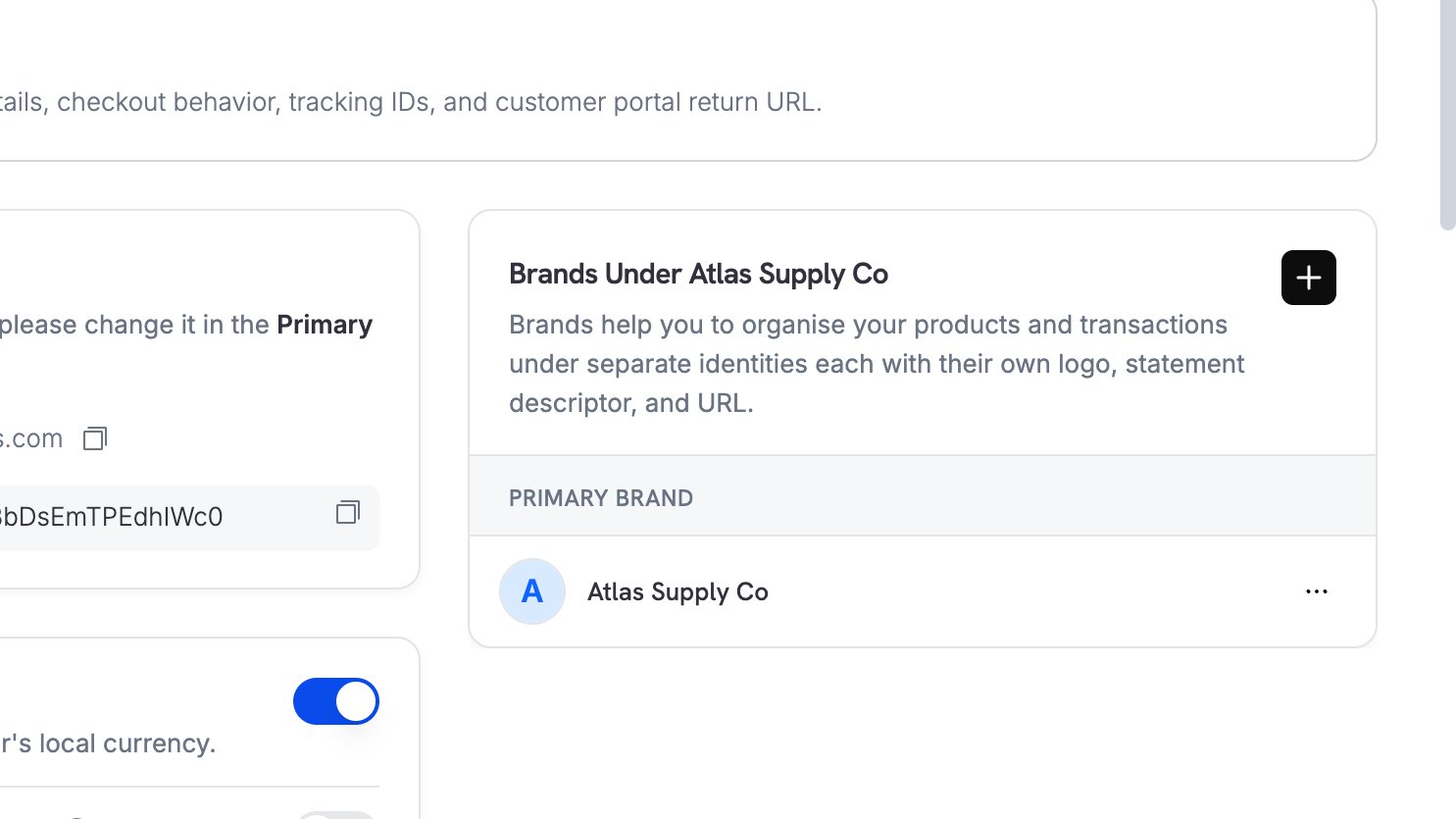
Go to **Settings → Business**. In the **Brands Under \[Your Business]** panel, open the `...` menu next to the secondary brand and select **Archive**. The primary brand has no **Archive** option.
In the Brands panel, click the **+** button in the top-right corner to open the new brand form.
Complete the following fields:
* **Brand Name** (required): At least 2 characters, and different from the names of your other brands.
* **Support Email**: The address customers use to contact support for this brand.
* **Brand Description** (required): At least 10 characters. Describe the brand, its products, and what makes it distinct.
* **Brand Logo**: Represents the brand on checkout, invoices, and payment links. Accepted formats are PNG, JPEG, GIF, WebP, ICO, and SVG. Any other format is rejected with a `422` error.
Click **Add brand** to create the brand. You can then assign products to it, and its payment links show its branding. To set the statement descriptor or change other details later, open the brand's `...` menu and select **Edit**.
When you create a product, choose its brand in the **Brand** field.
Transactions and subscriptions show a **Brand ID**, so you can tell which brand each one belongs to.
## Additional Points
* **No payout changes:** Funds, payout cycles, and fees stay at the business level and flow to the business wallet and your bank account.
* **Brand ID on webhooks:** Payment, subscription, refund, license key, credit ledger entry, credit balance low, entitlement grant, dunning attempt, and abandoned checkout payloads include a `brand_id`, so you can attribute each event to a brand. When an entity has no brand of its own, `brand_id` is the business's primary brand. Dispute payloads carry no `brand_id`, so use their `payment_id` to find the brand on the payment. Payout payloads are business-level and carry no `brand_id`.
* **Suspensions:** If a brand is suspended, it can't take new payments, checkout sessions, or subscriptions. Other brands under the same business keep transacting.
* **Invoices:** Each invoice shows the name and logo of the brand the payment belongs to.
* Storefront, license keys, discount codes, payout settings, and other business-level features work the same as with a single brand.
## Archiving a Brand
Archive a brand you no longer sell under. Archiving retires the brand and moves its products, live subscriptions, and product collections to another brand of the same business in one step.
Archiving a brand is permanent. An archived brand can't be restored.
### Archive a Brand from the Dashboard
Go to **Settings → Business**. In the **Brands Under \[Your Business]** panel, open the `...` menu next to the secondary brand and select **Archive**. The primary brand has no **Archive** option.
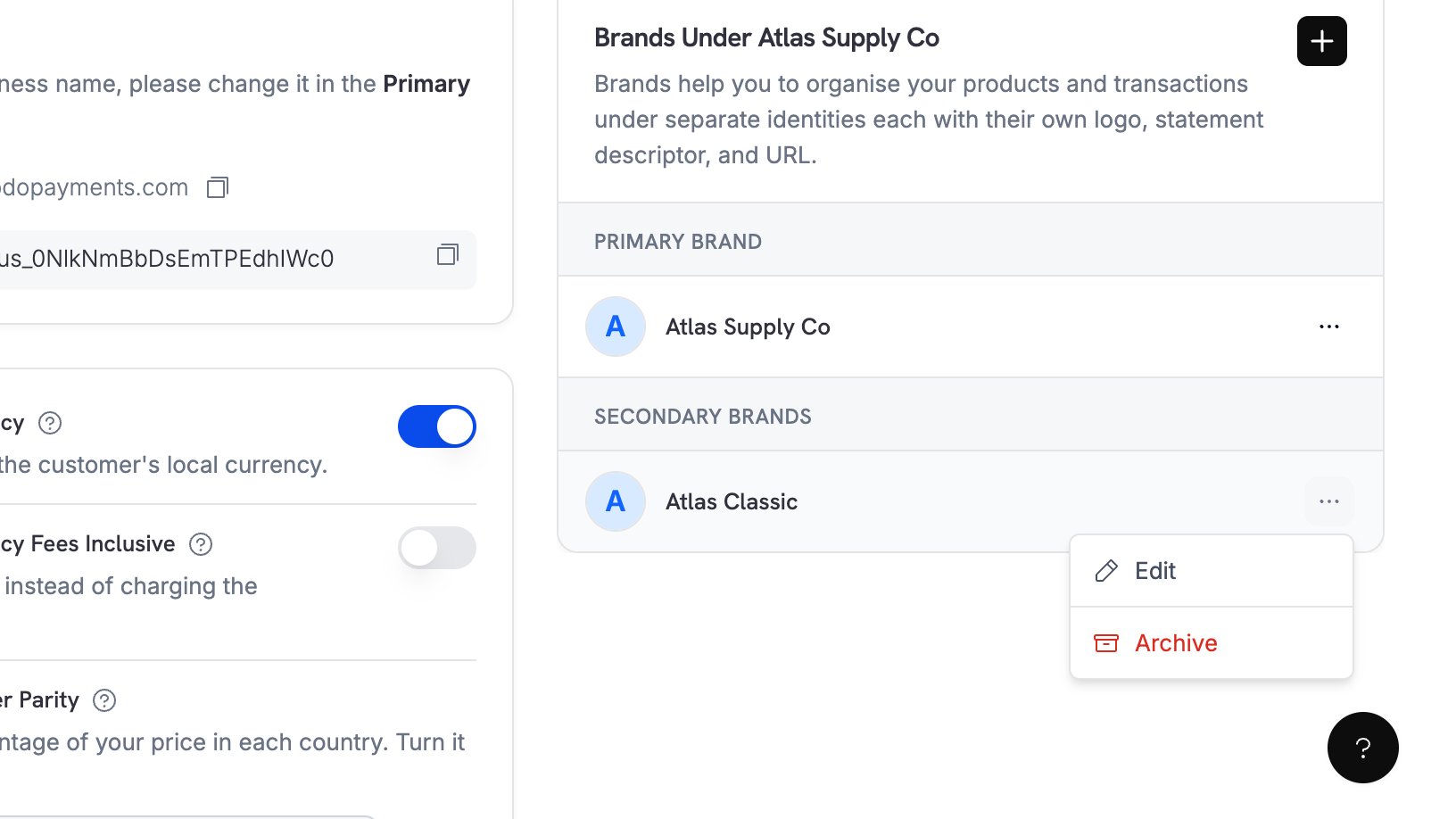 Read the warning and select **Continue**.
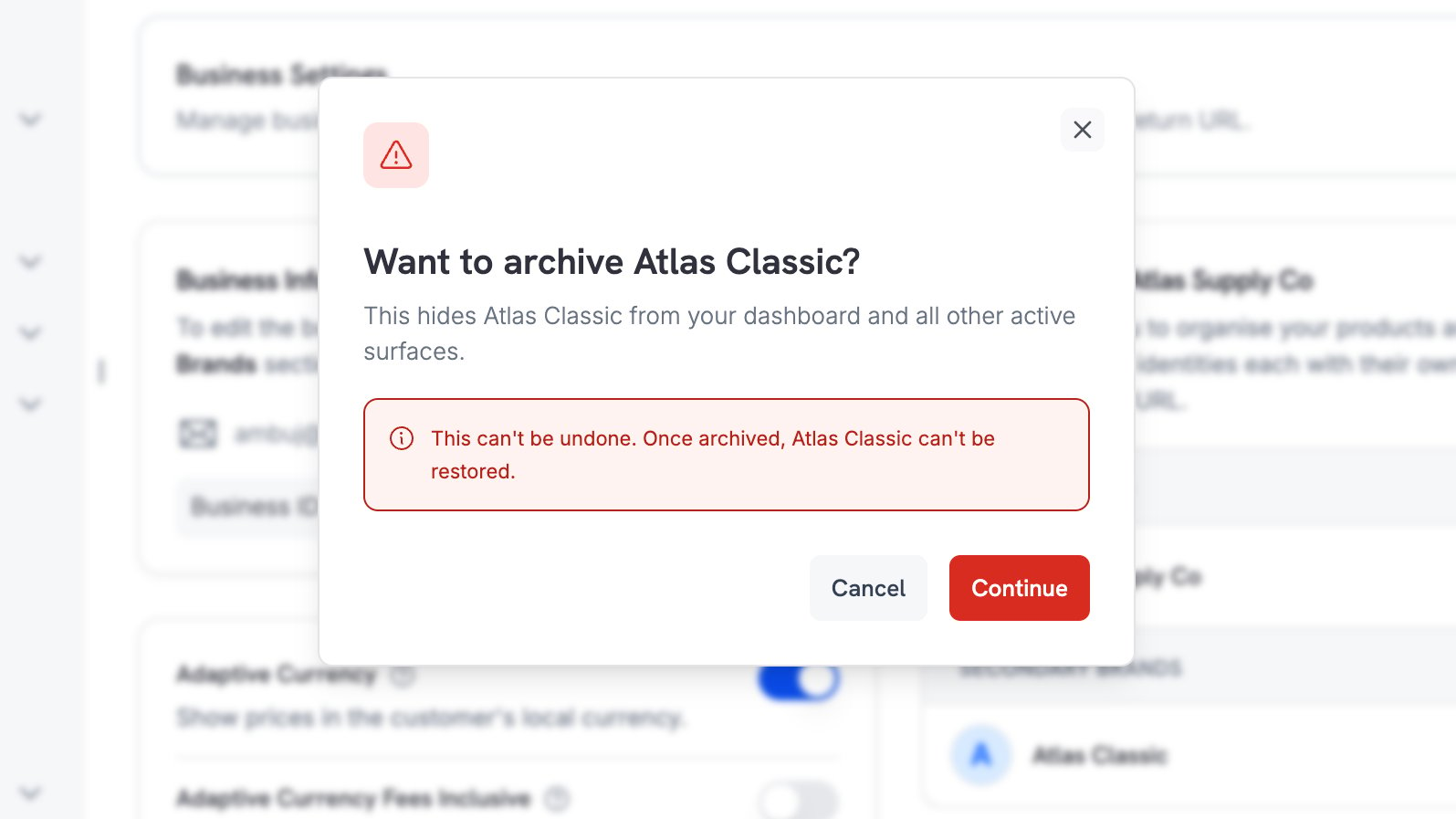 In **Move products to**, select the brand that receives the products, live subscriptions, and collections. The primary brand is the default. Select **Move & Archive** to move the records and archive the brand in one action.
 The confirmation names the brand that received the records.
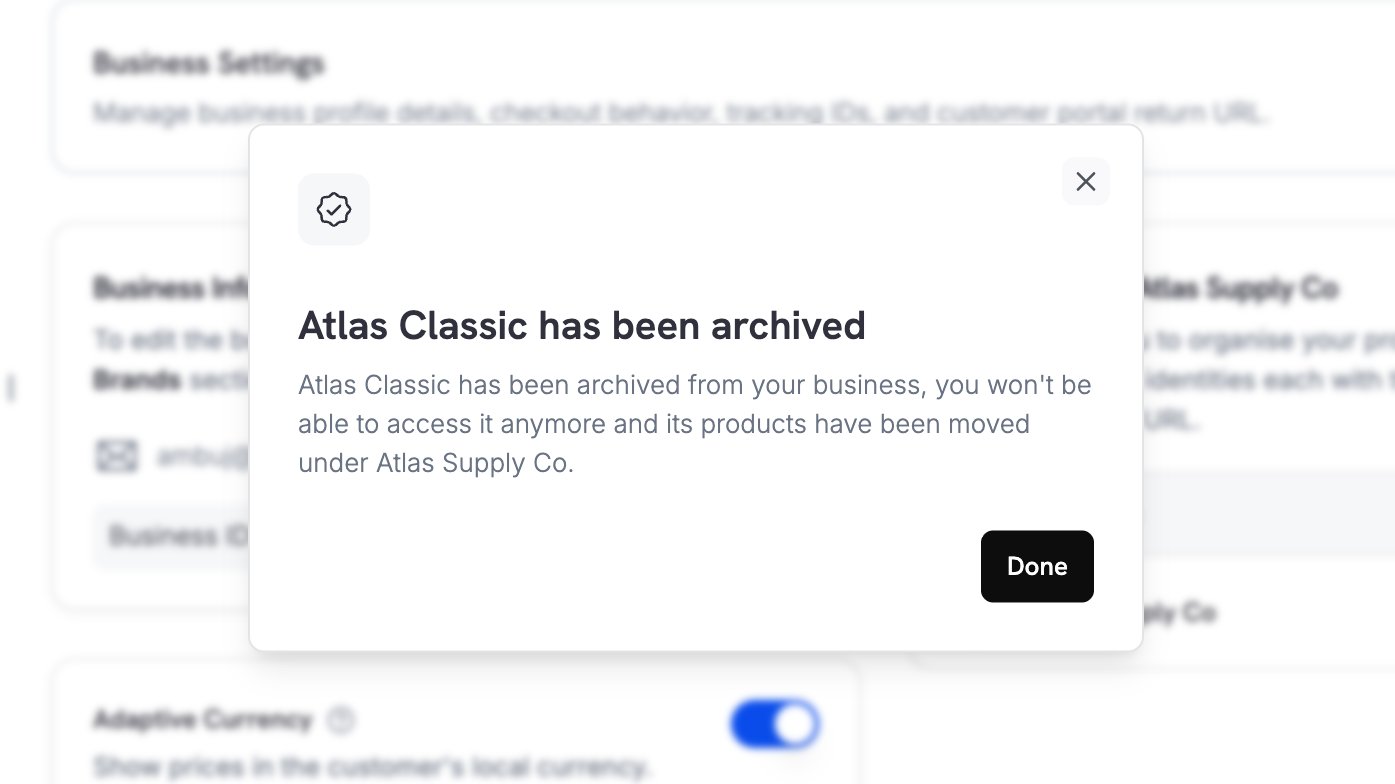 The archived brand leaves the Brands panel. When the business has no other secondary brand, the **Secondary Brands** group disappears with it.
 ### What Happens When You Archive
You choose a **target brand** to take over from the brand you archive. The dashboard always asks for one, and the API takes it as `move_products_to`. In one atomic action, Dodo Payments:
* Moves every product to the target brand.
* Moves every live subscription to the target brand, so renewals bill under it.
* Moves every product collection to the target brand.
* Archives and disables the original brand.
Past records don't move. Payments, invoices, and ended subscriptions keep the brand they were created under, so past reporting stays accurate.
The target brand must belong to the same business and must not be archived. Your primary brand is a valid target, and its brand ID is your business ID. You can omit the target only when the brand holds no products, no live subscriptions, and no product collections.
The primary brand can't be archived, and the API rejects the request with `CANNOT_ARCHIVE_PRIMARY_BRAND`. It is the brand your business falls back to, so at least one brand always remains.
### An Archived Brand Is Read-Only
The API rejects every change to an archived brand and every new record under it:
| Action | Result |
| - | - |
| Editing the brand's details | Rejected with `BRAND_ARCHIVED` |
| Submitting the brand for verification | Rejected with `BRAND_ARCHIVED` |
| Creating a product or collection under the brand | Rejected with `BRAND_ARCHIVED` |
| Creating a subscription for one of its products | Rejected with `BRAND_ARCHIVED` |
Archived brands are hidden from brand pickers, so you can't assign new records to them. They stay available as analytics filters, which keeps your per-brand reporting complete for the period the brand was trading. See [Analytics](/features/analytics).
### Archiving Through the API
To archive a brand, call the archive endpoint with the brand you are retiring and the brand that takes over:
```typescript Node.js theme={null}
import DodoPayments from 'dodopayments';
const client = new DodoPayments({ bearerToken: process.env.DODO_PAYMENTS_API_KEY });
const response = await client.brands.archive('brnd_8dFiAW42v28JzhlVSocjq', {
move_products_to: 'brnd_pRQ2zXk91mNvBcTgLwHsA',
});
console.log(response.products_moved);
```
```python Python theme={null}
import os
from dodopayments import DodoPayments
client = DodoPayments(bearer_token=os.environ.get("DODO_PAYMENTS_API_KEY"))
response = client.brands.archive(
id="brnd_8dFiAW42v28JzhlVSocjq",
move_products_to="brnd_pRQ2zXk91mNvBcTgLwHsA",
)
print(response.products_moved)
```
```bash cURL theme={null}
curl -X POST https://live.dodopayments.com/brands/brnd_8dFiAW42v28JzhlVSocjq/archive \
-H "Authorization: Bearer $DODO_PAYMENTS_API_KEY" \
-H "Content-Type: application/json" \
-d '{"move_products_to": "brnd_pRQ2zXk91mNvBcTgLwHsA"}'
```
The response reports what moved, so you can confirm the outcome. `moved_to_brand_id` is `null` when you archive without a target.
```json theme={null}
{
"brand_id": "brnd_8dFiAW42v28JzhlVSocjq",
"archived_at": "2026-08-17T11:20:05Z",
"moved_to_brand_id": "brnd_pRQ2zXk91mNvBcTgLwHsA",
"products_moved": 12,
"subscriptions_moved": 3,
"collections_moved": 1
}
```
The endpoint returns `403` for the primary brand, `404` for an unknown brand, `409` for a brand that is already archived, and `422` for a missing or invalid `move_products_to` target.
To list brands including the archived ones, set `include_archived` on the list endpoint. Archived brands are excluded by default. Every brand carries an `archived_at` field, which is `null` while the brand is active.
```bash cURL theme={null}
curl "https://live.dodopayments.com/brands?include_archived=true" \
-H "Authorization: Bearer $DODO_PAYMENTS_API_KEY"
```
See the [Archive Brand](/api-reference/brands/archive-brand) API reference for the full request and response schema, and [Error Codes](/api-reference/error-codes) for the errors this endpoint returns.
This documentation is built and hosted on [Mintlify](https://mintlify.com), a developer documentation platform.
### What Happens When You Archive
You choose a **target brand** to take over from the brand you archive. The dashboard always asks for one, and the API takes it as `move_products_to`. In one atomic action, Dodo Payments:
* Moves every product to the target brand.
* Moves every live subscription to the target brand, so renewals bill under it.
* Moves every product collection to the target brand.
* Archives and disables the original brand.
Past records don't move. Payments, invoices, and ended subscriptions keep the brand they were created under, so past reporting stays accurate.
The target brand must belong to the same business and must not be archived. Your primary brand is a valid target, and its brand ID is your business ID. You can omit the target only when the brand holds no products, no live subscriptions, and no product collections.
The primary brand can't be archived, and the API rejects the request with `CANNOT_ARCHIVE_PRIMARY_BRAND`. It is the brand your business falls back to, so at least one brand always remains.
### An Archived Brand Is Read-Only
The API rejects every change to an archived brand and every new record under it:
| Action | Result |
| - | - |
| Editing the brand's details | Rejected with `BRAND_ARCHIVED` |
| Submitting the brand for verification | Rejected with `BRAND_ARCHIVED` |
| Creating a product or collection under the brand | Rejected with `BRAND_ARCHIVED` |
| Creating a subscription for one of its products | Rejected with `BRAND_ARCHIVED` |
Archived brands are hidden from brand pickers, so you can't assign new records to them. They stay available as analytics filters, which keeps your per-brand reporting complete for the period the brand was trading. See [Analytics](/features/analytics).
### Archiving Through the API
To archive a brand, call the archive endpoint with the brand you are retiring and the brand that takes over:
```typescript Node.js theme={null}
import DodoPayments from 'dodopayments';
const client = new DodoPayments({ bearerToken: process.env.DODO_PAYMENTS_API_KEY });
const response = await client.brands.archive('brnd_8dFiAW42v28JzhlVSocjq', {
move_products_to: 'brnd_pRQ2zXk91mNvBcTgLwHsA',
});
console.log(response.products_moved);
```
```python Python theme={null}
import os
from dodopayments import DodoPayments
client = DodoPayments(bearer_token=os.environ.get("DODO_PAYMENTS_API_KEY"))
response = client.brands.archive(
id="brnd_8dFiAW42v28JzhlVSocjq",
move_products_to="brnd_pRQ2zXk91mNvBcTgLwHsA",
)
print(response.products_moved)
```
```bash cURL theme={null}
curl -X POST https://live.dodopayments.com/brands/brnd_8dFiAW42v28JzhlVSocjq/archive \
-H "Authorization: Bearer $DODO_PAYMENTS_API_KEY" \
-H "Content-Type: application/json" \
-d '{"move_products_to": "brnd_pRQ2zXk91mNvBcTgLwHsA"}'
```
The response reports what moved, so you can confirm the outcome. `moved_to_brand_id` is `null` when you archive without a target.
```json theme={null}
{
"brand_id": "brnd_8dFiAW42v28JzhlVSocjq",
"archived_at": "2026-08-17T11:20:05Z",
"moved_to_brand_id": "brnd_pRQ2zXk91mNvBcTgLwHsA",
"products_moved": 12,
"subscriptions_moved": 3,
"collections_moved": 1
}
```
The endpoint returns `403` for the primary brand, `404` for an unknown brand, `409` for a brand that is already archived, and `422` for a missing or invalid `move_products_to` target.
To list brands including the archived ones, set `include_archived` on the list endpoint. Archived brands are excluded by default. Every brand carries an `archived_at` field, which is `null` while the brand is active.
```bash cURL theme={null}
curl "https://live.dodopayments.com/brands?include_archived=true" \
-H "Authorization: Bearer $DODO_PAYMENTS_API_KEY"
```
See the [Archive Brand](/api-reference/brands/archive-brand) API reference for the full request and response schema, and [Error Codes](/api-reference/error-codes) for the errors this endpoint returns.
This documentation is built and hosted on [Mintlify](https://mintlify.com), a developer documentation platform.