> ## Documentation Index
> Fetch the complete documentation index at: https://docs.dodopayments.com/llms.txt
> Use this file to discover all available pages before exploring further.
# Digital Wallets
> Accept Apple Pay, Google Pay, Amazon Pay, Cash App Pay, and RevolutPay at checkout. Covers availability, Apple Pay domain verification, and testing.
Digital wallets let customers pay with a card or account already saved on their device, without typing card details. The wallet sends a token instead of the card number, and the customer confirms the payment with a tap or biometric check.
## Supported Wallets
Dodo Payments shows each wallet only when the checkout matches its country, currency, and payment type:
| Wallet | Availability | Currencies | Subscriptions | Setup Required |
| :- | :- | :- | :-: | :- |
| **Apple Pay** | Global, including India | All, including INR | Yes | Domain verification for inline checkout |
| **Google Pay** | Global (except India) | All | Yes | None |
| **Amazon Pay** | Global (except India) | USD, EUR, GBP, AUD, CHF, DKK, HKD, JPY, NOK, NZD, SEK, ZAR | No | None |
| **Cash App Pay** | US only | USD | Yes | None |
| **RevolutPay** | Global | GBP | No | None |
PayPal is temporarily unavailable for new transactions.
## Apple Pay
Apple Pay lets customers pay with cards saved in Apple Wallet and confirm with Face ID or Touch ID.
Apple Pay appears for subscriptions even when the first charge is \$0, such as a free trial, so the payment mandate is set up at signup. For one-time payments, Apple Pay appears only when the amount is greater than \$0.
### Requirements
* **Devices:** iOS 17 or later, iPadOS 17 or later, or Safari 17 or later on macOS. In India, Apple requires iPhone XR or later on iOS 18 or later.
* **Protocol:** The page must load over HTTPS.
* **Domain:** For inline checkout, the domain must be verified with Apple.
### Apple Pay in India
Customers in India can pay with Apple Pay on checkouts billed in INR.
Apple Pay in India works under these conditions:
* **Currency:** The checkout is billed in INR. A payment billed in INR must meet the [INR minimum](/features/payment-methods/india#supported-methods).
* **Cards:** The customer has a card in Apple Wallet from an Indian bank that supports Apple Pay. Apple controls which banks and cards are eligible.
* **Desktop:** In a desktop browser, customers can scan a code with their iPhone and confirm the payment on the phone.
* **Subscriptions:** Apple Pay subscriptions in INR run on [RBI mandates](/features/payment-methods/india#subscriptions-with-rbi-mandates). Each renewal charge completes about 48 hours after the renewal date, as with other Indian-issued cards.
To bill a customer in India in INR, follow the [India Payment Methods](/features/payment-methods/india) requirements for billing country and Adaptive Currency.
### Domain Verification
Domain verification is required only for **inline (embedded) checkout**. Hosted checkout and payment links show Apple Pay without it.
Apple Pay is not available in overlay checkout. To offer Apple Pay, use inline checkout, hosted checkout, or a payment link.
To verify a domain for inline checkout, follow these steps in the dashboard:
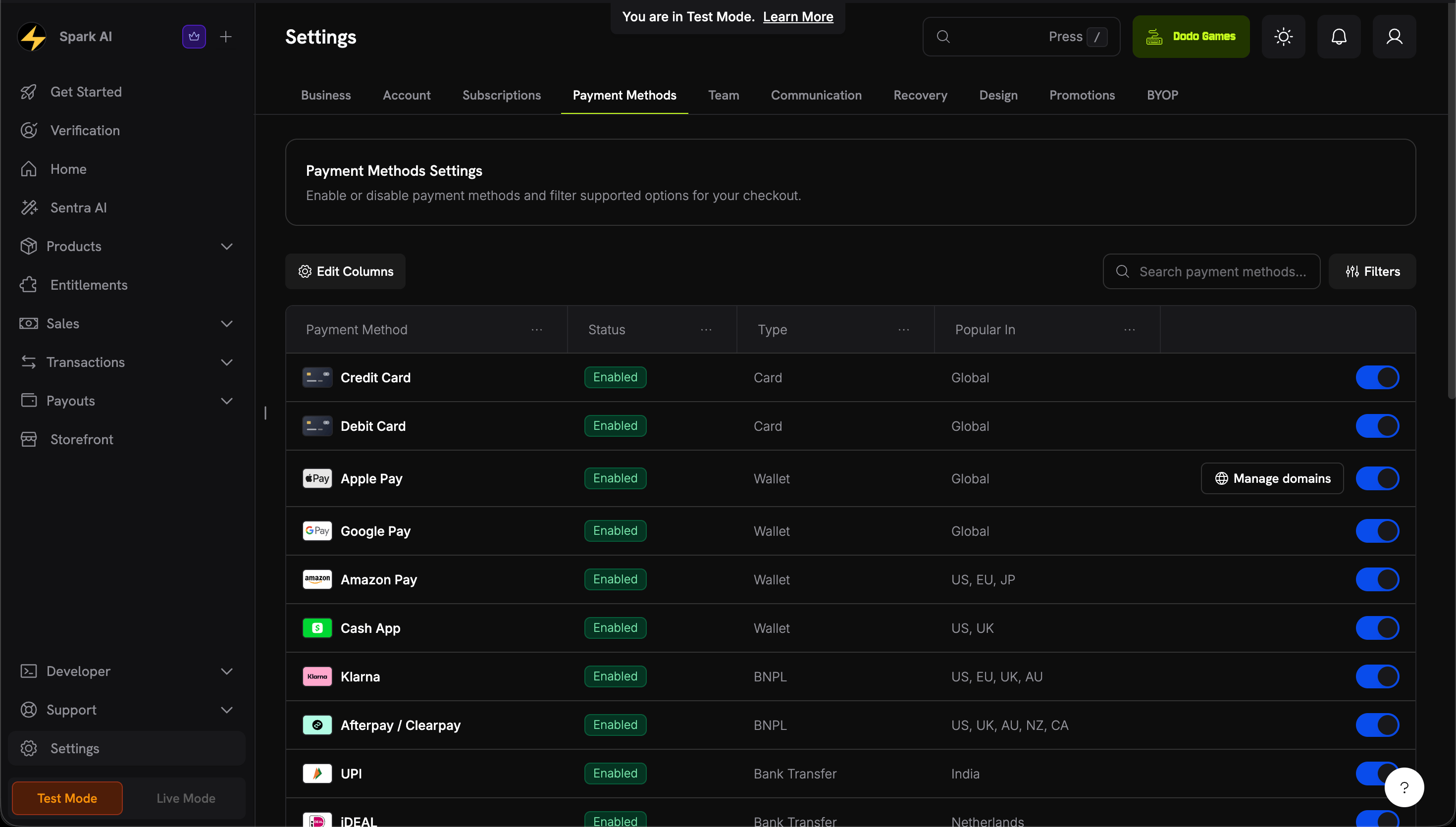
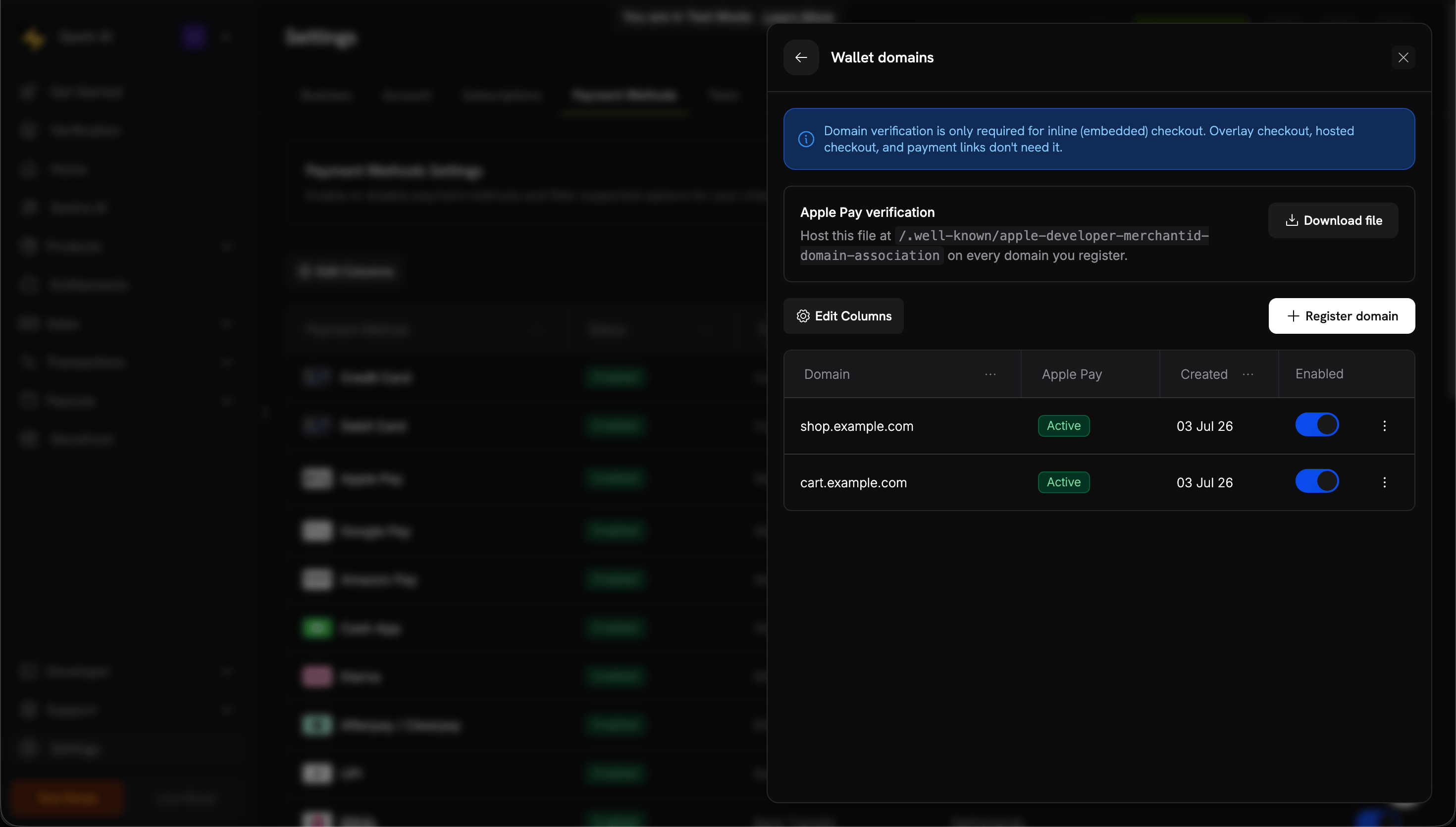
Go to **Settings → Payment Methods**. On the **Apple Pay** row, click **Manage domains**.
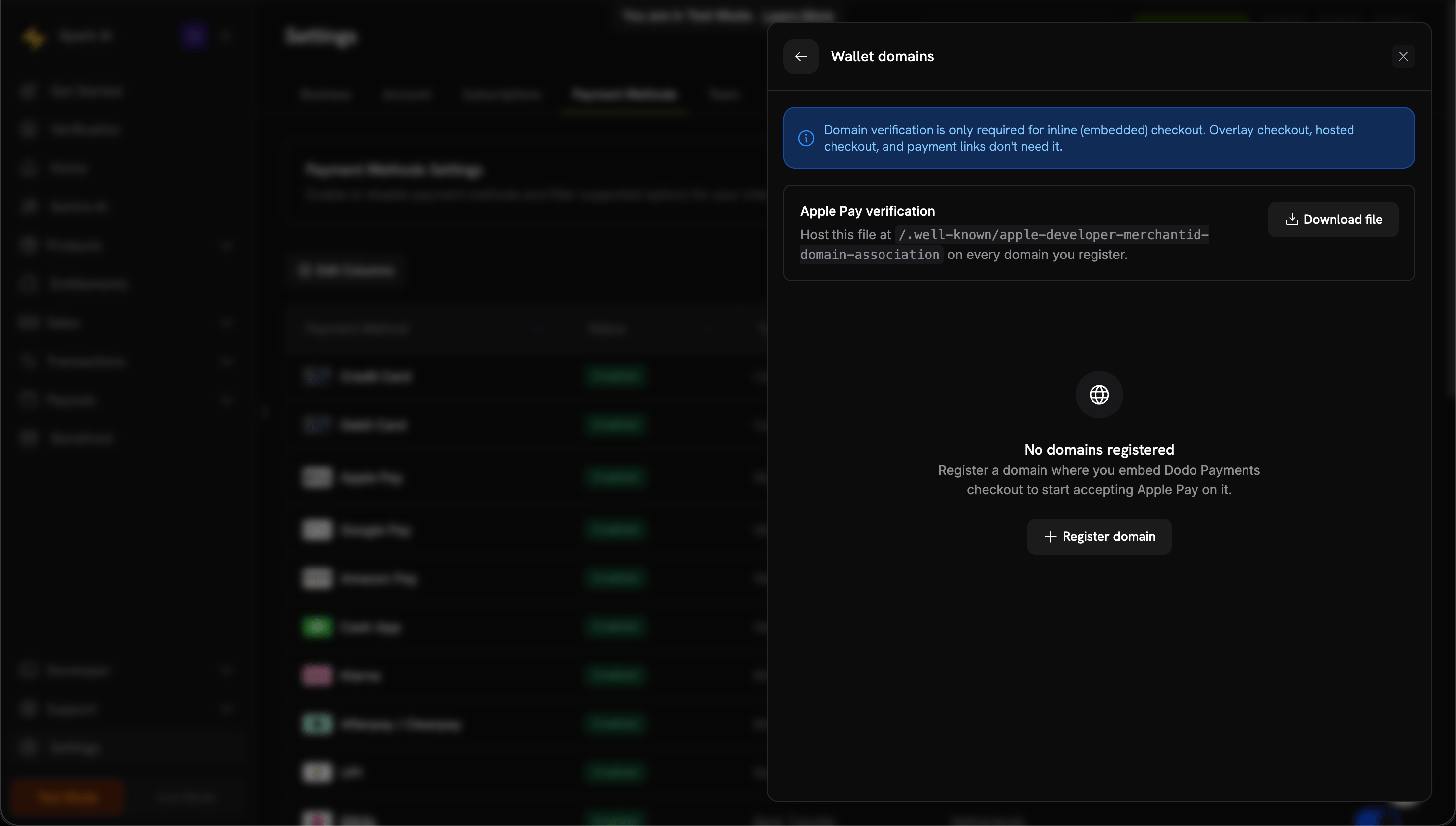
 In the **Apple Pay domains** panel, click **Download file**.
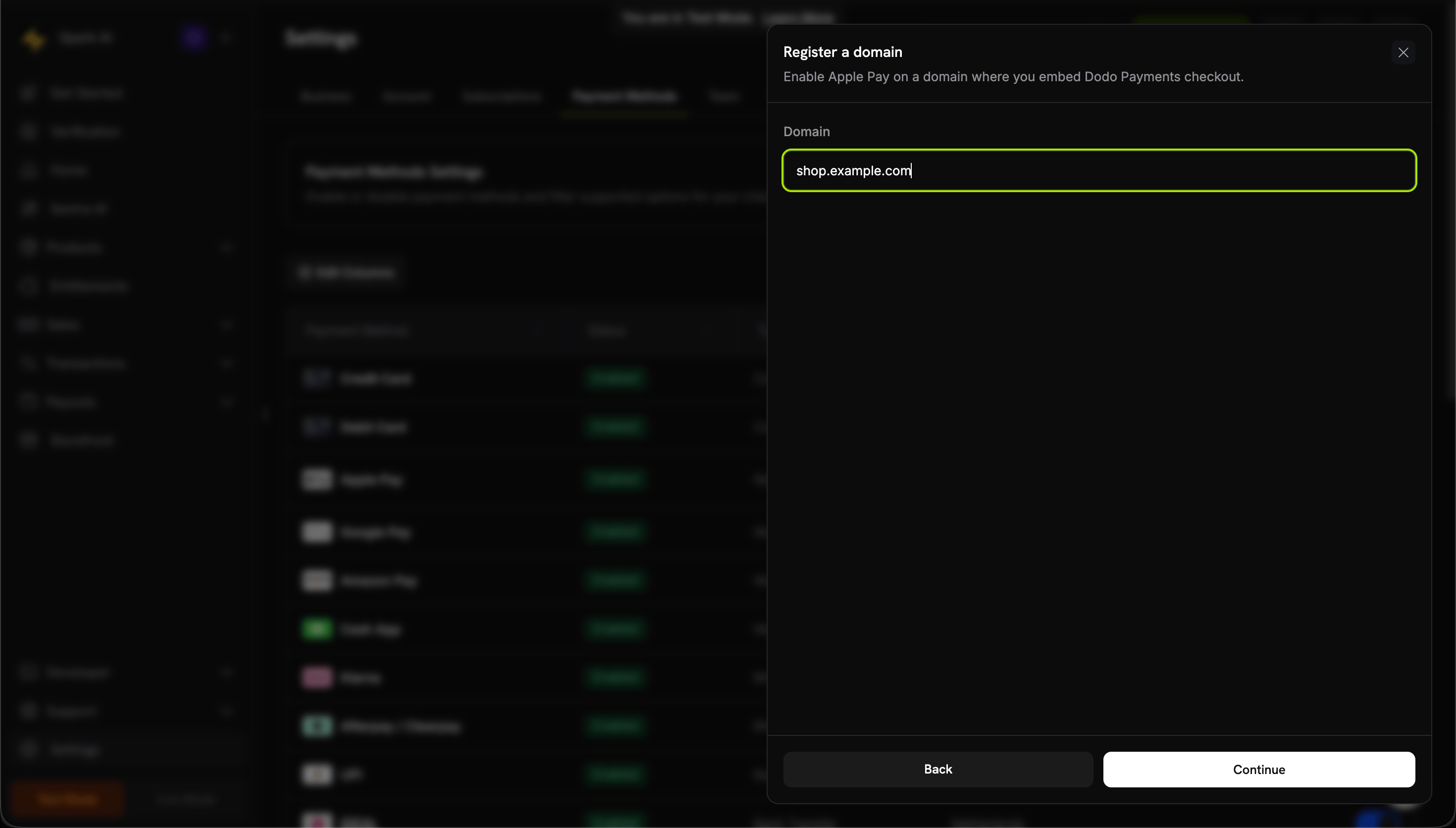
 Click **Register domain**, enter the domain where you embed checkout (for example, `shop.example.com`), and click **Continue**.
 Upload the file to your server at this path:
```text theme={null}
https://shop.example.com/.well-known/apple-developer-merchantid-domain-association
```
Serve the file over HTTPS, without redirects, with `Content-Type: application/octet-stream` or `text/plain`.
Click **Verify domain**. Dodo Payments checks the hosted file and submits your domain to Apple.
Upload the file to your server at this path:
```text theme={null}
https://shop.example.com/.well-known/apple-developer-merchantid-domain-association
```
Serve the file over HTTPS, without redirects, with `Content-Type: application/octet-stream` or `text/plain`.
Click **Verify domain**. Dodo Payments checks the hosted file and submits your domain to Apple.
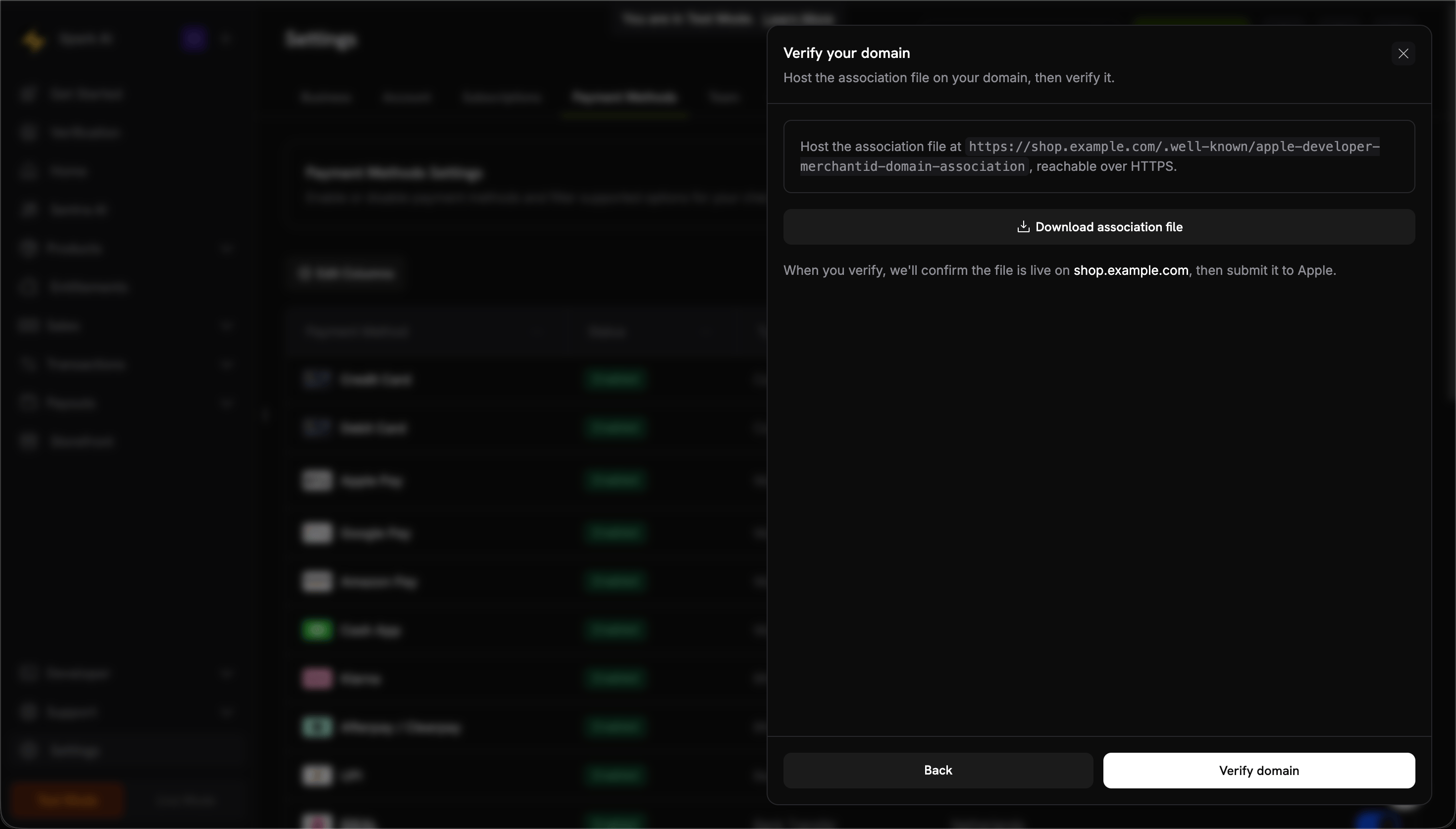 When the status shows **Active**, Apple Pay is live on that domain. To turn Apple Pay on or off for one domain, use its **Enabled** toggle.
 1. Open checkout on an Apple device.
2. Confirm that the Apple Pay button appears.
3. Complete a test transaction.
### Configuration
To limit a checkout session to Apple Pay and cards, pass `allowed_payment_method_types`:
```javascript theme={null}
// `client` is an initialized DodoPayments client.
const session = await client.checkoutSessions.create({
product_cart: [{ product_id: 'pdt_123', quantity: 1 }],
allowed_payment_method_types: ['apple_pay', 'credit', 'debit'],
return_url: 'https://example.com/success'
});
```
## Google Pay
Google Pay lets customers pay with cards saved in their Google account.
### Requirements
* **Browsers:** Chrome on desktop and Android, and Firefox on desktop. Checkout doesn't show Google Pay in Safari or in any browser on iOS. On those browsers, customers can pay with Apple Pay or a card.
* **Devices:** Android devices with the Google Pay app.
* **Settings:** In Chrome, **Allow sites to check if you have payment methods saved** must be on.
### Configuration
To limit a checkout session to Google Pay and cards, pass `allowed_payment_method_types`:
```javascript theme={null}
// `client` is an initialized DodoPayments client.
const session = await client.checkoutSessions.create({
product_cart: [{ product_id: 'pdt_123', quantity: 1 }],
allowed_payment_method_types: ['google_pay', 'credit', 'debit'],
return_url: 'https://example.com/success'
});
```
Google Pay needs no domain verification.
## Amazon Pay
Amazon Pay lets customers check out with the payment methods saved in their Amazon account.
### Availability
* **Region:** Global, except India.
* **Currencies:** USD, EUR, GBP, AUD, CHF, DKK, HKD, JPY, NOK, NZD, SEK, ZAR. Which currencies a checkout offers depends on the processor that serves it.
* **Subscriptions:** Not supported.
### Configuration
To limit a checkout session to Amazon Pay and cards, pass `allowed_payment_method_types`:
```javascript theme={null}
// `client` is an initialized DodoPayments client.
const session = await client.checkoutSessions.create({
product_cart: [{ product_id: 'pdt_123', quantity: 1 }],
allowed_payment_method_types: ['amazon_pay', 'credit', 'debit'],
return_url: 'https://example.com/success'
});
```
## Cash App Pay
Cash App Pay lets US customers pay from their Cash App account.
### Availability
* **Region:** US only. The billing country must be the US.
* **Currency:** USD only.
* **Subscriptions:** Supported.
### Configuration
To limit a checkout session to Cash App Pay and cards, pass `allowed_payment_method_types`:
```javascript theme={null}
// `client` is an initialized DodoPayments client.
const session = await client.checkoutSessions.create({
product_cart: [{ product_id: 'pdt_123', quantity: 1 }],
allowed_payment_method_types: ['cashapp', 'credit', 'debit'],
return_url: 'https://example.com/success'
});
```
## RevolutPay
RevolutPay lets Revolut users pay from their Revolut account balance or linked cards.
### Availability
* **Region:** Global.
* **Currency:** GBP only.
* **Subscriptions:** Not supported.
### Configuration
To limit a checkout session to RevolutPay and cards, pass `allowed_payment_method_types`:
```javascript theme={null}
// `client` is an initialized DodoPayments client.
const session = await client.checkoutSessions.create({
product_cart: [{ product_id: 'pdt_123', quantity: 1 }],
allowed_payment_method_types: ['revolut_pay', 'credit', 'debit'],
return_url: 'https://example.com/success'
});
```
## Testing
In test mode, wallet payments run through the same checkout flow without moving real money.
### Apple Pay Testing
Turn off the **Live Mode** switch in the dashboard sidebar, and use API keys created in test mode.
Add a real card to Apple Wallet. In test mode, the card isn't charged.
Open checkout on an Apple device and complete the Apple Pay flow.
Apple Pay requires HTTPS. It doesn't appear on `localhost` unless the page is served over HTTPS.
### Google Pay Testing
[Join the Google Pay test card group](https://groups.google.com/g/googlepay-test-mode-stub-data) to have test cards added to your wallet.
Use API keys created in test mode.
Select one of the test cards in Google Pay to complete the transaction.
### Amazon Pay & Cash App Pay
Use your test mode API keys and follow the standard checkout flow. Test transactions are simulated, and no real charge occurs.
## SDK Support
Wallet availability depends on how you present checkout.
### Web SDKs
Digital wallets work in:
* Overlay Checkout, except Apple Pay.
* Inline Checkout. Apple Pay requires [domain verification](#domain-verification).
* Direct API integration with hosted checkout.
### Mobile SDKs (Checkout)
The [Android](/developer-resources/sdks/android), [iOS](/developer-resources/sdks/ios),
[React Native](/developer-resources/sdks/react-native), and
[Flutter](/developer-resources/sdks/flutter) checkout SDKs open Dodo Payments hosted
checkout in the platform's system browser (`SFSafariViewController` on iOS,
Chrome Custom Tabs on Android), not in a WebView. Apple Pay and Google Pay work
there the same way they do on the web. See the [Mobile Integration Guide](/developer-resources/mobile-integration) for setup.
## Best Practices
Mobile customers expect Apple Pay and Google Pay. Show these options prominently on mobile checkouts.
If you use inline checkout, verify your domain for Apple Pay during development, not on launch day.
Not every customer has a digital wallet. Include `credit` and `debit` in `allowed_payment_method_types`.
Simulators don't fully replicate wallet behavior. Test on real iOS and Android devices before launch.
A wallet doesn't appear on an unsupported device or when the customer has no saved cards. Keep other payment methods visible for these customers.
## Troubleshooting
**Check:**
1. For inline checkout, is the domain verified in **Manage domains**?
2. Does the page load over HTTPS?
3. Is the device on iOS 17, iPadOS 17, or Safari 17 or later?
4. Does the customer have cards in Apple Wallet?
5. Is `apple_pay` included in `allowed_payment_method_types`?
6. Is the checkout an overlay? Apple Pay isn't available in overlay checkout.
**Solution:** Complete domain verification and serve the page over HTTPS. Test on a real Apple device.
After you click **Verify domain**, Dodo Payments fetches the association file from your domain and submits the domain to Apple. A domain that stays on **Pending** usually has a file that Dodo Payments can't fetch as expected.
**Check:**
1. The file is reachable at `https:///.well-known/apple-developer-merchantid-domain-association`.
2. It is served over HTTPS with a valid certificate.
3. It resolves without redirects. A redirect to `www`, to another host, or to an error page fails the check.
4. It is served as `Content-Type: application/octet-stream` or `text/plain`, not `text/html`.
5. It is the file downloaded from **Manage domains** for this business, not one reused from another account or provider.
To confirm the file is publicly reachable, request the URL from outside your own network, such as in a private browsing window. Staging passwords, authentication walls, and firewall rules often let the request succeed for you but fail for Dodo Payments.
**Solution:** Fix the hosting issue, then click **Verify domain** again. If the domain doesn't become **Active** after a successful check, contact [support@dodopayments.com](mailto:support@dodopayments.com) with the domain name.
**Check:**
1. Is the customer using a supported browser? Google Pay doesn't appear in Safari or in any browser on iOS.
2. Does the customer have cards in Google Pay?
3. Is the Chrome setting **Allow sites to check if you have payment methods saved** on?
4. Is `google_pay` included in `allowed_payment_method_types`?
**Solution:** Check the browser and the customer's Google Pay setup.
**Common causes:**
* The card in the wallet is expired or invalid.
* The bank declined the transaction.
* A network connection problem interrupted the payment.
**Solution:** Ask the customer to check the card in their wallet or to use a different payment method.
Digital wallets appear only on compatible devices:
* Apple Pay: Apple devices only.
* Google Pay: Chrome or Android devices.
**Solution:** This is expected. Keep card payments available as a fallback.
## Related Pages
All supported payment methods.
Open checkout as an overlay on your page.
Test data for every payment method.
Open hosted checkout in the system browser, where Apple Pay and Google Pay work as on the web.
This documentation is built and hosted on [Mintlify](https://mintlify.com), a developer documentation platform.
1. Open checkout on an Apple device.
2. Confirm that the Apple Pay button appears.
3. Complete a test transaction.
### Configuration
To limit a checkout session to Apple Pay and cards, pass `allowed_payment_method_types`:
```javascript theme={null}
// `client` is an initialized DodoPayments client.
const session = await client.checkoutSessions.create({
product_cart: [{ product_id: 'pdt_123', quantity: 1 }],
allowed_payment_method_types: ['apple_pay', 'credit', 'debit'],
return_url: 'https://example.com/success'
});
```
## Google Pay
Google Pay lets customers pay with cards saved in their Google account.
### Requirements
* **Browsers:** Chrome on desktop and Android, and Firefox on desktop. Checkout doesn't show Google Pay in Safari or in any browser on iOS. On those browsers, customers can pay with Apple Pay or a card.
* **Devices:** Android devices with the Google Pay app.
* **Settings:** In Chrome, **Allow sites to check if you have payment methods saved** must be on.
### Configuration
To limit a checkout session to Google Pay and cards, pass `allowed_payment_method_types`:
```javascript theme={null}
// `client` is an initialized DodoPayments client.
const session = await client.checkoutSessions.create({
product_cart: [{ product_id: 'pdt_123', quantity: 1 }],
allowed_payment_method_types: ['google_pay', 'credit', 'debit'],
return_url: 'https://example.com/success'
});
```
Google Pay needs no domain verification.
## Amazon Pay
Amazon Pay lets customers check out with the payment methods saved in their Amazon account.
### Availability
* **Region:** Global, except India.
* **Currencies:** USD, EUR, GBP, AUD, CHF, DKK, HKD, JPY, NOK, NZD, SEK, ZAR. Which currencies a checkout offers depends on the processor that serves it.
* **Subscriptions:** Not supported.
### Configuration
To limit a checkout session to Amazon Pay and cards, pass `allowed_payment_method_types`:
```javascript theme={null}
// `client` is an initialized DodoPayments client.
const session = await client.checkoutSessions.create({
product_cart: [{ product_id: 'pdt_123', quantity: 1 }],
allowed_payment_method_types: ['amazon_pay', 'credit', 'debit'],
return_url: 'https://example.com/success'
});
```
## Cash App Pay
Cash App Pay lets US customers pay from their Cash App account.
### Availability
* **Region:** US only. The billing country must be the US.
* **Currency:** USD only.
* **Subscriptions:** Supported.
### Configuration
To limit a checkout session to Cash App Pay and cards, pass `allowed_payment_method_types`:
```javascript theme={null}
// `client` is an initialized DodoPayments client.
const session = await client.checkoutSessions.create({
product_cart: [{ product_id: 'pdt_123', quantity: 1 }],
allowed_payment_method_types: ['cashapp', 'credit', 'debit'],
return_url: 'https://example.com/success'
});
```
## RevolutPay
RevolutPay lets Revolut users pay from their Revolut account balance or linked cards.
### Availability
* **Region:** Global.
* **Currency:** GBP only.
* **Subscriptions:** Not supported.
### Configuration
To limit a checkout session to RevolutPay and cards, pass `allowed_payment_method_types`:
```javascript theme={null}
// `client` is an initialized DodoPayments client.
const session = await client.checkoutSessions.create({
product_cart: [{ product_id: 'pdt_123', quantity: 1 }],
allowed_payment_method_types: ['revolut_pay', 'credit', 'debit'],
return_url: 'https://example.com/success'
});
```
## Testing
In test mode, wallet payments run through the same checkout flow without moving real money.
### Apple Pay Testing
Turn off the **Live Mode** switch in the dashboard sidebar, and use API keys created in test mode.
Add a real card to Apple Wallet. In test mode, the card isn't charged.
Open checkout on an Apple device and complete the Apple Pay flow.
Apple Pay requires HTTPS. It doesn't appear on `localhost` unless the page is served over HTTPS.
### Google Pay Testing
[Join the Google Pay test card group](https://groups.google.com/g/googlepay-test-mode-stub-data) to have test cards added to your wallet.
Use API keys created in test mode.
Select one of the test cards in Google Pay to complete the transaction.
### Amazon Pay & Cash App Pay
Use your test mode API keys and follow the standard checkout flow. Test transactions are simulated, and no real charge occurs.
## SDK Support
Wallet availability depends on how you present checkout.
### Web SDKs
Digital wallets work in:
* Overlay Checkout, except Apple Pay.
* Inline Checkout. Apple Pay requires [domain verification](#domain-verification).
* Direct API integration with hosted checkout.
### Mobile SDKs (Checkout)
The [Android](/developer-resources/sdks/android), [iOS](/developer-resources/sdks/ios),
[React Native](/developer-resources/sdks/react-native), and
[Flutter](/developer-resources/sdks/flutter) checkout SDKs open Dodo Payments hosted
checkout in the platform's system browser (`SFSafariViewController` on iOS,
Chrome Custom Tabs on Android), not in a WebView. Apple Pay and Google Pay work
there the same way they do on the web. See the [Mobile Integration Guide](/developer-resources/mobile-integration) for setup.
## Best Practices
Mobile customers expect Apple Pay and Google Pay. Show these options prominently on mobile checkouts.
If you use inline checkout, verify your domain for Apple Pay during development, not on launch day.
Not every customer has a digital wallet. Include `credit` and `debit` in `allowed_payment_method_types`.
Simulators don't fully replicate wallet behavior. Test on real iOS and Android devices before launch.
A wallet doesn't appear on an unsupported device or when the customer has no saved cards. Keep other payment methods visible for these customers.
## Troubleshooting
**Check:**
1. For inline checkout, is the domain verified in **Manage domains**?
2. Does the page load over HTTPS?
3. Is the device on iOS 17, iPadOS 17, or Safari 17 or later?
4. Does the customer have cards in Apple Wallet?
5. Is `apple_pay` included in `allowed_payment_method_types`?
6. Is the checkout an overlay? Apple Pay isn't available in overlay checkout.
**Solution:** Complete domain verification and serve the page over HTTPS. Test on a real Apple device.
After you click **Verify domain**, Dodo Payments fetches the association file from your domain and submits the domain to Apple. A domain that stays on **Pending** usually has a file that Dodo Payments can't fetch as expected.
**Check:**
1. The file is reachable at `https:///.well-known/apple-developer-merchantid-domain-association`.
2. It is served over HTTPS with a valid certificate.
3. It resolves without redirects. A redirect to `www`, to another host, or to an error page fails the check.
4. It is served as `Content-Type: application/octet-stream` or `text/plain`, not `text/html`.
5. It is the file downloaded from **Manage domains** for this business, not one reused from another account or provider.
To confirm the file is publicly reachable, request the URL from outside your own network, such as in a private browsing window. Staging passwords, authentication walls, and firewall rules often let the request succeed for you but fail for Dodo Payments.
**Solution:** Fix the hosting issue, then click **Verify domain** again. If the domain doesn't become **Active** after a successful check, contact [support@dodopayments.com](mailto:support@dodopayments.com) with the domain name.
**Check:**
1. Is the customer using a supported browser? Google Pay doesn't appear in Safari or in any browser on iOS.
2. Does the customer have cards in Google Pay?
3. Is the Chrome setting **Allow sites to check if you have payment methods saved** on?
4. Is `google_pay` included in `allowed_payment_method_types`?
**Solution:** Check the browser and the customer's Google Pay setup.
**Common causes:**
* The card in the wallet is expired or invalid.
* The bank declined the transaction.
* A network connection problem interrupted the payment.
**Solution:** Ask the customer to check the card in their wallet or to use a different payment method.
Digital wallets appear only on compatible devices:
* Apple Pay: Apple devices only.
* Google Pay: Chrome or Android devices.
**Solution:** This is expected. Keep card payments available as a fallback.
## Related Pages
All supported payment methods.
Open checkout as an overlay on your page.
Test data for every payment method.
Open hosted checkout in the system browser, where Apple Pay and Google Pay work as on the web.
This documentation is built and hosted on [Mintlify](https://mintlify.com), a developer documentation platform.