> ## Documentation Index
> Fetch the complete documentation index at: https://docs.dodopayments.com/llms.txt
> Use this file to discover all available pages before exploring further.
# Product Collections
> Group related products together for unified checkout experiences, plan selection, and upgrade/downgrade paths within the Customer Portal.
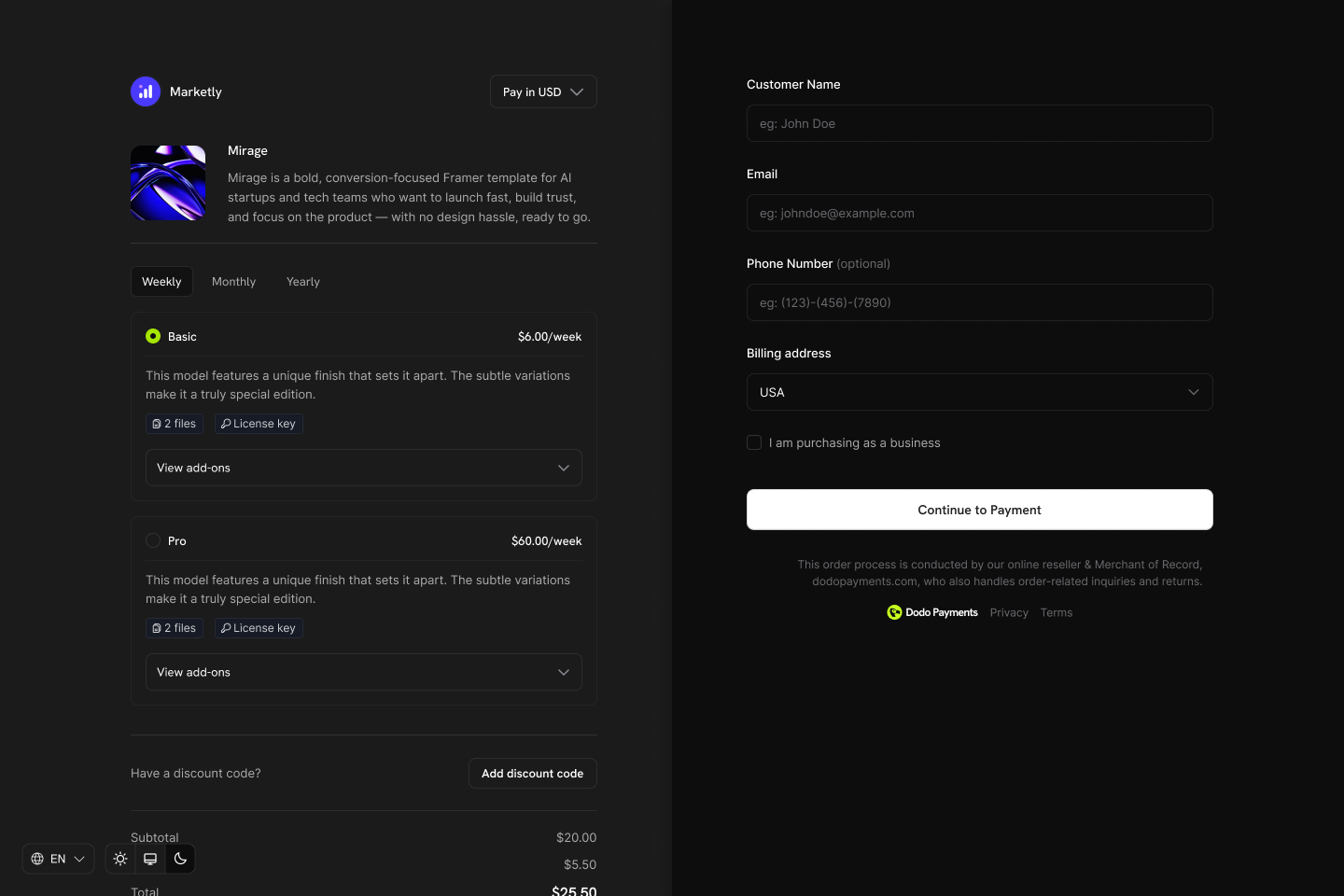
Product Collections group related products (e.g., Starter, Pro, Enterprise plans) under one umbrella. Display all options in a single checkout, define upgrade/downgrade paths, and let customers switch plans directly from the Customer Portal.
 ## Key Highlights
Product Collections let you:
* Group related products (plans, tiers, pricing options) for organized management.
* Include multiple products, such as Starter, Pro, and Lifetime, each with its own pricing model.
* Display all products in one checkout view, so customers compare and choose their preferred plan.
* Enable customers to upgrade or downgrade between products in the same collection via the Customer Portal.
* Control which products are visible, in what order, and which is pre-selected at checkout.
## Creating a Product Collection
Create and manage collections from the dashboard or via API.
Define the collection with a name and optional description. Upload an image to represent it in checkout.
## Key Highlights
Product Collections let you:
* Group related products (plans, tiers, pricing options) for organized management.
* Include multiple products, such as Starter, Pro, and Lifetime, each with its own pricing model.
* Display all products in one checkout view, so customers compare and choose their preferred plan.
* Enable customers to upgrade or downgrade between products in the same collection via the Customer Portal.
* Control which products are visible, in what order, and which is pre-selected at checkout.
## Creating a Product Collection
Create and manage collections from the dashboard or via API.
Define the collection with a name and optional description. Upload an image to represent it in checkout.
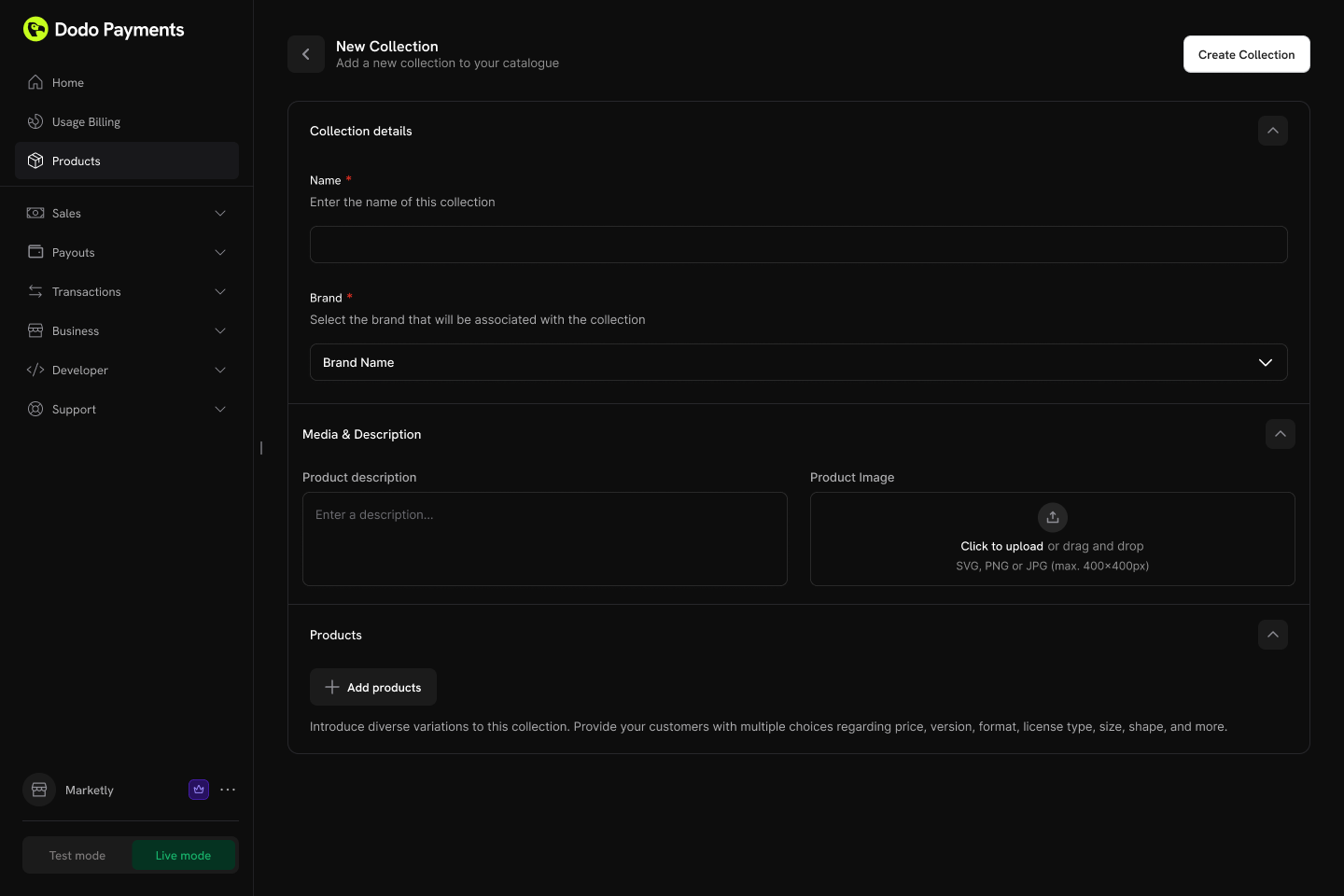 **Collection fields:**
* **Name** (required): Display name (e.g., "SaaS Plans", "License Tiers").
* **Description** (optional): Brief explanation shown in checkout.
* **Image** (optional): Visual branding for the collection.
Add existing products to your collection. Organize them into groups for better structure.
**Collection fields:**
* **Name** (required): Display name (e.g., "SaaS Plans", "License Tiers").
* **Description** (optional): Brief explanation shown in checkout.
* **Image** (optional): Visual branding for the collection.
Add existing products to your collection. Organize them into groups for better structure.
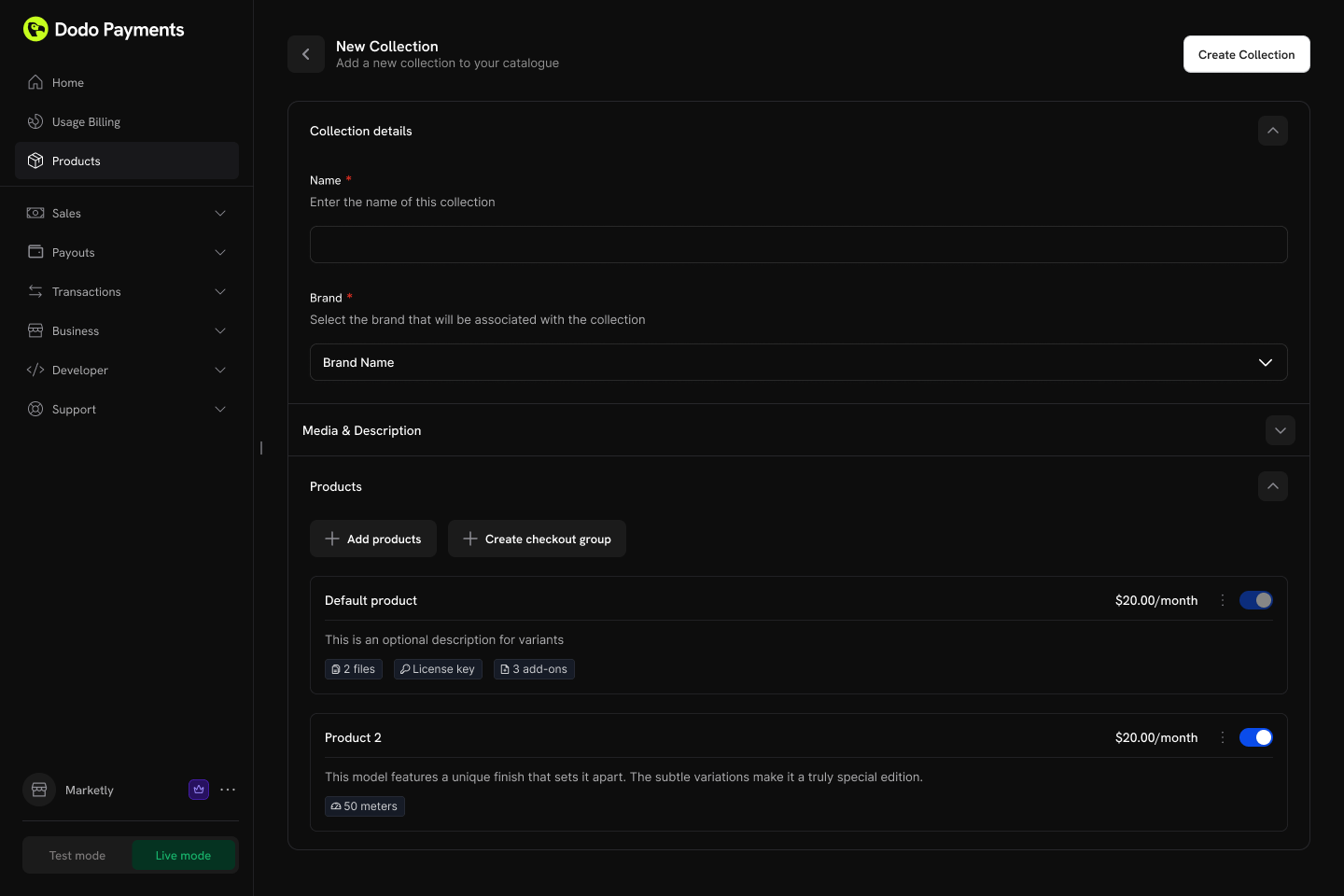 **Product organization:**
* **Groups**: Optionally organize products into named groups (e.g., "Monthly Plans", "Annual Plans").
* **Ungrouped products**: Products without a group appear at the collection level.
* **Ordering**: Drag and drop to set the display order.
Each product can belong to only one collection. If a product is already in another collection, remove it first.
Control the display order and visibility of products within the collection.
**Configuration options:**
* **Product status**: Enable or disable individual products within the collection.
* **Display order**: Drag and drop to set the sequence products appear in checkout.
The first product in the collection is automatically pre-selected at checkout. Reorder products to change which one is selected by default.
## Collection Checkout
Collections enable a unified checkout experience where customers view and select from all available products in one place.
### Checkout Types
| Type | Description | Use Case |
| - | - | - |
| **Collection Checkout** | Displays all active products within a collection | Subscription plan selection, tiered pricing |
| **Single Product Checkout** | Displays only one specific product | Direct purchase, promotional links |
### Collection Checkout Experience
When using a collection checkout:
1. All active products in the collection are displayed.
2. The first product in the collection order is automatically pre-selected.
3. Each product shows its name, description, and pricing.
4. The customer selects one product to purchase.
5. Checkout proceeds with the chosen product's pricing and billing settings.
Collection checkout is ideal for subscription businesses where customers compare plans side-by-side before purchasing.
### API Integration
Create a checkout session for a collection:
```typescript theme={null}
const session = await client.checkoutSessions.create({
product_collection_id: 'pdc_abc123',
product_cart: [], // Required: pass an empty array for collection checkout
return_url: 'https://yoursite.com/return'
});
window.location.href = session.checkout_url;
```
When using `product_collection_id`, discount codes cannot be pre-applied at session creation. Customers can still enter codes during checkout if enabled.
## Customer Portal Integration
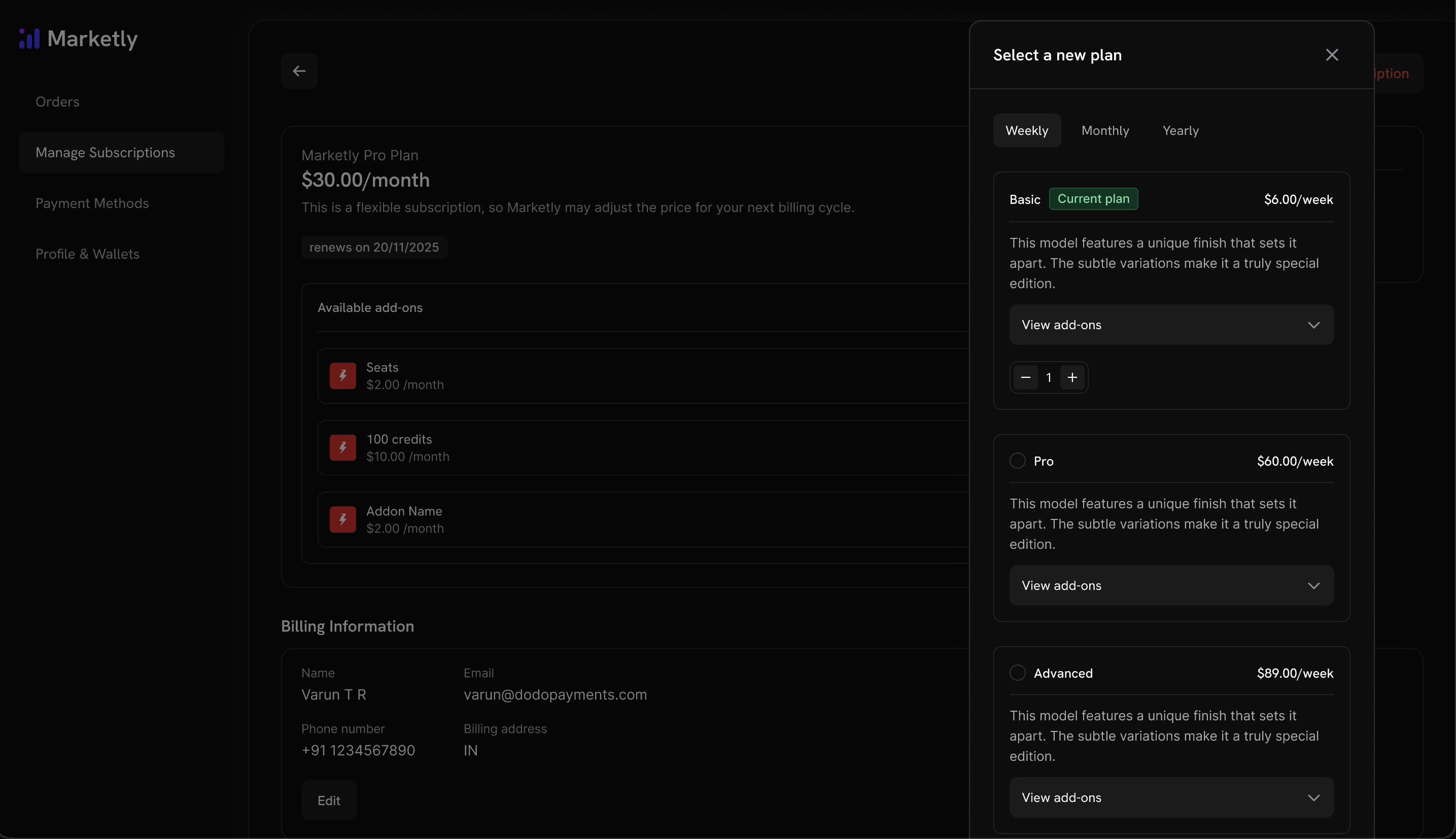
Customers can upgrade or downgrade between products within the same collection directly from the Customer Portal.
Already have subscription products? Add them to a Product Collection to enable upgrade/downgrade flows in the Customer Portal. No need to recreate your products.
### Plan Management Actions
| Action | Description | Merchant Control |
| - | - | - |
| **View Current Plan** | Display current product name, price, and renewal date. | Always available. |
| **Upgrade Plan** | Move to a higher-tier product in the same collection. | Configurable (default: disabled). |
| **Downgrade Plan** | Move to a lower-tier product in the same collection. | Configurable (default: disabled). |
| **Cancel** | Cancel the subscription entirely. | Always available. |
**Product organization:**
* **Groups**: Optionally organize products into named groups (e.g., "Monthly Plans", "Annual Plans").
* **Ungrouped products**: Products without a group appear at the collection level.
* **Ordering**: Drag and drop to set the display order.
Each product can belong to only one collection. If a product is already in another collection, remove it first.
Control the display order and visibility of products within the collection.
**Configuration options:**
* **Product status**: Enable or disable individual products within the collection.
* **Display order**: Drag and drop to set the sequence products appear in checkout.
The first product in the collection is automatically pre-selected at checkout. Reorder products to change which one is selected by default.
## Collection Checkout
Collections enable a unified checkout experience where customers view and select from all available products in one place.
### Checkout Types
| Type | Description | Use Case |
| - | - | - |
| **Collection Checkout** | Displays all active products within a collection | Subscription plan selection, tiered pricing |
| **Single Product Checkout** | Displays only one specific product | Direct purchase, promotional links |
### Collection Checkout Experience
When using a collection checkout:
1. All active products in the collection are displayed.
2. The first product in the collection order is automatically pre-selected.
3. Each product shows its name, description, and pricing.
4. The customer selects one product to purchase.
5. Checkout proceeds with the chosen product's pricing and billing settings.
Collection checkout is ideal for subscription businesses where customers compare plans side-by-side before purchasing.
### API Integration
Create a checkout session for a collection:
```typescript theme={null}
const session = await client.checkoutSessions.create({
product_collection_id: 'pdc_abc123',
product_cart: [], // Required: pass an empty array for collection checkout
return_url: 'https://yoursite.com/return'
});
window.location.href = session.checkout_url;
```
When using `product_collection_id`, discount codes cannot be pre-applied at session creation. Customers can still enter codes during checkout if enabled.
## Customer Portal Integration
Customers can upgrade or downgrade between products within the same collection directly from the Customer Portal.
Already have subscription products? Add them to a Product Collection to enable upgrade/downgrade flows in the Customer Portal. No need to recreate your products.
### Plan Management Actions
| Action | Description | Merchant Control |
| - | - | - |
| **View Current Plan** | Display current product name, price, and renewal date. | Always available. |
| **Upgrade Plan** | Move to a higher-tier product in the same collection. | Configurable (default: disabled). |
| **Downgrade Plan** | Move to a lower-tier product in the same collection. | Configurable (default: disabled). |
| **Cancel** | Cancel the subscription entirely. | Always available. |
 ### Upgrade/Downgrade Rules
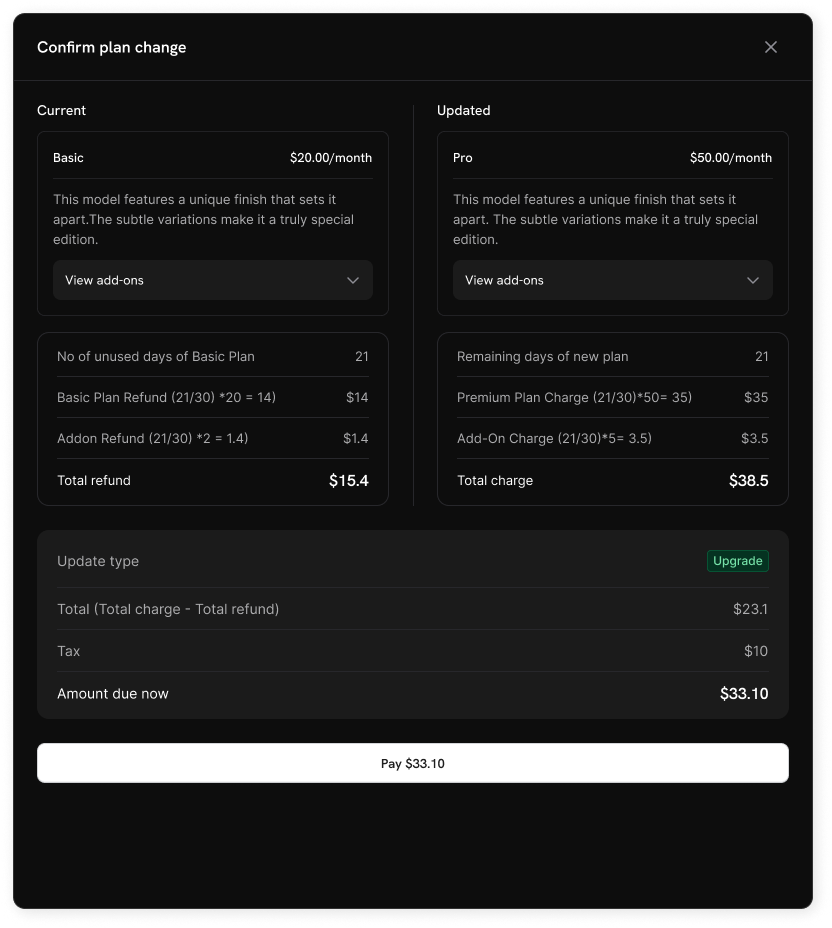
* Upgrades and downgrades are only available between products within the same collection.
* Proration for Customer Portal plan changes follows the default upgrade and downgrade behavior in **Settings → Subscriptions**, and each collection can override those defaults. Plan changes made through the [Change Plan API](/api-reference/subscriptions/change-plan) use the `proration_billing_mode` sent with the request.
* Email notifications are sent to the business on every upgrade, downgrade, or cancellation.
### Upgrade/Downgrade Rules
* Upgrades and downgrades are only available between products within the same collection.
* Proration for Customer Portal plan changes follows the default upgrade and downgrade behavior in **Settings → Subscriptions**, and each collection can override those defaults. Plan changes made through the [Change Plan API](/api-reference/subscriptions/change-plan) use the `proration_billing_mode` sent with the request.
* Email notifications are sent to the business on every upgrade, downgrade, or cancellation.
 Customers cannot change to products outside their current collection. Create separate collections for distinct product lines.
## Subscription Settings
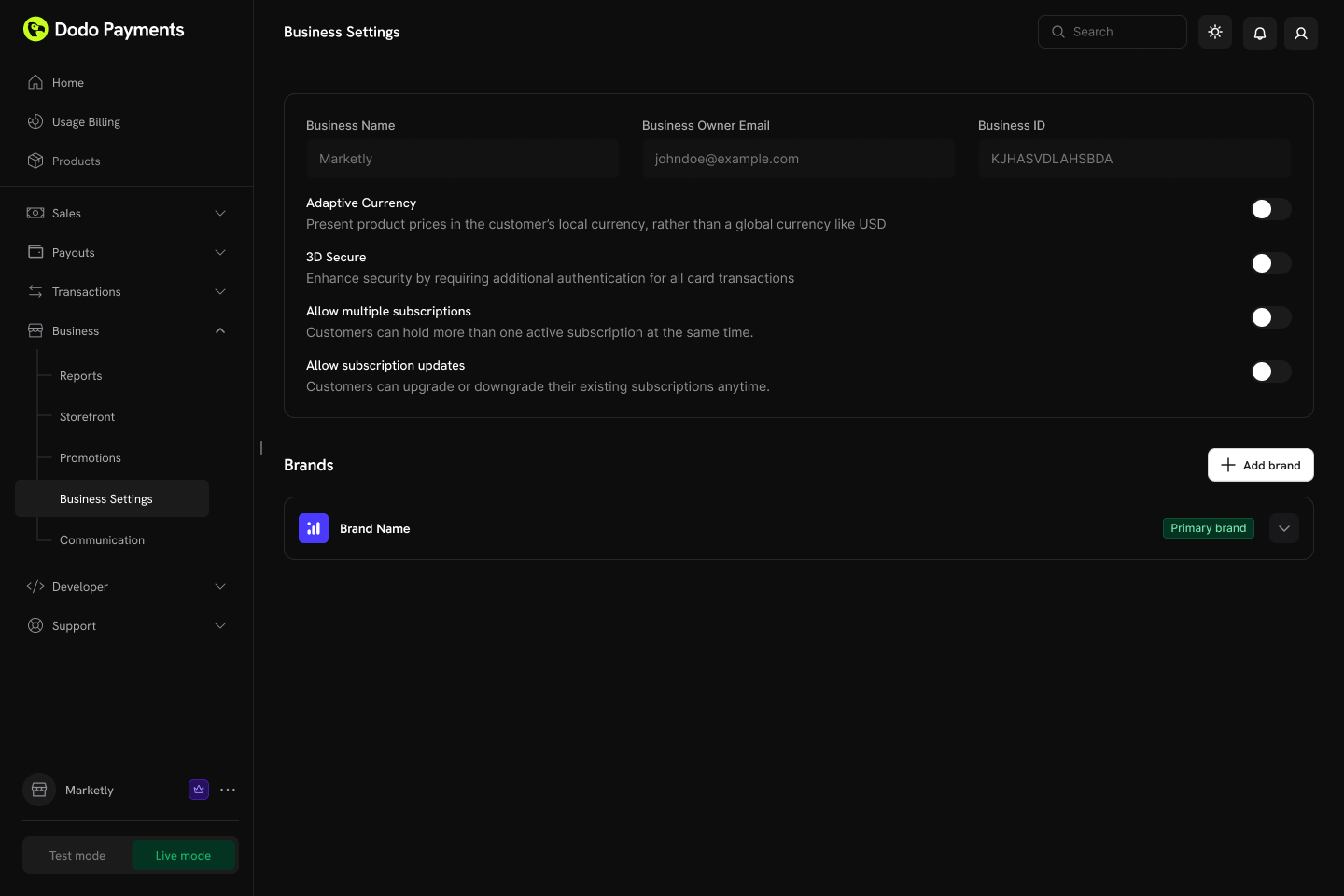
Configure how subscriptions and plan changes work across your business from **Settings → Subscriptions** in your dashboard.
Customers cannot change to products outside their current collection. Create separate collections for distinct product lines.
## Subscription Settings
Configure how subscriptions and plan changes work across your business from **Settings → Subscriptions** in your dashboard.
 ### Available Settings
| Setting | Description | Default |
| - | - | - |
| **Allow Multiple Subscriptions** | Customers can hold more than one active subscription at the same time. | Enabled |
| **Allow Subscription Updates** | Customers can upgrade or downgrade their existing subscriptions anytime via Customer Portal. | Disabled |
| **Allow Immediate Cancellation** | Customers can end their subscription and lose access straight away. | Enabled |
| **Allow Cancellation at Next Billing Date** | Customers can cancel at the end of the period they have already paid for. | Enabled |
| **Allow Subscription Pause** | Customers can pause and resume their own subscriptions from the Customer Portal. | Disabled |
| **Bill Usage at Pause** | A paused usage-based subscription is invoiced for its owed usage at the moment it is paused, instead of carrying the usage to the next regular invoice. | Enabled |
| **Prevent Trial Misuse** | Customers who have already redeemed a trial are degraded to a paid, no-trial purchase instead of receiving a fresh trial. | Disabled |
| **Payment Method Reminder** | Days before billing starts that a [Card-Optional at Zero Price](/features/subscription#card-optional-at-zero-price) subscription's customer is emailed to add a payment method (1 to 30 days). | 3 days |
Plan changes via Customer Portal are disabled by default. Enable "Allow Subscription Updates" in **Settings → Subscriptions** to let customers upgrade or downgrade between products in the same collection.
The two cancellation settings are independent, so you can let customers see out the period they have already paid for while keeping instant cancellation to yourself, or the reverse. Turning one off hides that option in the Customer Portal and rejects requests for it through the Customer Portal API. Your own merchant-side cancellations are unaffected. See [Cancelling a Subscription](/features/customer-portal#cancelling-a-subscription).
"Allow Subscription Pause" governs the Customer Portal only — you can pause and resume from the dashboard or the API whichever way it is set. "Bill Usage at Pause" applies to usage-based subscriptions only, and is recorded per billing cycle, so changing it mid-cycle does not change how the cycle in progress settles. See [Pausing and Resuming Subscriptions](/features/subscription#pausing-and-resuming-subscriptions).
For details on how trial redemptions are matched and recorded, see [Preventing Trial Misuse](/features/subscription#preventing-trial-misuse).
"Payment Method Reminder" only matters for subscriptions with [Card-Optional at Zero Price](/features/subscription#card-optional-at-zero-price) enabled — it has no effect on subscriptions that already require a card. See [What Happens Without a Card](/features/subscription#what-happens-without-a-card) for the full sequence, including what happens if the reminder is ignored.
Learn more about proration modes and plan change behavior.
## Managing Collections
Manage collections through the dashboard or programmatically via API.
### Dashboard Operations
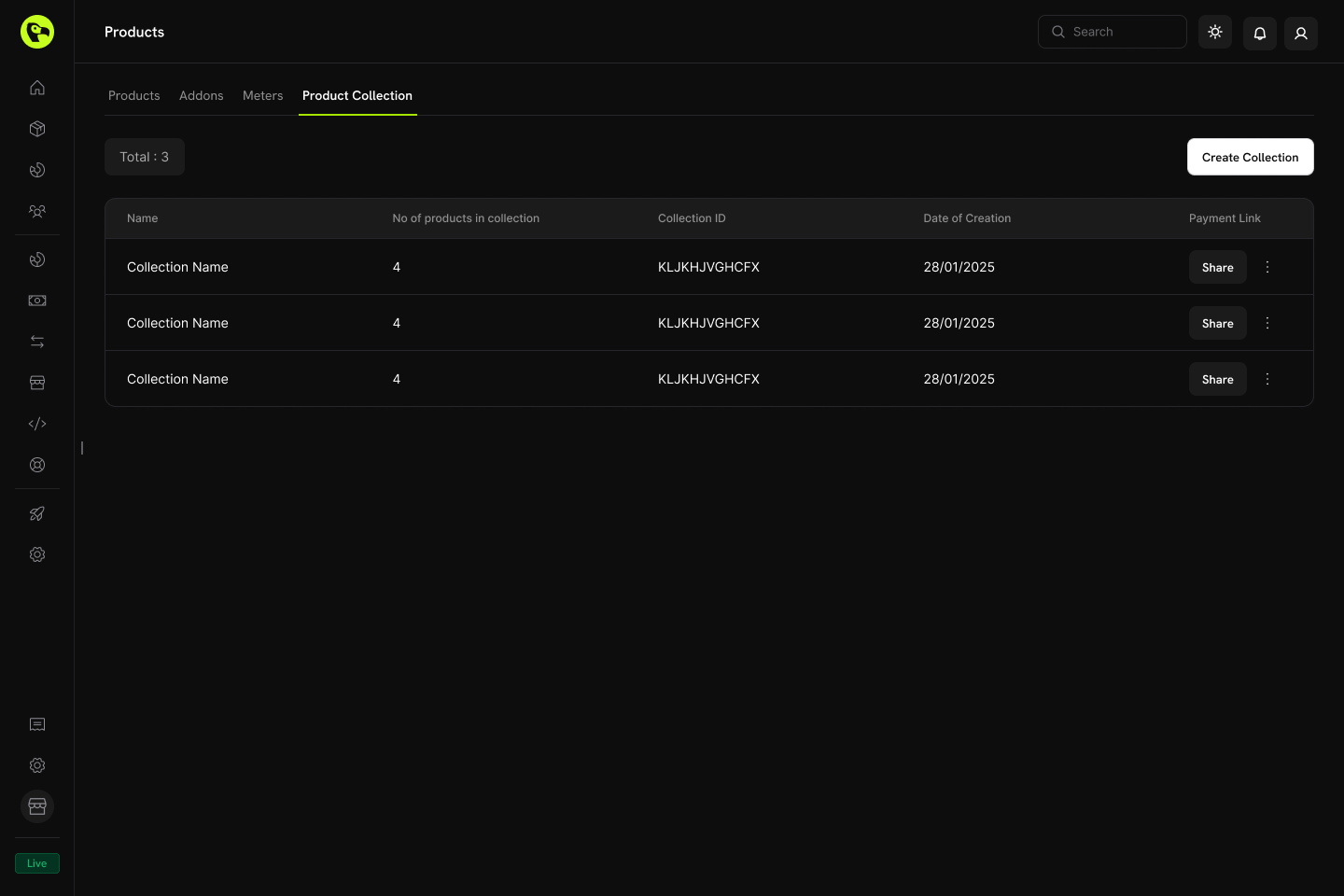
* **Create**: Set up new collections with products and groups.
* **Update**: Modify name, description, image, and product organization.
* **Reorder**: Drag and drop to change product display order.
* **Enable/Disable products**: Control which products appear in checkout.
* **Archive**: Hide a collection without permanently deleting it (can be unarchived later).
### Available Settings
| Setting | Description | Default |
| - | - | - |
| **Allow Multiple Subscriptions** | Customers can hold more than one active subscription at the same time. | Enabled |
| **Allow Subscription Updates** | Customers can upgrade or downgrade their existing subscriptions anytime via Customer Portal. | Disabled |
| **Allow Immediate Cancellation** | Customers can end their subscription and lose access straight away. | Enabled |
| **Allow Cancellation at Next Billing Date** | Customers can cancel at the end of the period they have already paid for. | Enabled |
| **Allow Subscription Pause** | Customers can pause and resume their own subscriptions from the Customer Portal. | Disabled |
| **Bill Usage at Pause** | A paused usage-based subscription is invoiced for its owed usage at the moment it is paused, instead of carrying the usage to the next regular invoice. | Enabled |
| **Prevent Trial Misuse** | Customers who have already redeemed a trial are degraded to a paid, no-trial purchase instead of receiving a fresh trial. | Disabled |
| **Payment Method Reminder** | Days before billing starts that a [Card-Optional at Zero Price](/features/subscription#card-optional-at-zero-price) subscription's customer is emailed to add a payment method (1 to 30 days). | 3 days |
Plan changes via Customer Portal are disabled by default. Enable "Allow Subscription Updates" in **Settings → Subscriptions** to let customers upgrade or downgrade between products in the same collection.
The two cancellation settings are independent, so you can let customers see out the period they have already paid for while keeping instant cancellation to yourself, or the reverse. Turning one off hides that option in the Customer Portal and rejects requests for it through the Customer Portal API. Your own merchant-side cancellations are unaffected. See [Cancelling a Subscription](/features/customer-portal#cancelling-a-subscription).
"Allow Subscription Pause" governs the Customer Portal only — you can pause and resume from the dashboard or the API whichever way it is set. "Bill Usage at Pause" applies to usage-based subscriptions only, and is recorded per billing cycle, so changing it mid-cycle does not change how the cycle in progress settles. See [Pausing and Resuming Subscriptions](/features/subscription#pausing-and-resuming-subscriptions).
For details on how trial redemptions are matched and recorded, see [Preventing Trial Misuse](/features/subscription#preventing-trial-misuse).
"Payment Method Reminder" only matters for subscriptions with [Card-Optional at Zero Price](/features/subscription#card-optional-at-zero-price) enabled — it has no effect on subscriptions that already require a card. See [What Happens Without a Card](/features/subscription#what-happens-without-a-card) for the full sequence, including what happens if the reminder is ignored.
Learn more about proration modes and plan change behavior.
## Managing Collections
Manage collections through the dashboard or programmatically via API.
### Dashboard Operations
* **Create**: Set up new collections with products and groups.
* **Update**: Modify name, description, image, and product organization.
* **Reorder**: Drag and drop to change product display order.
* **Enable/Disable products**: Control which products appear in checkout.
* **Archive**: Hide a collection without permanently deleting it (can be unarchived later).
 ### API Management
Use the following endpoints to create, update, retrieve, archive, and organize product collections programmatically, including managing nested groups and products.
Fetch all product collections associated with your account using a `GET` request to the `/product-collections` endpoint. Supports pagination, filtering by brand, and including archived collections.
View detailed request and response structure in the List Product Collections API documentation.
Create a new product collection by sending a `POST` request to the `/product-collections` endpoint with the required `name` and `groups` of products, plus optional details such as description and brand.
View detailed request and response structure in the Create Product Collection API documentation.
Get detailed information about a specific product collection — including its groups and product items — using a `GET` request to the `/product-collections/{id}` endpoint.
View detailed request and response structure in the Get Product Collection API documentation.
Modify a product collection's details (name, description, brand, etc.) by sending a `PATCH` request to the `/product-collections/{id}` endpoint.
View detailed request and response structure in the Update Product Collection API documentation.
Associate an image with a collection by uploading it via a pre-signed URL. Request an upload URL from the `/product-collections/{id}/images` endpoint, then `PUT` the image to the returned URL within 60 seconds.
The pre-signed URL expires in 60 seconds, so the image must be uploaded within that timeframe.
View detailed request and response structure in the Update Collection Images API documentation.
Archive a collection by sending a `DELETE` request to the `/product-collections/{id}` endpoint. This hides the collection from new use but does not permanently remove it.
View detailed request and response structure in the Archive Product Collection API documentation.
Restore an archived collection by sending a `POST` request to the `/product-collections/{id}/unarchive` endpoint.
View detailed request and response structure in the Unarchive Product Collection API documentation.
Groups let you organize products inside a collection (for example, "Monthly Plans" vs. "Annual Plans"). Use the groups endpoints to add, update, or remove groups within a collection.
* **Create a group**: `POST /product-collections/{id}/groups`
* **Update a group**: `PATCH /product-collections/{id}/groups/{group_id}`
* **Delete a group**: `DELETE /product-collections/{id}/groups/{group_id}`
Add a new group to a product collection.
Modify a group's name or attributes.
Remove a group from a collection.
Manage the individual product items inside a group — add new products, update existing items (such as display order), or remove them entirely.
* **Add products to a group**: `POST /product-collections/{id}/groups/{group_id}/items`
* **Update a group item**: `PATCH /product-collections/{id}/groups/{group_id}/items/{item_id}`
* **Delete a group item**: `DELETE /product-collections/{id}/groups/{group_id}/items/{item_id}`
Add one or more products to a group within a collection.
Update a product item within a group.
Remove a product item from a group.
## Best Practices
* **Group logically**: Organize products by billing interval (monthly/annual) or feature tier (starter/pro/enterprise).
* **Order strategically**: Place your most popular or recommended plan first, as it will be pre-selected at checkout.
* **Use clear naming**: Product names should clearly communicate value differences.
* **Enable both directions**: Allow both upgrades and downgrades to give customers flexibility.
* **Consider proration**: Choose a proration mode that aligns with your business model.
* **Test thoroughly**: Verify checkout and plan change flows in test mode before going live.
Create one-time, subscription, or usage-based products to add to collections.
Display collection products in a unified checkout experience.
Let customers upgrade or downgrade within the same collection.
Manage recurring plans with proration and plan changes.
This documentation is built and hosted on [Mintlify](https://mintlify.com), a developer documentation platform.
### API Management
Use the following endpoints to create, update, retrieve, archive, and organize product collections programmatically, including managing nested groups and products.
Fetch all product collections associated with your account using a `GET` request to the `/product-collections` endpoint. Supports pagination, filtering by brand, and including archived collections.
View detailed request and response structure in the List Product Collections API documentation.
Create a new product collection by sending a `POST` request to the `/product-collections` endpoint with the required `name` and `groups` of products, plus optional details such as description and brand.
View detailed request and response structure in the Create Product Collection API documentation.
Get detailed information about a specific product collection — including its groups and product items — using a `GET` request to the `/product-collections/{id}` endpoint.
View detailed request and response structure in the Get Product Collection API documentation.
Modify a product collection's details (name, description, brand, etc.) by sending a `PATCH` request to the `/product-collections/{id}` endpoint.
View detailed request and response structure in the Update Product Collection API documentation.
Associate an image with a collection by uploading it via a pre-signed URL. Request an upload URL from the `/product-collections/{id}/images` endpoint, then `PUT` the image to the returned URL within 60 seconds.
The pre-signed URL expires in 60 seconds, so the image must be uploaded within that timeframe.
View detailed request and response structure in the Update Collection Images API documentation.
Archive a collection by sending a `DELETE` request to the `/product-collections/{id}` endpoint. This hides the collection from new use but does not permanently remove it.
View detailed request and response structure in the Archive Product Collection API documentation.
Restore an archived collection by sending a `POST` request to the `/product-collections/{id}/unarchive` endpoint.
View detailed request and response structure in the Unarchive Product Collection API documentation.
Groups let you organize products inside a collection (for example, "Monthly Plans" vs. "Annual Plans"). Use the groups endpoints to add, update, or remove groups within a collection.
* **Create a group**: `POST /product-collections/{id}/groups`
* **Update a group**: `PATCH /product-collections/{id}/groups/{group_id}`
* **Delete a group**: `DELETE /product-collections/{id}/groups/{group_id}`
Add a new group to a product collection.
Modify a group's name or attributes.
Remove a group from a collection.
Manage the individual product items inside a group — add new products, update existing items (such as display order), or remove them entirely.
* **Add products to a group**: `POST /product-collections/{id}/groups/{group_id}/items`
* **Update a group item**: `PATCH /product-collections/{id}/groups/{group_id}/items/{item_id}`
* **Delete a group item**: `DELETE /product-collections/{id}/groups/{group_id}/items/{item_id}`
Add one or more products to a group within a collection.
Update a product item within a group.
Remove a product item from a group.
## Best Practices
* **Group logically**: Organize products by billing interval (monthly/annual) or feature tier (starter/pro/enterprise).
* **Order strategically**: Place your most popular or recommended plan first, as it will be pre-selected at checkout.
* **Use clear naming**: Product names should clearly communicate value differences.
* **Enable both directions**: Allow both upgrades and downgrades to give customers flexibility.
* **Consider proration**: Choose a proration mode that aligns with your business model.
* **Test thoroughly**: Verify checkout and plan change flows in test mode before going live.
Create one-time, subscription, or usage-based products to add to collections.
Display collection products in a unified checkout experience.
Let customers upgrade or downgrade within the same collection.
Manage recurring plans with proration and plan changes.
This documentation is built and hosted on [Mintlify](https://mintlify.com), a developer documentation platform.