> ## Documentation Index
> Fetch the complete documentation index at: https://docs.dodopayments.com/llms.txt
> Use this file to discover all available pages before exploring further.
# Purchasing Power Parity
> Charge less in price-sensitive countries automatically. Set one percentage per country, opt a product in, and Dodo Payments applies it at checkout.
Purchasing Power Parity (PPP) charges a customer a share of your list price, based on the country they buy from. A \$20 product can sell for **\$6.00 in India** without a discount code and without a second price list.
## What Is Purchasing Power Parity?
The same price is not equally affordable everywhere. \$20 is a small purchase in the United States and a large one in the Philippines. PPP pricing corrects for that difference.
Dodo Payments keeps one percentage for each country. The percentage is the **share of your list price the customer pays**. India is 30, so a customer in India pays 30% of the price. The United States is 100, so nothing changes there.
You turn PPP on for each product price you want it to apply to. Products you do not opt in keep their normal price everywhere.
PPP requires [Adaptive Currency](/features/adaptive-currency). Turn on Adaptive Currency first.
## Key Benefits
* **Reach price-sensitive markets** — Sell at a local price without lowering your home price.
* **No banner and no script** — The price is correct at checkout. Nothing is added to your website.
* **No discount codes to manage** — Nothing to create, rotate, or revoke.
* **Per-product control** — Opt in a starter plan and leave an enterprise plan alone.
* **Works everywhere** — One-time, subscription, and usage-based products.
## Enable Purchasing Power Parity
Go to **Settings → Business**. In **Business Settings**, turn on **Adaptive Currency**. PPP does nothing without it.
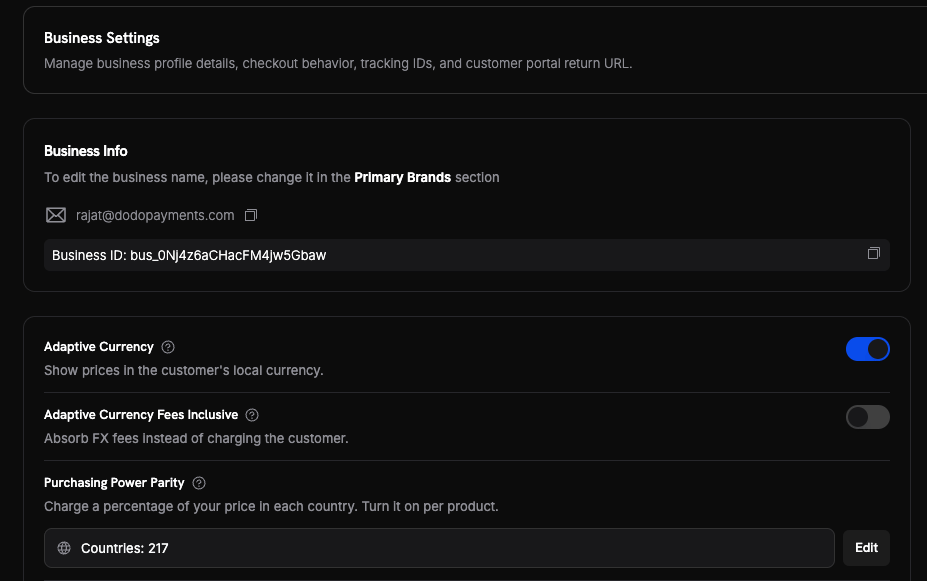 Under **Purchasing Power Parity**, click **Edit** to open **Country Prices**. Change the percentage for any country, then click **Save Changes**.
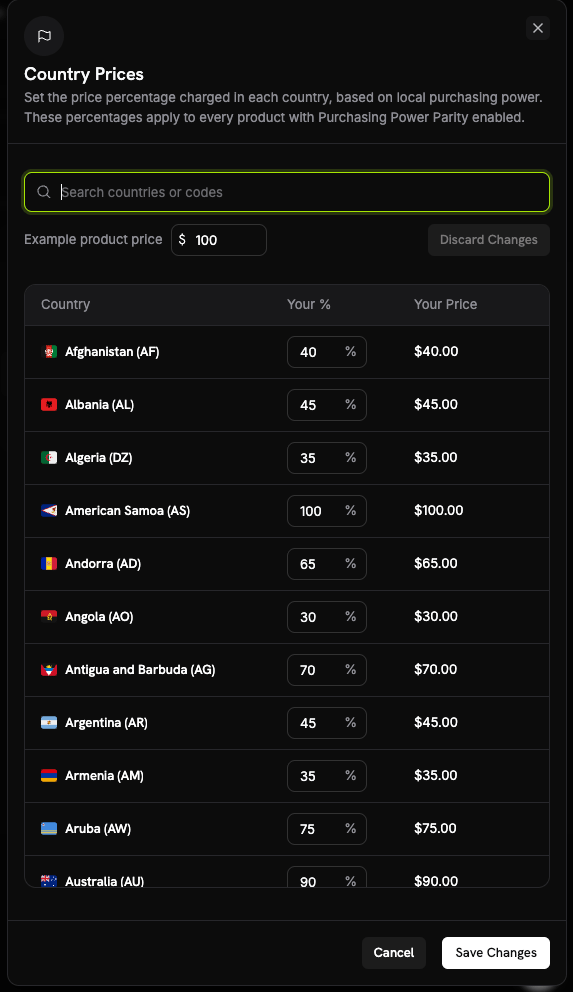
Set **Example product price** to see what each country pays. The **Your Price** column updates as you type. Use the search box to find a country by name or code.
Under **Purchasing Power Parity**, click **Edit** to open **Country Prices**. Change the percentage for any country, then click **Save Changes**.
Set **Example product price** to see what each country pays. The **Your Price** column updates as you type. Use the search box to find a country by name or code.
 These percentages are business-wide. Every product with Purchasing Power Parity enabled uses them.
Open the product. In the **Pricing** section, tick **Purchasing Power Parity**, then save the product.
Products you do not tick keep their normal price everywhere.
These percentages are business-wide. Every product with Purchasing Power Parity enabled uses them.
Open the product. In the **Pricing** section, tick **Purchasing Power Parity**, then save the product.
Products you do not tick keep their normal price everywhere.
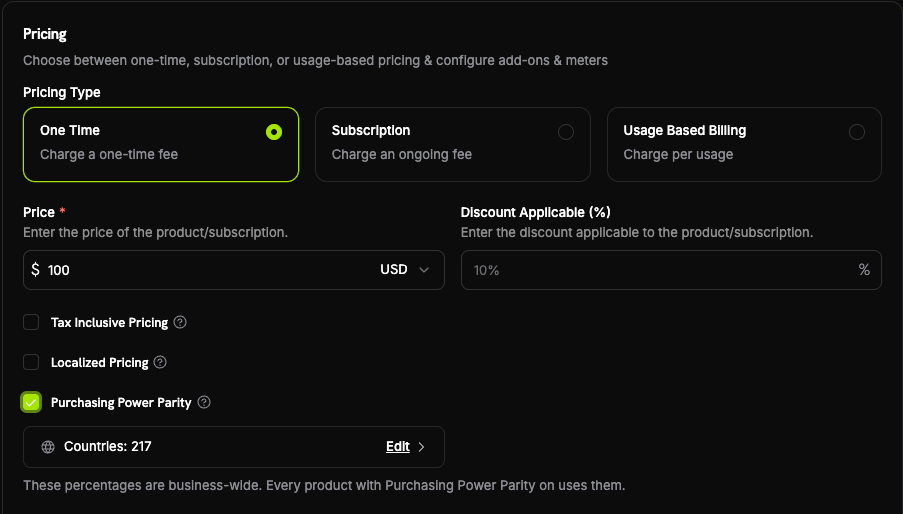 You cannot enable this while Adaptive Currency is off. Turn on Adaptive Currency first.
Open a test checkout with a billing country that has a percentage below 100. Confirm the reduced price appears.
## How the Price Is Calculated
The country percentage multiplies your list price:
```
price paid = list price × country percentage ÷ 100
```
A \$20.00 product, for a customer in India at 30:
```
2000 × 30 ÷ 100 = 600 → $6.00
```
Dodo Payments applies the percentage to the base price, before currency conversion. [Adaptive Currency](/features/adaptive-currency) then converts the result to the customer's currency.
Dodo Payments reads the country from the customer's **billing country** at checkout.
### Country Percentages
Each country has one percentage between **30 and 100**:
* **100** means the customer pays your full price. There is no reduction.
* **30** is the lowest value you can set. The largest reduction is therefore 70%.
The default values come from World Bank price level index data. Dodo Payments rounds each value to the nearest 5, applies a floor of 30, and caps it at 100. Every supported country has a value. You can change any of them.
These are a few of the default values, to show the range:
| Country | Percentage | A \$20 product sells for |
| :- | :-: | :- |
| United States | 100 | \$20.00 |
| United Kingdom | 85 | \$17.00 |
| Germany | 75 | \$15.00 |
| Japan | 60 | \$12.00 |
| Brazil | 45 | \$9.00 |
| South Africa | 40 | \$8.00 |
| Philippines | 35 | \$7.00 |
| India | 30 | \$6.00 |
The full list covers 217 countries. Open the country table in your dashboard to see every value.
## Enable via API
PPP is enabled per product, with the `purchasing_power_parity` field. The default is `false`.
Country percentages are managed in the dashboard only. They are not part of the public API.
```typescript theme={null} theme={null}
import DodoPayments from 'dodopayments';
const client = new DodoPayments({
bearerToken: process.env.DODO_PAYMENTS_API_KEY,
environment: 'test_mode',
});
const product = await client.products.create({
name: 'Starter Plan',
tax_category: 'saas',
price: {
type: 'one_time_price',
currency: 'USD',
price: 2000,
discount_bps: 0,
purchasing_power_parity: true,
},
});
```
```python theme={null} theme={null}
import os
from dodopayments import DodoPayments
client = DodoPayments(
bearer_token=os.environ.get("DODO_PAYMENTS_API_KEY"),
environment="test_mode",
)
product = client.products.create(
name="Starter Plan",
tax_category="saas",
price={
"type": "one_time_price",
"currency": "USD",
"price": 2000,
"discount_bps": 0,
"purchasing_power_parity": True,
},
)
```
```go theme={null} theme={null}
package main
import (
"context"
"os"
"github.com/dodopayments/dodopayments-go"
"github.com/dodopayments/dodopayments-go/option"
)
func main() {
client := dodopayments.NewClient(
option.WithBearerToken(os.Getenv("DODO_PAYMENTS_API_KEY")),
)
_, err := client.Products.New(context.TODO(), dodopayments.ProductNewParams{
Name: dodopayments.F("Starter Plan"),
TaxCategory: dodopayments.F(dodopayments.TaxCategorySaas),
Price: dodopayments.F[dodopayments.PriceUnionParam](
dodopayments.PriceOneTimePriceParam{
Type: dodopayments.F(dodopayments.PriceOneTimePriceTypeOneTimePrice),
Currency: dodopayments.F(dodopayments.CurrencyUsd),
Price: dodopayments.F(int64(2000)),
PurchasingPowerParity: dodopayments.F(true),
},
),
})
if err != nil {
panic(err)
}
}
```
The request fails with `422 ppp_not_enabled_for_business` if Adaptive Currency is off for your business. Turn it on first.
See the full product create and update endpoints.
## Important Behaviors
| Behavior | Detail |
| :- | :- |
| **Requires Adaptive Currency** | PPP does nothing while Adaptive Currency is off. |
| **Off by default** | Every price starts at `purchasing_power_parity: false`. |
| **Localized prices win** | A product with a matching [Localized Pricing](/features/localized-pricing) rule is never adjusted by PPP. The exact amount you set applies. |
| **Applied before conversion** | The percentage applies to your base price. Adaptive Currency converts the result. |
| **Before discounts** | A [discount code](/features/discount-codes) applies to the reduced price, so the two reductions combine. |
| **Fixed fees only for usage-based** | PPP applies to the fixed fee of a usage-based product, never to metered usage. |
| **Not for Pay What You Want** | The customer chooses the amount, so PPP does not apply. See [Pay What You Want](/features/pay-what-you-want). |
| **Percentage range** | A country percentage is between 30 and 100. The largest reduction is 70%. |
| **No webhook of its own** | The reduced amount appears on the payment or subscription like any other price. |
## Best Practices
* **Opt in one product first.** Confirm the checkout price before you opt in your catalogue.
* **Watch the discount stack.** A discount code applies on top of the PPP price. A 30% country plus a 20% code leaves 24% of your list price.
* **Leave enterprise plans out.** A negotiated plan rarely needs a country adjustment.
* **Set your own values where it matters.** The default numbers are a starting point, not a rule.
* **Check the effect on subscriptions.** A subscriber who signs up at the reduced price renews at that price.
***
## Related
Required for PPP. Converts the reduced price to the customer's currency.
Round the converted price to a clean ending such as 49.99. Runs after PPP.
Set an exact price per country or currency. Overrides PPP.
Percentage and fixed-amount codes. They apply on top of the PPP price.
This documentation is built and hosted on [Mintlify](https://mintlify.com), a developer documentation platform.
You cannot enable this while Adaptive Currency is off. Turn on Adaptive Currency first.
Open a test checkout with a billing country that has a percentage below 100. Confirm the reduced price appears.
## How the Price Is Calculated
The country percentage multiplies your list price:
```
price paid = list price × country percentage ÷ 100
```
A \$20.00 product, for a customer in India at 30:
```
2000 × 30 ÷ 100 = 600 → $6.00
```
Dodo Payments applies the percentage to the base price, before currency conversion. [Adaptive Currency](/features/adaptive-currency) then converts the result to the customer's currency.
Dodo Payments reads the country from the customer's **billing country** at checkout.
### Country Percentages
Each country has one percentage between **30 and 100**:
* **100** means the customer pays your full price. There is no reduction.
* **30** is the lowest value you can set. The largest reduction is therefore 70%.
The default values come from World Bank price level index data. Dodo Payments rounds each value to the nearest 5, applies a floor of 30, and caps it at 100. Every supported country has a value. You can change any of them.
These are a few of the default values, to show the range:
| Country | Percentage | A \$20 product sells for |
| :- | :-: | :- |
| United States | 100 | \$20.00 |
| United Kingdom | 85 | \$17.00 |
| Germany | 75 | \$15.00 |
| Japan | 60 | \$12.00 |
| Brazil | 45 | \$9.00 |
| South Africa | 40 | \$8.00 |
| Philippines | 35 | \$7.00 |
| India | 30 | \$6.00 |
The full list covers 217 countries. Open the country table in your dashboard to see every value.
## Enable via API
PPP is enabled per product, with the `purchasing_power_parity` field. The default is `false`.
Country percentages are managed in the dashboard only. They are not part of the public API.
```typescript theme={null} theme={null}
import DodoPayments from 'dodopayments';
const client = new DodoPayments({
bearerToken: process.env.DODO_PAYMENTS_API_KEY,
environment: 'test_mode',
});
const product = await client.products.create({
name: 'Starter Plan',
tax_category: 'saas',
price: {
type: 'one_time_price',
currency: 'USD',
price: 2000,
discount_bps: 0,
purchasing_power_parity: true,
},
});
```
```python theme={null} theme={null}
import os
from dodopayments import DodoPayments
client = DodoPayments(
bearer_token=os.environ.get("DODO_PAYMENTS_API_KEY"),
environment="test_mode",
)
product = client.products.create(
name="Starter Plan",
tax_category="saas",
price={
"type": "one_time_price",
"currency": "USD",
"price": 2000,
"discount_bps": 0,
"purchasing_power_parity": True,
},
)
```
```go theme={null} theme={null}
package main
import (
"context"
"os"
"github.com/dodopayments/dodopayments-go"
"github.com/dodopayments/dodopayments-go/option"
)
func main() {
client := dodopayments.NewClient(
option.WithBearerToken(os.Getenv("DODO_PAYMENTS_API_KEY")),
)
_, err := client.Products.New(context.TODO(), dodopayments.ProductNewParams{
Name: dodopayments.F("Starter Plan"),
TaxCategory: dodopayments.F(dodopayments.TaxCategorySaas),
Price: dodopayments.F[dodopayments.PriceUnionParam](
dodopayments.PriceOneTimePriceParam{
Type: dodopayments.F(dodopayments.PriceOneTimePriceTypeOneTimePrice),
Currency: dodopayments.F(dodopayments.CurrencyUsd),
Price: dodopayments.F(int64(2000)),
PurchasingPowerParity: dodopayments.F(true),
},
),
})
if err != nil {
panic(err)
}
}
```
The request fails with `422 ppp_not_enabled_for_business` if Adaptive Currency is off for your business. Turn it on first.
See the full product create and update endpoints.
## Important Behaviors
| Behavior | Detail |
| :- | :- |
| **Requires Adaptive Currency** | PPP does nothing while Adaptive Currency is off. |
| **Off by default** | Every price starts at `purchasing_power_parity: false`. |
| **Localized prices win** | A product with a matching [Localized Pricing](/features/localized-pricing) rule is never adjusted by PPP. The exact amount you set applies. |
| **Applied before conversion** | The percentage applies to your base price. Adaptive Currency converts the result. |
| **Before discounts** | A [discount code](/features/discount-codes) applies to the reduced price, so the two reductions combine. |
| **Fixed fees only for usage-based** | PPP applies to the fixed fee of a usage-based product, never to metered usage. |
| **Not for Pay What You Want** | The customer chooses the amount, so PPP does not apply. See [Pay What You Want](/features/pay-what-you-want). |
| **Percentage range** | A country percentage is between 30 and 100. The largest reduction is 70%. |
| **No webhook of its own** | The reduced amount appears on the payment or subscription like any other price. |
## Best Practices
* **Opt in one product first.** Confirm the checkout price before you opt in your catalogue.
* **Watch the discount stack.** A discount code applies on top of the PPP price. A 30% country plus a 20% code leaves 24% of your list price.
* **Leave enterprise plans out.** A negotiated plan rarely needs a country adjustment.
* **Set your own values where it matters.** The default numbers are a starting point, not a rule.
* **Check the effect on subscriptions.** A subscriber who signs up at the reduced price renews at that price.
***
## Related
Required for PPP. Converts the reduced price to the customer's currency.
Round the converted price to a clean ending such as 49.99. Runs after PPP.
Set an exact price per country or currency. Overrides PPP.
Percentage and fixed-amount codes. They apply on top of the PPP price.
This documentation is built and hosted on [Mintlify](https://mintlify.com), a developer documentation platform.