> ## Documentation Index
> Fetch the complete documentation index at: https://docs.dodopayments.com/llms.txt
> Use this file to discover all available pages before exploring further.
# Reports
> Reconcile your balance, review every fee, and export payments, adjustments, payouts, and the balance ledger as CSV or XLSX for any date range.
## Introduction
**Reports** explains how money moves through your balance and builds exports for your accounting. To open it, go to **Settings → Reports**.
The page has three parts:
Two live views that explain your balance and your fees on screen.
Four exports you build for a date range, as CSV or XLSX.
Every report you built before, ready to download again.
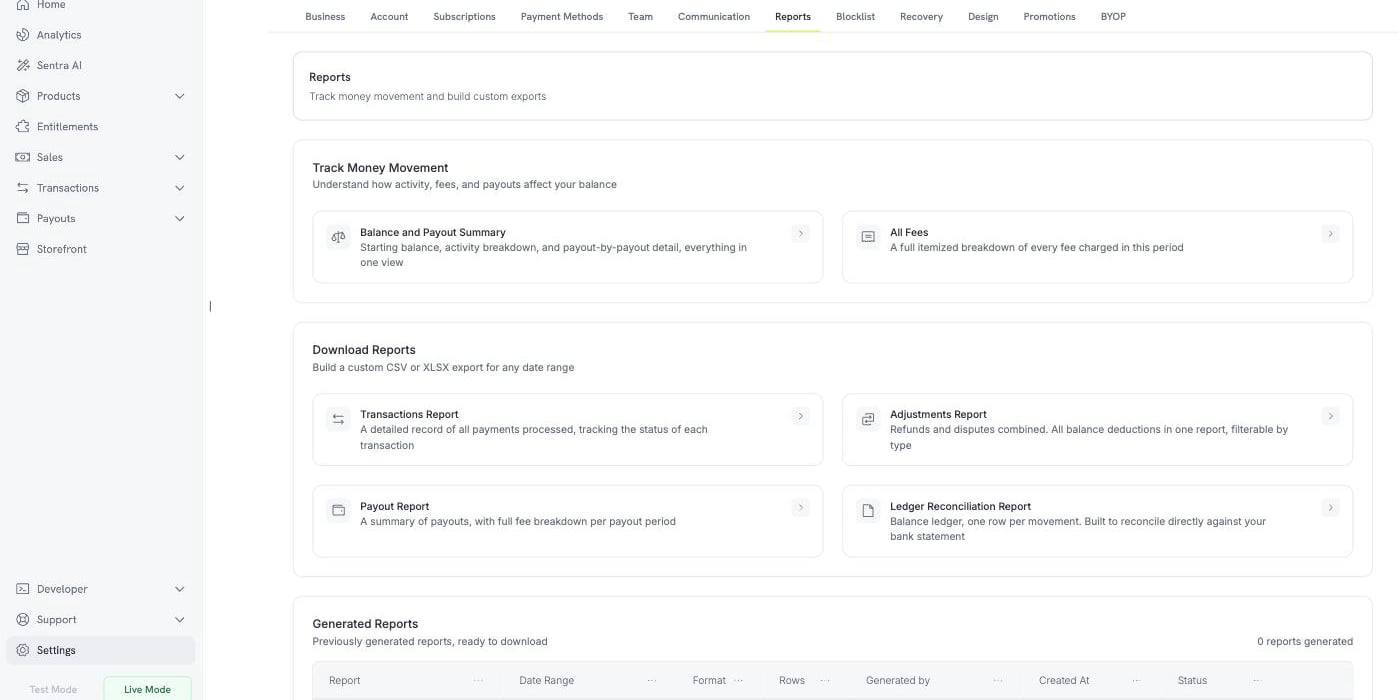 Reports are available in **Live Mode** only. They read the live balance ledger, which test mode activity doesn't reach, so in **Test Mode** the Reports page shows a message instead of the reports. Turn on the **Live Mode** switch in the sidebar before you build a report.
## Track Money Movement
Two views answer a question on screen, with no download. Each takes a date range and has an **Export** button that saves the same view as a file.
### Balance and Payout Summary
This view reconciles your balance for the period. It has three blocks.
Reports are available in **Live Mode** only. They read the live balance ledger, which test mode activity doesn't reach, so in **Test Mode** the Reports page shows a message instead of the reports. Turn on the **Live Mode** switch in the sidebar before you build a report.
## Track Money Movement
Two views answer a question on screen, with no download. Each takes a date range and has an **Export** button that saves the same view as a file.
### Balance and Payout Summary
This view reconciles your balance for the period. It has three blocks.
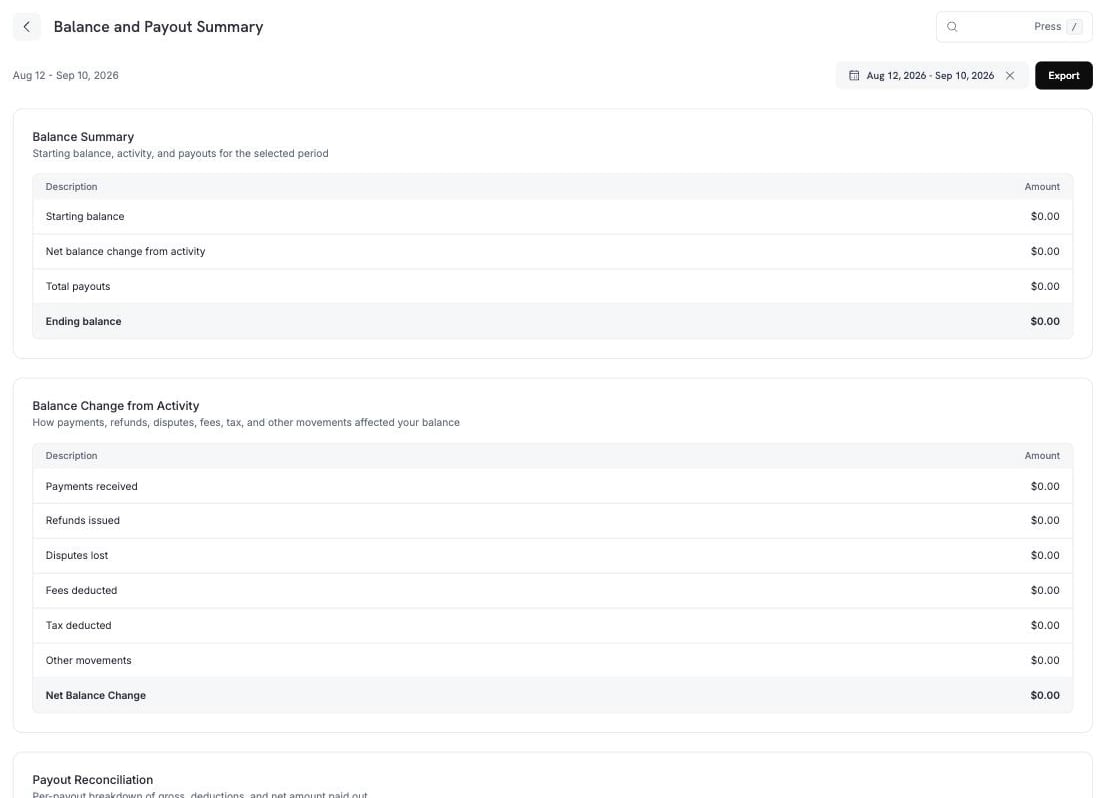 **Balance Summary** shows the period from start to end.
| Row | Meaning |
| - | - |
| Starting balance | Your balance when the period began. |
| Net balance change from activity | Everything that happened in the period, except payouts. |
| Total payouts | The money that left in payouts. |
| Ending balance | Starting balance + activity − payouts. |
**Balance Change from Activity** breaks the middle row into its parts.
| Row | What it includes |
| - | - |
| Payments received | Successful payments. |
| Refunds issued | Refunds and refund fees, less any reversal of either. |
| Disputes lost | Disputes, dispute fees, and Visa RDR fees, less any dispute or dispute fee reversal. |
| Fees deducted | Payment fees, payout fees, dunning fees, payment retry fees, BYOP fees, abandoned cart recovery fees, Ethoca fees, deflection fees, and moderation fees, less any reversal. |
| Tax deducted | Tax, less any tax reversal. |
| Other movements | Dodo Credits, manual adjustments, currency conversion, and reserve holds and releases. |
| Net Balance Change | The sum of the rows above. |
**Other movements** holds the entries that fit no named row above: **Dodo Credits** (credits Dodo Payments applies to your balance), **manual adjustments** (corrections posted by the Dodo Payments team), and **currency conversion** (the difference recorded when a balance is converted between currencies).
**Payout Reconciliation** lists each payout in the period on its own row, with the gross amount, each deduction, and the net amount paid out.
**Balance Summary** shows the period from start to end.
| Row | Meaning |
| - | - |
| Starting balance | Your balance when the period began. |
| Net balance change from activity | Everything that happened in the period, except payouts. |
| Total payouts | The money that left in payouts. |
| Ending balance | Starting balance + activity − payouts. |
**Balance Change from Activity** breaks the middle row into its parts.
| Row | What it includes |
| - | - |
| Payments received | Successful payments. |
| Refunds issued | Refunds and refund fees, less any reversal of either. |
| Disputes lost | Disputes, dispute fees, and Visa RDR fees, less any dispute or dispute fee reversal. |
| Fees deducted | Payment fees, payout fees, dunning fees, payment retry fees, BYOP fees, abandoned cart recovery fees, Ethoca fees, deflection fees, and moderation fees, less any reversal. |
| Tax deducted | Tax, less any tax reversal. |
| Other movements | Dodo Credits, manual adjustments, currency conversion, and reserve holds and releases. |
| Net Balance Change | The sum of the rows above. |
**Other movements** holds the entries that fit no named row above: **Dodo Credits** (credits Dodo Payments applies to your balance), **manual adjustments** (corrections posted by the Dodo Payments team), and **currency conversion** (the difference recorded when a balance is converted between currencies).
**Payout Reconciliation** lists each payout in the period on its own row, with the gross amount, each deduction, and the net amount paid out.
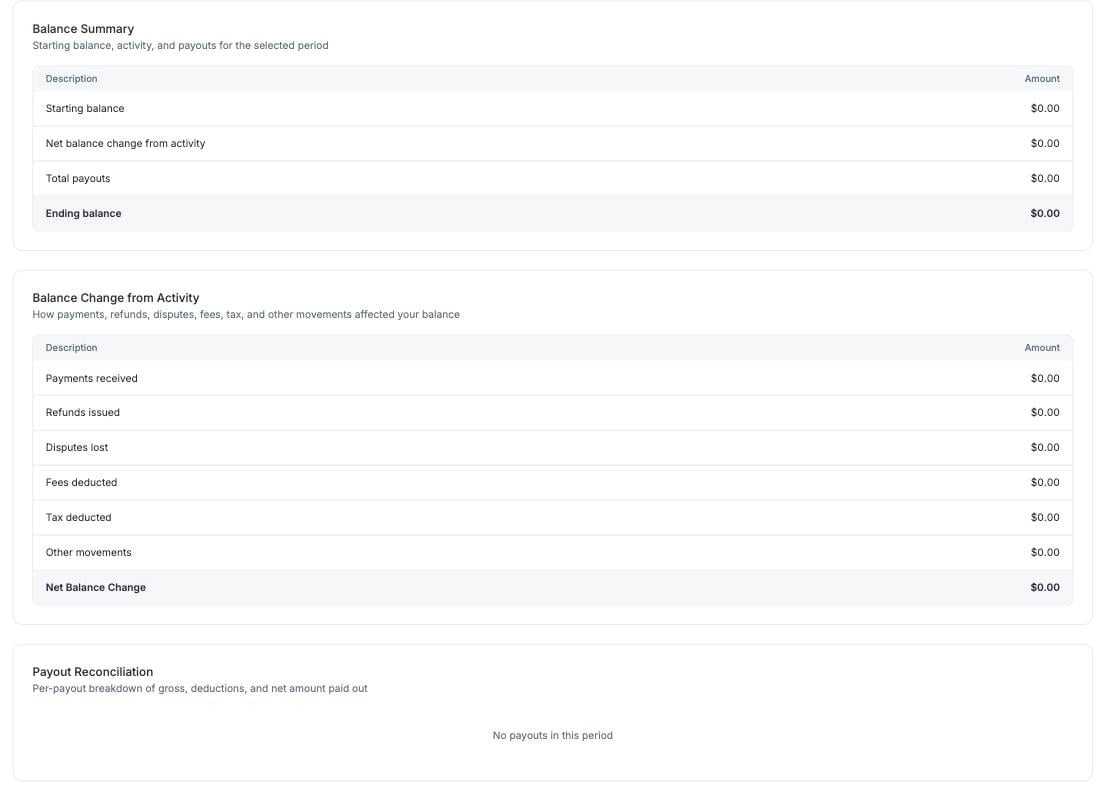 A payout claims every unclaimed ledger entry up to its cut-off date, not only the payments in the period. Dodo Credits and adjustments can therefore fund part of a payout, and they appear under **Other**.
### All Fees
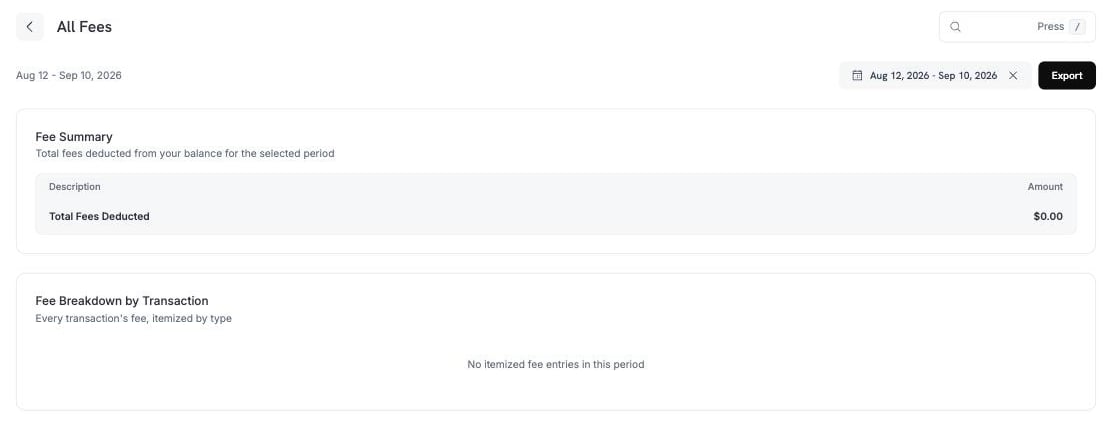
**All Fees** lists every fee taken from your balance in the period, with a total and a per-transaction breakdown.
A payout claims every unclaimed ledger entry up to its cut-off date, not only the payments in the period. Dodo Credits and adjustments can therefore fund part of a payout, and they appear under **Other**.
### All Fees
**All Fees** lists every fee taken from your balance in the period, with a total and a per-transaction breakdown.
 ## Download Reports
Four reports build a file for any date range. Each opens a panel where you choose the period, the format, and the filters for that report.
Every report exports as **CSV** or **XLSX**. The four reports contain:
| Report | What it contains |
| - | - |
| **Transactions Report** | Every payment processed, with the status of each transaction. |
| **Adjustments Report** | Refunds and disputes together: every balance deduction in one file. |
| **Payout Report** | A summary of payouts, with the full fee breakdown per payout period. |
| **Ledger Reconciliation Report** | The balance ledger, one row per movement, to reconcile against your bank statement. |
### Transactions Report
## Download Reports
Four reports build a file for any date range. Each opens a panel where you choose the period, the format, and the filters for that report.
Every report exports as **CSV** or **XLSX**. The four reports contain:
| Report | What it contains |
| - | - |
| **Transactions Report** | Every payment processed, with the status of each transaction. |
| **Adjustments Report** | Refunds and disputes together: every balance deduction in one file. |
| **Payout Report** | A summary of payouts, with the full fee breakdown per payout period. |
| **Ledger Reconciliation Report** | The balance ledger, one row per movement, to reconcile against your bank statement. |
### Transactions Report
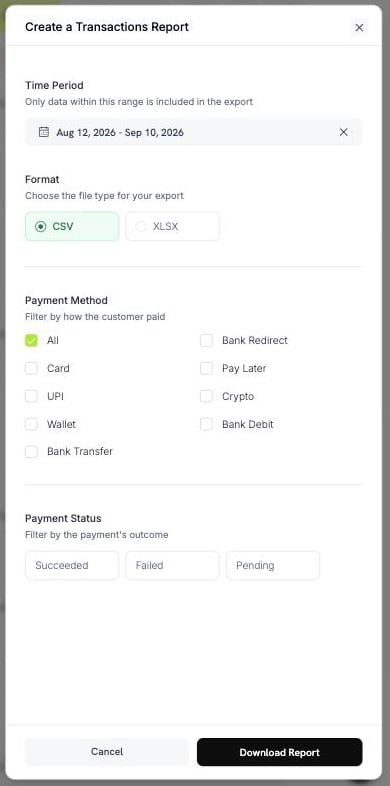 The Transactions Report has two filters:
* **Payment Method**: Card, UPI, Wallet, Bank Transfer, Bank Redirect, Pay Later, Crypto, or Bank Debit. Select **All** for every method.
* **Payment Status**: Succeeded, Failed, or Pending.
### Adjustments Report
The Transactions Report has two filters:
* **Payment Method**: Card, UPI, Wallet, Bank Transfer, Bank Redirect, Pay Later, Crypto, or Bank Debit. Select **All** for every method.
* **Payment Status**: Succeeded, Failed, or Pending.
### Adjustments Report
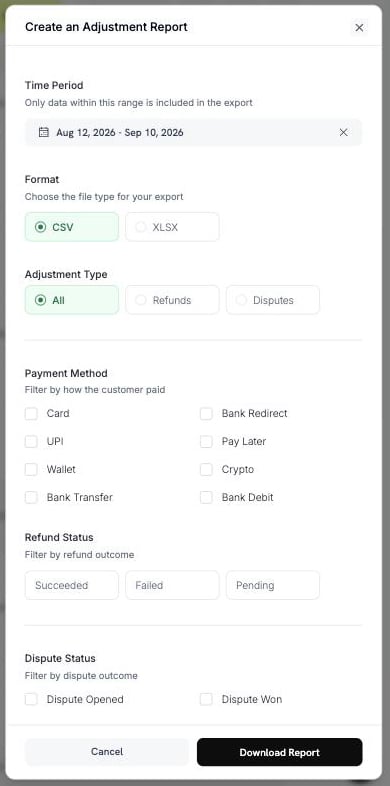 The Adjustments Report has four filters:
* **Adjustment Type**: All, Refunds, or Disputes.
* **Payment Method**: the same eight methods as the Transactions Report.
* **Refund Status**: Succeeded, Failed, or Pending.
* **Dispute Status**: Opened, Challenged, Accepted, Lost, Won, Cancelled, or Expired.
### Payout Report
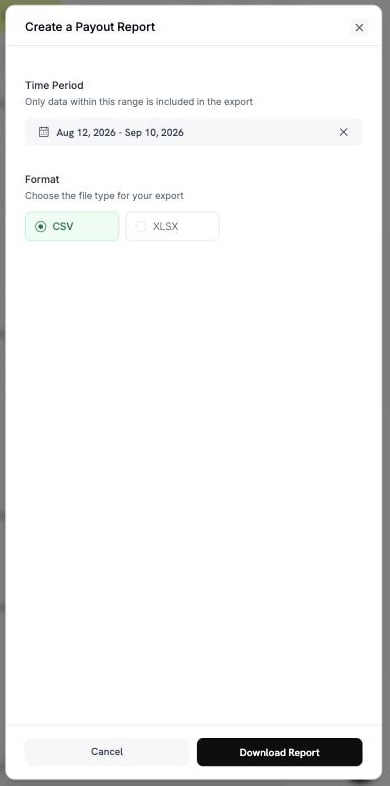
Choose a period and a format. This report has no other filters.
The Adjustments Report has four filters:
* **Adjustment Type**: All, Refunds, or Disputes.
* **Payment Method**: the same eight methods as the Transactions Report.
* **Refund Status**: Succeeded, Failed, or Pending.
* **Dispute Status**: Opened, Challenged, Accepted, Lost, Won, Cancelled, or Expired.
### Payout Report
Choose a period and a format. This report has no other filters.
 ### Ledger Reconciliation Report
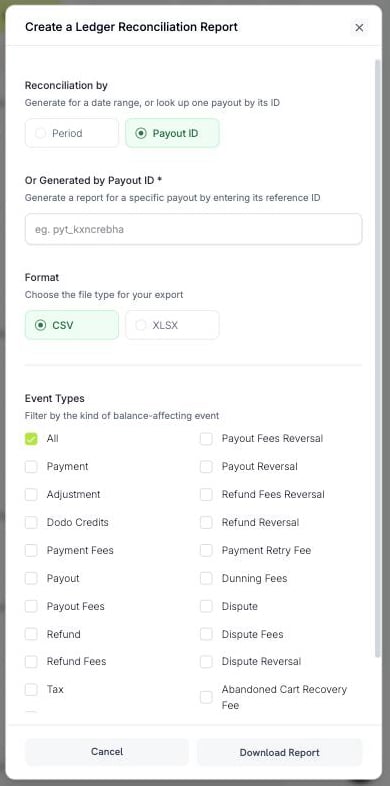
This report has two modes. To choose one, use **Reconciliation by**.
### Ledger Reconciliation Report
This report has two modes. To choose one, use **Reconciliation by**.
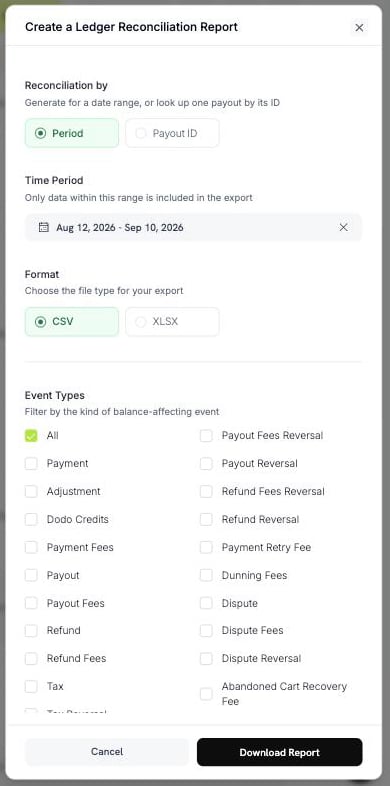 **Period** exports every ledger movement in a date range.
**Payout ID** exports the movements of one payout. Enter the payout reference, for example `pyt_kxncrebha`, to get the exact rows that payout settled.
**Period** exports every ledger movement in a date range.
**Payout ID** exports the movements of one payout. Enter the payout reference, for example `pyt_kxncrebha`, to get the exact rows that payout settled.
 A payout ID that doesn't exist returns an error, not an empty file.
**Event Types** filters the rows by the kind of balance movement. Select **All** to keep every type, or choose from these:
| Group | Options |
| - | - |
| Money in | Payment, Dodo Credits, Adjustment, Currency Conversion |
| Payouts | Payout, Payout Reversal, Payout Fees, Payout Fees Reversal |
| Refunds | Refund, Refund Reversal, Refund Fees, Refund Fees Reversal |
| Disputes | Dispute, Dispute Fees, Dispute Reversal, Dispute Fees Reversal, Visa RDR Fee |
| Fees | Payment Fees, Payment Retry Fee, Dunning Fees, Abandoned Cart Recovery Fee, BYOP Fee, Deflection Fees, Deflection Fees Reversal, Moderation Fees |
| Tax | Tax, Tax Reversal |
Not every type has a reversal. Only Payout, Payout Fees, Refund, Refund Fees, Dispute, Dispute Fees, Deflection Fees, and Tax do.
To answer "what was in this payout?", use the **Payout ID** mode. To reconcile a bank statement line by line, use **Period** with **All** event types.
## Building and Downloading a Report
To build a report and download it:
Go to **Settings → Reports** and select the report you need.
Pick a date range. Only data inside this range goes into the file.
Select **CSV** or **XLSX**, then set the filters for that report.
Select **Download Report**. The file downloads, and the report is added to **Generated Reports**.
The file name contains the report and the date range, so you can identify a download without opening it. For example: `dodo_ledger_1Jun2026-30Jun2026.csv`.
A CSV export starts with a UTF-8 byte order mark, so Excel displays accented characters and non-Latin scripts correctly.
### Row Limits
A single export has a row limit, so you may need to split a large period.
| Report | CSV | XLSX |
| - | - | - |
| Ledger Reconciliation | 500,000 rows | 100,000 rows |
| Every other report | 100,000 rows | 50,000 rows |
If your date range exceeds the limit, the export is refused with a message. Narrow the range or add a filter, then build the report again.
For a large period, choose CSV. Its row limit is higher.
## Generated Reports
Every report you build is recorded, so you can download it again without rebuilding it. The **Generated Reports** table has these columns:
| Column | Meaning |
| - | - |
| Report | The report type. |
| Date Range | The period the report covers. |
| Format | CSV or XLSX. |
| Rows | How many rows the file holds. |
| Generated by | The team member who built it. |
| Created At | When it was built. |
| Status | **Completed** or **Failed**. |
A download link is valid for a short time. If the stored file has expired, Dodo Payments rebuilds it from the same parameters and marks the row as regenerated.
A rebuilt report can differ from the original, because the data behind a date range keeps changing. For example, a refund or a dispute recorded after the first build appears in the rebuild. If you need the figures exactly as they were, keep the file you downloaded.
## Which Report Do I Need?
Match your question to a report:
| Question | Report |
| - | - |
| Why is my balance this number? | Balance and Payout Summary |
| What was in this payout? | Ledger Reconciliation, by **Payout ID** |
| What fees did I pay? | All Fees |
| I need every payment for my accountant. | Transactions Report |
| How much did refunds and disputes cost me? | Adjustments Report |
| I need to match my bank statement. | Ledger Reconciliation, by **Period** |
## Best Practices
* Reconcile with **Balance and Payout Summary** first. Download a detailed report only when a figure needs explaining.
* Export **CSV** for a long period, and **XLSX** only when you plan to work in the file by hand.
* Keep the file you downloaded. A rebuild may not match it.
* Add filters before you widen the date range. A filter keeps an export under the row limit.
If a figure looks wrong, check the date range and the filters first. If it is still wrong, contact support with the report type and the period.
Email [support@dodopayments.com](mailto:support@dodopayments.com) with the report type and the period.
## Next Steps
Track revenue, customers, retention, and transaction health.
Understand your earnings, deductions, and payout cycles.
See how and when payouts reach your bank account.
Initiate and monitor refunds.
This documentation is built and hosted on [Mintlify](https://mintlify.com), a developer documentation platform.
A payout ID that doesn't exist returns an error, not an empty file.
**Event Types** filters the rows by the kind of balance movement. Select **All** to keep every type, or choose from these:
| Group | Options |
| - | - |
| Money in | Payment, Dodo Credits, Adjustment, Currency Conversion |
| Payouts | Payout, Payout Reversal, Payout Fees, Payout Fees Reversal |
| Refunds | Refund, Refund Reversal, Refund Fees, Refund Fees Reversal |
| Disputes | Dispute, Dispute Fees, Dispute Reversal, Dispute Fees Reversal, Visa RDR Fee |
| Fees | Payment Fees, Payment Retry Fee, Dunning Fees, Abandoned Cart Recovery Fee, BYOP Fee, Deflection Fees, Deflection Fees Reversal, Moderation Fees |
| Tax | Tax, Tax Reversal |
Not every type has a reversal. Only Payout, Payout Fees, Refund, Refund Fees, Dispute, Dispute Fees, Deflection Fees, and Tax do.
To answer "what was in this payout?", use the **Payout ID** mode. To reconcile a bank statement line by line, use **Period** with **All** event types.
## Building and Downloading a Report
To build a report and download it:
Go to **Settings → Reports** and select the report you need.
Pick a date range. Only data inside this range goes into the file.
Select **CSV** or **XLSX**, then set the filters for that report.
Select **Download Report**. The file downloads, and the report is added to **Generated Reports**.
The file name contains the report and the date range, so you can identify a download without opening it. For example: `dodo_ledger_1Jun2026-30Jun2026.csv`.
A CSV export starts with a UTF-8 byte order mark, so Excel displays accented characters and non-Latin scripts correctly.
### Row Limits
A single export has a row limit, so you may need to split a large period.
| Report | CSV | XLSX |
| - | - | - |
| Ledger Reconciliation | 500,000 rows | 100,000 rows |
| Every other report | 100,000 rows | 50,000 rows |
If your date range exceeds the limit, the export is refused with a message. Narrow the range or add a filter, then build the report again.
For a large period, choose CSV. Its row limit is higher.
## Generated Reports
Every report you build is recorded, so you can download it again without rebuilding it. The **Generated Reports** table has these columns:
| Column | Meaning |
| - | - |
| Report | The report type. |
| Date Range | The period the report covers. |
| Format | CSV or XLSX. |
| Rows | How many rows the file holds. |
| Generated by | The team member who built it. |
| Created At | When it was built. |
| Status | **Completed** or **Failed**. |
A download link is valid for a short time. If the stored file has expired, Dodo Payments rebuilds it from the same parameters and marks the row as regenerated.
A rebuilt report can differ from the original, because the data behind a date range keeps changing. For example, a refund or a dispute recorded after the first build appears in the rebuild. If you need the figures exactly as they were, keep the file you downloaded.
## Which Report Do I Need?
Match your question to a report:
| Question | Report |
| - | - |
| Why is my balance this number? | Balance and Payout Summary |
| What was in this payout? | Ledger Reconciliation, by **Payout ID** |
| What fees did I pay? | All Fees |
| I need every payment for my accountant. | Transactions Report |
| How much did refunds and disputes cost me? | Adjustments Report |
| I need to match my bank statement. | Ledger Reconciliation, by **Period** |
## Best Practices
* Reconcile with **Balance and Payout Summary** first. Download a detailed report only when a figure needs explaining.
* Export **CSV** for a long period, and **XLSX** only when you plan to work in the file by hand.
* Keep the file you downloaded. A rebuild may not match it.
* Add filters before you widen the date range. A filter keeps an export under the row limit.
If a figure looks wrong, check the date range and the filters first. If it is still wrong, contact support with the report type and the period.
Email [support@dodopayments.com](mailto:support@dodopayments.com) with the report type and the period.
## Next Steps
Track revenue, customers, retention, and transaction health.
Understand your earnings, deductions, and payout cycles.
See how and when payouts reach your bank account.
Initiate and monitor refunds.
This documentation is built and hosted on [Mintlify](https://mintlify.com), a developer documentation platform.