> ## Documentation Index
> Fetch the complete documentation index at: https://docs.dodopayments.com/llms.txt
> Use this file to discover all available pages before exploring further.
# Team Members
> Invite teammates to your Dodo Payments dashboard as Editors or Viewers, and control who can change products, settings, and team access.
 Invite teammates to your business dashboard and give each one a role. Editors can make changes, and Viewers have read-only access.
## How to Add a Teammate?
Invite teammates to your business dashboard and give each one a role. Editors can make changes, and Viewers have read-only access.
## How to Add a Teammate?
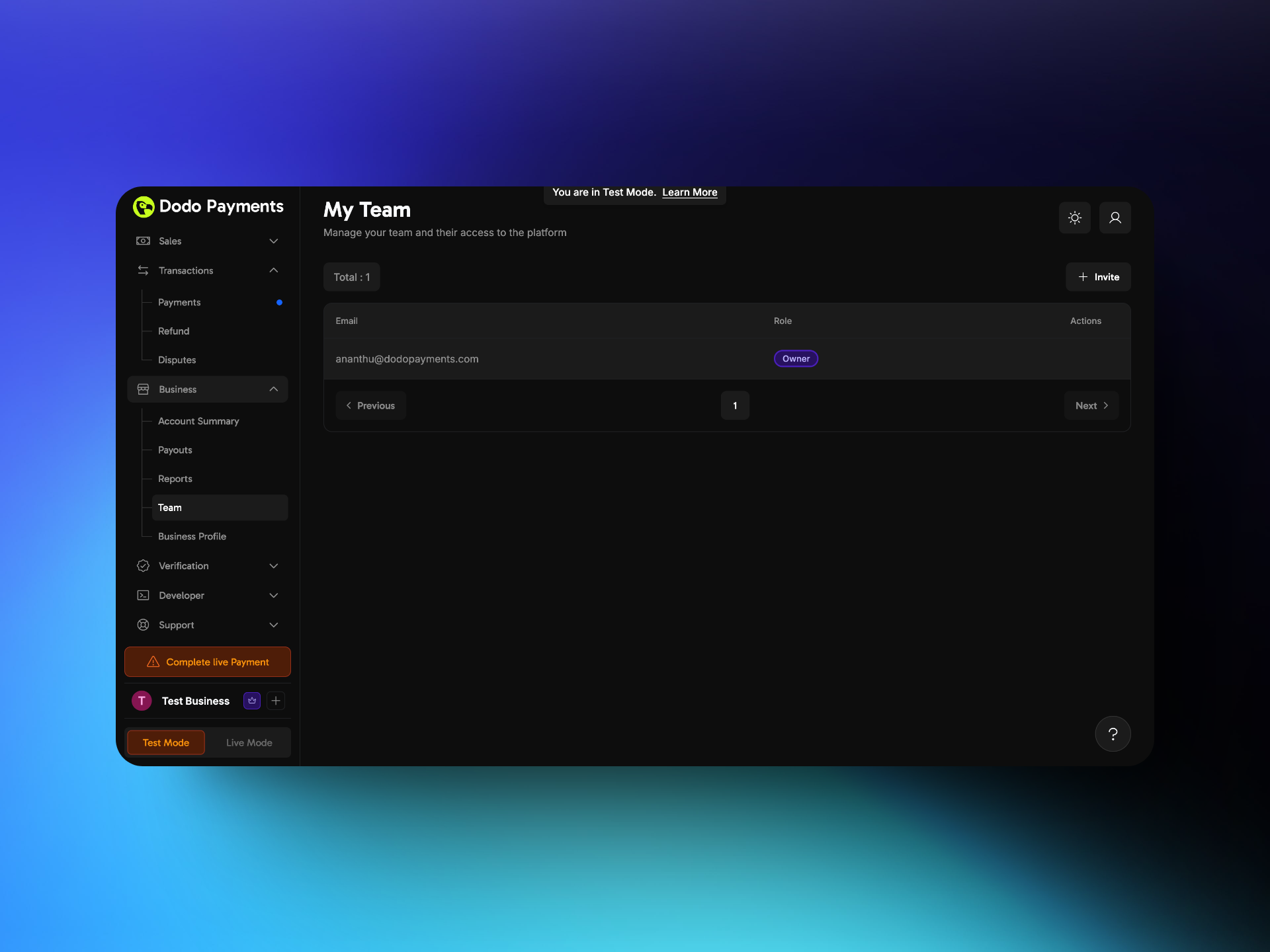 1. Go to **Settings → Team**.
2. Click **Invite** in the top-right corner.
1. Go to **Settings → Team**.
2. Click **Invite** in the top-right corner.
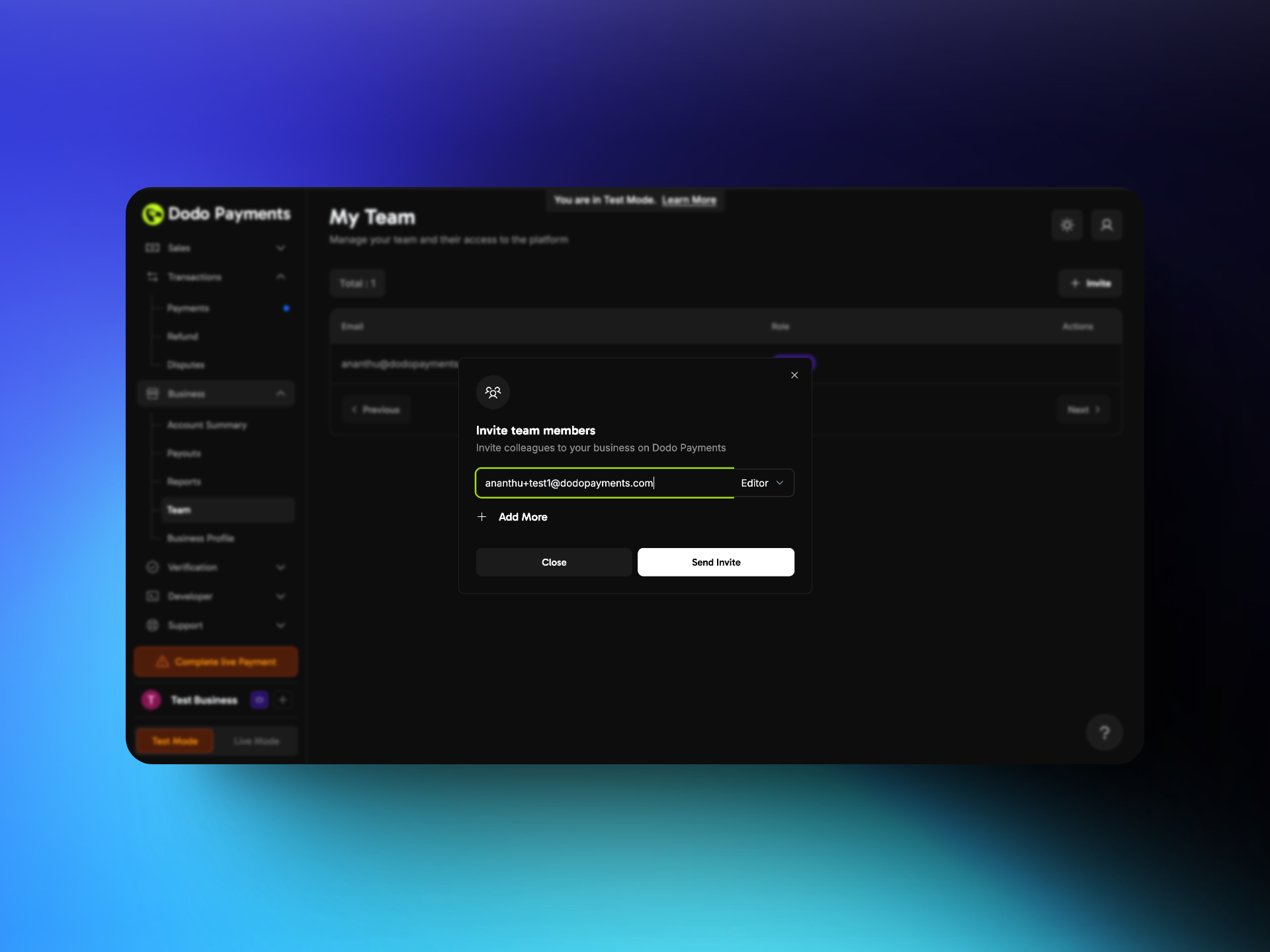 3. Enter the teammate's email address and select a role: **Editor** or **Viewer**. To invite up to five people at once, click **Add More**.
4. Click **Send Invite**.
## How Can a Teammate Access the Dashboard?
3. Enter the teammate's email address and select a role: **Editor** or **Viewer**. To invite up to five people at once, click **Add More**.
4. Click **Send Invite**.
## How Can a Teammate Access the Dashboard?
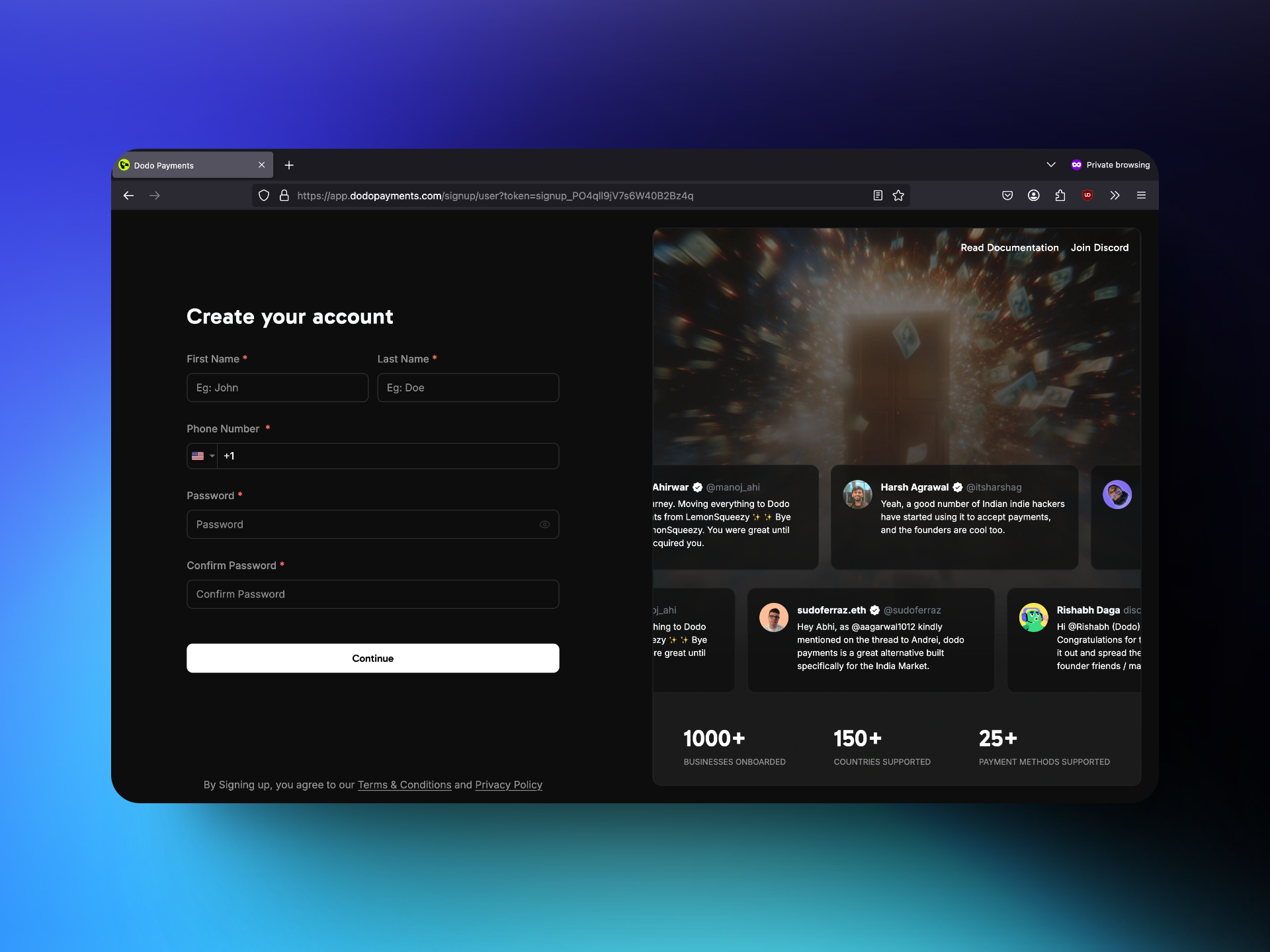 1. The teammate opens the invitation email and clicks the link.
2. A teammate without a Dodo Payments account goes to the signup page and creates one. A teammate who already has an account opens the business from the business switcher at the top of the sidebar.
3. After signup, the teammate can use the dashboard with the assigned role.
## Roles and Permissions
1. The teammate opens the invitation email and clicks the link.
2. A teammate without a Dodo Payments account goes to the signup page and creates one. A teammate who already has an account opens the business from the business switcher at the top of the sidebar.
3. After signup, the teammate can use the dashboard with the assigned role.
## Roles and Permissions
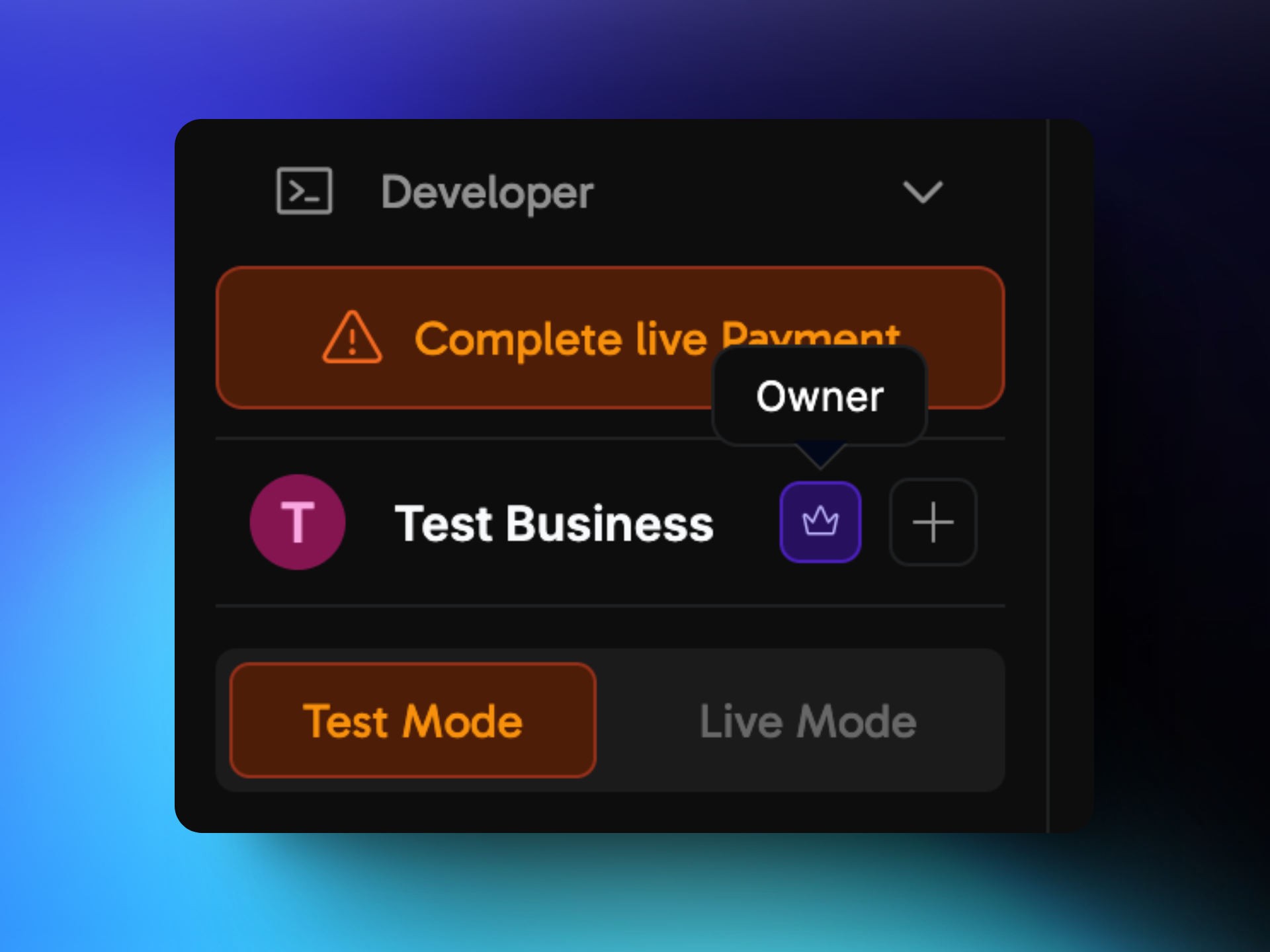 The dashboard has three roles, each with a different level of access. Your role appears as a badge next to the business name in the business switcher at the top of the sidebar.
### 1. Owner
The **Owner** has full control of the business. Each business has exactly one Owner, and only the Owner can invite Editors and change a member's role. The Owner can't be removed from the team. You can't transfer ownership from the dashboard; to change the Owner, contact support.
### 2. Editor
Editors have almost the same permissions as the Owner. They can create, edit, and delete products and make other changes in the dashboard. They can invite and remove Viewers, but they can't invite or remove Editors or change anyone's role.
### 3. Viewer
Viewers have read-only access. They can see all information, including products, transactions, and reports, but they can't add, edit, or delete anything, and they can't invite or remove teammates. An Editor or Viewer can leave the business with **Leave Team** on the **Team** page.
This documentation is built and hosted on [Mintlify](https://mintlify.com), a developer documentation platform.
The dashboard has three roles, each with a different level of access. Your role appears as a badge next to the business name in the business switcher at the top of the sidebar.
### 1. Owner
The **Owner** has full control of the business. Each business has exactly one Owner, and only the Owner can invite Editors and change a member's role. The Owner can't be removed from the team. You can't transfer ownership from the dashboard; to change the Owner, contact support.
### 2. Editor
Editors have almost the same permissions as the Owner. They can create, edit, and delete products and make other changes in the dashboard. They can invite and remove Viewers, but they can't invite or remove Editors or change anyone's role.
### 3. Viewer
Viewers have read-only access. They can see all information, including products, transactions, and reports, but they can't add, edit, or delete anything, and they can't invite or remove teammates. An Editor or Viewer can leave the business with **Leave Team** on the **Team** page.
This documentation is built and hosted on [Mintlify](https://mintlify.com), a developer documentation platform.