> ## Documentation Index
> Fetch the complete documentation index at: https://docs.dodopayments.com/llms.txt
> Use this file to discover all available pages before exploring further.
# Disputes
> View and respond to disputes from the Transactions page, and stop chargebacks before they are filed with Visa RDR, Ethoca alerts, and deflections.
## Introduction
A dispute, also called a chargeback, starts when a customer asks their card issuer to reverse a payment. As your [Merchant of Record](/features/mor-introduction), Dodo Payments handles the dispute process with the card networks. You decide whether to accept or counter each dispute, and you supply the evidence.
When a dispute opens, the disputed amount and a dispute fee are deducted from your balance. The **Disputes** tab shows the status, reason, and dispute ID of every dispute on your account.
Dodo Payments also provides three tools that stop disputes before they become chargebacks:
* [Visa Rapid Dispute Resolution (RDR)](#visa-rapid-dispute-resolution-rdr) refunds Visa disputes at or below your threshold automatically.
* [Ethoca Alerts](#ethoca-alerts) refund Mastercard and other non-Visa payments automatically when the issuer sends an alert.
* [Deflections](#deflections) block fraud claims on Visa and Mastercard payments before they are filed, so you keep the funds.
## Viewing and Understanding Disputes
Go to **Transactions** in your dashboard and select the **Disputes** tab. The list shows each dispute's amount, status, dispute ID, associated payment, and creation date.
Click a dispute in the list to open its details: the dispute ID, payment ID, customer name and email, reason, and remarks.
To see the full details of the disputed payment, click its ID in the **Associated Payment** column.
To read disputes from your backend, use [List Disputes](/api-reference/disputes/get-disputes) and [Get Dispute Detail](/api-reference/disputes/get-disputes-1), or listen for [dispute webhooks](/developer-resources/webhooks/intents/dispute).
## Responding to a Dispute
When a customer opens a dispute, Dodo Payments emails you, and the dispute appears in the **Disputes** tab with the status **Dispute opened**.
You have **10 days** to respond to a dispute after it is created. The countdown shown on the dispute in your dashboard reflects the same window.
Go to **Transactions → Disputes** and find the new dispute.
Check your registered email address for the dispute notification.
Open the dispute. You can accept it or counter it.
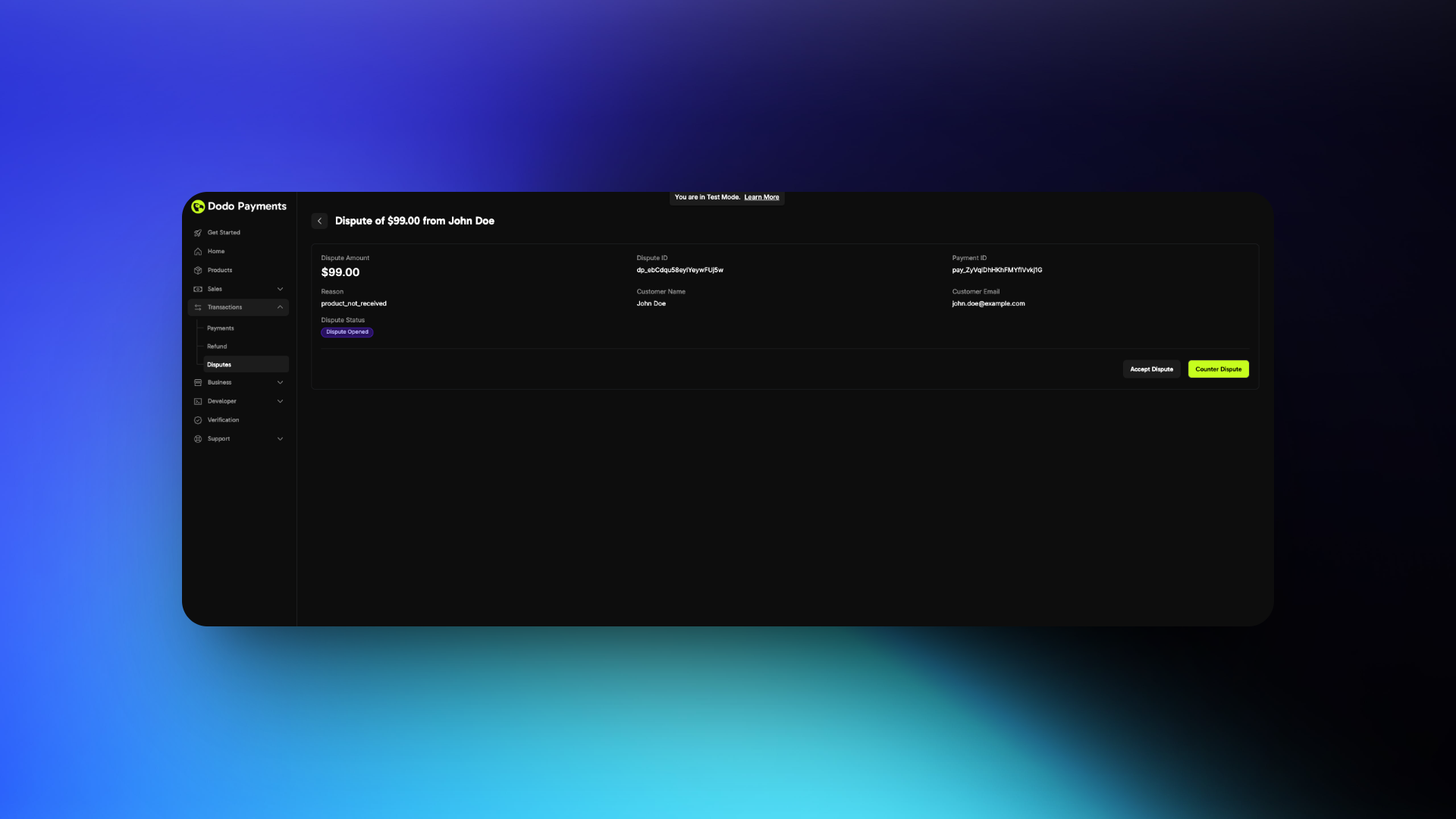 Click **Accept Dispute** and confirm. The disputed amount is refunded to the customer, the dispute fee applies, and you lose the dispute. No further action is required.
Click **Counter Dispute** and complete the form. First, select why you should win the dispute and describe the product or service. Then upload your evidence and click **Submit**. Follow the [Dispute Response Best Practices](#dispute-response-best-practices) when you prepare the evidence.
Click **Accept Dispute** and confirm. The disputed amount is refunded to the customer, the dispute fee applies, and you lose the dispute. No further action is required.
Click **Counter Dispute** and complete the form. First, select why you should win the dispute and describe the product or service. Then upload your evidence and click **Submit**. Follow the [Dispute Response Best Practices](#dispute-response-best-practices) when you prepare the evidence.
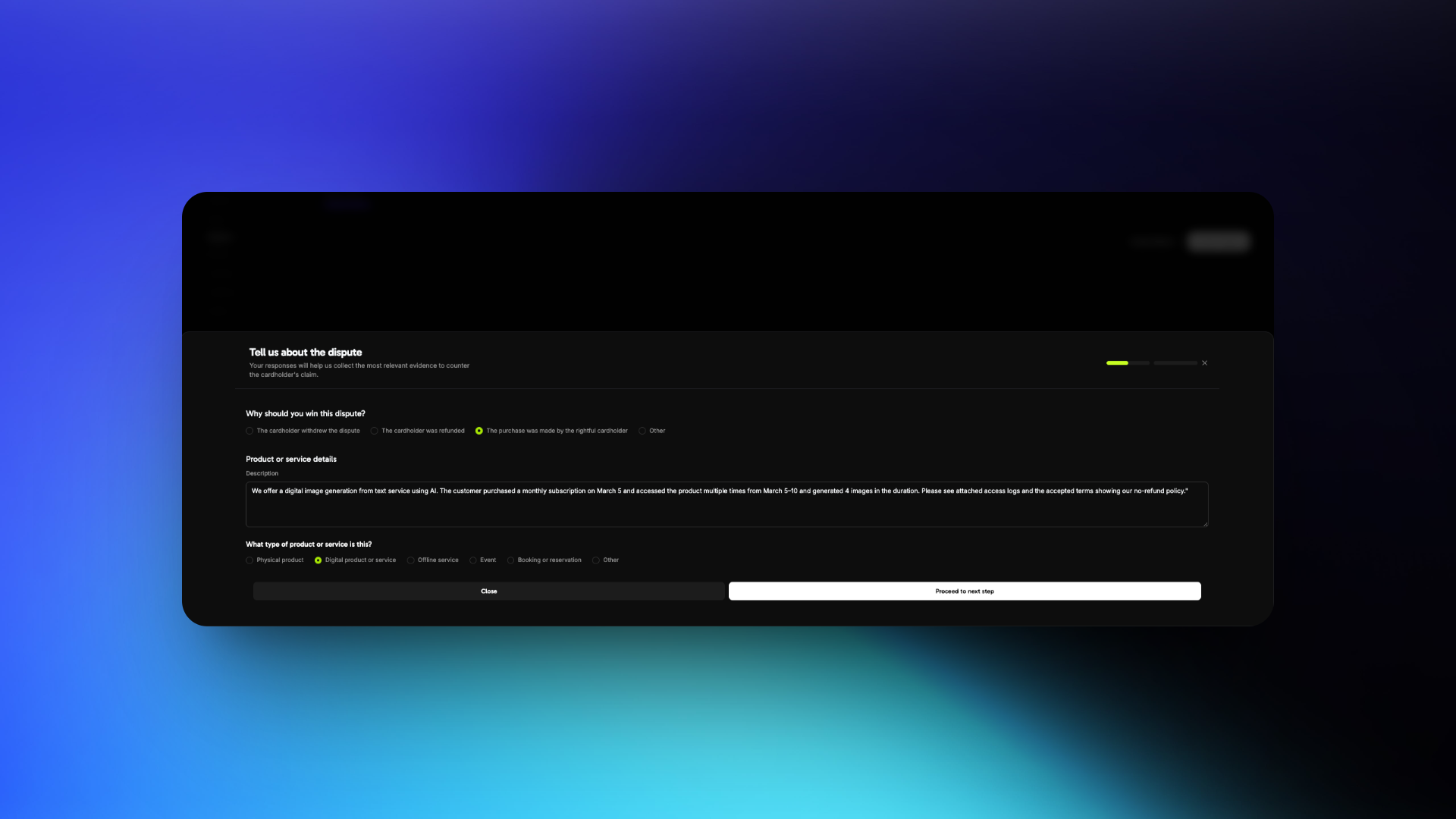
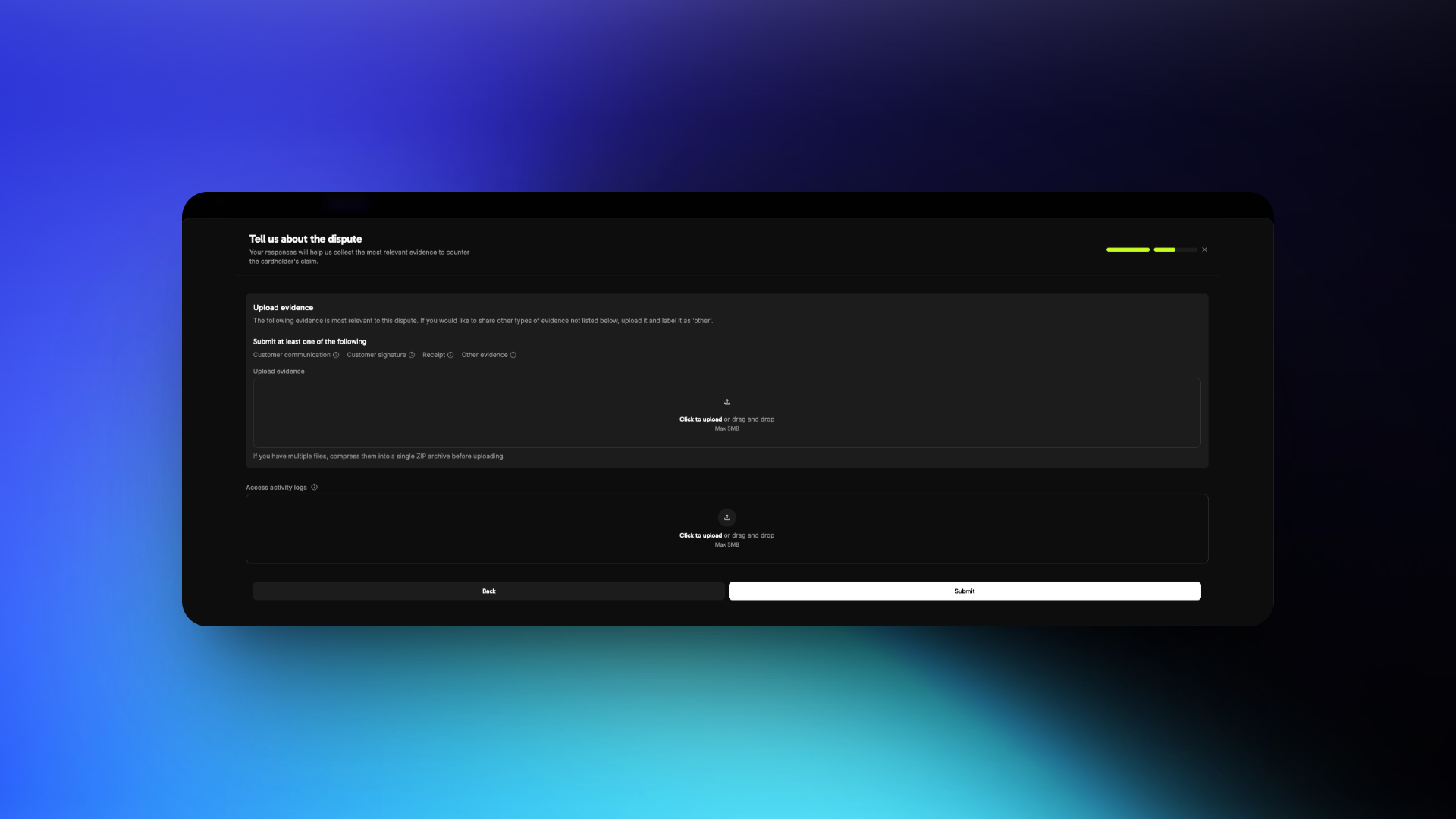 After you submit evidence, the dispute status changes to **Dispute challenged** while the card network reviews it.
## Dispute Response Best Practices
Review the dispute reason carefully. Common reasons include:
The customer claims they did not authorize the transaction.
The customer claims they did not receive the product or service after payment.
The customer claims the product or service differs from what was advertised.
Your response must address the specific reason. Don't submit generic or unrelated evidence.
Focus on evidence of the customer's identity, access, and usage.
* **Invoice** of the purchase
* **IP address, device, and location** details at the time of purchase
* **Login timestamps** showing access to your platform or service
* **Browser or device fingerprint**, or account activity logs
* Previous successful transactions from the same customer or account
* Terms of Service and Refund Policy accepted at the time of purchase
* **Invoice** of the purchase
* Screenshot or logs showing a **successful login**
* Timestamped activity, such as downloads, content viewed, or sessions started
* Emails or support messages confirming that access was granted
* Welcome emails or onboarding steps the customer completed
* Internal logs showing the product or service was delivered as promised
* **Invoice** of the purchase
* The product or service description on your website at the time of purchase
* A comparison of what was promised and what was delivered
* Documentation or screenshots of what the customer accessed
* Any customer communication acknowledging receipt or usage
* The refund policy and support options made available to the customer
* What the customer purchased
* When and how they accessed it
* Why the dispute claim is inaccurate
Keep your language factual and professional. Avoid emotional or accusatory statements.
"We offer a digital image generation from text service using AI. The customer purchased a monthly subscription on March 5 and accessed the product multiple times from March 5–10 and generated 4 images in the duration. Please see attached access logs and the accepted terms showing our no-refund policy."
* Use **PDF, JPG, PNG, or ZIP** files only
* **Label each file** clearly, for example `Login_Log_March_5.pdf`
* Submit only **relevant** and **organized** files
* Keep each file under 5 MB
* To upload several files for one evidence type, compress them into a single ZIP archive
* Do **not include links or URLs**
* Ignoring the actual dispute reason
* Using vague or emotional statements
* Uploading unrelated or unstructured files
* Providing links instead of files
* Include **timestamps with a time zone** to prove access timelines
* Highlight any **two-factor authentication** or verification steps
* Share **refund refusal communication** if it aligns with your policy
* Keep your policies visible, so you can prove the customer accepted them
## Visa Rapid Dispute Resolution (RDR)
Visa Rapid Dispute Resolution (RDR) resolves eligible Visa disputes **before they become formal chargebacks**. When a cardholder disputes a Visa payment with their bank, RDR checks the amount against your configured threshold. If the amount qualifies, RDR refunds the cardholder on your behalf, so no chargeback is filed.
### Why RDR Matters
Disputes cost digital businesses money and time. A high dispute rate also has consequences beyond each lost payment:
For each dispute, the disputed amount **plus** a dispute fee are deducted from your balance. The dispute fee is not refunded, even if you win.
Card networks monitor your dispute and fraud levels. Exceeding Visa's or Mastercard's thresholds places you in a monitoring program with fines.
A consistently high dispute rate can lead to higher processing fees, reserve requirements, or account termination by payment processors.
Each dispute needs evidence, a written response, and follow-up, which takes time away from building your product.
Visa's Acquirer Monitoring Program (VAMP) counts your disputes and fraud reports each month against your settled transactions. A merchant with a ratio of **1.5%** or more and at least **1,500** disputes and fraud reports in a month is flagged as excessive. In CEMEA, the limits are a ratio of 2.2% and at least 150 disputes and fraud reports worth USD 75,000 or more. Visa charges fees for every month the merchant stays above the threshold.
### How RDR Works
The customer contacts their bank to dispute a Visa transaction on their statement.
Before the dispute becomes a formal chargeback, Visa's RDR system checks whether the transaction qualifies for automatic resolution under your configured rules.
If the transaction amount is at or below your threshold, the cardholder is refunded through Visa's network, and the dispute is resolved.
Because the dispute is resolved before it becomes a formal chargeback, it **does not count against your dispute rate** with Visa.
A transaction refunded through RDR appears as a **lost dispute** in your Dodo Payments dashboard, marked **Resolved by RDR**. This is expected: the refund was issued automatically to prevent a formal chargeback, and the "lost" status reflects that the funds were returned to the cardholder. The dispute webhook reports it as `dispute.lost` with `is_resolved_by_rdr: true`. A Visa RDR fee replaces the dispute fee for these disputes.
### Key Benefits
RDR changes the outcome of a low-value Visa dispute in four ways:
| Benefit | Description |
| - | - |
| **Lower dispute rate** | RDR-resolved disputes are excluded from Visa's VAMP count, which helps you stay below its monitoring thresholds |
| **Zero operational overhead** | You don't gather evidence, write responses, or track dispute deadlines. Resolution is automatic |
| **Better customer experience** | Cardholders get their refund without waiting weeks for a dispute to be resolved |
| **Protect your account standing** | Stay out of Visa's monitoring programs and avoid escalating fines and processing restrictions |
### Configuration
RDR uses a **USD threshold**. A Visa dispute at or below your threshold is resolved automatically with a refund. A dispute above the threshold goes through the normal dispute process, so you can counter it with evidence.
For example, with a \$100 threshold: a \$75 dispute is resolved automatically (refunded), while a \$150 dispute proceeds normally for you to review and respond to.
### Enable RDR for Your Account
Visa RDR is **enabled by default** on all Dodo Payments accounts with a **\$100 USD threshold**. Any Visa dispute at or below \$100 is resolved automatically with a refund, with no action from you. For pricing, see the [Dodo Payments pricing page](https://dodopayments.com/pricing).
After you submit evidence, the dispute status changes to **Dispute challenged** while the card network reviews it.
## Dispute Response Best Practices
Review the dispute reason carefully. Common reasons include:
The customer claims they did not authorize the transaction.
The customer claims they did not receive the product or service after payment.
The customer claims the product or service differs from what was advertised.
Your response must address the specific reason. Don't submit generic or unrelated evidence.
Focus on evidence of the customer's identity, access, and usage.
* **Invoice** of the purchase
* **IP address, device, and location** details at the time of purchase
* **Login timestamps** showing access to your platform or service
* **Browser or device fingerprint**, or account activity logs
* Previous successful transactions from the same customer or account
* Terms of Service and Refund Policy accepted at the time of purchase
* **Invoice** of the purchase
* Screenshot or logs showing a **successful login**
* Timestamped activity, such as downloads, content viewed, or sessions started
* Emails or support messages confirming that access was granted
* Welcome emails or onboarding steps the customer completed
* Internal logs showing the product or service was delivered as promised
* **Invoice** of the purchase
* The product or service description on your website at the time of purchase
* A comparison of what was promised and what was delivered
* Documentation or screenshots of what the customer accessed
* Any customer communication acknowledging receipt or usage
* The refund policy and support options made available to the customer
* What the customer purchased
* When and how they accessed it
* Why the dispute claim is inaccurate
Keep your language factual and professional. Avoid emotional or accusatory statements.
"We offer a digital image generation from text service using AI. The customer purchased a monthly subscription on March 5 and accessed the product multiple times from March 5–10 and generated 4 images in the duration. Please see attached access logs and the accepted terms showing our no-refund policy."
* Use **PDF, JPG, PNG, or ZIP** files only
* **Label each file** clearly, for example `Login_Log_March_5.pdf`
* Submit only **relevant** and **organized** files
* Keep each file under 5 MB
* To upload several files for one evidence type, compress them into a single ZIP archive
* Do **not include links or URLs**
* Ignoring the actual dispute reason
* Using vague or emotional statements
* Uploading unrelated or unstructured files
* Providing links instead of files
* Include **timestamps with a time zone** to prove access timelines
* Highlight any **two-factor authentication** or verification steps
* Share **refund refusal communication** if it aligns with your policy
* Keep your policies visible, so you can prove the customer accepted them
## Visa Rapid Dispute Resolution (RDR)
Visa Rapid Dispute Resolution (RDR) resolves eligible Visa disputes **before they become formal chargebacks**. When a cardholder disputes a Visa payment with their bank, RDR checks the amount against your configured threshold. If the amount qualifies, RDR refunds the cardholder on your behalf, so no chargeback is filed.
### Why RDR Matters
Disputes cost digital businesses money and time. A high dispute rate also has consequences beyond each lost payment:
For each dispute, the disputed amount **plus** a dispute fee are deducted from your balance. The dispute fee is not refunded, even if you win.
Card networks monitor your dispute and fraud levels. Exceeding Visa's or Mastercard's thresholds places you in a monitoring program with fines.
A consistently high dispute rate can lead to higher processing fees, reserve requirements, or account termination by payment processors.
Each dispute needs evidence, a written response, and follow-up, which takes time away from building your product.
Visa's Acquirer Monitoring Program (VAMP) counts your disputes and fraud reports each month against your settled transactions. A merchant with a ratio of **1.5%** or more and at least **1,500** disputes and fraud reports in a month is flagged as excessive. In CEMEA, the limits are a ratio of 2.2% and at least 150 disputes and fraud reports worth USD 75,000 or more. Visa charges fees for every month the merchant stays above the threshold.
### How RDR Works
The customer contacts their bank to dispute a Visa transaction on their statement.
Before the dispute becomes a formal chargeback, Visa's RDR system checks whether the transaction qualifies for automatic resolution under your configured rules.
If the transaction amount is at or below your threshold, the cardholder is refunded through Visa's network, and the dispute is resolved.
Because the dispute is resolved before it becomes a formal chargeback, it **does not count against your dispute rate** with Visa.
A transaction refunded through RDR appears as a **lost dispute** in your Dodo Payments dashboard, marked **Resolved by RDR**. This is expected: the refund was issued automatically to prevent a formal chargeback, and the "lost" status reflects that the funds were returned to the cardholder. The dispute webhook reports it as `dispute.lost` with `is_resolved_by_rdr: true`. A Visa RDR fee replaces the dispute fee for these disputes.
### Key Benefits
RDR changes the outcome of a low-value Visa dispute in four ways:
| Benefit | Description |
| - | - |
| **Lower dispute rate** | RDR-resolved disputes are excluded from Visa's VAMP count, which helps you stay below its monitoring thresholds |
| **Zero operational overhead** | You don't gather evidence, write responses, or track dispute deadlines. Resolution is automatic |
| **Better customer experience** | Cardholders get their refund without waiting weeks for a dispute to be resolved |
| **Protect your account standing** | Stay out of Visa's monitoring programs and avoid escalating fines and processing restrictions |
### Configuration
RDR uses a **USD threshold**. A Visa dispute at or below your threshold is resolved automatically with a refund. A dispute above the threshold goes through the normal dispute process, so you can counter it with evidence.
For example, with a \$100 threshold: a \$75 dispute is resolved automatically (refunded), while a \$150 dispute proceeds normally for you to review and respond to.
### Enable RDR for Your Account
Visa RDR is **enabled by default** on all Dodo Payments accounts with a **\$100 USD threshold**. Any Visa dispute at or below \$100 is resolved automatically with a refund, with no action from you. For pricing, see the [Dodo Payments pricing page](https://dodopayments.com/pricing).
 #### Customizing Your Threshold
To change the RDR threshold:
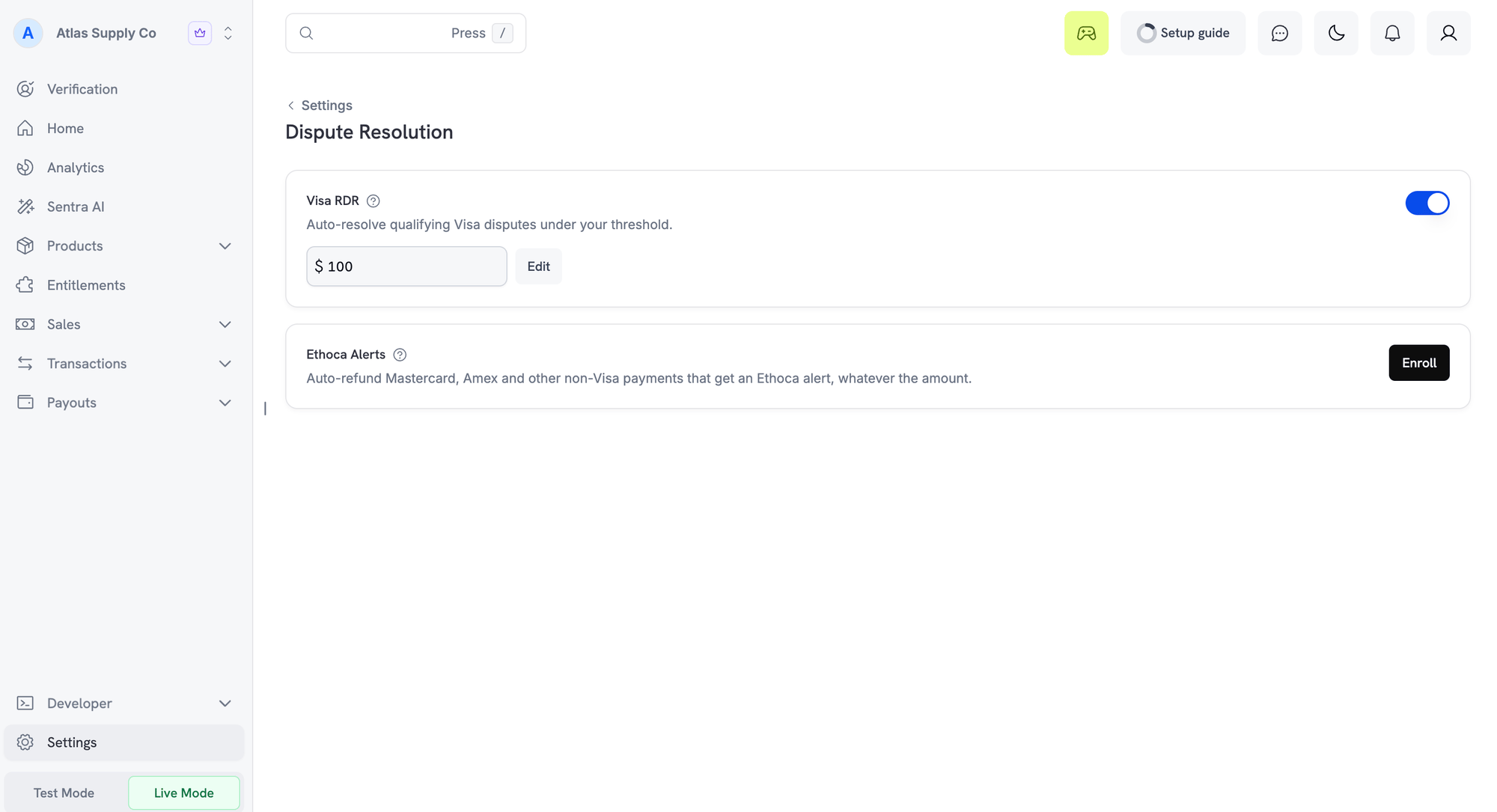
Go to **Settings → Dispute Resolution** in your Dodo Payments dashboard and find the **Visa RDR** card.
Click **Edit** next to the current threshold and enter the new amount in USD. Visa disputes at or below this amount are resolved automatically.
Save the new threshold. It applies to every Visa dispute that arrives after you save it.
To turn RDR off, switch off the **Visa RDR** toggle. Keeping it on protects your dispute rate. If Dodo Payments has locked the RDR settings for your business, you can't change them from the dashboard; contact support.
Start with a threshold near your average transaction value, then adjust it as you learn your dispute patterns.
### Frequently Asked Questions
No. Once a transaction is resolved through RDR, it is closed at the Visa network level. The issuer does not process another chargeback for the same transaction. If the cardholder tries again, their bank sees the earlier resolution and rejects the dispute. Visa enforces this upstream, so there is nothing for you to manage.
## Ethoca Alerts
Visa RDR covers only Visa cards. **Ethoca alerts** give you the same pre-chargeback protection on Mastercard and other non-Visa cards. Ethoca is Mastercard's alert network. When a cardholder reports fraud or disputes a charge, their card issuer sends an alert before it files a chargeback. Dodo Payments then refunds the payment automatically, so the chargeback is never filed.
Alerts come only from card issuers that take part in Ethoca. Most alerts are on Mastercard payments. Alerts on American Express and other non-Visa cards are handled the same way when the issuer takes part. Visa disputes are always handled by [Visa RDR](#visa-rapid-dispute-resolution-rdr).
### How Ethoca Alerts Work
After your business is enrolled, every alert on a non-Visa payment is resolved automatically:
The customer tells their bank that a Mastercard or other non-Visa charge is fraudulent, or disputes it.
Before filing a chargeback, the issuer sends an alert through Ethoca. Dodo Payments matches it to the original payment using the card details, amount, and transaction time.
Dodo Payments refunds the full payment amount to the cardholder. There is **no threshold**: every matched alert is refunded, whatever the amount.
If the payment belongs to a subscription, the subscription is cancelled immediately. An active subscription would produce the same alert again at the next renewal.
Dodo Payments confirms the refund through Ethoca, so the issuer does not file a chargeback. The dispute **does not count against your chargeback ratio**, which helps keep you out of Mastercard's chargeback monitoring programs.
If the payment was already refunded or is already under dispute, the alert is closed without another refund. Any linked subscription is still cancelled.
Enrolling means accepting automatic refunds. You can't review an alert or counter it with evidence. To respond to disputes on non-Visa cards yourself, don't enroll, or unenroll at any time.
### What You See in the Dashboard
An Ethoca alert does not appear in the **Disputes** tab, because no dispute is created. Instead:
| Where | What appears |
| - | - |
| **Transactions → Refunds** | A full refund with the reason **Ethoca fraud alert** |
| **Subscriptions** | The linked subscription, if any, with the status **Cancelled** |
| **Notifications** | An email titled "Refund issued automatically for \[customer] after a fraud alert", plus an in-app and push notification |
| **Webhooks** | The standard refund and subscription webhooks fire. There is no Ethoca-specific event |
### Enable Ethoca Alerts
Ethoca alerts are **opt-in**. Before you enroll, your business needs live payments enabled and a statement descriptor. A fee applies for each alert. For pricing, see the [Dodo Payments pricing page](https://dodopayments.com/pricing).
Go to **Settings → Dispute Resolution** in your Dodo Payments dashboard and find the **Ethoca Alerts** card. Only editors and owners can change this setting.
Click **Enroll** and confirm. By confirming, you accept that every alerted payment is refunded automatically.
Your status shows **Pending** while Ethoca confirms your enrollment, which takes **2 to 4 business days**. Click **Refresh** to check. Alerts are not refunded automatically until your status shows **Enrolled**.
#### Unenrolling
Click **Unenroll** on the same card and confirm. Your status shows **Removal requested** until the removal completes, usually within a few minutes. Alerts can still arrive and be refunded until it does. You can enroll again at any time. If the dashboard reports that your enrollment can't be removed there, contact support.
### Ethoca Alerts FAQ
The cardholder told their bank that they dispute the charge. An active subscription would bill them again at the next renewal and produce another alert and another refund. Cancelling it immediately stops that cycle. This also applies when the alert is closed without a refund because the payment was already refunded or disputed.
No. Enrolling in Ethoca alerts means every matched alert is refunded automatically. To respond to disputes on non-Visa cards yourself, unenroll on the **Settings → Dispute Resolution** page. You can still counter Visa disputes above your RDR threshold.
No. Visa RDR handles Visa disputes, and Ethoca alerts handle non-Visa disputes. A single payment goes through only one of them.
Alerts are refunded only while your enrollment status shows **Enrolled**. Alerts that arrive while your status is **Pending** are not refunded. Alerts on payments that can't be matched to a single transaction go through the normal dispute process instead.
Not every issuer takes part in Ethoca, so some disputes arrive as chargebacks without an alert first. Disputes that the cardholder raised before your enrollment was confirmed can also still arrive as chargebacks. Respond to these from the **Disputes** tab as usual.
## Deflections
A **deflection** stops a dispute before it is filed, without a refund. When a cardholder tells their bank they did not make a purchase, the bank checks the payment against the order details and the customer's earlier purchases from you. If the evidence shows that the same customer made the purchase, the bank blocks the dispute. You keep the payment, and nothing counts against your dispute rate. A deflection fee applies.
### How Deflections Work
The customer contacts their bank about a Visa or Mastercard charge, usually because they don't recognize it or believe it is fraud.
The bank requests the order details. Dodo Payments answers automatically with what was purchased and when, the order total, the customer's account details, and, where available, the IP address used at checkout. Often the cardholder recognizes the purchase at this point, and the inquiry ends.
If the cardholder still claims fraud, the network compares the payment with the same customer's earlier undisputed payments to you. When at least two earlier payments share key details, such as the IP address and email address, the bank blocks the dispute. Visa does this through Compelling Evidence 3.0, and Mastercard through First-Party Trust.
No dispute is filed, and no refund is issued. The deflection does not count against your dispute rate.
Deflections work for returning customers. A first-time customer has no earlier payments to compare against, so a fraud claim on their first payment can't be blocked this way.
### What You See in the Dashboard
A deflection creates no dispute and no refund. Instead:
| Where | What appears |
| - | - |
| **Notifications** | An email titled "Dispute deflected for your \[amount] payment" |
| **Balance** | The deflection fee, listed under **Deflection Fees** |
| **Webhooks** | No event fires. There is no dispute or refund to report |
### Availability
Every Dodo Payments business is enrolled in deflections automatically. There is nothing to enable or configure. For pricing, see the [Dodo Payments pricing page](https://dodopayments.com/pricing).
### Deflections FAQ
That is expected. A deflection means the dispute was blocked before it was filed, so there is no dispute to show. The deflection email is your record of it.
No. The dispute was blocked in your favor, so the payment stands. Refunding it gives up the sale for no benefit.
This documentation is built and hosted on [Mintlify](https://mintlify.com), a developer documentation platform.
#### Customizing Your Threshold
To change the RDR threshold:
Go to **Settings → Dispute Resolution** in your Dodo Payments dashboard and find the **Visa RDR** card.
Click **Edit** next to the current threshold and enter the new amount in USD. Visa disputes at or below this amount are resolved automatically.
Save the new threshold. It applies to every Visa dispute that arrives after you save it.
To turn RDR off, switch off the **Visa RDR** toggle. Keeping it on protects your dispute rate. If Dodo Payments has locked the RDR settings for your business, you can't change them from the dashboard; contact support.
Start with a threshold near your average transaction value, then adjust it as you learn your dispute patterns.
### Frequently Asked Questions
No. Once a transaction is resolved through RDR, it is closed at the Visa network level. The issuer does not process another chargeback for the same transaction. If the cardholder tries again, their bank sees the earlier resolution and rejects the dispute. Visa enforces this upstream, so there is nothing for you to manage.
## Ethoca Alerts
Visa RDR covers only Visa cards. **Ethoca alerts** give you the same pre-chargeback protection on Mastercard and other non-Visa cards. Ethoca is Mastercard's alert network. When a cardholder reports fraud or disputes a charge, their card issuer sends an alert before it files a chargeback. Dodo Payments then refunds the payment automatically, so the chargeback is never filed.
Alerts come only from card issuers that take part in Ethoca. Most alerts are on Mastercard payments. Alerts on American Express and other non-Visa cards are handled the same way when the issuer takes part. Visa disputes are always handled by [Visa RDR](#visa-rapid-dispute-resolution-rdr).
### How Ethoca Alerts Work
After your business is enrolled, every alert on a non-Visa payment is resolved automatically:
The customer tells their bank that a Mastercard or other non-Visa charge is fraudulent, or disputes it.
Before filing a chargeback, the issuer sends an alert through Ethoca. Dodo Payments matches it to the original payment using the card details, amount, and transaction time.
Dodo Payments refunds the full payment amount to the cardholder. There is **no threshold**: every matched alert is refunded, whatever the amount.
If the payment belongs to a subscription, the subscription is cancelled immediately. An active subscription would produce the same alert again at the next renewal.
Dodo Payments confirms the refund through Ethoca, so the issuer does not file a chargeback. The dispute **does not count against your chargeback ratio**, which helps keep you out of Mastercard's chargeback monitoring programs.
If the payment was already refunded or is already under dispute, the alert is closed without another refund. Any linked subscription is still cancelled.
Enrolling means accepting automatic refunds. You can't review an alert or counter it with evidence. To respond to disputes on non-Visa cards yourself, don't enroll, or unenroll at any time.
### What You See in the Dashboard
An Ethoca alert does not appear in the **Disputes** tab, because no dispute is created. Instead:
| Where | What appears |
| - | - |
| **Transactions → Refunds** | A full refund with the reason **Ethoca fraud alert** |
| **Subscriptions** | The linked subscription, if any, with the status **Cancelled** |
| **Notifications** | An email titled "Refund issued automatically for \[customer] after a fraud alert", plus an in-app and push notification |
| **Webhooks** | The standard refund and subscription webhooks fire. There is no Ethoca-specific event |
### Enable Ethoca Alerts
Ethoca alerts are **opt-in**. Before you enroll, your business needs live payments enabled and a statement descriptor. A fee applies for each alert. For pricing, see the [Dodo Payments pricing page](https://dodopayments.com/pricing).
Go to **Settings → Dispute Resolution** in your Dodo Payments dashboard and find the **Ethoca Alerts** card. Only editors and owners can change this setting.
Click **Enroll** and confirm. By confirming, you accept that every alerted payment is refunded automatically.
Your status shows **Pending** while Ethoca confirms your enrollment, which takes **2 to 4 business days**. Click **Refresh** to check. Alerts are not refunded automatically until your status shows **Enrolled**.
#### Unenrolling
Click **Unenroll** on the same card and confirm. Your status shows **Removal requested** until the removal completes, usually within a few minutes. Alerts can still arrive and be refunded until it does. You can enroll again at any time. If the dashboard reports that your enrollment can't be removed there, contact support.
### Ethoca Alerts FAQ
The cardholder told their bank that they dispute the charge. An active subscription would bill them again at the next renewal and produce another alert and another refund. Cancelling it immediately stops that cycle. This also applies when the alert is closed without a refund because the payment was already refunded or disputed.
No. Enrolling in Ethoca alerts means every matched alert is refunded automatically. To respond to disputes on non-Visa cards yourself, unenroll on the **Settings → Dispute Resolution** page. You can still counter Visa disputes above your RDR threshold.
No. Visa RDR handles Visa disputes, and Ethoca alerts handle non-Visa disputes. A single payment goes through only one of them.
Alerts are refunded only while your enrollment status shows **Enrolled**. Alerts that arrive while your status is **Pending** are not refunded. Alerts on payments that can't be matched to a single transaction go through the normal dispute process instead.
Not every issuer takes part in Ethoca, so some disputes arrive as chargebacks without an alert first. Disputes that the cardholder raised before your enrollment was confirmed can also still arrive as chargebacks. Respond to these from the **Disputes** tab as usual.
## Deflections
A **deflection** stops a dispute before it is filed, without a refund. When a cardholder tells their bank they did not make a purchase, the bank checks the payment against the order details and the customer's earlier purchases from you. If the evidence shows that the same customer made the purchase, the bank blocks the dispute. You keep the payment, and nothing counts against your dispute rate. A deflection fee applies.
### How Deflections Work
The customer contacts their bank about a Visa or Mastercard charge, usually because they don't recognize it or believe it is fraud.
The bank requests the order details. Dodo Payments answers automatically with what was purchased and when, the order total, the customer's account details, and, where available, the IP address used at checkout. Often the cardholder recognizes the purchase at this point, and the inquiry ends.
If the cardholder still claims fraud, the network compares the payment with the same customer's earlier undisputed payments to you. When at least two earlier payments share key details, such as the IP address and email address, the bank blocks the dispute. Visa does this through Compelling Evidence 3.0, and Mastercard through First-Party Trust.
No dispute is filed, and no refund is issued. The deflection does not count against your dispute rate.
Deflections work for returning customers. A first-time customer has no earlier payments to compare against, so a fraud claim on their first payment can't be blocked this way.
### What You See in the Dashboard
A deflection creates no dispute and no refund. Instead:
| Where | What appears |
| - | - |
| **Notifications** | An email titled "Dispute deflected for your \[amount] payment" |
| **Balance** | The deflection fee, listed under **Deflection Fees** |
| **Webhooks** | No event fires. There is no dispute or refund to report |
### Availability
Every Dodo Payments business is enrolled in deflections automatically. There is nothing to enable or configure. For pricing, see the [Dodo Payments pricing page](https://dodopayments.com/pricing).
### Deflections FAQ
That is expected. A deflection means the dispute was blocked before it was filed, so there is no dispute to show. The deflection email is your record of it.
No. The dispute was blocked in your favor, so the payment stands. Refunding it gives up the sale for no benefit.
This documentation is built and hosted on [Mintlify](https://mintlify.com), a developer documentation platform.