> ## Documentation Index
> Fetch the complete documentation index at: https://docs.dodopayments.com/llms.txt
> Use this file to discover all available pages before exploring further.
# Payments
> Track every payment from the Transactions page. Filter by status, currency, and date, open payment details, download invoices, and start refunds.
The **Payments** tab on the **Transactions** page lists every payment on your account. Open a payment to see its full breakdown, download its invoice, or start a [refund](/features/transactions/refunds).
## **Payments Listing Page**
The Payments listing page records every payment attempt. For each payment, it shows the amount, status, payment ID, payment method, customer, and date.
Each payment shows one of these statuses:
| Status | Meaning |
| - | - |
| **Successful** | The payment was completed. |
| **Processing** | The payment was sent to the payment processor and is waiting for confirmation. The **Status** filter calls this status **In Progress**. |
| **Failed** | The payment attempt was declined. |
| **Cancelled** | The payment was cancelled before it completed. |
| **Requires customer action** | The customer needs to complete an additional verification step. |
| **Requires payment method** | The payment was created but not charged, for example because the customer didn't finish checkout. |
| **On hold** | The payment is waiting for review, confirmation, or capture before it can complete. |
A payment that was refunded or disputed shows its refund or dispute status instead, such as **Refunded**, **Partially refunded**, or **Dispute opened**.
The **Payment Method** column fills in after the customer submits a payment method. The **Date** column shows when the payment was created, not when it completed.
***
## **Payment Details Page**
Click a payment in the listing to open its **Payment Details Page**, which breaks down the transaction.
### Successful Payment
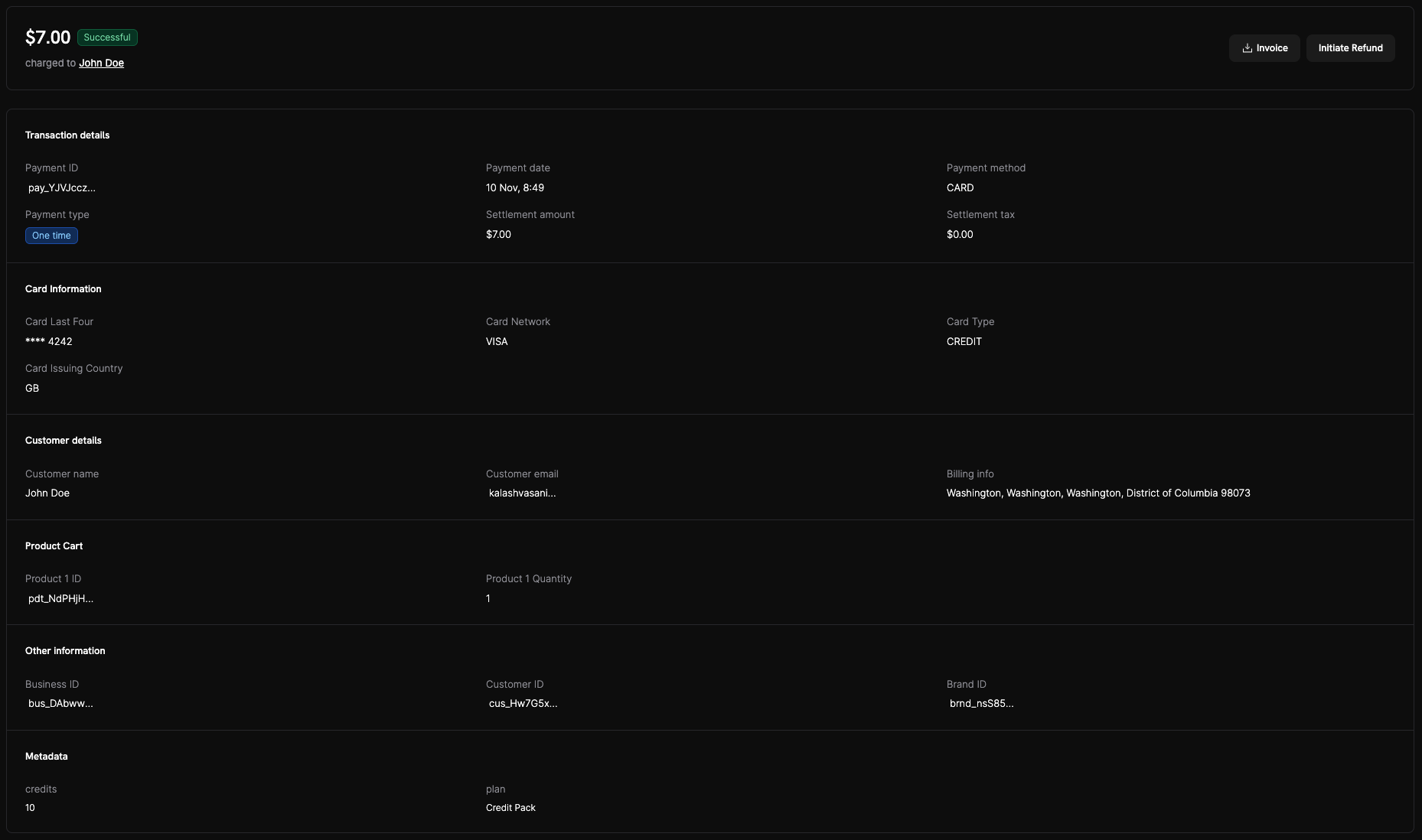
A successful payment shows:
* **Status**: **Successful** at the top, with the final captured amount.
* **Transaction details**: Payment ID, payment date, payment method, payment type, settlement amount, and settlement tax.
* **Card Information**: Card network, last four digits, card type, and issuing country.
* **Customer details**: Name, email, and billing info.
* **Product Cart**: Product IDs and the quantities purchased.
* **Other information and Metadata**: Business, customer, and brand IDs, plus any metadata attached to the payment.
* **Actions**: Click **Invoice** to download the invoice, or **Initiate Refund** to start a refund. Both buttons are in the top-right corner.
### Failed Payment
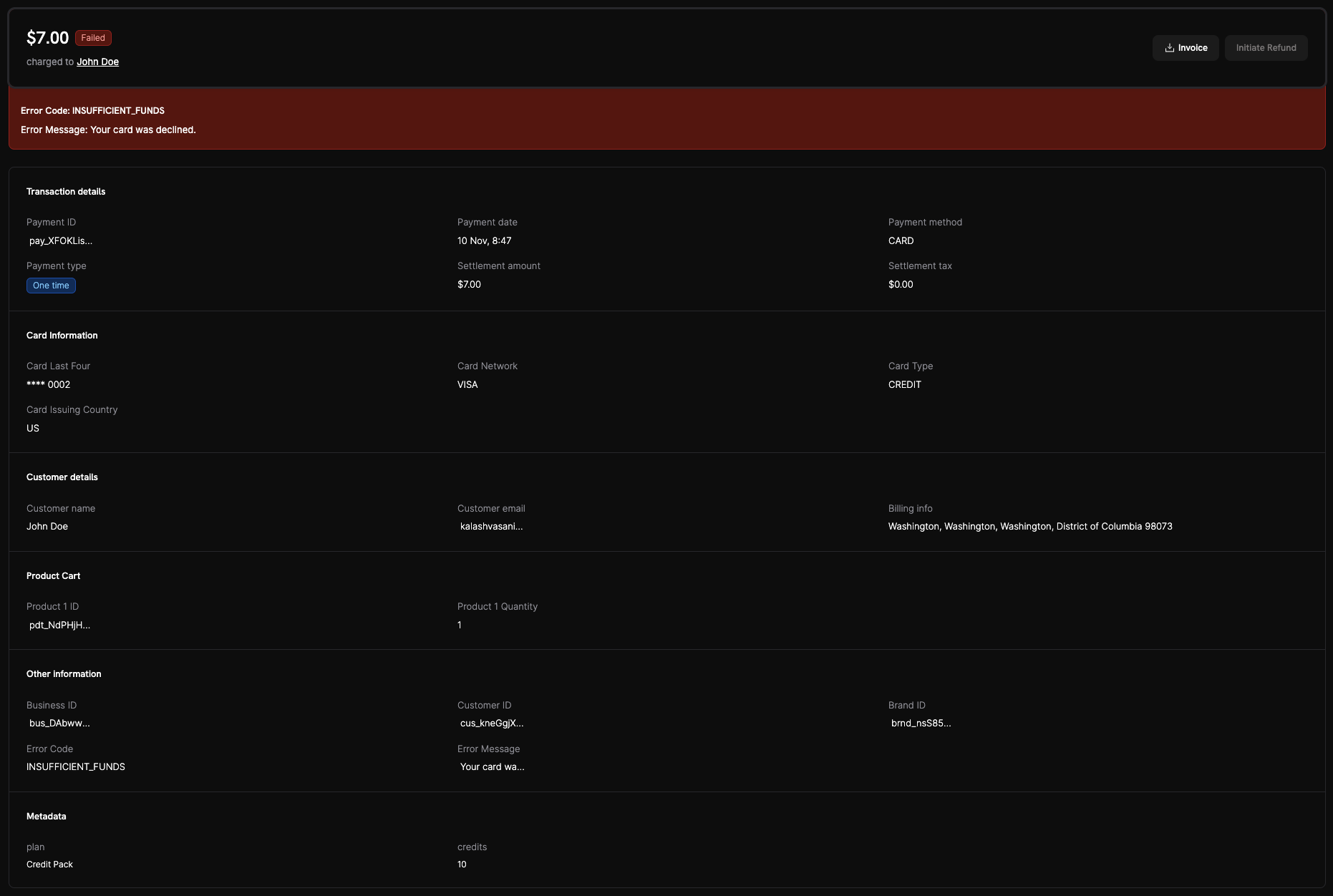
A failed payment shows:
* **Status**: **Failed**, with a red banner.
* **Error context**: The gateway **Error Code** and a readable **Error Message**, for example `INSUFFICIENT_FUNDS` with "Your card was declined."
* **Other information**: The error fields are repeated in the details section for quick reference.
* **Next steps**:
* For a failed subscription **renewal**, click **Retry Payment Manually** to charge the saved payment method again right away. See [Manual Payment Retry](/features/recovery/manual-retry) for eligibility and limits.
* Ask the customer to retry the payment with a different card or funding source.
* Ask the customer to check their card details and available funds.
* If the decline persists, ask the customer to contact their card issuer and then try again.
Look up any **Error Code** in the [Transaction Failures](/api-reference/transaction-failures) reference to see what it means and the recommended action. To handle failed payments in your code, see [Handle Payment Failures](/developer-resources/handle-payment-failures).
## **Important Information**
* **Automatic Activation**: Supported payment methods become available to your customers automatically once your account is verified and live mode is enabled. See [Payment Methods](/features/payment-methods) for the full list.
* **No Additional Configuration Required**: You don't need to set up payment methods. Dodo Payments pre-configures and manages them, and you can disable specific methods from your dashboard.
* **Additional Payment Methods**: Dodo Payments adds payment methods over time and updates the [Payment Methods](/features/payment-methods) page when it does. To request a method that isn't supported, email [support@dodopayments.com](mailto:support@dodopayments.com).
## How to Navigate and Use the Payments Page
Open the **Transactions** page and select the **Payments** tab to view all payments.
Use the filters to narrow the list:
* **Status**: In Progress, Successful, Failed, Requires Payment Method, or Requires Customer Action.
* **Currency**: The currency the customer paid in.
* **Date range**: Payments from a specific period.
Click any payment in the list to open its details page.
On the payment details page, you can review:
* **Transaction details**: Amount, currency, payment method, and timestamp
* **Customer information**: Name, email, and billing details
* **Payment status**: The current status, with each status change and its timestamp in the **Activity Log**
To download the invoice, click **Invoice** in the top-right corner of the payment details page.
To read payments from your backend, use [List Payments](/api-reference/payments/get-payments), [Get Payment Detail](/api-reference/payments/get-payments-1), and [Get Invoice](/api-reference/payments/get-invoice). To react to status changes, listen for [payment webhooks](/developer-resources/webhooks/intents/payment) such as `payment.succeeded` and `payment.failed`.
This documentation is built and hosted on [Mintlify](https://mintlify.com), a developer documentation platform.
 A successful payment shows:
* **Status**: **Successful** at the top, with the final captured amount.
* **Transaction details**: Payment ID, payment date, payment method, payment type, settlement amount, and settlement tax.
* **Card Information**: Card network, last four digits, card type, and issuing country.
* **Customer details**: Name, email, and billing info.
* **Product Cart**: Product IDs and the quantities purchased.
* **Other information and Metadata**: Business, customer, and brand IDs, plus any metadata attached to the payment.
* **Actions**: Click **Invoice** to download the invoice, or **Initiate Refund** to start a refund. Both buttons are in the top-right corner.
### Failed Payment
A successful payment shows:
* **Status**: **Successful** at the top, with the final captured amount.
* **Transaction details**: Payment ID, payment date, payment method, payment type, settlement amount, and settlement tax.
* **Card Information**: Card network, last four digits, card type, and issuing country.
* **Customer details**: Name, email, and billing info.
* **Product Cart**: Product IDs and the quantities purchased.
* **Other information and Metadata**: Business, customer, and brand IDs, plus any metadata attached to the payment.
* **Actions**: Click **Invoice** to download the invoice, or **Initiate Refund** to start a refund. Both buttons are in the top-right corner.
### Failed Payment
 A failed payment shows:
* **Status**: **Failed**, with a red banner.
* **Error context**: The gateway **Error Code** and a readable **Error Message**, for example `INSUFFICIENT_FUNDS` with "Your card was declined."
* **Other information**: The error fields are repeated in the details section for quick reference.
* **Next steps**:
* For a failed subscription **renewal**, click **Retry Payment Manually** to charge the saved payment method again right away. See [Manual Payment Retry](/features/recovery/manual-retry) for eligibility and limits.
* Ask the customer to retry the payment with a different card or funding source.
* Ask the customer to check their card details and available funds.
* If the decline persists, ask the customer to contact their card issuer and then try again.
A failed payment shows:
* **Status**: **Failed**, with a red banner.
* **Error context**: The gateway **Error Code** and a readable **Error Message**, for example `INSUFFICIENT_FUNDS` with "Your card was declined."
* **Other information**: The error fields are repeated in the details section for quick reference.
* **Next steps**:
* For a failed subscription **renewal**, click **Retry Payment Manually** to charge the saved payment method again right away. See [Manual Payment Retry](/features/recovery/manual-retry) for eligibility and limits.
* Ask the customer to retry the payment with a different card or funding source.
* Ask the customer to check their card details and available funds.
* If the decline persists, ask the customer to contact their card issuer and then try again.