> ## Documentation Index
> Fetch the complete documentation index at: https://docs.dodopayments.com/llms.txt
> Use this file to discover all available pages before exploring further.
# Discord
> Post real-time Dodo Payments notifications, such as payments, subscriptions, and disputes, to your Discord channels through a Discord webhook.
## Introduction
The Discord integration posts payment, subscription, dispute, and other Dodo Payments events to a Discord channel you choose. Your team sees each event where it already collaborates, without polling an API or checking a dashboard.
You need access to **Developer → Webhooks** in the Dodo Payments dashboard, and the **Manage Webhooks** permission in the Discord server.
## Getting Started
In Discord, open the channel that should receive notifications and click **Edit Channel**. Go to **Integrations → Webhooks → New Webhook**, name the webhook, confirm the channel, and click **Copy Webhook URL**.
In the Dodo Payments dashboard, go to **Developer → Webhooks** and click **Add endpoint**.
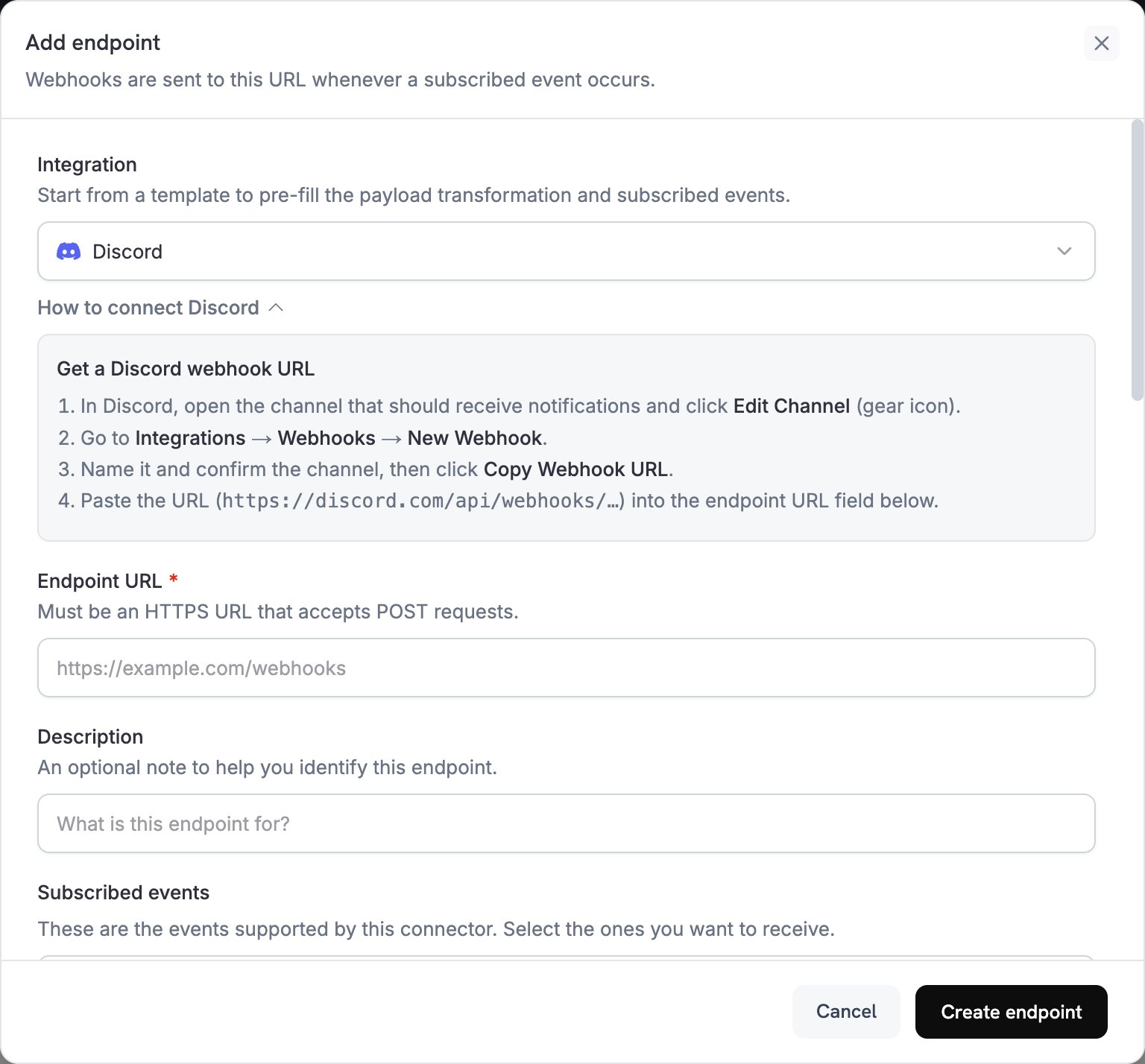 In **Integration**, select **Discord**. The **How to connect Discord** panel repeats the steps for creating the Discord webhook.
Paste the Discord webhook URL, which starts with `https://discord.com/api/webhooks/`, into **Endpoint URL**. Discord doesn't need an API key.
In **Subscribed events**, select the events your transformation handles. Discord rejects a message that has no `content` or `embeds`, so an event the transformation doesn't convert fails to deliver.
Under **Transformation code**, tailor how each event maps to a Discord embed, or start from the [examples](#transformation-code-examples).
Under **Test this code**, click **Simulate** to preview the embed for a sample payload. Then click **Create endpoint**.
Your Discord channel now receives a message for each subscribed event.
## Transformation Code Examples
Each handler replaces `webhook.payload` with a Discord message that contains one embed. Dodo Payments amounts are in the smallest currency unit, so the examples divide by 100 and show the currency code.
### Minimal Payment Embed
Post an embed when a payment succeeds (`payment.succeeded`):
```javascript payment_embed.js icon="js" expandable theme={null}
function handler(webhook) {
if (webhook.eventType === "payment.succeeded") {
const p = webhook.payload.data;
webhook.payload = {
embeds: [{
title: "✅ Payment Successful",
description: `**Amount:** ${(p.total_amount / 100).toFixed(2)} ${p.currency}\n**Customer:** ${p.customer.email}`,
color: 0x2ecc71 // green
}]
};
}
return webhook;
}
```
### Subscription Events
Post an embed when a subscription becomes active (`subscription.active`) or is cancelled (`subscription.cancelled`):
```javascript subscription_embed.js icon="js" expandable theme={null}
function handler(webhook) {
const s = webhook.payload.data;
switch (webhook.eventType) {
case "subscription.active":
webhook.payload = {
embeds: [{
title: "📄 Subscription Activated",
fields: [
{ name: "Customer", value: s.customer.email, inline: true },
{ name: "Product", value: s.product_id, inline: true },
{ name: "Next Billing", value: new Date(s.next_billing_date).toLocaleDateString(), inline: true }
],
color: 0x2ecc71
}]
};
break;
case "subscription.cancelled":
webhook.payload = {
embeds: [{
title: "⚠️ Subscription Cancelled",
fields: [
{ name: "Customer", value: s.customer.email, inline: true },
{ name: "Product", value: s.product_id, inline: true }
],
color: 0xf1c40f
}]
};
break;
}
return webhook;
}
```
### Dispute Alerts
Post an embed for every dispute event, such as `dispute.opened`, `dispute.won`, and `dispute.lost`. The title and color follow the dispute's `dispute_status`:
```javascript dispute_embed.js icon="js" expandable theme={null}
function handler(webhook) {
if (webhook.eventType.startsWith("dispute.")) {
const d = webhook.payload.data;
webhook.payload = {
embeds: [{
title: d.dispute_status === "dispute_won" ? "🏆 Dispute Won" : d.dispute_status === "dispute_lost" ? "❌ Dispute Lost" : "🚨 Dispute Update",
fields: [
{ name: "Payment ID", value: d.payment_id, inline: true },
{ name: "Amount", value: `${(d.amount / 100).toFixed(2)} ${d.currency}`, inline: true },
{ name: "Status", value: d.dispute_status, inline: true }
],
color: d.dispute_status === "dispute_won" ? 0x2ecc71 : d.dispute_status === "dispute_lost" ? 0xe74c3c : 0xe67e22
}]
};
}
return webhook;
}
```
## Tips
* Use embeds for rich formatting and colors.
* Keep titles short, and put details in fields.
* Use colors that signal the outcome: green for success, red for failure, and orange for warnings.
## Troubleshooting
* Confirm that the webhook still exists under the channel's **Integrations → Webhooks**, and that **Endpoint URL** matches its URL.
* Check that the transformation returns a JSON object with `embeds`.
* Check that **Subscribed events** includes the events you expect.
* Open the endpoint's delivery attempts in the **Logs** tab of **Developer → Webhooks** to see Discord's response code.
* Validate your code in the editor. Syntax errors block delivery.
* Check that field names match the webhook payload structure.
This documentation is built and hosted on [Mintlify](https://mintlify.com), a developer documentation platform.
In **Integration**, select **Discord**. The **How to connect Discord** panel repeats the steps for creating the Discord webhook.
Paste the Discord webhook URL, which starts with `https://discord.com/api/webhooks/`, into **Endpoint URL**. Discord doesn't need an API key.
In **Subscribed events**, select the events your transformation handles. Discord rejects a message that has no `content` or `embeds`, so an event the transformation doesn't convert fails to deliver.
Under **Transformation code**, tailor how each event maps to a Discord embed, or start from the [examples](#transformation-code-examples).
Under **Test this code**, click **Simulate** to preview the embed for a sample payload. Then click **Create endpoint**.
Your Discord channel now receives a message for each subscribed event.
## Transformation Code Examples
Each handler replaces `webhook.payload` with a Discord message that contains one embed. Dodo Payments amounts are in the smallest currency unit, so the examples divide by 100 and show the currency code.
### Minimal Payment Embed
Post an embed when a payment succeeds (`payment.succeeded`):
```javascript payment_embed.js icon="js" expandable theme={null}
function handler(webhook) {
if (webhook.eventType === "payment.succeeded") {
const p = webhook.payload.data;
webhook.payload = {
embeds: [{
title: "✅ Payment Successful",
description: `**Amount:** ${(p.total_amount / 100).toFixed(2)} ${p.currency}\n**Customer:** ${p.customer.email}`,
color: 0x2ecc71 // green
}]
};
}
return webhook;
}
```
### Subscription Events
Post an embed when a subscription becomes active (`subscription.active`) or is cancelled (`subscription.cancelled`):
```javascript subscription_embed.js icon="js" expandable theme={null}
function handler(webhook) {
const s = webhook.payload.data;
switch (webhook.eventType) {
case "subscription.active":
webhook.payload = {
embeds: [{
title: "📄 Subscription Activated",
fields: [
{ name: "Customer", value: s.customer.email, inline: true },
{ name: "Product", value: s.product_id, inline: true },
{ name: "Next Billing", value: new Date(s.next_billing_date).toLocaleDateString(), inline: true }
],
color: 0x2ecc71
}]
};
break;
case "subscription.cancelled":
webhook.payload = {
embeds: [{
title: "⚠️ Subscription Cancelled",
fields: [
{ name: "Customer", value: s.customer.email, inline: true },
{ name: "Product", value: s.product_id, inline: true }
],
color: 0xf1c40f
}]
};
break;
}
return webhook;
}
```
### Dispute Alerts
Post an embed for every dispute event, such as `dispute.opened`, `dispute.won`, and `dispute.lost`. The title and color follow the dispute's `dispute_status`:
```javascript dispute_embed.js icon="js" expandable theme={null}
function handler(webhook) {
if (webhook.eventType.startsWith("dispute.")) {
const d = webhook.payload.data;
webhook.payload = {
embeds: [{
title: d.dispute_status === "dispute_won" ? "🏆 Dispute Won" : d.dispute_status === "dispute_lost" ? "❌ Dispute Lost" : "🚨 Dispute Update",
fields: [
{ name: "Payment ID", value: d.payment_id, inline: true },
{ name: "Amount", value: `${(d.amount / 100).toFixed(2)} ${d.currency}`, inline: true },
{ name: "Status", value: d.dispute_status, inline: true }
],
color: d.dispute_status === "dispute_won" ? 0x2ecc71 : d.dispute_status === "dispute_lost" ? 0xe74c3c : 0xe67e22
}]
};
}
return webhook;
}
```
## Tips
* Use embeds for rich formatting and colors.
* Keep titles short, and put details in fields.
* Use colors that signal the outcome: green for success, red for failure, and orange for warnings.
## Troubleshooting
* Confirm that the webhook still exists under the channel's **Integrations → Webhooks**, and that **Endpoint URL** matches its URL.
* Check that the transformation returns a JSON object with `embeds`.
* Check that **Subscribed events** includes the events you expect.
* Open the endpoint's delivery attempts in the **Logs** tab of **Developer → Webhooks** to see Discord's response code.
* Validate your code in the editor. Syntax errors block delivery.
* Check that field names match the webhook payload structure.
This documentation is built and hosted on [Mintlify](https://mintlify.com), a developer documentation platform.