> ## Documentation Index
> Fetch the complete documentation index at: https://docs.dodopayments.com/llms.txt
> Use this file to discover all available pages before exploring further.
# Inngest
> Trigger Inngest serverless functions and background jobs from Dodo Payments payment, subscription, and dispute events.
## Introduction
Run Inngest functions and background jobs when payment events occur. Dodo Payments sends each event to Inngest, where your functions can send notifications, update databases, and run multi-step workflows with Inngest's retries and error handling.
You need an Inngest webhook URL. You create it in the Inngest dashboard under **Manage → Webhooks**.
## Getting Started
In the Dodo Payments dashboard, go to **Developer → Webhooks** and click **Add endpoint**.
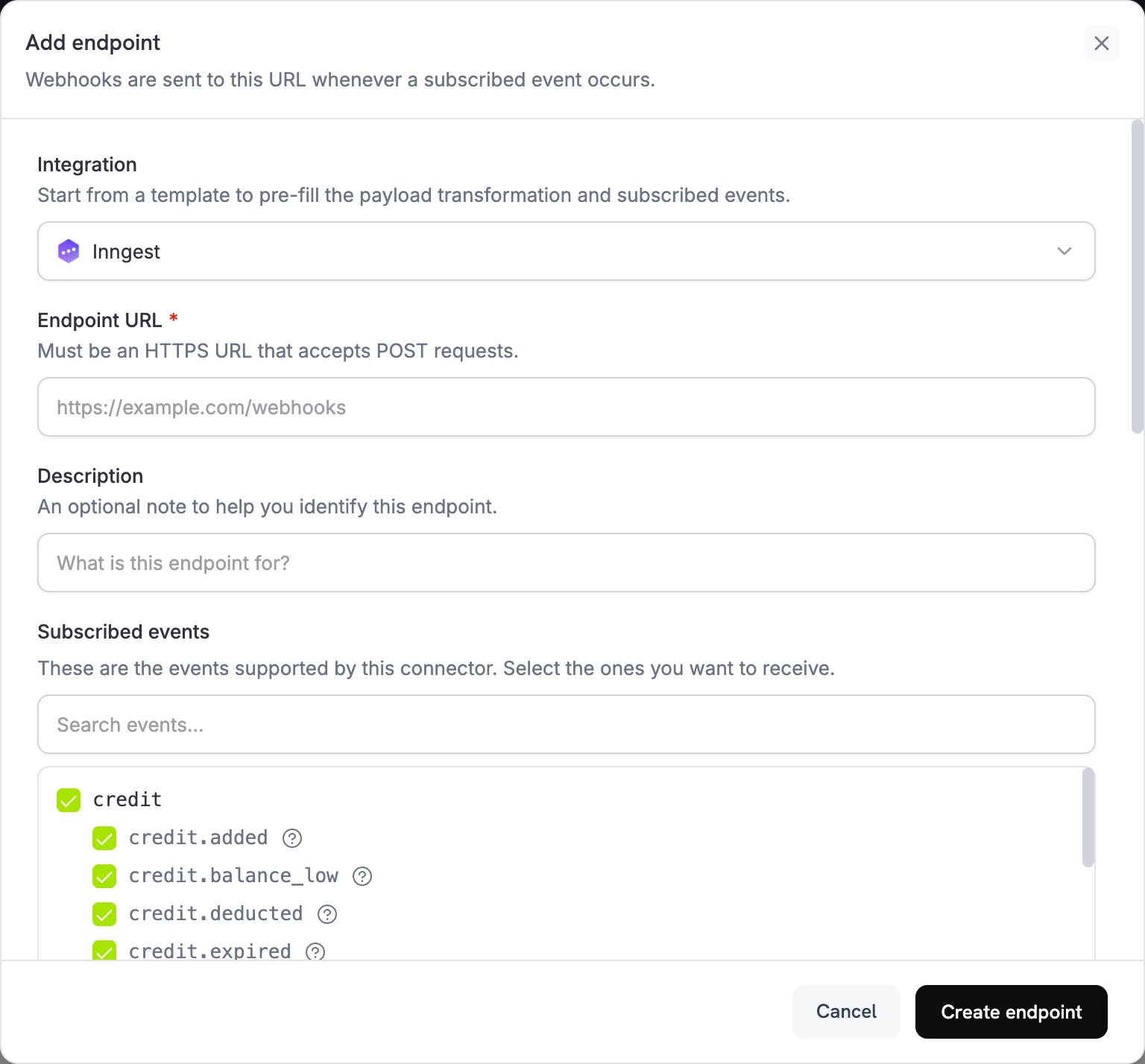 In **Integration**, select **Inngest**. Under **Subscribed events**, select the events that should trigger your functions.
In the Inngest dashboard, open the **Manage** tab and select **Webhooks**. Create a webhook and copy its URL. Inngest runs the webhook's transform function on each request, so check that it keeps the `name` and `data` fields your functions expect.
Paste the Inngest webhook URL into **Endpoint URL**.
In **Transformation code**, edit the code to format events for your Inngest functions. See the [examples below](#transformation-code-examples).
Under **Test this code**, select an event type and click **Simulate** to run the transformation against a sample payload. Then click **Create endpoint** to activate the integration.
Dodo Payments events now trigger your Inngest functions.
## Transformation Code Examples
Each example rewrites `webhook.payload` into an Inngest event. `name` is the event your function triggers on, `data` holds the event details, `user` holds the customer, and `ts` is the event time in milliseconds, which Inngest's event format requires.
### Basic Event Payload
```javascript basic_event.js icon="js" expandable theme={null}
function handler(webhook) {
if (webhook.eventType === "payment.succeeded") {
const p = webhook.payload.data;
webhook.payload = {
name: "payment.succeeded",
data: {
payment_id: p.payment_id,
amount: (p.total_amount / 100).toFixed(2),
currency: p.currency || "USD",
customer_email: p.customer.email,
customer_name: p.customer.name,
payment_method: p.payment_method || "unknown"
},
user: {
email: p.customer.email
},
ts: new Date(webhook.payload.timestamp).getTime()
};
}
return webhook;
}
```
### Subscription Event Handler
```javascript subscription_event.js icon="js" expandable theme={null}
function handler(webhook) {
const s = webhook.payload.data;
switch (webhook.eventType) {
case "subscription.active":
webhook.payload = {
name: "subscription.started",
data: {
subscription_id: s.subscription_id,
customer_email: s.customer.email,
customer_name: s.customer.name,
product_id: s.product_id,
amount: (s.recurring_pre_tax_amount / 100).toFixed(2),
frequency: s.payment_frequency_interval,
next_billing: s.next_billing_date
},
user: {
email: s.customer.email
},
ts: new Date(webhook.payload.timestamp).getTime()
};
break;
case "subscription.cancelled":
webhook.payload = {
name: "subscription.cancelled",
data: {
subscription_id: s.subscription_id,
customer_email: s.customer.email,
cancelled_at: s.cancelled_at,
cancel_at_next_billing: s.cancel_at_next_billing_date
},
user: {
email: s.customer.email
},
ts: new Date(webhook.payload.timestamp).getTime()
};
break;
}
return webhook;
}
```
### Dispute Event Handler
This handler forwards every `dispute.*` event and marks `dispute.opened` as urgent. Dispute payloads don't include customer details, so it sends no `user` object.
```javascript dispute_event.js icon="js" expandable theme={null}
function handler(webhook) {
if (webhook.eventType.startsWith("dispute.")) {
const d = webhook.payload.data;
webhook.payload = {
name: webhook.eventType,
data: {
dispute_id: d.dispute_id,
payment_id: d.payment_id,
amount: (d.amount / 100).toFixed(2),
status: d.dispute_status,
stage: d.dispute_stage,
remarks: d.remarks || "",
urgent: webhook.eventType === "dispute.opened"
},
ts: new Date(webhook.payload.timestamp).getTime()
};
}
return webhook;
}
```
## Common Inngest Use Cases
* Send confirmation emails
* Update customer records
* Process refunds
* Generate invoices
* Update inventory
* Welcome new subscribers
* Process cancellations
* Send renewal reminders
* Update billing cycles
* Handle failed payments
* Update revenue metrics
* Track customer behavior
* Generate reports
* Sync data to analytics platforms
* Calculate churn rates
## Tips
* Use descriptive event names. Inngest recommends prefixing them with the source, such as `dodo/payment.succeeded`.
* Put customer details in `user`, which Inngest encrypts at rest.
* Set `ts` from the webhook's `timestamp`, in milliseconds, so events keep their original order and time.
* Use the same data structure across events.
* Use Inngest's retry and error handling features.
## Troubleshooting
* Check that the endpoint URL matches your Inngest webhook URL and that the webhook is active.
* Check that your Inngest function is deployed and active.
* Check that the event names match your function triggers.
* Review the Inngest function logs for errors.
* Check that the payload structure matches the Inngest event format.
* Check that the event names are formatted correctly.
* Check that the Inngest webhook's transform function keeps the fields that the Dodo Payments transformation sets.
* Check that all required fields are included.
* Test with Inngest's webhook testing tool.
This documentation is built and hosted on [Mintlify](https://mintlify.com), a developer documentation platform.
In **Integration**, select **Inngest**. Under **Subscribed events**, select the events that should trigger your functions.
In the Inngest dashboard, open the **Manage** tab and select **Webhooks**. Create a webhook and copy its URL. Inngest runs the webhook's transform function on each request, so check that it keeps the `name` and `data` fields your functions expect.
Paste the Inngest webhook URL into **Endpoint URL**.
In **Transformation code**, edit the code to format events for your Inngest functions. See the [examples below](#transformation-code-examples).
Under **Test this code**, select an event type and click **Simulate** to run the transformation against a sample payload. Then click **Create endpoint** to activate the integration.
Dodo Payments events now trigger your Inngest functions.
## Transformation Code Examples
Each example rewrites `webhook.payload` into an Inngest event. `name` is the event your function triggers on, `data` holds the event details, `user` holds the customer, and `ts` is the event time in milliseconds, which Inngest's event format requires.
### Basic Event Payload
```javascript basic_event.js icon="js" expandable theme={null}
function handler(webhook) {
if (webhook.eventType === "payment.succeeded") {
const p = webhook.payload.data;
webhook.payload = {
name: "payment.succeeded",
data: {
payment_id: p.payment_id,
amount: (p.total_amount / 100).toFixed(2),
currency: p.currency || "USD",
customer_email: p.customer.email,
customer_name: p.customer.name,
payment_method: p.payment_method || "unknown"
},
user: {
email: p.customer.email
},
ts: new Date(webhook.payload.timestamp).getTime()
};
}
return webhook;
}
```
### Subscription Event Handler
```javascript subscription_event.js icon="js" expandable theme={null}
function handler(webhook) {
const s = webhook.payload.data;
switch (webhook.eventType) {
case "subscription.active":
webhook.payload = {
name: "subscription.started",
data: {
subscription_id: s.subscription_id,
customer_email: s.customer.email,
customer_name: s.customer.name,
product_id: s.product_id,
amount: (s.recurring_pre_tax_amount / 100).toFixed(2),
frequency: s.payment_frequency_interval,
next_billing: s.next_billing_date
},
user: {
email: s.customer.email
},
ts: new Date(webhook.payload.timestamp).getTime()
};
break;
case "subscription.cancelled":
webhook.payload = {
name: "subscription.cancelled",
data: {
subscription_id: s.subscription_id,
customer_email: s.customer.email,
cancelled_at: s.cancelled_at,
cancel_at_next_billing: s.cancel_at_next_billing_date
},
user: {
email: s.customer.email
},
ts: new Date(webhook.payload.timestamp).getTime()
};
break;
}
return webhook;
}
```
### Dispute Event Handler
This handler forwards every `dispute.*` event and marks `dispute.opened` as urgent. Dispute payloads don't include customer details, so it sends no `user` object.
```javascript dispute_event.js icon="js" expandable theme={null}
function handler(webhook) {
if (webhook.eventType.startsWith("dispute.")) {
const d = webhook.payload.data;
webhook.payload = {
name: webhook.eventType,
data: {
dispute_id: d.dispute_id,
payment_id: d.payment_id,
amount: (d.amount / 100).toFixed(2),
status: d.dispute_status,
stage: d.dispute_stage,
remarks: d.remarks || "",
urgent: webhook.eventType === "dispute.opened"
},
ts: new Date(webhook.payload.timestamp).getTime()
};
}
return webhook;
}
```
## Common Inngest Use Cases
* Send confirmation emails
* Update customer records
* Process refunds
* Generate invoices
* Update inventory
* Welcome new subscribers
* Process cancellations
* Send renewal reminders
* Update billing cycles
* Handle failed payments
* Update revenue metrics
* Track customer behavior
* Generate reports
* Sync data to analytics platforms
* Calculate churn rates
## Tips
* Use descriptive event names. Inngest recommends prefixing them with the source, such as `dodo/payment.succeeded`.
* Put customer details in `user`, which Inngest encrypts at rest.
* Set `ts` from the webhook's `timestamp`, in milliseconds, so events keep their original order and time.
* Use the same data structure across events.
* Use Inngest's retry and error handling features.
## Troubleshooting
* Check that the endpoint URL matches your Inngest webhook URL and that the webhook is active.
* Check that your Inngest function is deployed and active.
* Check that the event names match your function triggers.
* Review the Inngest function logs for errors.
* Check that the payload structure matches the Inngest event format.
* Check that the event names are formatted correctly.
* Check that the Inngest webhook's transform function keeps the fields that the Dodo Payments transformation sets.
* Check that all required fields are included.
* Test with Inngest's webhook testing tool.
This documentation is built and hosted on [Mintlify](https://mintlify.com), a developer documentation platform.