> ## Documentation Index
> Fetch the complete documentation index at: https://docs.dodopayments.com/llms.txt
> Use this file to discover all available pages before exploring further.
# Loops
> Send Dodo Payments events to Loops to trigger payment confirmations, subscription welcome emails, and failed payment notices from your Loops workflows.
## Introduction
The Loops integration turns Dodo Payments events into Loops events, so payment confirmations, subscription updates, and failed payment notices go out as Loops emails. A transformation maps each payment event to a Loops event, and that event triggers the matching workflow in Loops.
You need a Loops API key. In Loops, go to **Settings → API** and generate a key.
## Getting Started
In the Dodo Payments dashboard, go to **Developer → Webhooks** and click **Add endpoint**.
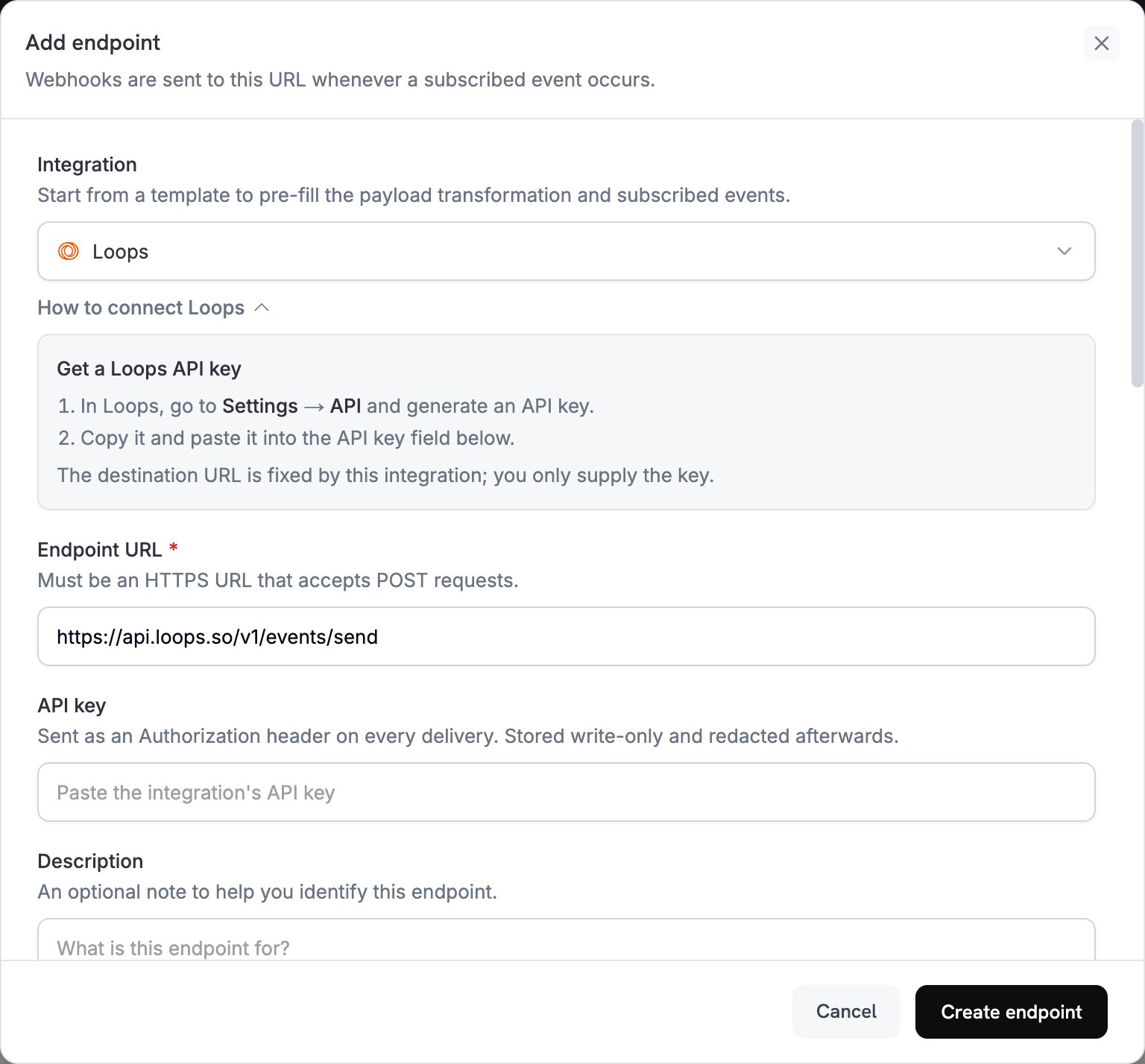 In the **Integration** list, select **Loops**.
Paste your Loops API key into the **API key** field. Dodo Payments sends it as an `Authorization` header on every delivery. The integration sets the destination URL, so the key is the only value you supply.
Edit the code under **Transformation code** so each event becomes a Loops event. Start from the examples below. Under **Subscribed events**, select the events your code handles.
Under **Test this code**, run the transformation against a sample payload, then click **Create endpoint**.
Payment events now trigger emails through Loops.
## Transformation Code Examples
Each example rewrites one event type into the body of the Loops [Send an Event](https://loops.so/docs/api-reference/send-event) API: an `eventName`, the contact's `email`, and `eventProperties` that your Loops emails can use.
### Payment Confirmation Email
This example sends a `payment_confirmation` event when a payment succeeds.
```javascript payment_confirmation.js icon="js" expandable theme={null}
function handler(webhook) {
if (webhook.eventType === "payment.succeeded") {
const p = webhook.payload.data;
webhook.url = "https://app.loops.so/api/v1/events/send";
webhook.payload = {
eventName: "payment_confirmation",
email: p.customer.email,
eventProperties: {
customer_name: p.customer.name,
payment_id: p.payment_id,
amount: (p.total_amount / 100).toFixed(2),
currency: p.currency || "USD",
payment_method: p.payment_method || "unknown",
payment_date: new Date(webhook.payload.timestamp).toLocaleDateString()
}
};
}
return webhook;
}
```
### Subscription Welcome Email
This example sends a `subscription_welcome` event when a subscription becomes active.
```javascript subscription_welcome.js icon="js" expandable theme={null}
function handler(webhook) {
if (webhook.eventType === "subscription.active") {
const s = webhook.payload.data;
webhook.url = "https://app.loops.so/api/v1/events/send";
webhook.payload = {
eventName: "subscription_welcome",
email: s.customer.email,
eventProperties: {
customer_name: s.customer.name,
subscription_id: s.subscription_id,
product_id: s.product_id,
amount: (s.recurring_pre_tax_amount / 100).toFixed(2),
frequency: s.payment_frequency_interval,
next_billing: s.next_billing_date
}
};
}
return webhook;
}
```
### Payment Failure Notification
This example sends a `payment_failed` event with the error message and a retry link. Replace `yourdomain.com` with your own domain.
```javascript payment_failure.js icon="js" expandable theme={null}
function handler(webhook) {
if (webhook.eventType === "payment.failed") {
const p = webhook.payload.data;
webhook.url = "https://app.loops.so/api/v1/events/send";
webhook.payload = {
eventName: "payment_failed",
email: p.customer.email,
eventProperties: {
customer_name: p.customer.name,
payment_id: p.payment_id,
amount: (p.total_amount / 100).toFixed(2),
error_message: p.error_message || "Payment processing failed",
retry_link: `https://yourdomain.com/retry-payment/${p.payment_id}`
}
};
}
return webhook;
}
```
## Tips
* Give each event a descriptive name, such as `payment_confirmation`, so your Loops emails stay organized.
* Include the customer properties your emails use for personalization.
* In Loops, set up a workflow and email for each event name you send.
* Use the same property names across events.
* Test email delivery before you go live.
## Troubleshooting
* Check that the API key is correct and active.
* Check that each event name matches the event that triggers your Loops workflow.
* Check that recipient email addresses are valid.
* Review your Loops sending limits and quotas.
* Check that the payload matches the Loops API format: an `eventName`, plus an `email` or `userId`.
* Check that all required fields are present.
* Check that event names are formatted correctly.
* Give each event property a string, number, boolean, or date value.
* Check the API key's permissions.
This documentation is built and hosted on [Mintlify](https://mintlify.com), a developer documentation platform.
In the **Integration** list, select **Loops**.
Paste your Loops API key into the **API key** field. Dodo Payments sends it as an `Authorization` header on every delivery. The integration sets the destination URL, so the key is the only value you supply.
Edit the code under **Transformation code** so each event becomes a Loops event. Start from the examples below. Under **Subscribed events**, select the events your code handles.
Under **Test this code**, run the transformation against a sample payload, then click **Create endpoint**.
Payment events now trigger emails through Loops.
## Transformation Code Examples
Each example rewrites one event type into the body of the Loops [Send an Event](https://loops.so/docs/api-reference/send-event) API: an `eventName`, the contact's `email`, and `eventProperties` that your Loops emails can use.
### Payment Confirmation Email
This example sends a `payment_confirmation` event when a payment succeeds.
```javascript payment_confirmation.js icon="js" expandable theme={null}
function handler(webhook) {
if (webhook.eventType === "payment.succeeded") {
const p = webhook.payload.data;
webhook.url = "https://app.loops.so/api/v1/events/send";
webhook.payload = {
eventName: "payment_confirmation",
email: p.customer.email,
eventProperties: {
customer_name: p.customer.name,
payment_id: p.payment_id,
amount: (p.total_amount / 100).toFixed(2),
currency: p.currency || "USD",
payment_method: p.payment_method || "unknown",
payment_date: new Date(webhook.payload.timestamp).toLocaleDateString()
}
};
}
return webhook;
}
```
### Subscription Welcome Email
This example sends a `subscription_welcome` event when a subscription becomes active.
```javascript subscription_welcome.js icon="js" expandable theme={null}
function handler(webhook) {
if (webhook.eventType === "subscription.active") {
const s = webhook.payload.data;
webhook.url = "https://app.loops.so/api/v1/events/send";
webhook.payload = {
eventName: "subscription_welcome",
email: s.customer.email,
eventProperties: {
customer_name: s.customer.name,
subscription_id: s.subscription_id,
product_id: s.product_id,
amount: (s.recurring_pre_tax_amount / 100).toFixed(2),
frequency: s.payment_frequency_interval,
next_billing: s.next_billing_date
}
};
}
return webhook;
}
```
### Payment Failure Notification
This example sends a `payment_failed` event with the error message and a retry link. Replace `yourdomain.com` with your own domain.
```javascript payment_failure.js icon="js" expandable theme={null}
function handler(webhook) {
if (webhook.eventType === "payment.failed") {
const p = webhook.payload.data;
webhook.url = "https://app.loops.so/api/v1/events/send";
webhook.payload = {
eventName: "payment_failed",
email: p.customer.email,
eventProperties: {
customer_name: p.customer.name,
payment_id: p.payment_id,
amount: (p.total_amount / 100).toFixed(2),
error_message: p.error_message || "Payment processing failed",
retry_link: `https://yourdomain.com/retry-payment/${p.payment_id}`
}
};
}
return webhook;
}
```
## Tips
* Give each event a descriptive name, such as `payment_confirmation`, so your Loops emails stay organized.
* Include the customer properties your emails use for personalization.
* In Loops, set up a workflow and email for each event name you send.
* Use the same property names across events.
* Test email delivery before you go live.
## Troubleshooting
* Check that the API key is correct and active.
* Check that each event name matches the event that triggers your Loops workflow.
* Check that recipient email addresses are valid.
* Review your Loops sending limits and quotas.
* Check that the payload matches the Loops API format: an `eventName`, plus an `email` or `userId`.
* Check that all required fields are present.
* Check that event names are formatted correctly.
* Give each event property a string, number, boolean, or date value.
* Check the API key's permissions.
This documentation is built and hosted on [Mintlify](https://mintlify.com), a developer documentation platform.