> ## Documentation Index
> Fetch the complete documentation index at: https://docs.dodopayments.com/llms.txt
> Use this file to discover all available pages before exploring further.
# Microsoft Teams
> Post Dodo Payments events to a Microsoft Teams channel as Adaptive Cards, so your team sees payments, subscription changes, and disputes.
## Introduction
The Microsoft Teams integration posts Dodo Payments events to a Teams channel as Adaptive Cards, so your team sees payments, subscription changes, and disputes as they happen. Use it when Teams is where your business team works.
This guide assumes you have admin access to create webhooks in your Microsoft Teams workspace.
## Getting Started
In the Dodo Payments dashboard, go to **Developer → Webhooks** and click **Add endpoint**.
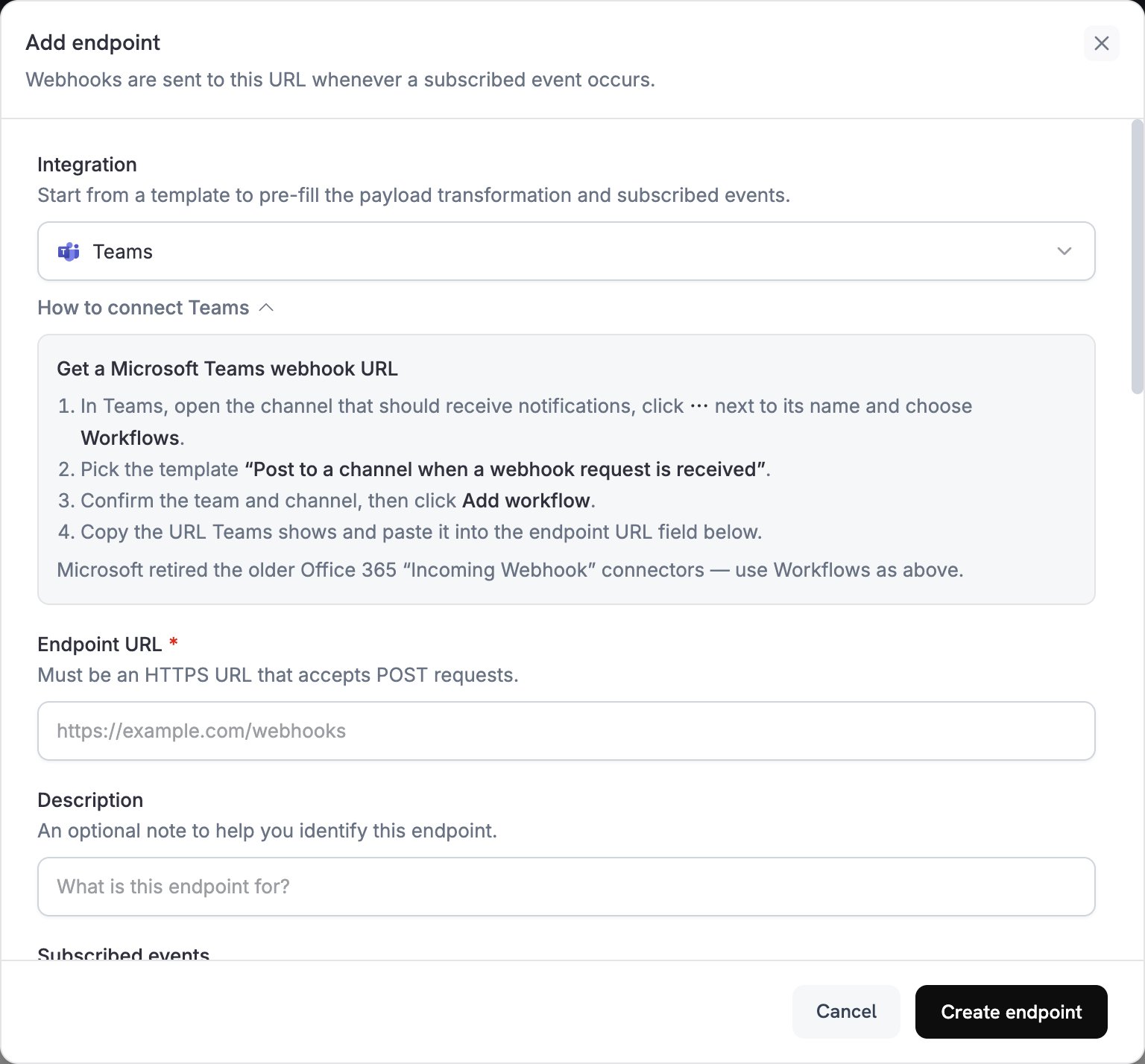 In the **Integration** list, select **Teams**.
Microsoft retired the Office 365 **Incoming Webhook** connectors in Teams, so create the webhook with the Workflows app:
1. In Teams, open the channel that should receive notifications.
2. Click **⋯** next to the channel name and choose **Workflows**.
3. Pick the template **Post to a channel when a webhook request is received**.
4. Confirm the team and channel, then click **Add workflow**.
5. Copy the webhook URL that Teams shows.
Paste the Teams webhook URL into the **Endpoint URL** field.
Edit the code under **Transformation code** to format each event as an Adaptive Card. Start from the examples below.
Under **Test this code**, run the transformation against a sample payload, then click **Create endpoint**.
Your Teams channel now receives Dodo Payments events as Adaptive Cards.
## Transformation Code Examples
Each example replaces the event payload with a Teams message that carries one Adaptive Card attachment.
### Basic Payment Card
This example posts the amount, customer email, and payment ID when a payment succeeds.
```javascript payment_card.js icon="js" expandable theme={null}
function handler(webhook) {
if (webhook.eventType === "payment.succeeded") {
const p = webhook.payload.data;
webhook.payload = {
type: "message",
attachments: [{
contentType: "application/vnd.microsoft.card.adaptive",
content: {
type: "AdaptiveCard",
body: [
{
type: "TextBlock",
text: "✅ Payment Successful",
weight: "Bolder",
size: "Medium"
},
{
type: "FactSet",
facts: [
{ title: "Amount", value: `$${(p.total_amount / 100).toFixed(2)}` },
{ title: "Customer", value: p.customer.email },
{ title: "Payment ID", value: p.payment_id }
]
}
]
}
}]
};
}
return webhook;
}
```
### Subscription Management
This example posts one card when a subscription becomes active and another when it's cancelled.
```javascript subscription_card.js icon="js" expandable theme={null}
function handler(webhook) {
const s = webhook.payload.data;
switch (webhook.eventType) {
case "subscription.active":
webhook.payload = {
type: "message",
attachments: [{
contentType: "application/vnd.microsoft.card.adaptive",
content: {
type: "AdaptiveCard",
body: [
{
type: "TextBlock",
text: "📄 Subscription Activated",
weight: "Bolder",
color: "Good"
},
{
type: "FactSet",
facts: [
{ title: "Customer", value: s.customer.email },
{ title: "Product", value: s.product_id },
{ title: "Amount", value: `$${(s.recurring_pre_tax_amount / 100).toFixed(2)}/${s.payment_frequency_interval}` },
{ title: "Next Billing", value: new Date(s.next_billing_date).toLocaleDateString() }
]
}
]
}
}]
};
break;
case "subscription.cancelled":
webhook.payload = {
type: "message",
attachments: [{
contentType: "application/vnd.microsoft.card.adaptive",
content: {
type: "AdaptiveCard",
body: [
{
type: "TextBlock",
text: "⚠️ Subscription Cancelled",
weight: "Bolder",
color: "Warning"
},
{
type: "FactSet",
facts: [
{ title: "Customer", value: s.customer.email },
{ title: "Product", value: s.product_id },
{ title: "Cancelled At", value: new Date(s.cancelled_at).toLocaleDateString() }
]
}
]
}
}]
};
break;
}
return webhook;
}
```
### Dispute Alerts
This example posts a card for every `dispute.*` event. The title and color change when a dispute is won or lost.
```javascript dispute_card.js icon="js" expandable theme={null}
function handler(webhook) {
if (webhook.eventType.startsWith("dispute.")) {
const d = webhook.payload.data;
const color = d.dispute_status === "dispute_won" ? "Good" : d.dispute_status === "dispute_lost" ? "Attention" : "Warning";
const title = d.dispute_status === "dispute_won" ? "🏆 Dispute Won" : d.dispute_status === "dispute_lost" ? "❌ Dispute Lost" : "🚨 Dispute Update";
webhook.payload = {
type: "message",
attachments: [{
contentType: "application/vnd.microsoft.card.adaptive",
content: {
type: "AdaptiveCard",
body: [
{
type: "TextBlock",
text: title,
weight: "Bolder",
color: color
},
{
type: "FactSet",
facts: [
{ title: "Payment ID", value: d.payment_id },
{ title: "Amount", value: `$${(d.amount / 100).toFixed(2)}` },
{ title: "Status", value: d.dispute_status },
{ title: "Stage", value: d.dispute_stage }
]
}
]
}
}]
};
}
return webhook;
}
```
## Tips
* Use Adaptive Cards for rich, interactive formatting.
* Pick colors by meaning: `Good` (green), `Warning` (yellow), and `Attention` (red).
* Keep fact sets short and readable.
* Before you rely on the endpoint, open its **Testing** tab and click **Send example** to post a sample card to your channel.
## Troubleshooting
* Check that the webhook URL is correct and that the workflow is turned on.
* Check that the transformation returns valid Adaptive Card JSON.
* Check that the workflow has permission to post in the channel.
* Run the transformation under **Test this code** and check the result against the Adaptive Card schema.
* Check that all required fields are present.
* Check that color values are valid, such as `Default`, `Good`, `Warning`, or `Attention`.
This documentation is built and hosted on [Mintlify](https://mintlify.com), a developer documentation platform.
In the **Integration** list, select **Teams**.
Microsoft retired the Office 365 **Incoming Webhook** connectors in Teams, so create the webhook with the Workflows app:
1. In Teams, open the channel that should receive notifications.
2. Click **⋯** next to the channel name and choose **Workflows**.
3. Pick the template **Post to a channel when a webhook request is received**.
4. Confirm the team and channel, then click **Add workflow**.
5. Copy the webhook URL that Teams shows.
Paste the Teams webhook URL into the **Endpoint URL** field.
Edit the code under **Transformation code** to format each event as an Adaptive Card. Start from the examples below.
Under **Test this code**, run the transformation against a sample payload, then click **Create endpoint**.
Your Teams channel now receives Dodo Payments events as Adaptive Cards.
## Transformation Code Examples
Each example replaces the event payload with a Teams message that carries one Adaptive Card attachment.
### Basic Payment Card
This example posts the amount, customer email, and payment ID when a payment succeeds.
```javascript payment_card.js icon="js" expandable theme={null}
function handler(webhook) {
if (webhook.eventType === "payment.succeeded") {
const p = webhook.payload.data;
webhook.payload = {
type: "message",
attachments: [{
contentType: "application/vnd.microsoft.card.adaptive",
content: {
type: "AdaptiveCard",
body: [
{
type: "TextBlock",
text: "✅ Payment Successful",
weight: "Bolder",
size: "Medium"
},
{
type: "FactSet",
facts: [
{ title: "Amount", value: `$${(p.total_amount / 100).toFixed(2)}` },
{ title: "Customer", value: p.customer.email },
{ title: "Payment ID", value: p.payment_id }
]
}
]
}
}]
};
}
return webhook;
}
```
### Subscription Management
This example posts one card when a subscription becomes active and another when it's cancelled.
```javascript subscription_card.js icon="js" expandable theme={null}
function handler(webhook) {
const s = webhook.payload.data;
switch (webhook.eventType) {
case "subscription.active":
webhook.payload = {
type: "message",
attachments: [{
contentType: "application/vnd.microsoft.card.adaptive",
content: {
type: "AdaptiveCard",
body: [
{
type: "TextBlock",
text: "📄 Subscription Activated",
weight: "Bolder",
color: "Good"
},
{
type: "FactSet",
facts: [
{ title: "Customer", value: s.customer.email },
{ title: "Product", value: s.product_id },
{ title: "Amount", value: `$${(s.recurring_pre_tax_amount / 100).toFixed(2)}/${s.payment_frequency_interval}` },
{ title: "Next Billing", value: new Date(s.next_billing_date).toLocaleDateString() }
]
}
]
}
}]
};
break;
case "subscription.cancelled":
webhook.payload = {
type: "message",
attachments: [{
contentType: "application/vnd.microsoft.card.adaptive",
content: {
type: "AdaptiveCard",
body: [
{
type: "TextBlock",
text: "⚠️ Subscription Cancelled",
weight: "Bolder",
color: "Warning"
},
{
type: "FactSet",
facts: [
{ title: "Customer", value: s.customer.email },
{ title: "Product", value: s.product_id },
{ title: "Cancelled At", value: new Date(s.cancelled_at).toLocaleDateString() }
]
}
]
}
}]
};
break;
}
return webhook;
}
```
### Dispute Alerts
This example posts a card for every `dispute.*` event. The title and color change when a dispute is won or lost.
```javascript dispute_card.js icon="js" expandable theme={null}
function handler(webhook) {
if (webhook.eventType.startsWith("dispute.")) {
const d = webhook.payload.data;
const color = d.dispute_status === "dispute_won" ? "Good" : d.dispute_status === "dispute_lost" ? "Attention" : "Warning";
const title = d.dispute_status === "dispute_won" ? "🏆 Dispute Won" : d.dispute_status === "dispute_lost" ? "❌ Dispute Lost" : "🚨 Dispute Update";
webhook.payload = {
type: "message",
attachments: [{
contentType: "application/vnd.microsoft.card.adaptive",
content: {
type: "AdaptiveCard",
body: [
{
type: "TextBlock",
text: title,
weight: "Bolder",
color: color
},
{
type: "FactSet",
facts: [
{ title: "Payment ID", value: d.payment_id },
{ title: "Amount", value: `$${(d.amount / 100).toFixed(2)}` },
{ title: "Status", value: d.dispute_status },
{ title: "Stage", value: d.dispute_stage }
]
}
]
}
}]
};
}
return webhook;
}
```
## Tips
* Use Adaptive Cards for rich, interactive formatting.
* Pick colors by meaning: `Good` (green), `Warning` (yellow), and `Attention` (red).
* Keep fact sets short and readable.
* Before you rely on the endpoint, open its **Testing** tab and click **Send example** to post a sample card to your channel.
## Troubleshooting
* Check that the webhook URL is correct and that the workflow is turned on.
* Check that the transformation returns valid Adaptive Card JSON.
* Check that the workflow has permission to post in the channel.
* Run the transformation under **Test this code** and check the result against the Adaptive Card schema.
* Check that all required fields are present.
* Check that color values are valid, such as `Default`, `Good`, `Warning`, or `Attention`.
This documentation is built and hosted on [Mintlify](https://mintlify.com), a developer documentation platform.