> ## Documentation Index
> Fetch the complete documentation index at: https://docs.dodopayments.com/llms.txt
> Use this file to discover all available pages before exploring further.
# Raycast Extension
> Install the Dodo Payments Raycast extension to browse payments, subscriptions, customers, products, and refunds from your keyboard on macOS.
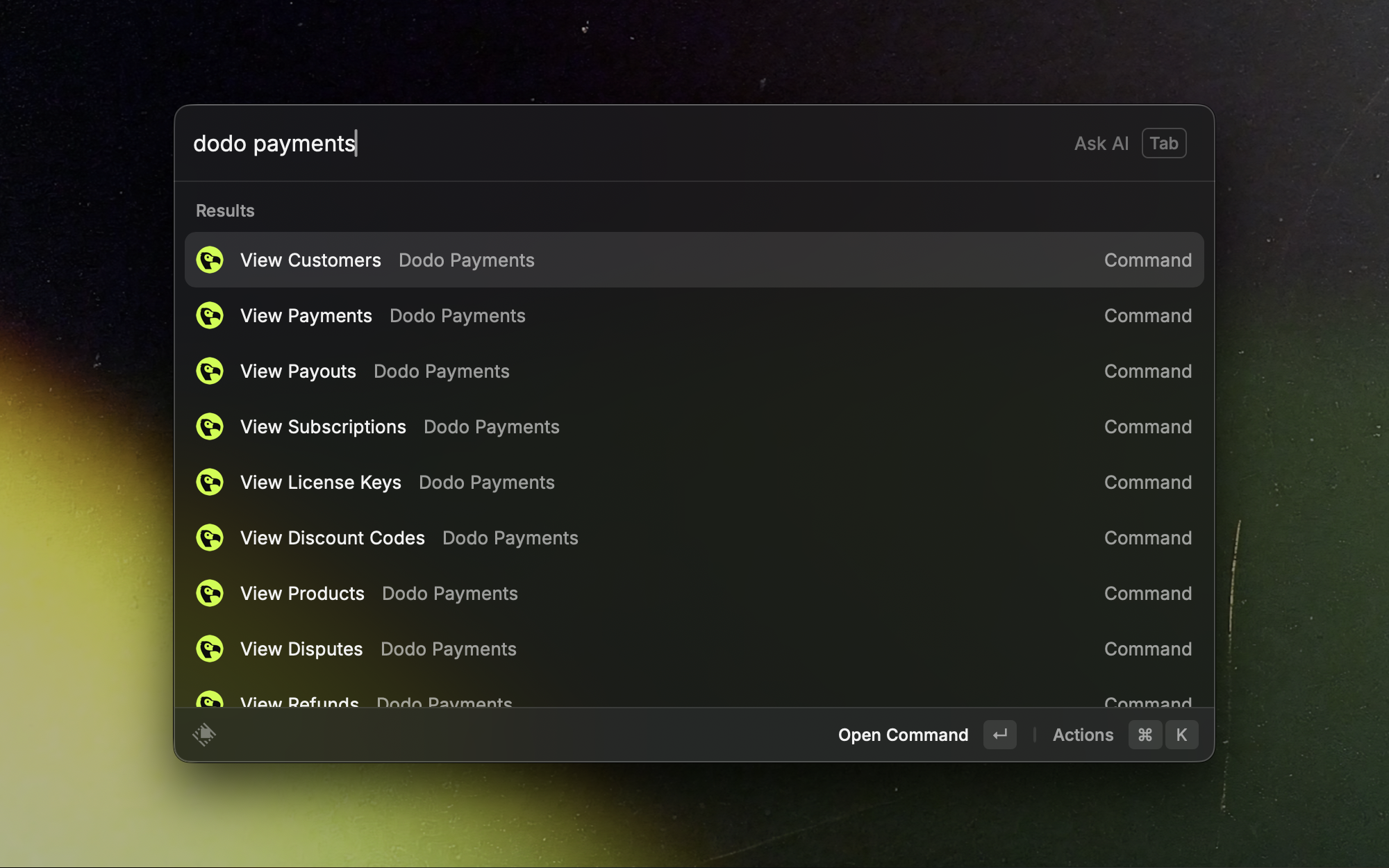 The Dodo Payments extension for Raycast puts your dashboard a few keystrokes away. Use it to view payments, subscriptions, customers, products, discount codes, license keys, and refunds without opening the dashboard.
## Install
Open the Dodo Payments extension page in the Raycast Store.
The extension requires Raycast on macOS and a Dodo Payments API key.
## Setup
1. Log in to your Dodo Payments dashboard.
2. Go to **Developer → API Keys** and click **Add API Key**.
3. Copy the new key. The dashboard shows it only once.
Create the key in the mode you plan to use in Raycast. A test mode key works only in test mode.
1. Open Raycast.
2. Search for "Dodo Payments" and select any command.
3. When prompted, enter your key in the **API Key** field.
4. In **API Mode**, choose a mode. The default is **Live**.
* **Test**: for development and testing.
* **Live**: for production data.
5. Save the settings.
Start in **Test** mode to check your setup, then switch to **Live**.
Treat your API key like a password. Don't share it or store it in plain text.
## Use the Extension
* **Search**: open Raycast, type "Dodo Payments", and pick a command.
* **Filter**: narrow results by typing part of an ID, email address, name, or status.
* **Open details**: press Enter on a list item to see more information.
## Commands and Views
Each view below is a separate Raycast command, such as **View Payments** or **View Refunds**.
### Payments
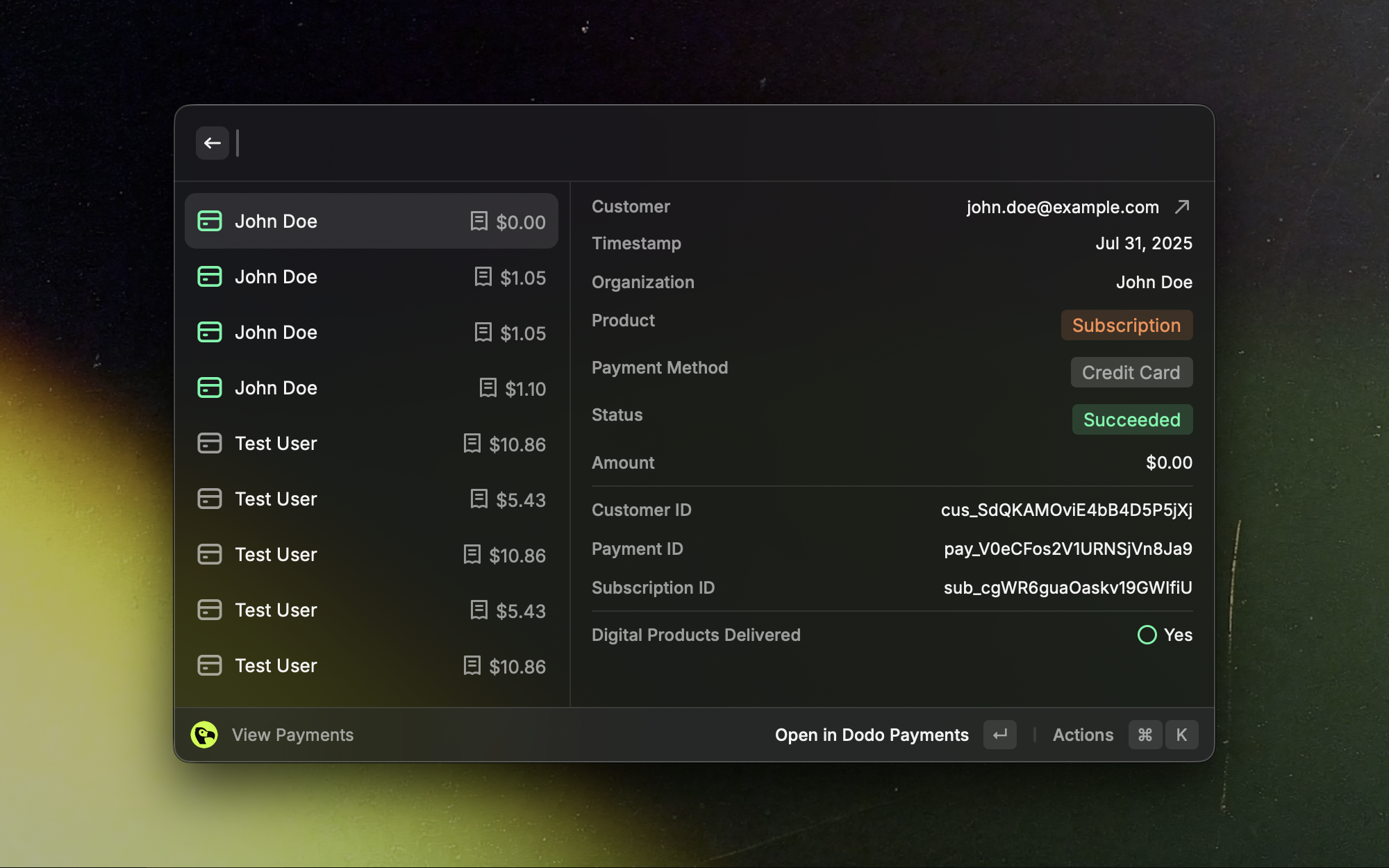
Browse recent payments and open their details.
The Dodo Payments extension for Raycast puts your dashboard a few keystrokes away. Use it to view payments, subscriptions, customers, products, discount codes, license keys, and refunds without opening the dashboard.
## Install
Open the Dodo Payments extension page in the Raycast Store.
The extension requires Raycast on macOS and a Dodo Payments API key.
## Setup
1. Log in to your Dodo Payments dashboard.
2. Go to **Developer → API Keys** and click **Add API Key**.
3. Copy the new key. The dashboard shows it only once.
Create the key in the mode you plan to use in Raycast. A test mode key works only in test mode.
1. Open Raycast.
2. Search for "Dodo Payments" and select any command.
3. When prompted, enter your key in the **API Key** field.
4. In **API Mode**, choose a mode. The default is **Live**.
* **Test**: for development and testing.
* **Live**: for production data.
5. Save the settings.
Start in **Test** mode to check your setup, then switch to **Live**.
Treat your API key like a password. Don't share it or store it in plain text.
## Use the Extension
* **Search**: open Raycast, type "Dodo Payments", and pick a command.
* **Filter**: narrow results by typing part of an ID, email address, name, or status.
* **Open details**: press Enter on a list item to see more information.
## Commands and Views
Each view below is a separate Raycast command, such as **View Payments** or **View Refunds**.
### Payments
Browse recent payments and open their details.
 ### Subscriptions
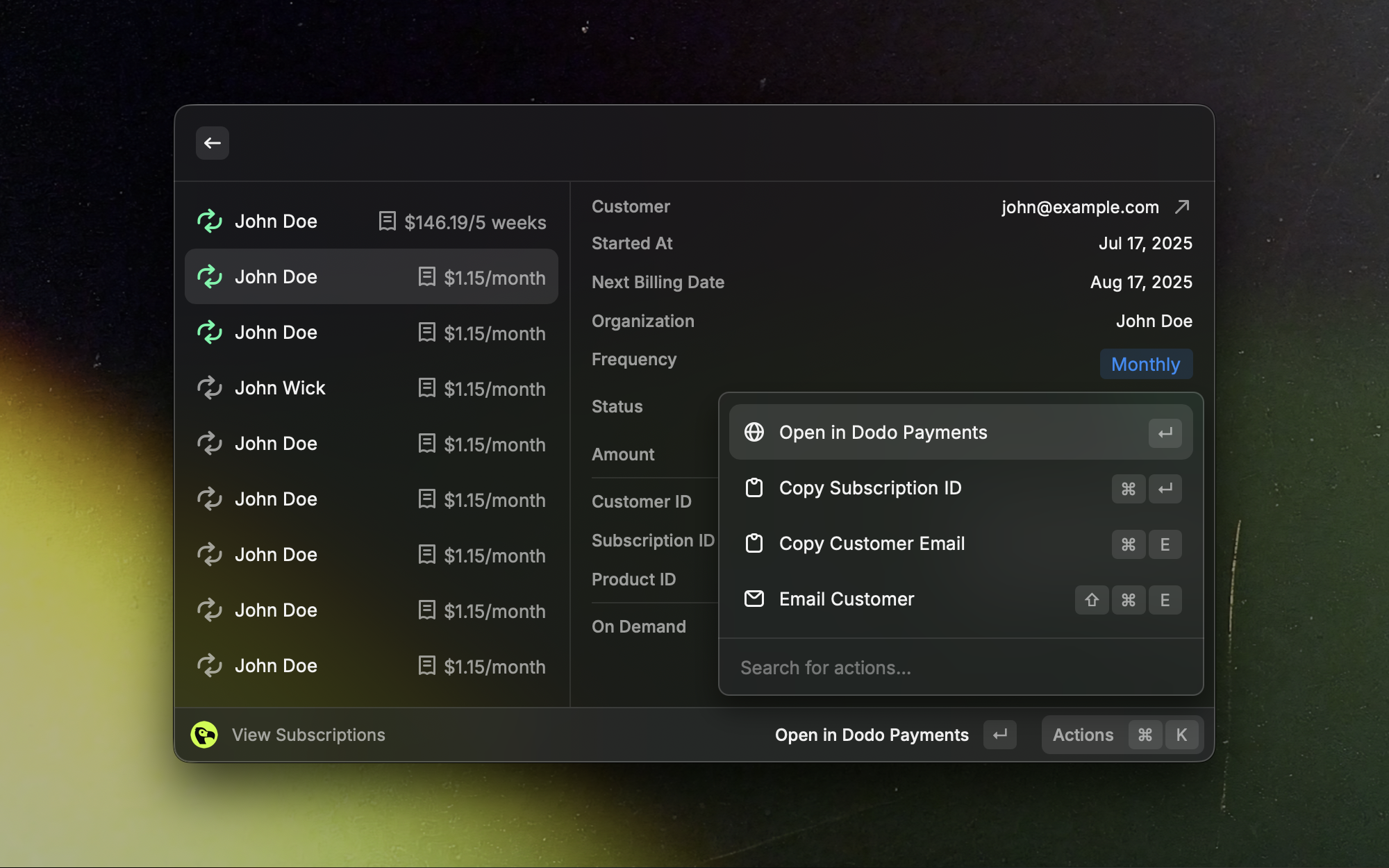
Scan active, on-hold, and cancelled subscriptions.
### Subscriptions
Scan active, on-hold, and cancelled subscriptions.
 ### Customers
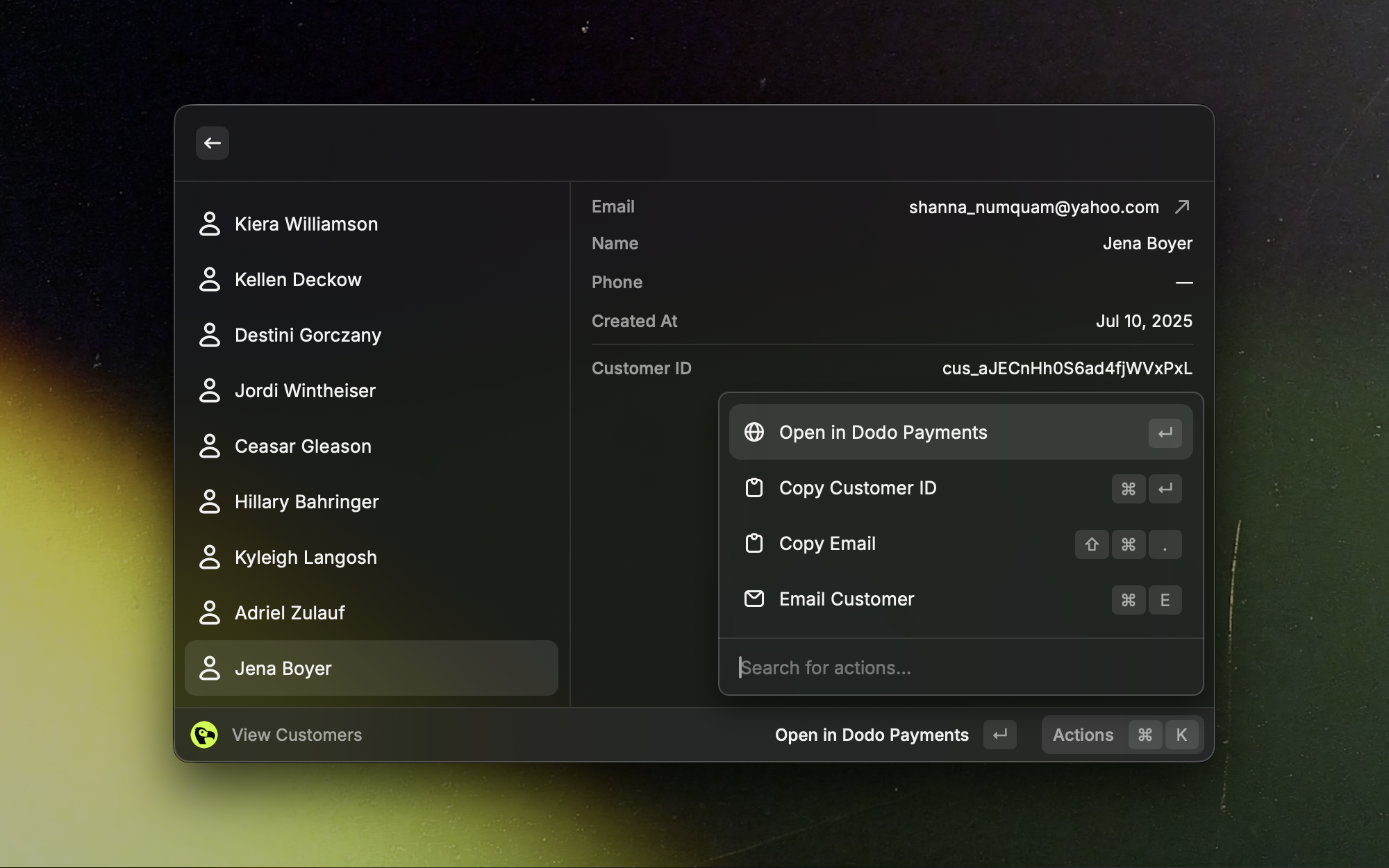
Find customers and open their full profiles.
### Customers
Find customers and open their full profiles.
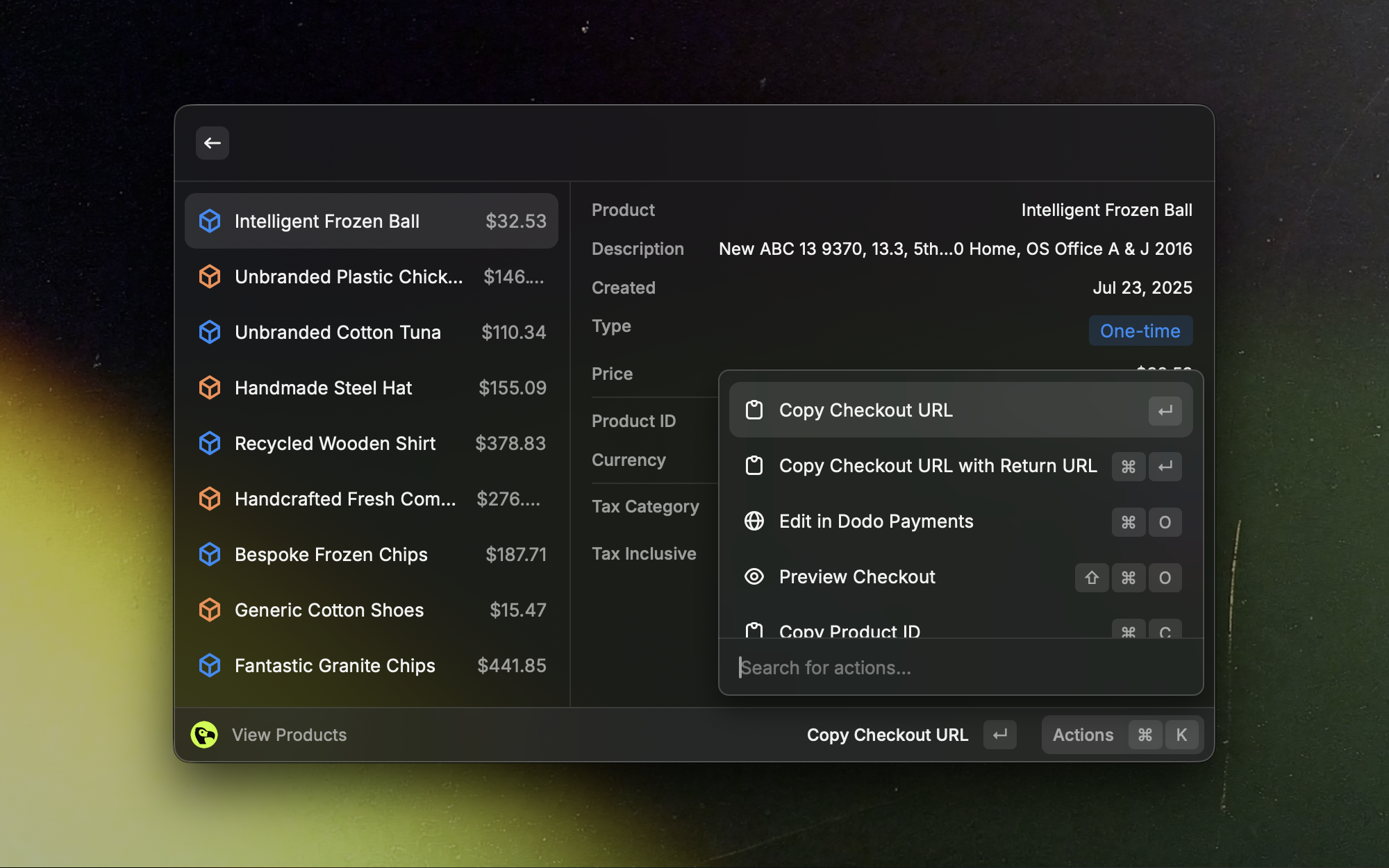
 ### Products
Review and manage your product catalog at a glance.
### Products
Review and manage your product catalog at a glance.
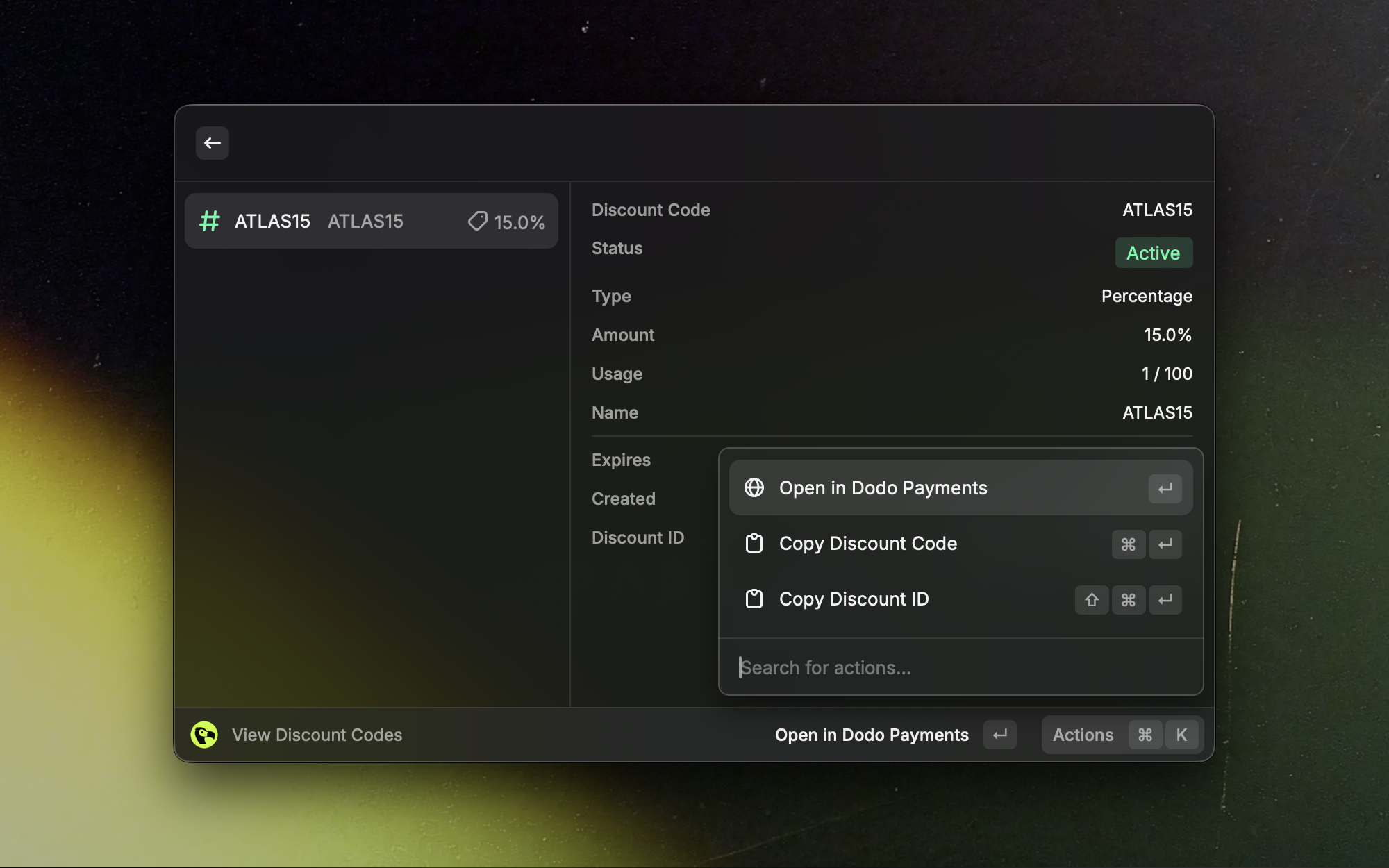
 ### Discount Codes
Search your active discount codes and look up their details.
### Discount Codes
Search your active discount codes and look up their details.
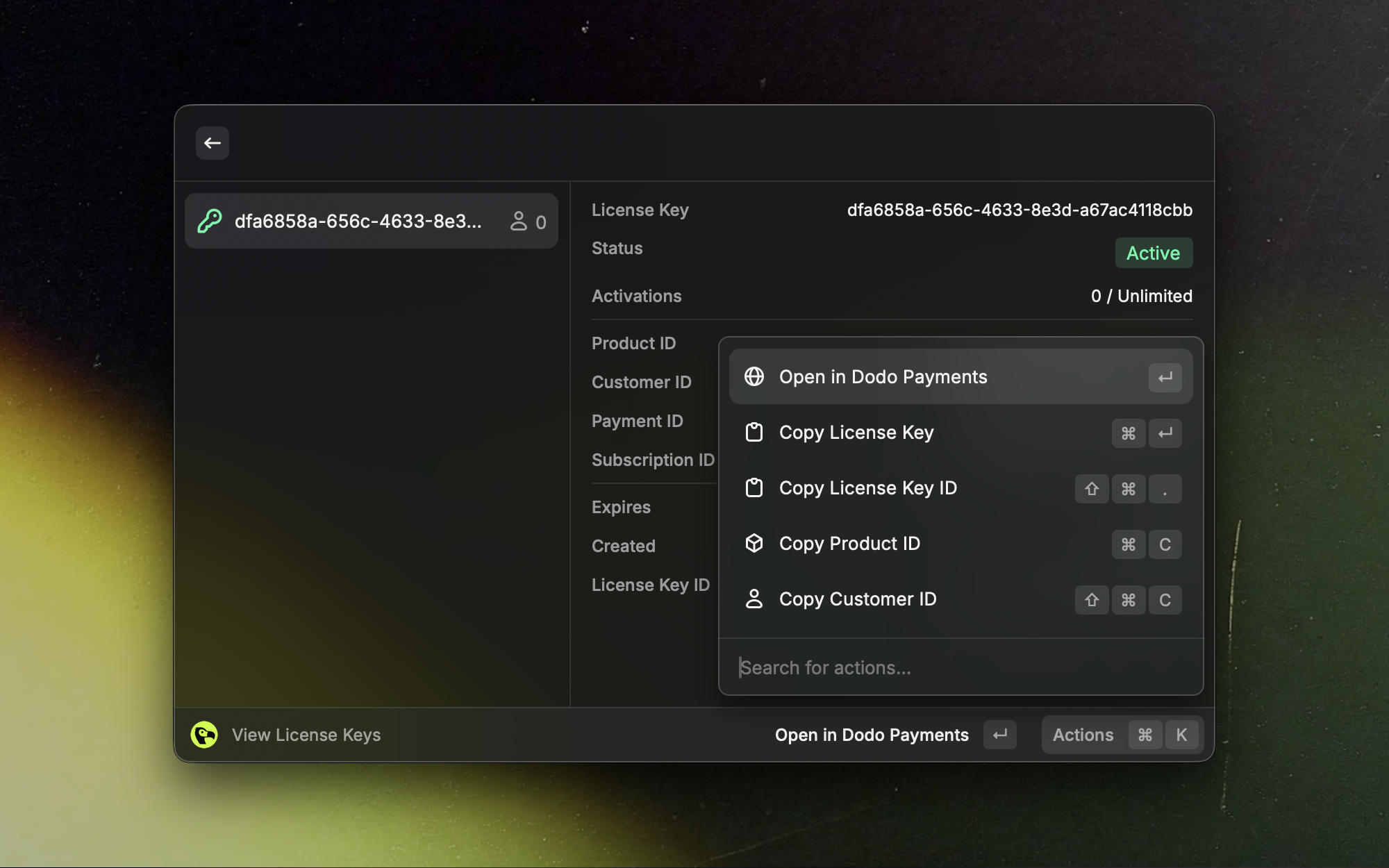
 ### License Keys
Look up and manage license keys without leaving Raycast.
### License Keys
Look up and manage license keys without leaving Raycast.
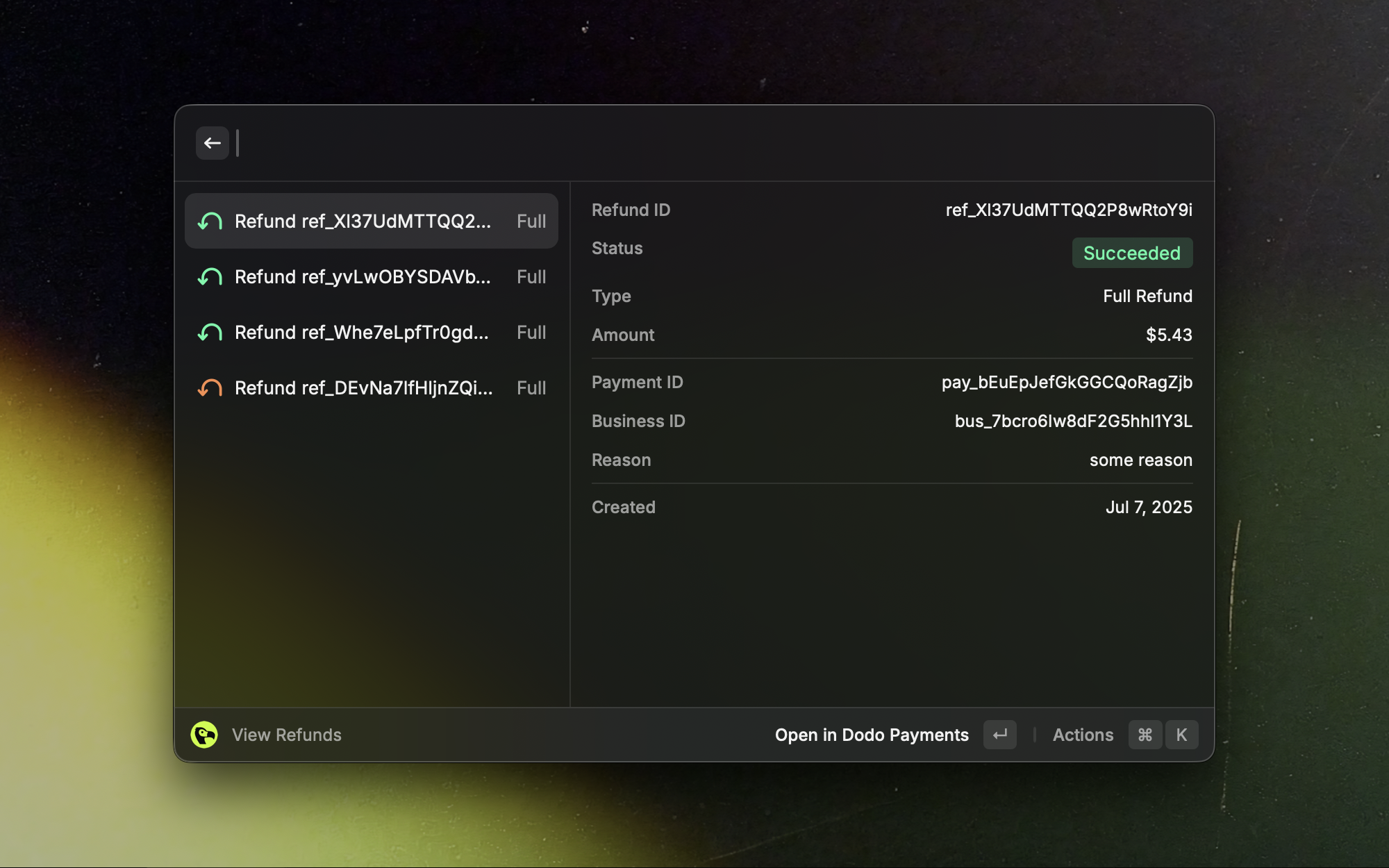
 ### Refunds
See recent refunds and open their details.
### Refunds
See recent refunds and open their details.
 The extension also has **View Disputes** and **View Payouts** commands. Payouts exist only in live mode, so **View Payouts** shows data only when **API Mode** is **Live**.
## Troubleshooting
Check that the API key and the **API Mode** setting (Test or Live) match the mode where you created the key. Reopen the command and enter the key again if needed.
Check that the selected mode has data. Try switching between Test and Live.
Wait a moment and try again. If the issue persists, check your network connection.
Get help from the Dodo Payments team.
This documentation is built and hosted on [Mintlify](https://mintlify.com), a developer documentation platform.
The extension also has **View Disputes** and **View Payouts** commands. Payouts exist only in live mode, so **View Payouts** shows data only when **API Mode** is **Live**.
## Troubleshooting
Check that the API key and the **API Mode** setting (Test or Live) match the mode where you created the key. Reopen the command and enter the key again if needed.
Check that the selected mode has data. Try switching between Test and Live.
Wait a moment and try again. If the issue persists, check your network connection.
Get help from the Dodo Payments team.
This documentation is built and hosted on [Mintlify](https://mintlify.com), a developer documentation platform.