> ## Documentation Index
> Fetch the complete documentation index at: https://docs.dodopayments.com/llms.txt
> Use this file to discover all available pages before exploring further.
# Zapier
> Start Zaps from Dodo Payments events through Webhooks by Zapier, to send payment, subscription, and dispute data to thousands of apps.
## Introduction
Connect Dodo Payments to thousands of apps through Zapier. Each Dodo Payments event can start a Zap that sends an email, adds a spreadsheet row, creates a task, or updates a CRM record.
The Zapier connector sends each event to the webhook URL of a Zap that starts with **Webhooks by Zapier**. Webhooks by Zapier isn't available on the Zapier Free plan, so you need a paid Zapier plan. You also need access to **Developer → Webhooks** in the Dodo Payments dashboard.
## Getting Started
In the Dodo Payments dashboard, go to **Developer → Webhooks** and click **Add endpoint**.
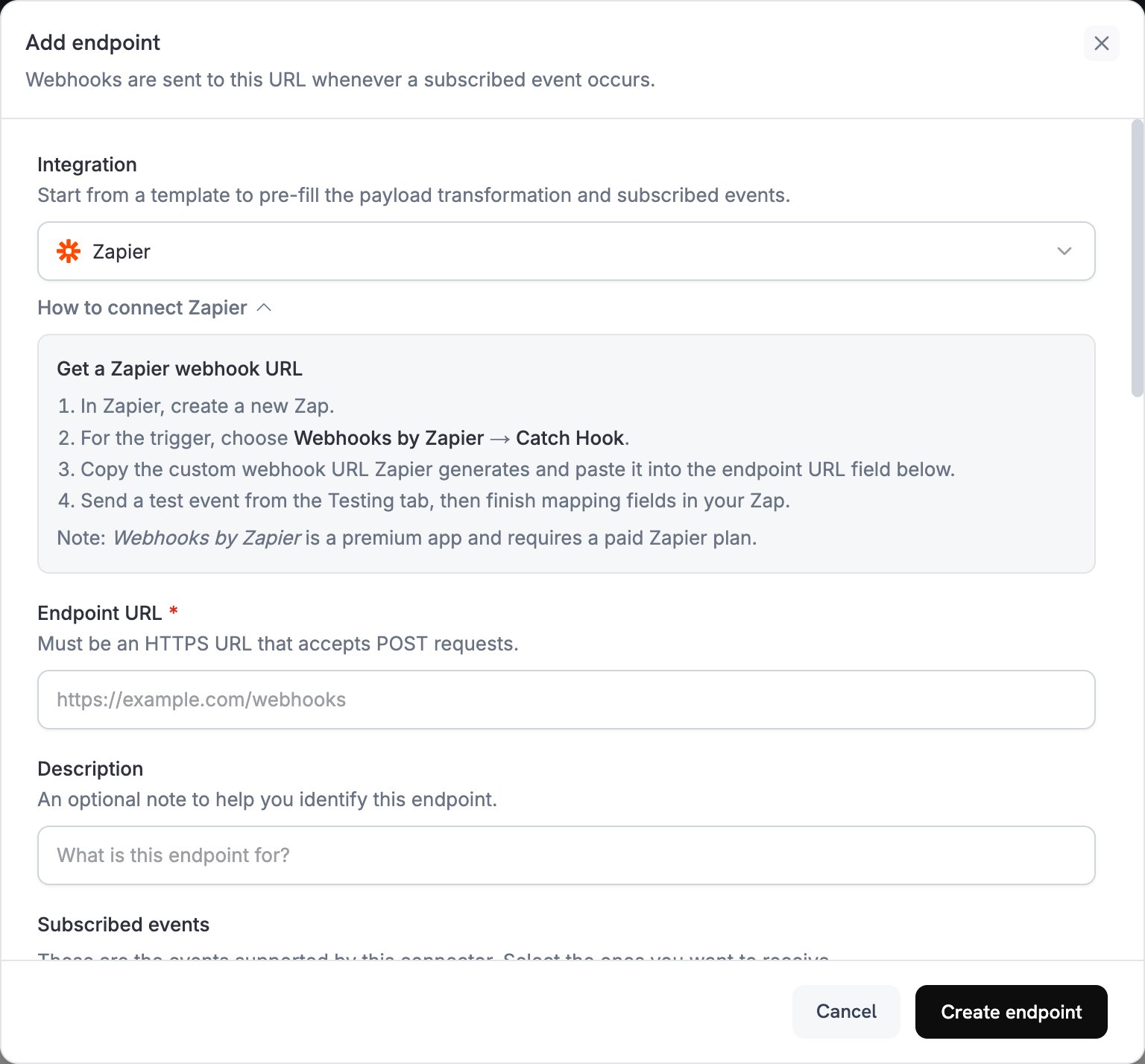 In **Integration**, select **Zapier**. The dashboard loads the Zapier transformation code and shows setup steps in the **How to connect Zapier** panel.
In Zapier, create a Zap. For the trigger, select **Webhooks by Zapier**, choose the **Catch Hook** event, and click **Continue**. On the trigger's **Test** tab, copy the webhook URL.
Paste the Zapier webhook URL into **Endpoint URL**. The Zapier connector has no API key field.
**Subscribed events** lists the events the Zapier connector supports. Keep only the events your transformation handles. Zapier accepts any JSON, so an event that the transformation leaves unchanged still starts your Zap, with the original Dodo Payments payload.
Under **Transformation code**, edit the handler to send the fields your Zap uses. Start from the [examples](#transformation-code-examples).
Under **Test this code**, select an event type and click **Simulate** to preview the payload. Then click **Create endpoint**.
Subscribed events now reach your Zap. To load sample fields into Zapier, open the endpoint's **Testing** tab, select an event type, and click **Send example**. In Zapier, click **Test trigger**, map the fields in your action steps, and publish the Zap.
## Transformation Code Examples
Each handler replaces `webhook.payload` with a flat object and keeps `webhook.url`, your Zapier webhook URL. Dodo Payments amounts are in the smallest currency unit, so the examples divide by 100 and send the result as a string, such as `"25.00"`. For zero-decimal currencies such as JPY and KRW, use the amount as is.
### Basic Webhook Payload
Send the details of a successful payment:
```javascript basic_webhook.js icon="js" expandable theme={null}
function handler(webhook) {
if (webhook.eventType === "payment.succeeded") {
const p = webhook.payload.data;
webhook.payload = {
event_type: webhook.eventType,
payment_id: p.payment_id,
amount: (p.total_amount / 100).toFixed(2),
currency: p.currency,
customer_email: p.customer.email,
customer_name: p.customer.name,
payment_method: p.payment_method || "unknown",
timestamp: webhook.payload.timestamp
};
}
return webhook;
}
```
### Subscription Event Handler
Send a `subscription_started` or `subscription_cancelled` event when a subscription becomes active or is cancelled:
```javascript subscription_webhook.js icon="js" expandable theme={null}
function handler(webhook) {
const s = webhook.payload.data;
switch (webhook.eventType) {
case "subscription.active":
webhook.payload = {
event_type: "subscription_started",
subscription_id: s.subscription_id,
customer_email: s.customer.email,
customer_name: s.customer.name,
product_id: s.product_id,
amount: (s.recurring_pre_tax_amount / 100).toFixed(2),
currency: s.currency,
frequency: s.payment_frequency_interval,
next_billing: s.next_billing_date,
timestamp: webhook.payload.timestamp
};
break;
case "subscription.cancelled":
webhook.payload = {
event_type: "subscription_cancelled",
subscription_id: s.subscription_id,
customer_email: s.customer.email,
cancelled_at: s.cancelled_at,
cancel_at_next_billing: s.cancel_at_next_billing_date,
timestamp: webhook.payload.timestamp
};
break;
}
return webhook;
}
```
### Dispute Alert Handler
Send every dispute event, with `urgent` set to `true` when a dispute opens:
```javascript dispute_webhook.js icon="js" expandable theme={null}
function handler(webhook) {
if (webhook.eventType.startsWith("dispute.")) {
const d = webhook.payload.data;
webhook.payload = {
event_type: webhook.eventType,
dispute_id: d.dispute_id,
payment_id: d.payment_id,
amount: (d.amount / 100).toFixed(2),
currency: d.currency,
status: d.dispute_status,
stage: d.dispute_stage,
remarks: d.remarks || "",
urgent: webhook.eventType === "dispute.opened",
timestamp: webhook.payload.timestamp
};
}
return webhook;
}
```
## Popular Zapier Use Cases
* Send Gmail or Outlook emails to confirm payments
* Add customers to email sequences in Mailchimp or ConvertKit
* Send Slack or Discord notifications
* Add rows to Google Sheets
* Add contacts to HubSpot or Salesforce
* Create deals in Pipedrive or Close
* Update customer records in Airtable
* Log activities in Monday.com
* Create tasks in Asana or Trello
* Add to-do items in Notion
* Create calendar events
* Send SMS messages through Twilio
## Tips
* Keep the payload flat, so each field is easy to find when you map it in Zapier.
* Use the same field names across events, so one Zap can handle several event types.
* Include `timestamp`, so your Zap can record when each event occurred.
* After you change the transformation, send a new example and test the trigger again in Zapier, so it loads the new fields.
* To run later steps only for some events, add a **Filter by Zapier** step that checks `event_type`.
* To skip an event in code, set `webhook.cancel = true` before you return the webhook. The logs record a skipped delivery as successful.
## Troubleshooting
* Check that **Endpoint URL** matches the webhook URL on the trigger's **Test** tab. The URL changes when the Zap is transferred to another Zapier user.
* Check that the Zap is published and turned on. Zapier returns `404` for a Zap that is off or deleted, but the URL can keep returning `200` for up to several hours after the change.
* Open the **Logs** tab in **Developer → Webhooks** to see Zapier's response to each delivery.
* Check that the event is selected in **Subscribed events**. To change the selection, open the endpoint and click **Edit**.
* Check that the field names in your action steps match the keys your transformation sends.
* Check that each value has the type your action expects. The examples send amounts as strings.
* Check that the handler returns `webhook` and that `webhook.payload` is a JSON object. If the payload is an array, Zapier runs the Zap once for each item.
* Use **Test trigger** in Zapier to see the fields of the latest event.
This documentation is built and hosted on [Mintlify](https://mintlify.com), a developer documentation platform.
In **Integration**, select **Zapier**. The dashboard loads the Zapier transformation code and shows setup steps in the **How to connect Zapier** panel.
In Zapier, create a Zap. For the trigger, select **Webhooks by Zapier**, choose the **Catch Hook** event, and click **Continue**. On the trigger's **Test** tab, copy the webhook URL.
Paste the Zapier webhook URL into **Endpoint URL**. The Zapier connector has no API key field.
**Subscribed events** lists the events the Zapier connector supports. Keep only the events your transformation handles. Zapier accepts any JSON, so an event that the transformation leaves unchanged still starts your Zap, with the original Dodo Payments payload.
Under **Transformation code**, edit the handler to send the fields your Zap uses. Start from the [examples](#transformation-code-examples).
Under **Test this code**, select an event type and click **Simulate** to preview the payload. Then click **Create endpoint**.
Subscribed events now reach your Zap. To load sample fields into Zapier, open the endpoint's **Testing** tab, select an event type, and click **Send example**. In Zapier, click **Test trigger**, map the fields in your action steps, and publish the Zap.
## Transformation Code Examples
Each handler replaces `webhook.payload` with a flat object and keeps `webhook.url`, your Zapier webhook URL. Dodo Payments amounts are in the smallest currency unit, so the examples divide by 100 and send the result as a string, such as `"25.00"`. For zero-decimal currencies such as JPY and KRW, use the amount as is.
### Basic Webhook Payload
Send the details of a successful payment:
```javascript basic_webhook.js icon="js" expandable theme={null}
function handler(webhook) {
if (webhook.eventType === "payment.succeeded") {
const p = webhook.payload.data;
webhook.payload = {
event_type: webhook.eventType,
payment_id: p.payment_id,
amount: (p.total_amount / 100).toFixed(2),
currency: p.currency,
customer_email: p.customer.email,
customer_name: p.customer.name,
payment_method: p.payment_method || "unknown",
timestamp: webhook.payload.timestamp
};
}
return webhook;
}
```
### Subscription Event Handler
Send a `subscription_started` or `subscription_cancelled` event when a subscription becomes active or is cancelled:
```javascript subscription_webhook.js icon="js" expandable theme={null}
function handler(webhook) {
const s = webhook.payload.data;
switch (webhook.eventType) {
case "subscription.active":
webhook.payload = {
event_type: "subscription_started",
subscription_id: s.subscription_id,
customer_email: s.customer.email,
customer_name: s.customer.name,
product_id: s.product_id,
amount: (s.recurring_pre_tax_amount / 100).toFixed(2),
currency: s.currency,
frequency: s.payment_frequency_interval,
next_billing: s.next_billing_date,
timestamp: webhook.payload.timestamp
};
break;
case "subscription.cancelled":
webhook.payload = {
event_type: "subscription_cancelled",
subscription_id: s.subscription_id,
customer_email: s.customer.email,
cancelled_at: s.cancelled_at,
cancel_at_next_billing: s.cancel_at_next_billing_date,
timestamp: webhook.payload.timestamp
};
break;
}
return webhook;
}
```
### Dispute Alert Handler
Send every dispute event, with `urgent` set to `true` when a dispute opens:
```javascript dispute_webhook.js icon="js" expandable theme={null}
function handler(webhook) {
if (webhook.eventType.startsWith("dispute.")) {
const d = webhook.payload.data;
webhook.payload = {
event_type: webhook.eventType,
dispute_id: d.dispute_id,
payment_id: d.payment_id,
amount: (d.amount / 100).toFixed(2),
currency: d.currency,
status: d.dispute_status,
stage: d.dispute_stage,
remarks: d.remarks || "",
urgent: webhook.eventType === "dispute.opened",
timestamp: webhook.payload.timestamp
};
}
return webhook;
}
```
## Popular Zapier Use Cases
* Send Gmail or Outlook emails to confirm payments
* Add customers to email sequences in Mailchimp or ConvertKit
* Send Slack or Discord notifications
* Add rows to Google Sheets
* Add contacts to HubSpot or Salesforce
* Create deals in Pipedrive or Close
* Update customer records in Airtable
* Log activities in Monday.com
* Create tasks in Asana or Trello
* Add to-do items in Notion
* Create calendar events
* Send SMS messages through Twilio
## Tips
* Keep the payload flat, so each field is easy to find when you map it in Zapier.
* Use the same field names across events, so one Zap can handle several event types.
* Include `timestamp`, so your Zap can record when each event occurred.
* After you change the transformation, send a new example and test the trigger again in Zapier, so it loads the new fields.
* To run later steps only for some events, add a **Filter by Zapier** step that checks `event_type`.
* To skip an event in code, set `webhook.cancel = true` before you return the webhook. The logs record a skipped delivery as successful.
## Troubleshooting
* Check that **Endpoint URL** matches the webhook URL on the trigger's **Test** tab. The URL changes when the Zap is transferred to another Zapier user.
* Check that the Zap is published and turned on. Zapier returns `404` for a Zap that is off or deleted, but the URL can keep returning `200` for up to several hours after the change.
* Open the **Logs** tab in **Developer → Webhooks** to see Zapier's response to each delivery.
* Check that the event is selected in **Subscribed events**. To change the selection, open the endpoint and click **Edit**.
* Check that the field names in your action steps match the keys your transformation sends.
* Check that each value has the type your action expects. The examples send amounts as strings.
* Check that the handler returns `webhook` and that `webhook.payload` is a JSON object. If the payload is an array, Zapier runs the Zap once for each item.
* Use **Test trigger** in Zapier to see the fields of the latest event.
This documentation is built and hosted on [Mintlify](https://mintlify.com), a developer documentation platform.