> ## Documentation Index
> Fetch the complete documentation index at: https://docs.dodopayments.com/llms.txt
> Use this file to discover all available pages before exploring further.

# Welcome to Dodo Payments

> Dodo Payments is a Merchant of Record for SaaS, AI, and digital products. Sell in 220+ countries while Dodo Payments handles payments, tax, and billing.

<Frame>
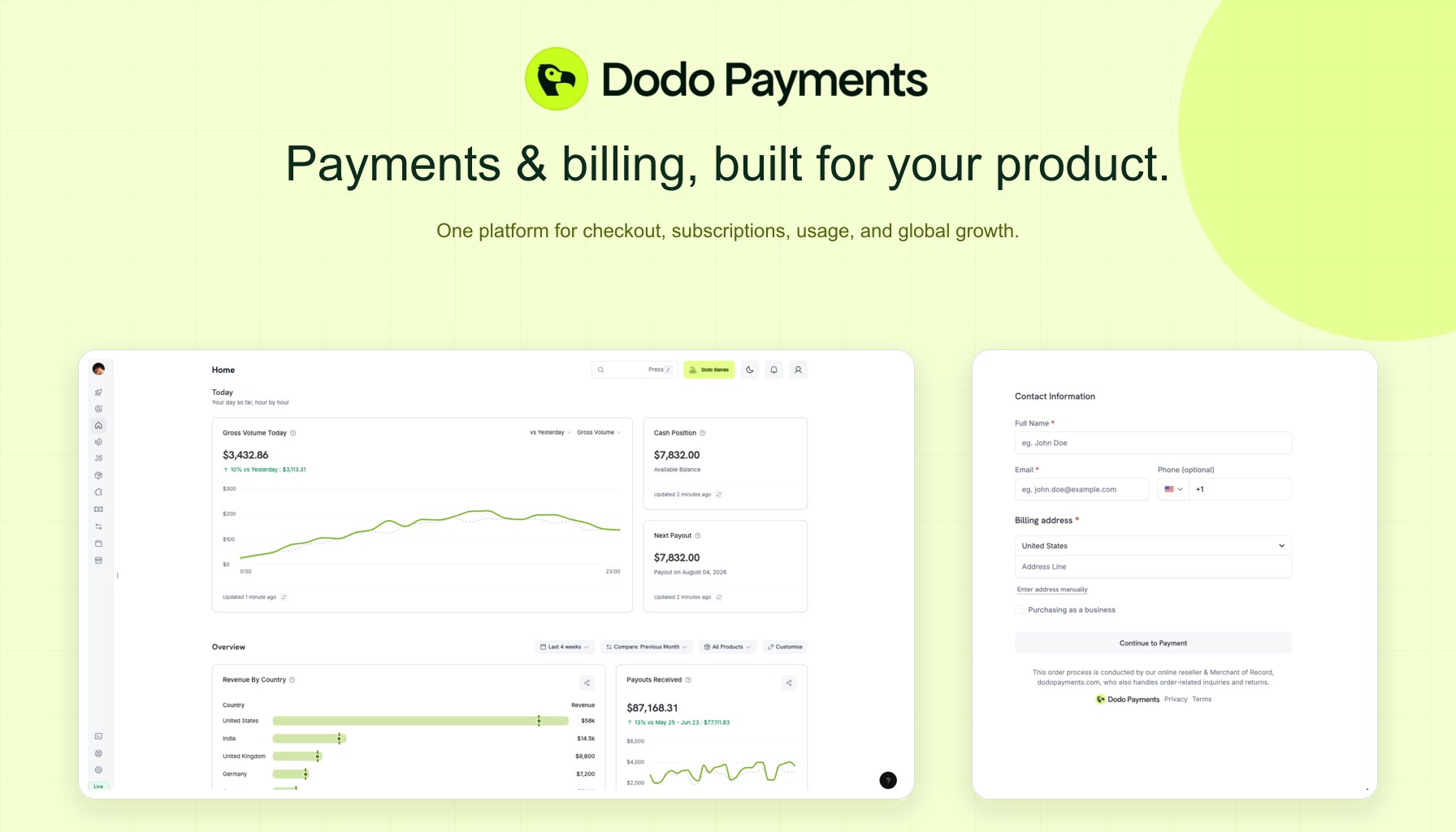
  <img src="https://mintcdn.com/dodopayments/nM_mJfYkri-OpC5M/images/introduction/intro-product-cover.png?fit=max&auto=format&n=nM_mJfYkri-OpC5M&q=85&s=bba7c6c9657aae77ecc960940dc73fab" alt="Dodo Payments: Payments and billing built for your product, with dashboard and hosted checkout previews" width={1792} height={1024} style={{ maxHeight: '500px', width: 'auto' }} data-path="images/introduction/intro-product-cover.png" />
</Frame>

Dodo Payments is a **Merchant of Record** for SaaS, AI, and digital products. It sells your product to customers in 220+ countries as the legal seller, so payment processing, sales tax and VAT, fraud screening, and chargebacks are handled for you. You add your products, choose how customers check out, and receive payouts.

<CardGroup cols={3}>
  <Card title="Integrate with Your Coding Agent" icon="robot" href="/developer-resources/build-with-ai-coding-agents">
    Install the Agent Plugin and have your coding agent build the integration.
  </Card>

  <Card title="Start Integrating" icon="code" href="/developer-resources/integration-guide">
    Install an SDK, create a checkout session, and handle webhooks.
  </Card>

  <Card title="How Merchant of Record Works" icon="scale-balanced" href="/features/mor-introduction">
    What Dodo Payments takes on as the legal seller, and what stays with you.
  </Card>
</CardGroup>

## What Dodo Payments Handles

<CardGroup cols={2}>
  <Card title="Merchant of Record" icon="globe" href="/features/mor-introduction">
    Dodo Payments sells to your customers, then calculates and remits the tax on each sale.
  </Card>

  <Card title="Global Payments" icon="credit-card" href="/features/payment-methods">
    40+ payment methods, including cards, wallets, bank debits, and BNPL (buy now, pay later).
  </Card>

  <Card title="Local Currencies" icon="coins" href="/features/adaptive-currency">
    Adaptive Currency shows prices in 80+ local currencies at checkout.
  </Card>

  <Card title="Flexible Billing" icon="repeat" href="/features/subscription">
    One-time payments, subscriptions, usage-based, credit-based, and seat-based billing, with add-ons.
  </Card>
</CardGroup>

## Get Started

To sell with Dodo Payments, your product must meet the [Merchant Acceptance Policy](/miscellaneous/merchant-acceptance), and your identity document must come from an [eligible country](/miscellaneous/accepted-countries-and-territories). Check both before you sign up.

<Steps>
  <Step title="Create Your Account">
    Sign up at [app.dodopayments.com](https://app.dodopayments.com/signup) and verify your email address.
  </Step>

  <Step title="Add Your First Product">
    Choose the billing model that matches how you charge.

    <CardGroup cols={2}>
      <Card title="One-Time Payment" icon="box" href="/features/one-time-payment-products">
        A single charge for a download, course, or license.
      </Card>

      <Card title="Subscription" icon="repeat" href="/features/subscription">
        A recurring charge for SaaS plans and memberships.
      </Card>

      <Card title="Usage-Based Billing" icon="chart-bar" href="/features/usage-based-billing/introduction">
        Charge for metered usage such as API calls or tokens.
      </Card>

      <Card title="Credit-Based Billing" icon="coins" href="/features/credit-based-billing">
        Grant credits and deduct them as customers consume, with rollover and overage controls.
      </Card>

      <Card title="Seat-Based Billing" icon="users" href="/features/seat-based-billing">
        Charge per user or seat, with proration when a team adds or removes seats.
      </Card>
    </CardGroup>
  </Step>

  <Step title="Choose How Customers Check Out">
    <Tabs>
      <Tab title="Payment Links">
        Create a payment link in the dashboard and share it by email, on social media, or on your site. No code is required.

        <Card title="Payment Links" icon="link" href="/developer-resources/integration-guide#payment-links">
          Create static and dynamic payment links.
        </Card>
      </Tab>

      <Tab title="Overlay Checkout">
        Open checkout as an overlay on your page, so customers pay without leaving your site.

        <Card title="Overlay Checkout" icon="layer-group" href="/developer-resources/overlay-checkout">
          Add the overlay to your site and match it to your brand.
        </Card>
      </Tab>

      <Tab title="Inline Checkout">
        Embed checkout in your page layout and build your own order summary around it.

        <Card title="Inline Checkout" icon="credit-card" href="/developer-resources/inline-checkout">
          Embed checkout and keep your summary in sync with it.
        </Card>
      </Tab>

      <Tab title="API and SDKs">
        Create checkout sessions and customers, and manage subscriptions, from your backend with an official SDK, and react to events with webhooks. To have a coding agent write this integration, install the [Agent Plugin](#build-with-ai-coding-agents) first.

        <CardGroup cols={2}>
          <Card title="Integration Guide" icon="code" href="/developer-resources/integration-guide">
            Install an SDK and build your first checkout.
          </Card>

          <Card title="API Reference" icon="server" href="/api-reference/introduction">
            Every endpoint, parameter, and response.
          </Card>
        </CardGroup>
      </Tab>
    </Tabs>
  </Step>

  <Step title="Test Your Integration">
    Build in test mode, which simulates payments, refunds, and failed transactions without moving real money.

    <CardGroup cols={2}>
      <Card title="Test Mode vs Live Mode" icon="toggle-on" href="/miscellaneous/test-mode-vs-live-mode">
        What works in each mode and how to switch.
      </Card>

      <Card title="Testing Process" icon="flask" href="/miscellaneous/testing-process">
        Test cards, UPI, BNPL, wallets, and bank debits.
      </Card>
    </CardGroup>
  </Step>

  <Step title="Verify Your Account to Go Live">
    You can set up live mode as soon as you sign up. Live payments and payouts turn on after your account passes verification.

    <Card title="Account Verification" icon="circle-check" href="/miscellaneous/verification-process">
      Required documents and how review works.
    </Card>
  </Step>
</Steps>

## Build with AI Coding Agents

To integrate Dodo Payments with a coding agent, install the Agent Plugin. It gives your coding agent two MCP servers, one to search the Dodo Payments documentation and one to run API operations, plus skills that describe how to build each integration. After you install it, describe what you want to build.

<CardGroup cols={3}>
  <Card title="Agent Plugin" icon="robot" href="/developer-resources/build-with-ai-coding-agents">
    Installs both MCP servers and all seventeen skills in Claude Code, Codex CLI, Cursor, VS Code / GitHub Copilot, Kiro, or OpenCode.
  </Card>

  <Card title="Dodo Knowledge MCP" icon="book-open" href="/developer-resources/mcp-server#dodo-knowledge-mcp">
    Semantic search across the Dodo Payments documentation.
  </Card>

  <Card title="Dodo Payments MCP" icon="credit-card" href="/developer-resources/mcp-server">
    Runs API operations such as creating payments, managing subscriptions, and issuing refunds.
  </Card>
</CardGroup>

To install the plugin in Claude Code, run:

```bash theme={null}
claude plugins marketplace add dodopayments/dodo-agent-plugin
claude plugins install dodopayments@dodopayments
```

For other agents, see [Build with AI Coding Agents](/developer-resources/build-with-ai-coding-agents#install-the-plugin). To install the skills without the plugin, run:

```bash theme={null}
npx skills add dodopayments/skills
```

To install individual skills or set them up in other clients, see [Agent Skills](/developer-resources/agent-skills).

To connect an MCP client such as Windsurf, Claude Desktop, Cline, or Zed, add both servers to its configuration. This requires Node.js 18 or later:

```json theme={null}
{
  "mcpServers": {
    "dodo-knowledge": {
      "command": "npx",
      "args": ["-y", "mcp-remote@latest", "https://knowledge.dodopayments.com/mcp"]
    },
    "dodopayments": {
      "command": "npx",
      "args": ["-y", "mcp-remote@latest", "https://mcp.dodopayments.com/mcp"]
    }
  }
}
```

Agents that read documentation directly can start from the index at [`docs.dodopayments.com/llms.txt`](https://docs.dodopayments.com/llms.txt). Every page is also available as Markdown: add `.md` to its URL, for example `/api-reference/introduction.md`.

## Developer Tools

<Frame>
  <iframe className="w-full aspect-video rounded-md" src="https://www.youtube.com/embed/gyqFJaJ5Wh4" title="Dodo Payments developer integration walkthrough" frameBorder="0" allow="accelerometer; autoplay; clipboard-write; encrypted-media; gyroscope; picture-in-picture" allowFullScreen />
</Frame>

### SDKs

Official server SDKs are available in nine languages.

<CardGroup cols={3}>
  <Card title="TypeScript" icon="code-simple" href="/developer-resources/sdks/typescript" />

  <Card title="Python" icon="python" href="/developer-resources/sdks/python" />

  <Card title="Go" icon="golang" href="/developer-resources/sdks/go" />

  <Card title="PHP" icon="php" href="/developer-resources/sdks/php" />

  <Card title="Java" icon="java" href="/developer-resources/sdks/java" />

  <Card title="Kotlin" icon="android" href="/developer-resources/sdks/kotlin" />

  <Card title="C#" icon="hashtag" href="/developer-resources/sdks/csharp" />

  <Card title="Ruby" icon="gem" href="/developer-resources/sdks/ruby" />

  <Card title="Rust" icon="rust" href="/developer-resources/sdks/rust" />
</CardGroup>

For billing UI such as pricing tables and subscription management, [Billing SDK](/developer-resources/billingsdk) provides free, open-source React components.

### Framework Adaptors

Adaptors add checkout, customer portal, and webhook handlers to your framework.

<CardGroup cols={2}>
  <Card title="Next.js" icon="atom" href="/developer-resources/nextjs-adaptor">
    Route handlers for checkout, the customer portal, and webhooks in the App Router.
  </Card>

  <Card title="Better Auth" icon="shield" href="/developer-resources/better-auth-adaptor">
    Create a customer when a user signs up, and add checkout and the customer portal to your auth flow.
  </Card>

  <Card title="Supabase" icon="database" href="/developer-resources/supabase-boilerplate">
    A Next.js and Supabase starter with auth, a database schema, webhooks, and a pricing page.
  </Card>

  <Card title="Convex" icon="database" href="/developer-resources/convex-component">
    Checkout, customer portal, and webhook functions for your Convex backend.
  </Card>
</CardGroup>

<Accordion title="All Other Framework Adaptors">
  <CardGroup cols={3}>
    <Card title="SvelteKit" icon="js" href="/developer-resources/sveltekit-adaptor" />

    <Card title="Nuxt" icon="vuejs" href="/developer-resources/nuxt-adaptor" />

    <Card title="Remix" icon="react" href="/developer-resources/remix-adaptor" />

    <Card title="Express" icon="js" href="/developer-resources/express-adaptor" />

    <Card title="Fastify" icon="bolt" href="/developer-resources/fastify-adaptor" />

    <Card title="Hono" icon="cloud" href="/developer-resources/hono-adaptor" />

    <Card title="Astro" icon="star" href="/developer-resources/astro-adaptor" />

    <Card title="TanStack" icon="chart-line" href="/developer-resources/tanstack-adaptor" />

    <Card title="Bun" icon="bread-slice" href="/developer-resources/bun-adaptor" />
  </CardGroup>
</Accordion>

### Mobile Checkout

Official checkout SDKs open hosted checkout from Android, iOS, React Native, and Flutter apps and return the result to your app.

<CardGroup cols={2}>
  <Card title="Mobile Integration Guide" icon="mobile" href="/developer-resources/mobile-integration">
    Checkout, subscriptions, and customization for each platform.
  </Card>

  <Card title="Expo Boilerplate" icon="box-open" href="/developer-resources/expo-boilerplate">
    An Expo template with checkout and payment handling in TypeScript.
  </Card>
</CardGroup>

### Dodo CLI

The Dodo CLI manages payments, customers, and webhooks from your terminal. It includes an interactive TUI, an AI assistant, and a webhook listener for local testing. To install it, run:

```bash theme={null}
curl -fsSL https://dodopayments.com/install.sh | sh
```

<Card title="Dodo CLI" icon="terminal" href="/developer-resources/sdks/cli">
  Commands, the TUI, and local webhook testing.
</Card>

## Integrations

Integrations send Dodo Payments events to the tools you already use, such as team chat, email, CRM, and workflow automation.

<CardGroup cols={4}>
  <Card title="Framer" icon="frame" href="/integrations/framer-plugin">
    Add payments to Framer sites.
  </Card>

  <Card title="WooCommerce" icon="wordpress" href="/integrations/woocommerce-plugin">
    Accept payments in WooCommerce stores.
  </Card>

  <Card title="Raycast" icon="rocket" href="/integrations/raycast-extension">
    Manage payments from Raycast.
  </Card>

  <Card title="Figma" icon="figma" href="/integrations/figma-plugin">
    Use Dodo Payments inside Figma.
  </Card>
</CardGroup>

<AccordionGroup>
  <Accordion title="Team Notifications">
    <CardGroup cols={3}>
      <Card title="Slack" icon="slack" href="/integrations/slack">
        Post payment events to Slack channels.
      </Card>

      <Card title="Discord" icon="discord" href="/integrations/discord">
        Post payment events to a Discord server.
      </Card>

      <Card title="Microsoft Teams" icon="microsoft" href="/integrations/microsoft-teams">
        Post payment events to Teams channels.
      </Card>
    </CardGroup>
  </Accordion>

  <Accordion title="Email">
    <CardGroup cols={3}>
      <Card title="Resend" icon="envelope" href="/integrations/resend">
        Send transactional email with Resend.
      </Card>

      <Card title="SendGrid" icon="paper-plane" href="/integrations/sendgrid">
        Send email with SendGrid.
      </Card>

      <Card title="Loops" icon="repeat" href="/integrations/loops">
        Trigger email sequences in Loops.
      </Card>

      <Card title="Customer.io" icon="users" href="/integrations/customer-io">
        Sync customer data to Customer.io.
      </Card>

      <Card title="AutoSend" icon="paper-plane" href="/integrations/autosend">
        Send transactional email with AutoSend.
      </Card>
    </CardGroup>
  </Accordion>

  <Accordion title="CRM">
    <CardGroup cols={2}>
      <Card title="Close CRM" icon="briefcase" href="/integrations/close-crm">
        Sync customers and deals to Close.
      </Card>
    </CardGroup>
  </Accordion>

  <Accordion title="Automation and Analytics">
    <CardGroup cols={3}>
      <Card title="Zapier" icon="bolt" href="/integrations/zapier">
        Connect payment events to other apps through Zapier.
      </Card>

      <Card title="n8n" icon="diagram-project" href="/integrations/n8n">
        Build workflows in self-hosted or cloud n8n.
      </Card>

      <Card title="Windmill" icon="wind" href="/integrations/windmill">
        Run custom workflows in Windmill.
      </Card>

      <Card title="Inngest" icon="code" href="/integrations/inngest">
        Run event-driven functions in Inngest.
      </Card>

      <Card title="Segment" icon="chart-network" href="/integrations/segment">
        Stream payment events to Segment.
      </Card>

      <Card title="DataFast" icon="chart-bar" href="/integrations/datafast">
        Attribute revenue to marketing channels.
      </Card>
    </CardGroup>
  </Accordion>
</AccordionGroup>

<Card title="All Integrations" icon="puzzle-piece" href="/integrations/introduction">
  Setup guides for every integration.
</Card>

## Get Help

<CardGroup cols={2}>
  <Card title="Discord Community" icon="discord" href="https://discord.gg/bYqAp4ayYh">
    Ask questions and talk with other developers.
  </Card>

  <Card title="Contact Support" icon="headphones" href="mailto:support@dodopayments.com">
    Email the support team at [support@dodopayments.com](mailto:support@dodopayments.com).
  </Card>
</CardGroup>


This documentation is built and hosted on [Mintlify](https://mintlify.com), a developer documentation platform.