> ## Documentation Index
> Fetch the complete documentation index at: https://docs.dodopayments.com/llms.txt
> Use this file to discover all available pages before exploring further.
# Account Verification
> Complete account verification to turn on live payments and payouts. Learn which forms you need, how identity and business checks work, and how review works.
You can use live mode from the day you sign up, but your account can't accept live payments until every required verification form is approved, and it can't receive payouts until compliance review is also complete. To verify, choose your account type, submit your product and payout details, and pass compliance review.
For supported and prohibited product categories and accepted business locations, see the [Merchant Acceptance Policy](/miscellaneous/merchant-acceptance).
## Account Verification
The Verification section in your dashboard guides you through four steps: account type, product information, identity verification, and payout details.
### Account Type
Choose whether you're an **Individual** or a **Registered Entity** before you start.
| Individual | Registered Entity |
| - | - |
| You're a creator or sole proprietor | Your business is registered (Pvt Ltd, LLP, LLC, etc.) |
| Payments and payouts are tied to you personally | You have a GST, EIN, or other business tax ID |
| You don't have a company registration or business tax ID | Payouts are tied to your company bank account |
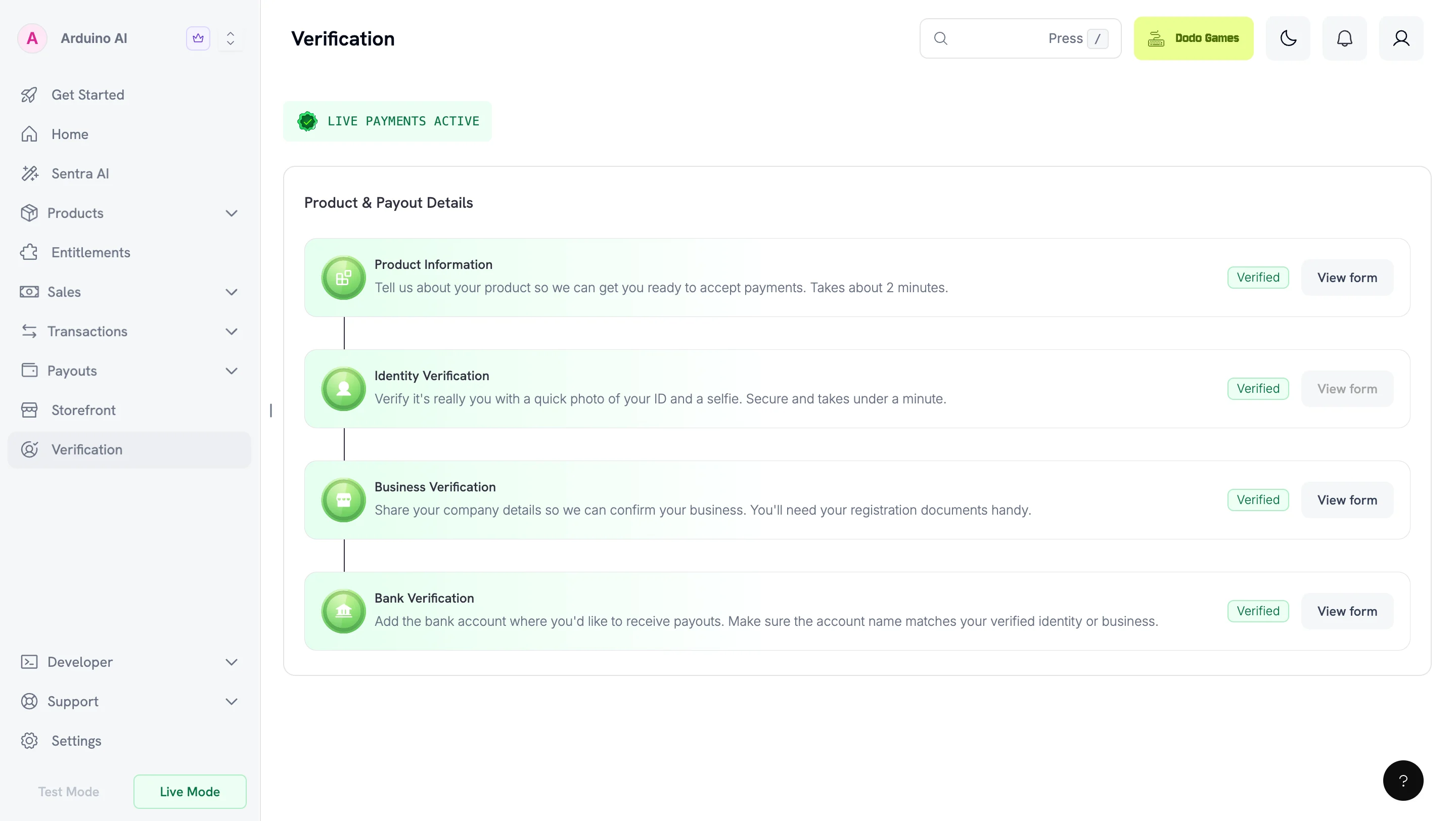 ### Verification Steps
Select **Individual** or **Registered Entity** based on how you operate.
Complete the **Product Information Form**. Before you submit, publish your website and check that it matches what you enter. See [Preparing Your Website](#preparing-your-website).
Complete identity verification (KYC) with a government-issued ID. Registered entities also complete business verification (KYB).
Provide your bank account information. Forms unlock sequentially — complete each one before the next appears.
Most reviews finish within 1–3 business days.
Live payments turn on after every required form for your account type is approved. Payouts also need a completed Monitoring Review. See [Live Payments vs. Payouts](#live-payments-vs-payouts).
### Required Forms
Forms unlock sequentially. Complete each one before the next appears.
| Account Type | Forms (in order) |
| - | - |
| **Individual** | Product Information → Identity Verification (KYC) → Bank Verification |
| **Registered Entity** | Product Information → Identity Verification (KYC) → Business Verification (KYB) → Bank Verification |
UK registered entities must also submit the [W-8BEN-E tax form](#w-8ben-e-for-uk-entities).
### Changing Your Account Type
You can change your account type while all forms are under review. Once any form is approved, failed, or on hold, your choice becomes permanent.
If you change your account type after you submit the bank form, while your forms are still under review, your bank verification goes on hold and you must resubmit. Switching from Individual to Registered Entity also requires the Business Verification form. Your Product Information and Identity Verification are preserved.
## Product Information Form
All merchants complete this form. To finish it later, select **Save as Draft**. Save as Draft is also available on the Bank Verification and Business Verification forms.
The form collects:
* **Product website or landing page** — where customers learn about or purchase your product
* **Product description** — one sentence explaining what it does
* **Product category** — SaaS, digital content, services, marketplace, or physical goods
* **Delivery method** — instant access, email, subscriptions, manual fulfillment, etc.
* **Level of automation** — fully automated, partially automated, or human-driven
* **Compliance-sensitive areas** — any regulated, restricted, or higher-risk product types
* **Integration method** — payment links, checkout sessions, APIs, SDKs, etc.
* **Product stage and customer acquisition** — maturity and go-to-market approach
* **Social media presence** — links to your product or founder profiles
* **Confirmation** — acknowledgement that information is accurate and policy-compliant
The verification team uses this information for the compliance review.
## Preparing Your Website
Your form is reviewed against your live website. Publish your site before you submit. A URL the review team cannot open is a common reason for a hold.
Before you submit, verify that a visitor with no account can reach your site and find:
* **Pricing** — what you charge, including billing interval for recurring plans
* **Terms of Service** — the agreement customers accept when they buy
* **Privacy Policy** — how you collect, store, and use customer data
* **Refund and Cancellation Policy** — how customers request refunds or cancel subscriptions
* **Contact route** — a monitored support address or contact form
Link these from a consistent place, such as your footer, so they're reachable from every page.
Your live site must match what you enter in the form, including product description, pricing, and delivery method. Mismatches are a common reason for holds.
Generate a first draft with the [Policy Generator](https://dodopayments.com/tools/policy-generator) and adapt it to your business.
## Identity Verification (KYC)
We use Persona, a global verification provider, to verify your government-issued ID and confirm liveness with a selfie. The process completes within minutes.
Your ID must be issued by a country on our [accepted countries list](/miscellaneous/accepted-countries-and-territories). This applies to you as an individual, and to every director and beneficial owner of a registered entity, regardless of where the entity is incorporated.
See [Persona's security measures](https://withpersona.com/security).
### Camera Access Issues
If you see "Can't access your camera," enable camera permissions for your device and browser:
* **Chrome:** Enable through browser settings (Desktop, iPhone & iPad, or Android)
* **Safari:** Desktop — enable through preferences. Mobile — Settings → Safari → Camera, set to "Ask" or "Allow"
* **iOS Apps:** Settings → Apps → \[Your App] → Allow Camera permissions. Ensure Lockdown Mode is not blocking the app
* **Android Apps:** Settings → Apps → \[Your App] → Allow Camera permissions
See [Persona's camera access guide](https://help.withpersona.com/articles/3V9VoOoGLp6zRCwthpzpx4/) for detailed troubleshooting.
### If Identity Verification Fails
Verification can fail even with genuine documents if the capture doesn't give Persona enough to work with.
Common causes:
* **Your photo no longer matches your ID.** An old ID may not match your current appearance closely enough for the selfie check.
* **You captured from a screen or photocopy.** Use the original physical document.
* **The capture is blurry, cropped, or has glare.** Every edge must be visible and all text readable.
* **Your document has expired.**
* **Your ID is from an unsupported country.** Check the [accepted countries list](/miscellaneous/accepted-countries-and-territories).
You get three attempts. After each failure, the dashboard shows the reason and how many attempts remain. Once all three are used, email [support@dodopayments.com](mailto:support@dodopayments.com) from your registered email to re-enable the form.
Before retrying, have a valid, unexpired, physical government-issued photo ID ready. Complete the check in a well-lit place with camera permissions already granted. Getting the capture right the first time avoids another round trip.
## Business Verification (KYB) — Registered Entities Only
Required only for registered entities. Complete this before Bank Verification.
### Required Details
Provide your Company Registration Number and supporting document (Certificate of Incorporation or equivalent for your jurisdiction).
If you want your tax number on payout invoices for tax benefits, provide a valid Tax ID and documents. Examples: EIN, CRN, VAT ID, GSTIN.
Provide details for all directors and beneficial owners.
**Beneficial Owner(s):** Any natural person who owns or is entitled to 10% or more of shares, capital, or profits, or who exercises control through other means (including the right to appoint the majority of directors or control management or policy decisions). If there are multiple beneficial owners, provide documents for all.
**Business Director(s):** Individuals currently serving as directors on the board in accordance with local laws. Provide government-issued IDs for all directors.
## Bank Verification
Provide your bank account details and contact information.
Bank account details must match the verified identity or registered entity name. For individuals, the account holder's name must match your Identity Verification document. For registered entities, it must match your company's legal name. Dodo Payments cannot process payouts to mismatched or third-party accounts.
## W-8BEN-E for UK Entities
UK registered entities must submit the W-8BEN-E form to comply with international tax reporting regulations. This ensures smooth payout processing and accurate tax documentation.
Official IRS W-8BEN-E form (PDF). Complete digitally before printing and signing.
### What is W-8BEN-E?
The W-8BEN-E is an IRS form that foreign businesses file to verify their country of residence for tax purposes and certify they qualify for a lower rate of tax withholding.
### How to Fill Out W-8BEN-E
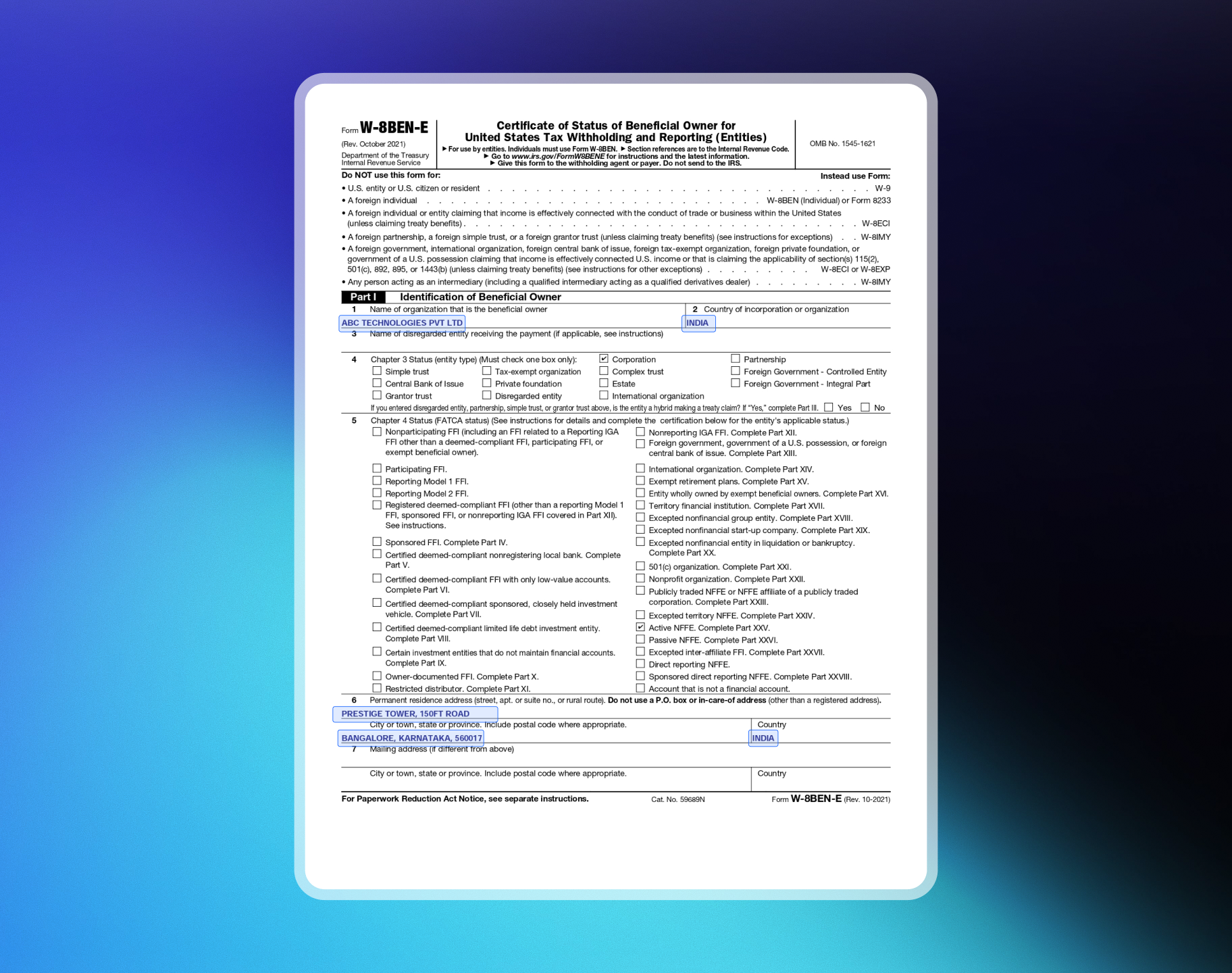
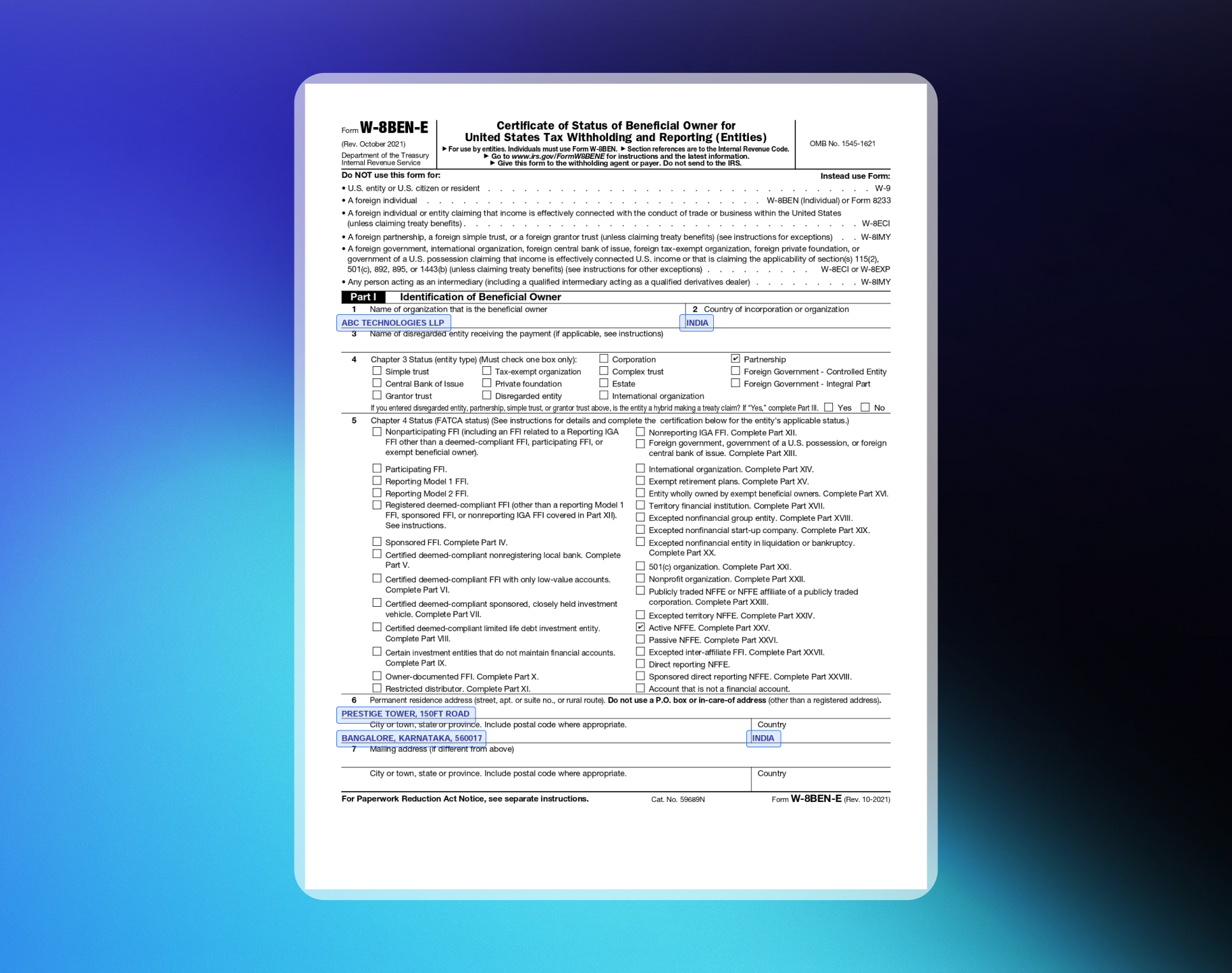
**1. Name of Organization**
Your entity name.
**2. Country of Incorporation or Organization**
The country where your business is registered. For a corporation, the country of incorporation. For other entity types, the country under whose laws you are created, organized, or governed.
**3. Chapter 3 Status**
Most commonly "Corporation" or "Partnership". For a Private Limited company, check Corporation. For a Limited Liability Partnership, check Partnership.
**4. Chapter 4 Status (FATCA Status)**
For SaaS/Digital Products, select "Active NFFE" (Active Non-Financial Foreign Entity).
**5. Permanent Residence Address**
Your business's permanent resident address in the country where you claim tax residence.
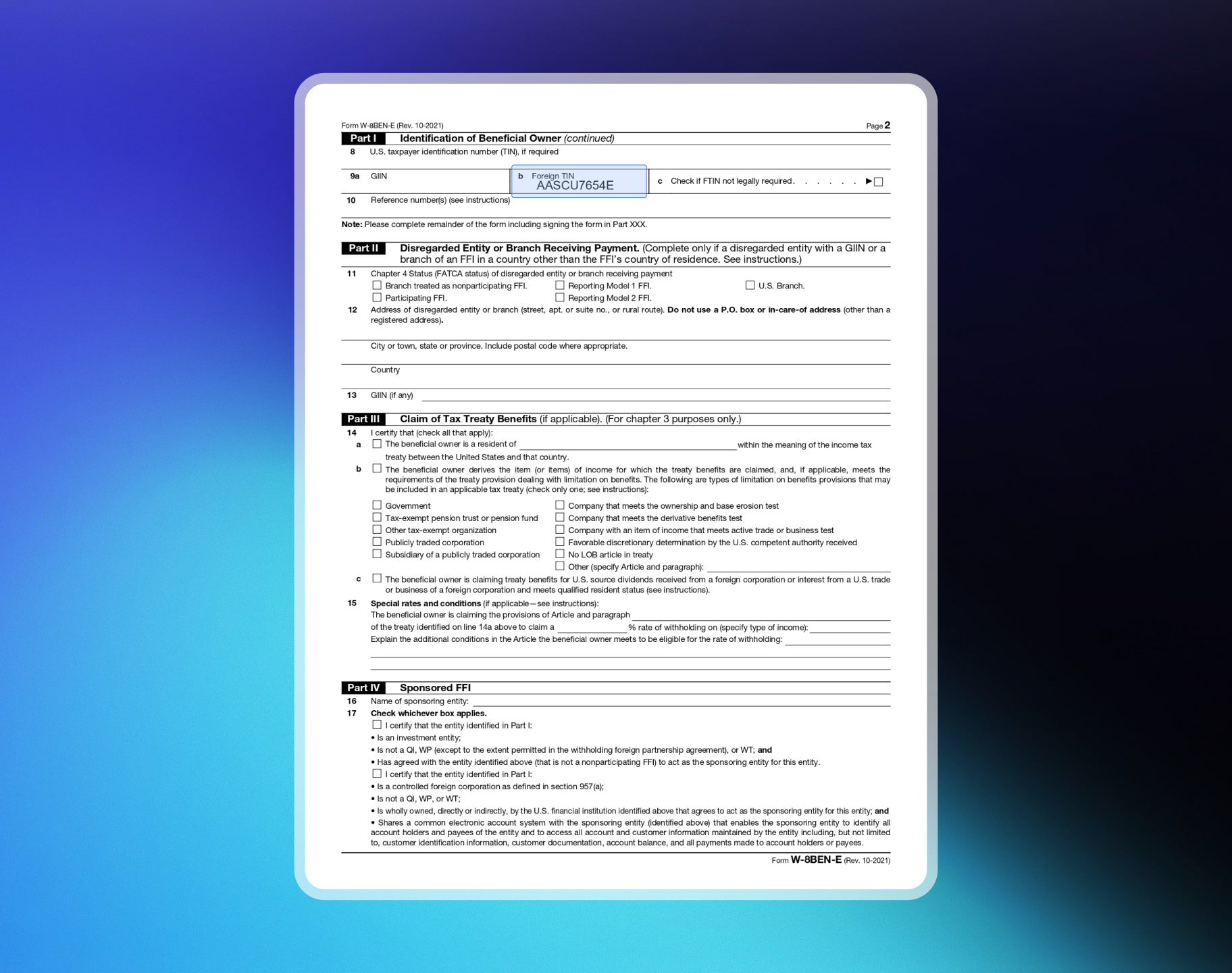
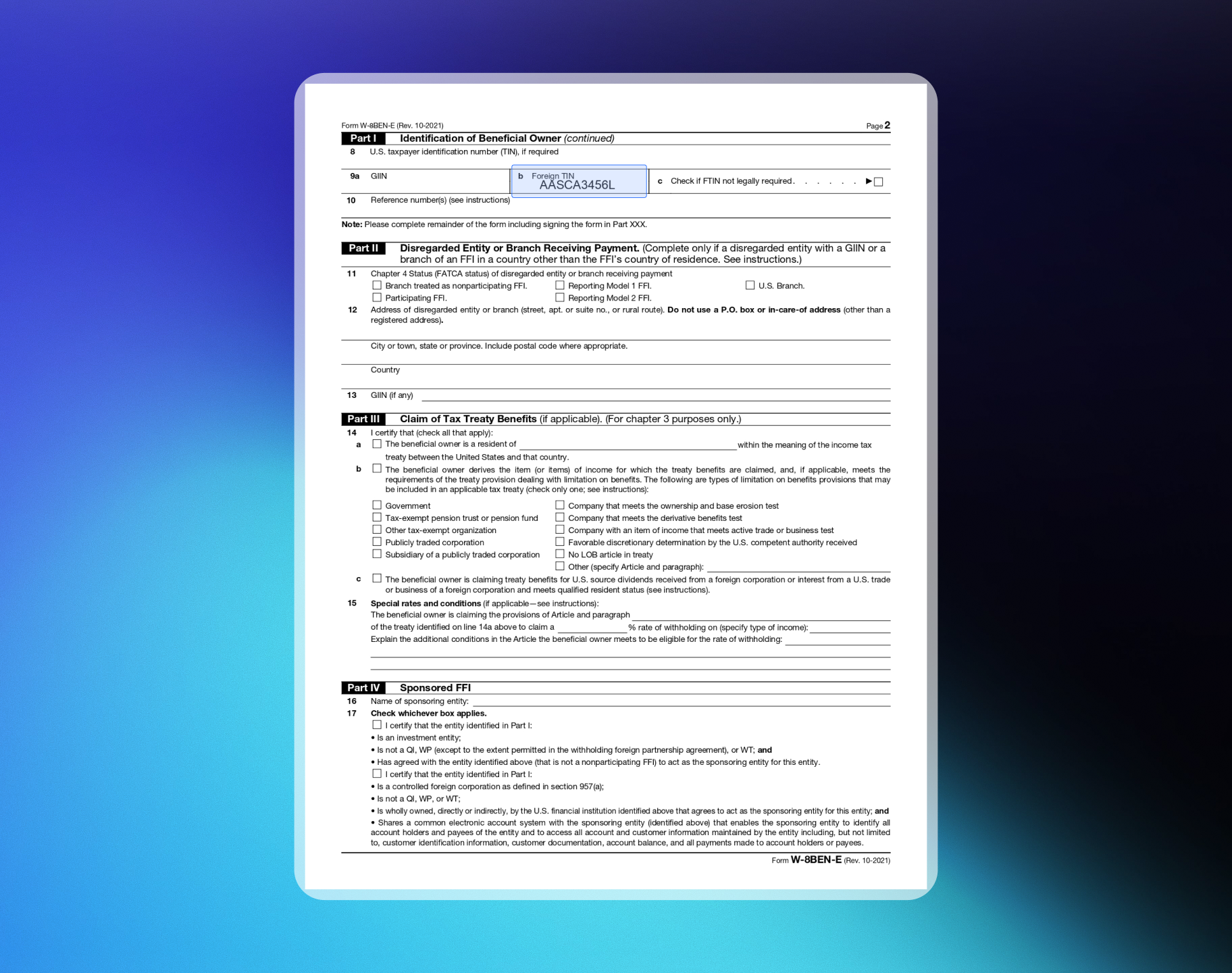
**8-10. Tax Identification Information**
Provide your FTIN (if issued by your jurisdiction of tax residence) on line 9b for treaty benefits.
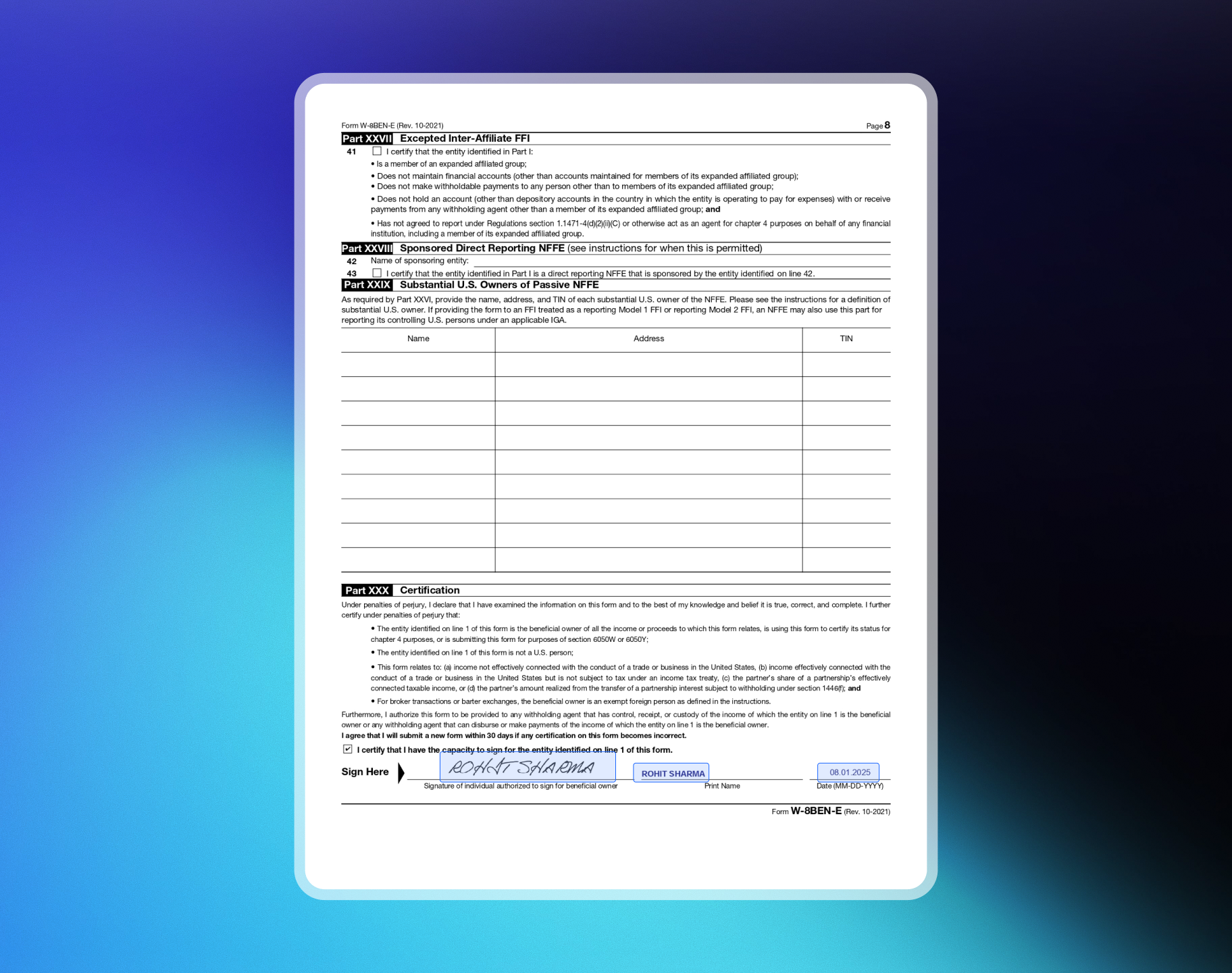
Check box 39 to certify:
* The entity is a foreign entity that is not a bank or financial institution.
* Less than 50% of gross income for the preceding calendar year is passive income.
* Less than 50% of assets held produce or are held for production of passive income.
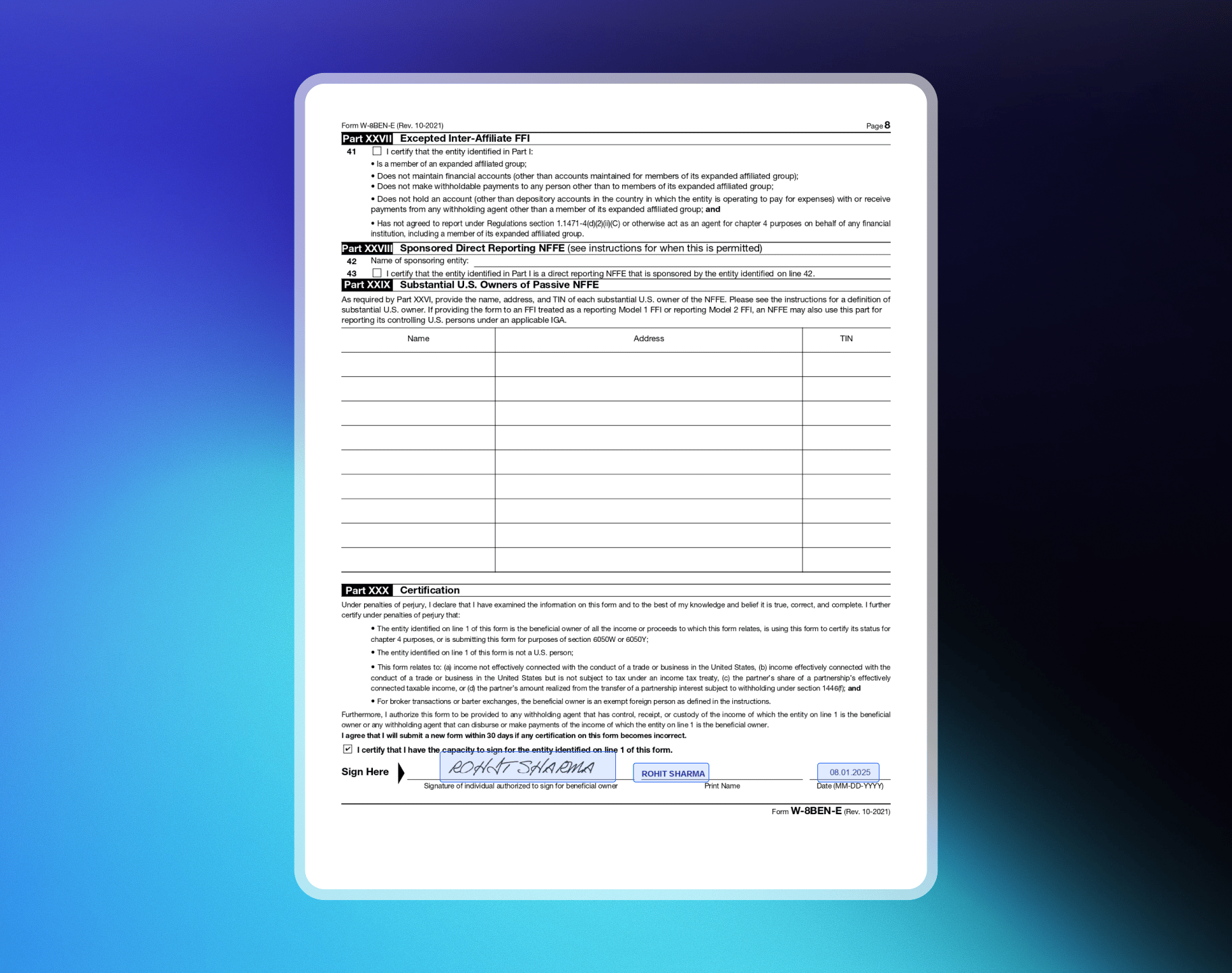
Sign and date the form. The person signing must be authorized to sign for the beneficial owner.
### Sample W-8BEN-E Forms
**Example:** ABC Technologies PVT LTD, SaaS / Digital Products, India, TIN: PAN
**Page 1**
### Verification Steps
Select **Individual** or **Registered Entity** based on how you operate.
Complete the **Product Information Form**. Before you submit, publish your website and check that it matches what you enter. See [Preparing Your Website](#preparing-your-website).
Complete identity verification (KYC) with a government-issued ID. Registered entities also complete business verification (KYB).
Provide your bank account information. Forms unlock sequentially — complete each one before the next appears.
Most reviews finish within 1–3 business days.
Live payments turn on after every required form for your account type is approved. Payouts also need a completed Monitoring Review. See [Live Payments vs. Payouts](#live-payments-vs-payouts).
### Required Forms
Forms unlock sequentially. Complete each one before the next appears.
| Account Type | Forms (in order) |
| - | - |
| **Individual** | Product Information → Identity Verification (KYC) → Bank Verification |
| **Registered Entity** | Product Information → Identity Verification (KYC) → Business Verification (KYB) → Bank Verification |
UK registered entities must also submit the [W-8BEN-E tax form](#w-8ben-e-for-uk-entities).
### Changing Your Account Type
You can change your account type while all forms are under review. Once any form is approved, failed, or on hold, your choice becomes permanent.
If you change your account type after you submit the bank form, while your forms are still under review, your bank verification goes on hold and you must resubmit. Switching from Individual to Registered Entity also requires the Business Verification form. Your Product Information and Identity Verification are preserved.
## Product Information Form
All merchants complete this form. To finish it later, select **Save as Draft**. Save as Draft is also available on the Bank Verification and Business Verification forms.
The form collects:
* **Product website or landing page** — where customers learn about or purchase your product
* **Product description** — one sentence explaining what it does
* **Product category** — SaaS, digital content, services, marketplace, or physical goods
* **Delivery method** — instant access, email, subscriptions, manual fulfillment, etc.
* **Level of automation** — fully automated, partially automated, or human-driven
* **Compliance-sensitive areas** — any regulated, restricted, or higher-risk product types
* **Integration method** — payment links, checkout sessions, APIs, SDKs, etc.
* **Product stage and customer acquisition** — maturity and go-to-market approach
* **Social media presence** — links to your product or founder profiles
* **Confirmation** — acknowledgement that information is accurate and policy-compliant
The verification team uses this information for the compliance review.
## Preparing Your Website
Your form is reviewed against your live website. Publish your site before you submit. A URL the review team cannot open is a common reason for a hold.
Before you submit, verify that a visitor with no account can reach your site and find:
* **Pricing** — what you charge, including billing interval for recurring plans
* **Terms of Service** — the agreement customers accept when they buy
* **Privacy Policy** — how you collect, store, and use customer data
* **Refund and Cancellation Policy** — how customers request refunds or cancel subscriptions
* **Contact route** — a monitored support address or contact form
Link these from a consistent place, such as your footer, so they're reachable from every page.
Your live site must match what you enter in the form, including product description, pricing, and delivery method. Mismatches are a common reason for holds.
Generate a first draft with the [Policy Generator](https://dodopayments.com/tools/policy-generator) and adapt it to your business.
## Identity Verification (KYC)
We use Persona, a global verification provider, to verify your government-issued ID and confirm liveness with a selfie. The process completes within minutes.
Your ID must be issued by a country on our [accepted countries list](/miscellaneous/accepted-countries-and-territories). This applies to you as an individual, and to every director and beneficial owner of a registered entity, regardless of where the entity is incorporated.
See [Persona's security measures](https://withpersona.com/security).
### Camera Access Issues
If you see "Can't access your camera," enable camera permissions for your device and browser:
* **Chrome:** Enable through browser settings (Desktop, iPhone & iPad, or Android)
* **Safari:** Desktop — enable through preferences. Mobile — Settings → Safari → Camera, set to "Ask" or "Allow"
* **iOS Apps:** Settings → Apps → \[Your App] → Allow Camera permissions. Ensure Lockdown Mode is not blocking the app
* **Android Apps:** Settings → Apps → \[Your App] → Allow Camera permissions
See [Persona's camera access guide](https://help.withpersona.com/articles/3V9VoOoGLp6zRCwthpzpx4/) for detailed troubleshooting.
### If Identity Verification Fails
Verification can fail even with genuine documents if the capture doesn't give Persona enough to work with.
Common causes:
* **Your photo no longer matches your ID.** An old ID may not match your current appearance closely enough for the selfie check.
* **You captured from a screen or photocopy.** Use the original physical document.
* **The capture is blurry, cropped, or has glare.** Every edge must be visible and all text readable.
* **Your document has expired.**
* **Your ID is from an unsupported country.** Check the [accepted countries list](/miscellaneous/accepted-countries-and-territories).
You get three attempts. After each failure, the dashboard shows the reason and how many attempts remain. Once all three are used, email [support@dodopayments.com](mailto:support@dodopayments.com) from your registered email to re-enable the form.
Before retrying, have a valid, unexpired, physical government-issued photo ID ready. Complete the check in a well-lit place with camera permissions already granted. Getting the capture right the first time avoids another round trip.
## Business Verification (KYB) — Registered Entities Only
Required only for registered entities. Complete this before Bank Verification.
### Required Details
Provide your Company Registration Number and supporting document (Certificate of Incorporation or equivalent for your jurisdiction).
If you want your tax number on payout invoices for tax benefits, provide a valid Tax ID and documents. Examples: EIN, CRN, VAT ID, GSTIN.
Provide details for all directors and beneficial owners.
**Beneficial Owner(s):** Any natural person who owns or is entitled to 10% or more of shares, capital, or profits, or who exercises control through other means (including the right to appoint the majority of directors or control management or policy decisions). If there are multiple beneficial owners, provide documents for all.
**Business Director(s):** Individuals currently serving as directors on the board in accordance with local laws. Provide government-issued IDs for all directors.
## Bank Verification
Provide your bank account details and contact information.
Bank account details must match the verified identity or registered entity name. For individuals, the account holder's name must match your Identity Verification document. For registered entities, it must match your company's legal name. Dodo Payments cannot process payouts to mismatched or third-party accounts.
## W-8BEN-E for UK Entities
UK registered entities must submit the W-8BEN-E form to comply with international tax reporting regulations. This ensures smooth payout processing and accurate tax documentation.
Official IRS W-8BEN-E form (PDF). Complete digitally before printing and signing.
### What is W-8BEN-E?
The W-8BEN-E is an IRS form that foreign businesses file to verify their country of residence for tax purposes and certify they qualify for a lower rate of tax withholding.
### How to Fill Out W-8BEN-E
**1. Name of Organization**
Your entity name.
**2. Country of Incorporation or Organization**
The country where your business is registered. For a corporation, the country of incorporation. For other entity types, the country under whose laws you are created, organized, or governed.
**3. Chapter 3 Status**
Most commonly "Corporation" or "Partnership". For a Private Limited company, check Corporation. For a Limited Liability Partnership, check Partnership.
**4. Chapter 4 Status (FATCA Status)**
For SaaS/Digital Products, select "Active NFFE" (Active Non-Financial Foreign Entity).
**5. Permanent Residence Address**
Your business's permanent resident address in the country where you claim tax residence.
**8-10. Tax Identification Information**
Provide your FTIN (if issued by your jurisdiction of tax residence) on line 9b for treaty benefits.
Check box 39 to certify:
* The entity is a foreign entity that is not a bank or financial institution.
* Less than 50% of gross income for the preceding calendar year is passive income.
* Less than 50% of assets held produce or are held for production of passive income.
Sign and date the form. The person signing must be authorized to sign for the beneficial owner.
### Sample W-8BEN-E Forms
**Example:** ABC Technologies PVT LTD, SaaS / Digital Products, India, TIN: PAN
**Page 1**
 **Page 2**
 **Page 8**
 **Example:** ABC Technologies LLP, SaaS / Digital Products, India, TIN: PAN
**Page 1**
**Example:** ABC Technologies LLP, SaaS / Digital Products, India, TIN: PAN
**Page 1**
 **Page 2**
 **Page 8**
 ## Compliance Review
After your payout details are approved, our compliance team performs a Monitoring Review per the [Review & Monitoring Policy](/miscellaneous/review-monitoring-policy). This is a standard check for all merchants.
We check for:
* Compliance with the [Merchant Acceptance Policy](/miscellaneous/merchant-acceptance)
* Card-network rules and AML regulations
* Potential fraud indicators or unusual activity patterns
If your business operates in line with our policies and platform rules, you have nothing to worry about. Most merchants pass smoothly with no action required.
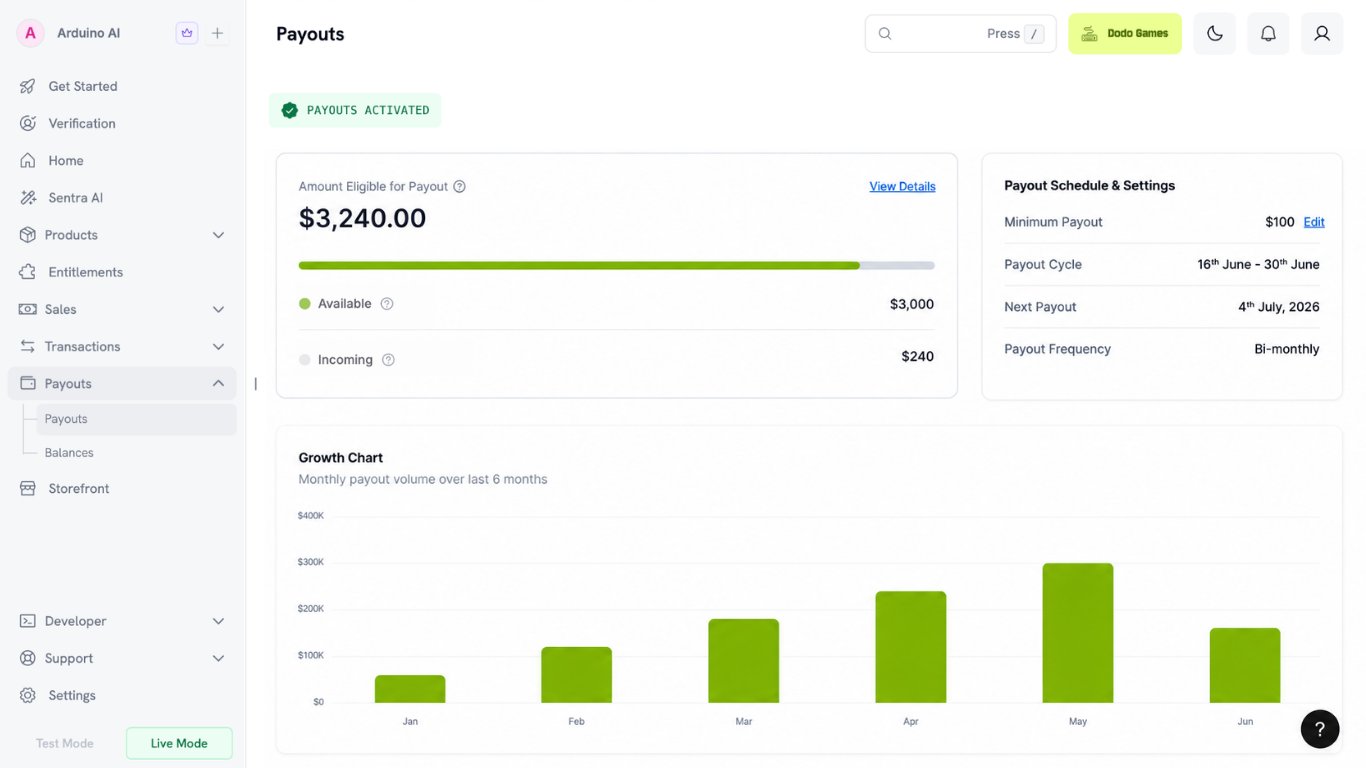
Once review is complete, you'll see your payout schedule, next payout date, payout threshold, and eligible balance in the dashboard.
## Compliance Review
After your payout details are approved, our compliance team performs a Monitoring Review per the [Review & Monitoring Policy](/miscellaneous/review-monitoring-policy). This is a standard check for all merchants.
We check for:
* Compliance with the [Merchant Acceptance Policy](/miscellaneous/merchant-acceptance)
* Card-network rules and AML regulations
* Potential fraud indicators or unusual activity patterns
If your business operates in line with our policies and platform rules, you have nothing to worry about. Most merchants pass smoothly with no action required.
Once review is complete, you'll see your payout schedule, next payout date, payout threshold, and eligible balance in the dashboard.
 ### Live Payments vs. Payouts
Live payments and payouts turn on separately. It's normal to accept live payments while payouts are still inactive.
Live payments require every required form for your account type to be approved. See [Required Forms](#required-forms).
Payouts require:
* Every required form approved, including Bank Verification
* Monitoring Review completed
If payouts are inactive, check the **Verification** section in your dashboard. A form in draft, under review, or on hold is the usual reason. Completing it moves your account forward.
Payouts being active is not the same as a payout being sent. Once enabled, a payout is initiated only when your eligible balance meets your payout threshold and your next payout date arrives. See [Payouts Process](/features/payouts/payout-structure) for cycles and thresholds.
If every form is approved and payouts are still inactive, contact [support@dodopayments.com](mailto:support@dodopayments.com) from your registered email.
### Ongoing Monitoring
Dodo Payments performs ongoing monitoring periodically to keep accounts compliant over time. If your business remains compliant, you can continue operating without concern. If we have concerns, necessary action is taken per the [Review & Monitoring Policy](/miscellaneous/review-monitoring-policy).
## Additional Information Requests
As part of ongoing monitoring, our compliance team may request additional information. These requests are completed from the dashboard and do not block payments or payouts, but failure to submit them may trigger pauses in processing, further reviews, or account restrictions.
See the [Review Monitoring Policy](/miscellaneous/review-monitoring-policy) for details.
## Timeline and Support
* Typical verification time: 1–3 business days (excludes weekends and public holidays)
* If additional review is needed, you'll be notified via email and dashboard
* For help, email [support@dodopayments.com](mailto:support@dodopayments.com)
## Resubmitting Documents
If the Verification Team finds issues with your documents, they'll request resubmission. Use the **Resubmit** option in your dashboard.
Once you submit a form, you cannot edit or resubmit it yourself. The **Resubmit** option appears only after the Verification Team enables it.
### If a Form Is Placed On Hold
On Hold means our compliance team needs more information before finishing review. It's not a rejection — your application stays open.
When a form is on hold, we email you and raise an **additional verification form** in the **Verification** section. Complete that form to respond to the hold, not the **Resubmit** option.
Your dashboard may show resubmissions are temporarily paused. That refers to your original form, which stays locked. If an additional verification form has been raised, complete that instead.
Find the form marked **On Hold**. The reason is shown alongside it.
Resolve what caused the hold before you respond. The most common reason is that the review team couldn't open your website — see [Preparing Your Website](#preparing-your-website) for the checklist.
Fill in the additional verification form and submit it. Answer the specific question raised, not just resubmit your original details unchanged.
If your dashboard shows a hold but no additional verification form, email [support@dodopayments.com](mailto:support@dodopayments.com) from your registered email and quote the hold reason.
Identity Verification works differently — you can retry it yourself while attempts remain. See [If Identity Verification Fails](#if-identity-verification-fails).
### If a Form Is Marked Failed
Failed status is not the same as a resubmission request. Resubmission is not reopened automatically, so there's usually no **Resubmit** option. Identity Verification is the exception — it gives you three attempts. See [If Identity Verification Fails](#if-identity-verification-fails).
For a failed form, appeal from the **Verification** section:
Open the **Verification** section to see why the form failed.
Address what caused the failure before you appeal. For example, point your product URL at a public landing page rather than a login screen, or ensure your live website matches what you described in the form.
Submit the appeal with a detailed explanation. A one-line response is unlikely to change the outcome.
You can appeal only once, and the decision is final. Write carefully the first time. Appeals typically take more than 48 working hours to review.
If your business cannot be supported for reasons of location or product category, an appeal cannot change that outcome. Review [Countries Eligible for Merchant Acceptance](/miscellaneous/accepted-countries-and-territories) and the [Merchant Acceptance Policy](/miscellaneous/merchant-acceptance) to confirm your eligibility first.
### When Resubmission Is Requested
Resubmission is requested for:
* **Missing or incomplete information** — identification numbers, business name, or other key data
* **Document mismatch** — documents don't match the business or personal information provided
* **Unreadable or expired documents** — unclear, illegible, or expired uploads
* **Additional clarification needed** — further documentation to clarify identity or business information
### How to Resubmit
Look for a resubmission request (you'll also receive an email notification).
The verification team will enable the **Resubmit** option.
Navigate to the **Verification** section and upload the correct documents.
Click **Submit for Review**.
Review our comprehensive acceptance standards, including supported and prohibited products, and ensure your business is eligible for onboarding.
Understand how ongoing compliance is monitored, learn about triggers for document review, and stay proactive with your account status.
This documentation is built and hosted on [Mintlify](https://mintlify.com), a developer documentation platform.
### Live Payments vs. Payouts
Live payments and payouts turn on separately. It's normal to accept live payments while payouts are still inactive.
Live payments require every required form for your account type to be approved. See [Required Forms](#required-forms).
Payouts require:
* Every required form approved, including Bank Verification
* Monitoring Review completed
If payouts are inactive, check the **Verification** section in your dashboard. A form in draft, under review, or on hold is the usual reason. Completing it moves your account forward.
Payouts being active is not the same as a payout being sent. Once enabled, a payout is initiated only when your eligible balance meets your payout threshold and your next payout date arrives. See [Payouts Process](/features/payouts/payout-structure) for cycles and thresholds.
If every form is approved and payouts are still inactive, contact [support@dodopayments.com](mailto:support@dodopayments.com) from your registered email.
### Ongoing Monitoring
Dodo Payments performs ongoing monitoring periodically to keep accounts compliant over time. If your business remains compliant, you can continue operating without concern. If we have concerns, necessary action is taken per the [Review & Monitoring Policy](/miscellaneous/review-monitoring-policy).
## Additional Information Requests
As part of ongoing monitoring, our compliance team may request additional information. These requests are completed from the dashboard and do not block payments or payouts, but failure to submit them may trigger pauses in processing, further reviews, or account restrictions.
See the [Review Monitoring Policy](/miscellaneous/review-monitoring-policy) for details.
## Timeline and Support
* Typical verification time: 1–3 business days (excludes weekends and public holidays)
* If additional review is needed, you'll be notified via email and dashboard
* For help, email [support@dodopayments.com](mailto:support@dodopayments.com)
## Resubmitting Documents
If the Verification Team finds issues with your documents, they'll request resubmission. Use the **Resubmit** option in your dashboard.
Once you submit a form, you cannot edit or resubmit it yourself. The **Resubmit** option appears only after the Verification Team enables it.
### If a Form Is Placed On Hold
On Hold means our compliance team needs more information before finishing review. It's not a rejection — your application stays open.
When a form is on hold, we email you and raise an **additional verification form** in the **Verification** section. Complete that form to respond to the hold, not the **Resubmit** option.
Your dashboard may show resubmissions are temporarily paused. That refers to your original form, which stays locked. If an additional verification form has been raised, complete that instead.
Find the form marked **On Hold**. The reason is shown alongside it.
Resolve what caused the hold before you respond. The most common reason is that the review team couldn't open your website — see [Preparing Your Website](#preparing-your-website) for the checklist.
Fill in the additional verification form and submit it. Answer the specific question raised, not just resubmit your original details unchanged.
If your dashboard shows a hold but no additional verification form, email [support@dodopayments.com](mailto:support@dodopayments.com) from your registered email and quote the hold reason.
Identity Verification works differently — you can retry it yourself while attempts remain. See [If Identity Verification Fails](#if-identity-verification-fails).
### If a Form Is Marked Failed
Failed status is not the same as a resubmission request. Resubmission is not reopened automatically, so there's usually no **Resubmit** option. Identity Verification is the exception — it gives you three attempts. See [If Identity Verification Fails](#if-identity-verification-fails).
For a failed form, appeal from the **Verification** section:
Open the **Verification** section to see why the form failed.
Address what caused the failure before you appeal. For example, point your product URL at a public landing page rather than a login screen, or ensure your live website matches what you described in the form.
Submit the appeal with a detailed explanation. A one-line response is unlikely to change the outcome.
You can appeal only once, and the decision is final. Write carefully the first time. Appeals typically take more than 48 working hours to review.
If your business cannot be supported for reasons of location or product category, an appeal cannot change that outcome. Review [Countries Eligible for Merchant Acceptance](/miscellaneous/accepted-countries-and-territories) and the [Merchant Acceptance Policy](/miscellaneous/merchant-acceptance) to confirm your eligibility first.
### When Resubmission Is Requested
Resubmission is requested for:
* **Missing or incomplete information** — identification numbers, business name, or other key data
* **Document mismatch** — documents don't match the business or personal information provided
* **Unreadable or expired documents** — unclear, illegible, or expired uploads
* **Additional clarification needed** — further documentation to clarify identity or business information
### How to Resubmit
Look for a resubmission request (you'll also receive an email notification).
The verification team will enable the **Resubmit** option.
Navigate to the **Verification** section and upload the correct documents.
Click **Submit for Review**.
Review our comprehensive acceptance standards, including supported and prohibited products, and ensure your business is eligible for onboarding.
Understand how ongoing compliance is monitored, learn about triggers for document review, and stay proactive with your account status.
This documentation is built and hosted on [Mintlify](https://mintlify.com), a developer documentation platform.