

New Features
1. Subscription Payment Retries
Failed subscription renewal payments can now be retried automatically to recover revenue, with no integration work required. Enable it from Settings → Recovery, set a recovery window, and Dodo Payments retries the renewal on a smart schedule until it succeeds or the window closes.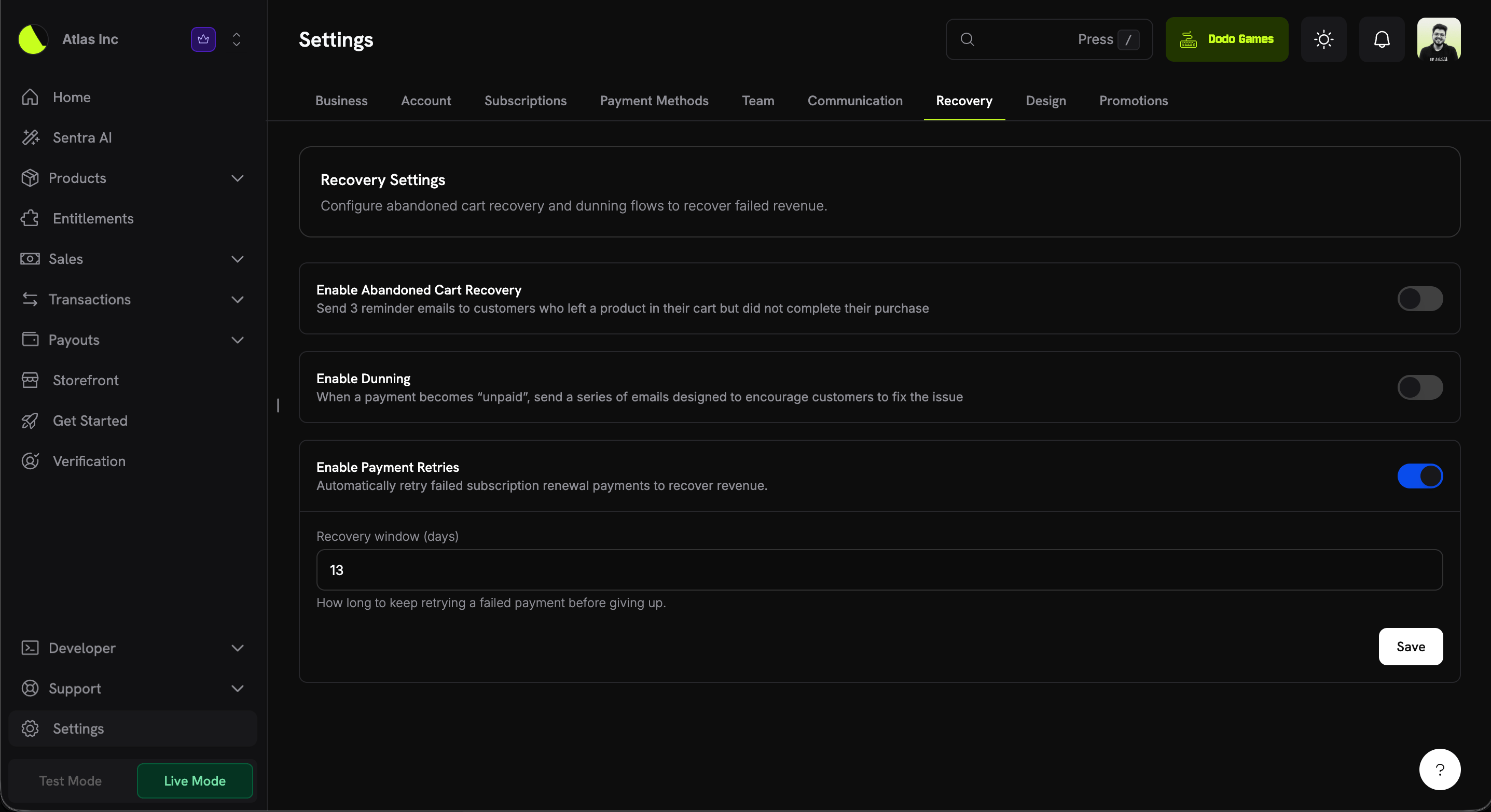
How it works
- A subscription renewal payment fails and the subscription moves to
on_hold. - If the decline is retryable (a soft decline such as insufficient funds or a temporary network error), the next attempt is scheduled automatically.
- Retries fire off-session on a back-off schedule, bounded by your recovery window.
- On the first successful retry, the subscription returns to
activeand the next billing date is advanced as normal.
Only soft declines are retried (e.g. insufficient funds, generic decline, processing or network errors). Hard declines end the retry chain immediately, since retrying won’t change the outcome.
2. Business Proration Settings
You can now set default upgrade & downgrade behavior once at the business level instead of passing proration parameters on every plan change. These defaults apply whenever a customer changes their plan from the customer portal, and you can override them per product collection.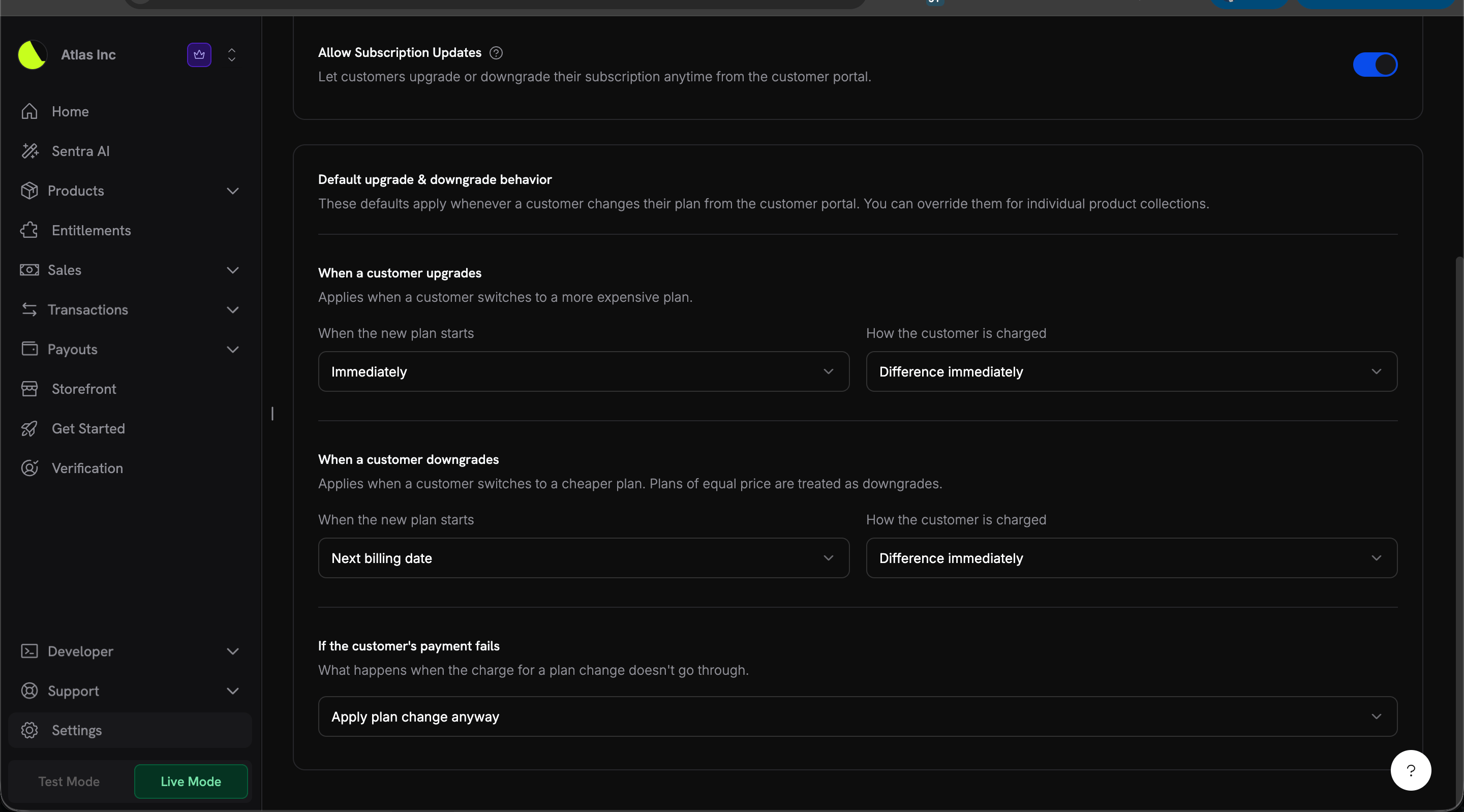
When the new plan starts (
effective_at)
How the customer is charged (
proration_billing_mode)
If the customer’s payment fails (
on_payment_failure)
Per-collection overrides
Every product collection can override any of these defaults. Each field is independent — leave it on Inherit from business to follow the business default, or set an explicit value to override it for that collection only.
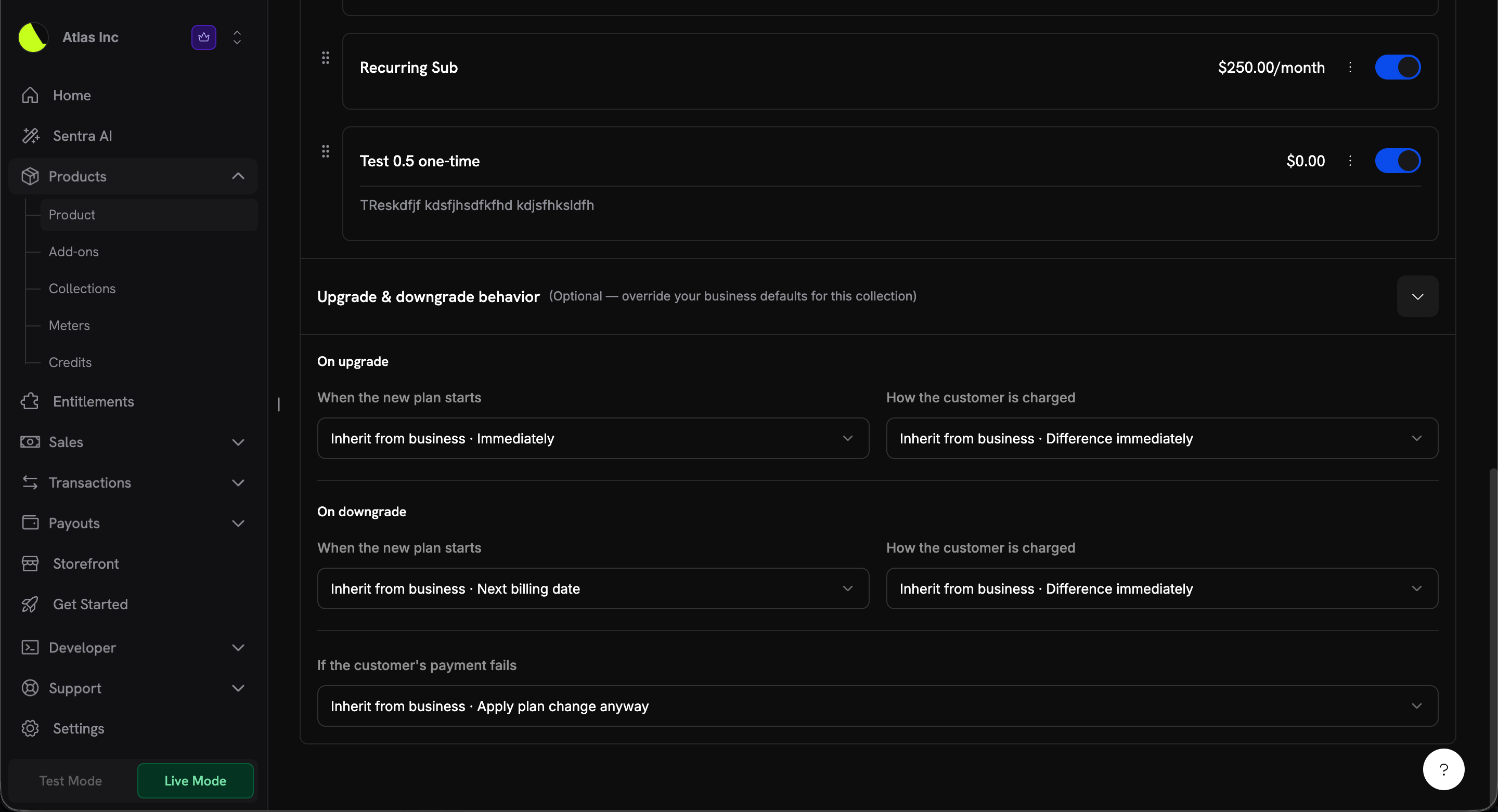
A per-request value passed to the Change Plan API (
proration_billing_mode, effective_at, on_payment_failure) always takes precedence over both the collection and business defaults. The new settings only change what happens when no explicit value is supplied — which is the case for all customer-portal plan changes.3. Collect Business Name for B2B Invoices
B2B customers can now have their legal business name rendered on the invoice instead of the buyer’s personal name. When a valid Tax ID is supplied at checkout, you can also collect the associatedcustomer_business_name so the invoice reflects the purchasing entity.
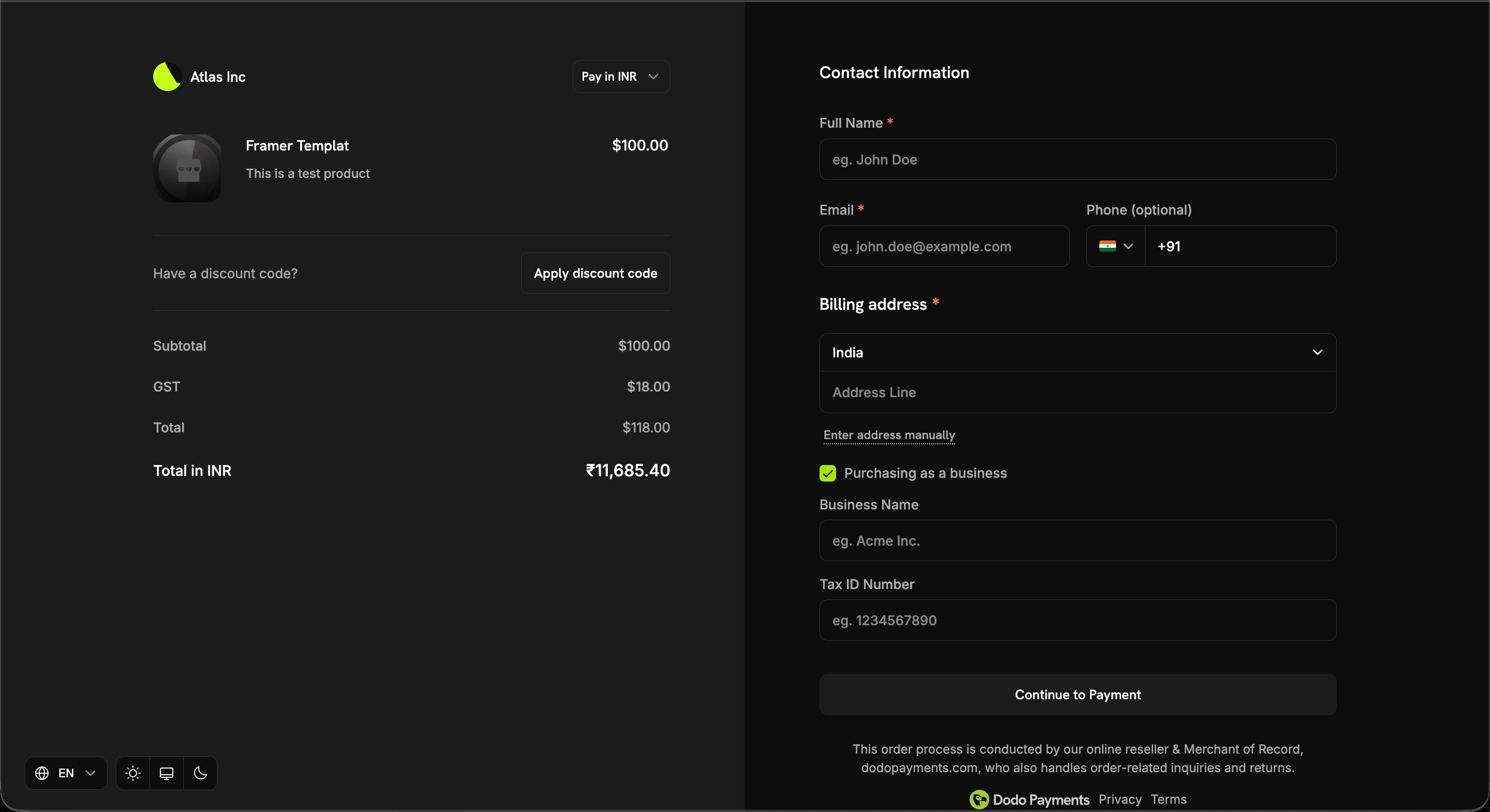
- The transaction is B2B (
b2b = true) - A
tax_idis present - A non-empty
customer_business_nameis supplied
customer_business_name directly, and/or enable allow_customer_editing_business_name to let the customer enter or edit it on the checkout page alongside their Tax ID:
Surrounding whitespace is trimmed, and whitespace-only values are treated as an explicit clear — so stored data always matches what’s rendered on the invoice.
Bug Fixes & Improvements
- Minor bug fixes and stability improvements across the platform.