

Pending grant that waits for you to supply the key value, instead of Dodo Payments generating a key on payment. The key can come from your own system, a third-party vendor, or a finite pool of codes.
When you finish this guide, you have:
- A product with a License Key entitlement set to
manualfulfillment. - A webhook listener that detects when a customer is waiting for a key.
- A fulfillment call that delivers the key and notifies the customer automatically.
License Keys Overview
The full license key lifecycle and the
fulfillment_mode setting.Fulfill License Key Grant API
API reference for the endpoint you call to deliver a key.
How It Works
The sequence below shows one purchase, from checkout to key delivery: Manual fulfillment changes only the issuance step. Once delivered, the key behaves like an auto-generated key for activation, validation, deactivation, expiry, and revocation. A purchase of several units creates onePending grant per unit, and each grant needs its own key.
Prerequisites
To follow this guide, you need:- A Dodo Payments merchant account.
- An API key, created under Developer → API Keys and stored in
DODO_PAYMENTS_API_KEY, and the webhook signing secret from Developer → Webhooks, stored inDODO_PAYMENTS_WEBHOOK_KEY. See the API key generation guide. - A backend endpoint that can receive webhooks.
Use
https://test.dodopayments.com and test mode credentials while you build. When you go to production, switch to https://live.dodopayments.com and live mode keys.Step 1 — Create a License Key Entitlement in Manual Mode
An entitlement is a reusable definition of what you deliver. Create a License Key entitlement and set itsfulfillment_mode to manual.
- Dashboard
- API
1
Open Entitlements
Go to Entitlements in the dashboard and click + to create an entitlement.
2
Choose License Key
Select License Keys and enter a Name. The form has these fields: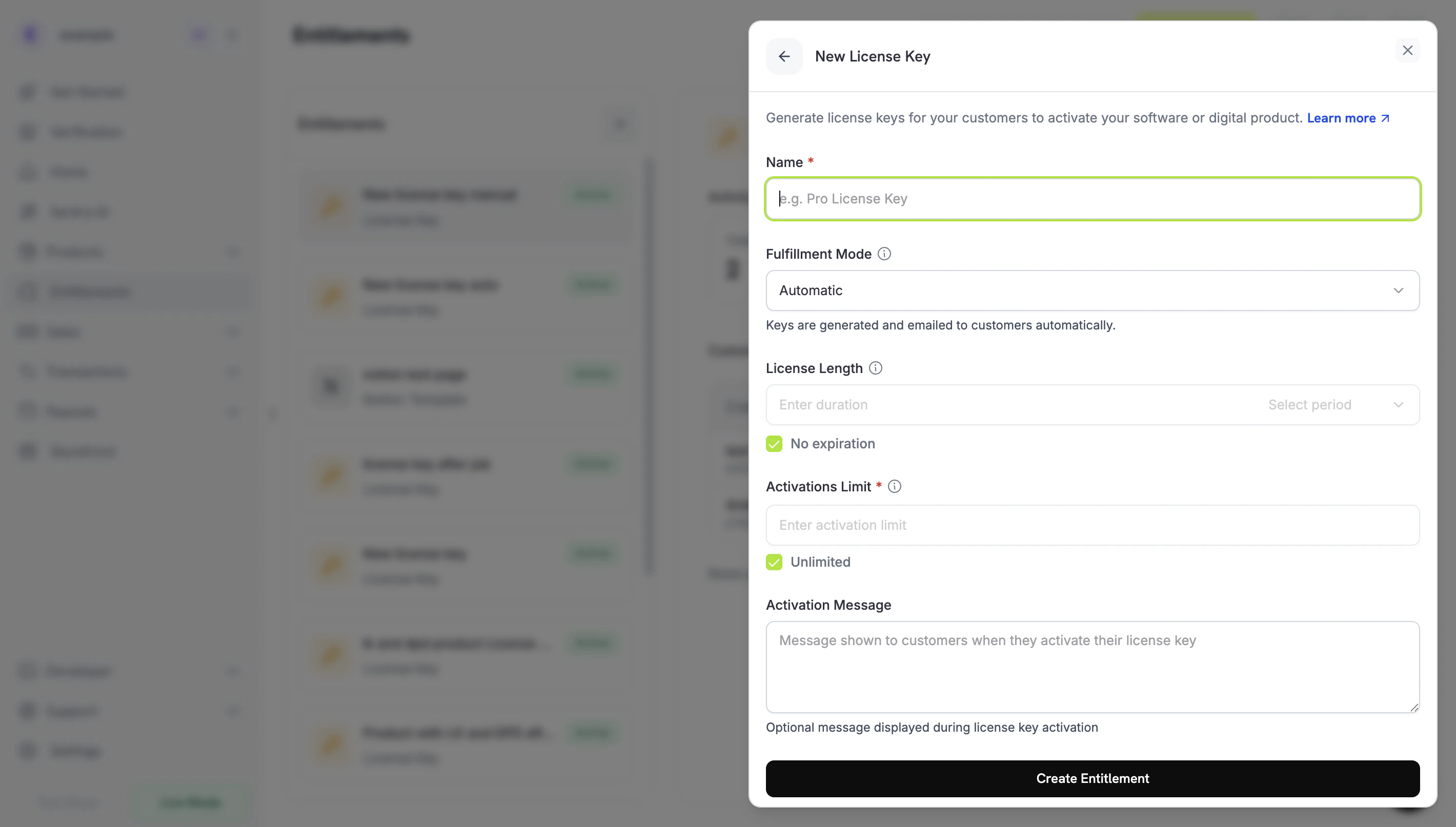
- Fulfillment Mode: Automatic by default. This is the setting that enables manual fulfillment, and you change it in the next step.
- License Length: how long each issued key stays valid, or No expiration.
- Activations Limit: the maximum number of activations per key, or Unlimited.
- Activation Message: an optional customer-facing message shown when the customer activates the key, and included in the license key email.
3
Set Fulfillment Mode to Manual
Open the Fulfillment Mode dropdown and change it from Automatic to Manual. The rest of this guide depends on this setting: without it, Dodo Payments generates and emails keys automatically and creates no pending grant. With Manual selected, each purchase creates a
Pending grant for you to fulfill. Click Create Entitlement to save.fulfillment_mode defaults to auto. If you omit it, or leave an existing entitlement unchanged, the entitlement keeps automatic fulfillment. Only entitlements explicitly set to manual create pending grants.Step 2 — Attach the Entitlement to a Product
Open the product you want to sell, go to its Entitlements section, and select the License Key entitlement you set to Manual in Step 1. One product can deliver this license key together with other entitlements on the same purchase. If you don’t have a product yet, create a one-time or subscription product first. To sell it through checkout, see the Integration Guide.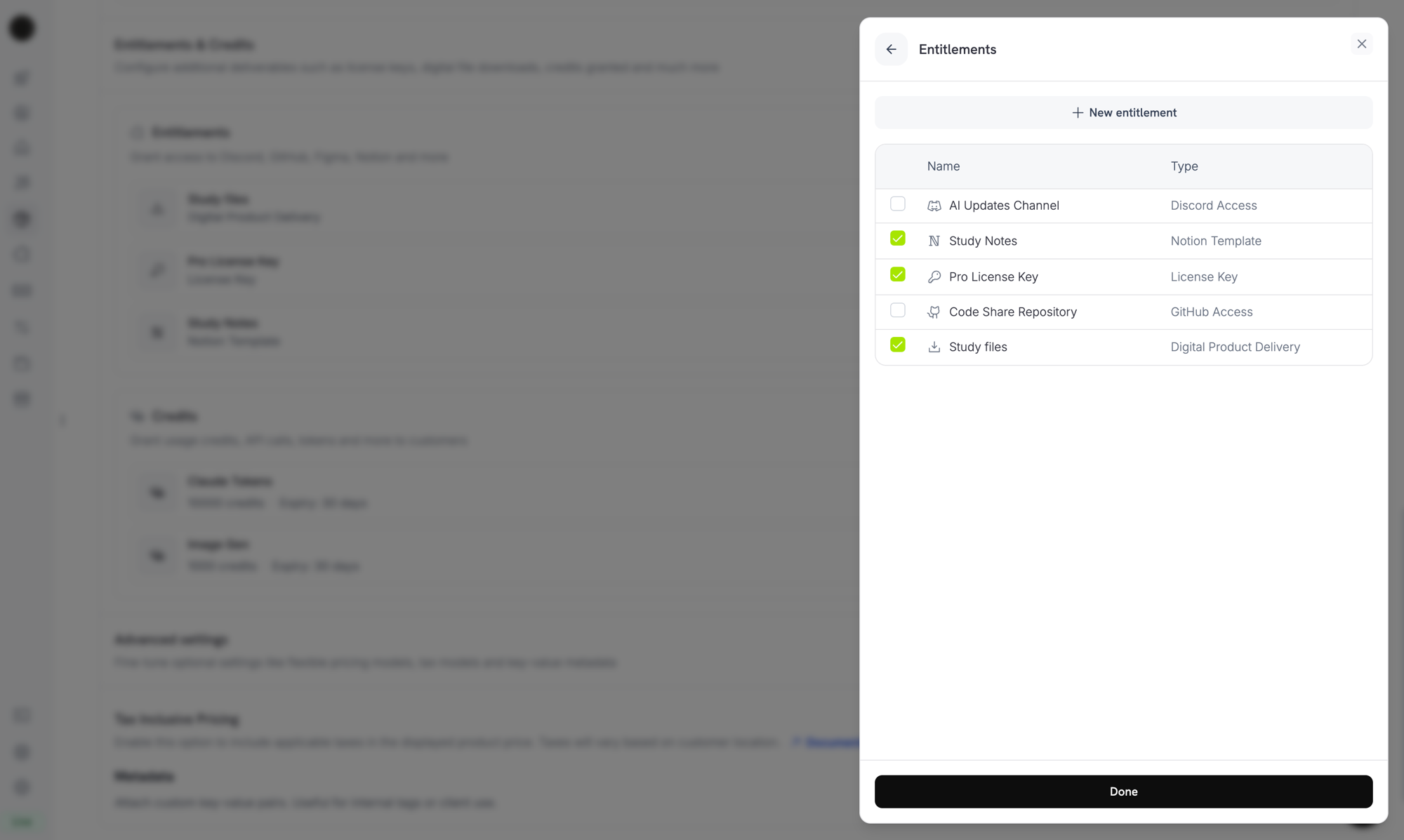
Selecting the License Key entitlement in the product entitlements panel.
Fulfillment mode is a property of the entitlement, not the product. Because you set it to Manual in Step 1, every product with this entitlement attached creates
Pending license-key grants on purchase. You don’t configure anything else on the product.Step 3 — Detect Pending Grants
When a customer buys the product, Dodo Payments creates a grant inPending status with no key attached and sends an entitlement_grant.created webhook. This event is your signal that a customer is waiting for a key.
Listen for the Webhook
Add a webhook endpoint under Developer → Webhooks in the dashboard, then act on pending license-key grants. The webhooks follow the Standard Webhooks specification, so you can verify them with thestandardwebhooks library:
integration_type: "license_key", so you can recognize a license-key grant without an extra lookup. Webhook deliveries can repeat, so skip events whose webhook-id header you’ve already processed. See the Entitlement Grant webhook reference for the full payload.
Or Poll the List Grants API
If you’d rather not rely on webhooks, list the grants for your License Key entitlement and filter bystatus. Every grant on a License Key entitlement is a license-key grant, so you don’t need an integration_type filter:
Step 4 — Deliver the Key
Get the key value from your own system, then submit it to the Fulfill License Key Grant endpoint. The call requires your secret API key with Editor permission. It is not one of the public license endpoints. The SDKs also expose it, for example asclient.entitlements.grants.fulfillLicenseKey() in TypeScript and client.entitlements.grants.fulfill_license_key() in Python.
Request Fields
string
required
The license key string to deliver to the customer, up to 255 characters. Surrounding whitespace is trimmed, and an empty or whitespace-only value is rejected.
integer
Per-key activation limit, at least 1. When omitted, the entitlement’s Activations Limit applies.
string
Per-key expiry (ISO 8601). When omitted, a one-time grant’s key expires according to the entitlement’s License Length, and a subscription grant’s key has no expiry, so its validity follows the subscription.
Delivered, Dodo Payments emails the key to the customer (the same email they receive under automatic fulfillment), and the license_key.created and entitlement_grant.delivered webhook events fire.
The email contains the license key, the product, the activation limit, the expiry, and your activation instructions:
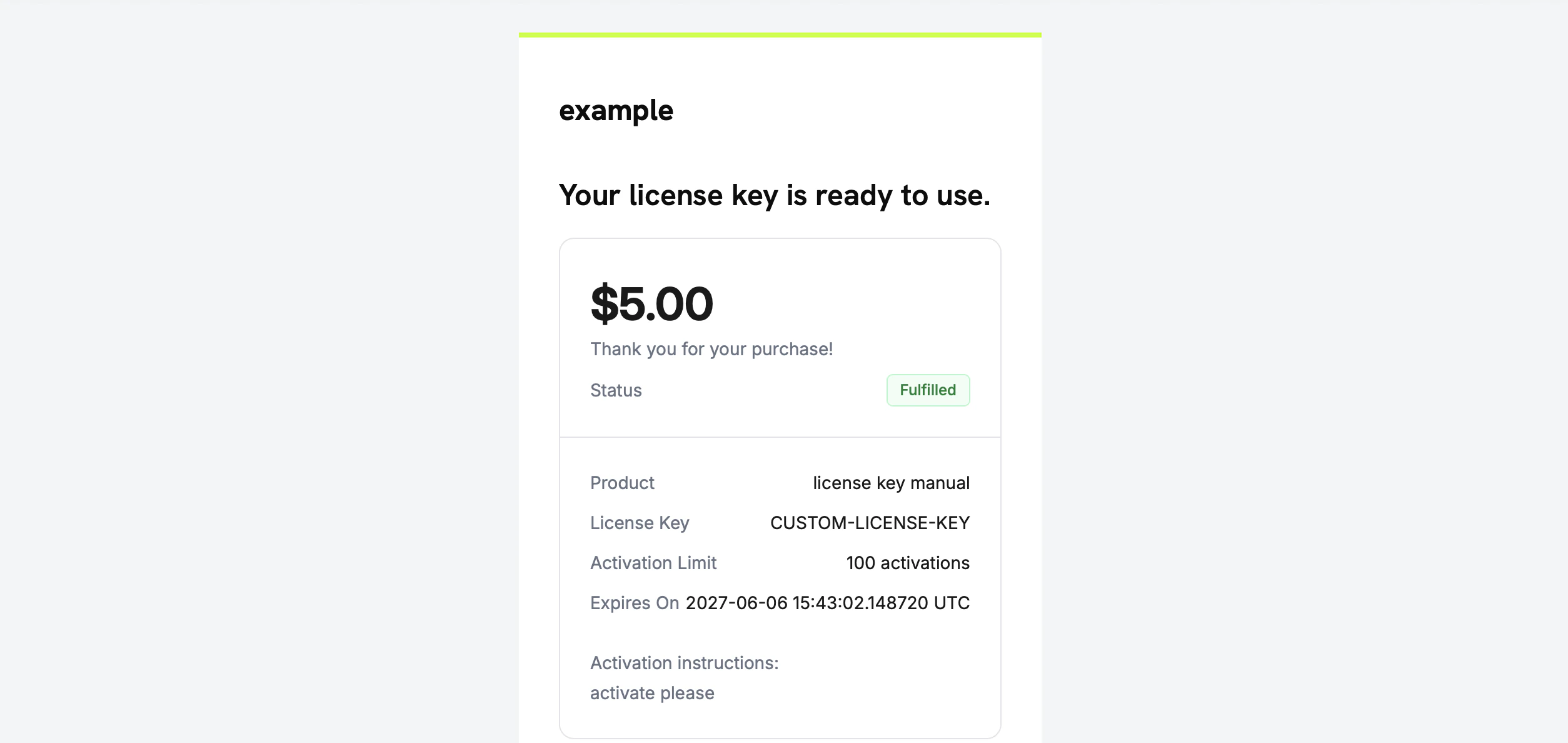
The license key email the customer receives once you fulfill the grant.
You don’t need to email the key yourself. Delivery happens automatically when the grant is fulfilled.
Step 5 — Handle Errors and Retries
The endpoint validates the grant before it delivers anything. Handle these responses:Verify the Flow
To test the flow end to end:- Buy the product in test mode. See the checkout guides.
- Confirm that your webhook received
entitlement_grant.createdwithstatus: "Pending"andintegration_type: "license_key", or that the grant appears in the List Grants response filtered bystatus=Pending. - Call the fulfill endpoint with a test key.
- Confirm that the response shows
status: "Delivered"with a populatedlicense_key, that the customer receives the key email, and thatentitlement_grant.deliveredfires.
Once the key is delivered, the customer can activate and validate it against the public license endpoints, like an auto-generated key.
Related API Reference
Create Entitlement
Create the License Key entitlement with
fulfillment_mode: manual.List Grants
Filter by
status and customer_id to find pending grants.Fulfill License Key Grant
Deliver the key value and move the grant to
Delivered.Entitlement Grant Webhooks
The
entitlement_grant.* events that signal pending and delivered grants.