

API Reference — Events Ingestion
Access the complete API documentation for ingesting usage events and test event ingestion requests and responses interactively.
API Reference — Meters Creation
Explore the full API documentation for creating meters and interactively test meter creation requests and responses.
Creating a Meter
Meters define how your usage events are aggregated and measured for billing purposes. Before creating a meter, plan your usage tracking strategy:- Identify what usage events you want to track
- Determine how events should be aggregated (count, sum, etc.)
- Define any filtering requirements for specific use cases
Step-by-Step Meter Creation
Follow this guide to set up your usage meter:1
Configure Basic Information
Set up the fundamental details for your meter.
string
required
A clear, descriptive name that identifies what this meter tracks.Examples: “Tokens”, “API Calls”, “Storage Usage”, “Compute Hours”
string
A detailed explanation of what this meter measures.Example: “Counts each POST /v1/orders request made by the customer”
string
required
The event identifier that will trigger this meter.Examples: “token”, “api.call”, “storage.usage”, “compute.session”
The event name must match exactly what you send in your usage events. Event names are case-sensitive.
2
Configure Aggregation Settings
Define how the meter calculates usage from your events.
string
required
Select how events should be aggregated:
- Count
- Sum
- Max
- Last
Counts the number of events received.Use case: API calls, page views, file uploadsCalculation: Total number of events
string
The property name from event metadata to aggregate over.
string
required
The unit label for display purposes in reports and billing.Examples: “calls”, “GB”, “hours”, “tokens”
3
Configure Event Filtering (Optional)
Set up criteria to control which events are included in the meter.Enable Event FilteringToggle Enable Event Filtering to activate conditional event processing.Choose Filter LogicSelect how multiple conditions are evaluated:Setting Up Filter Conditions
Event filtering allows you to create sophisticated rules that determine which events contribute to your usage calculations. This is useful for excluding test events, filtering by user tiers, or focusing on specific actions.
- AND Logic
- OR Logic
All conditions must be true for an event to be counted. Use this when you need events to meet multiple strict criteria simultaneously.Example: Count API calls where
user_tier = "premium" AND endpoint = "/api/v2/users"1
Add Condition
Click Add condition to create a new filter rule.
2
Configure Property Key
Specify the property name from your event metadata.
3
Select Comparator
Choose from available operators:
equals— Exact matchnot_equals— Exclusion filtergreater_than— Numeric comparisongreater_than_or_equals— Numeric comparison (inclusive)less_than— Numeric comparisonless_than_or_equals— Numeric comparison (inclusive)contains— String contains substringdoes_not_contain— String exclusion filter
4
Set Comparison Value
Set the target value for comparison.
5
Add Groups
Use Add Group to create additional condition groups for complex logic.
4
Create Meter
Review your meter configuration and click Create Meter.
Your meter is now ready to receive and aggregate usage events.
Linking Meter in a Product
Once you have created your meter, you need to link it to a product to enable usage-based billing. This process connects your meter’s usage data to pricing rules for customer billing. Linking meters to products establishes the connection between usage tracking and billing:- Products define pricing rules and billing behavior
- Meters provide usage data for billing calculations
- Multiple meters can be linked to a single product for complex billing scenarios
Product Configuration Process
Transform your usage data into billable charges by properly configuring your product settings:1
Choose Usage-Based Billing Product Type
Navigate to your product creation or editing page and select Usage Based Billing as the pricing type.
2
Select Associated Meter
Click on Associated Meters to open the meter selection panel.This panel allows you to configure which meters will track usage for this product.
3
Add Your Meter
In the meter selection panel:
- Click Add Meters to view available meters
- Select the meter you created from the dropdown list
- The selected meter will appear in your product configuration
4
Configure Price Per Unit
Set the pricing for each unit of usage tracked by your meter.
number
required
Define how much to charge for each unit measured by your meter.Example: Setting $0.50 per unit means:
- 1,000 units consumed = 1,000 × $0.50 = $500.00 charged
- 500 units consumed = 500 × $0.50 = $250.00 charged
- 100 units consumed = 100 × $0.50 = $50.00 charged
5
Set Free Threshold (Optional)
Configure a free usage allowance before billing begins.
number
Number of units customers can consume at no charge before paid usage calculation starts.How it works:
- Free threshold: 100 units
- Price per unit: $0.50
- Customer usage: 250 units
- Calculation: (250 - 100) × $0.50 = $75.00 charged
Free thresholds are ideal for freemium models, trial periods, or providing customers with a base allowance included in their plan.
The free threshold applies to each billing cycle, giving customers fresh allowances monthly or according to your billing schedule.
6
Save Configuration
Review your meter and pricing configuration, then click Save Changes to finalize the setup.What happens next:
Your product is now configured for usage-based billing and will automatically charge customers based on their measured consumption.
- Usage events sent to your meter will be tracked and aggregated
- Billing calculations will apply your pricing rules automatically
- Customers will be charged based on actual consumption during each billing cycle
You can add up to 50 meters per product, enabling sophisticated usage tracking across multiple dimensions like API calls, storage, compute time, and custom metrics.
Sending Usage Events
Once your meter is configured, you can start sending usage events from your application to track customer usage.Event Structure
Each usage event must include these required fields:string
required
A unique identifier for this specific event. Must be unique across all events.
string
required
The Dodo Payments customer ID this usage should be attributed to.
string
required
The event name that matches your meter configuration. Event names trigger the appropriate meter.
string
ISO 8601 timestamp when the event occurred. Defaults to the current UTC timestamp if not provided. Must fall within 1 hour in the past and 5 minutes in the future — timestamps outside that window are rejected.
object
Additional properties for filtering and aggregation. Include any values referenced in your meter’s “Over Property” or filtering conditions.
Usage Events API Examples
Send usage events to your configured meters using the Events API:Key Things to Know for Reliable Ingestion
Follow these practices to keep usage tracking accurate and resilient in production.Set timestamps intentionally. Omit
timestamp for real-time events and it defaults to the current UTC timestamp. Set it explicitly (ISO 8601) for delayed or batched events so usage lands in the correct billing period. Note the accepted window is narrow: events timestamped more than 1 hour in the past or more than 5 minutes in the future are rejected. Historical backfill is not supported — flush buffered events within the hour.Usage-Based Billing Analytics
Monitor and analyze your usage-based billing data with a comprehensive analytics dashboard. Track customer consumption patterns, meter performance, and billing trends to optimize your pricing strategy and understand usage behaviors.Overview Analytics
The Overview tab provides a comprehensive view of your usage-based billing performance:Activity Metrics
Track key usage statistics across different time periods:metric
Shows usage activity for the current billing period, helping you understand monthly consumption patterns.
metric
Displays cumulative usage statistics since you started tracking, providing long-term growth insights.
Meter Quantities Chart
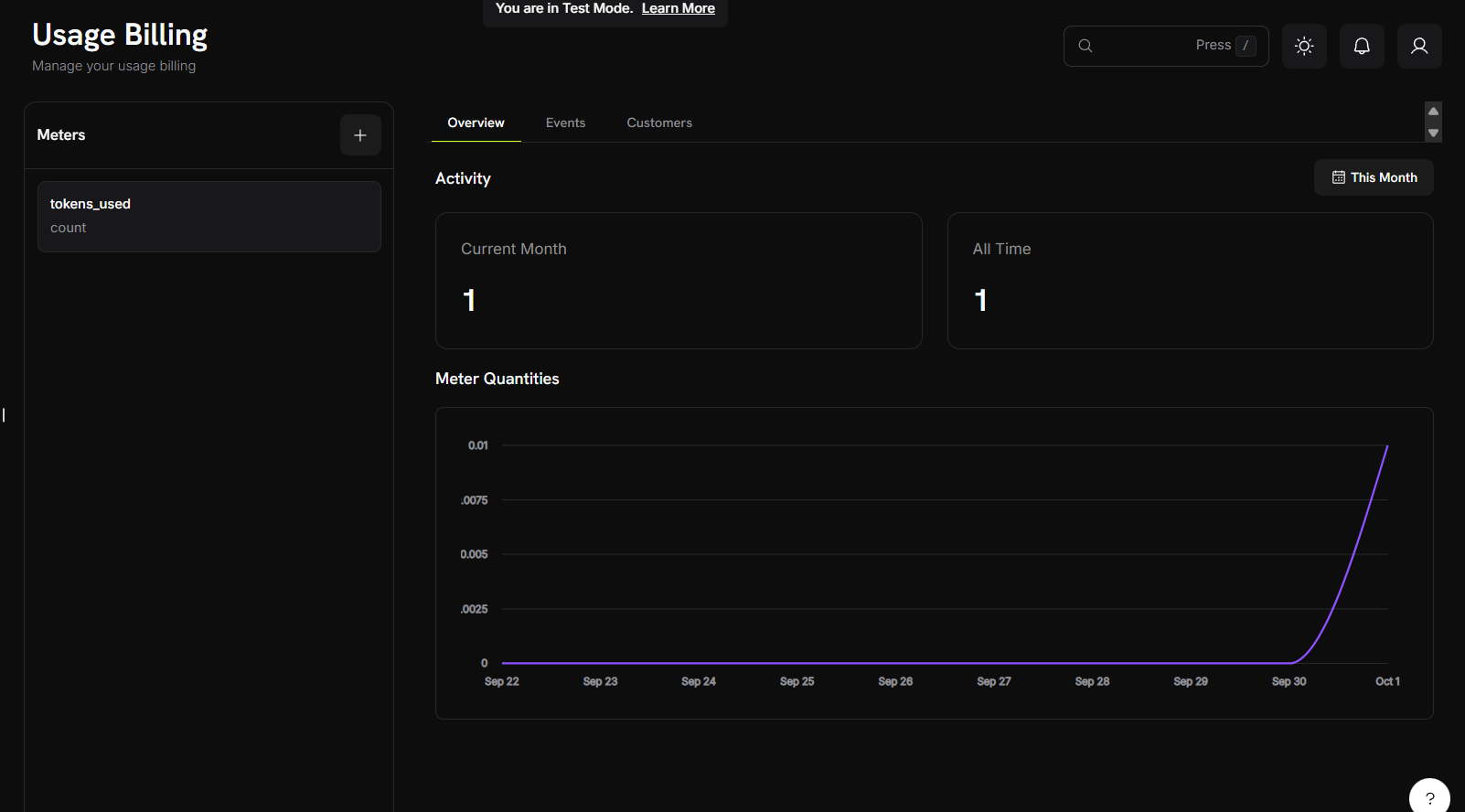
- Time-series visualization: Track usage patterns across days, weeks, or months
- Multiple meter support: View data from different meters simultaneously
- Trend analysis: Identify usage spikes, patterns, and growth trajectories
The chart automatically scales based on your usage volume and selected time range, providing clear visibility into both small fluctuations and major usage changes.
Events Analytics
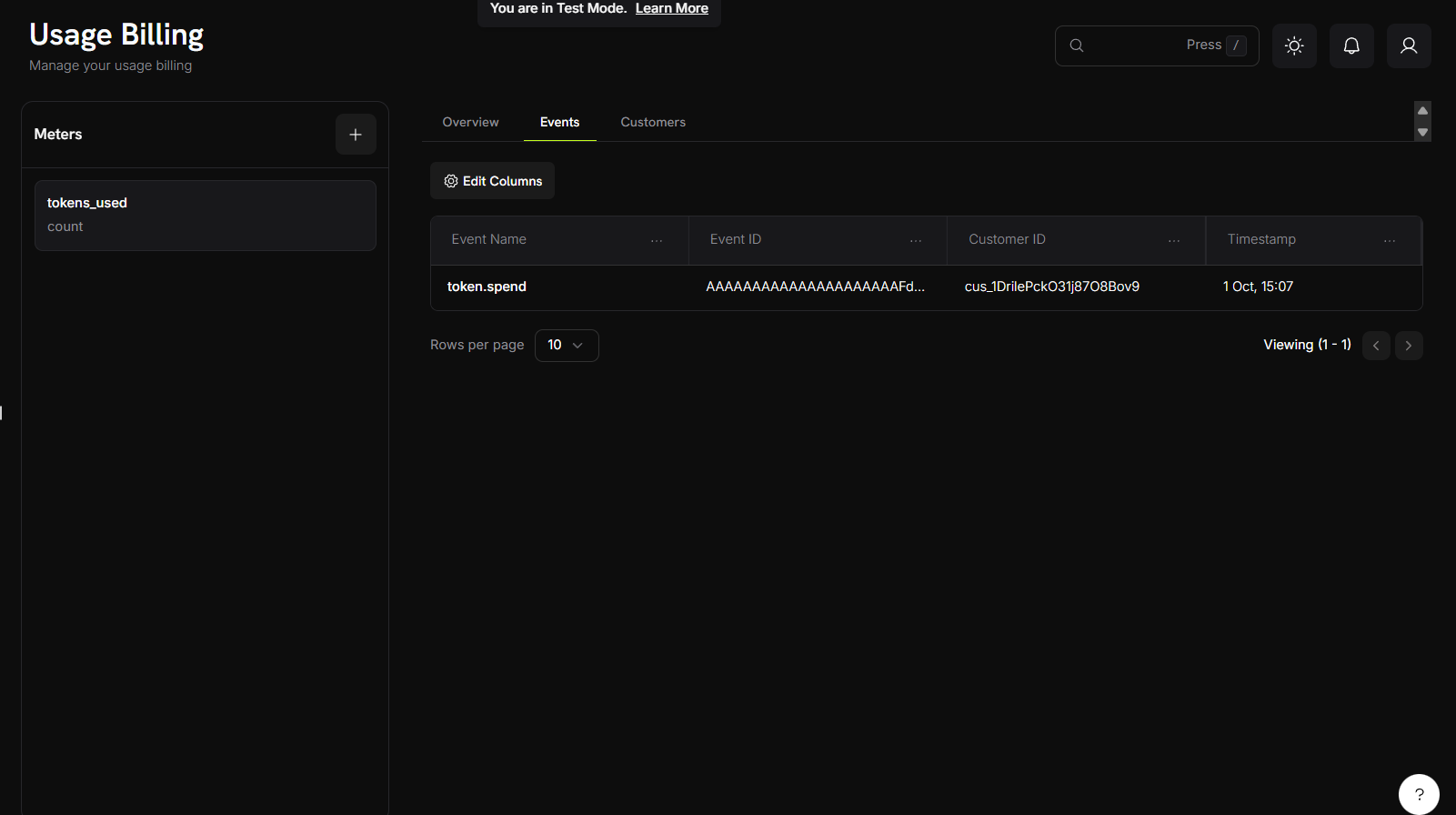
Event Information Display
The events table provides a clear view of individual usage events with the following columns:- Event Name: The specific action or trigger that generated the usage event
- Event ID: A unique identifier for each event instance
- Customer ID: The customer associated with the event
- Timestamp: When the event occurred
This view allows you to track and monitor individual usage events across your customer base, providing transparency into billing calculations and usage patterns.
Customer Analytics
The Customers tab provides a detailed table view of customer usage data with the following information:Available Data Columns
string
The email address of the customer for identification.
string
A unique identifier for the customer’s subscription.
number
Number of free units included in the customer’s plan before charges apply.
currency
The cost per unit for usage beyond the free threshold.
timestamp
Timestamp of the customer’s most recent usage event.
currency
Total amount charged to the customer for usage-based billing.
number
Total number of units the customer has consumed.
number
Number of units that exceed the free threshold and are being charged.
Table Features
- Column Filtering: Use the “Edit Columns” feature to show or hide specific data columns
- Real-time Updates: Usage data reflects the most current consumption metrics
Aggregation Examples
Here are practical examples of how different aggregation types work:Understanding Aggregation Types
Different aggregation types serve different billing scenarios. Choose the right type based on how you want to measure and charge for usage.Practical Implementation Examples
These examples demonstrate real-world applications of each aggregation type with sample events and expected results:Count Aggregation — API Calls
Count Aggregation — API Calls
Scenario: Track the total number of API requestsMeter Configuration:Result: 3 calls billed to customer
- Event Name:
api.call - Aggregation Type: Count
- Measurement Unit:
calls
Sum Aggregation — Data Transfer
Sum Aggregation — Data Transfer
Scenario: Bill based on total bytes transferredMeter Configuration:Result: 1.5 GB total transfer billed to customer
- Event Name:
data.transfer - Aggregation Type: Sum
- Over Property:
bytes - Measurement Unit:
GB
Max Aggregation — Peak Concurrent Users
Max Aggregation — Peak Concurrent Users
Scenario: Bill based on highest concurrent user countMeter Configuration:Result: 23 peak concurrent users billed to customer
- Event Name:
concurrent.users - Aggregation Type: Max
- Over Property:
count - Measurement Unit:
users
Event Filtering Examples
- Filter by API Endpoint
- Filter by Value Range
- Complex Multi-Condition Filters
Only count API calls to specific endpoints:Filter Configuration:Result: Events matching the filter criteria are counted. Events with different endpoints are ignored.
- Property:
endpoint - Comparator:
equals - Value:
/v1/orders
Troubleshooting
Resolve common issues with usage-based billing implementation and ensure accurate tracking and billing.Common Issues
Most usage-based billing problems fall into these categories:- Event delivery and processing issues
- Meter configuration problems
- Data type and formatting errors
- Customer ID and authentication issues
Debugging Steps
When troubleshooting usage-based billing:- Verify event delivery in the Events analytics tab
- Check that meter configuration matches your event structure
- Validate customer IDs and API authentication
- Review filtering conditions and aggregation settings
Solutions and Fixes
Events not showing in meter
Events not showing in meter
Common causes:
- Event name doesn’t exactly match meter configuration
- Event filtering conditions are excluding your events
- Customer ID doesn’t exist in your Dodo Payments account
- Event timestamp is outside the current billing period
- Verify event name spelling and case sensitivity
- Review and test your filtering conditions
- Confirm customer ID is valid and active
- Check that event timestamps are recent and properly formatted
Aggregation not working as expected
Aggregation not working as expected
Common causes:
- Over Property name doesn’t match event metadata keys
- Metadata values are the wrong data type (string vs number)
- Missing required metadata properties
- Ensure metadata keys exactly match your Over Property setting
- Convert string numbers to actual numbers in your events
- Include all required properties in every event
Filtering not working
Filtering not working
Common causes:
- Filter property names don’t match event metadata
- Wrong comparator for data type (string vs number)
- Case sensitivity in string comparisons
- Double-check that property names match exactly
- Use appropriate comparators for your data types
- Consider case sensitivity when filtering strings
Related API Reference
Create Meter
API reference for creating and configuring usage meters for tracking customer consumption.
Ingest Usage Events
API reference for sending usage events to your configured meters for billing calculations.