

How It Works
Your base currency is whatever you priced the product or add-on in — it can be any currency Dodo Payments can charge, not just USD. Adaptive Currency converts that base price at live exchange rates. To set your own fixed price per currency or country instead, see Localized Pricing.Key Benefits
- Localized checkout — Prices appear in the customer’s local currency by default
- More payment methods — Unlocks payment methods available only for the local currency
- Same-currency refunds — Refund the customer in the currency they paid with
- Advanced pricing — Enables Purchasing Power Parity and Charm Pricing for automatic price optimization by market
Enable Adaptive Currency
1
Open Settings
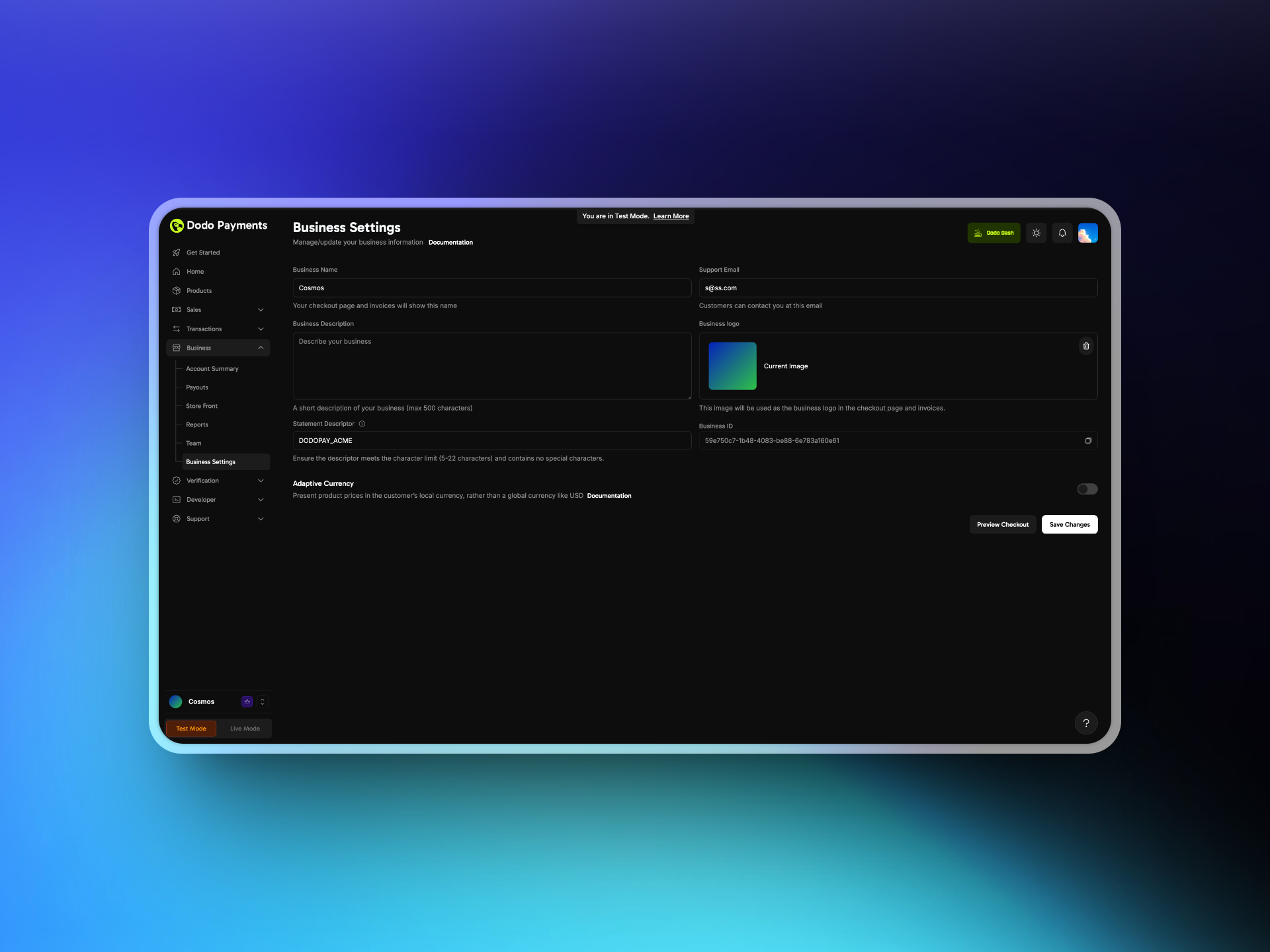
Log in to your Merchant Dashboard and go to Settings → Business.
2
Enable Adaptive Currency
Toggle on Adaptive Currency. You can disable it at any time.
3
Save and Test
Save your settings, then verify a test checkout shows prices in your local currency when supported.
Customer Experience
When Adaptive Currency is enabled:- Detection — The system detects the customer’s country based on their billing address
- Currency selection — If the country is supported, prices show in the local currency by default. Customers can switch back to your base currency
- Payment methods — Localized payment methods appear where applicable
- Checkout — Payment is completed in the selected currency
Conversion and Fees
Adaptive Currency charges the customer in their local currency using live exchange rates. Fees are tiered by order value:- 4% for orders under $500
- 3% for orders $500 to $1,500
- 2% for orders over $1,500
Enable Fees Inclusive
1
Open Settings
Go to Settings → Business and enable Adaptive Currency if you haven’t already.
2
Enable Fees Inclusive
Once Adaptive Currency is on, enable the Fees Inclusive toggle in the same section.
Override Per Request
You can override the merchant default per request by passingadaptive_currency_fees_inclusive (boolean) on a one-time payment, an on-demand subscription (on_demand.adaptive_currency_fees_inclusive), a subscription charge, or a plan change. On checkout sessions, it’s accepted only for on-demand subscriptions, as subscription_data.on_demand.adaptive_currency_fees_inclusive, and not at the top level of the request:
INR → INR transactions are always treated as inclusive regardless of the business setting or per-request override.
When a Localized Pricing rule matches, the transaction is always treated as inclusive, regardless of your Fees Inclusive setting or any per-request override. The customer pays exactly the localized amount you set, and the conversion fee is deducted from your settlement.
Minimum Amounts
Every payment must meet the minimum for the currency the customer pays in, and subscriptions have higher minimums than one-time payments. The same minimums apply to every payment method. The check uses the total, including tax.
Payments in currencies other than USD, EUR, and GBP settle in USD. For these currencies, checkout first checks the price converted to USD, before the Adaptive Currency fee is added, and then checks the amount in the customer’s currency. The amount must pass both checks, so the effective minimum can be higher than the listed minimum for the currency.
For example, the listed minimum for AED is 2.00 AED, but a subscription in AED must be worth at least $1.00, which is about 3.70 AED. A subscription of 2.00 AED fails the USD check.
If a payment is below the minimum, the API returns
TOTAL_PAYMENT_AMOUNT_BELOW_MINIMUM_AMOUNT. The message names the minimum that failed. For a payment in another currency, that can be the USD minimum, such as Minimum amount of 1.00 USD is required to process payment.
Supported Currencies
The table lists each currency’s minimum amount. The minimum applies to one-time payments and subscriptions. See Minimum Amounts for the additional USD check.Refunds and Adjustments
Dodo Payments issues refunds in the currency the customer originally paid, using the latest exchange rate. The amount in your base currency remains fixed on your dashboard, invoices, and in the refund. The customer may receive more or less than the original local-currency amount depending on FX changes.Adaptive Currency fees (FX fees) are not refunded.
Example Refund
- You sell a product for 100 USD with Adaptive Currency enabled
- A Canadian customer sees 137 CAD at an exchange rate of 1.37 CAD per 1 USD and completes the purchase
- Dodo Payments processes the payment, converting 137 CAD to 100 USD for your settlement
- Later, the exchange rate changes to 1.40 CAD per 1 USD and you issue a full refund
- Dodo Payments deducts 100 USD and refunds the customer 140 CAD
Invoices and Taxation
- Invoices show only the settlement currency amount
- Taxes and platform fees are calculated on the settlement currency amount
- Example: a $10 sale converted to 36 AED still reflects as $10 in the Dashboard and invoices
All amounts are rounded according to Dodo Payments’ internal rounding logic.
Set Billing Currency Per Checkout
Passbilling_currency to explicitly set the billing currency for a checkout session:
When Adaptive Currency is disabled,
billing_currency is ignored.Related Pages
Purchasing Power Parity
Reduce prices by country automatically. Requires Adaptive Currency.
Charm Pricing
Round converted prices to clean endings like 49.99. Requires Adaptive Currency.
Localized Pricing
Set an exact price per country or currency instead of automatic conversion.
Tax-Inclusive Pricing
Control whether your prices include tax.
Checkout Session
Create checkout sessions with billing currency configuration.