

Key Highlights of the Feature
- Branded Storefront
- Customize your store with a store name, logo, and banner.
- Share your store URL, for example
store.dodopayments.com/your-store.
- Product Segregation
- The store groups your products into a Products section for one-time payment products and a Subscriptions section.
- Simple Checkout Flow
- Customers select a product and quantity, then click Buy now to go to Dodo Payments checkout.
- Publish/Unpublish
- Choose which products appear on your store from the dashboard, where you can add or remove them at any time.
- No Extra Setup
- You don’t need a separate CMS. You manage pricing, descriptions, and subscription details in the dashboard, and the store uses them.
- Mobile-Friendly
- The storefront layout is responsive, so it works on phones, tablets, and desktops.
Store Front Setup
To set up and manage your storefront, follow these steps.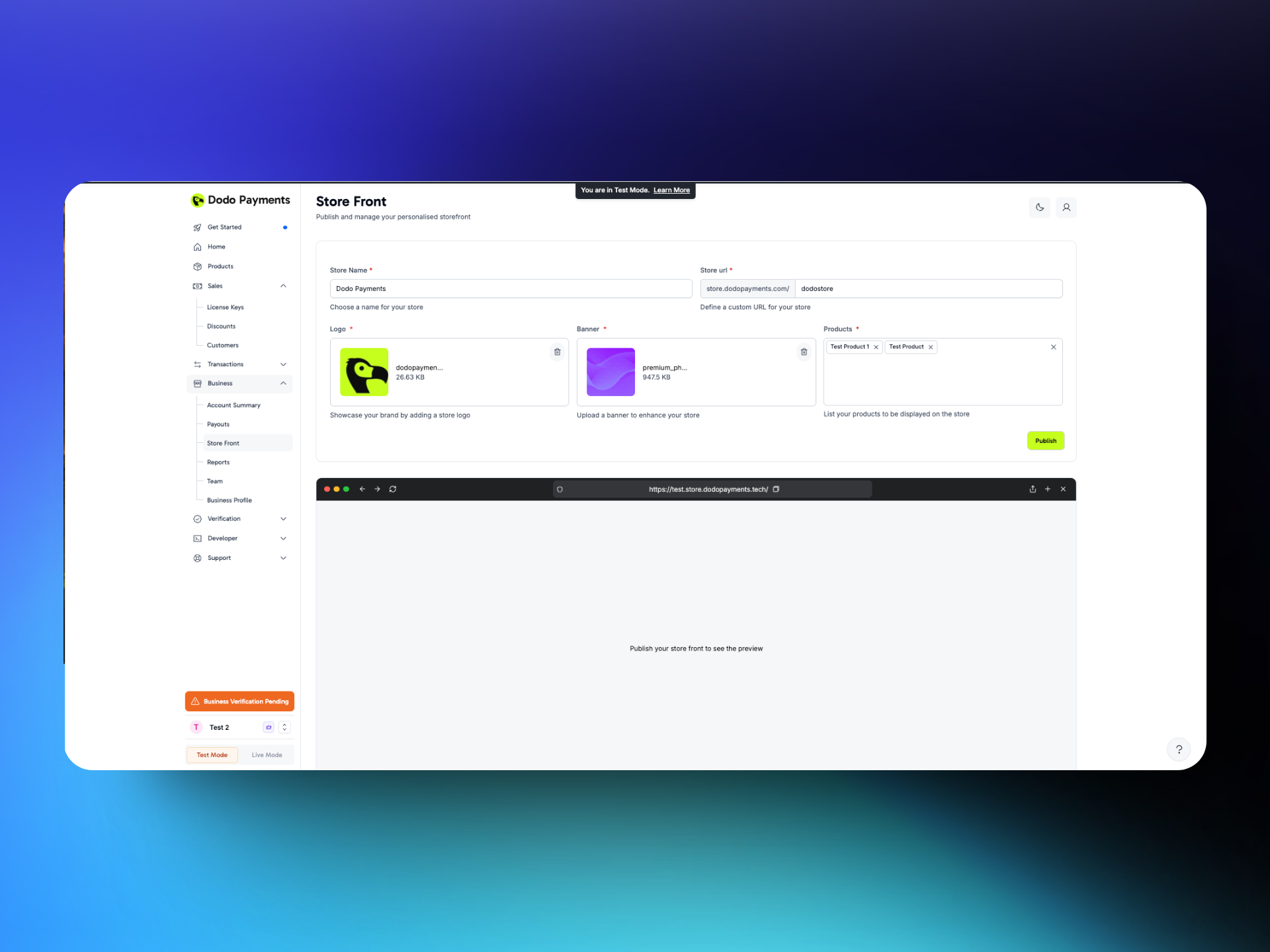
Accessing Your Storefront Settings
- In the Dodo Payments dashboard, go to Settings → Storefront.
Store Branding
- Store Name: Enter the public name of your store. It appears at the top of your storefront.
- Store Logo: Upload a square image of your brand logo.
- Store Banner: Upload a 16:9 banner for the top of the storefront. The recommended size is 1920×1080. Keep your logo and key text centered, because wider screens crop the top and bottom.
- Store URL:
- Enter the slug for your store address, for example
store.dodopayments.com/my-store. - The slug can contain only lowercase letters, numbers, and hyphens. You can change it later.
- Enter the slug for your store address, for example
- Listed Products: Select the products you want to show on your storefront.
Saving & Viewing Your Store
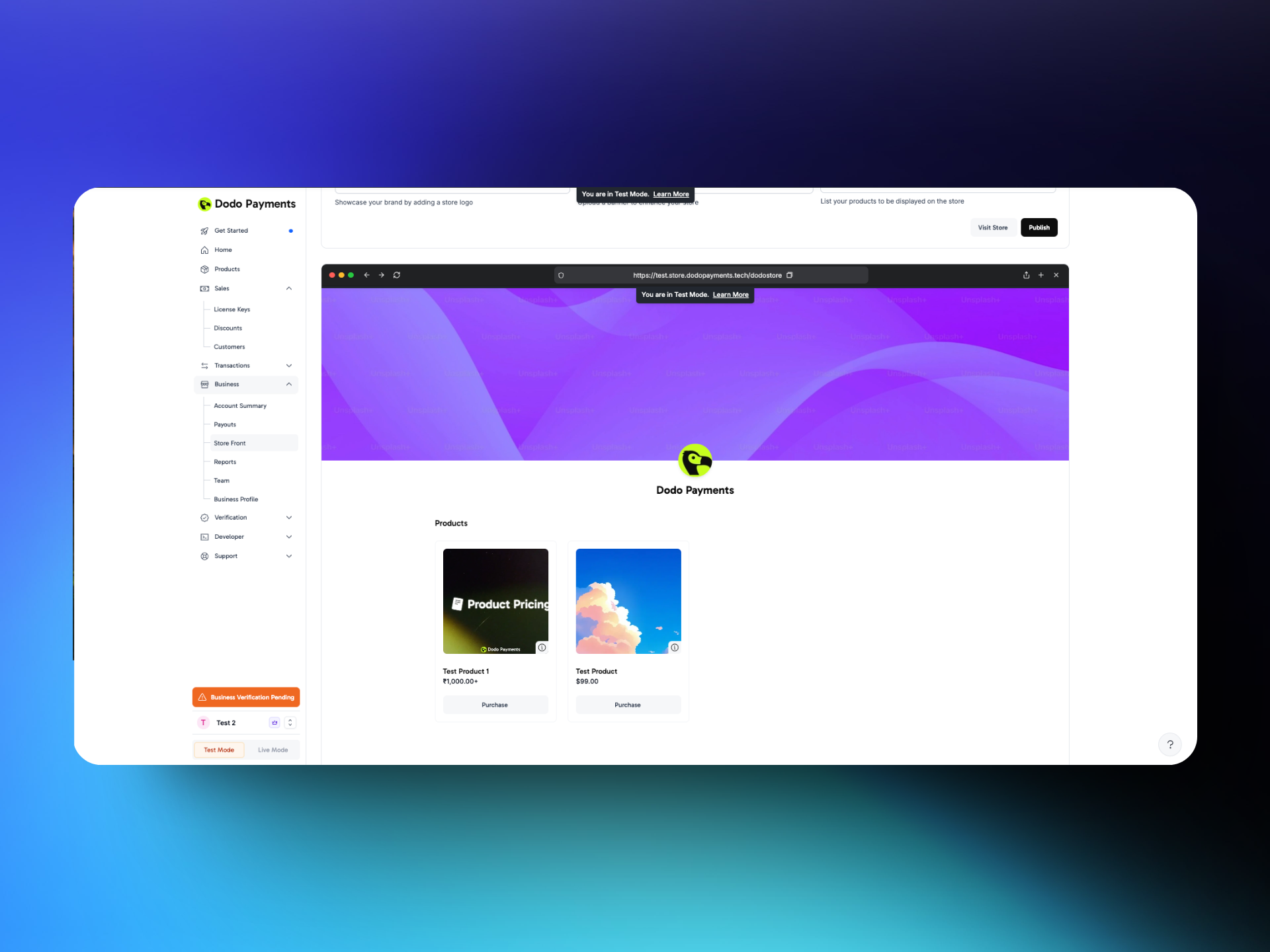
- Click Publish: Click Publish to save your storefront setup and the products you listed.
- Preview Store: Preview your storefront at its URL, or click Visit Store to open it.
- Share URL: Share the link with your customers by email, on social media, or on your website.
Test Mode
Customer Experience
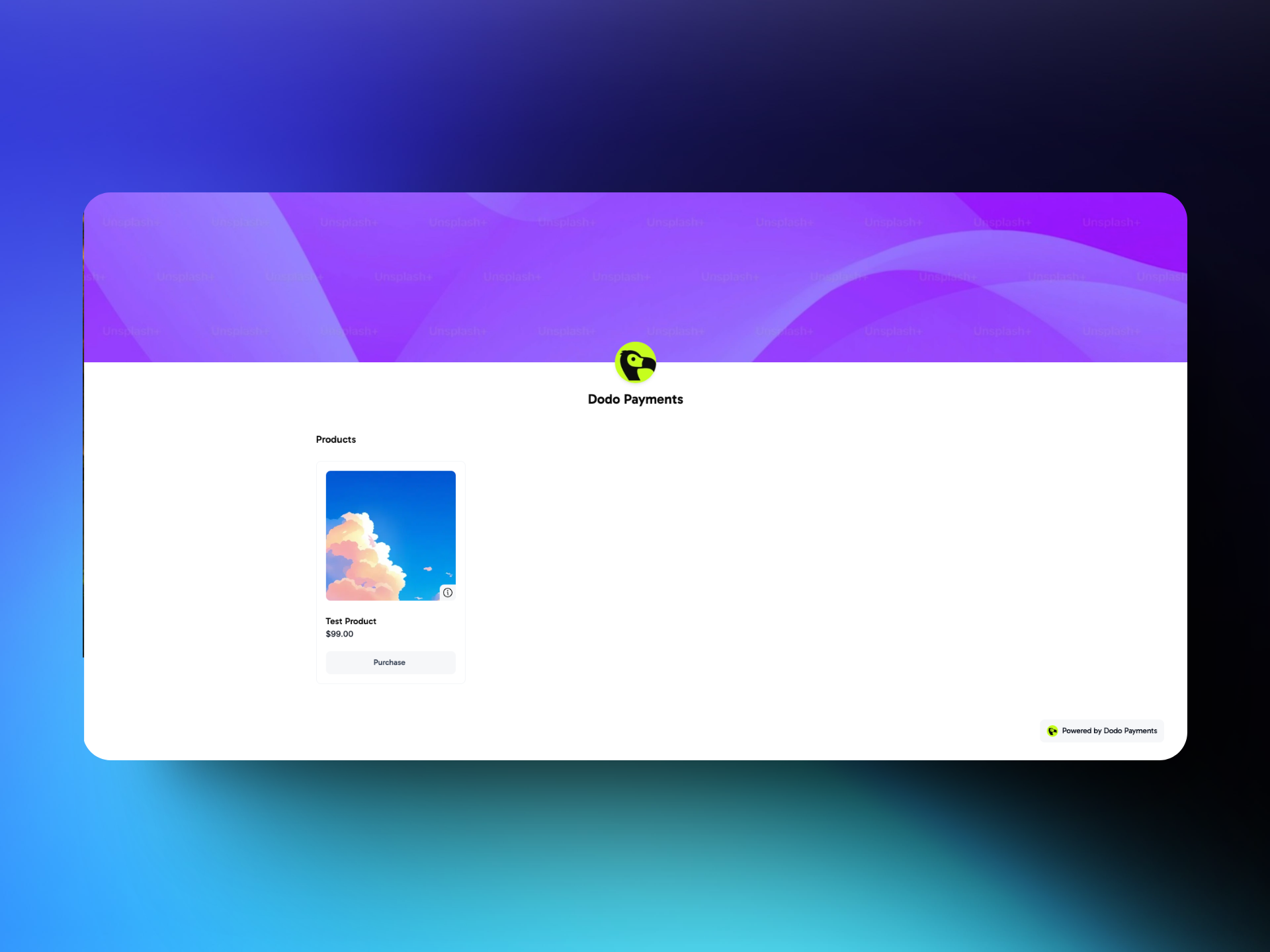
Landing on the Storefront
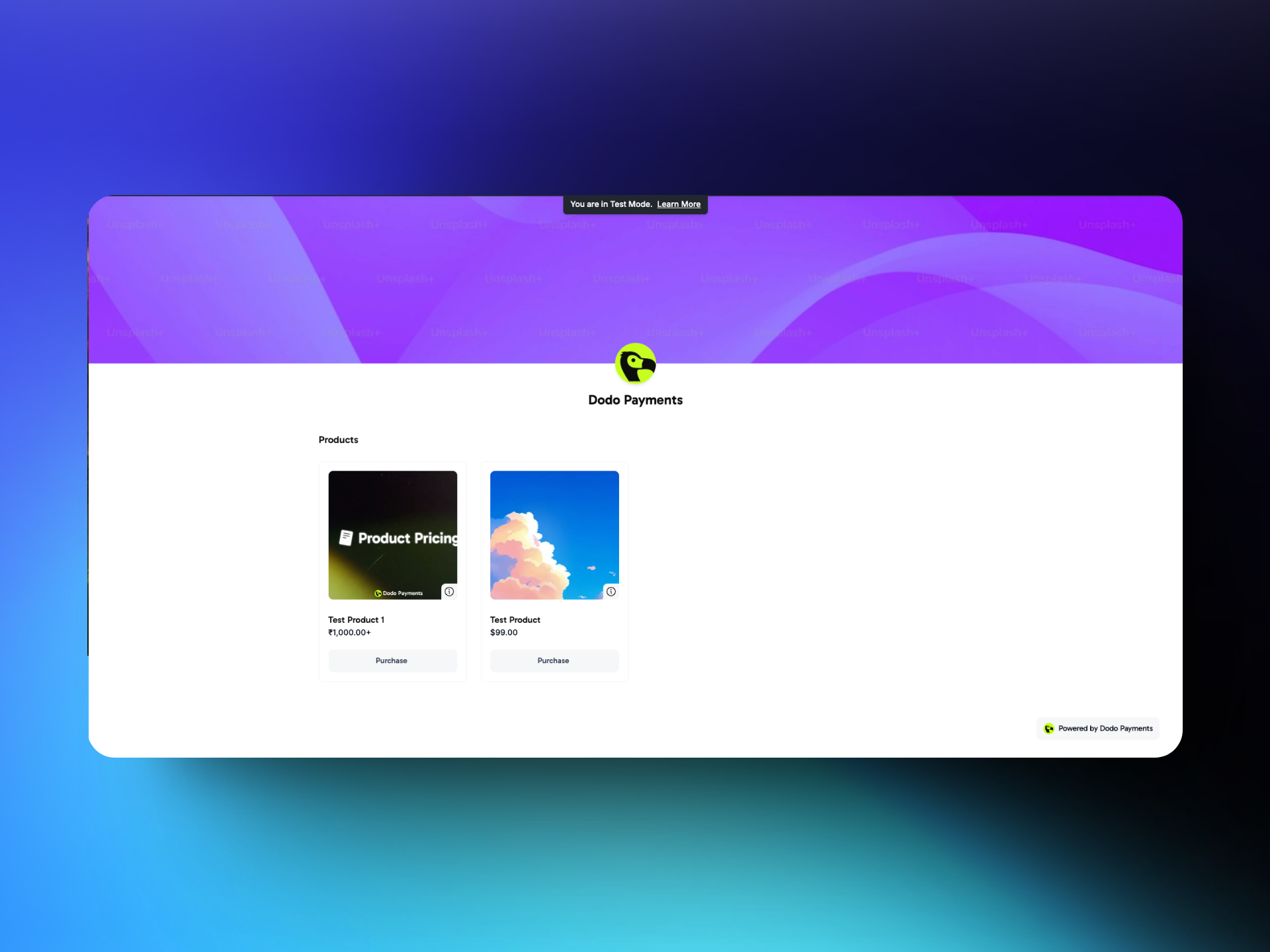
- Visual Branding: Customers see your store name, logo, and banner first.
- Organized Products: Products appear in two sections: Products for one-time payments and Subscriptions.
Browsing Products
- Product Cards: Each card shows the product name, description, and price. To read the description, customers click the i icon on the bottom right of the card.
- Quantity Selection: Customers choose how many items to buy.
- Subscription Frequency & Trial: Subscription cards show the billing frequency, for example monthly, and any free trial, for example a 7-day trial.
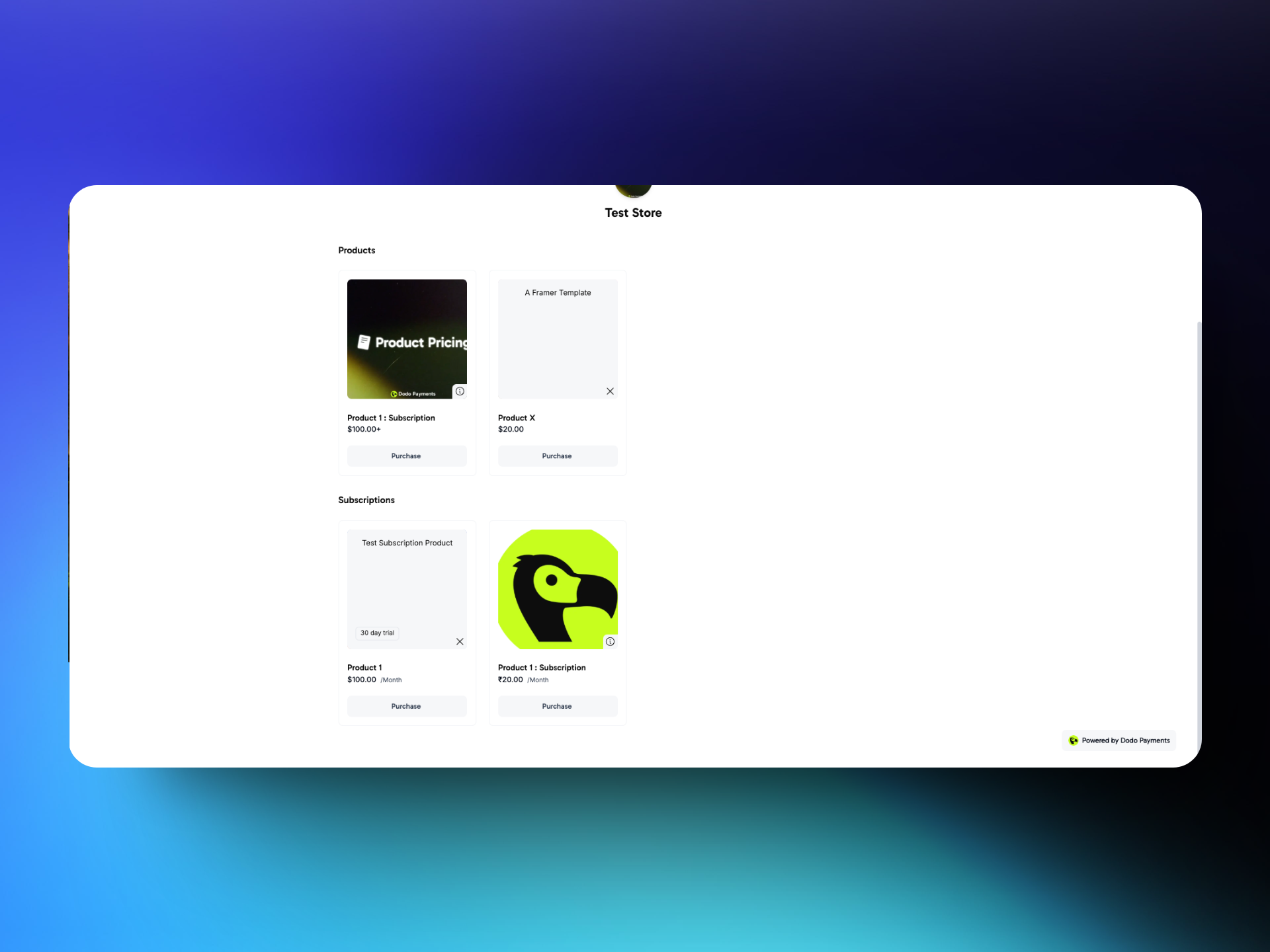
Buying Process
- Select Buy Now: The customer clicks Purchase on a product, selects the quantity, and clicks Buy now.
- Redirect to Dodo Payments Checkout: The customer goes to Dodo Payments checkout and completes the secure checkout flow there.
- Confirmation: After a successful payment, Dodo Payments shows a confirmation. Storefront checkout links don’t include a redirect URL, so you can’t send storefront customers to your own “Thank You” page.
Design & Theme Customization
Customize your storefront’s appearance with pre-built themes, typography, colors, and a live preview on the Design page.