

Introduction
Send transactional emails automatically when payment and subscription events occur. Payment confirmations, subscription updates, and failure notifications go out through Keplars with no middleware server: Dodo Payments calls the Keplars API directly, using a JavaScript transformation handler.This integration authenticates with your Keplars API key. Find it in the Keplars dashboard under Settings → API Keys, and verify a sender domain or address under Domains.
Getting Started
1
Open the Webhook Section
In the Dodo Payments dashboard, go to Developer → Webhooks and click Add endpoint.
2
Select Keplars
In Integration, select Keplars. The template fills in the Keplars API URL and the transformation code.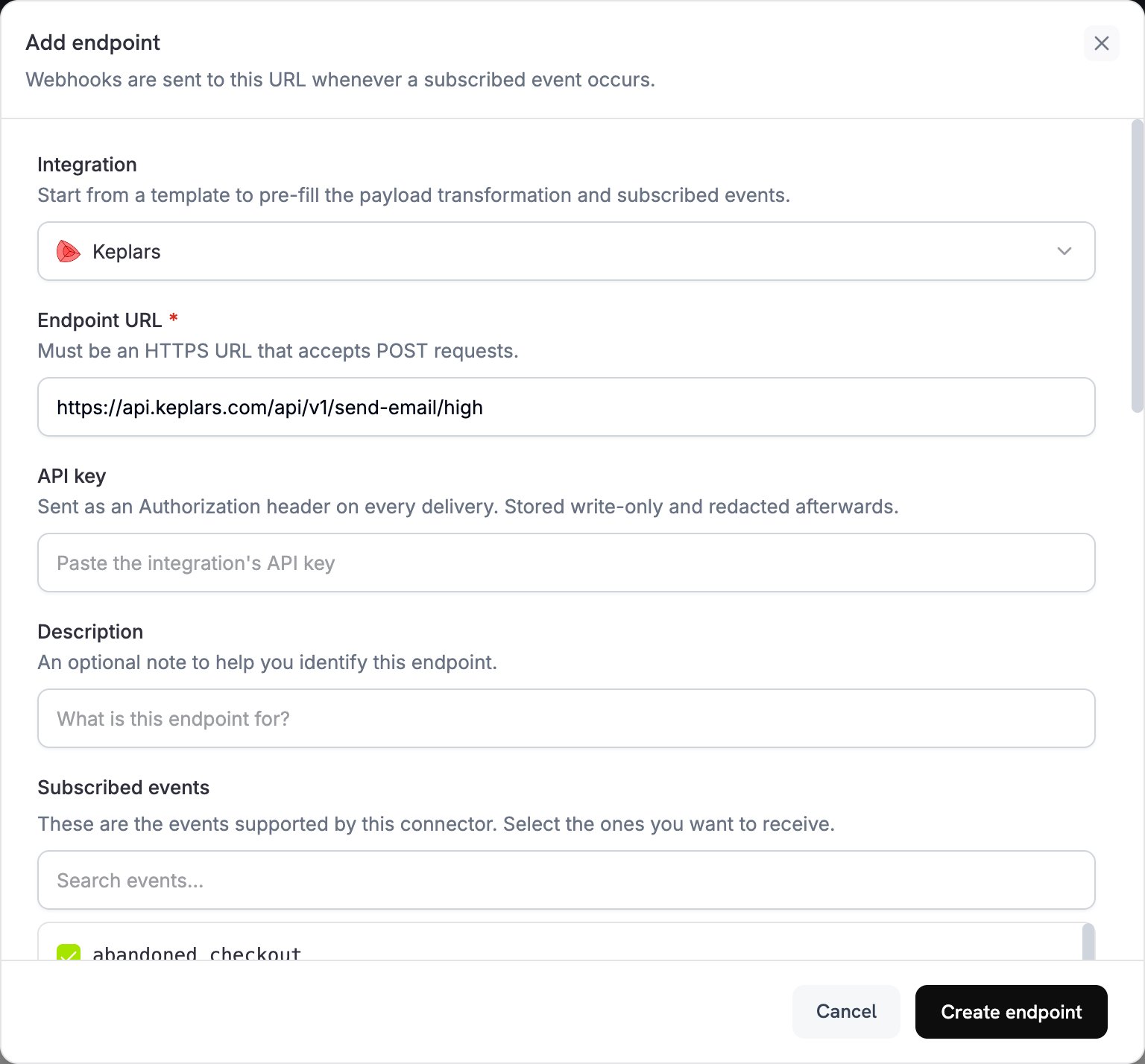
3
Enter API Key
Paste your Keplars API key into API key. Dodo Payments sends it as a Bearer token on every request. Under Subscribed events, select the events that should send an email.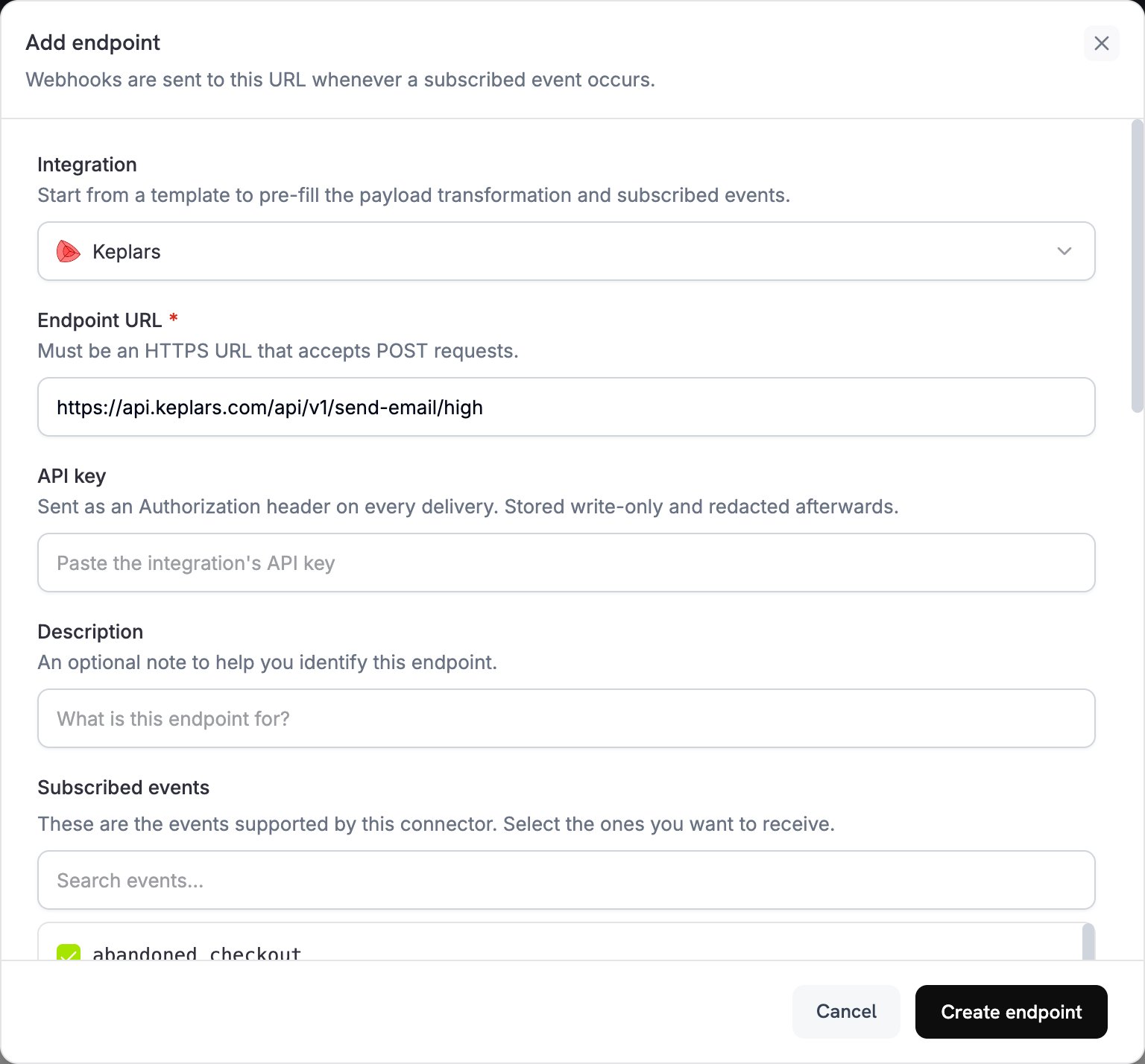
4
Configure Transformation
In Transformation code, edit the code to format emails for Keplars. Replace the placeholder template IDs with your own.
5
Test & Create
Under Test this code, select an event type and click Simulate to run the transformation against a sample payload. Then click Create endpoint to start sending emails.
6
Done
Dodo Payments events now send transactional emails through Keplars.
Transformation Code Examples
Each handler setswebhook.url to the Keplars high-priority send endpoint and rewrites webhook.payload into a Keplars request. Dodo Payments adds the API key as a Bearer token. Replace your-keplars-*-template-id with your template IDs. The Keplars send API has no from field, so Keplars sends each email from a sender you set up in the Keplars dashboard.
Payment Confirmation Email
payment_succeeded.js
Payment Failure Notification
payment_failed.js
Subscription Welcome Email
subscription_active.js
Subscription Cancellation Email
subscription_cancelled.js
Tips
- Send from a verified domain or address to improve deliverability.
- Create one Keplars template per event type, so each email stays on-brand and on-message.
- Personalize each email by passing customer data, such as the name, amount, and payment ID, in
params. - Test in sandbox mode first. Keplars captures sandbox sends in its Test Inbox instead of delivering them.
Troubleshooting
Emails not being sent
Emails not being sent
- Check that your API key is correct and active in Keplars under Settings → API Keys.
- Check that your sender domain or address is verified.
- In the Dodo Payments dashboard, open the message in the Logs tab of Developer → Webhooks. Each delivery attempt shows the raw error response from Keplars.
Template not found
Template not found
- The
template_idin your handler must match an active template in your Keplars account. Check the ID, and check that the template is active, in the Keplars dashboard.
Wrong event triggered
Wrong event triggered
- Each handler checks
webhook.eventTypeand returns the webhook unchanged if the event doesn’t match. Check that the endpoint’s Subscribed events include only the events you want.