

Introduction
The MailerLite integration adds your paying customers to MailerLite when payment events occur. It can add customers to groups, store payment data in subscriber fields, and start automation workflows, so your email lists reflect real payment activity. MailerLite is an email marketing platform for newsletters, campaigns, and automations. Use this integration to manage subscribers based on payment activity, for onboarding sequences, customer segmentation, and targeted campaigns.This integration authenticates with a MailerLite API key. To create one, open your MailerLite Integrations page and click Generate new token.
Getting Started
1
Open the Webhook Section
In the Dodo Payments dashboard, go to Developer → Webhooks and click Add endpoint.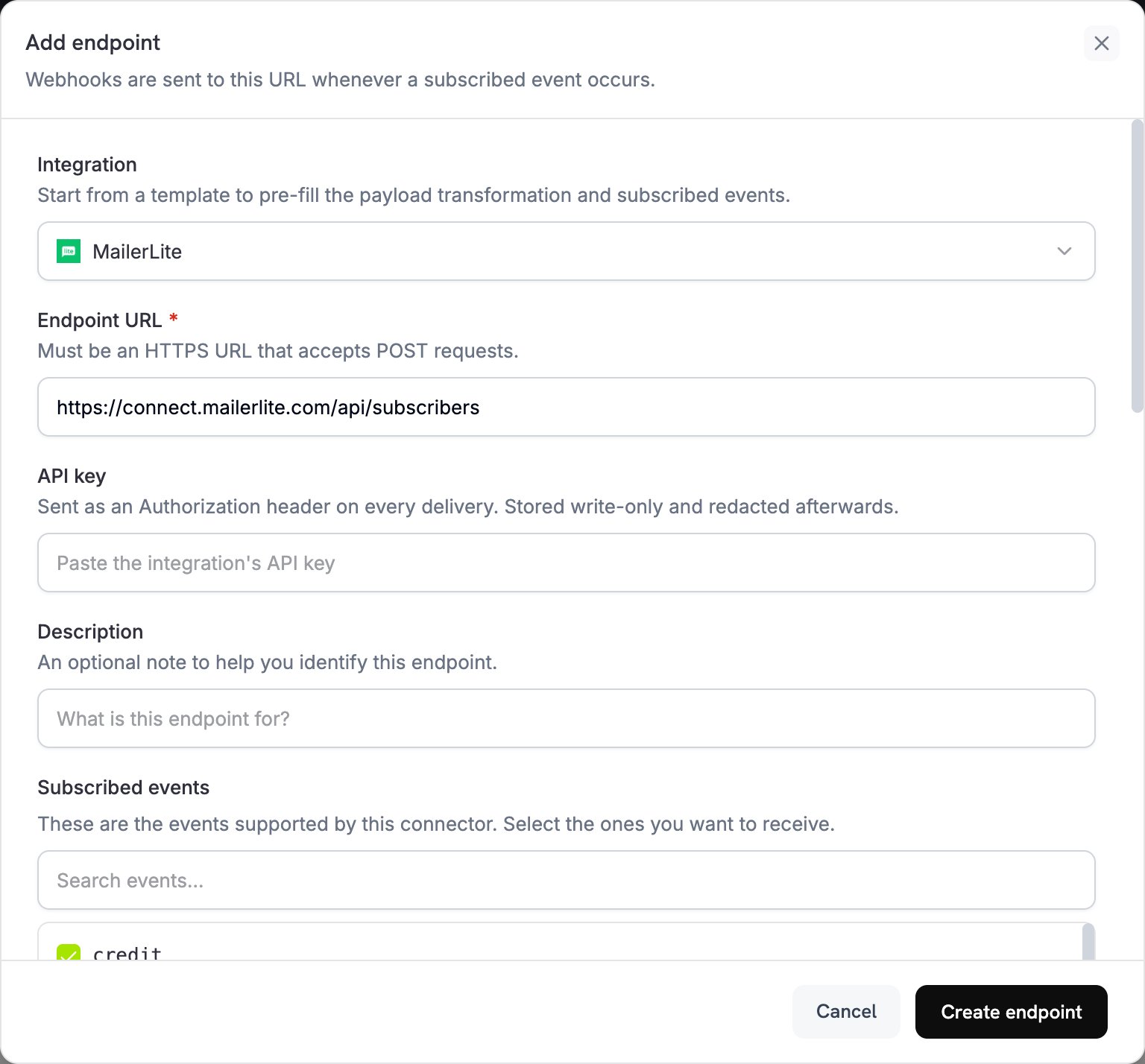
2
Select MailerLite
In the Integration list, select MailerLite.
3
Enter API Key
Paste your MailerLite API key into the API key field. Dodo Payments sends it as an
Authorization header on every delivery.4
Configure Transformation
Edit the code under Transformation code so each event becomes a MailerLite subscriber request. Start from the examples below.
5
Test & Create
Under Test this code, run the transformation against a sample payload, then click Create endpoint.
6
Done
Payment events now add and update subscribers in your MailerLite groups.
Transformation Code Examples
Most examples send aPOST request to the MailerLite subscribers API. MailerLite creates the subscriber, or updates the existing subscriber with the same email address. This upsert never removes fields or groups that you leave out.
Add Customer on Successful Payment
This example adds the customer to one group when a payment succeeds. Replaceyour-group-id-here with a MailerLite group ID.
add_customer.js
Add Subscriber to Multiple Groups Based on Product
This example adds every paying customer to a customers group, and adds customers who pay $100 or more to a premium group as well.product_segmentation.js
Add New Subscriber on Subscription Activation
This example adds the customer to two subscriber groups and stores the plan details when a subscription becomes active.subscription_subscriber.js
Update Subscriber on Subscription Cancellation
This example updates an existing subscriber when a subscription is cancelled. It sends aPOST upsert keyed by email address, because MailerLite’s PUT update endpoint takes the MailerLite subscriber ID, which the Dodo Payments payload doesn’t contain. The upsert adds the subscriber to the churned group and keeps their other groups.
subscription_cancelled.js
Add Customer with Custom Fields
This example stores location, contact, and payment details in subscriber fields. Create the custom fields in MailerLite first, as described in Custom Fields Setup.custom_fields.js
Trigger Automation via Event
This example updates a trigger field on every successful payment. Build an automation in MailerLite that starts whenlast_payment_trigger changes.
trigger_automation.js
Tips
- Create custom fields in MailerLite before you use them in a transformation.
- Use groups to segment customers by product, plan tier, or purchase behavior.
- Set up automation workflows in MailerLite that start when a field is updated.
- Send a
POSTrequest to/subscribersto upsert, which avoids duplicate subscriber errors. - Store payment metadata in custom fields to learn more about your customers.
- Test with a small group before you enable the integration for all payments.
Custom Fields Setup
Create each custom field in MailerLite before a transformation writes to it:- Open your MailerLite dashboard.
- Go to Subscribers → Fields.
- Click Create field and add fields such as:
total_spent(Number)customer_since(Date)subscription_plan(Text)payment_method(Text)last_payment_amount(Number)
Troubleshooting
Subscribers Not Being Added
Subscribers Not Being Added
- Check that the API key is correct and active.
- Check that the email address is valid under RFC 2821.
- Check that each group ID is correct and exists in your account.
- MailerLite doesn’t reactivate bounced or junk subscribers through the API. To resubscribe a previously unsubscribed subscriber, add
resubscribe: trueto thePOSTbody.
Custom Fields Not Updating
Custom Fields Not Updating
- Check that each custom field exists in MailerLite.
- Check that field names match exactly. They are case-sensitive.
- Check that each value matches the field type: text, number, or date.
Rate Limit Errors
Rate Limit Errors
- The MailerLite API allows 120 requests per minute.
- Use the batch endpoint when you process many subscribers.
- Add a backoff strategy for high-volume scenarios.
Group Assignment Not Working
Group Assignment Not Working
- Check that group IDs are numeric strings.
- Check that the groups exist in your MailerLite account.
- A
PUTrequest withgroupsremoves the subscriber from every group it doesn’t list. APOSTrequest only adds groups.
API Reference
The MailerLite create or upsert subscriber endpoint accepts these key parameters:
For the complete API documentation, see MailerLite Developers.