

Introduction
The n8n integration starts an n8n workflow whenever a payment event occurs, so you can connect Dodo Payments to any app that n8n integrates with. Workflows can send emails, update spreadsheets, create tasks, write to databases, and more.This integration requires the webhook URL from a Webhook node in your n8n workflow.
Getting Started
1
Open the Webhook Section
In the Dodo Payments dashboard, go to Developer → Webhooks and click Add endpoint.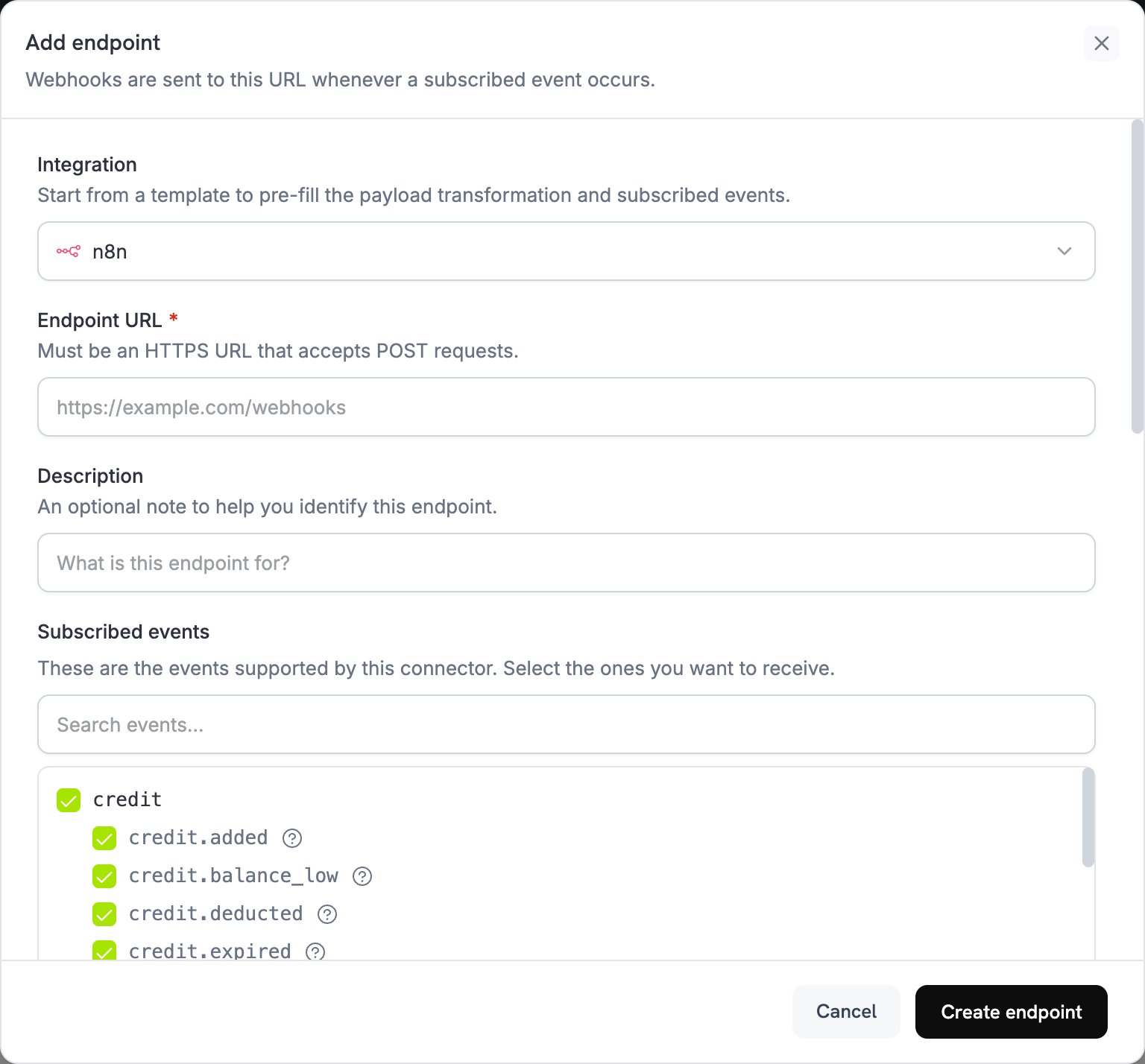
2
Select n8n
In the Integration list, select n8n.
3
Create Webhook in n8n
In n8n, create a workflow and add a Webhook node as the trigger. Set HTTP Method to
POST, then copy the Production URL. The test URL only receives events while n8n is listening for a test event.4
Paste Webhook URL
Paste the n8n production URL into the Endpoint URL field.
5
Configure Transformation
Edit the code under Transformation code to shape the data for your n8n workflow. Start from the examples below.
6
Test & Create
Under Test this code, run the transformation against a sample payload, then click Create endpoint.
7
Publish the Workflow
In n8n, publish your workflow. n8n registers the production webhook URL only when the workflow is published.
8
Done
Payment events now trigger your n8n workflows.
Transformation Code Examples
Each example flattens a Dodo Payments event into a small JSON object that n8n nodes can read directly.Basic Webhook Payload
This example sends the payment amount, currency, customer, and payment method when a payment succeeds.basic_webhook.js
Subscription Event Handler
This example sends asubscription_started or subscription_cancelled event, so one workflow can branch on event_type.
subscription_webhook.js
Dispute Alert Handler
This example sends everydispute.* event and sets urgent to true when a dispute opens.
dispute_webhook.js
Popular N8N Use Cases
These are common workflows that merchants build on Dodo Payments events.Email Notifications
Email Notifications
- Send Gmail or Outlook emails for payment confirmations.
- Create email sequences in Mailchimp or ConvertKit.
- Send Slack or Discord notifications through webhooks.
- Create Google Sheets records.
- Send Telegram or WhatsApp messages.
CRM Updates
CRM Updates
- Add contacts to HubSpot or Salesforce.
- Create deals in Pipedrive or Close.
- Update customer records in Airtable.
- Log activities in Monday.com.
- Sync data to PostgreSQL or MySQL databases.
Task Management
Task Management
- Create tasks in Asana or Trello.
- Add to-do items in Notion.
- Create events in Google Calendar.
- Send SMS notifications through Twilio.
- Create GitHub issues for disputes.
Data Processing
Data Processing
- Transform and enrich payment data.
- Store events in databases such as PostgreSQL or MongoDB.
- Aggregate metrics and analytics.
- Generate reports and exports.
- Trigger multi-step workflows.
Tips
- Keep the payload structure simple, so n8n nodes can parse it.
- Use the same field names across all events.
- Include timestamps for workflow timing and scheduling.
- Test your workflow with sample data before you publish it.
- Use the IF node for conditional logic and routing.
- Use the Code node for custom data transformations.
- Use the Switch node to route each event type to its own path.
- Set up an error workflow in n8n to catch failed executions.
Troubleshooting
Workflow Not Triggering
Workflow Not Triggering
- Check that the endpoint uses the n8n production URL, and that n8n can be reached from the internet.
- Check that the workflow is published in n8n.
- Check that the Webhook node’s HTTP Method is
POST. - Check for incoming requests in the workflow’s Executions tab.
- Check that firewall and network settings allow incoming webhooks.
- If the Webhook node requires authentication, add the matching header to the endpoint under Custom Headers.
Data Not Mapping Correctly
Data Not Mapping Correctly
- Check the field names in your n8n node configurations.
- Check that data types match the formats your nodes expect.
- Use the n8n test URL to inspect incoming data.
- Check that the transformation code returns valid JSON.
- Check the Webhook node’s response settings.
- Use the Edit Fields (Set) node to rename or restructure fields.
Workflow Execution Errors
Workflow Execution Errors
- Review the execution logs in n8n for detailed error messages.
- Check node connection settings and credentials.
- Check that all required fields are present in the payload.
- Test individual nodes with sample data.
- Enable an error workflow to catch and handle failures.
- Check rate limits and API quotas for connected services.